Ticket management
See at a glance which organizations have open support tickets, check the tickets' details, and jump into the help desk for any one organization to handle them.
Before you start
- You need a platform owner account.
- Ticket Management is not shown in the sidebar on some dedicated deployments.
Steps
Open Ticket Management
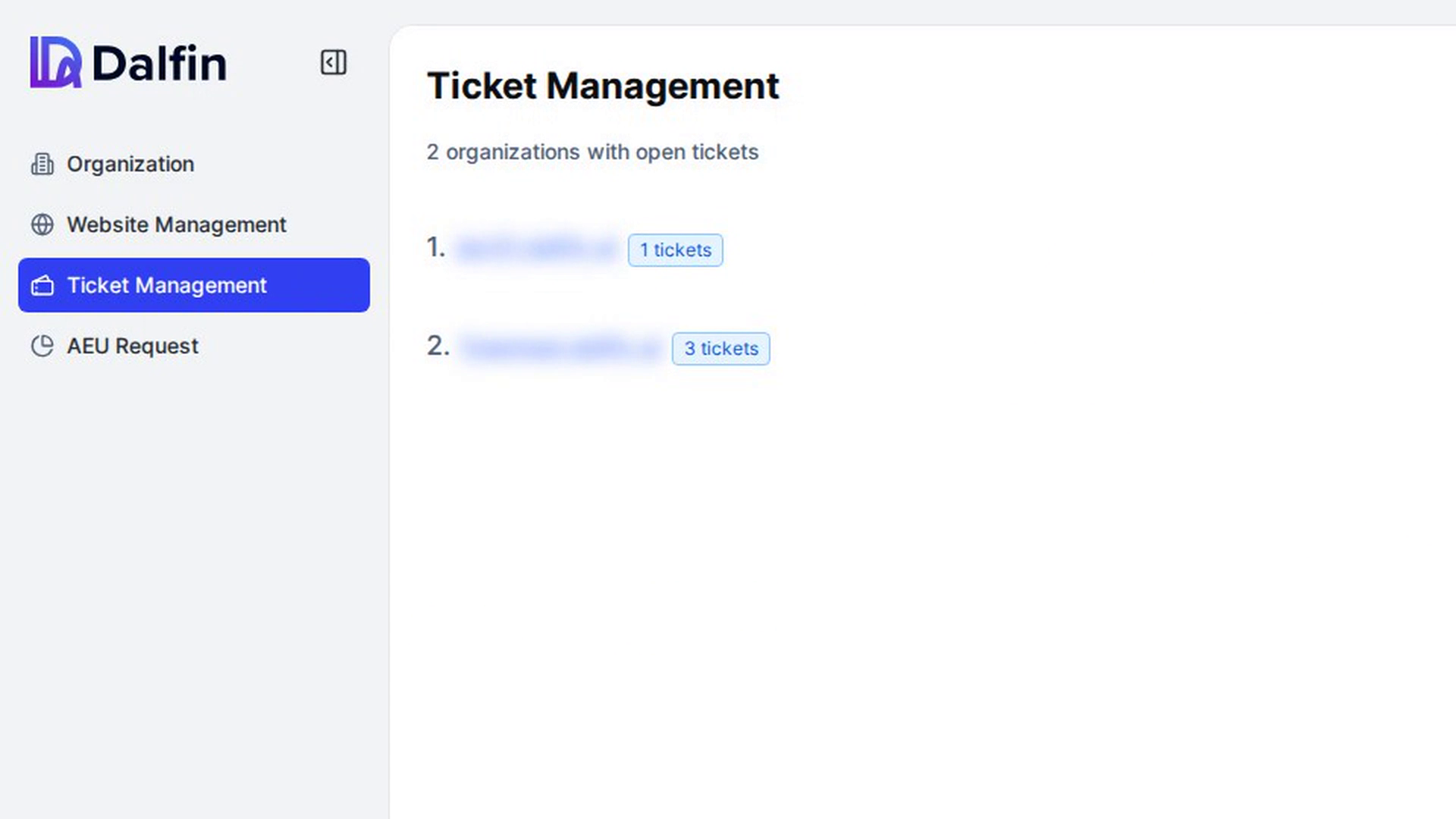
In the admin panel sidebar, select Ticket Management. At the top you see how many organizations have open tickets, for example "3 organizations with open tickets".
Below is one entry per organization, showing its domain and a tag with the number of tickets. If nothing is waiting, you see No open tickets currently!
Look at an organization's tickets
Select the arrow at the right of an organization's entry. It expands to show a card for each open ticket with:
- the ticket ID, title and priority
- the ticket's description
- Ticket Status, Assignment Status and Updated At
Select the arrow again to collapse it.
Open the help desk for an organization
Select the organization's domain. The help desk opens for that organization, where you can work on its tickets.
Screenshots
Step 1: Open Ticket Management
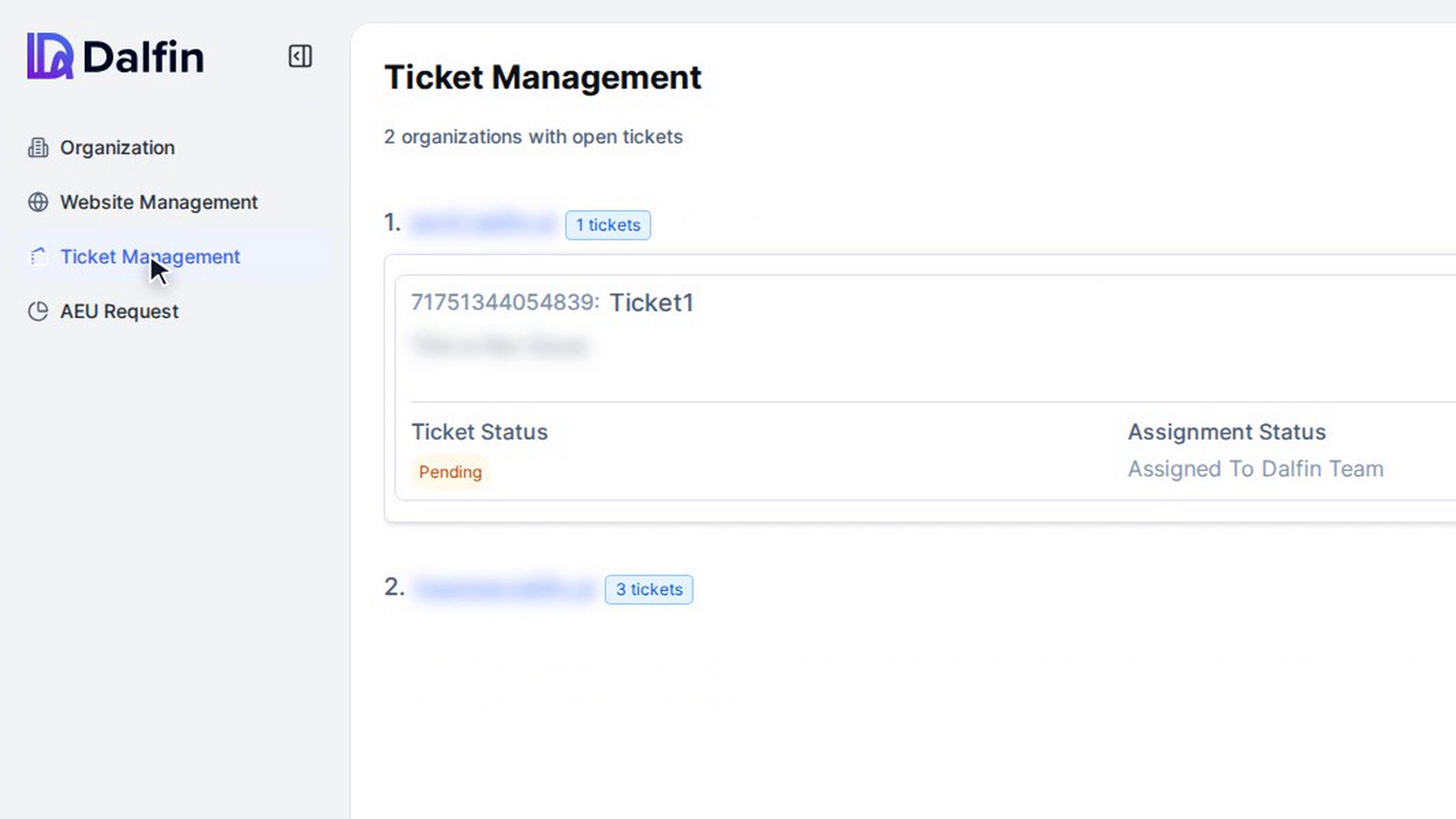
Step 2: Look at an organization's tickets
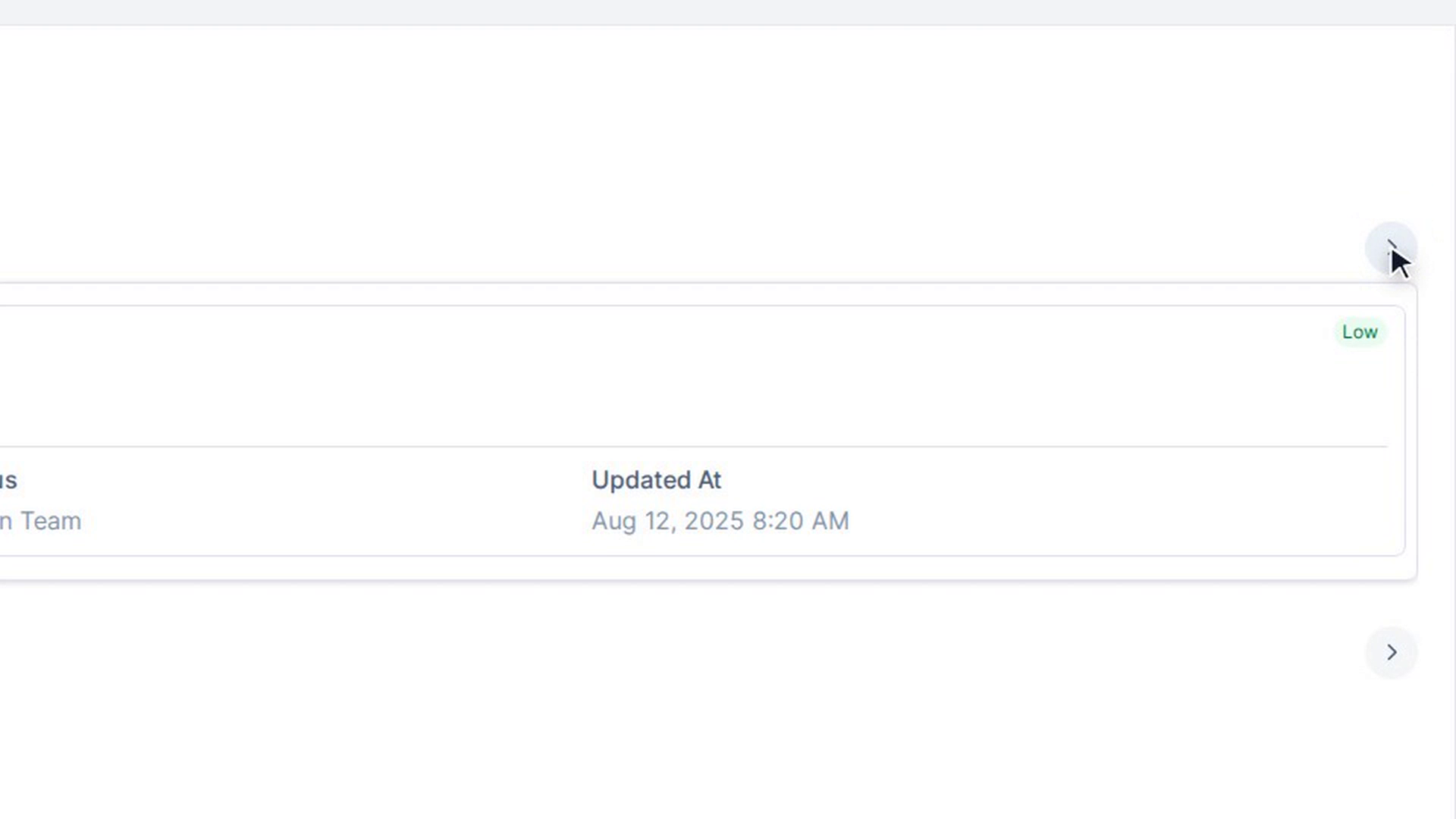
Step 3: Open the help desk for an organization