AEU transaction ledger
The transactions ledger lists every AEU purchase and every time AEU were used, with the balance after each one. Use it to check where your AEU went.
Before you start
- This is usually used by a team admin, but anyone who can see the Dalfin home can open it.
- Entries appear once you have requested AEU or generated an app.
Steps
Open the full ledger
On your Dalfin home, go to AEU Usage & Estimation. Under AEU Transaction Ledger, select View all. The Transactions Ledger page opens, with the total number of transactions next to the title.
Read the table
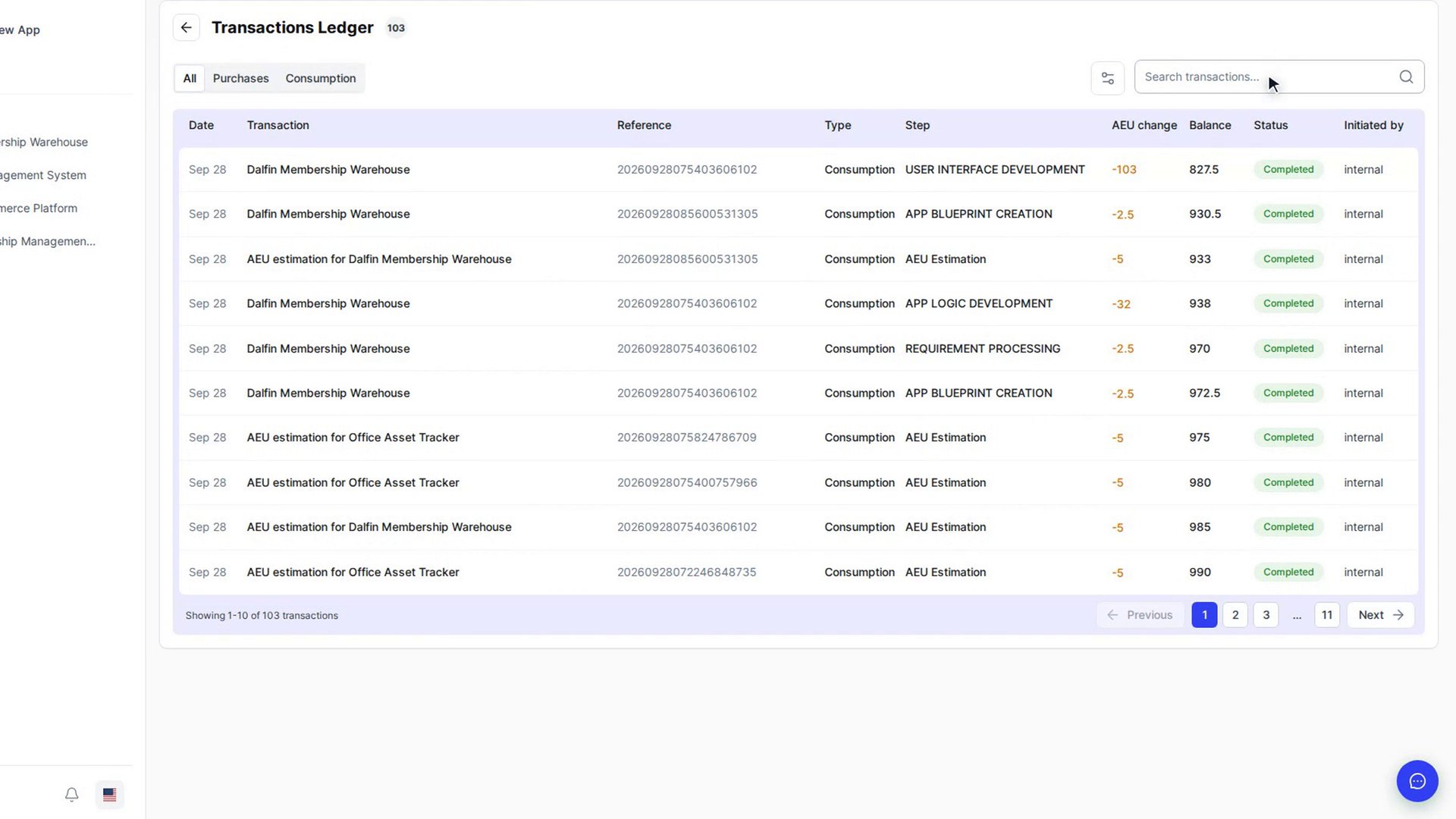
Each row shows the Date, Transaction, Reference, Type, Step, AEU change, Balance, Status and Initiated by. AEU added are shown with a plus sign and AEU used with a minus sign.
Show only purchases or only use
Select All, Purchases or Consumption above the table to switch which transactions are shown.
Filter by date
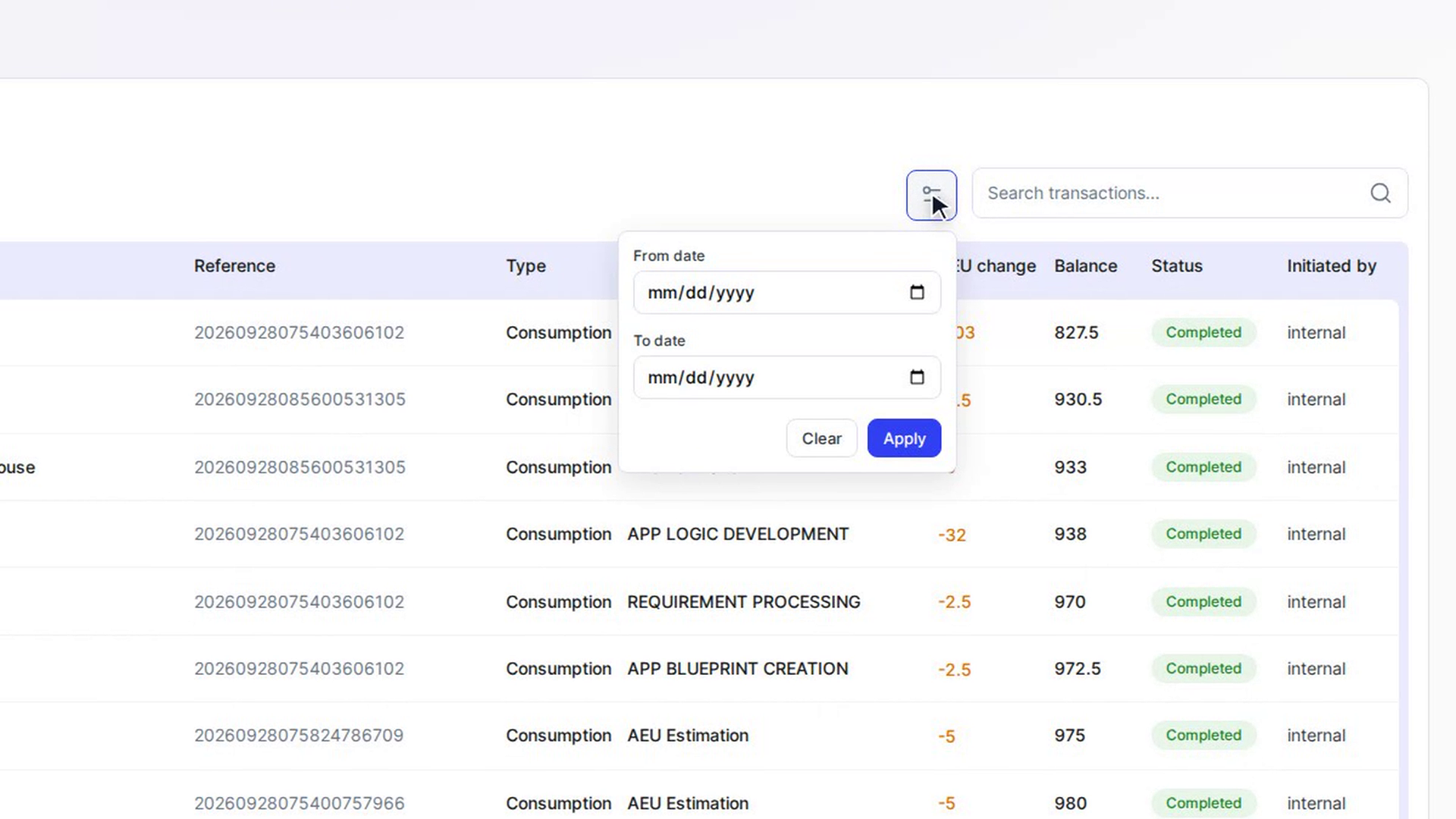
Select the calendar button (Filter by date range), pick a From date and/or a To date, then select Apply. The chosen range appears as a label next to the button; select the x on it, or Clear in the filter, to remove it.
Search
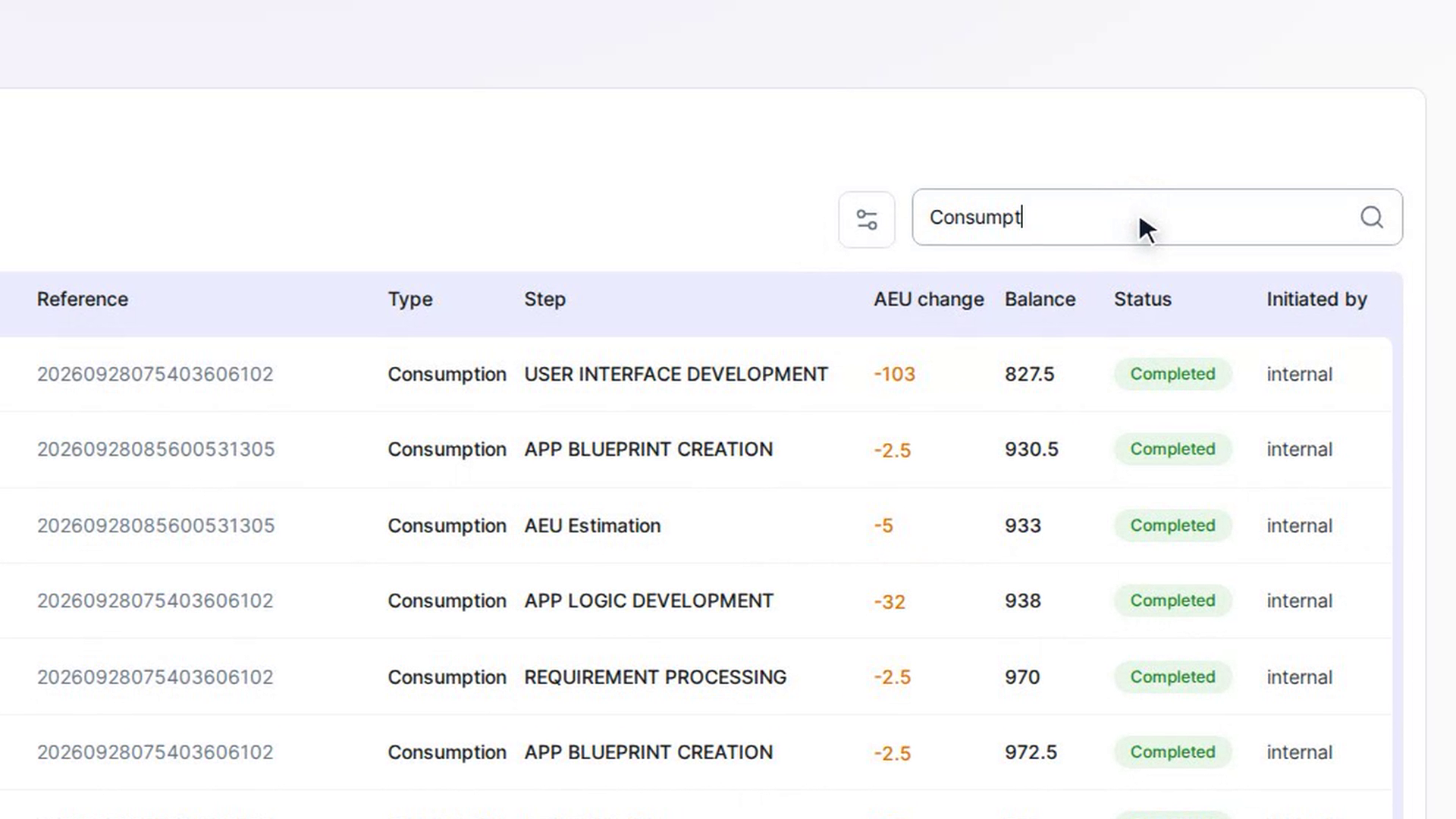
Type in Search transactions.... The list updates as you type.
Move between pages
The ledger shows 10 transactions per page. Use Previous, Next or a page number at the bottom. The text on the left tells you which transactions you are viewing, for example "Showing 1-10 of 42 transactions".
Go back
Select the back arrow next to Transactions Ledger to return to the Dalfin home.
Screenshots
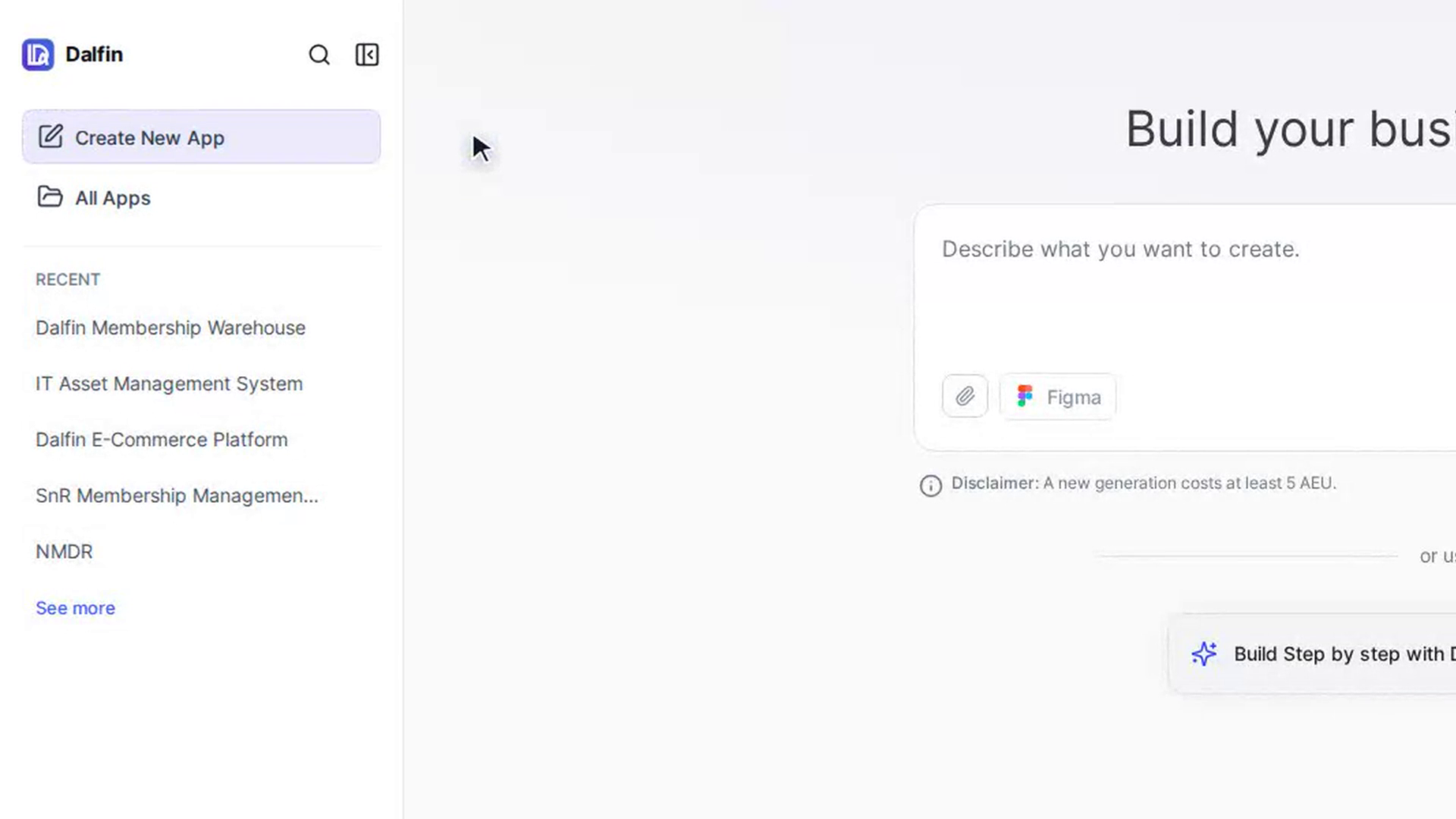
Step 1: Open the full ledger
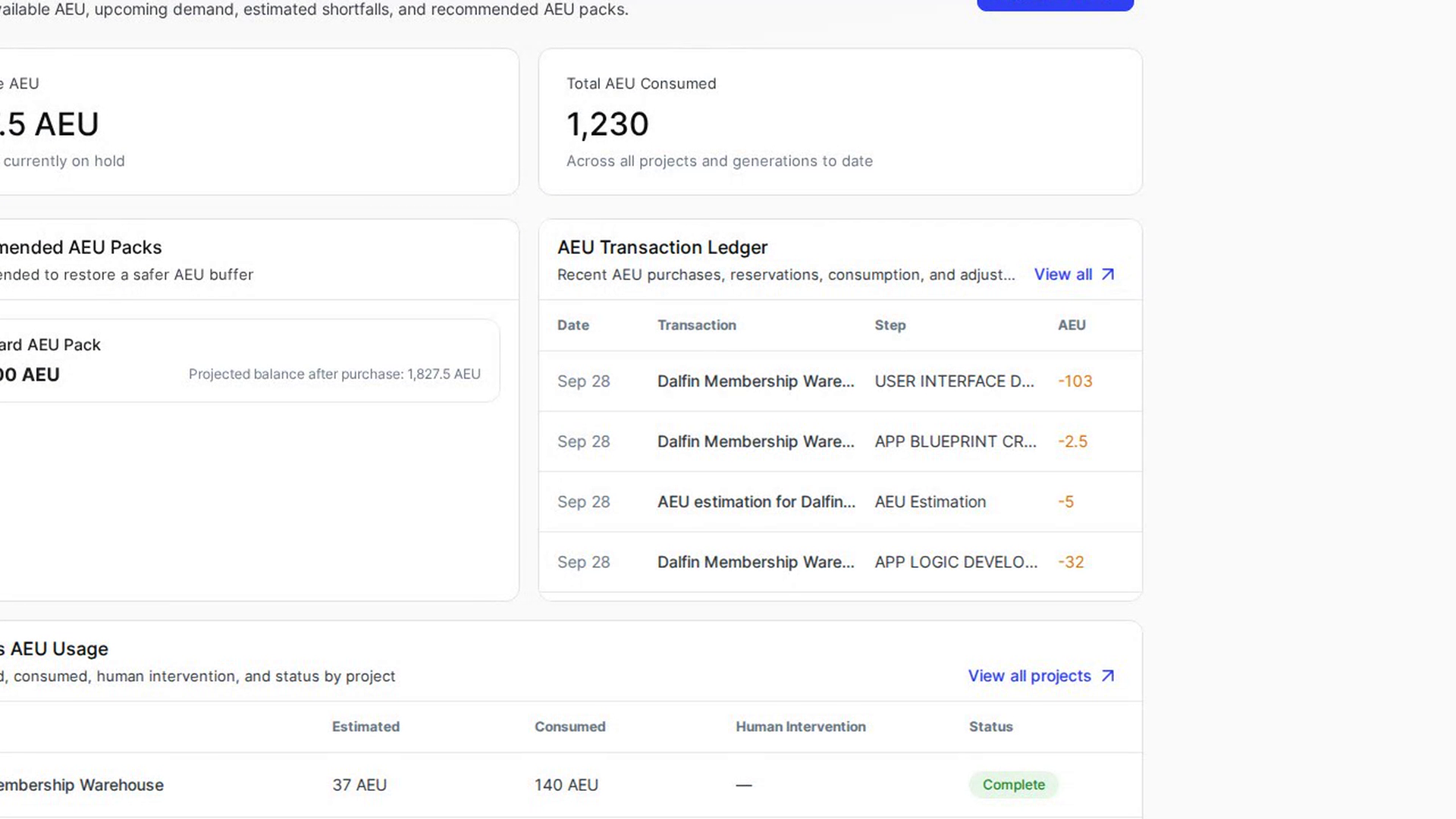
Step 2: Read the table
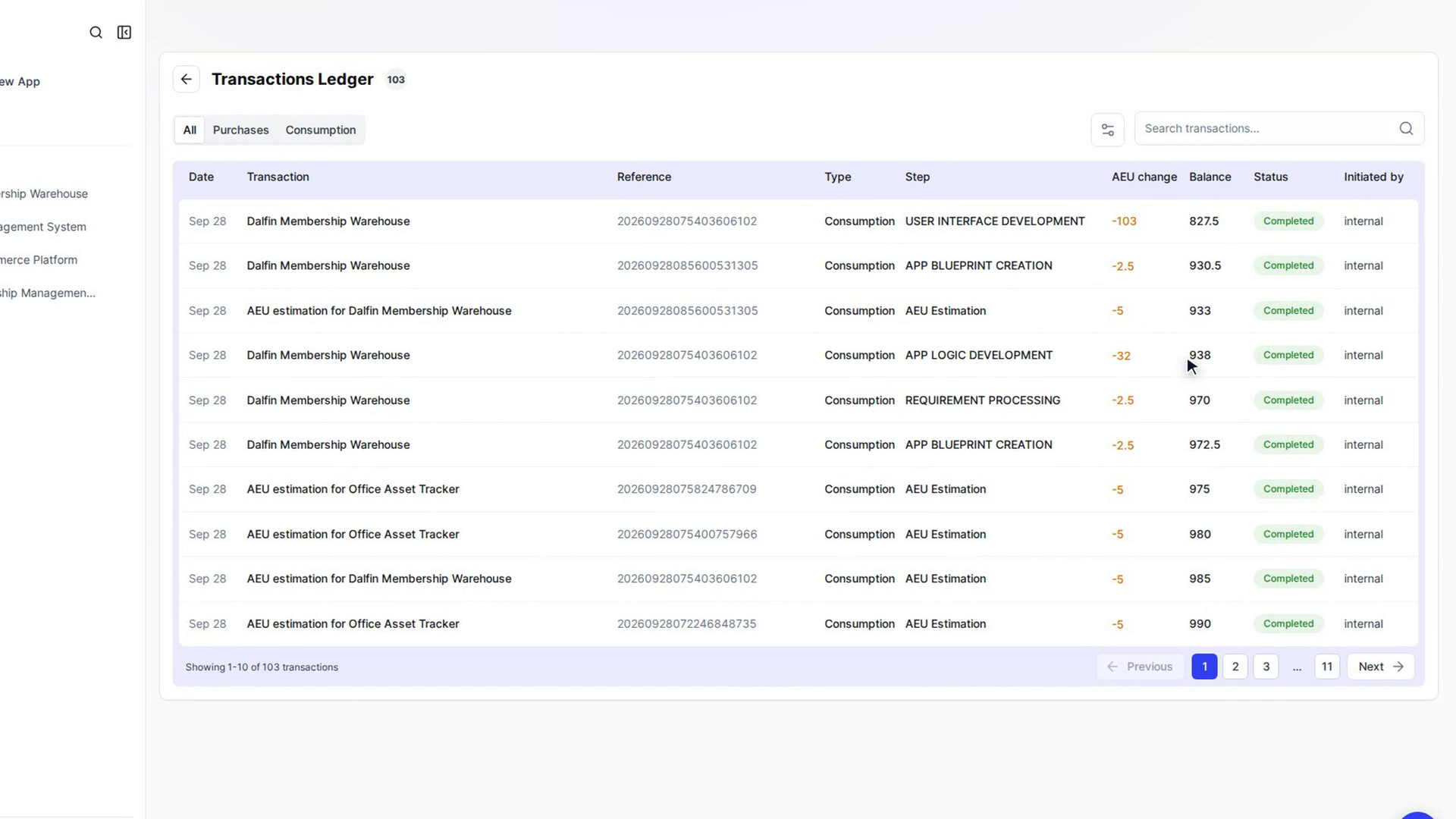
Step 3: Show only purchases or only use
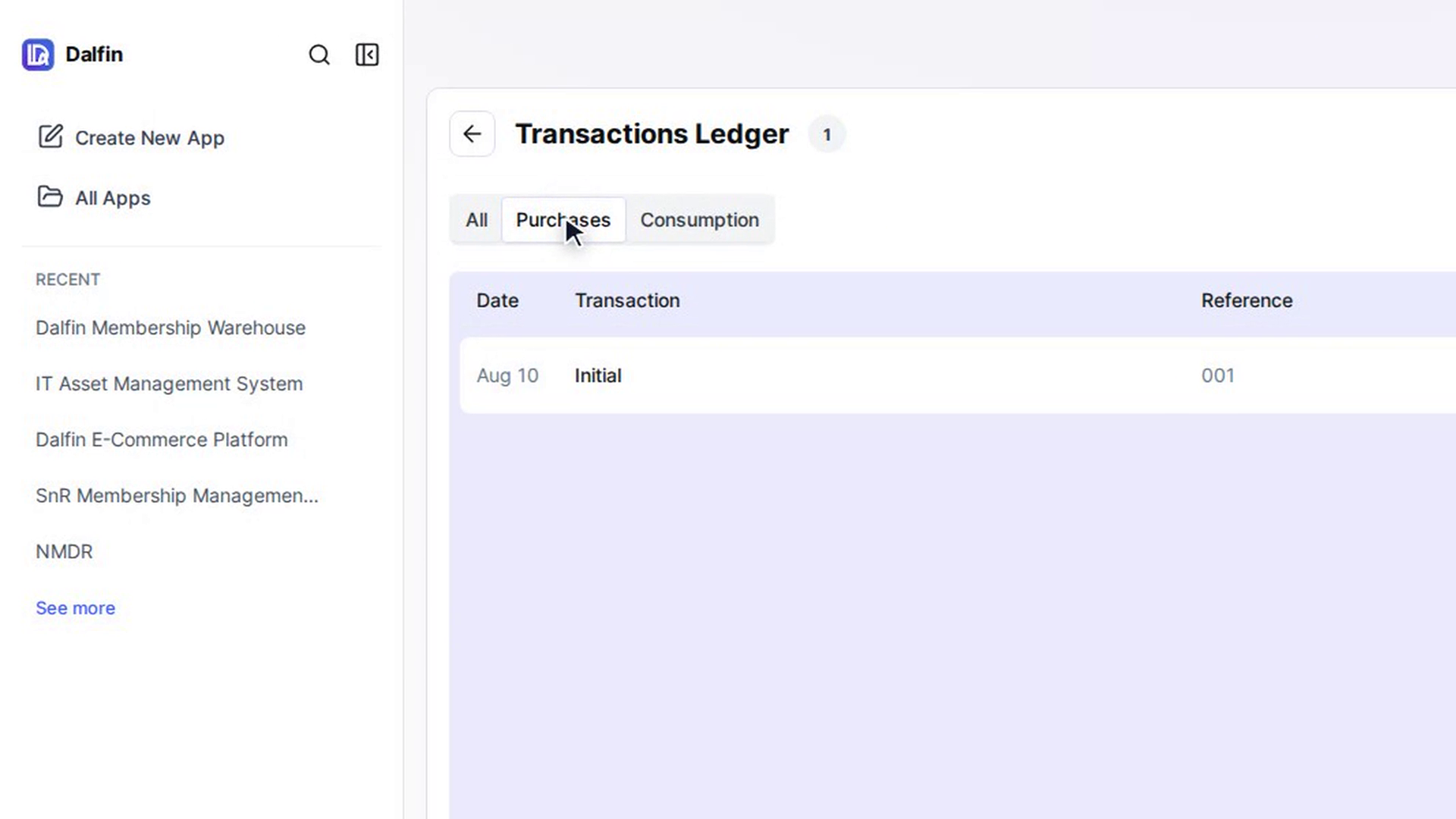
Step 4: Filter by date
Step 5: Search
Step 6: Move between pages
Step 7: Go back