App backend
The App Backend view shows your app's backend service right inside the app workspace. Use it to check that the backend of your app is up and responding after a build.
Before you start
- This page is for team admins and developers. There is no extra role check on the view.
- The deployment's Application Build step must have finished. Until then the view shows Build not completed.
Steps
Open your app
Open the app from All Apps. The app workspace opens with its tabs along the top.
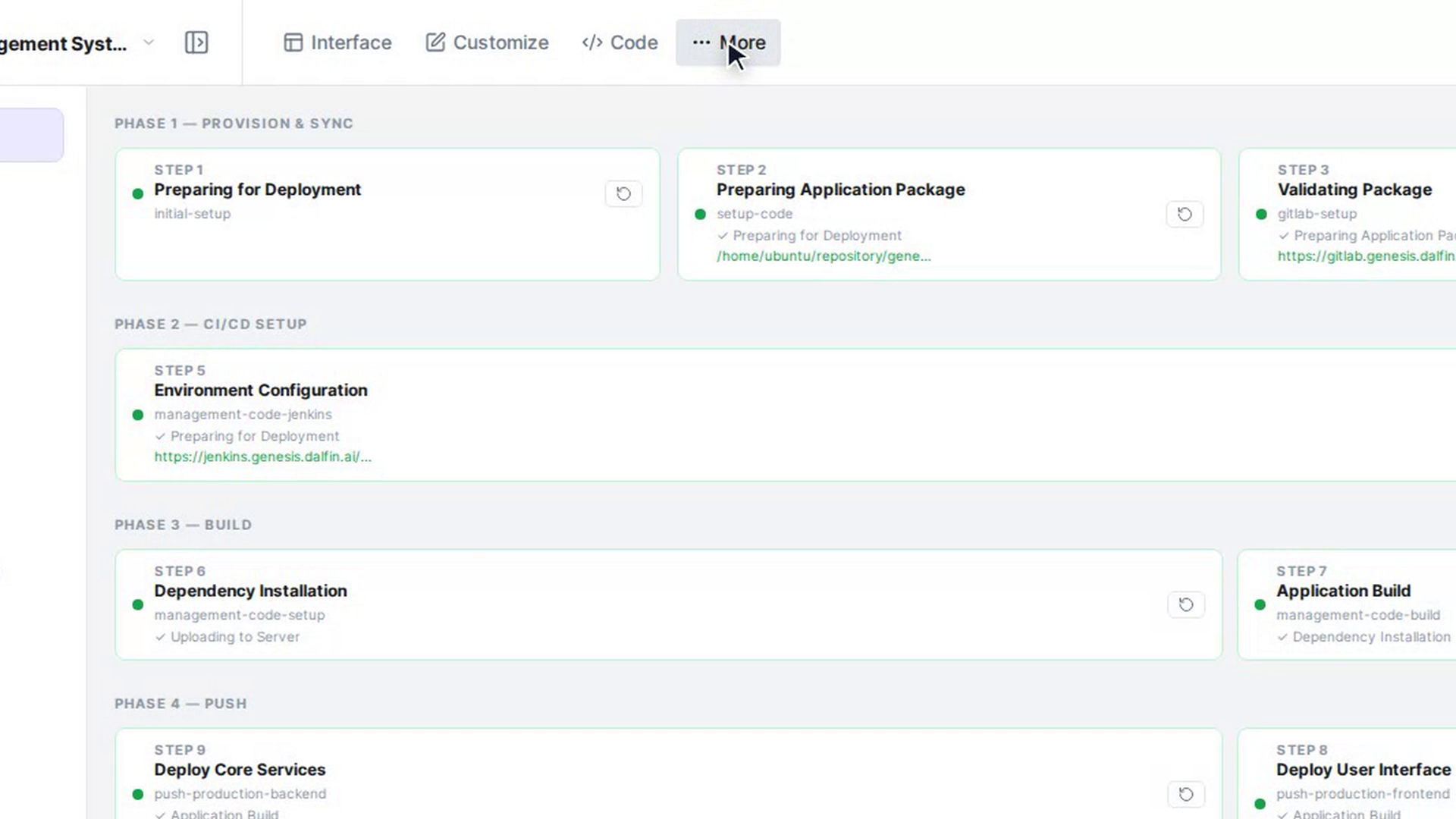
Go to More
Select More in the top bar. The Deploy view opens, with a list of the other views down the left side.
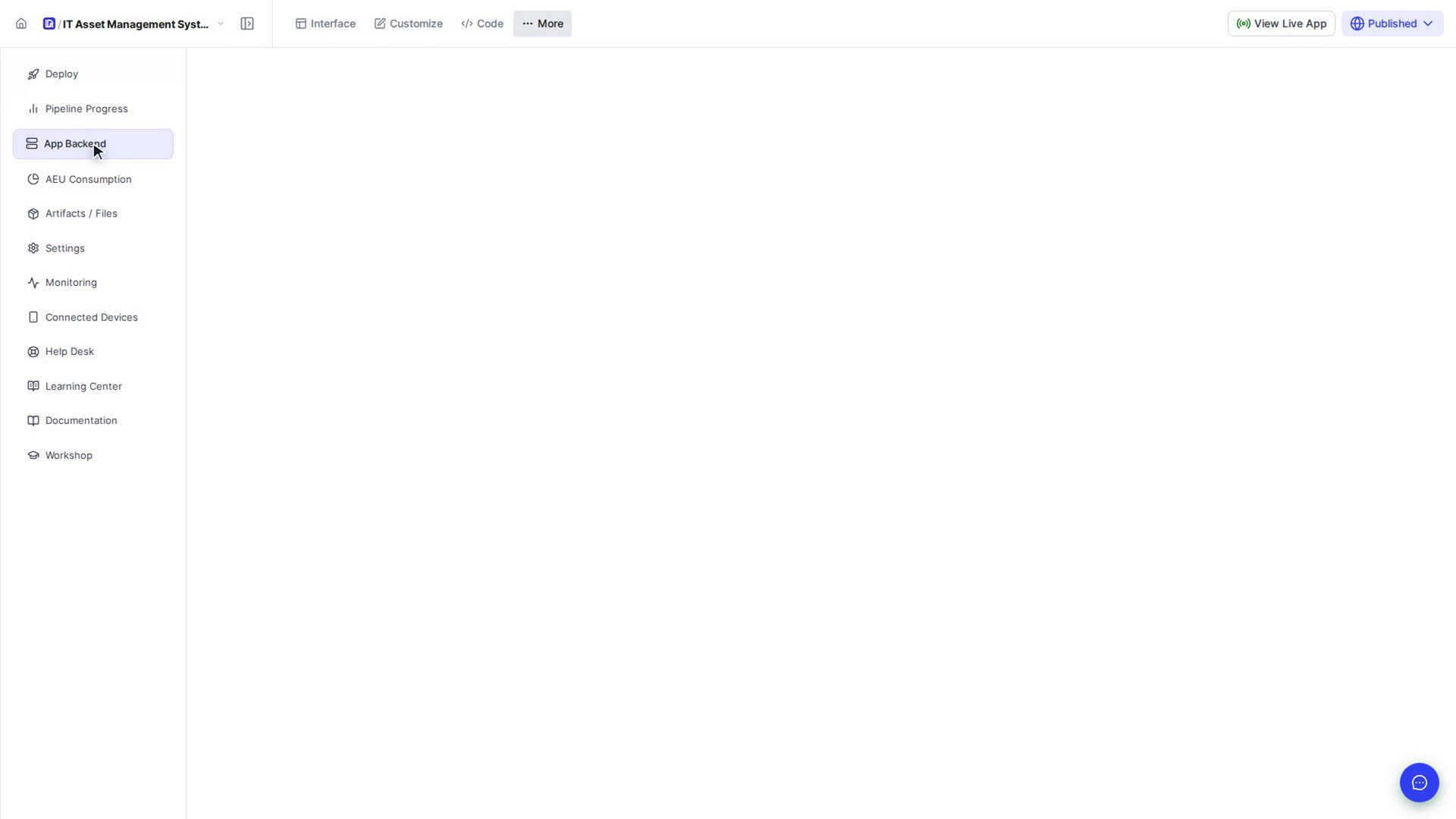
Select App Backend
Select App Backend in that list. The API documentation for your app's backend loads in the panel: every endpoint your app provides.
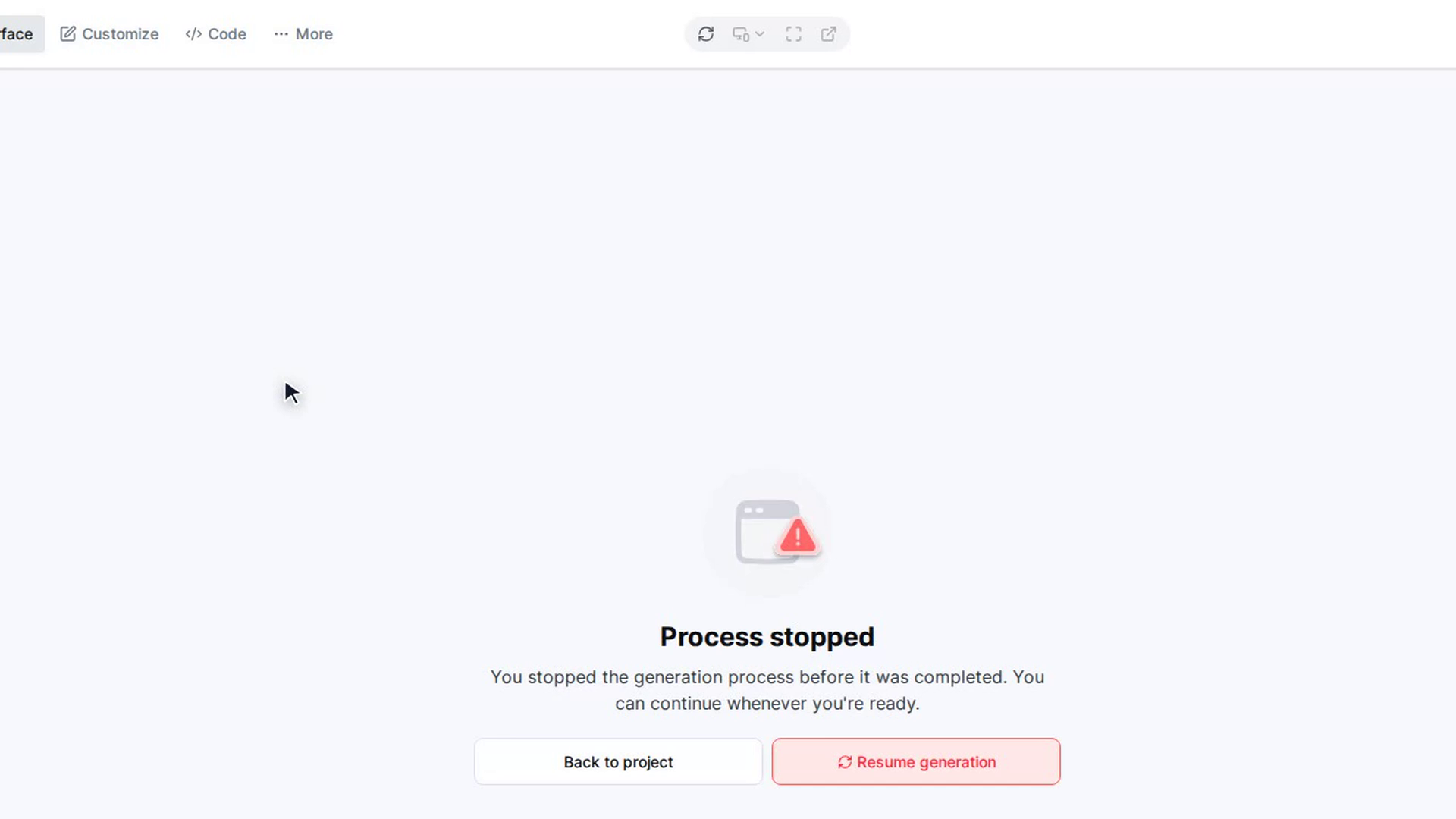
If the build has not finished, you see Build not completed with the message that App Backend will be available once the build finishes. If a deployment is still running, you see Deploying… and a button that takes you back to Deploy.
Screenshots
Step 1: Open your app
Step 2: Go to More
Step 3: Select App Backend