Style elements
Change how any button, text, card or other element on a page looks, and give it different styles on desktop, tablet and mobile screens.
For more detail, see Select elements and use the selection chip, Change element properties (Basic tab) and Style elements in detail (Advance tab).
Before you start
- You need to be a team admin who can open your app's Customize tab.
- Your app must have finished building, and the page you want to change must be open in the editor.
Steps
Select the element
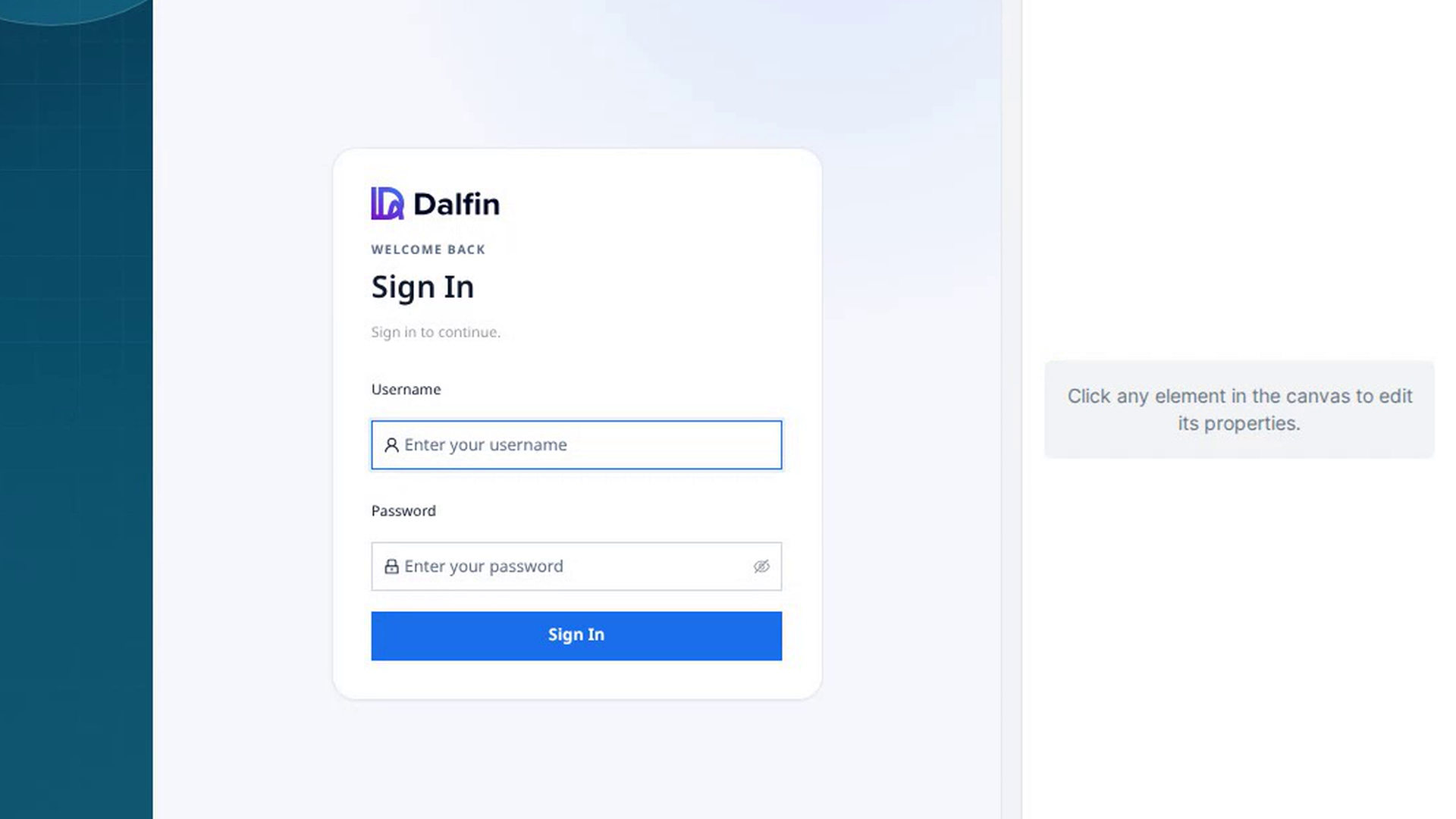
On the canvas, click the element you want to change. The Design tab on the right panel opens and shows the element's name at the top. If nothing is selected, the panel says Click any element in the canvas to edit its properties.
To let go of the element, click the Deselect button (the ✕) next to its name.
Choose the screen size you are styling
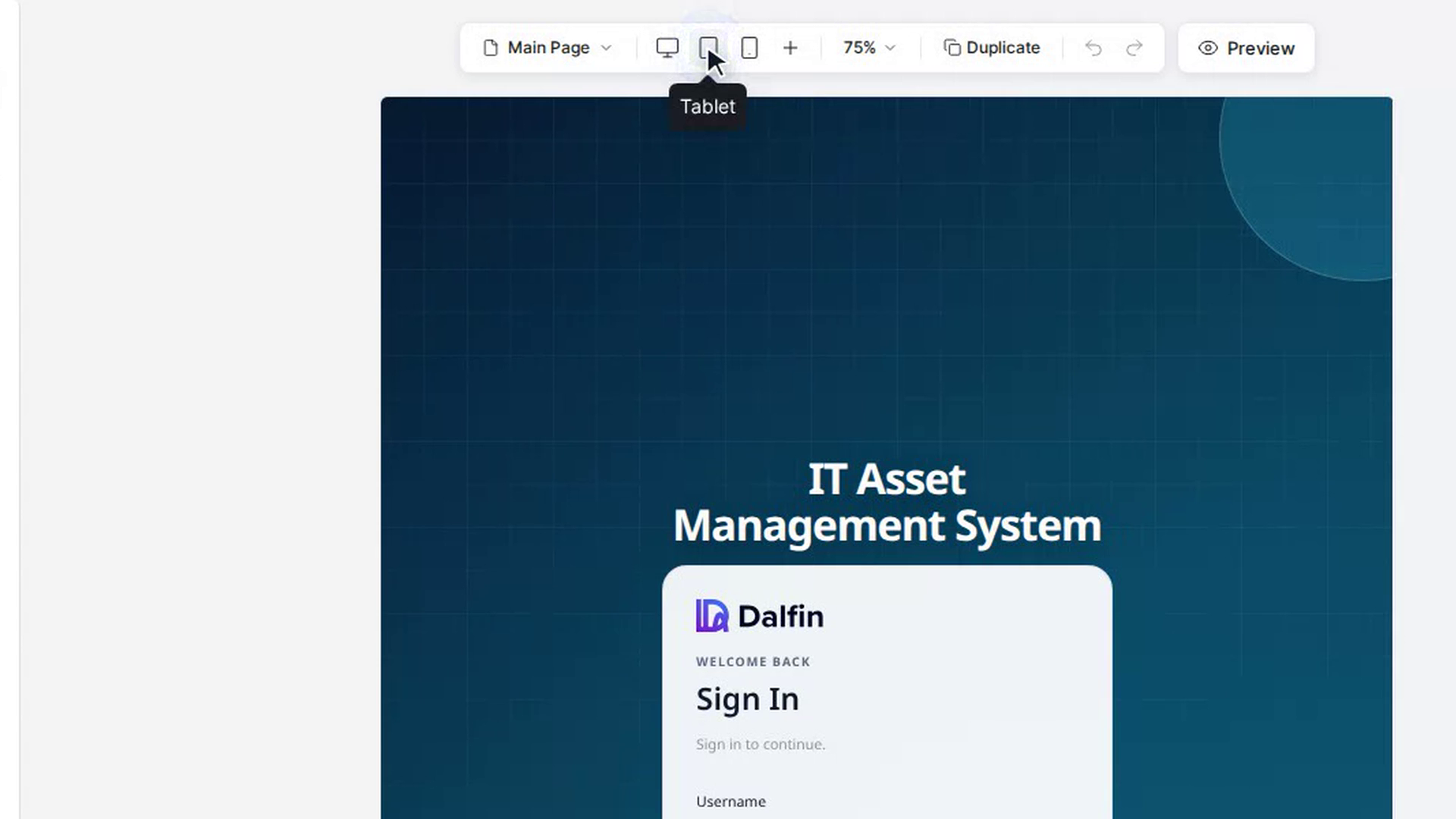
In the bar above the canvas, pick Desktop, Tablet or Mobile. For more sizes, click More breakpoints (the +) and choose Extra large, Large or Small. The canvas narrows to that width.
On any size other than desktop, a blue note at the top of the panel shows which width you are editing, for example Tablet · ≤991px. Changes you make apply at that width and narrower, and override the wider screens.
Change the basic settings
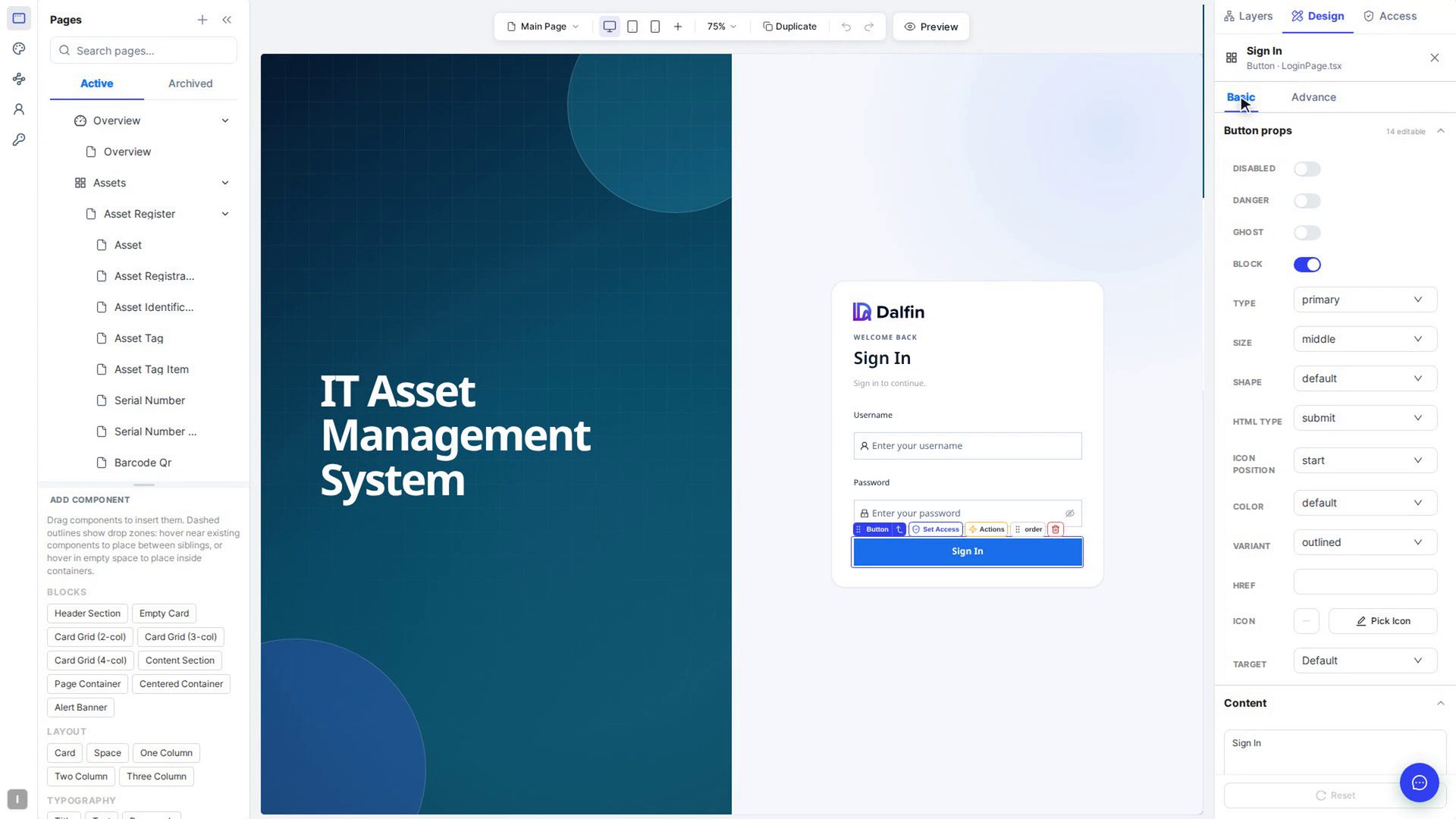
Open the Basic tab. Depending on the element, you'll see sections such as:
- Content: the element's text, label, placeholder or title.
- A section named after the element, for example Button props: options for that kind of element, such as a button's size or type. The header shows how many settings you can edit.
- Form field: the field type and whether it is required (form fields only).
- Surface connection: which pop-up or panel a button opens (buttons only).
The canvas updates as soon as you change a value.
Change the detailed styles
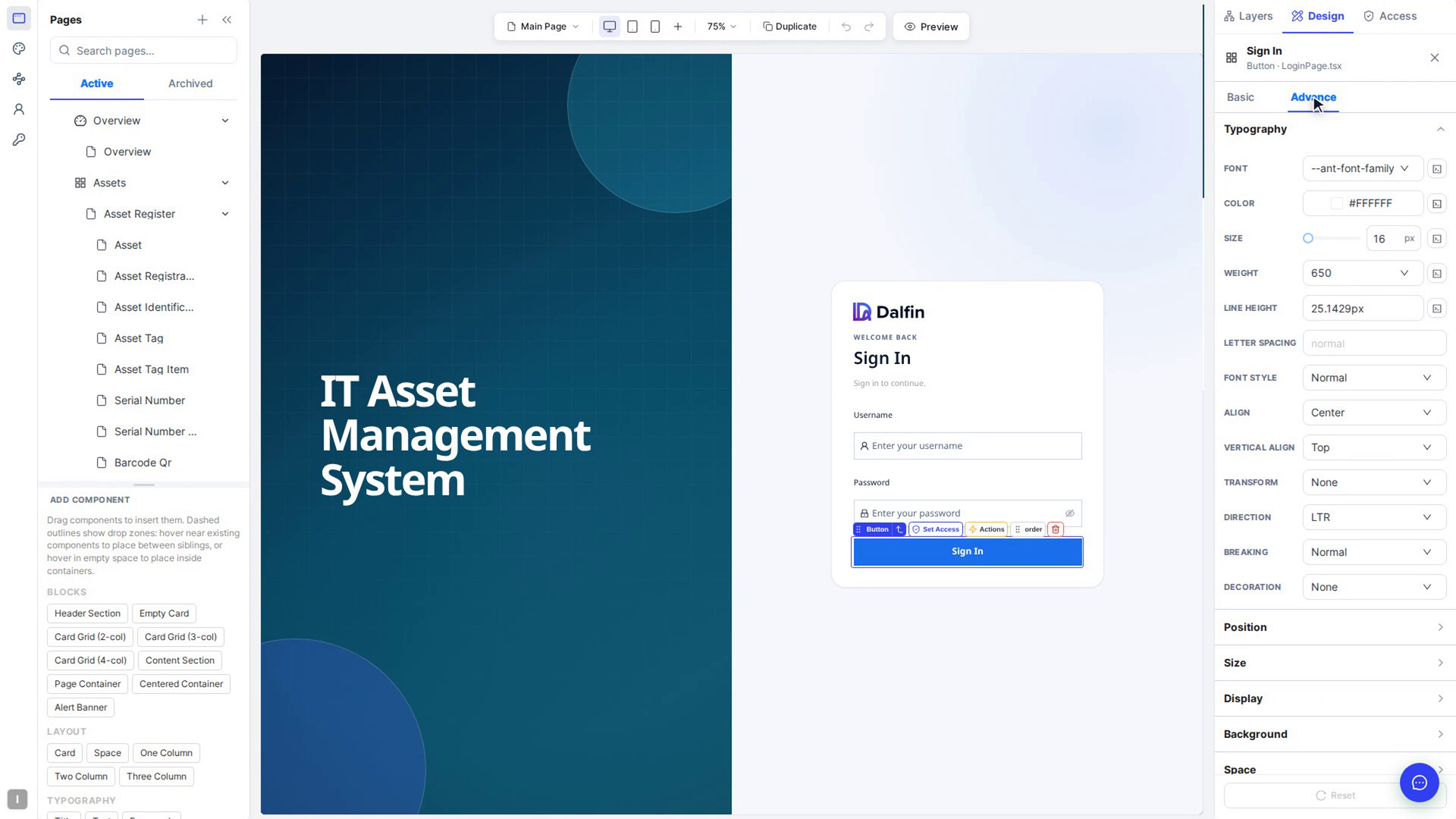
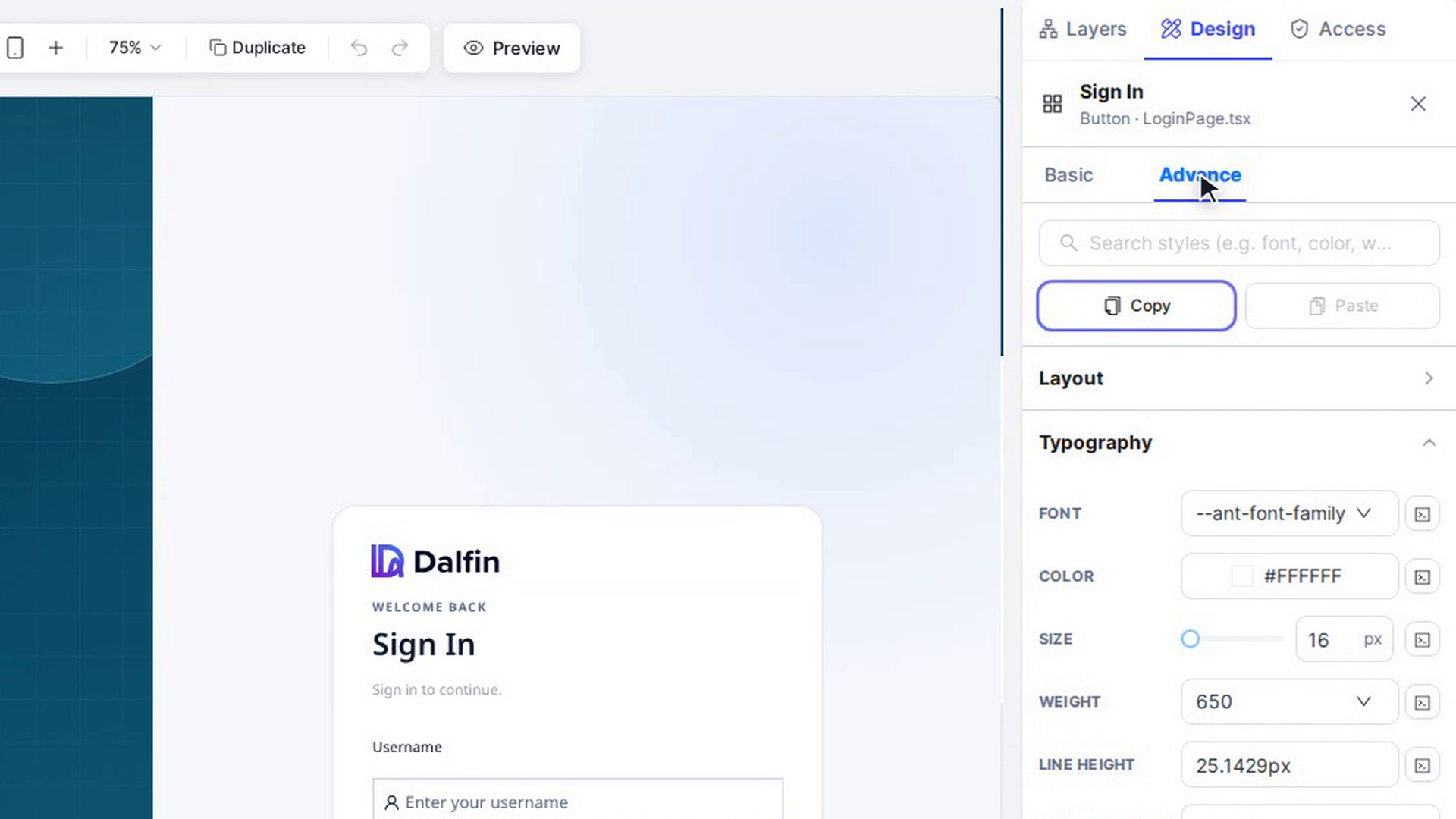
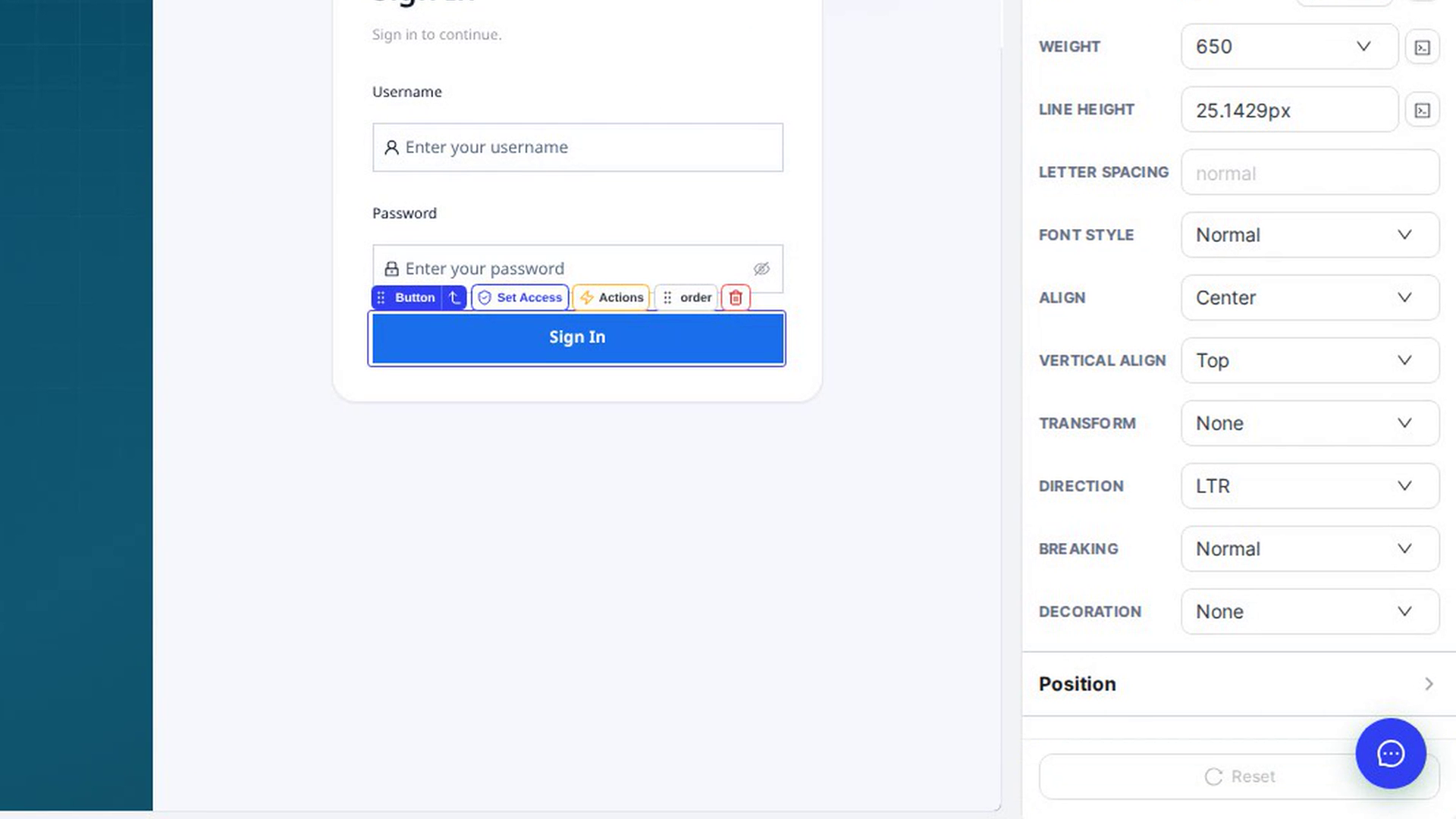
Open the Advance tab. Styles are grouped into sections you can expand: Typography (font, color, size, weight, line height, alignment and more), Position, Size, Display, Background, Space, Borders, Shadows and Effects. Some elements also have a Layout section.
To find a setting quickly, type in Search styles (e.g. font, color, weight)…. Only the matching sections stay open.
Copy styles to another element (optional)
On the Advance tab, click Copy to copy all the styles of the selected element. Select a different element and click Paste to give it the same look.
Undo changes if you need to
Click Reset at the bottom of the panel to undo your changes to this element on the tab that's open. Reset on Basic only affects basic settings, and Reset on Advance only affects styles.
Screenshots
Step 1: Select the element
Step 2: Choose the screen size you are styling
Step 3: Change the basic settings
Step 4: Change the detailed styles
Step 5: Copy styles to another element
Step 6: Undo changes if you need to
Watch how
Tip: Style the Desktop view first. Smaller screens follow it automatically, so you only need to change the things that should look different on tablet or mobile.
Your style changes save on their own as you make them. There's no separate save button on the Design tab.