Follow the build: Pipeline Progress
While Dalfin builds your app, you can watch each of the six build stages as it runs, see how long it took, and retry a stage if something goes wrong.
Before you start
- Anyone who can open the app can follow its build.
- You need an app whose generation has started (after you selected Start Generation on the estimate).
Steps
Watch the build from the Interface tab
Right after the build starts, the Interface tab shows Generating app and some tips to read while you wait. You don't have to keep the screen open: the build carries on without you.
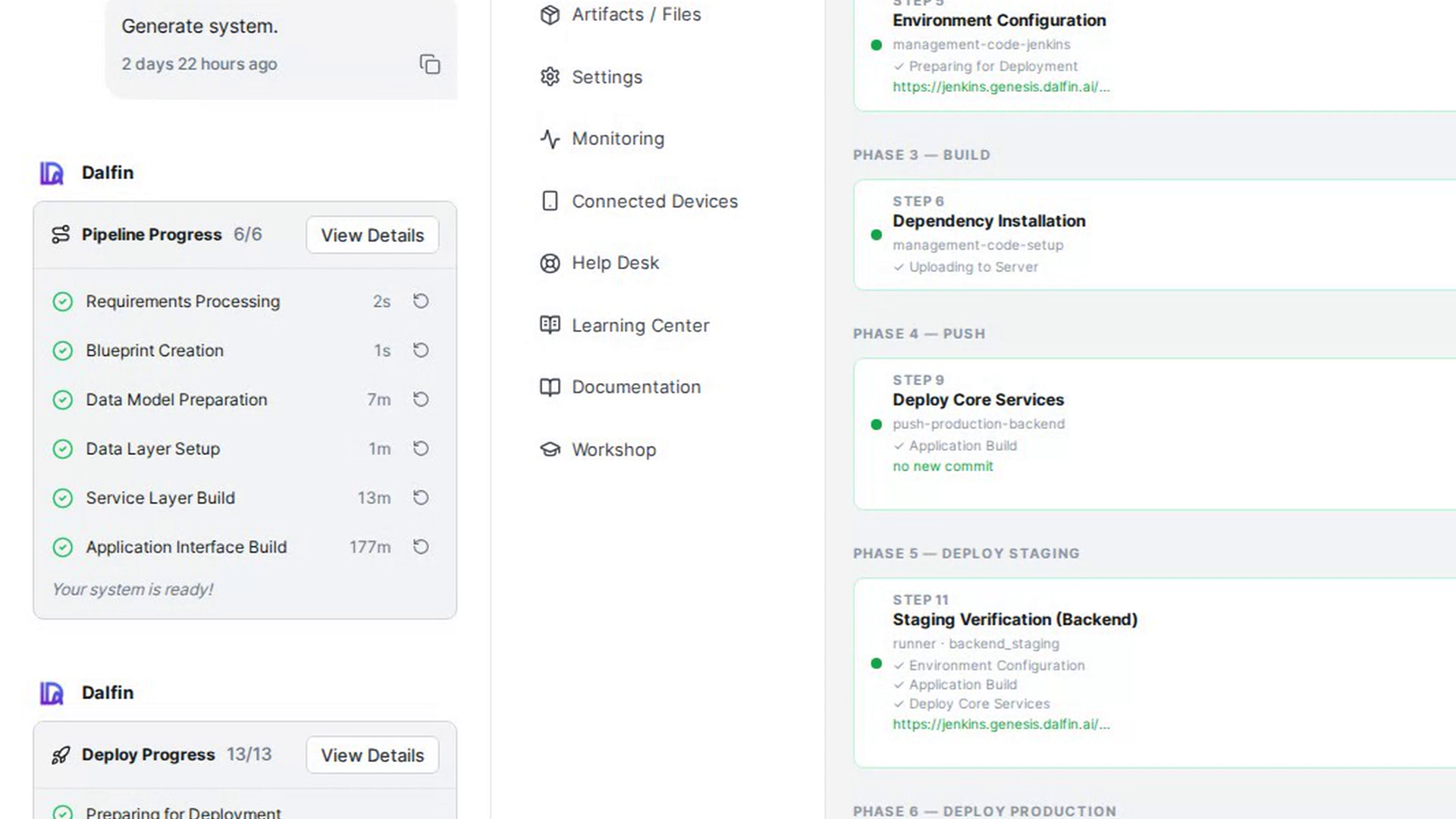
Follow the stages in the chat panel
The chat panel on the left shows a Pipeline Progress card with a count of finished stages (for example 3/6). Each stage gets a green tick when it is done, a spinner while it runs and a red cross if it fails, with the time it took next to it. If the chat panel is hidden, select Show chat.
The six stages, in order, are:
- Requirements Processing
- Blueprint Creation
- Data Model Preparation
- Data Layer Setup
- Service Layer Build
- Application Interface Build
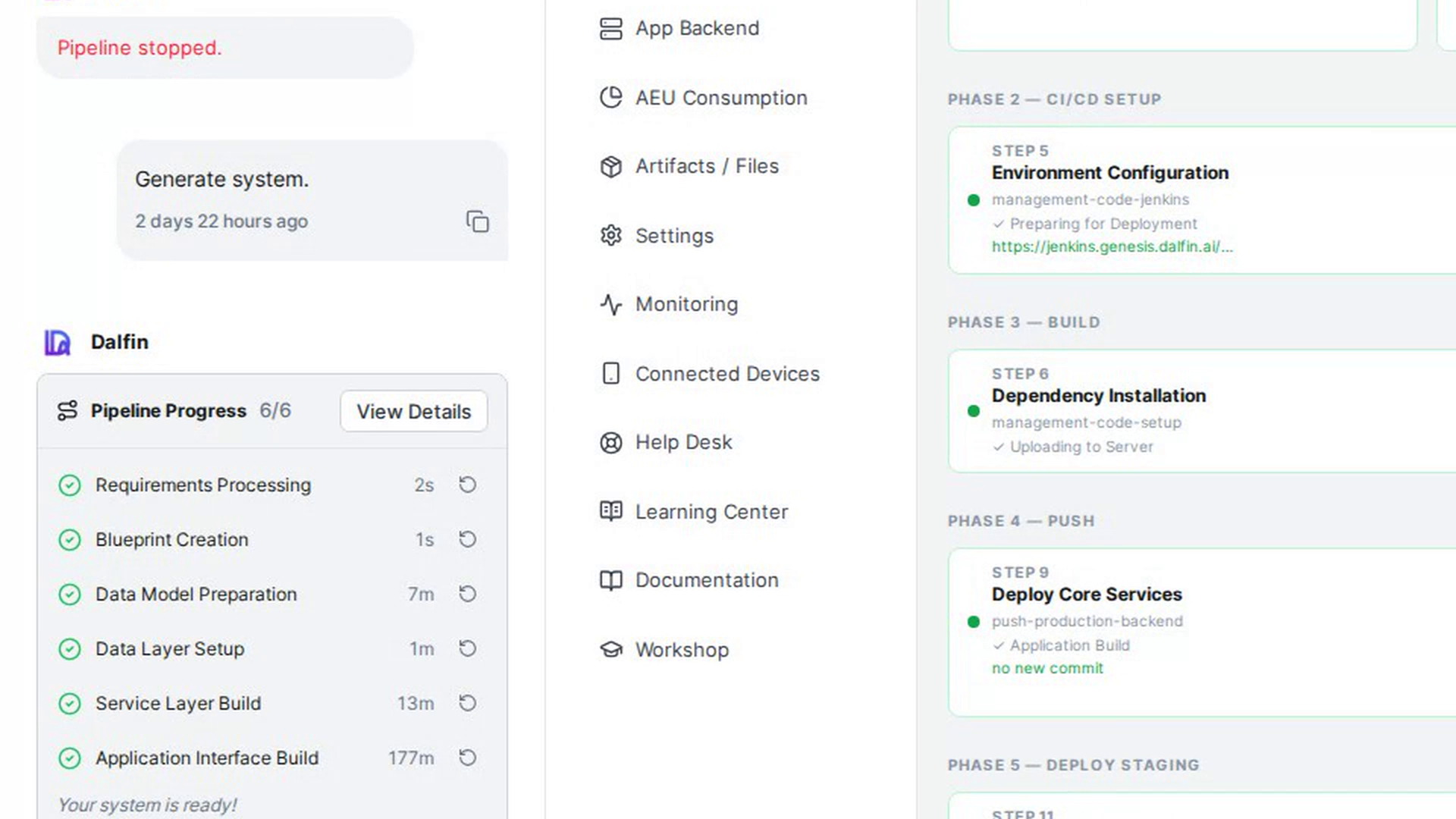
Open the detailed view
Select View Details on the Pipeline Progress card, or open More and choose Pipeline Progress. Each stage appears as a card with its step number, a percentage, and Active Processing while it runs. A banner at the top shows Running — X/6 steps complete and, when everything has finished, Pipeline complete.
Stop the build (optional)
While the build runs, select ■ Stop in the banner, then Yes, stop to confirm. The stage that is running is interrupted, but work already completed is kept. The chat then shows Process stopped. Select Resume generation to continue from where it left off.
Retry a stage that failed
If a stage fails, the Interface tab shows Unable to complete the step (or Almost there, one step needs attention if only the last stage failed). Select Retry this step to run it again, or Contact Support to email the support team. You can also select Retry under Something went wrong in the chat.
Re-run from an earlier stage
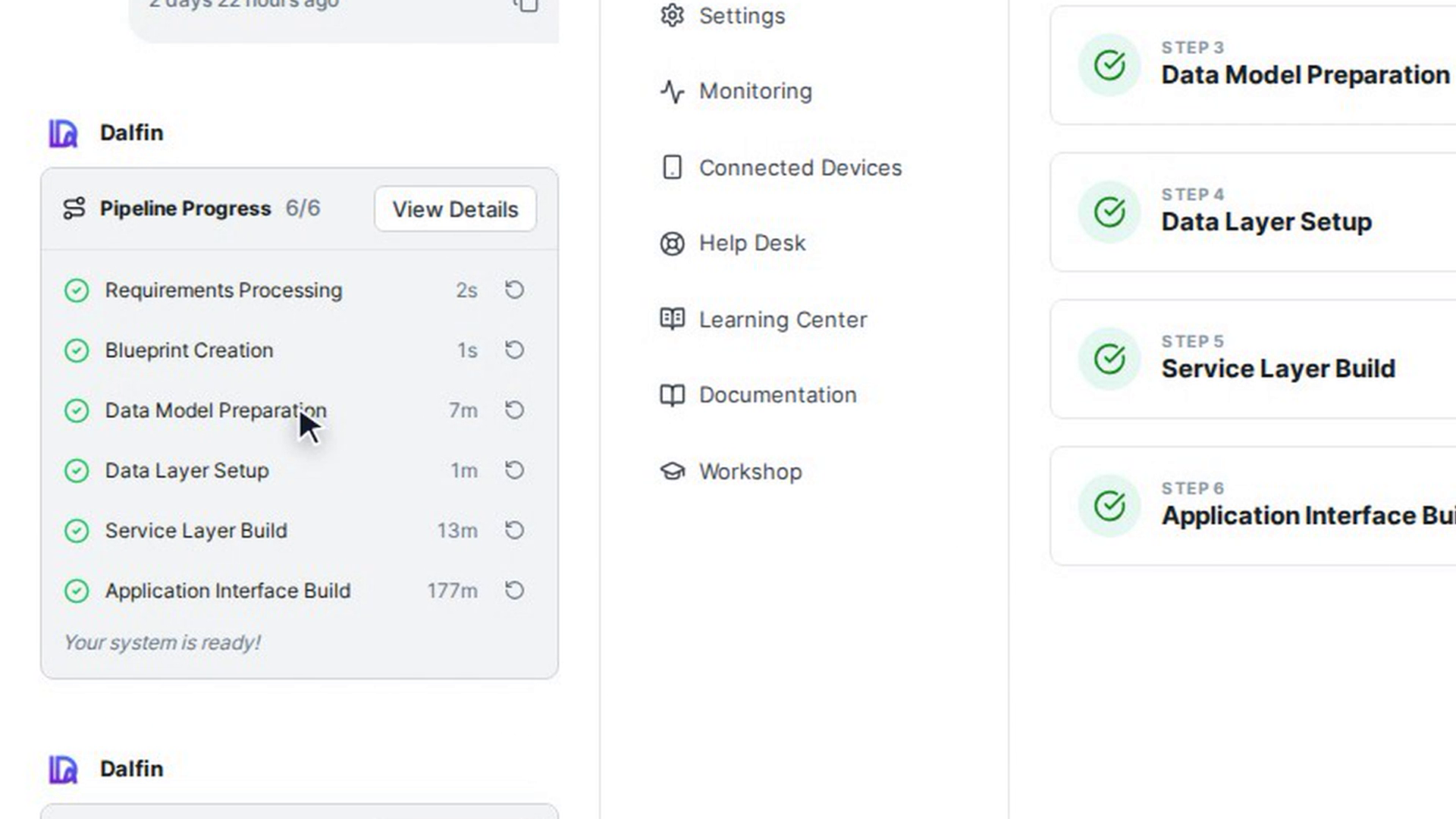
In the Pipeline Progress card in the chat panel, each finished or failed stage shows a circular arrow button at the end of its row whenever no build is running. Select it (Retry from this step or Re-run from "…"). If the stage had already finished, a dialog explains that everything generated after it will be discarded. Select Re-run to confirm or Cancel to keep things as they are.
Screenshots
Step 1: Follow the stages in the chat panel
Step 2: Open the detailed view
Step 3: Re-run from an earlier stage
Watch how
Tip: When all six stages are done, the Pipeline Progress card ends with Your system is ready! and the chat shows Your application is ready. with an Open in Editor → button. From there, you can preview and publish your app.
Re-running a stage that has already finished discards everything generated after it, and the app is rebuilt from that stage onwards. Retrying or re-running a stage doesn't use extra AEU.