Manage your apps (All Apps)
All Apps lists every app you have created, so you can find one quickly, mark your favourites, share a live app, rename it or delete it.
Before you start
- Anyone who builds apps can use All Apps; you see the apps in your own workspace.
- If you have not created an app yet, the page shows No apps yet with a Create New App button instead of a list.
Steps
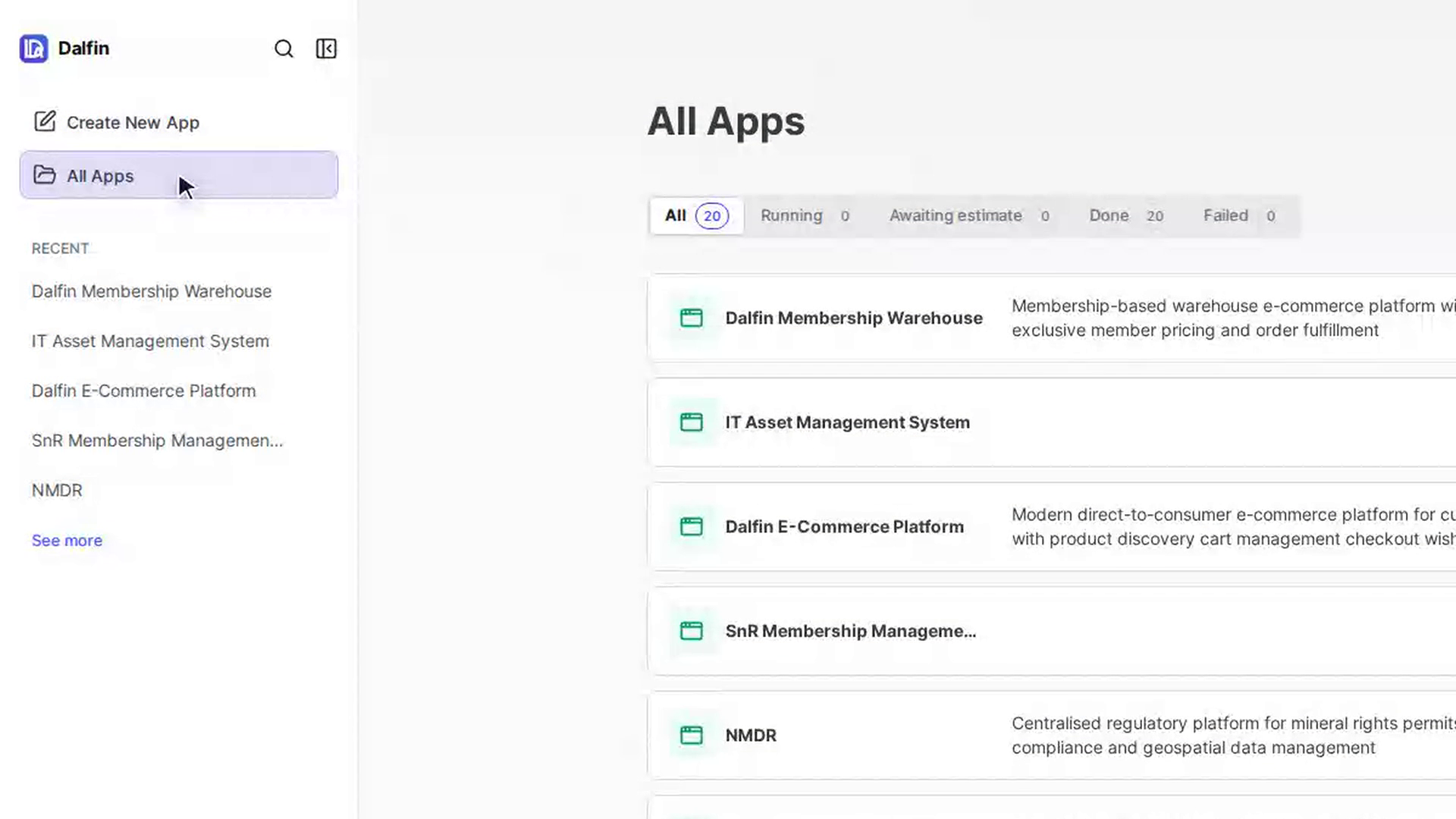
Open All Apps
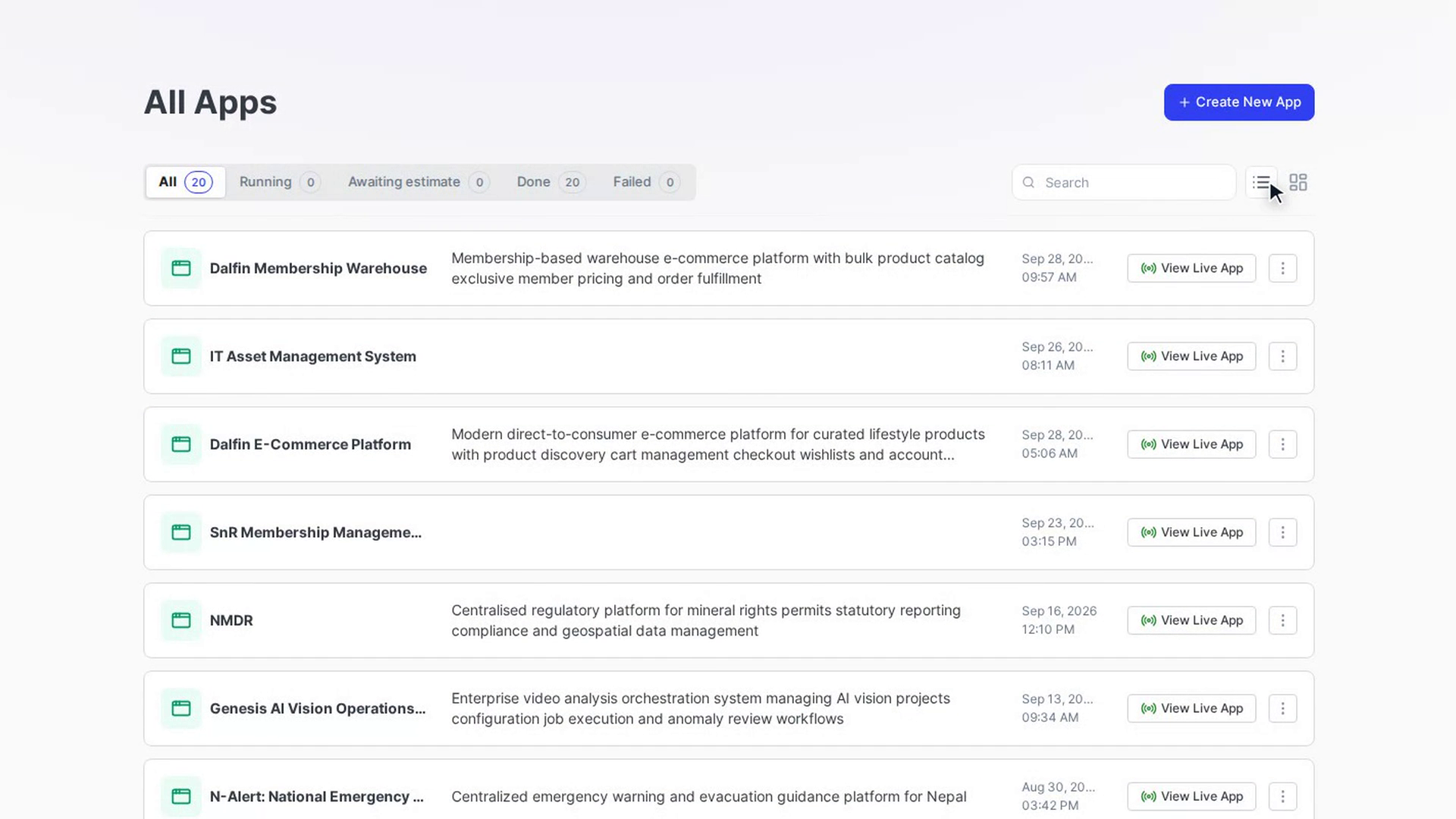
In the left sidebar, select All Apps. The page opens with the title All Apps and a list of your apps, newest first. Each app shows its name, description and the date and time it was last built.
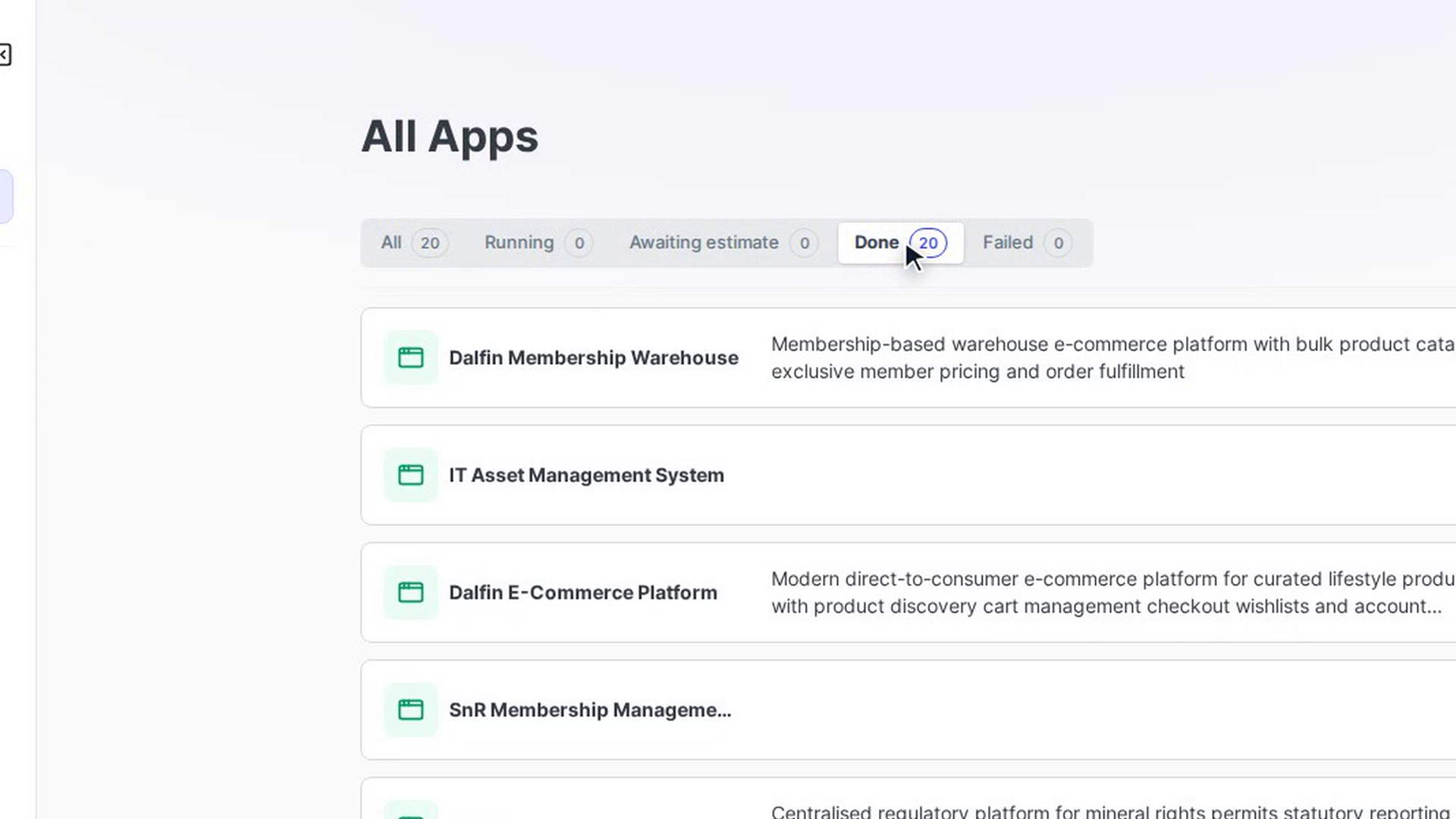
Filter by status
Use the tabs above the list to narrow it down: All, Running, Awaiting estimate, Done and Failed. The number next to each tab shows how many apps are in it. If a tab has nothing in it you see a message such as No running apps or No failed apps.
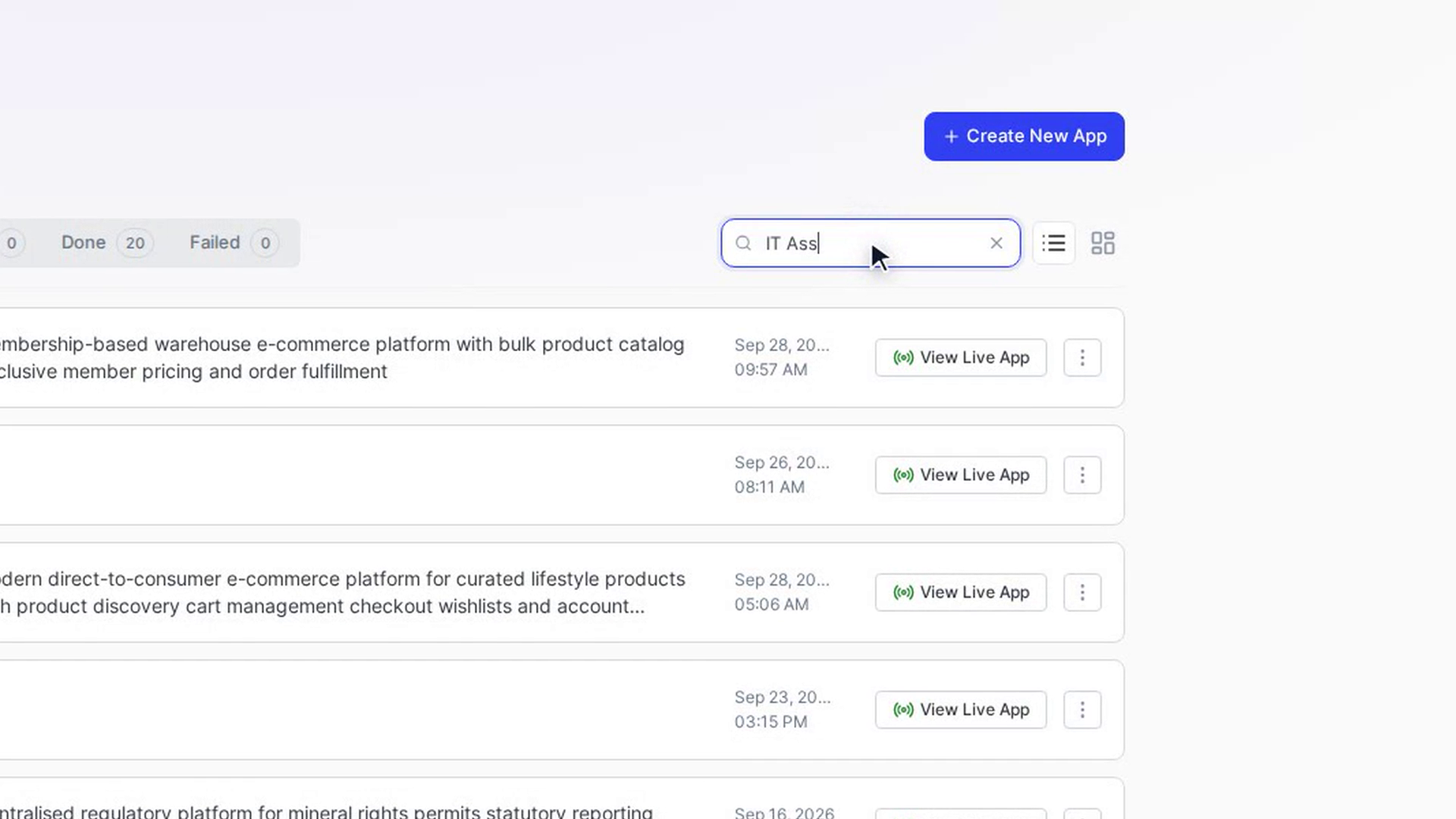
Search for an app
Type in the Search box on the right. The list updates to show only matching apps. If nothing matches you see No results for "…". Select the × in the box to clear the search.
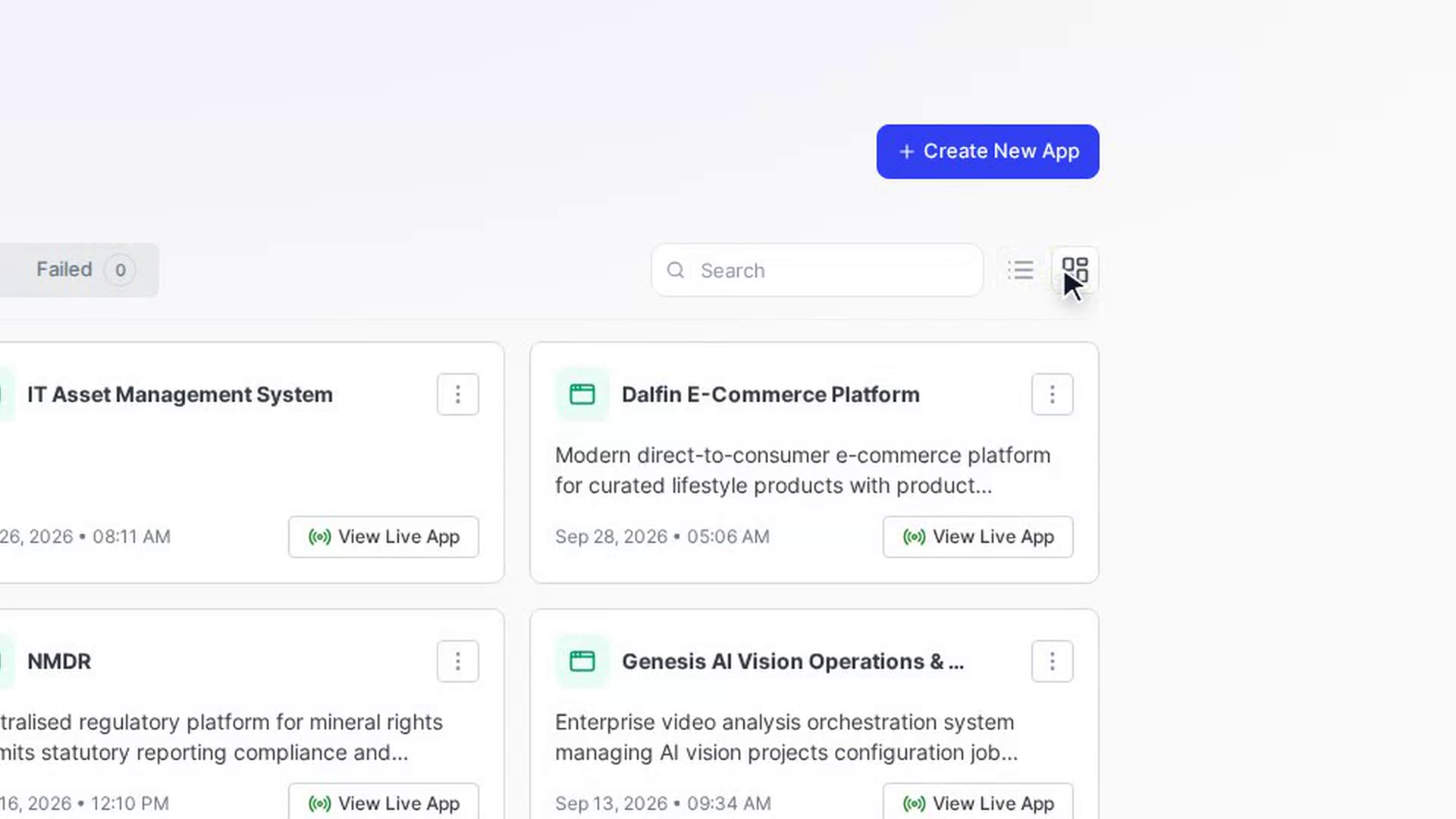
Switch between list and grid
Select the List view or Grid view button next to the search box. Grid view shows each app as a card. Dalfin remembers your choice the next time you open the page.
Open an app
Select an app's row or card. Its workspace opens on the Interface tab, where you can preview and work on the app. For an app that has finished and is live, you can instead select View Live App to open the running app in a new browser tab.
Add an app to your favourites
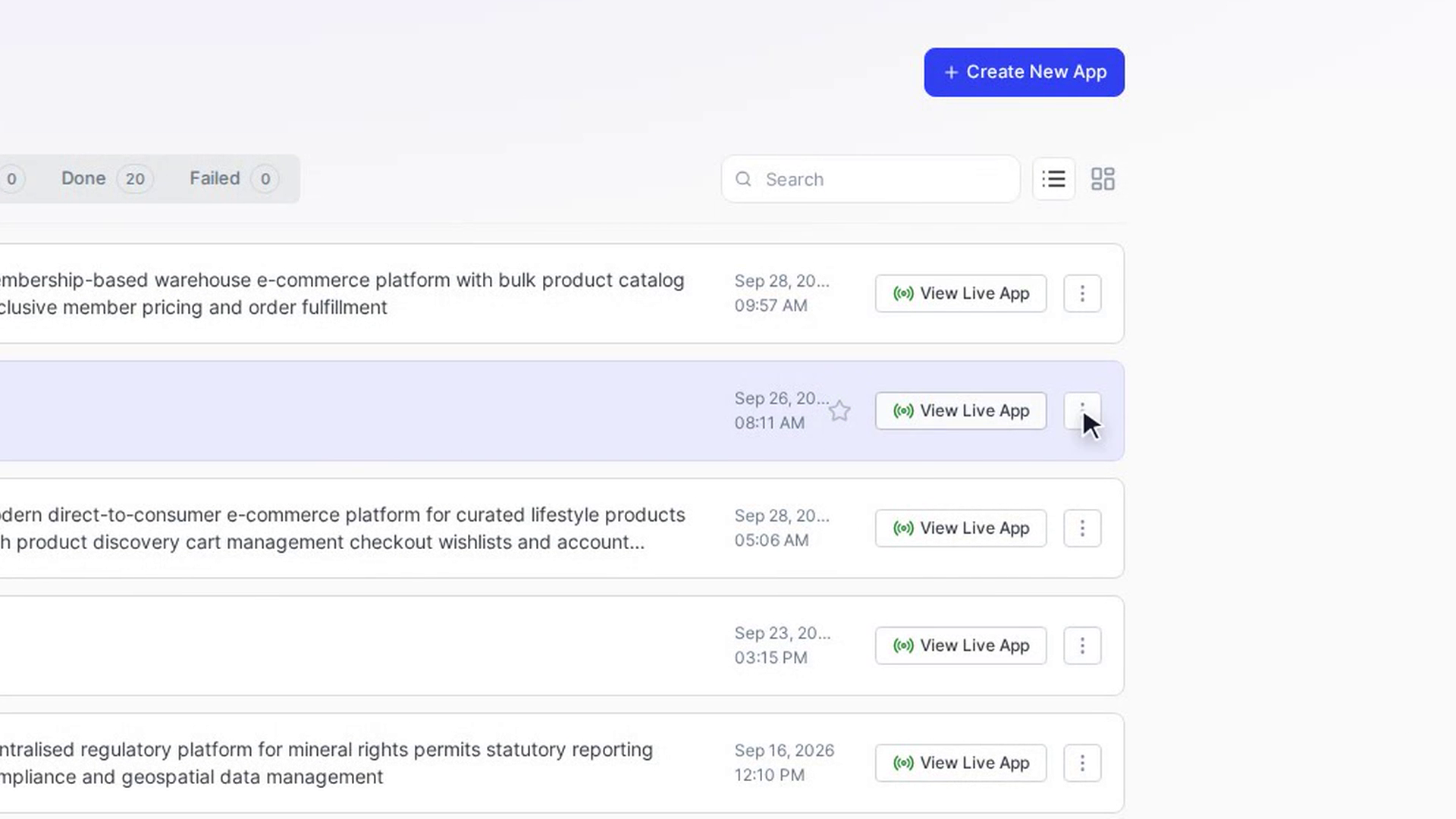
Point at an app to show its star, then select it, or open its ⋮ menu and choose Add to favorites. The star fills in and stays visible. On a touch screen the star is always shown. To undo it, select the star again or choose Remove from favorites. To close a ⋮ menu without choosing anything, select ⋮ again or click anywhere outside the menu; Esc doesn't close it.
Share a live app
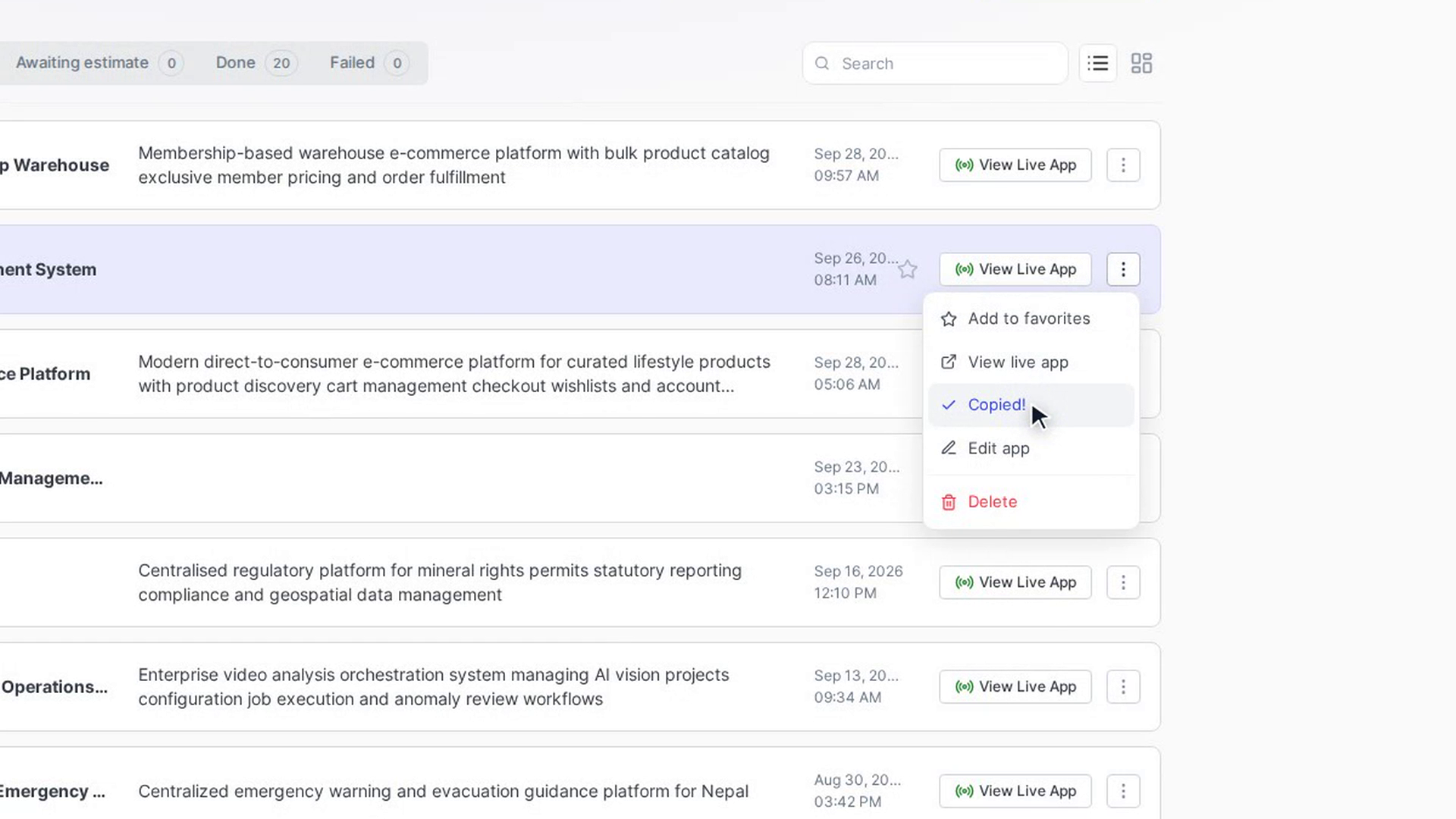
Open the app's ⋮ menu and choose Share. The live app's address is copied to your clipboard and the item briefly reads Copied!. Paste the address wherever you want to share it. Share and View live app only appear for apps that have finished and have a live address.
Rename an app or change its description
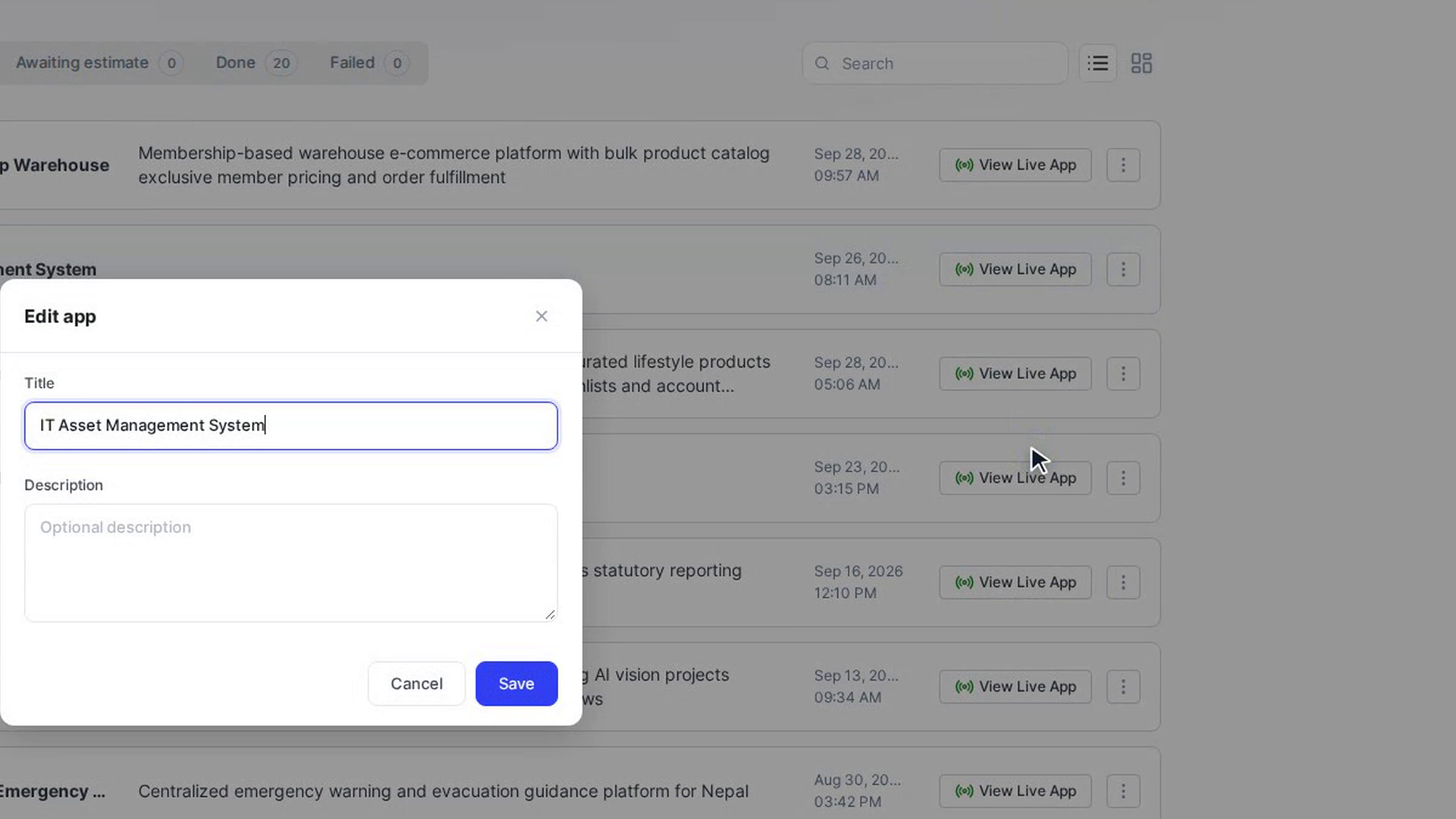
Open the app's ⋮ menu and choose Edit app. In the Edit app window, change the Title and, if you like, the Description, then select Save. The title can't be left empty.
Delete an app
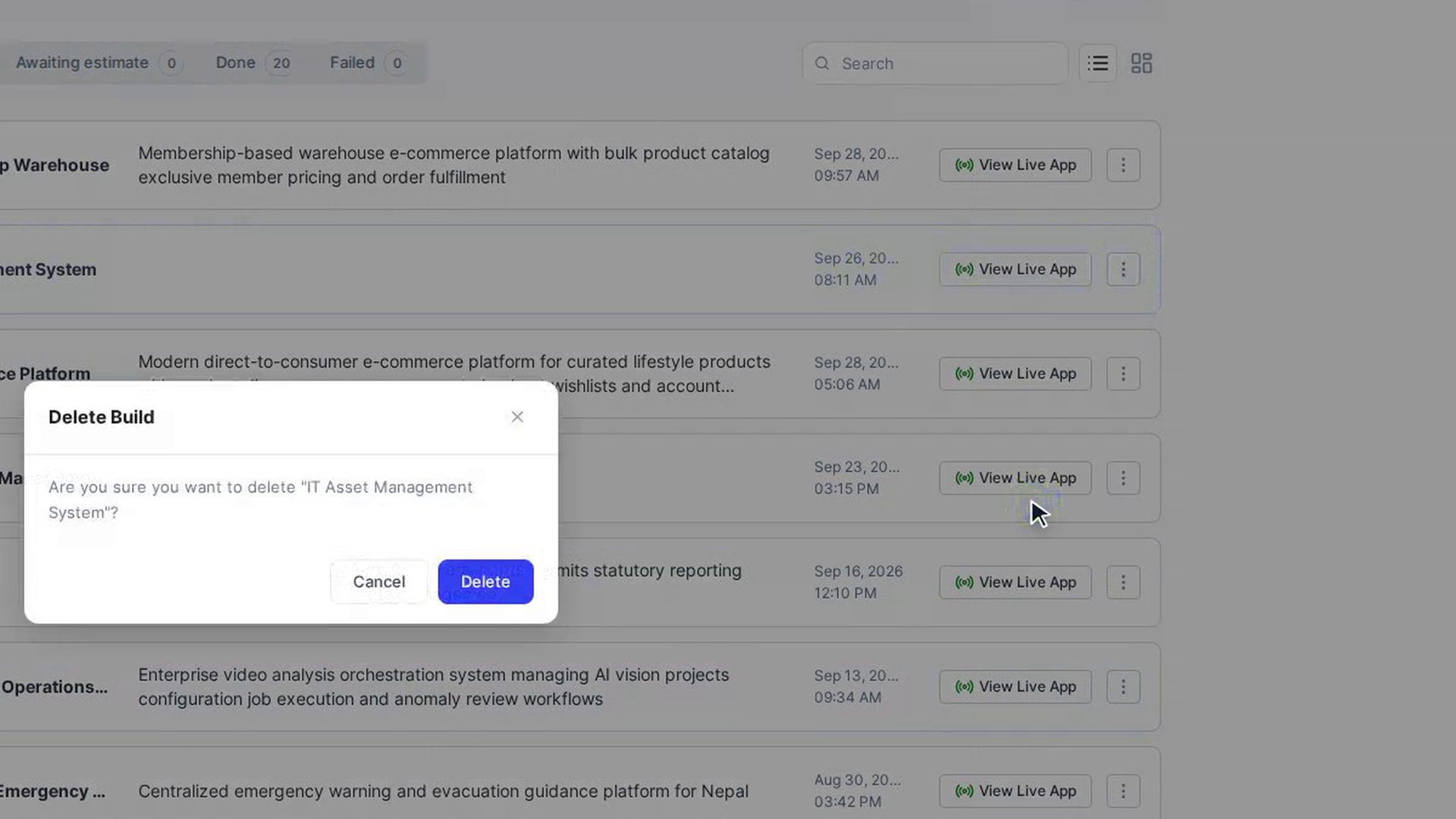
Open the app's ⋮ menu and choose Delete. A Delete Build window asks you to confirm. Select Delete to remove the app, or Cancel to keep it. A Build deleted message confirms it's gone.
Screenshots
Step 1: Open All Apps
Step 2: Filter by status
Step 3: Search for an app
Step 4: Switch between list and grid
Step 5: Open an app
Step 6: Add an app to your favourites
Step 7: Share a live app
Step 8: Rename an app or change its description
Step 9: Delete an app
Watch how
Tip: The list loads more apps automatically as you scroll. Once you've scrolled down, an arrow button appears so you can jump back to the top.
Deleting an app can't be undone from this page. Check the name in the Delete Build window before you confirm.