Forgot or reset your password
If you can't remember your password, you can ask Dalfin to email you a reset link and choose a new password yourself. It only takes a couple of minutes.
Before you start
- Anyone with a Dalfin account can do this.
- You need access to the email inbox for the address you sign in with.
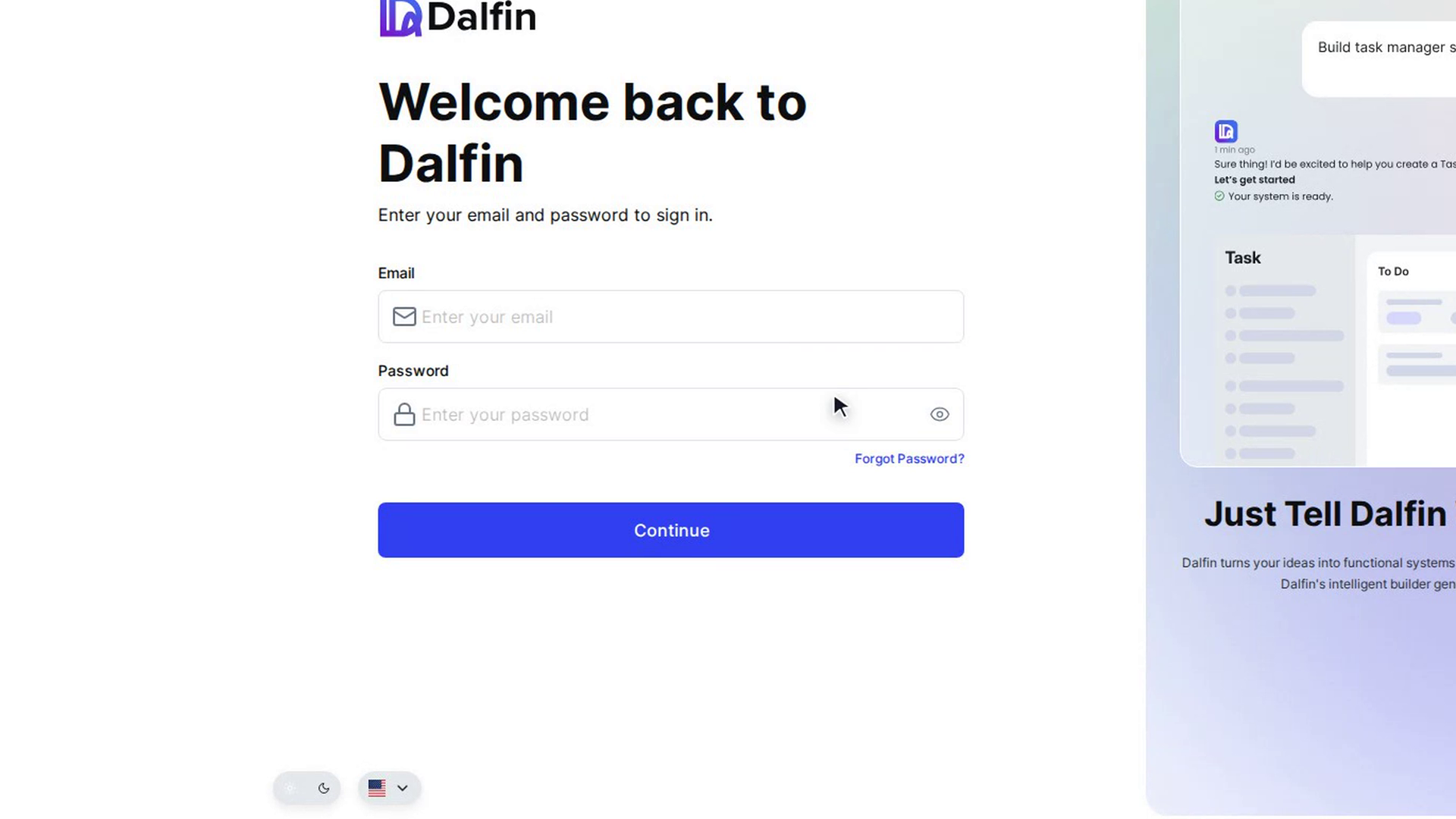
- Open the sign-in page for your organization. If you don't know its address, see Find your organization's domain.
Steps
Open the reset screen
On the sign-in page, select Forgot Password? under the password field. The Forgot Password screen opens with the message "We'll email you a password reset link."
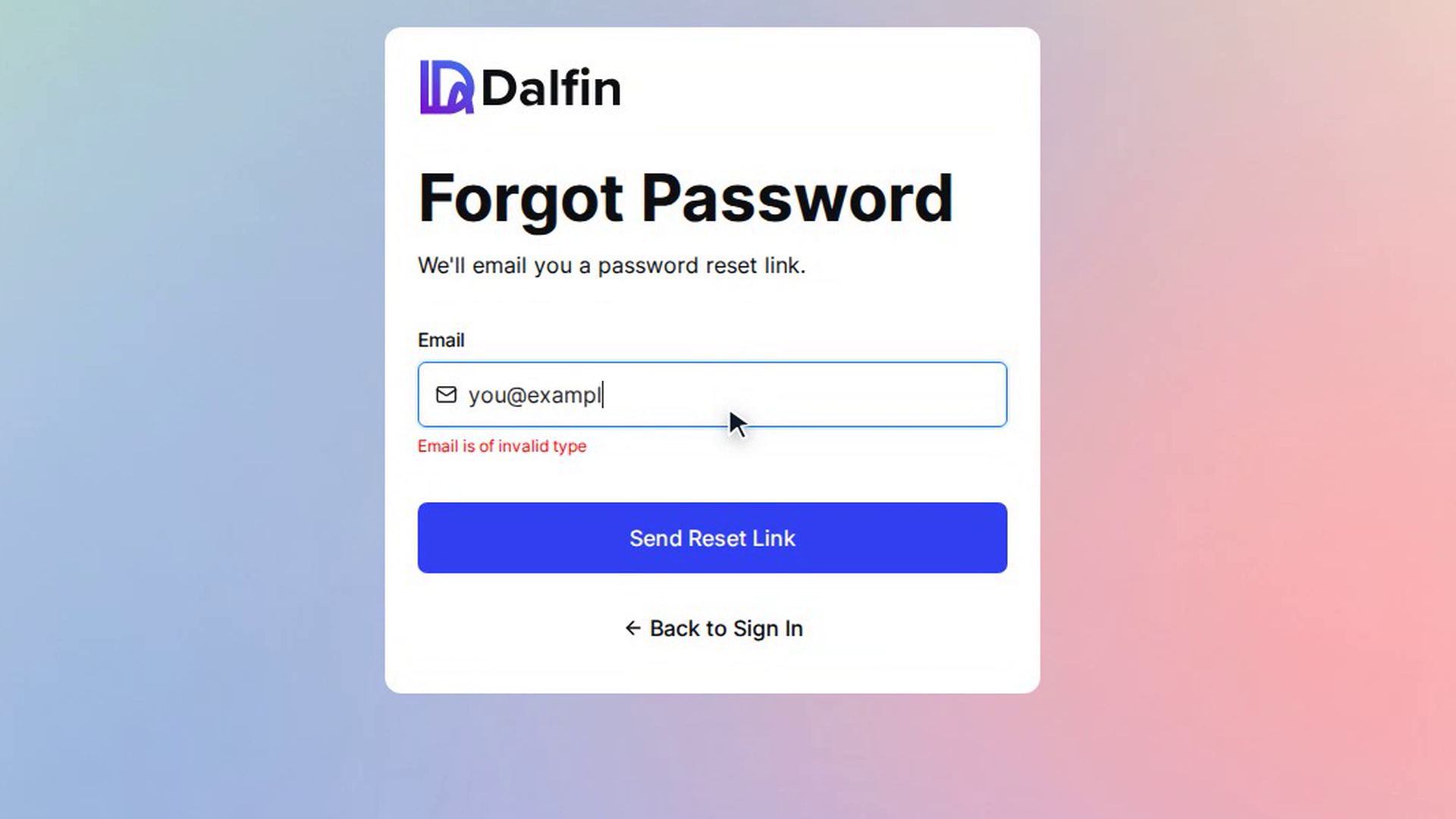
Ask for a reset link
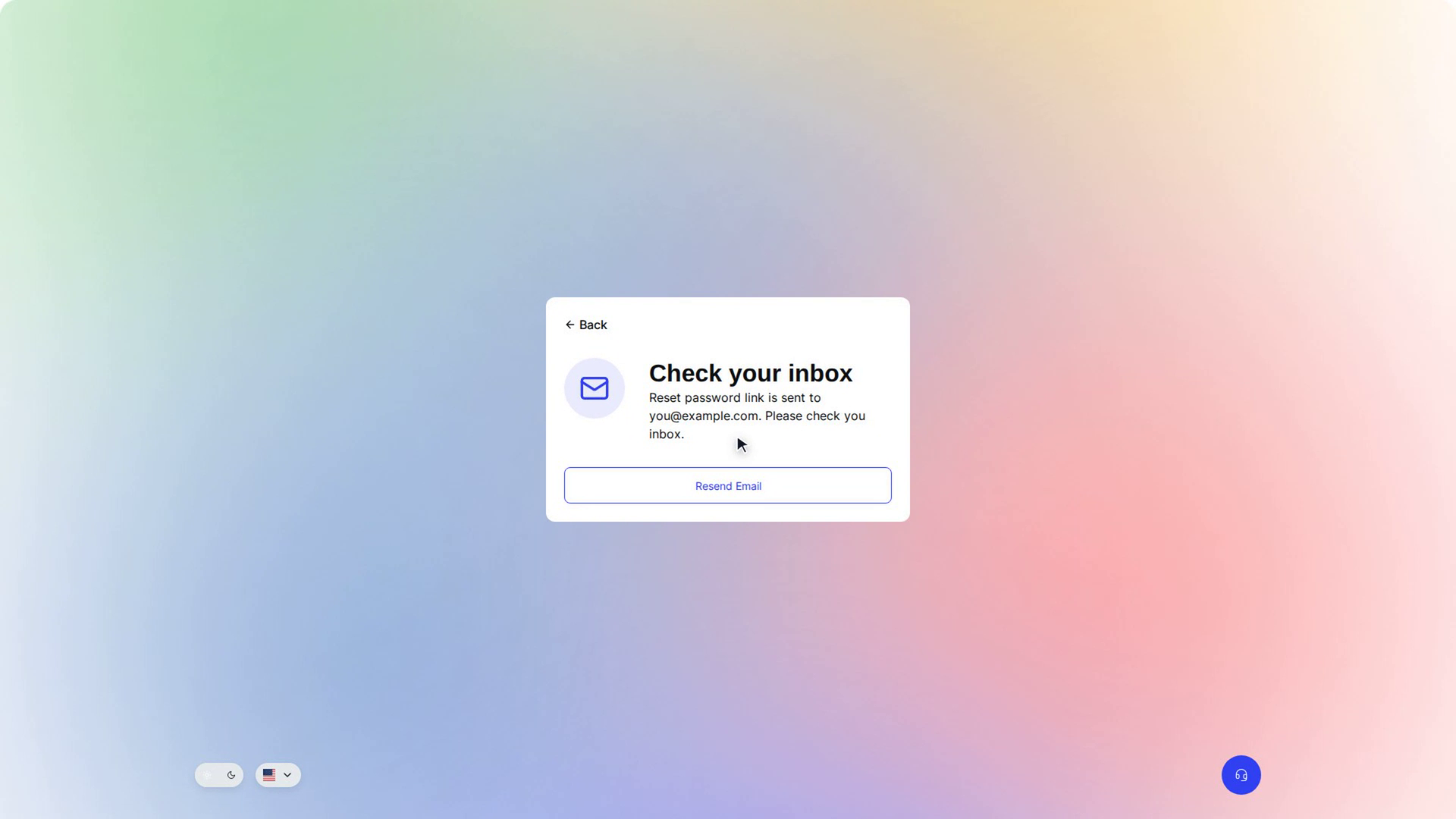
Type the email address you sign in with into Email and select Send Reset Link. Dalfin shows a Check your inbox screen confirming where the link was sent.
If the email doesn't arrive, select Resend Email on the same screen.
Open the link in the email
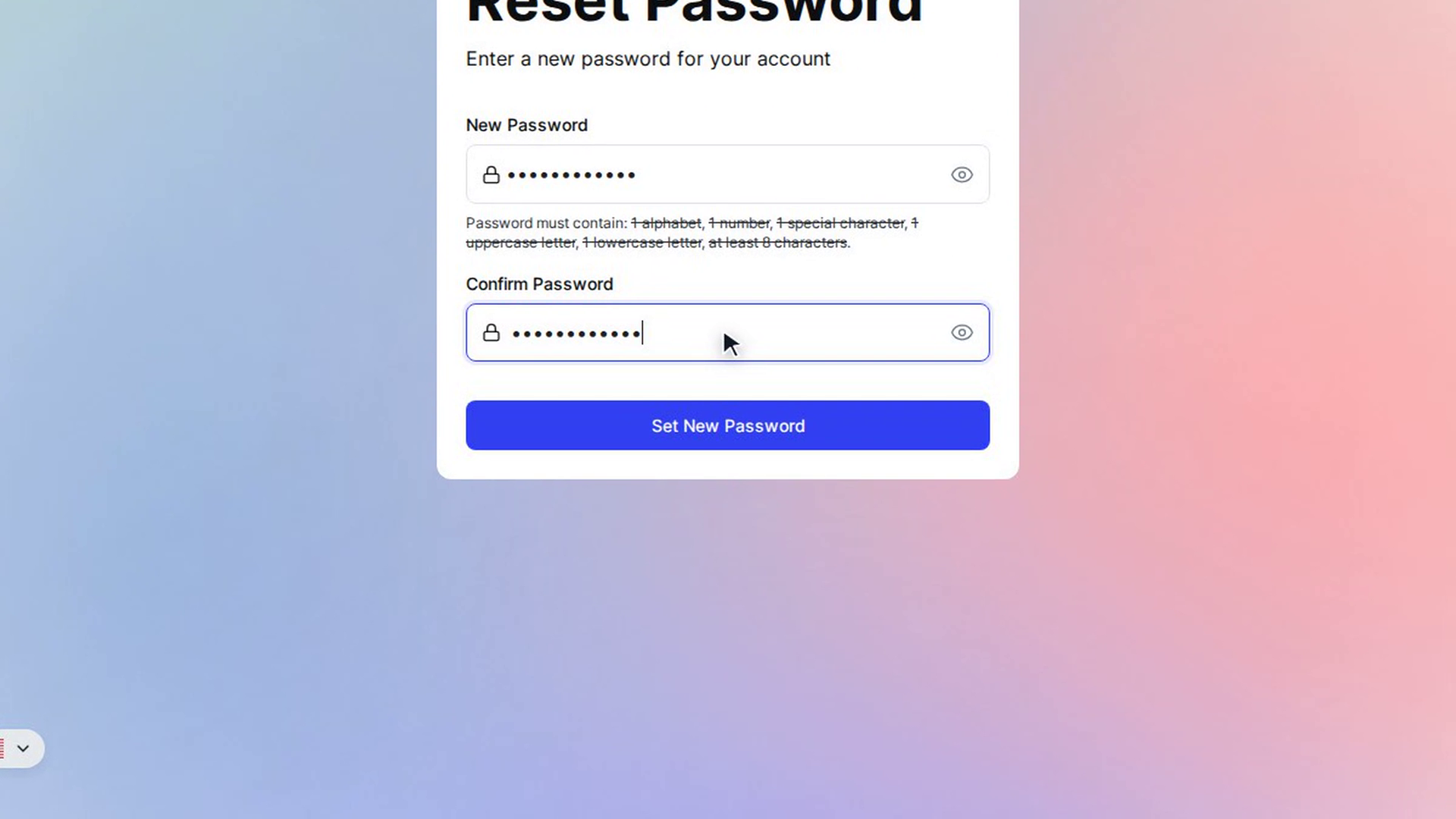
Open the email from Dalfin and select the reset link. The Reset Password screen opens and asks you to enter a new password for your account.
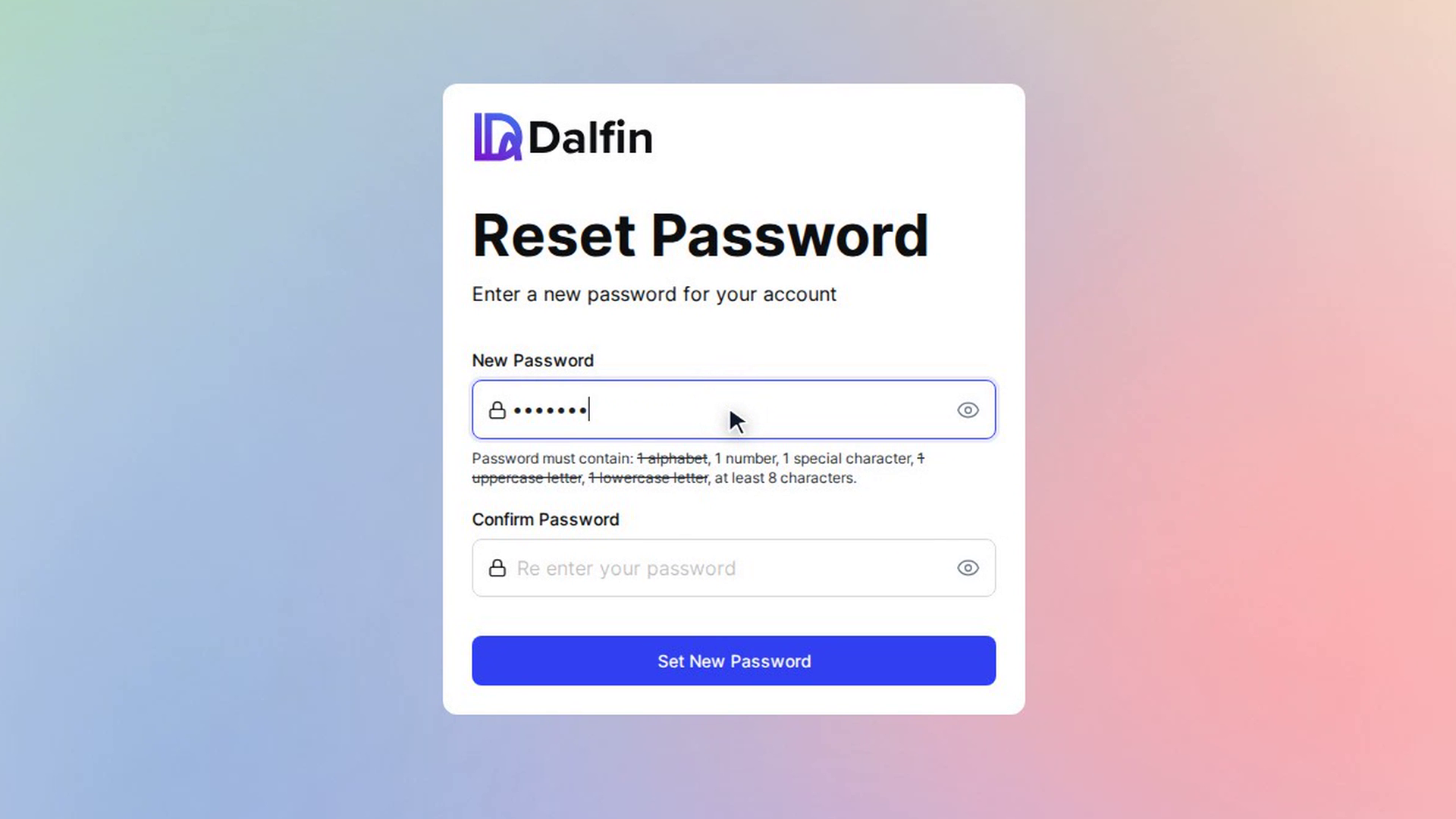
Choose a new password
Type your new password into New Password. Below the field, each rule is crossed out as soon as your password meets it. Your password must contain:
- 1 alphabet
- 1 number
- 1 special character
- 1 uppercase letter
- 1 lowercase letter
- at least 8 characters
Type the same password again into Confirm Password.
Save the new password
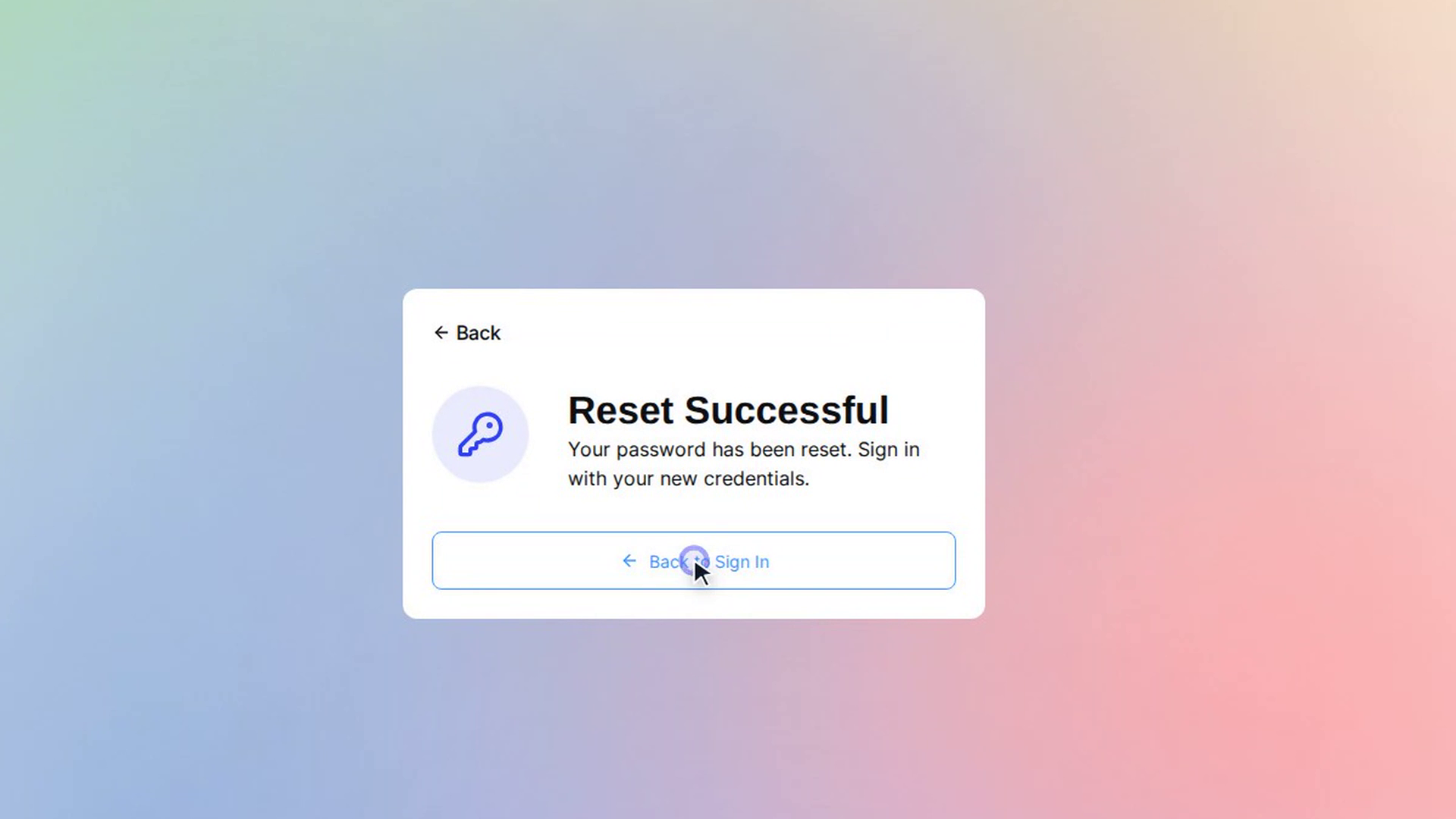
Select Set New Password. The Reset Successful screen confirms that your password has been reset.
Sign in again
Select Back to Sign In and sign in with your email and your new password.
Screenshots
Step 1: Open the reset screen
Step 2: Ask for a reset link
Step 3: Open the link in the email
Step 4: Choose a new password
Step 5: Save the new password
Step 6: Sign in again
Watch how
Tip: Changed your mind? Select Back to Sign In on the Forgot Password screen to go back without resetting anything.