Select elements and use the selection chip
Before you can change anything on a page, you select it. This page shows every way to select an element, and what the small chip of quick actions above a selected element does.
Before you start
- You need to be a team admin who can open your app's Customize tab.
- Your app must have finished building.
Steps
Open the page you want to change
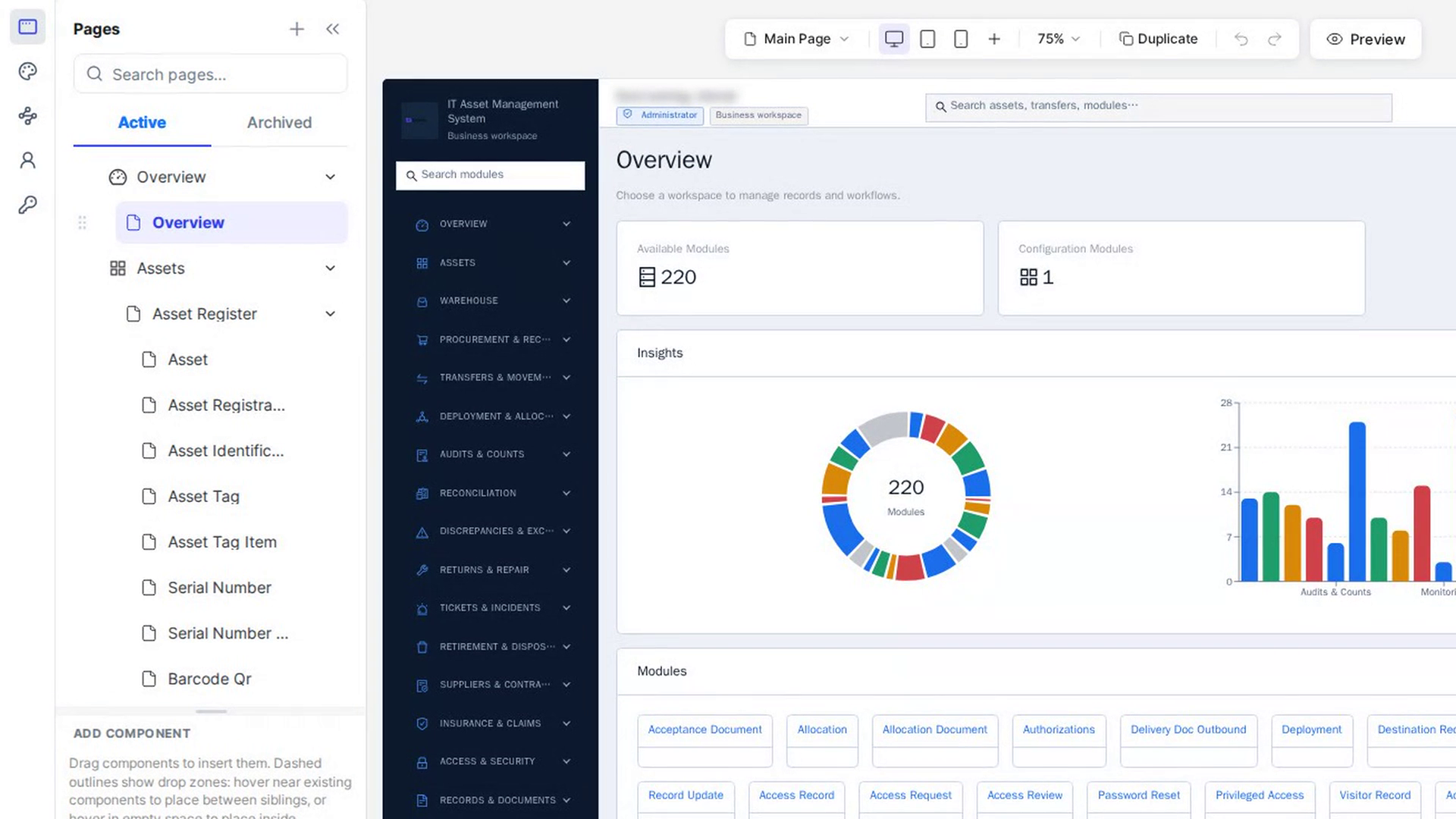
In Customize, click the page you want in the Pages list on the left (use Search pages... to find it quickly). It opens on the canvas in the middle of the screen.
Until you select something, the Design tab on the right says Click any element in the canvas to edit its properties.
Click an element
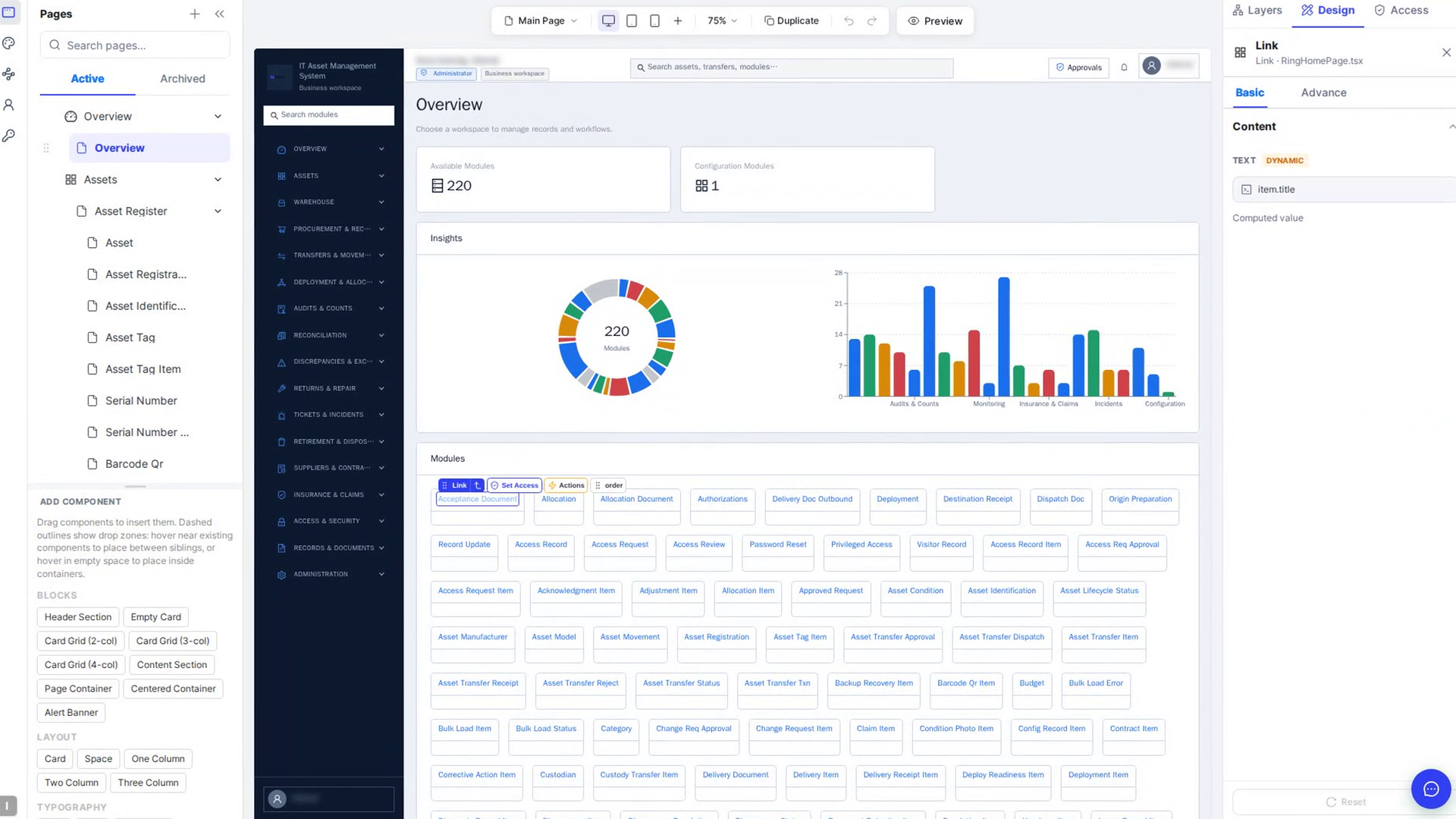
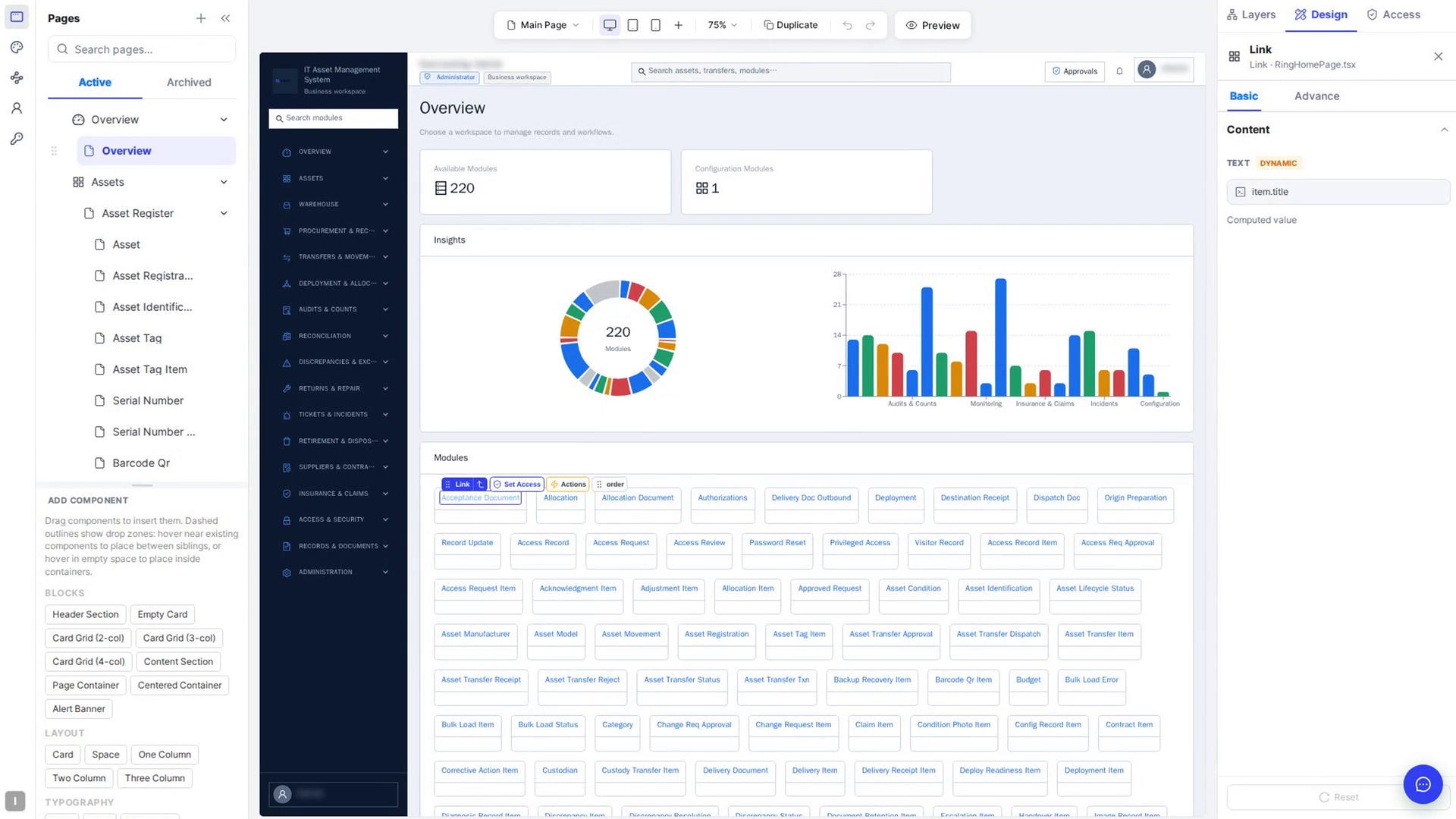
Click any element on the canvas: a heading, a button, a card, a field and so on. It gets a blue outline, a selection chip appears above it, and the Design tab shows its settings.
The top of the Design tab shows the element's name or text (for example Refresh), what kind of element it is (for example Button) and the file it lives in. To let go of the element, click the ✕ (Deselect element) next to its name.
If you click inside part of a card, a statistic or a similar element, such as a statistic's title, only that part is selected. A line such as Statistic › Title appears at the top of the Basic tab; click its ✕ to go back to the whole element.
Use the selection chip
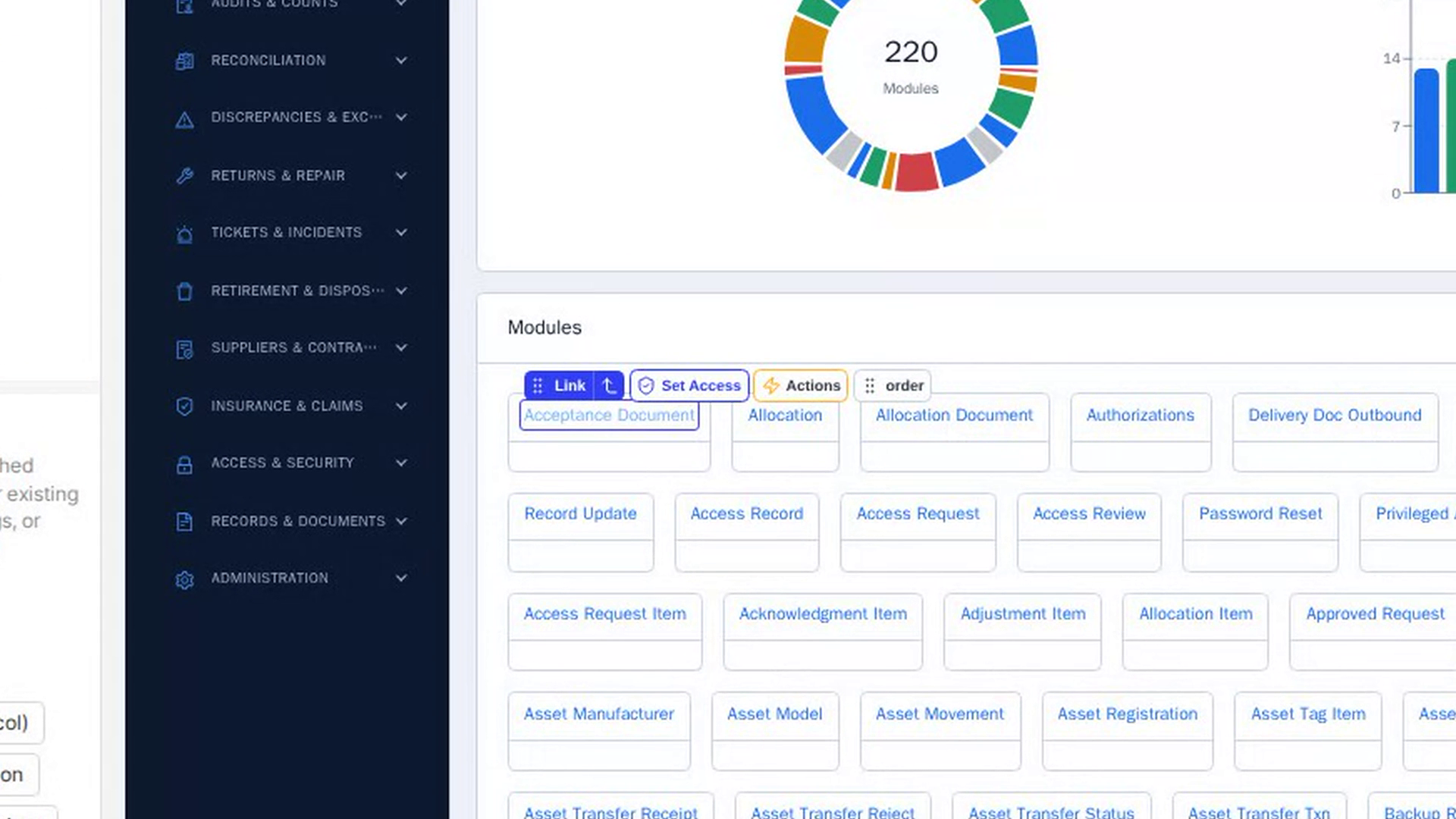
The chip above the selected element gives you quick actions without leaving the canvas:
| Chip item | What it does |
|---|---|
| Grip and element type (for example Button) | Shows what kind of element is selected. Drag it (Drag to move) to move the element. |
| Arrow (Select parent container) | Selects the element that contains this one. Click it again to go up another level. |
| Set Access | Opens the Access tab for this element, to choose who can see it. See Page and element access. |
| Actions | Uses this element in a flow, so it can start an automation. |
| order (or list) | Opens Reorder items, where you change this element's place among its neighbours, or in the list it comes from. |
| Red bin (Delete element) | Deletes the element. It isn't shown for elements repeated from a list. |
Select the element behind
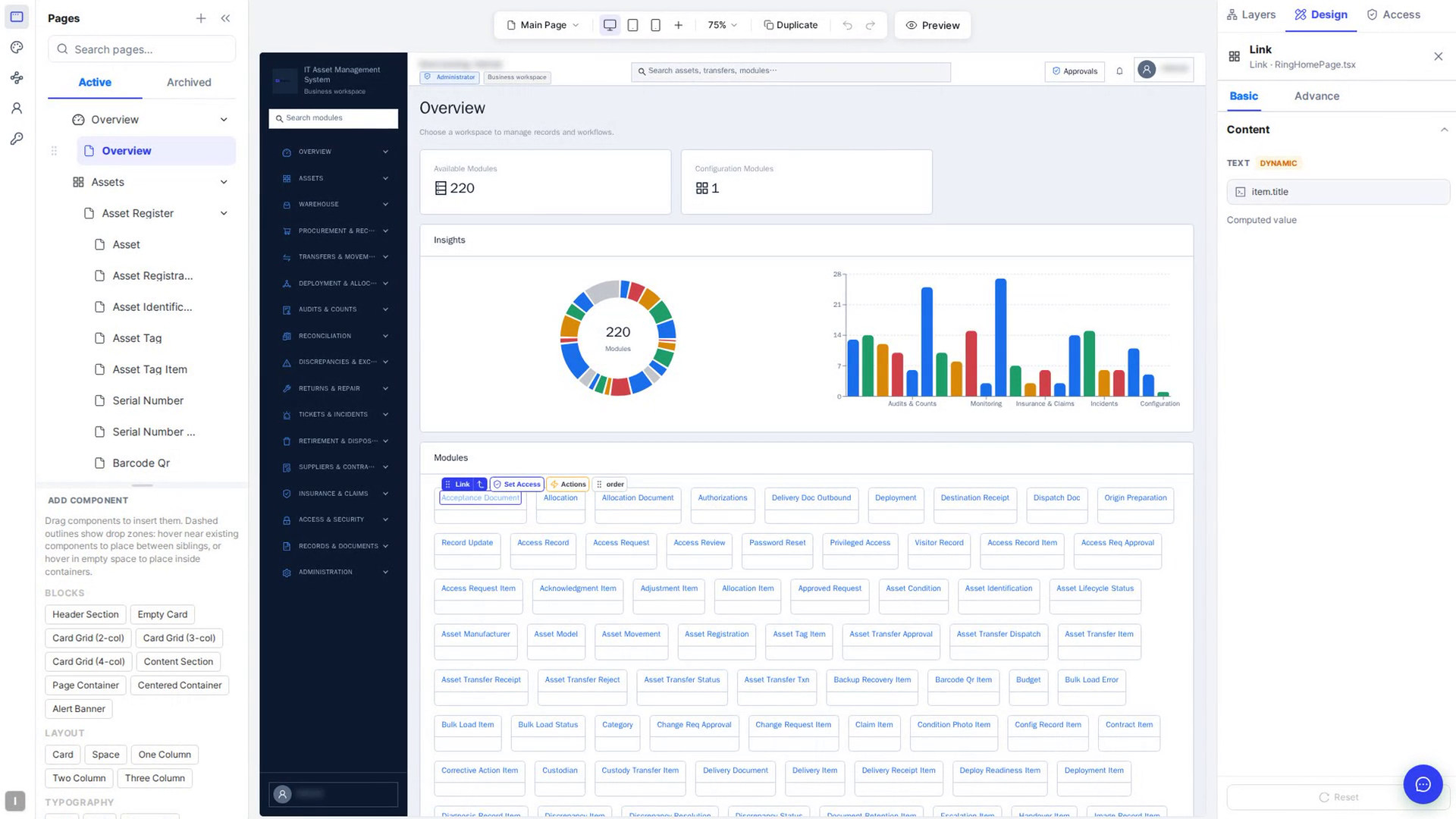
To reach an element that is hidden under another one, hold Alt (Option on a Mac) and click. Each Alt-click selects the next element further down at that spot.
Select several elements
Hold Shift, ⌘ or Ctrl and click each element you want. A bar at the bottom of the canvas shows, for example, 2 selected · group into:
- To wrap the elements in a new container, pick Div, Flex row, Space, Row / Col or Card, then click Group. The elements must sit side by side at the same level of the page.
- To go back to one selected element, click the ✕ (Clear selection).
Select from the Layers tab
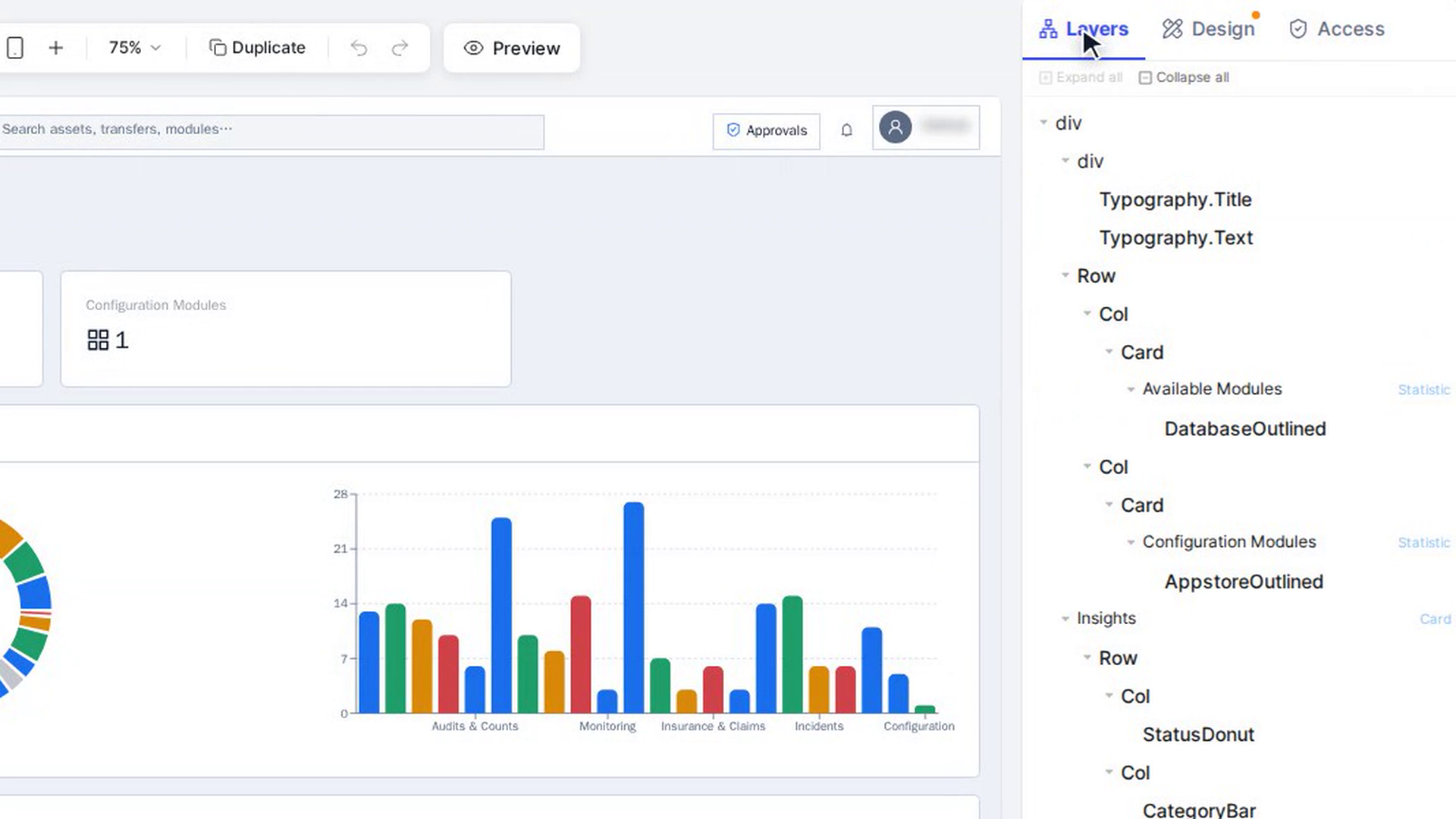
Open the Layers tab on the right panel to see every element on the page as a tree. Click a row to select that element, then go back to Design to change it.
Screenshots
Step 1: Open the page you want to change
Step 2: Click an element
Step 3: Use the selection chip
Step 4: Select the element behind
Step 5: Select several elements
Step 6: Select from the Layers tab
Watch how
Tip: When an element is too small to click, or sits inside another one, select something near it and use the chip's arrow to climb up, or Alt-click to go down.
Delete element and Group change your page straight away. If you do either by mistake, press ⌘/Ctrl + Z or click undo above the canvas.