Find your organization's domain
Every organization signs in to Dalfin at its own web address (its domain). If you don't know yours, you can look it up with your email address and open it straight from the results.
Before you start
- Anyone can do this. You don't need to be signed in.
- You need access to the email inbox for your Dalfin account, because Dalfin sends a verification code there.
Steps
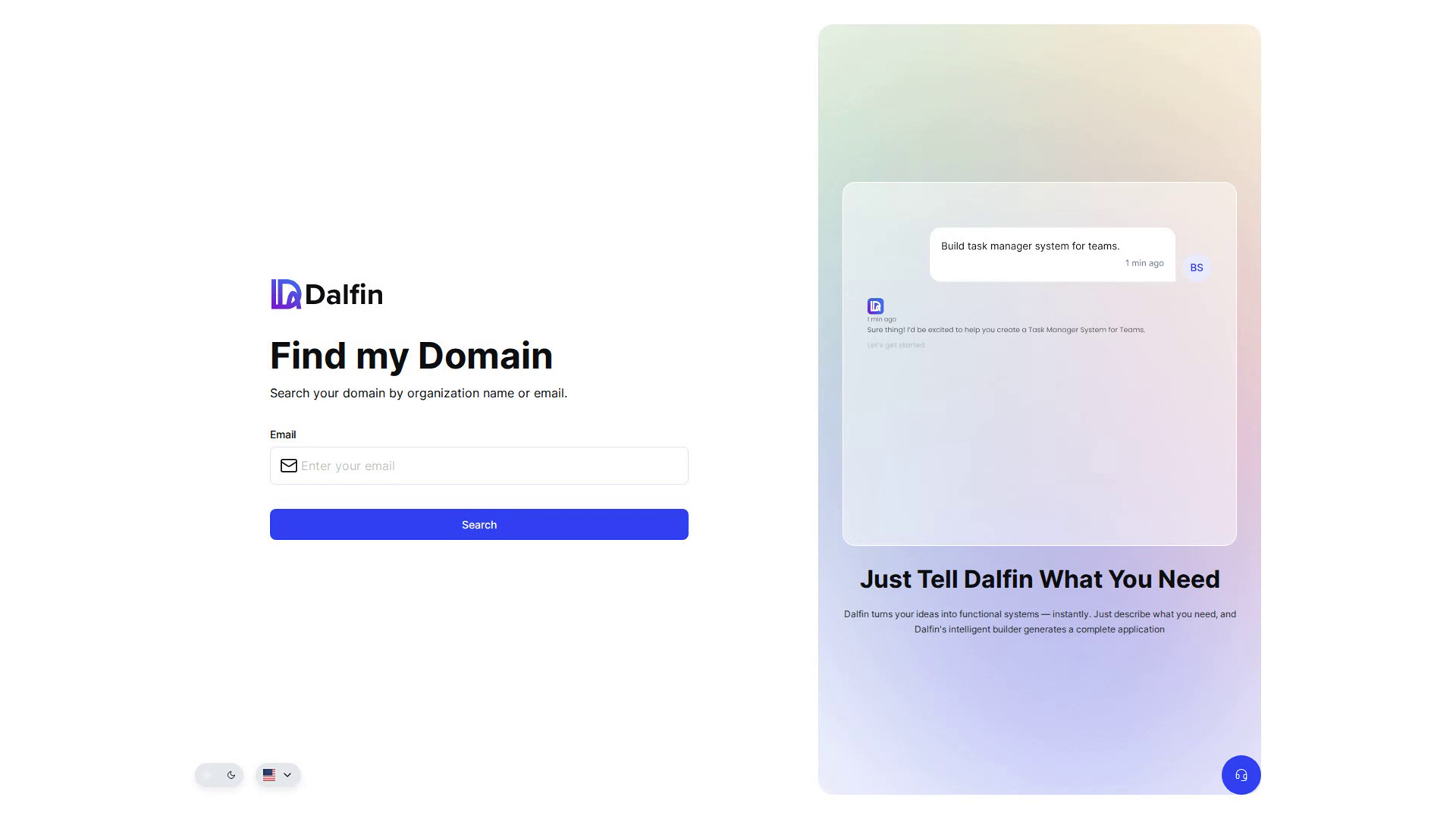
Open Find my Domain
The Find my Domain page appears by itself when you open a web address that Dalfin doesn't recognise as an organization's domain. You can also go to /find-my-domain on the Dalfin address you were given.
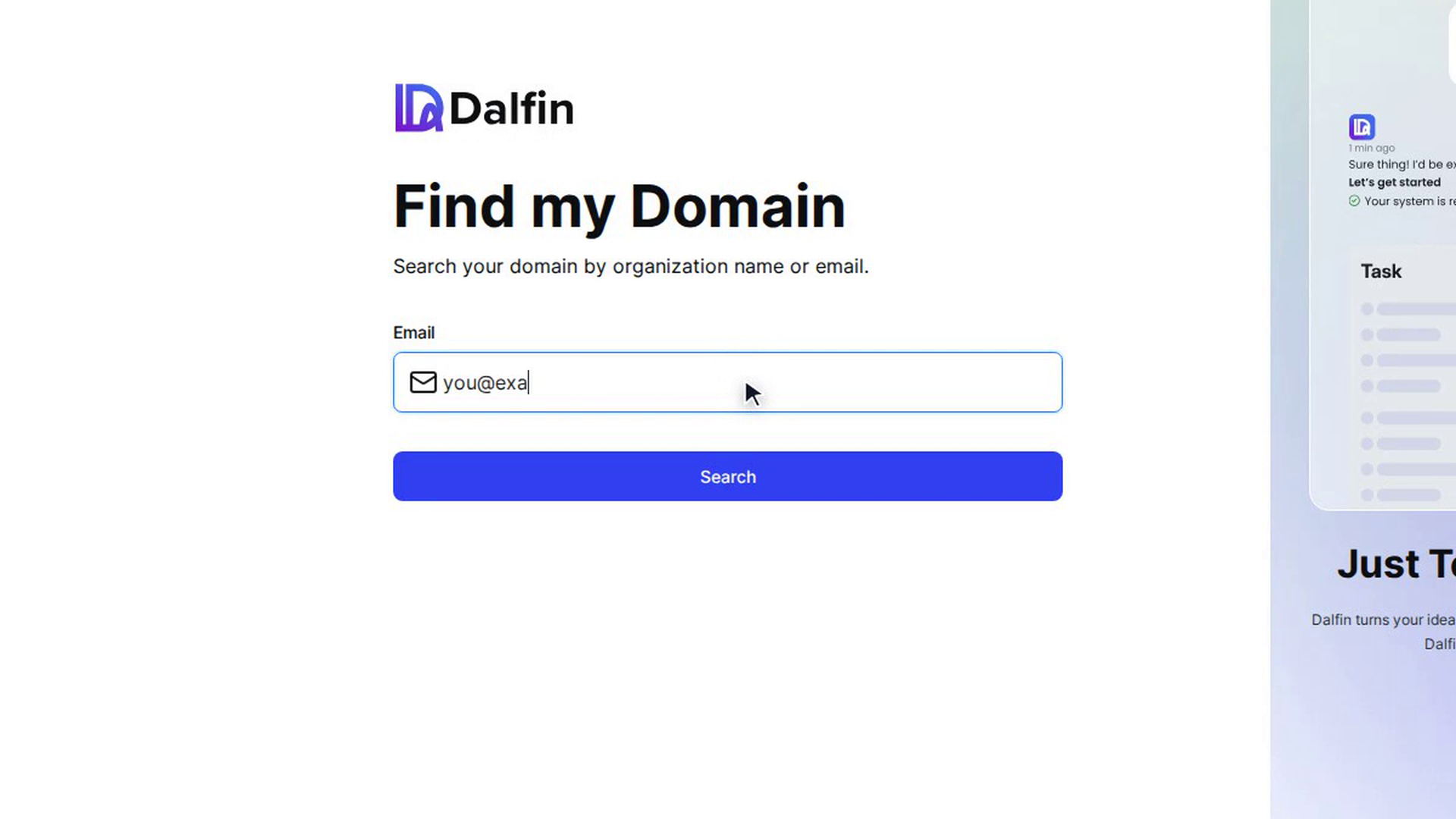
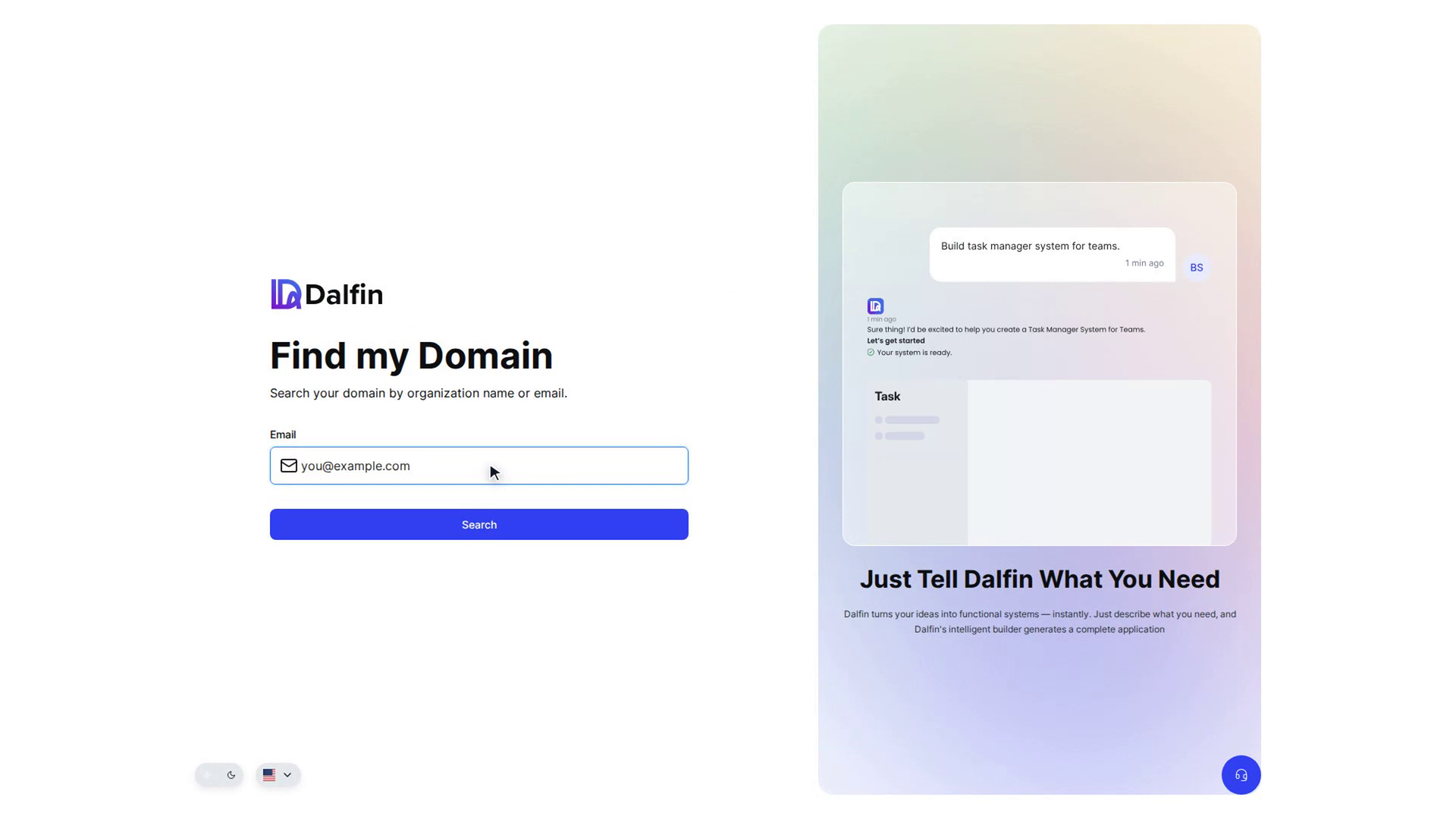
Enter your email
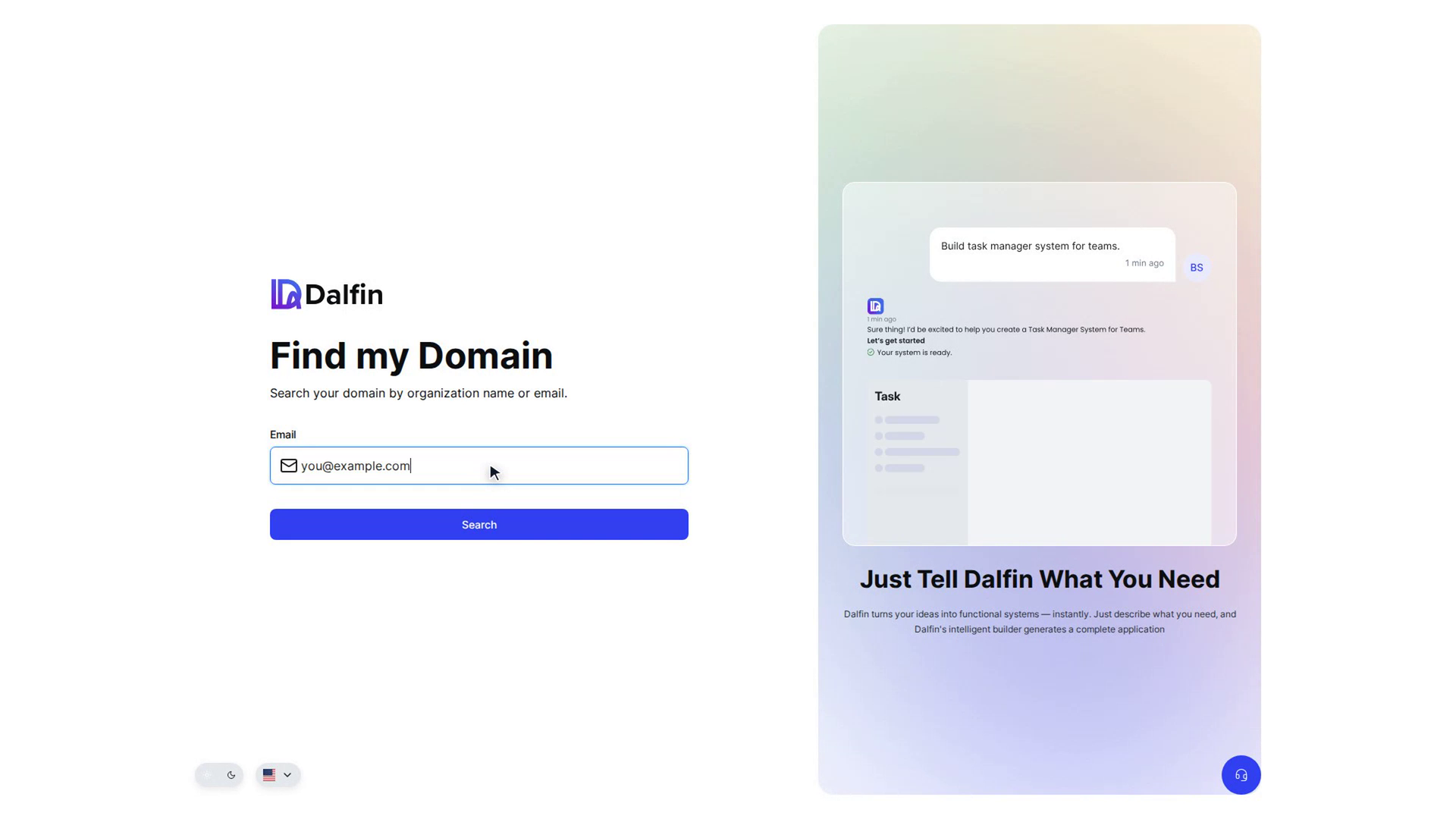
The page says you can search by organization name or email, but it only asks for an email. Type the email address you use for Dalfin into Email and select Search. A message confirms that a code was sent, and the Enter OTP screen opens.
Enter the verification code
Check your inbox for the code from Dalfin. Type it into the boxes on the Enter OTP screen and select Search.
Open your domain
The Search Results screen lists the domains linked to your email. Select a domain to open it in a new browser tab, then sign in there.
If no domain is linked to your email, you'll see No domains found. Select Back to try a different email address.
Screenshots
Step 1: Open Find my Domain
Step 2: Enter your email
Step 3: Enter the verification code
Step 4: Open your domain
Watch how
Tip: Once you've found your domain, bookmark its sign-in page so you don't have to look it up again.