Style elements in detail (Advance tab)
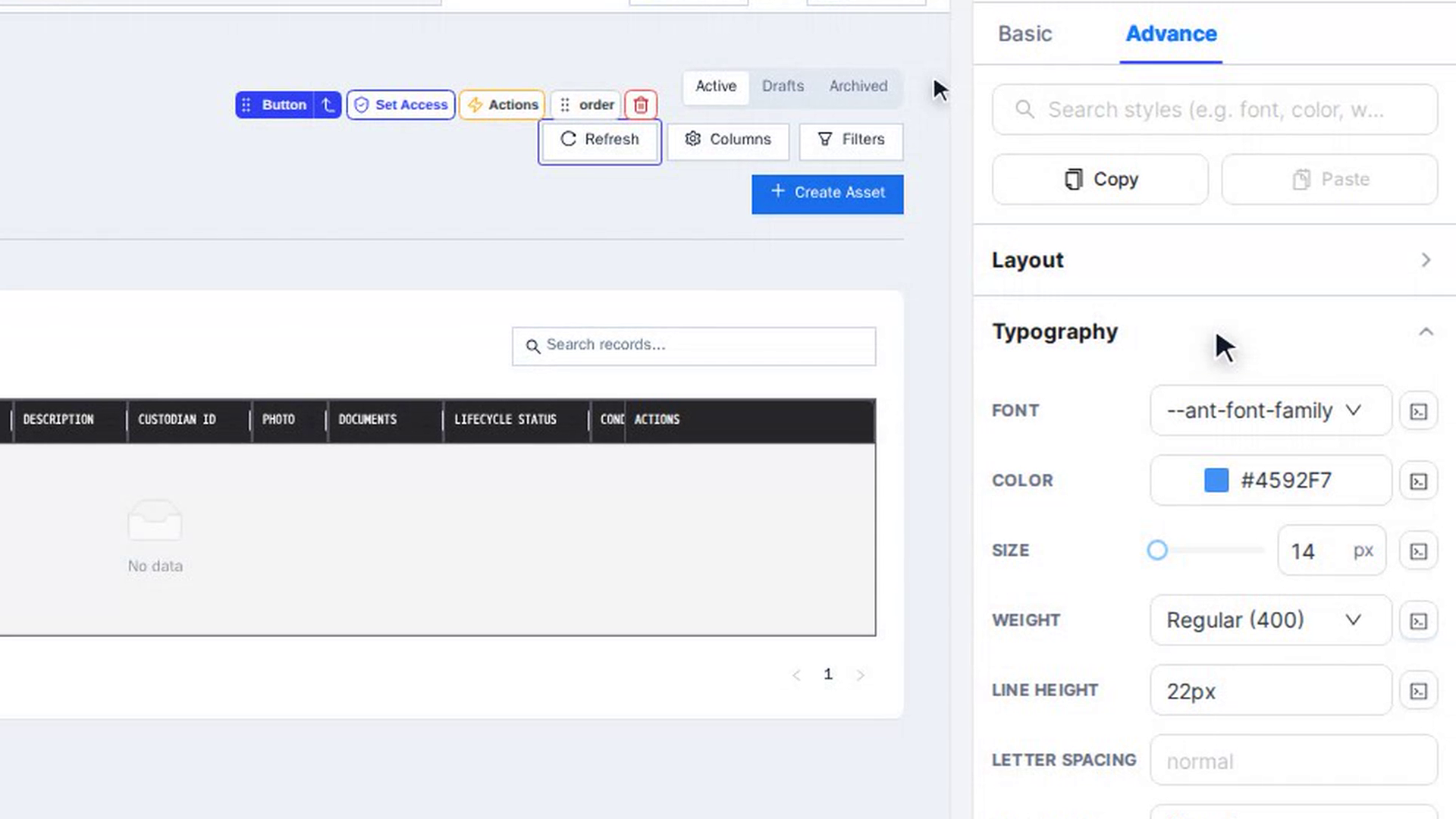
The Advance tab of the Design panel controls how an element looks: text, colours, spacing, borders, shadows, size, position and effects. Your styles are applied on top of the app's theme.
Before you start
- You need to be a team admin who can open your app's Customize tab.
- Your app must have finished building, and the page you want to change must be open in the editor. See Select elements.
Steps
Open the Advance tab
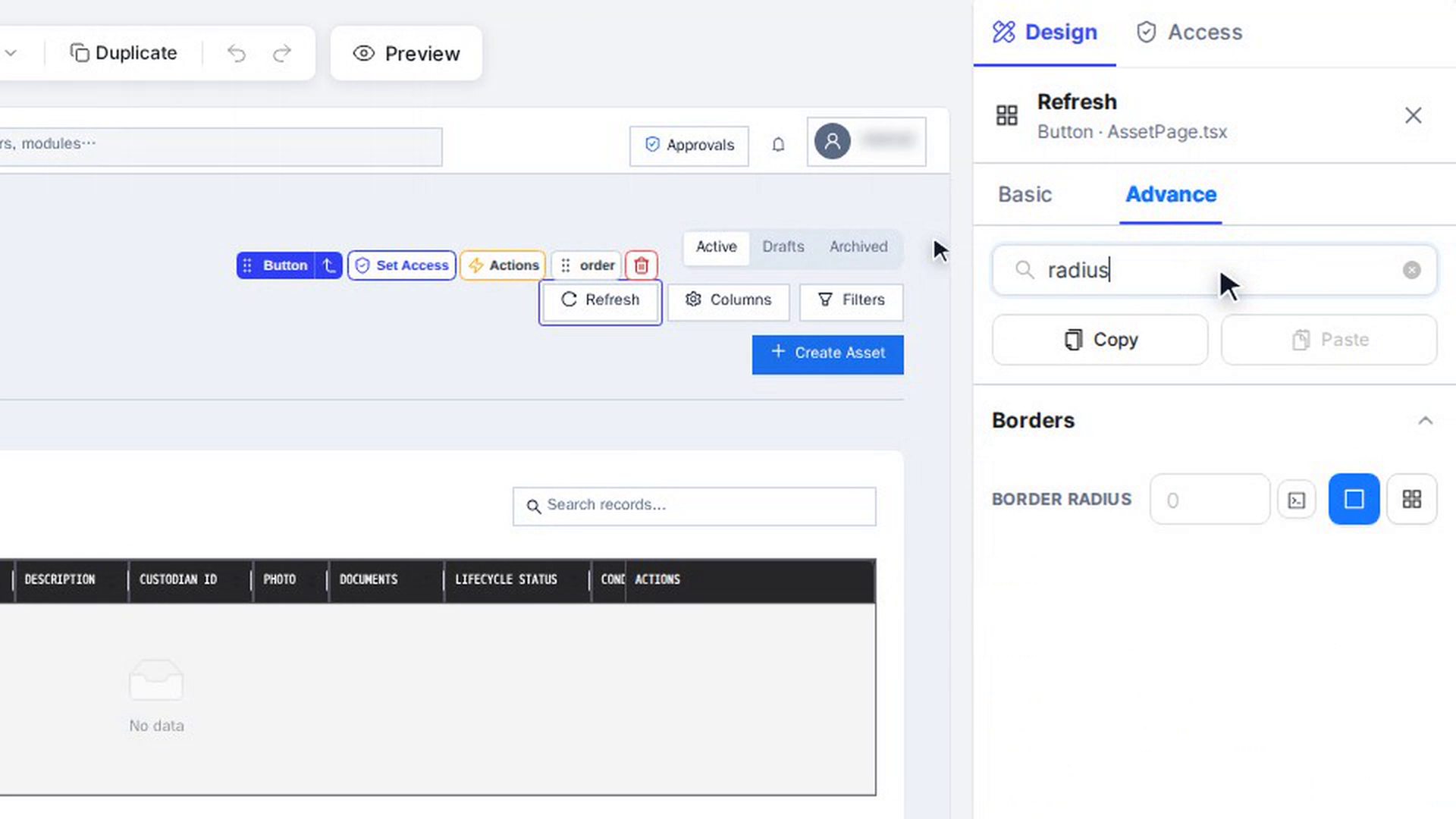
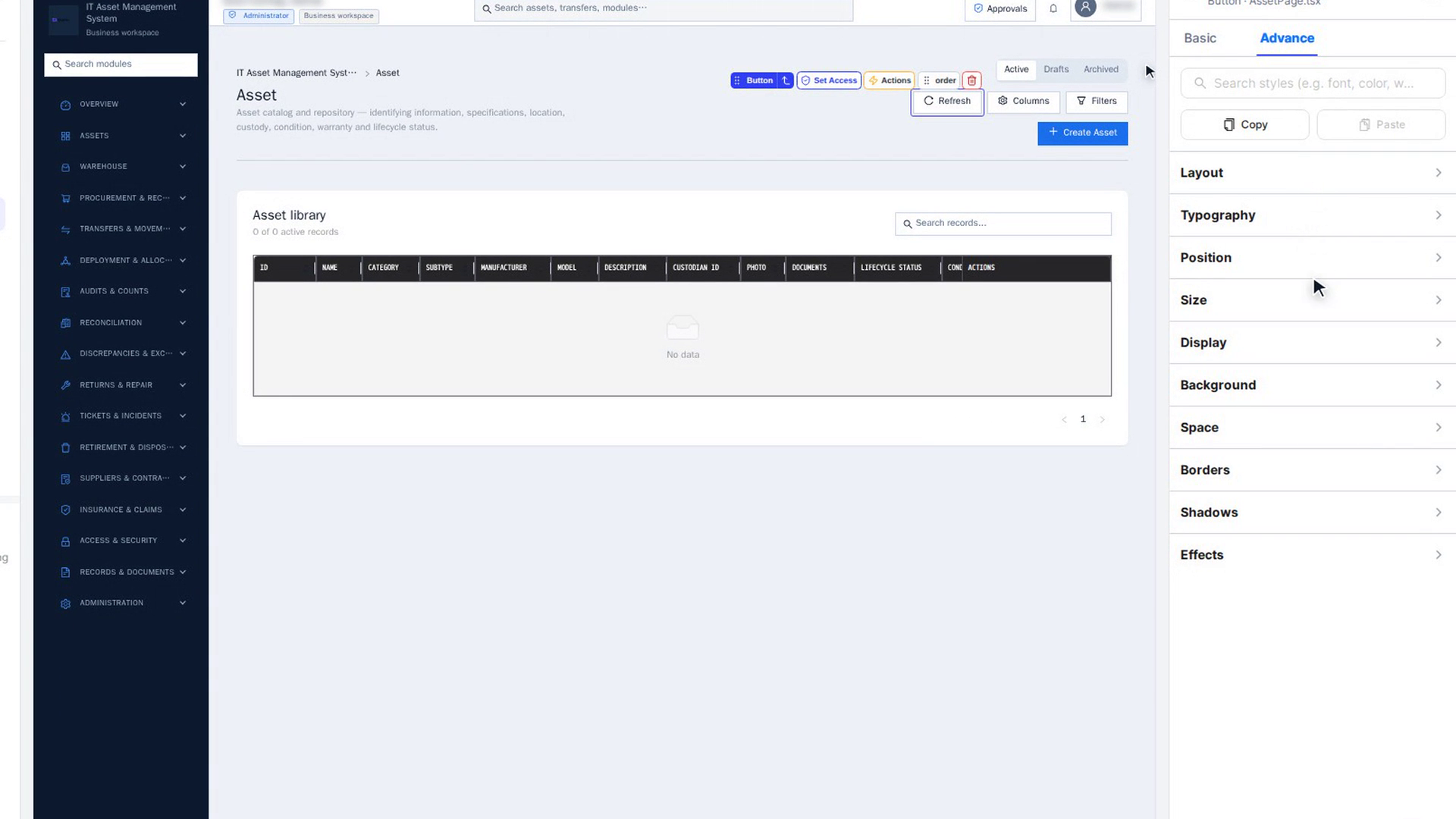
Click the element on the canvas, then open Advance at the top of the Design tab. At the top are Search styles, Copy and Paste. Below them are ten sections, in this order: Layout, Typography, Position, Size, Display, Background, Space, Borders, Shadows and Effects. Click a section title to open or close it.
Find a setting with search
Type a word in Search styles (e.g. font, color, weight)…, for example radius, color or font. Only the matching fields stay, in their sections, and you can change them right there. If nothing matches, you see No properties match ….
Click the ⊗ in the search box to clear it and see all sections again.
Change a value
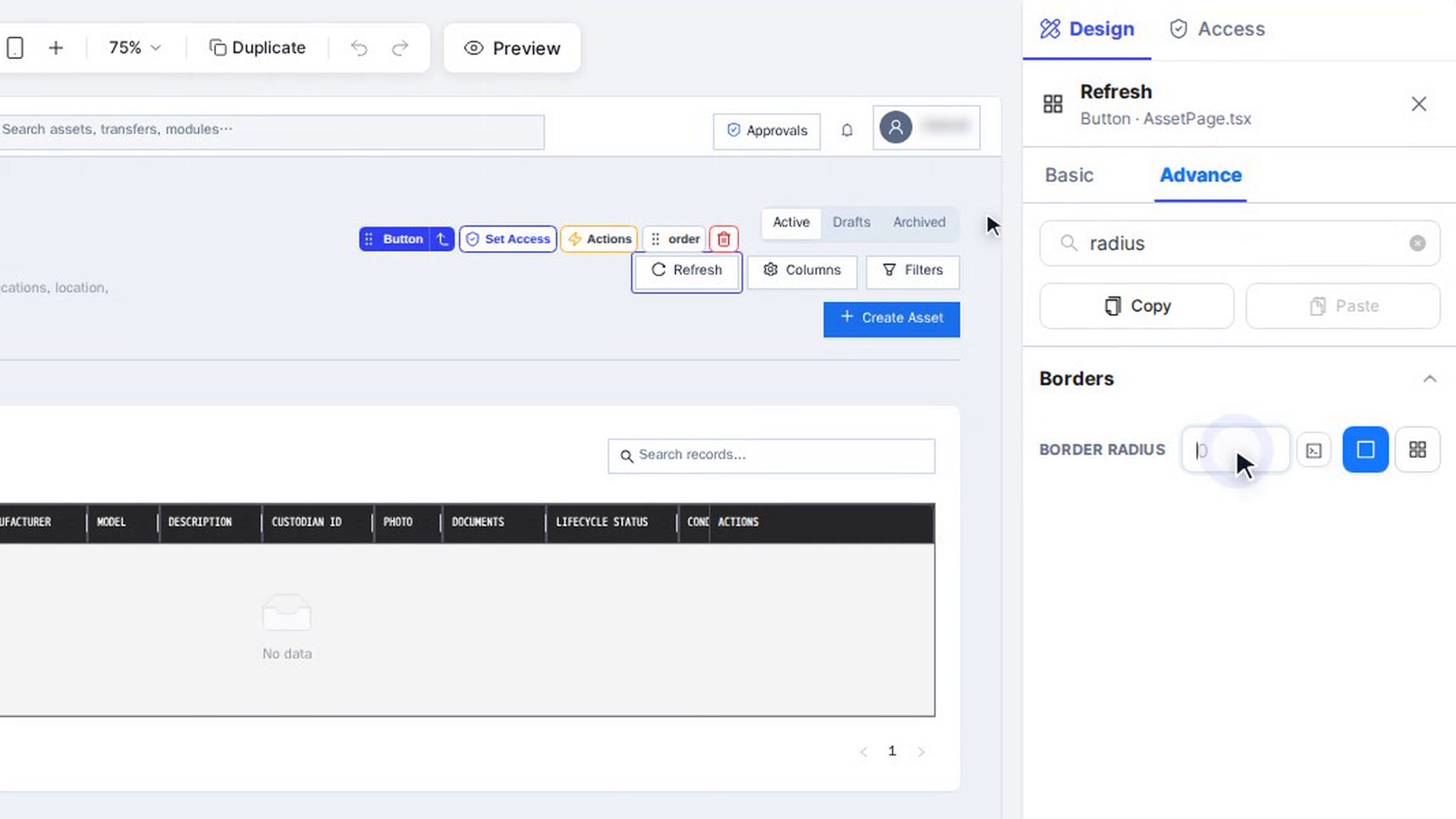
Type a new value in a field, pick an option, or drag a slider, for example set Border radius to 24. The canvas shows the change straight away, and it saves on its own.
A field you have changed is marked Modified.
Undo one field
Click the arrow next to Modified (Revert … to original value). Only that field goes back to what it was.
Use a CSS variable
Most fields have a small square button on their right: Use a CSS variable. A variable is a shared design value, such as a font family, a spacing step or a corner radius. Change the variable once, and every element that uses it follows.
- Click the square button next to the field.
- Search with Search variables…, or scroll the lists. Variables are grouped by the file they come from, for example font-families.css.
- Click a variable to apply it. The field shows its name, and the button's tooltip reads Token: --name.
To detach the field from the variable, type a value in it. To add a variable of your own, choose Create new variable, give it a name starting with -- and a value, and click Create & apply.
Reset all styles
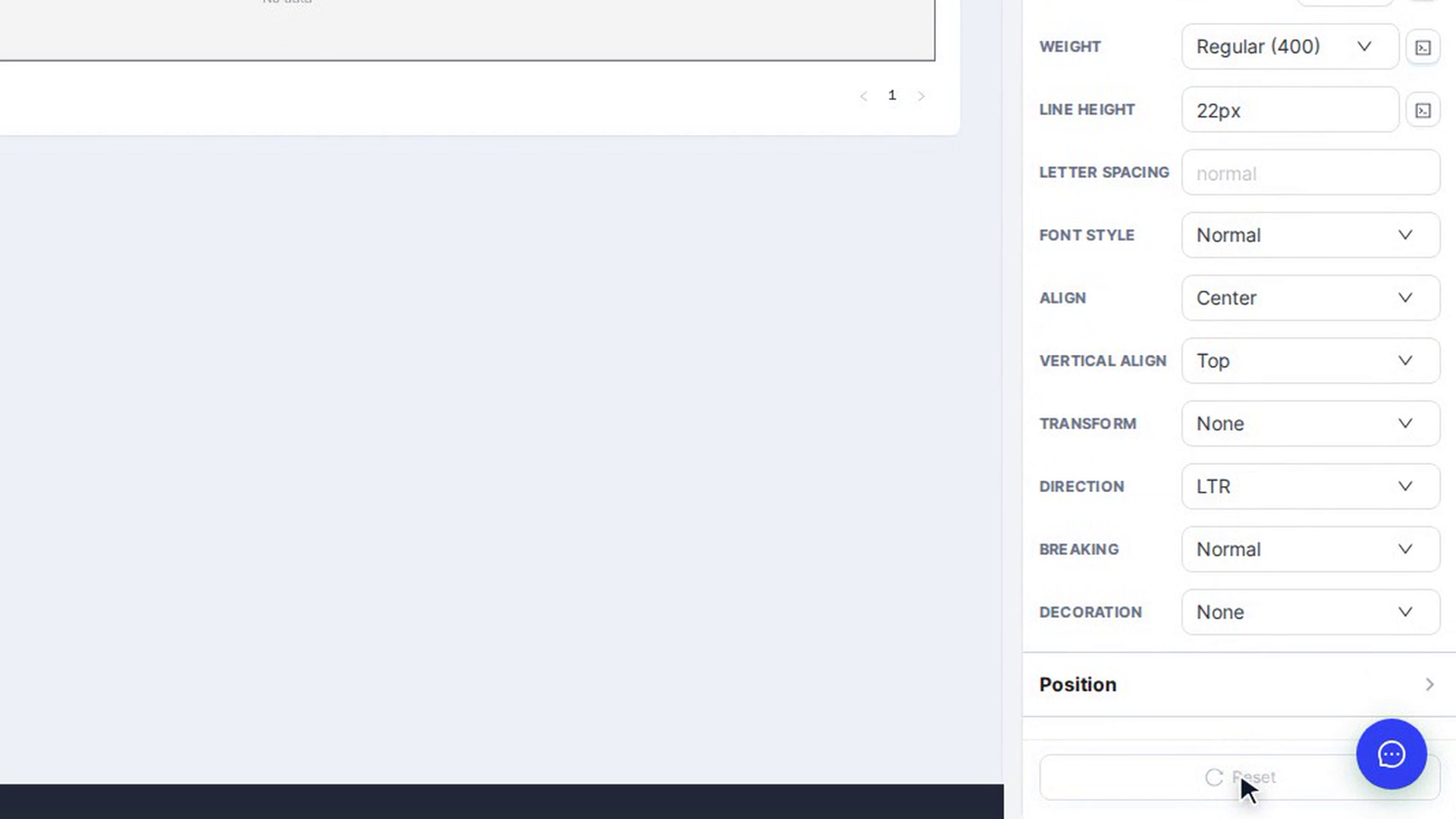
Click Reset at the bottom of the panel. On the Advance tab it puts back all of this element's original styles; properties and text on Basic are not touched. Reset is greyed out when there is nothing to undo.
Browse the style sections
| Section | What you set there |
|---|---|
| Layout | How the element arranges what is inside it: Display (Block, Flex, Grid…) and, for Flex or Grid, direction, alignment, wrapping and gaps. Rows, columns, Flex and Space elements have their own options, such as gutters. |
| Typography | Font, Color, Size, Weight, Line height, Letter spacing, Font style, Align, Vertical align, Transform, Direction, Breaking and Decoration. |
| Position | Position (Static, Relative, Absolute, Fixed or Sticky), Top, Right, Bottom, Left and Z-index, which decides what sits in front when elements overlap. |
| Size | Width, Height, their minimums and maximums, Aspect ratio, Box sizing and Overflow X / Y. |
| Display | Display, Visibility, Cursor, Pointer events, and for flex elements Direction, Justify, Align, Flex wrap and Gap. |
| Background | A Color, a Gradient or an Image, with a Preview. Just switching tabs changes nothing; the background changes on your first edit. |
| Space | Padding (inside the element) and Margin (outside it), for all sides at once or each side separately. |
| Borders | Border width, Border style, Border color and Border radius (rounded corners), for all sides or each side. |
| Shadows | Box Shadow (Add Shadow, Browse Presets, X offset, Y offset, Blur, Spread, Color) and Text Shadow (Add Text Shadow). |
| Effects | Opacity, Filter (Blur, Brightness, Contrast, Grayscale, Saturation), Backdrop blur, and Transform (Rotate, Scale X / Y, Translate X / Y, Skew X / Y). |
Copy and paste styles
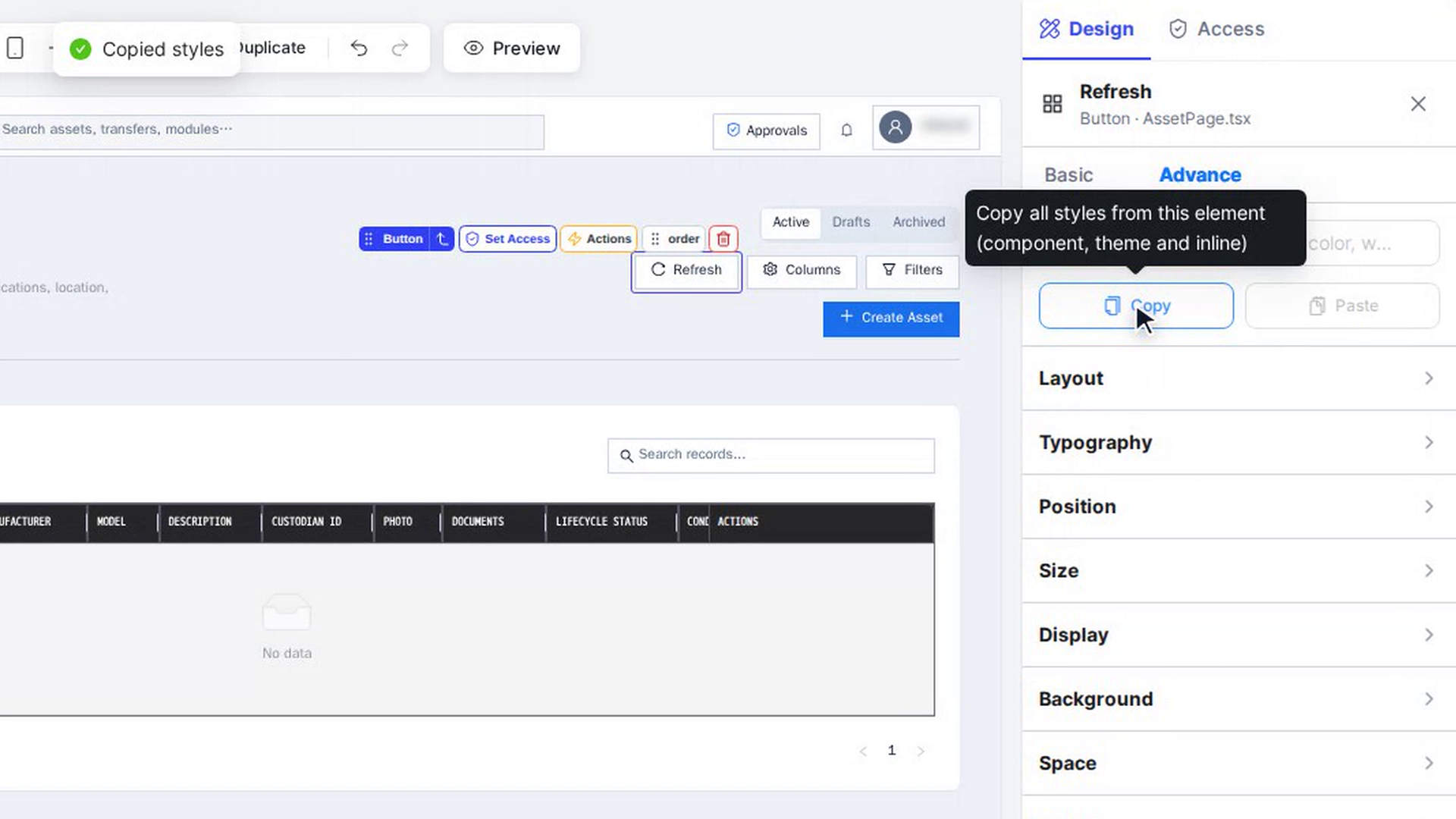
- Select the element whose look you like, and click Copy on the Advance tab. Copied styles confirms it.
- Select the element that should look the same.
- Click Paste. It is greyed out until you have copied something and selected a different element.
For built-in components, such as buttons or cards, Copy also takes the component's properties (for example a button's type). These are pasted only onto the same kind of component.
Screenshots
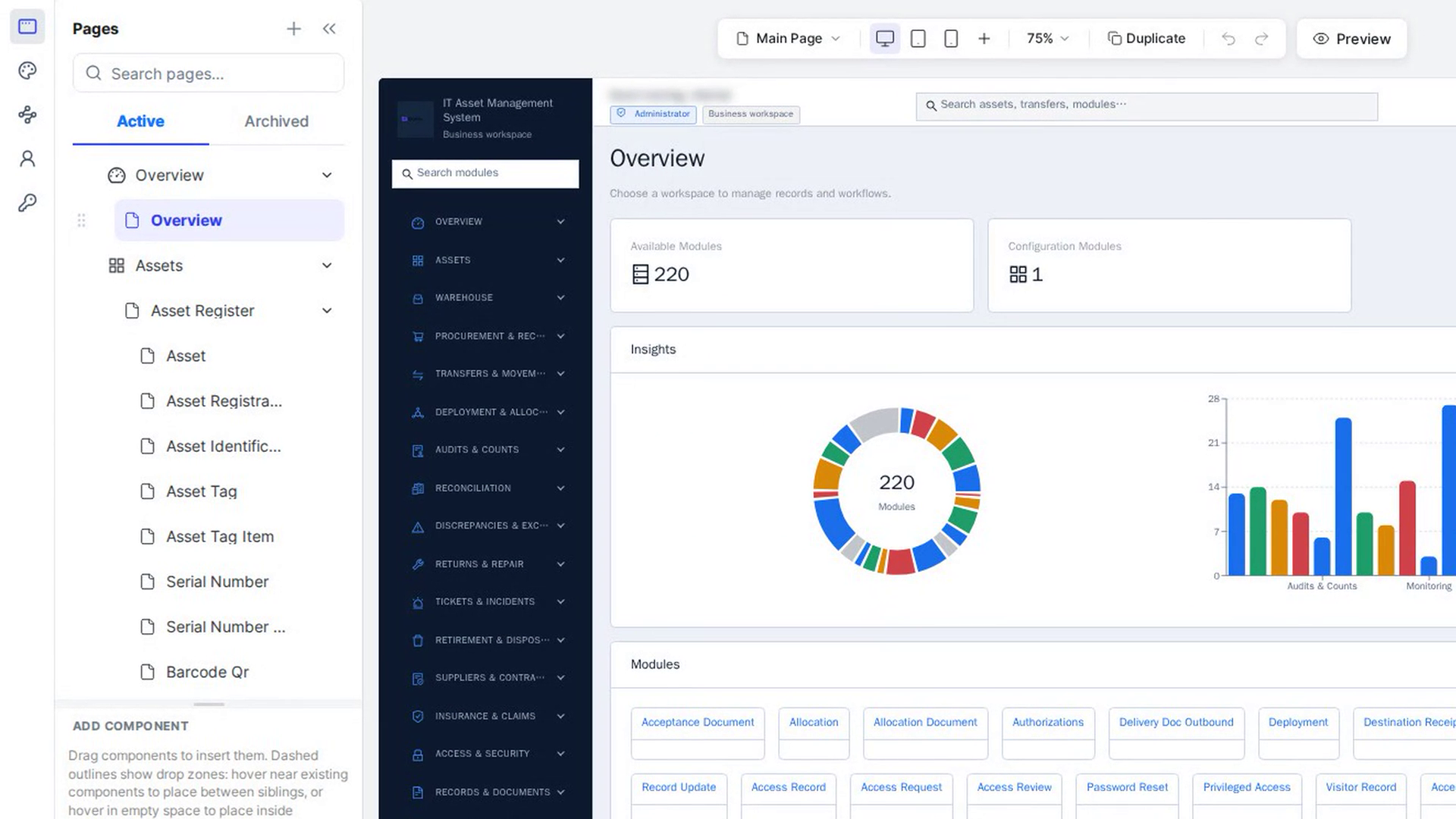
Step 1: Open the Advance tab
Step 2: Find a setting with search
Step 3: Change a value
Step 4: Undo one field
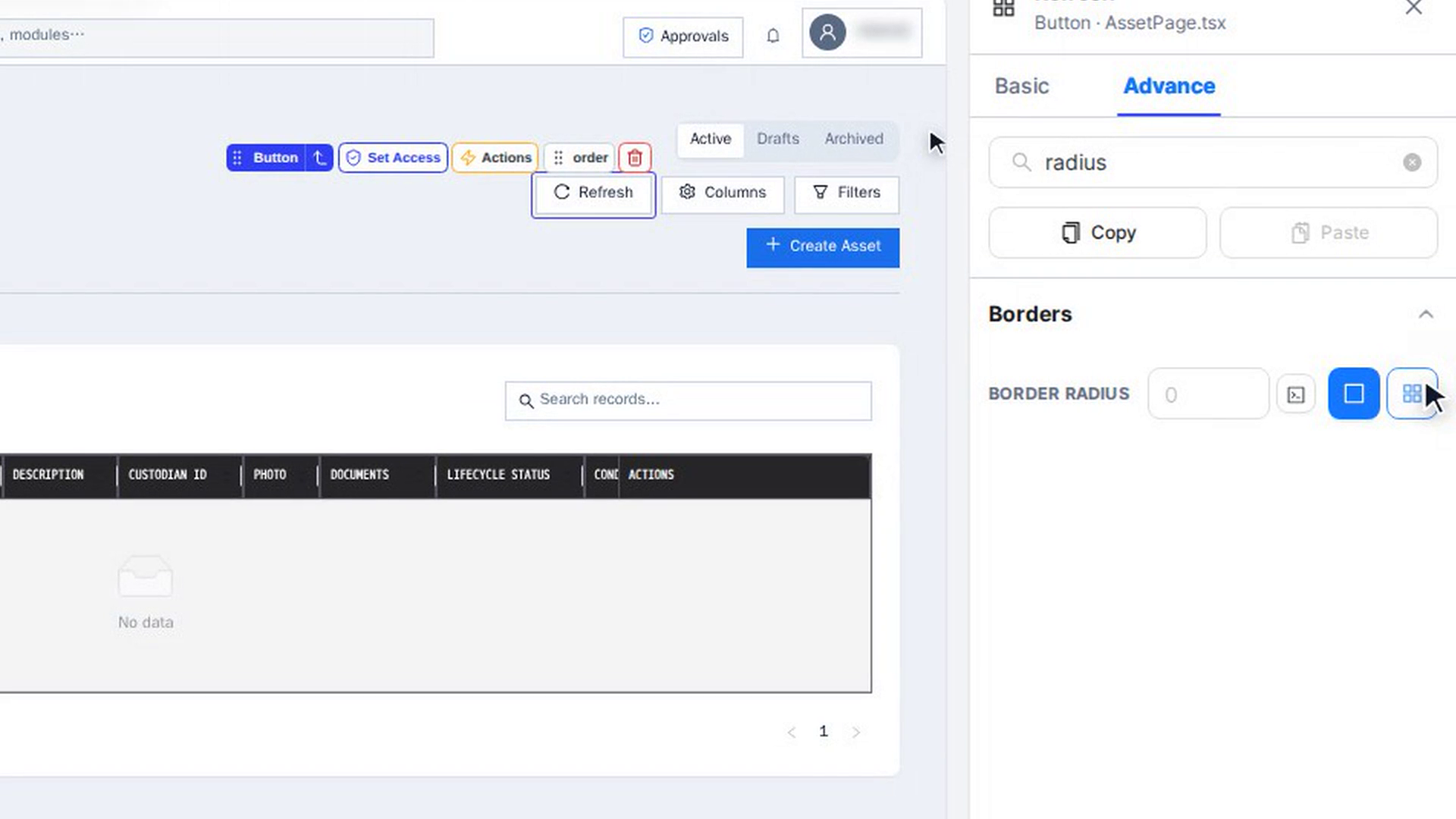
Step 5: Use a CSS variable
Step 6: Reset all styles
Step 7: Browse the style sections
Step 8: Copy and paste styles
Watch how
Every change saves on its own a moment after you make it, even while you are only trying things out. If you change something by mistake, use the arrow next to Modified, Reset, or ⌘/Ctrl + Z straight away.
Tip: Styles apply to the element's normal look. Separate styles for hover, focus or pressed states can't be set on the Advance tab. To change a style only on a smaller screen, pick Tablet or Mobile above the canvas first; see Design for desktop, tablet and mobile.