Review the generation estimate
Before a build starts, Dalfin shows how many AEU it will cost. You see two estimates: a quick Preliminary AEU Estimate right after you select Generate, and the final AEU estimation at the end of a short review of what Dalfin understood. Nothing is built until you confirm your answers.
Where the estimates fit
- Describe your system and select Generate.
- Preliminary AEU Estimate, then Approve and continue.
- Requirements Processing: Dalfin reads your prompt and your files.
- A three-screen review: Business process, Open questions and AEU estimation.
- Confirm answers: this approves the AEU and starts the build.
Before you start
- Anyone who started the app can do this.
- You've sent a description, files or a Figma design with Generate, or selected Start Building in Dalfin Studio.
Steps
Approve the preliminary estimate
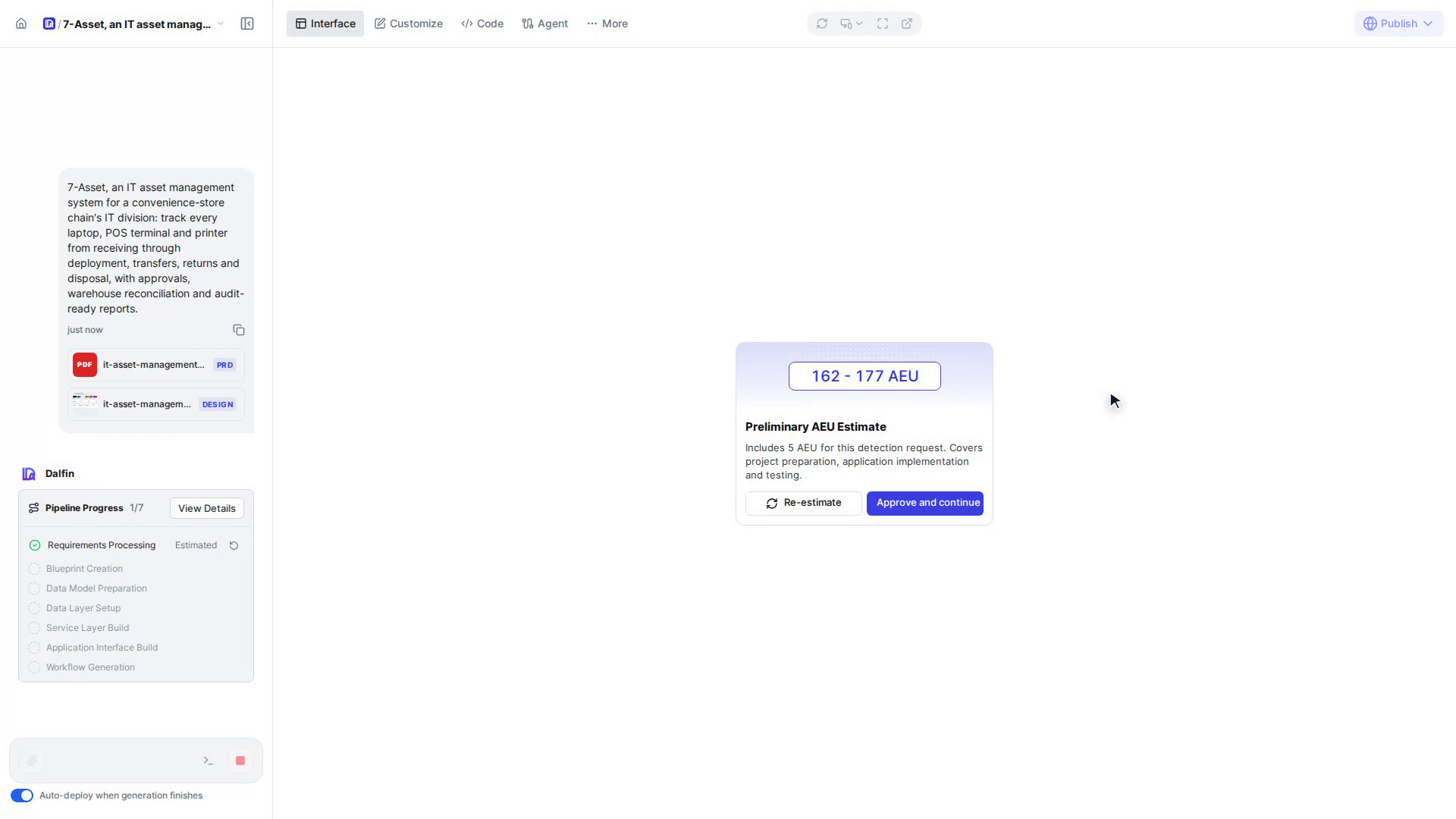
After you select Generate, Dalfin shows a Preliminary AEU Estimate: a range of AEU, for example 162 - 177 AEU. It covers preparing the project, building the application and testing it, and includes 5 AEU for the estimate itself.
Select Approve and continue, or Re-estimate to have Dalfin work it out again.
Wait while Dalfin reads your prompt
Dalfin reads your description and every file you attached. In the chat on the left, Pipeline Progress shows Requirements Processing while it works. This can take a few minutes.
Review the business process
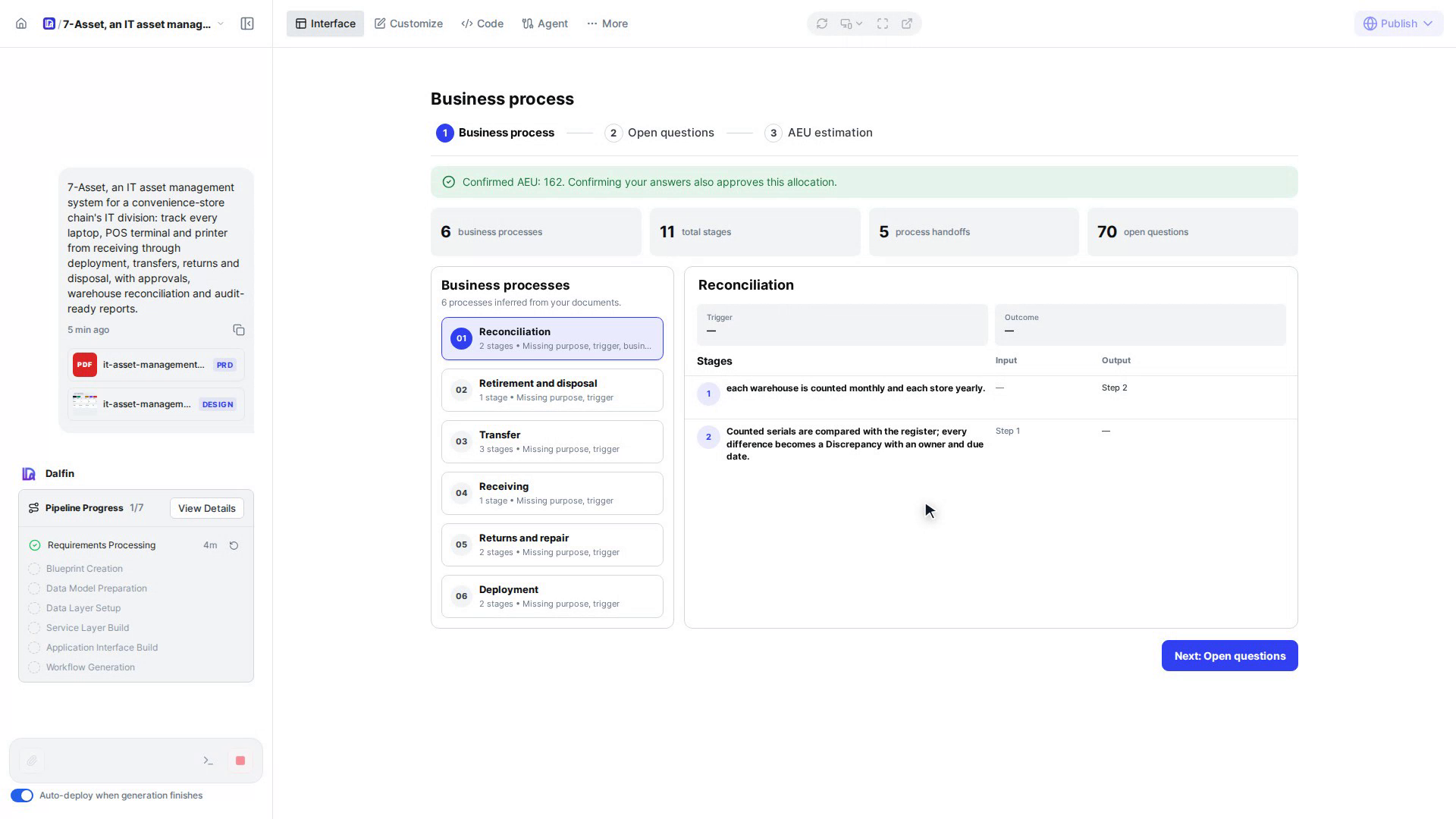
The Business process screen opens, the first of three. A green banner shows the confirmed AEU so far, for example "Confirmed AEU: 162. Confirming your answers also approves this allocation."
The counters at the top show how many business processes, stages, process handoffs and open questions Dalfin found. Select a process on the left to see its trigger, outcome and stages. Then select Next: Open questions.
Answer the open questions
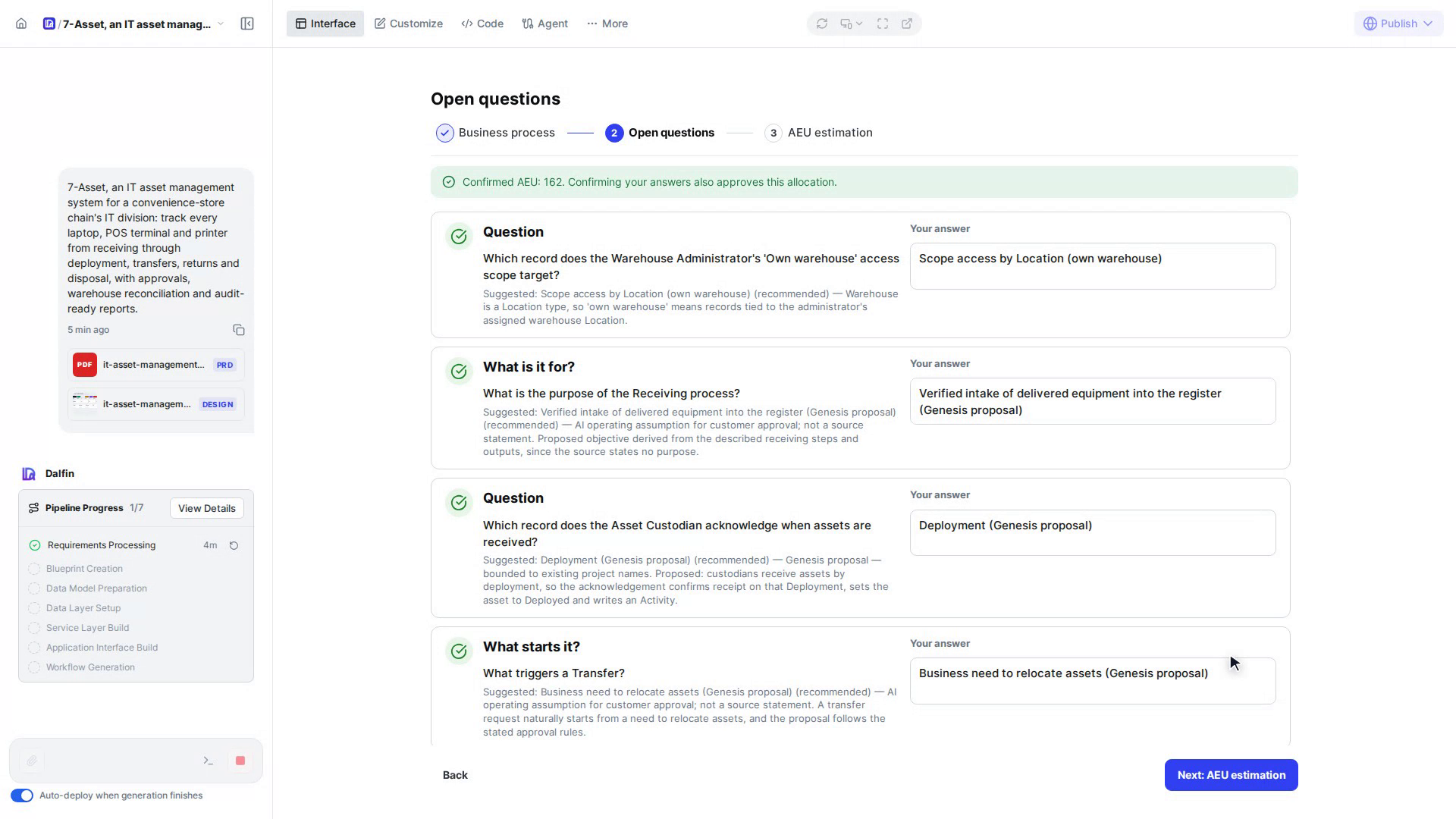
Open questions lists what Dalfin still needs to know. Each answer is already filled in with Dalfin's suggestion, and the reason for it is shown under the question. A suggestion is only an assumption: read each one and change any answer that doesn't match how you work.
Select Next: AEU estimation. You can select Back at any time to return to an earlier screen.
Read the AEU estimation
The AEU estimation screen shows four cards:
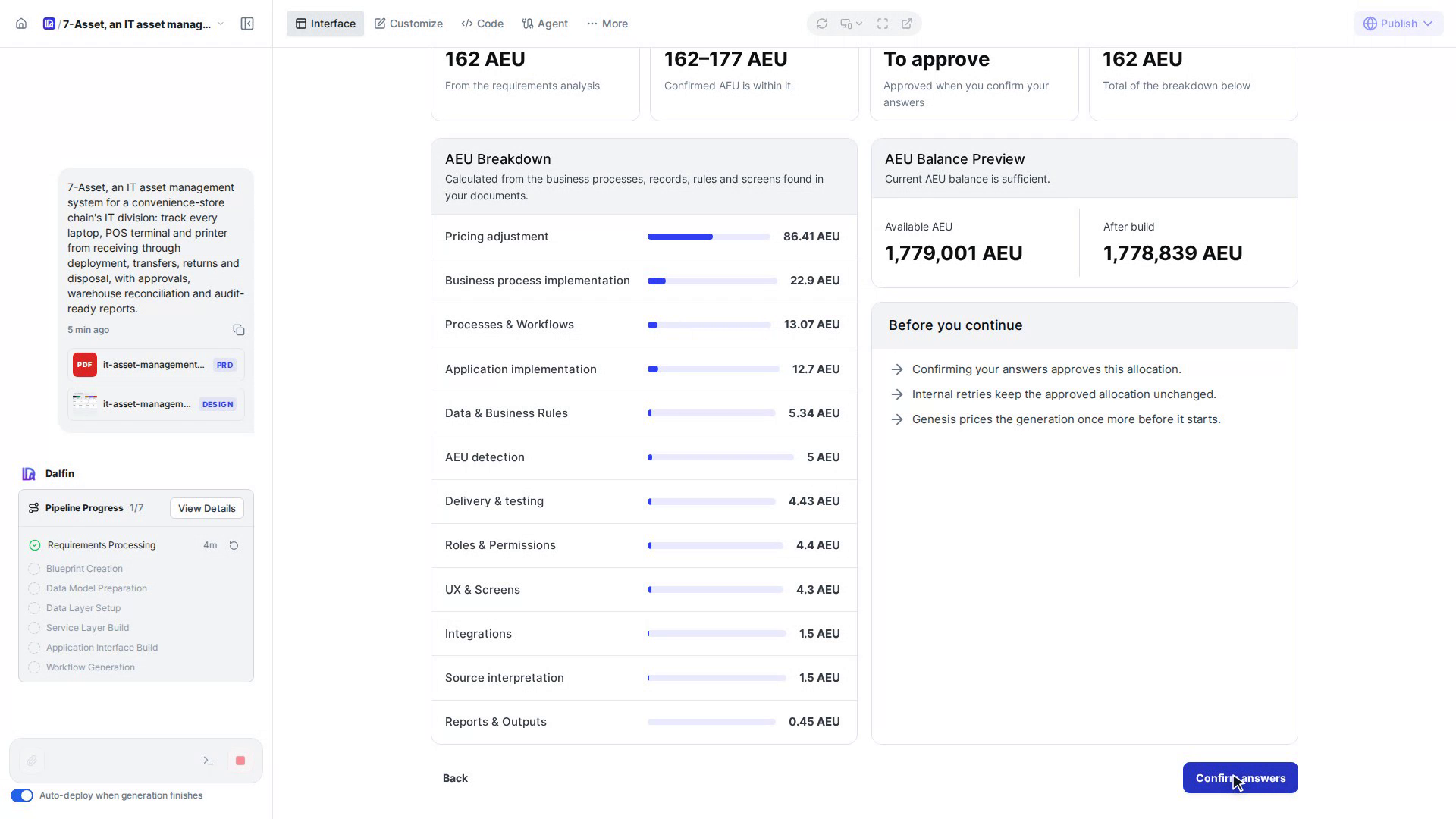
- Confirmed AEU: the cost from the requirements analysis.
- Approved estimate: the preliminary range you approved. The confirmed AEU falls within it.
- Status: To approve until you confirm your answers.
- Calculated: the total of the breakdown below.
Check the breakdown
AEU Breakdown shows how the total is split, calculated from the business processes, records, rules and screens found in your documents. For example Business process implementation, Processes & Workflows, Application implementation, Data & Business Rules, AEU detection, Delivery & testing, Roles & Permissions and UX & Screens, each with a bar and its AEU amount.
Check your balance
AEU Balance Preview shows your Available AEU and what you'll have After build. "Current AEU balance is sufficient." means you can go ahead. If your balance is too low, top up first: Buy an AEU pack or request a custom amount.
Before you continue reminds you that confirming your answers approves this allocation, that internal retries keep the approved allocation unchanged, and that Dalfin prices the generation once more before it starts.
Confirm your answers
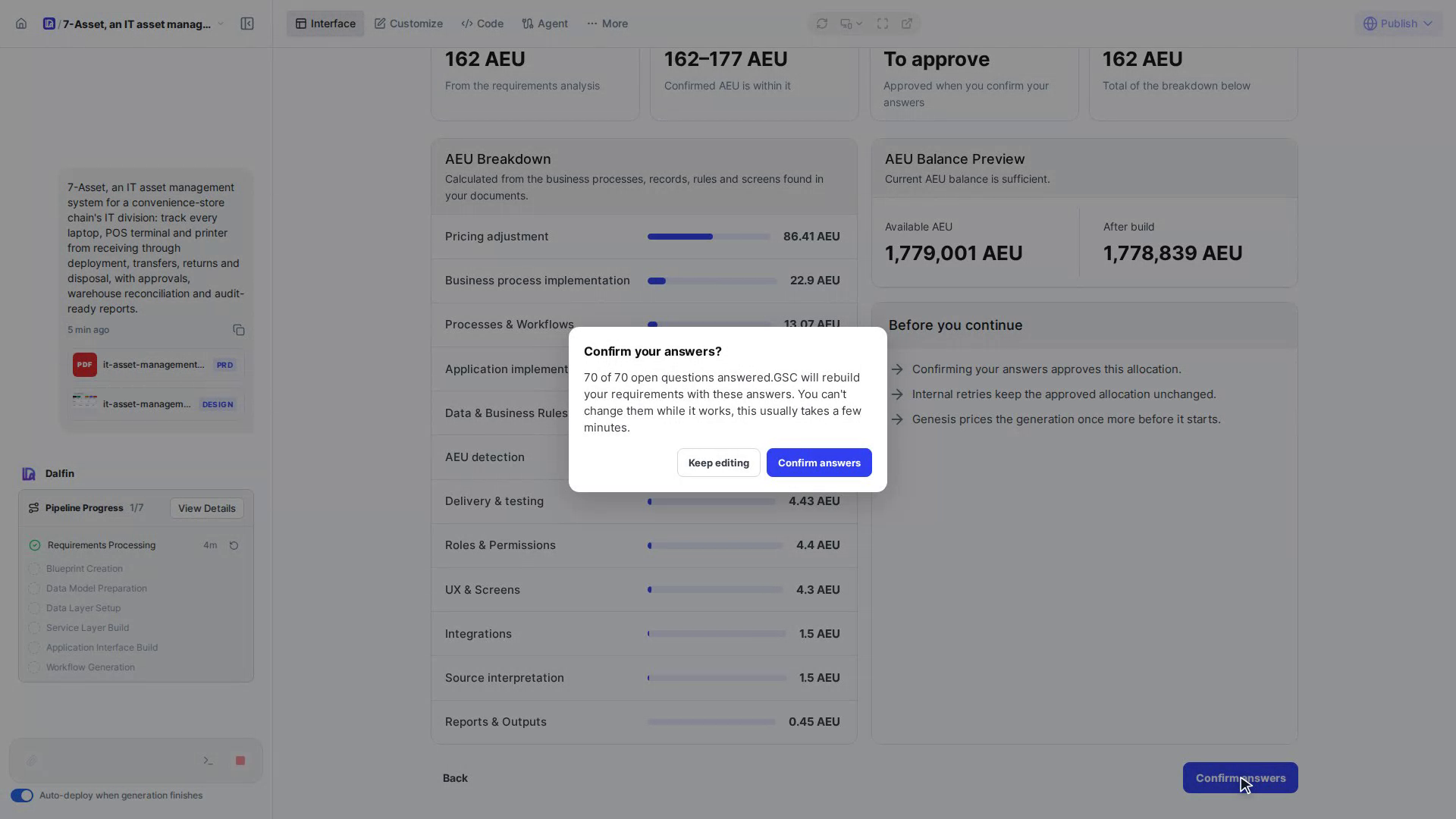
Select Confirm answers at the bottom of the screen. Dalfin asks Confirm your answers? and shows how many open questions are answered. Your answers can't change while Dalfin rebuilds the requirements with them, so select Keep editing if you want to change something, or Confirm answers to go ahead.
Dalfin reads your answers, prepares the shared specification and starts the build. You can follow it in Pipeline Progress.
Screenshots
Step 1: Approve the preliminary estimate
Step 3: Review the business process
Step 4: Answer the open questions
Steps 5 and 7: Read the AEU estimation and check your balance
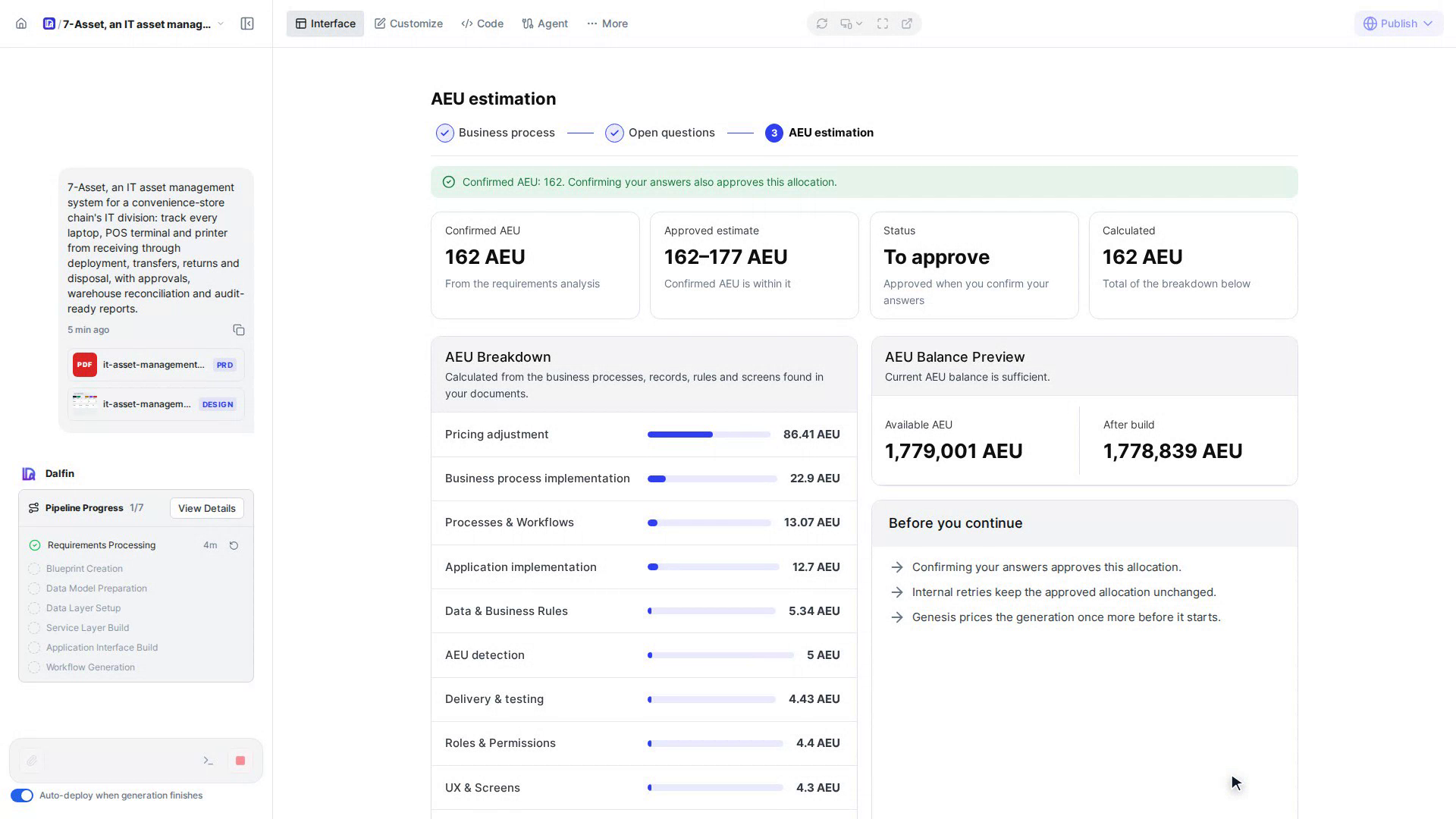
Step 6: Check the breakdown
Step 8: Confirm your answers
Watch how
Approve the AEU Estimate and Continue
Answer the Open Questions and Confirm the AEU Estimate
Tip: The final AEU estimation can differ from the preliminary range, because it takes your answers to the open questions into account.
Selecting Confirm answers approves the AEU allocation and starts the build. A new generation costs at least 5 AEU.