Preview and save your changes
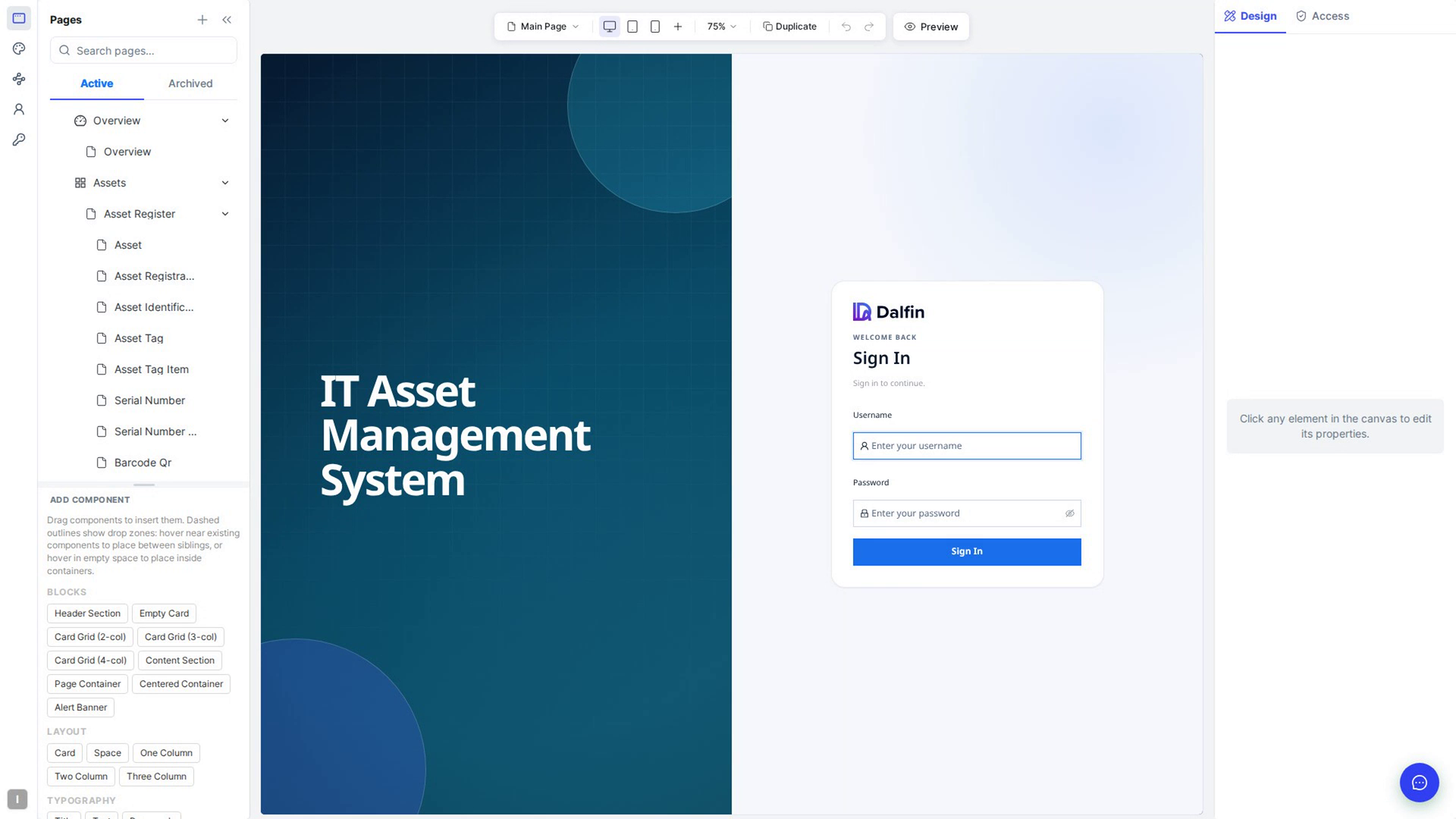
The editor saves your changes as you make them and rebuilds your app when a change needs it. Use Preview to try a page the way your users will, at different screen sizes and as different roles.
Before you start
- You need access to your app's Customize tab (usually a team admin).
- Open the page you want to work on (see Open the editor and find your way around).
Steps
Make a change and watch it save
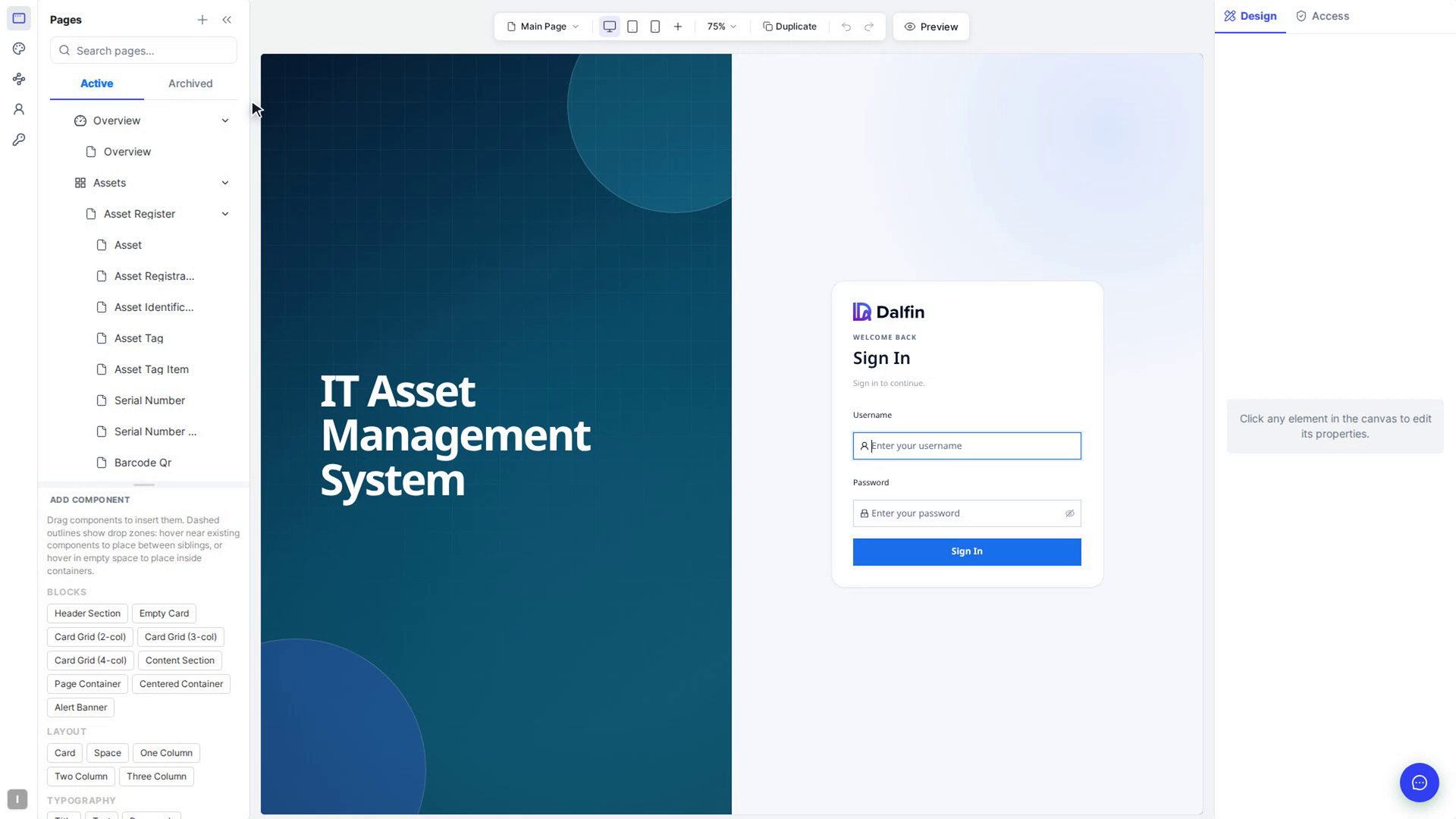
Make an edit, for example change a style on the Design tab or drag in a component. There's no separate Save button to press: most edits are written to your app straight away, and the canvas refreshes to show them.
When a change needs your app to be rebuilt, such as adding a component or a form field, wait a moment: the page updates by itself once it's done. Wait for it before you make the next big change.
Undo a change
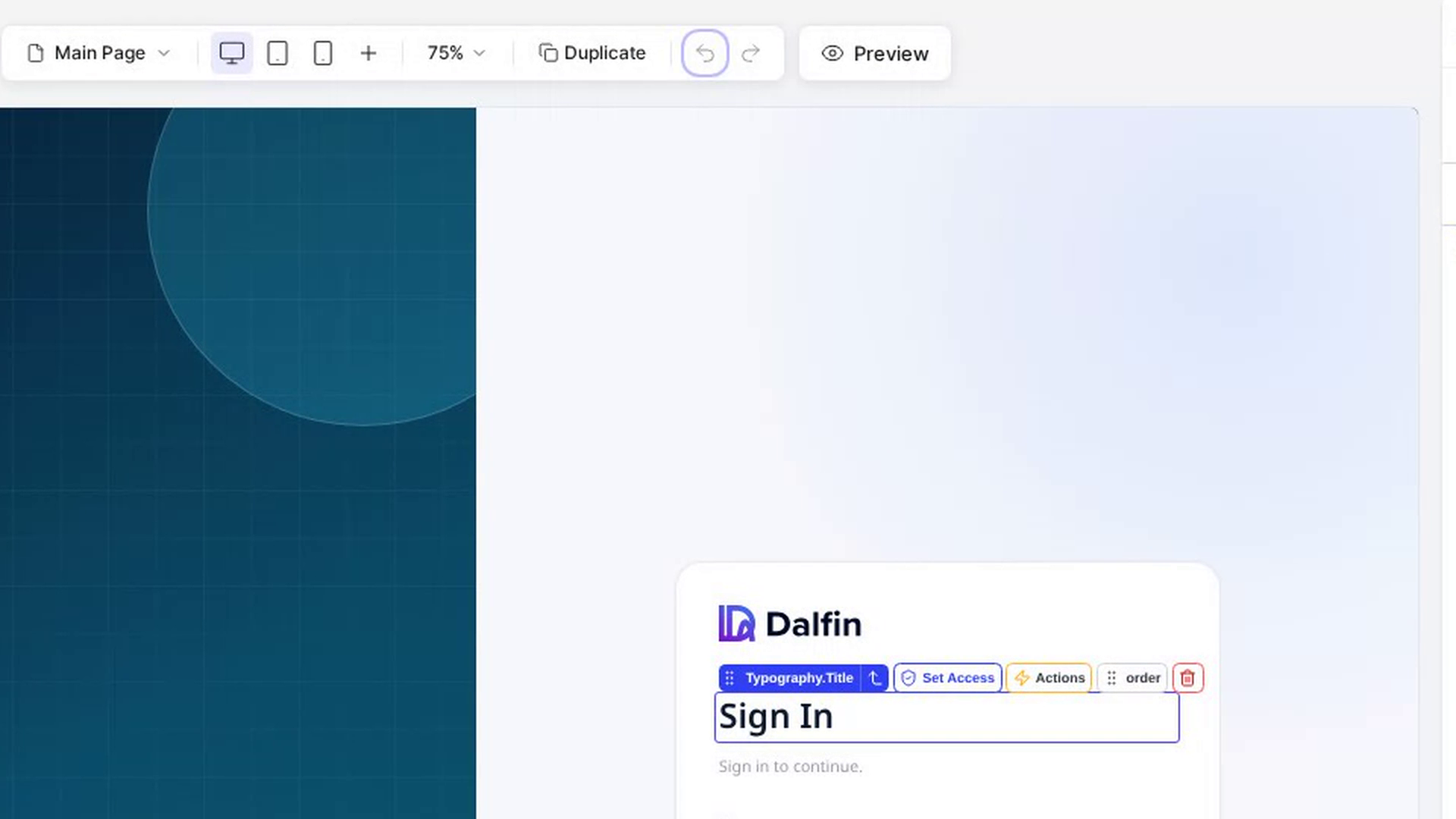
Select Undo in the bar above the canvas, or press Ctrl+Z (⌘Z on a Mac). Select Redo, or press Ctrl+Shift+Z (⌘⇧Z), to put it back.
To undo only the unsaved changes on the element you've selected, select Reset at the bottom of the Design tab.
| To undo… | Do this |
|---|---|
| The last change, of any kind | Press Ctrl+Z (⌘Z), or select Undo above the canvas. Redo with Ctrl+Shift+Z (⌘⇧Z) or Ctrl+Y. |
| One style setting | Select the arrow next to its Modified tag (Revert … to original value). |
| All your changes to the element on the open tab | Select Reset at the bottom of the Design tab. On Basic it puts back the original settings, text and icon. On Advance it puts back the original styles. It's greyed out when there's nothing to reset. |
| A setting you gave its own value on Tablet or Mobile | Select the circular arrow next to it, so it follows the wider screen again (see Design for desktop, tablet and mobile). |
| An icon you changed | Select Revert to … beside the icon. |
| Content you edited in the code editor | Select Reset to original in the editor's toolbar. |
Keyboard undo and redo don't work while your cursor is in a text box: click on the canvas first, then press Ctrl+Z.
Finish form fields before you leave
Form field changes are the exception to saving as you go: changes to a field's settings wait to be saved.
If you try to leave the page while something is still waiting, the Unsaved changes window opens:
- Save & Proceed saves, then continues. If a change is still rebuilding, or fields still need setting up, you're asked to wait or to configure them first.
- Discard changes throws away the unsaved changes and continues.
- Close the window to stay where you are.
Preview the page
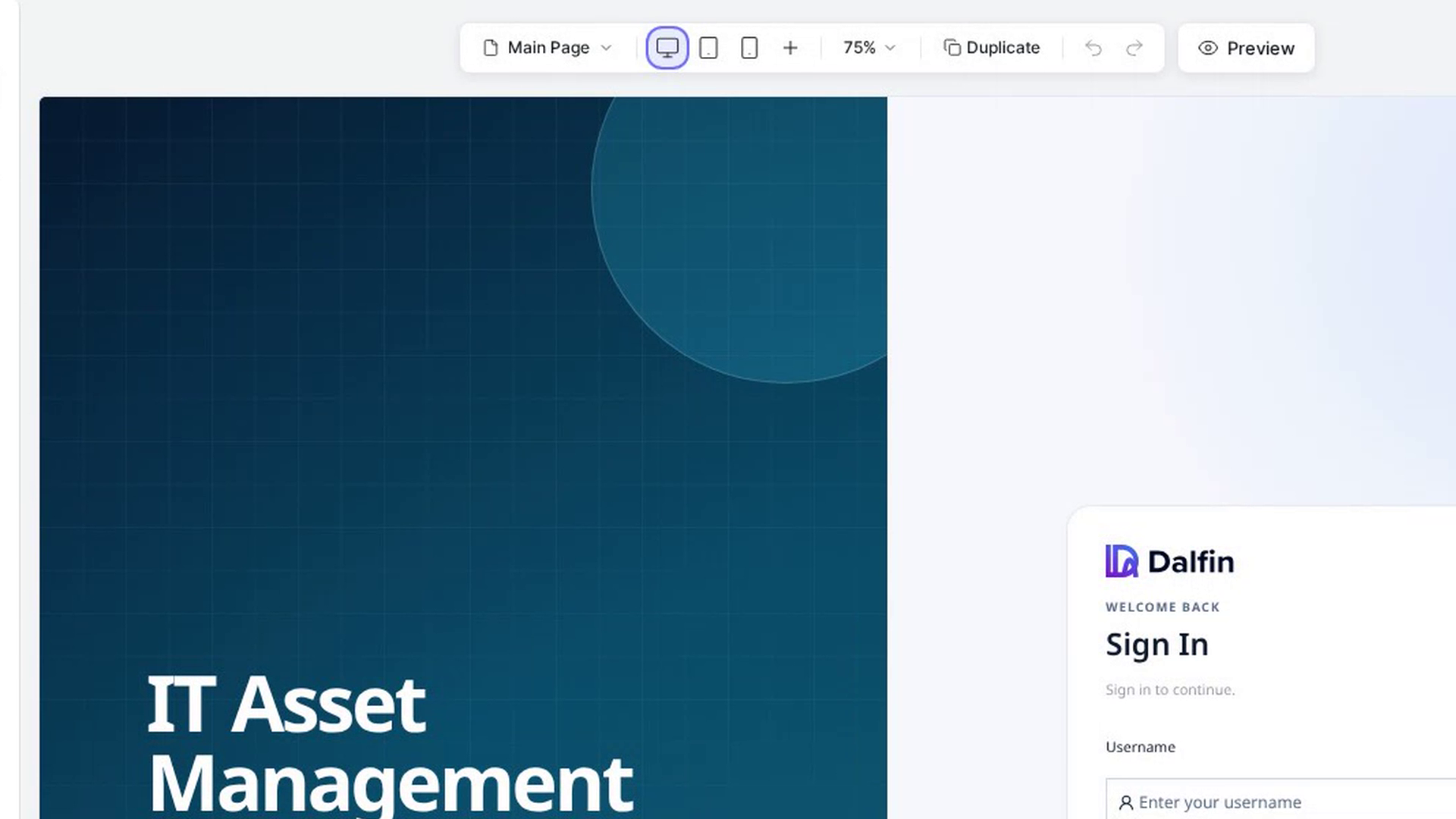
Select Preview at the right of the bar above the canvas. The editing panels disappear and you can click through the page just as your users will.
The bar at the top of the screen changes:
- Preview as role: choose a role to see the page as someone with that role sees it. Pages and elements they aren't allowed to see are hidden.
- Desktop, Tablet and Mobile: see the page at that screen size.
- Open app in new tab: open your app in a separate browser tab.
Exit preview
Select Exit Preview at the top right. The editing panels come back and you can select elements again.
Reload the canvas
If the canvas looks out of date or stops responding, select Reload canvas (the circular arrow) in the bar at the top of the screen. The page reloads with your latest saved changes.
Screenshots
Step 1: Make a change and watch it save
Step 2: Undo a change
Step 3: Finish form fields before you leave
Step 4: Preview the page
Step 5: Exit preview

Step 6: Reload the canvas
Watch how
Tip: You don't need to build your app by hand from the editor. It rebuilds itself when a change needs it. Your edits are saved live as you make them.
Discard changes in the Unsaved changes window can't be undone.