Drag and drop components
Build and rearrange a page by dragging. Drag a new component in from Add Component, move an element that's already on the page by its grip, or put a group of items in exact order with Reorder items.
Before you start
- You need access to your app's Customize tab (usually a team admin).
- Open the page you want to work on (see Add pages and components).
- Components can't be added while the right panel's Access tab is open. Switch to Design first.
Steps
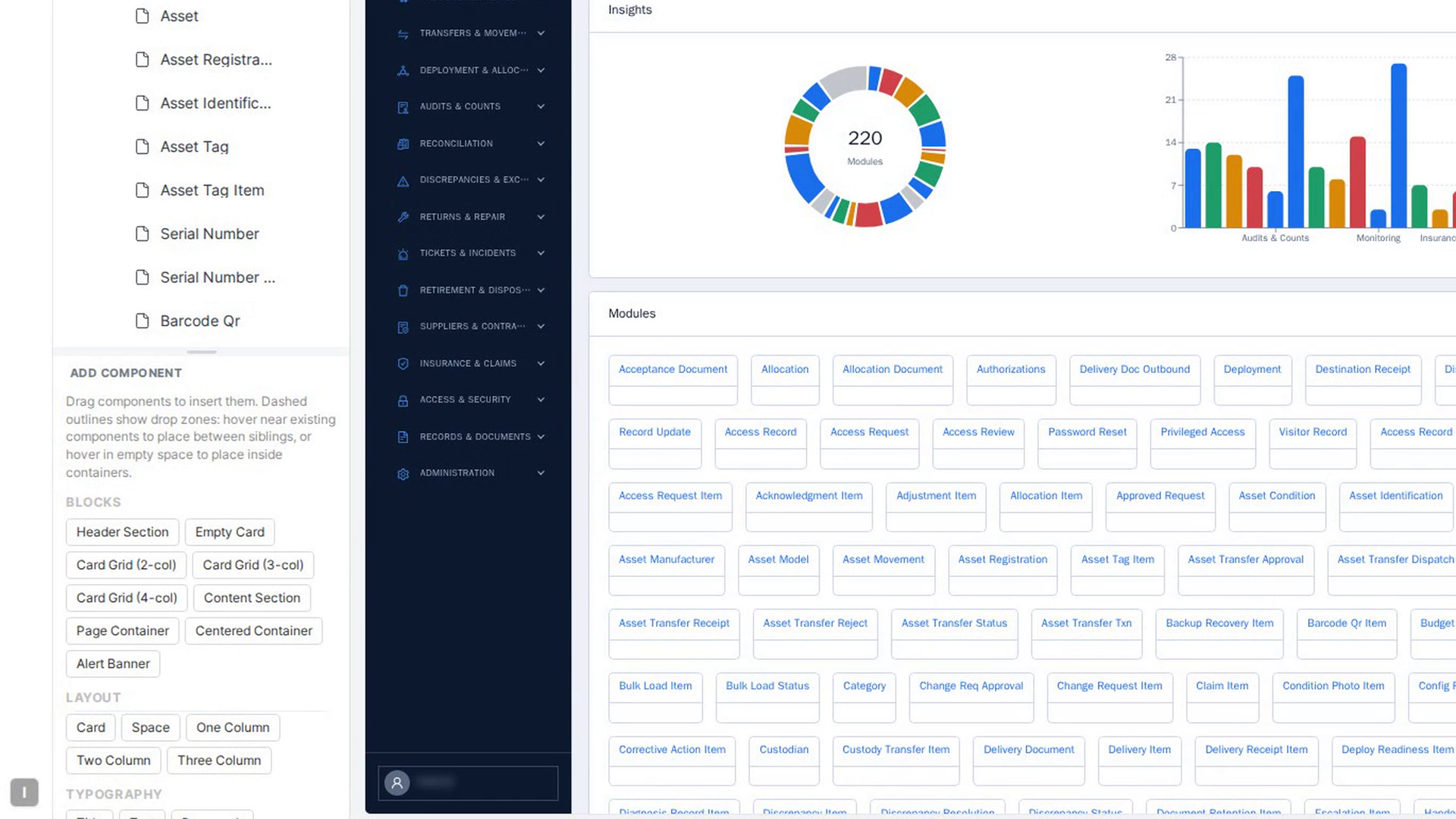
Find the component
Add Component is below the page list on the left. Scroll it to see every group: Blocks (ready-made groups such as Header Section, Empty Card or Card Grid (3-col)), Layout, Typography, Display, Navigation, Feedback, Overlay, Input and Form.
Drag it onto the page
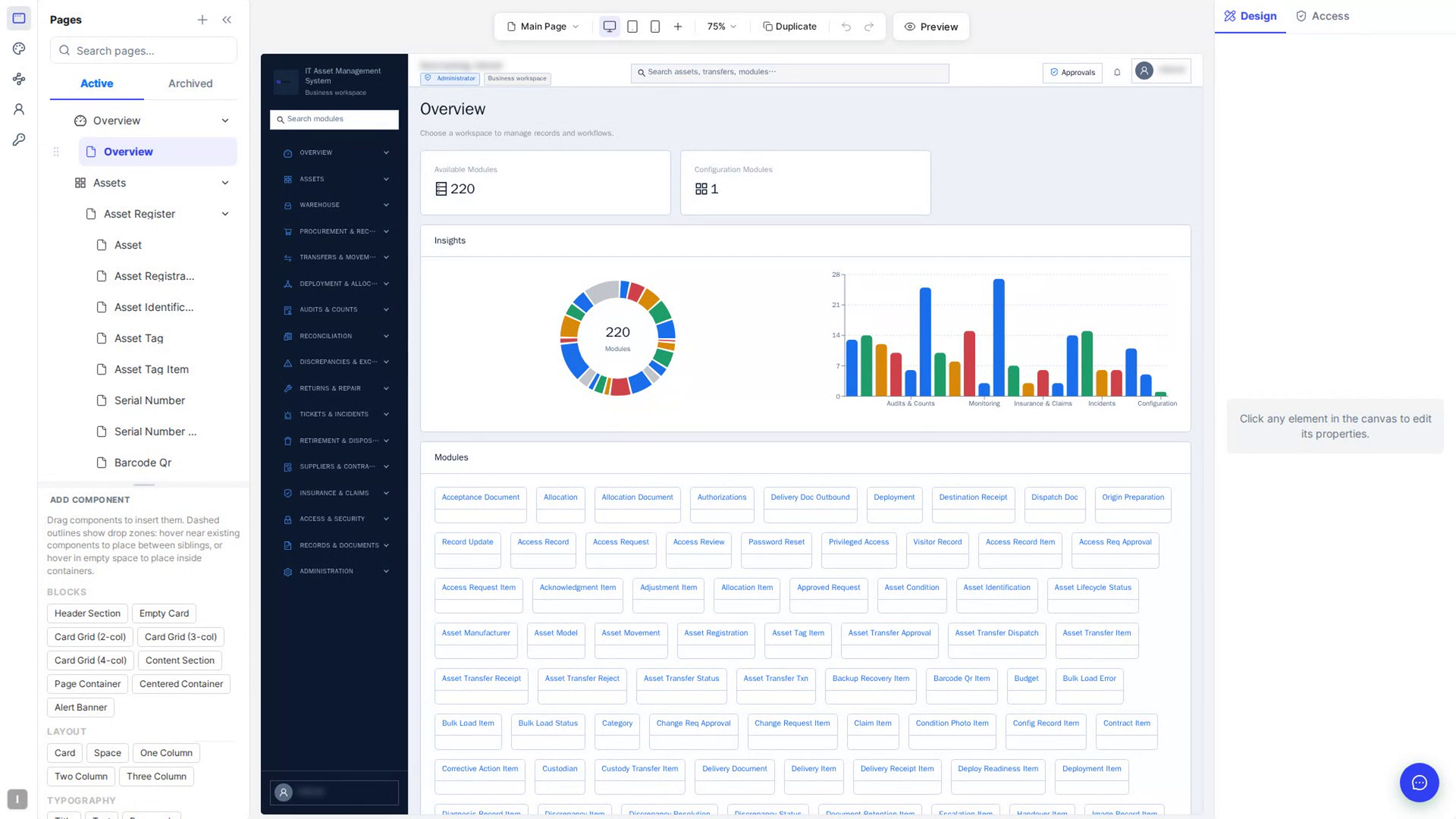
Press and hold on a tile, for example Card under Layout, and drag it over the canvas. A blue label, such as + Card, follows your pointer.
To cancel while you're dragging, press Esc, or drag back over Add Component and let go.
Check where it will land
As you move over the page, the canvas shows where the component will go:
- A green dashed outline around an element: it goes inside that container.
- A blue dashed space opening up between elements: it goes there. Labels such as ↕ Insert here, ↓ Into a container or After an element say exactly where.
- ↻ Adds to all a number of items: you're over one of several repeated copies, such as cards in a list, and the new component appears in every copy.
- A red label: you can't drop it here, and the label says why. Move somewhere else.
Let go to insert it
Let go of the mouse button. You see Card inserted — rebuilding MFE… while your app updates, then the new element appears on the page, selected, so you can change it on Basic and Advance.
If you drop into a part of the page only some roles can see, the This insert lands inside a protected section window opens: the new element will be hidden from the same people. Select Insert anyway to go ahead, or Cancel.
Move an element that's already on the page
Click the element to select it. In the small toolbar above it, press and hold the grip (Drag to move) and drag the element to its new place. Its old spot is marked Original position, and labels show where it will go, for example Into each Row (×4) or ↻ Adds to all 4 items. Let go to drop it. Press Esc before you let go to cancel.
If the move takes the element into or out of a part of the page only some roles can see, a window explains what changes. Choose to move it anyway, or Cancel to leave it where it was.
Reorder items precisely
When items are small, overlap, or you want exact control, select one of them and select order in the toolbar above it (Reorder among its siblings). The Reorder items panel lists every item at that level in page order, including any that aren't on screen right now. The one you selected is highlighted.
Drag a row by its grip, or use the ↑ and ↓ arrows to move it one place. Select Apply to make the change, or Reset to go back to the original order. Close the panel with the ✕ to leave without changes.
When the items come from a list of data, the toolbar shows list instead of order (Reorder the list this renders from), and you change the order of that list instead.
Screenshots
Step 1: Find the component
Step 2: Drag it onto the page
Step 3: Check where it will land

Step 4: Let go to insert it
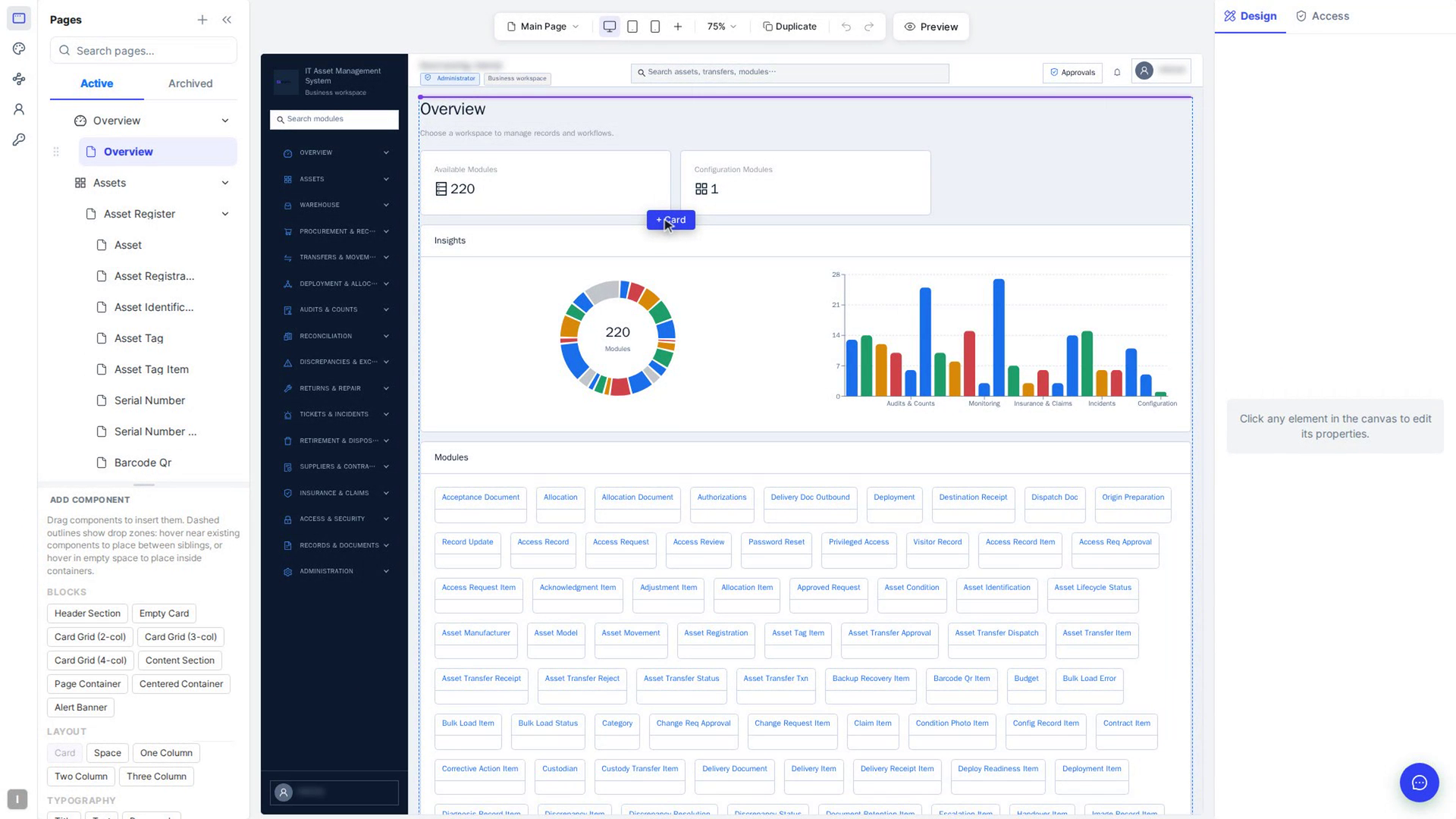
Step 5: Move an element that's already on the page
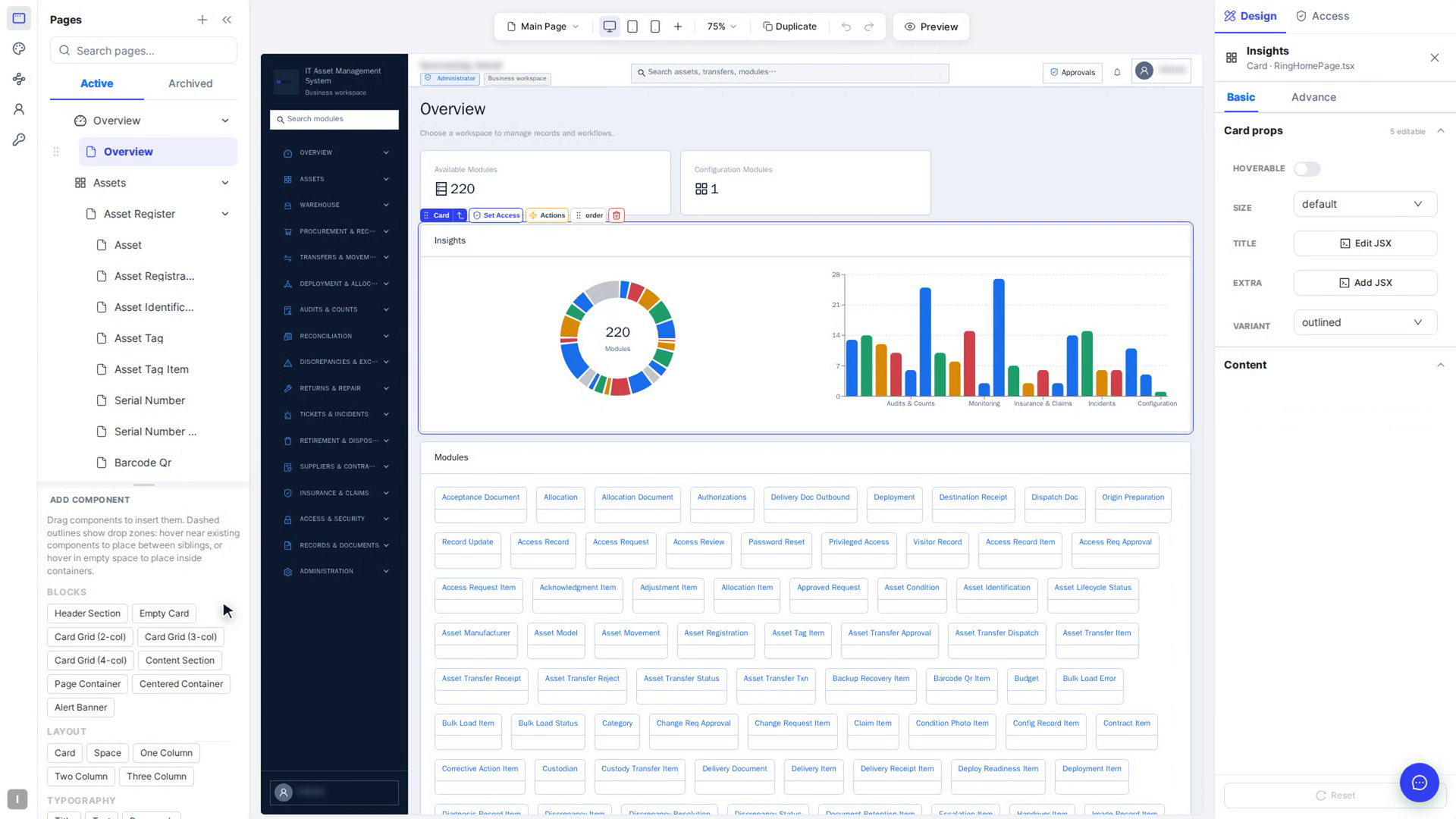
Step 6: Reorder items precisely

Watch how
Good to know
- Only one change that rebuilds your app is processed at a time. If you see Please wait — a change is still rebuilding., wait a moment and try again.
- If you see a message asking you to save or remove a pending element first, a component you just dropped is still being added. Wait for it, or delete it, before your next change.
- Table rows can't be dragged. Their order comes from the table's data.
- You can also move elements from the Layers tab (see Use the Layers tab).
Tip: Dropped something in the wrong place? Press Ctrl+Z (⌘Z on a Mac), or select Undo above the canvas.
Inserting or moving an element rebuilds your app and saves straight away. Wait until the page has updated before your next change.