Find your way around the admin panel
The admin panel is where platform owners look after every organization on the platform, answer AEU requests, publish website content and keep an eye on support tickets. This page shows you the four areas in its sidebar.
Before you start
- You need a platform owner account. Organization owners and regular users can't open the admin panel.
- The admin panel is not available on enterprise (self-hosted) installations.
Steps
Open the admin panel
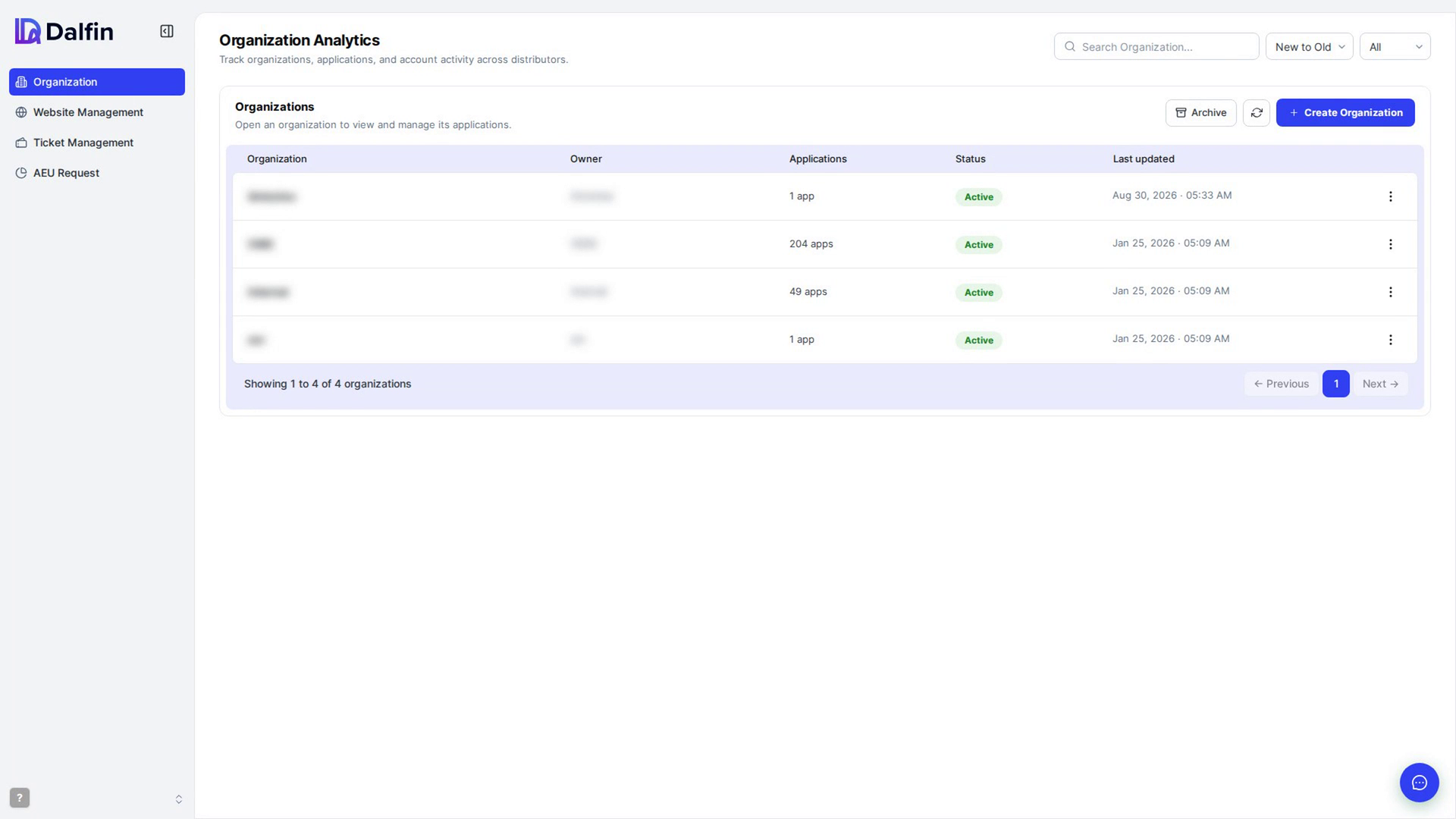
Sign in with your platform owner account. The admin panel opens on the Organization area, with the sidebar on the left.
Select the logo at the top of the sidebar at any time to come back to the Organization area.
Organization
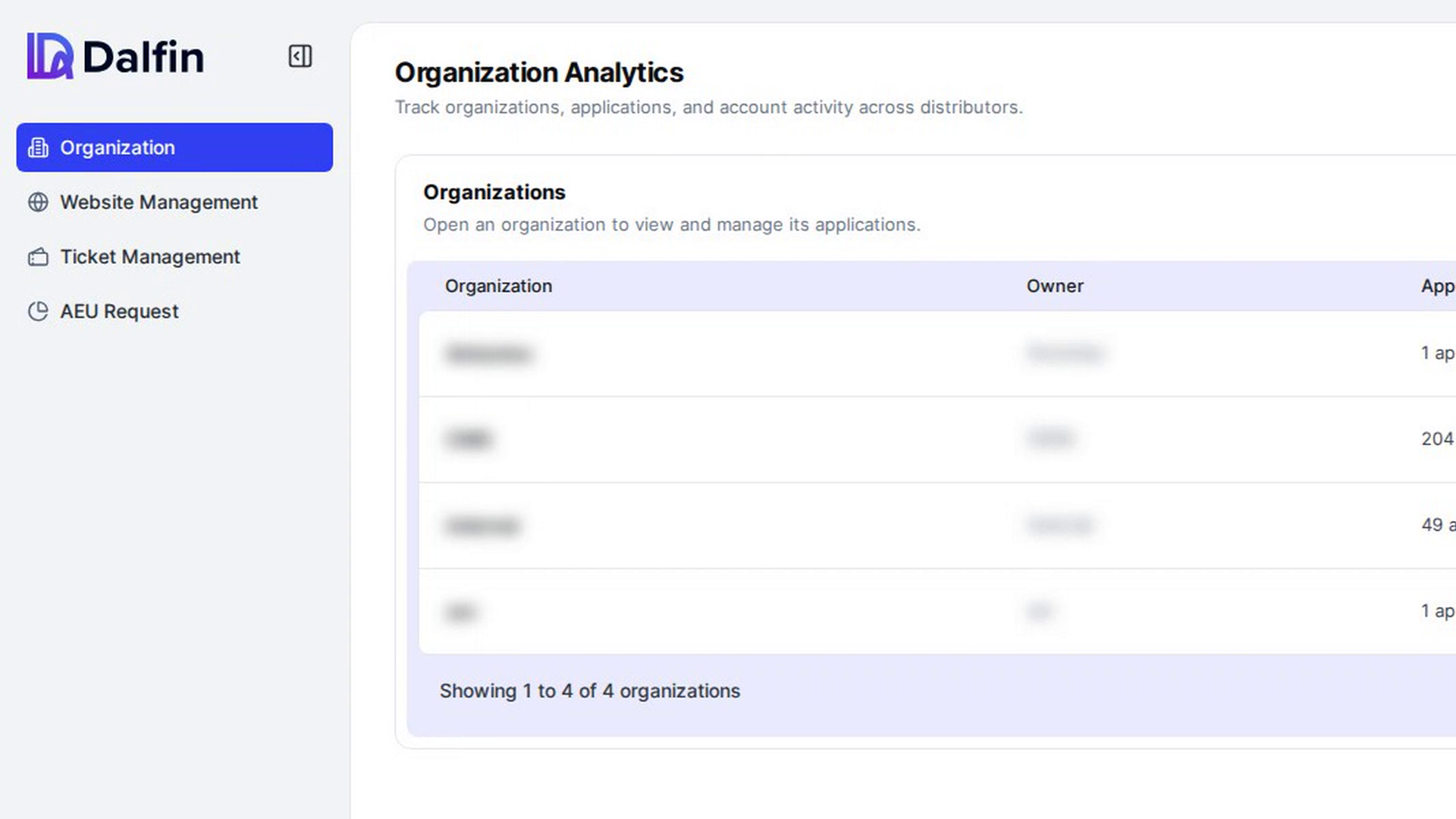
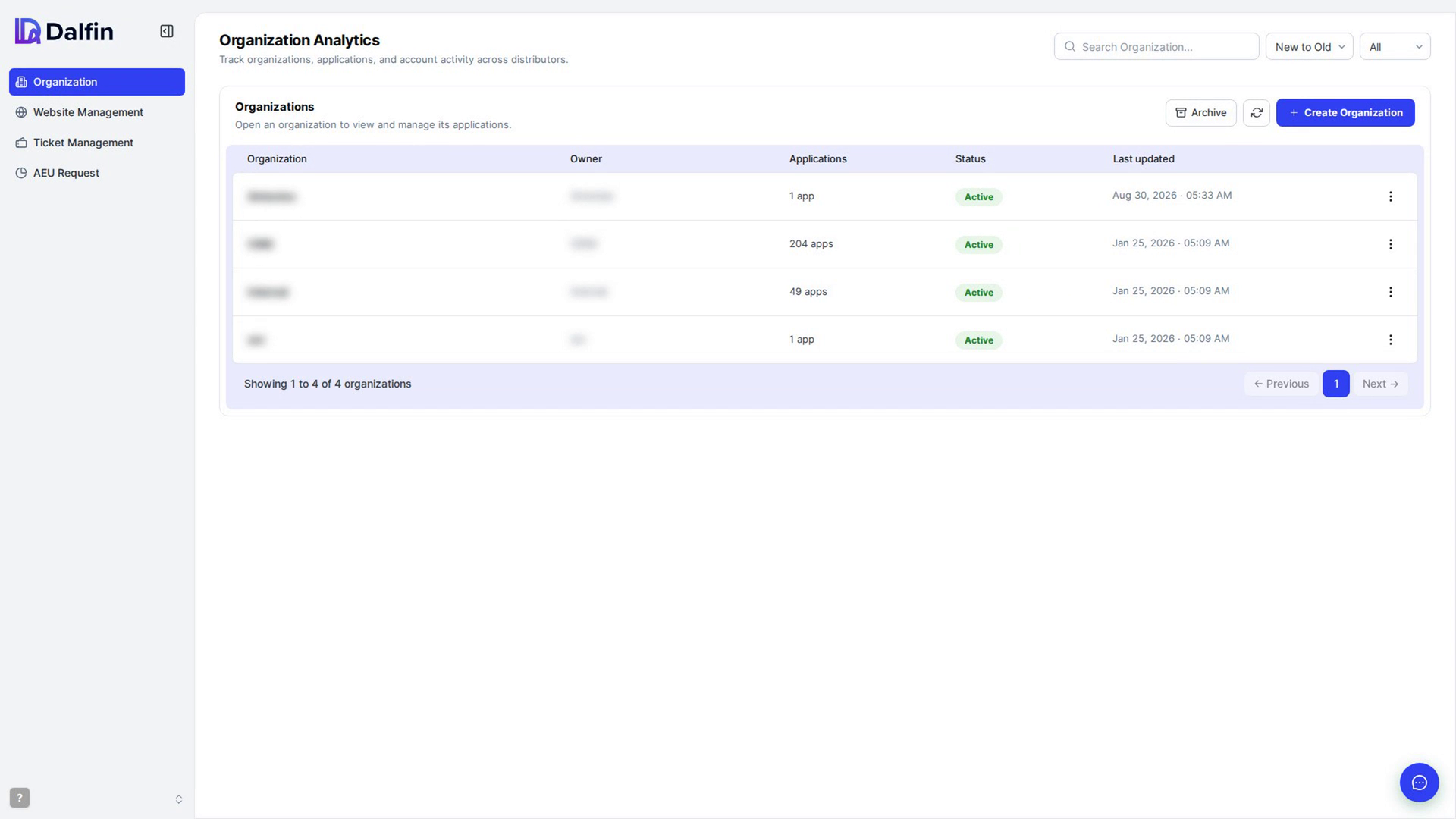
Select Organization in the sidebar. Here you see Organization Analytics and the Organizations list: every organization on the platform with its owner, number of apps, status and when it was last updated. From here you can create, edit, duplicate, archive and restore organizations, and open one to see its apps.
Website Management
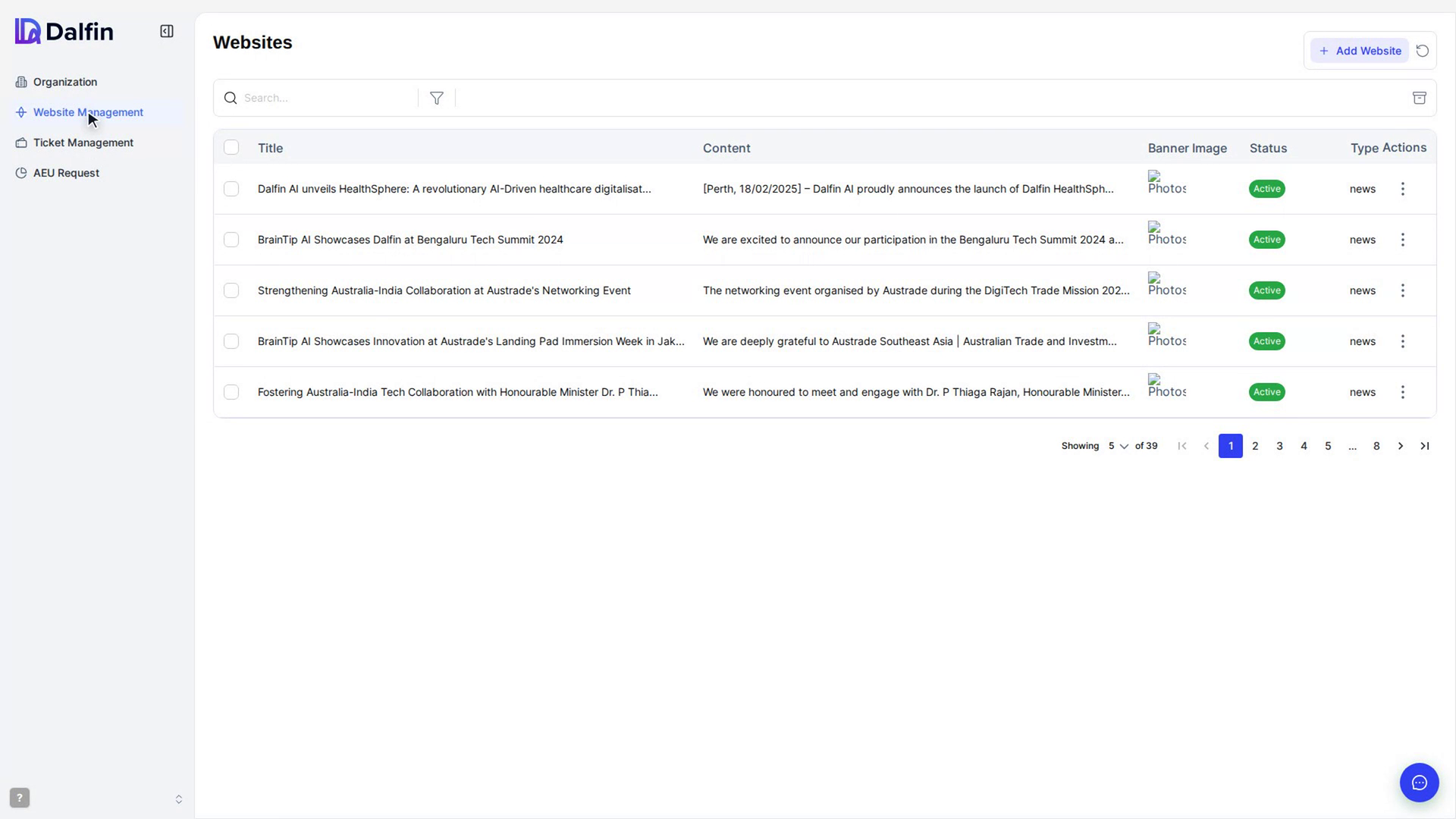
Select Website Management to write and publish blog posts, news, platform insights and deployment guidance for the public website.
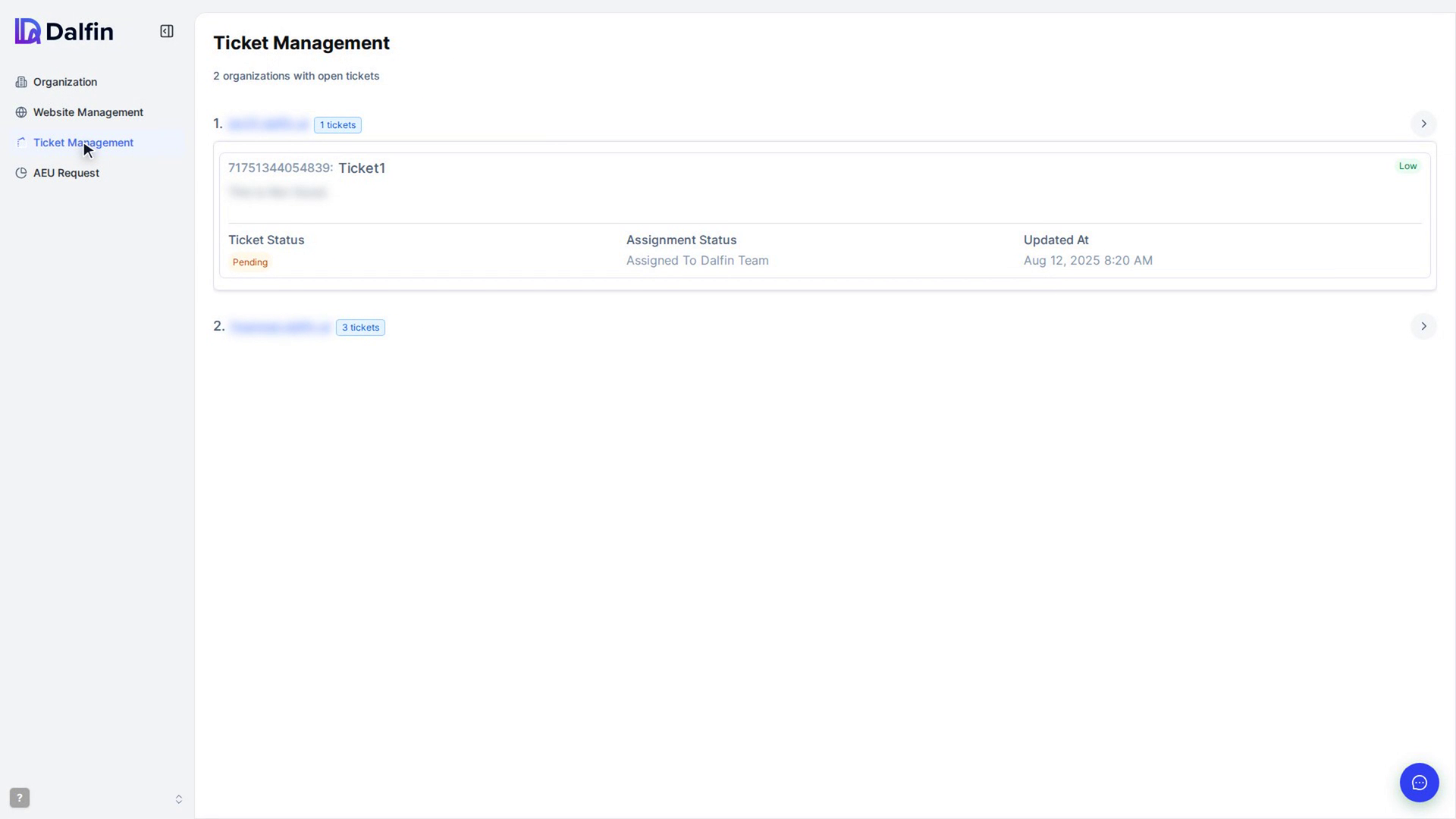
Ticket Management
Select Ticket Management to see which organizations have support tickets and open the help desk for any one of them.
AEU Request
Select AEU Request to review organizations' requests for more AEU, and to manage the AEU packs that users can buy.
Screenshots
Step 1: Open the admin panel
Step 2: Organization
Step 3: Website Management
Step 4: Ticket Management
Step 5: AEU Request
Watch how
Tip: On some dedicated deployments, only the Organization area is shown. Website Management, Ticket Management and AEU Request are hidden there.