Code (in-browser IDE)
The Code tab opens your app's source code in a full code editor inside your browser. Use it when you want to read or change the generated code directly.
It gives you the exact source of your app, both the frontend and the backend, in a full browser-based code editor (VS Code). From here you can read and edit any file, run the app in a live preview next to the code, use a terminal, and ask the built-in Claude Code assistant to explain or change the code.
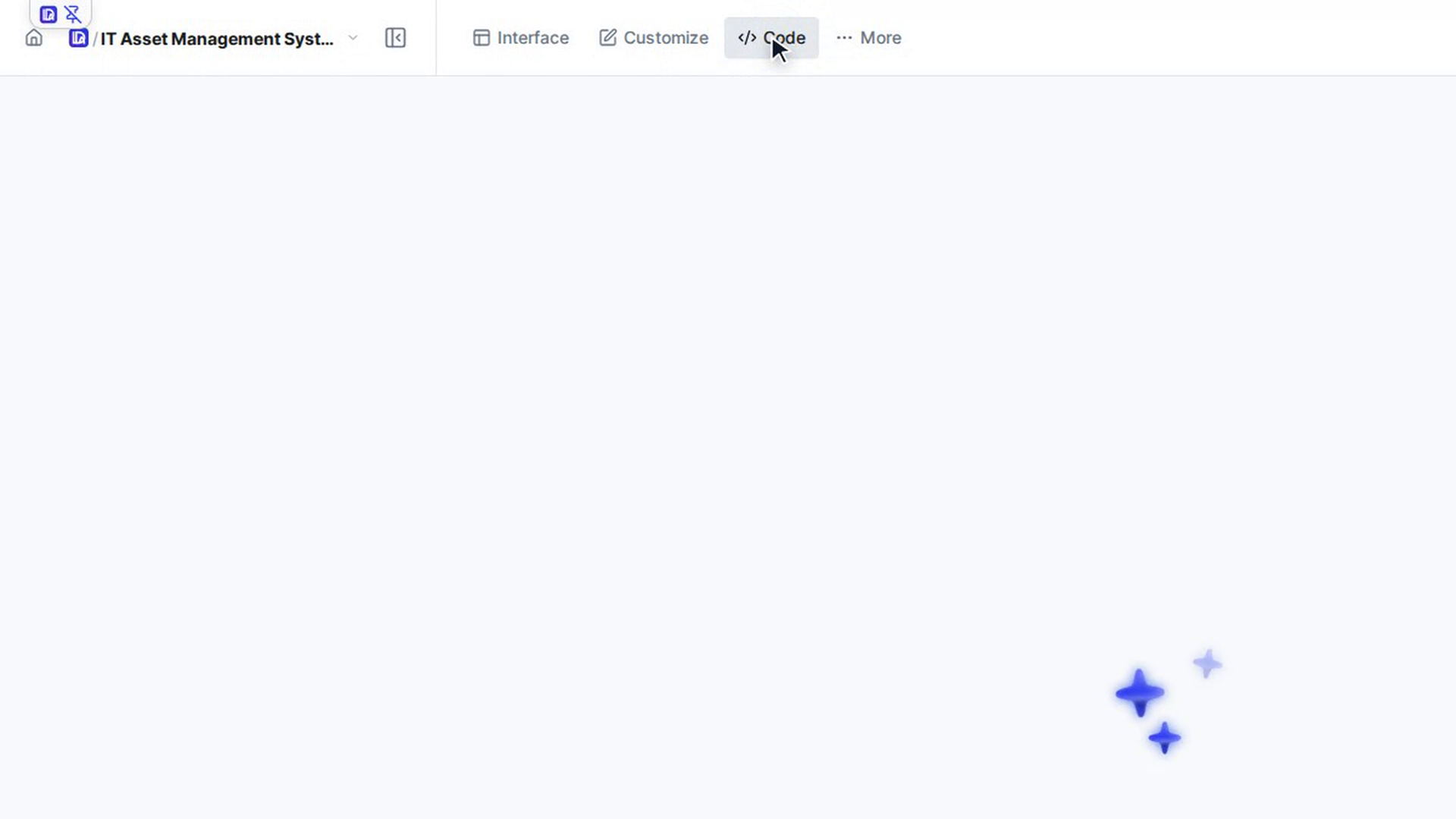
- Open it from the top bar of your app: Interface · Customize · Code · More.
- The editor works on your app's own files in the cloud, not on a copy. What you change here is what your app runs.
- The top bar still has View Live App and the Published menu, as on the other tabs.
Before you start
- This page is for team admins and developers who are comfortable working with source code. There is no extra role check on the tab.
- The app must have finished generating, and its deployment must have got past the Uploading to Server step. Until then the tab shows Transfer not completed.
Steps
Open your app
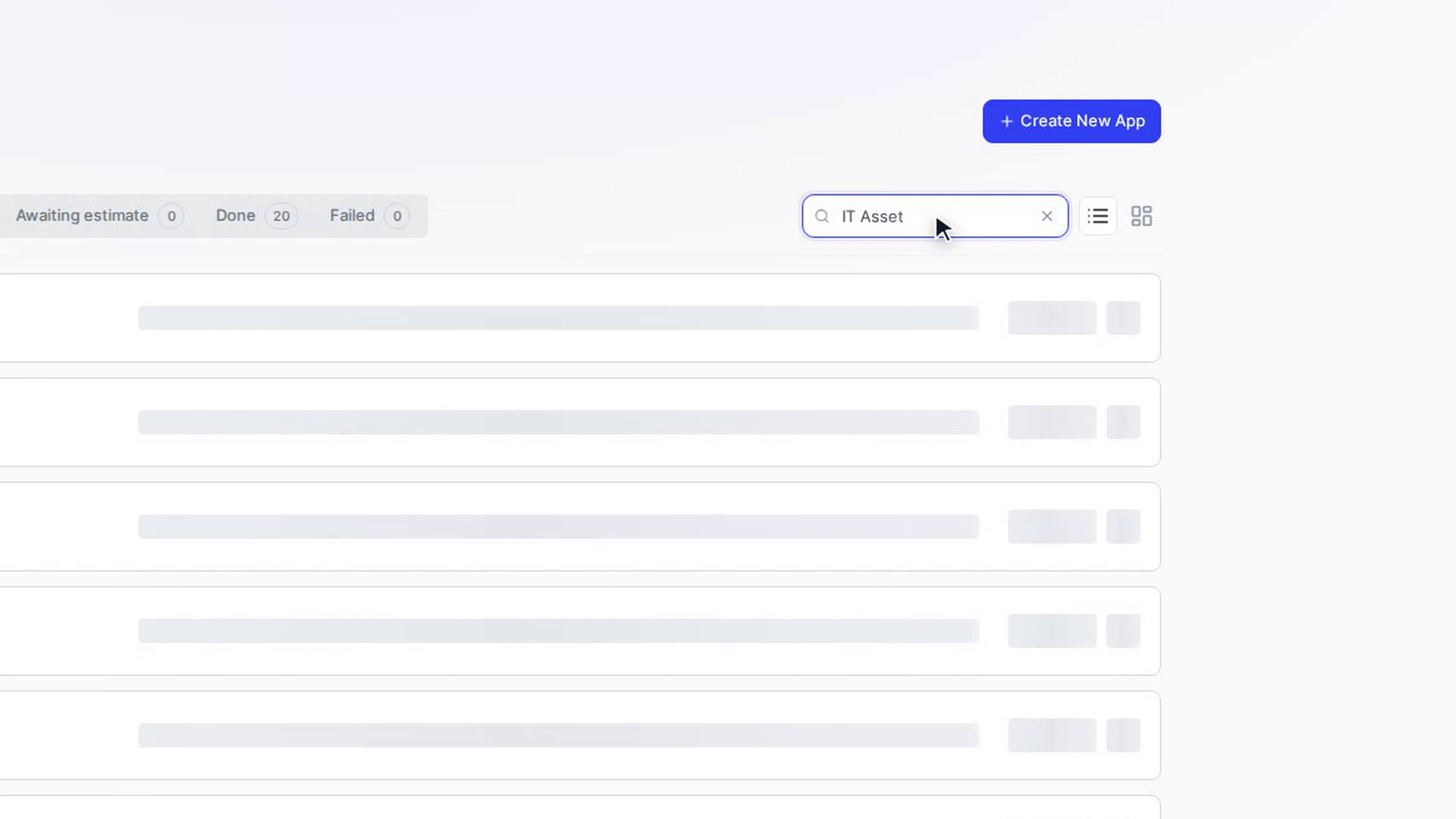
Open the app from All Apps. The app workspace opens with its tabs along the top.
Select Code
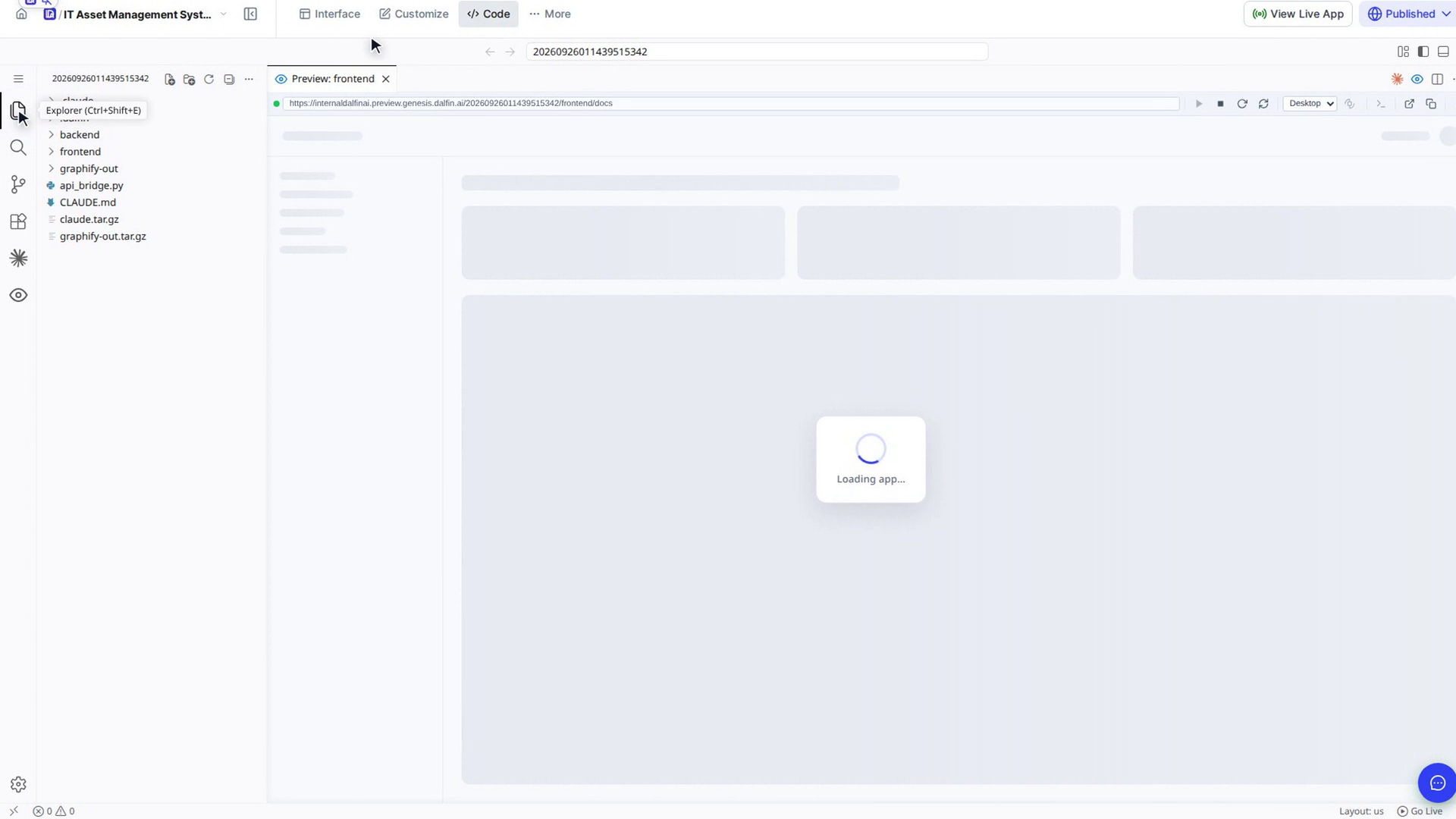
Select Code in the top bar. On a small screen, pick Code from the tab drop-down instead. A loading screen appears while the editor starts, and then the editor opens on your app's project folder. The editor remembers its last layout, so it may open on the Search view with a Preview: frontend tab showing your app's preview instead of the files. Select Explorer (the files icon at the top of the left bar) to see the project.
If the files have not been uploaded yet, you see Transfer not completed instead. If a deployment is still running, you see Deploying… and a button that takes you to the Deploy tab so you can follow its progress.
Browse and edit the code
Use the file explorer on the left to open files. The project has a frontend folder and a backend folder, plus some setup files. Open the files and edit them in the main area as you would in a desktop code editor. Your edits are saved as you make them and show up in the running app straight away, without publishing again.
Screenshots
Step 1: Open your app
Step 2: Select Code
Step 3: Browse and edit the code
Watch how
Tip: If your browser asks whether this site may read your clipboard, allow it so that copy and paste work inside the editor.
The editor layout
Title bar
The bar above the editor shows the name of your app's workspace, with Go Back and Go Forward buttons. On the right are Customize Layout..., Toggle Primary Side Bar (Ctrl+B), Toggle Panel (Ctrl+J) and Toggle Secondary Side Bar (Ctrl+Alt+B). On a Mac, use ⌘ instead of Ctrl and ⌥ instead of Alt.
Activity bar
The icons down the left side switch the side bar between views:
- Explorer (Ctrl+Shift+E): your app's files. See Explore and edit your app's code.
- Search (Ctrl+Shift+F): search, and replace, across all files.
- Source Control (Ctrl+Shift+G): Git. Your app's folder is not a Git repository, so this view offers Initialize Repository instead of a list of changes.
- Extensions (Ctrl+Shift+X): the extensions installed in the editor, such as Claude Code for VS Code, Dalfin Preview and Python.
- Testing: find and run tests. It appears once the editor has finished starting.
- Claude Code: the AI coding assistant. See Change your app with Claude Code.
- Dalfin Preview: your app's preview servers. See Run your app next to the code (live preview).
- Manage (the gear at the bottom): editor settings, themes and keyboard shortcuts.
Editor tabs and toolbar
Open files and tools, such as the preview and Claude Code sessions, appear as tabs. The buttons on the right of the tab row are Claude Code: Open, Dalfin: Toggle Preview (Ctrl+Shift+L), Split Editor Right (Ctrl+\; hold Alt to split down instead) and More Actions.... When a Python file is open, a run button appears there too. The path of the open file shows under the tabs, for example frontend › src › App.tsx.
Status bar
The bar along the bottom shows the connection to your app's workspace, the number of errors and warnings, and Go Live. For the open file it also shows the cursor position, indentation, encoding, line endings and language, such as TypeScript JSX or Python.