Update your profile
Your profile holds the name, phone number and photo other people see in Dalfin. Keep them up to date so your team can recognise and reach you.
Before you start
- Anyone with a Dalfin account can update their own profile.
- To change your photo, have a PNG, JPG, JPEG or SVG image ready.
Steps
Open your profile
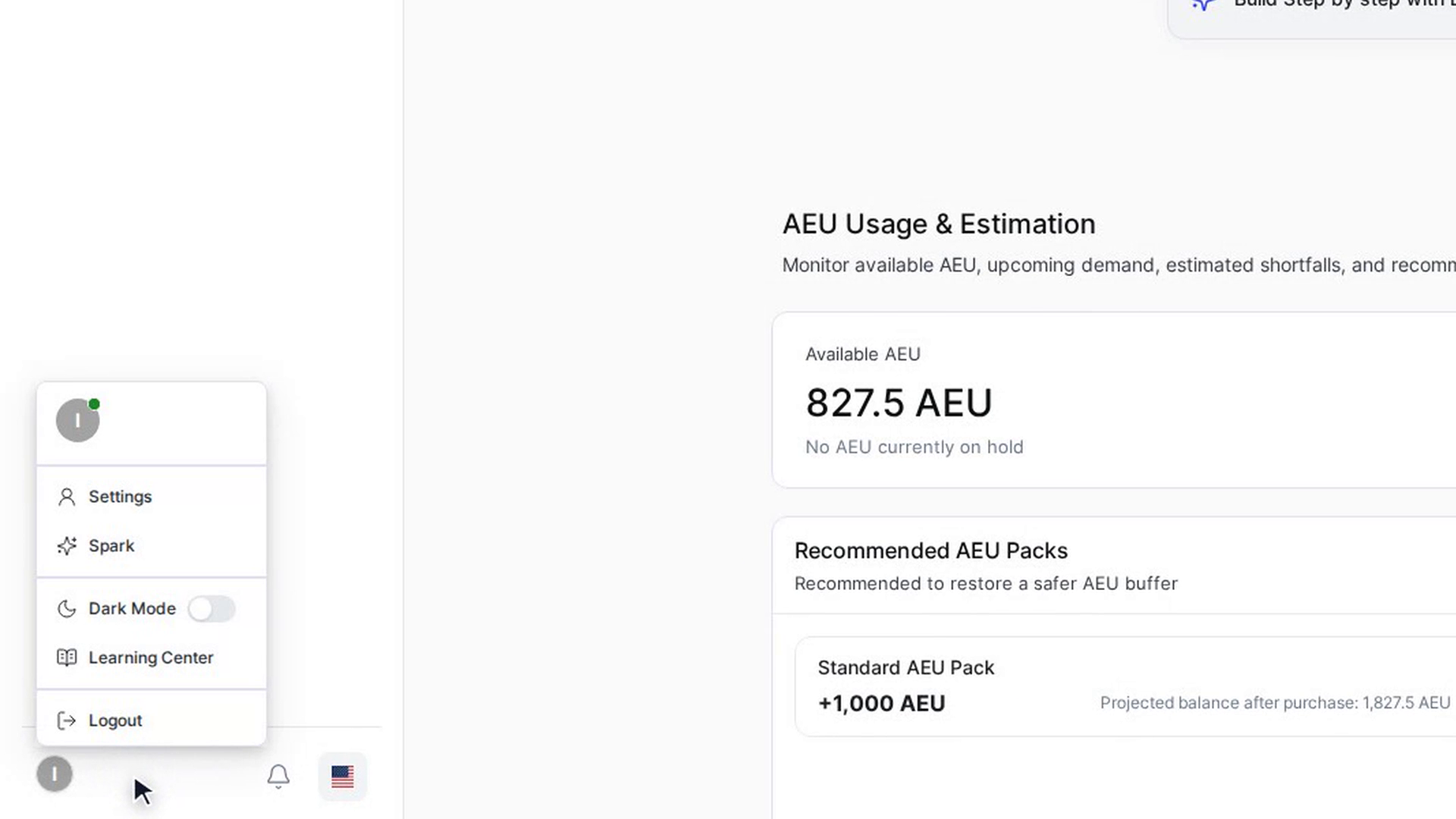
Select your name or picture to open your account menu, then select Settings. Your profile page opens under My Profile. The top shows your photo, name, email and phone number. Below that is the Profile section.
Edit your name and phone number
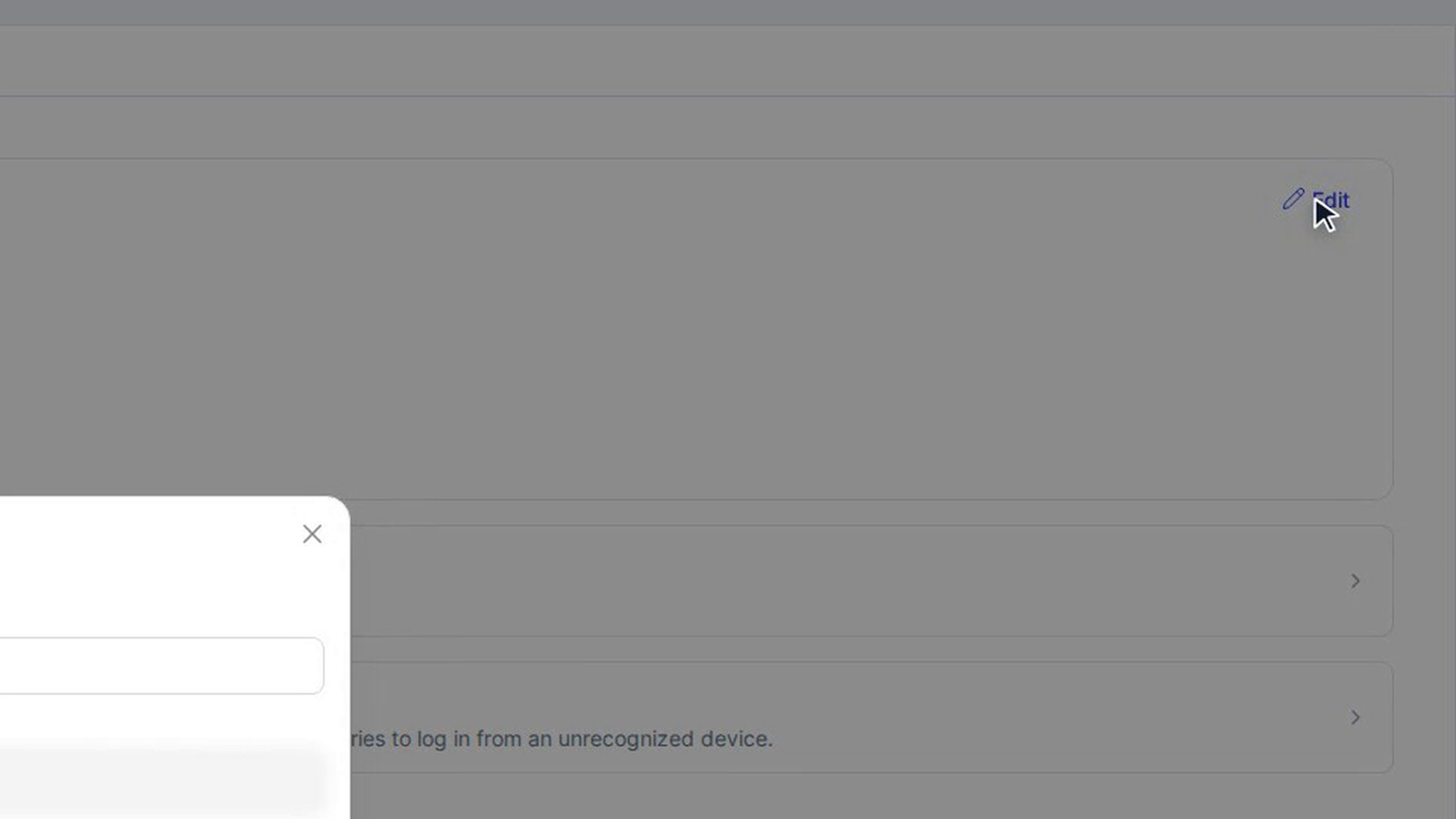
In the Profile section, select Edit. The Edit Profile box opens.
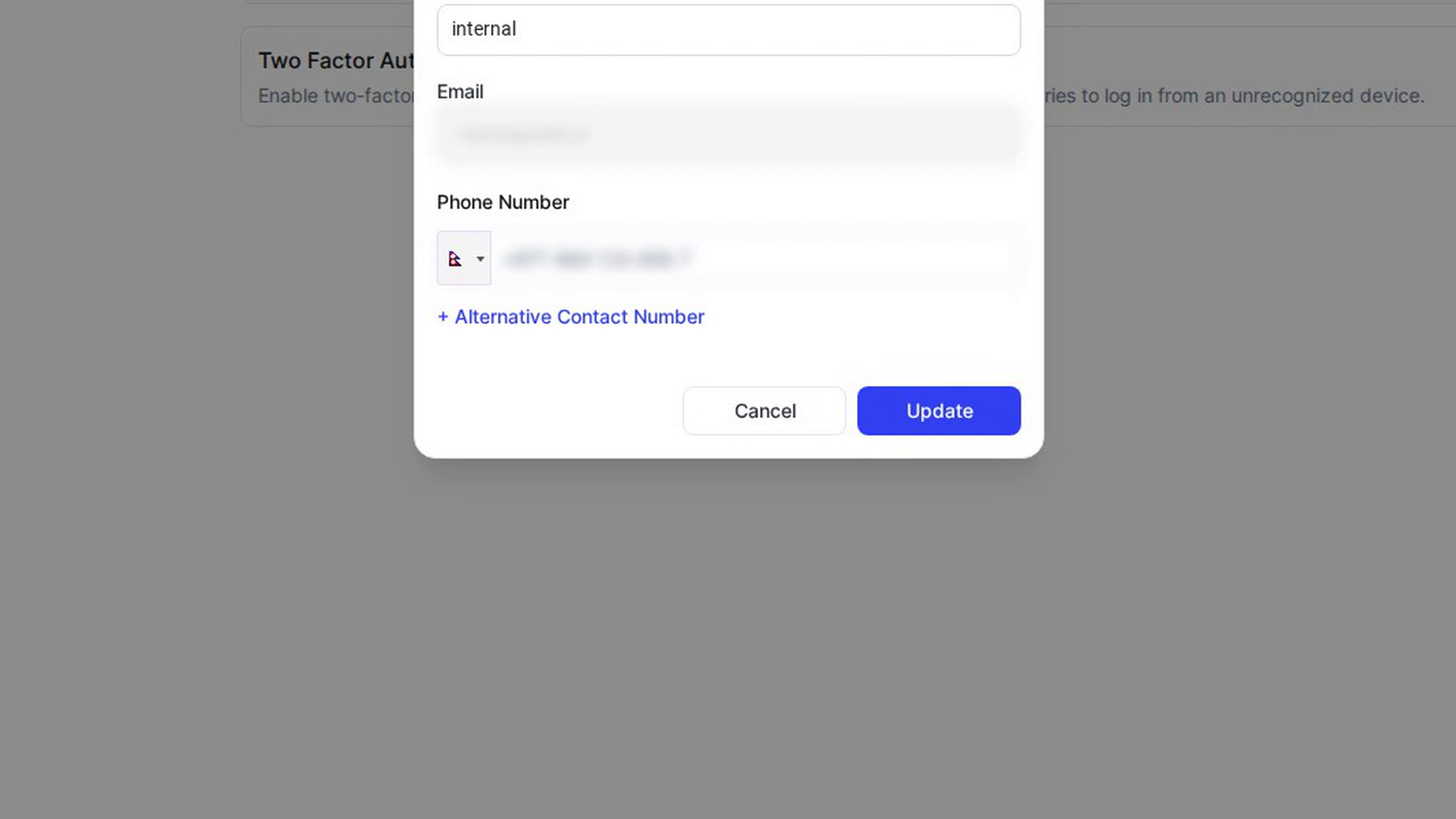
- Name: type your full name. It must be between 3 and 50 characters.
- Email: shown for reference. You can't change it here.
- Phone Number: pick your country code and type your number.
To add a second number, select + Alternative Contact Number and fill it in.
Save your details
Select Update. The box closes and your profile page shows the new details.
Change your photo
Select the pencil icon on your photo at the top of the page. The Update Profile Picture box opens and shows your current photo.
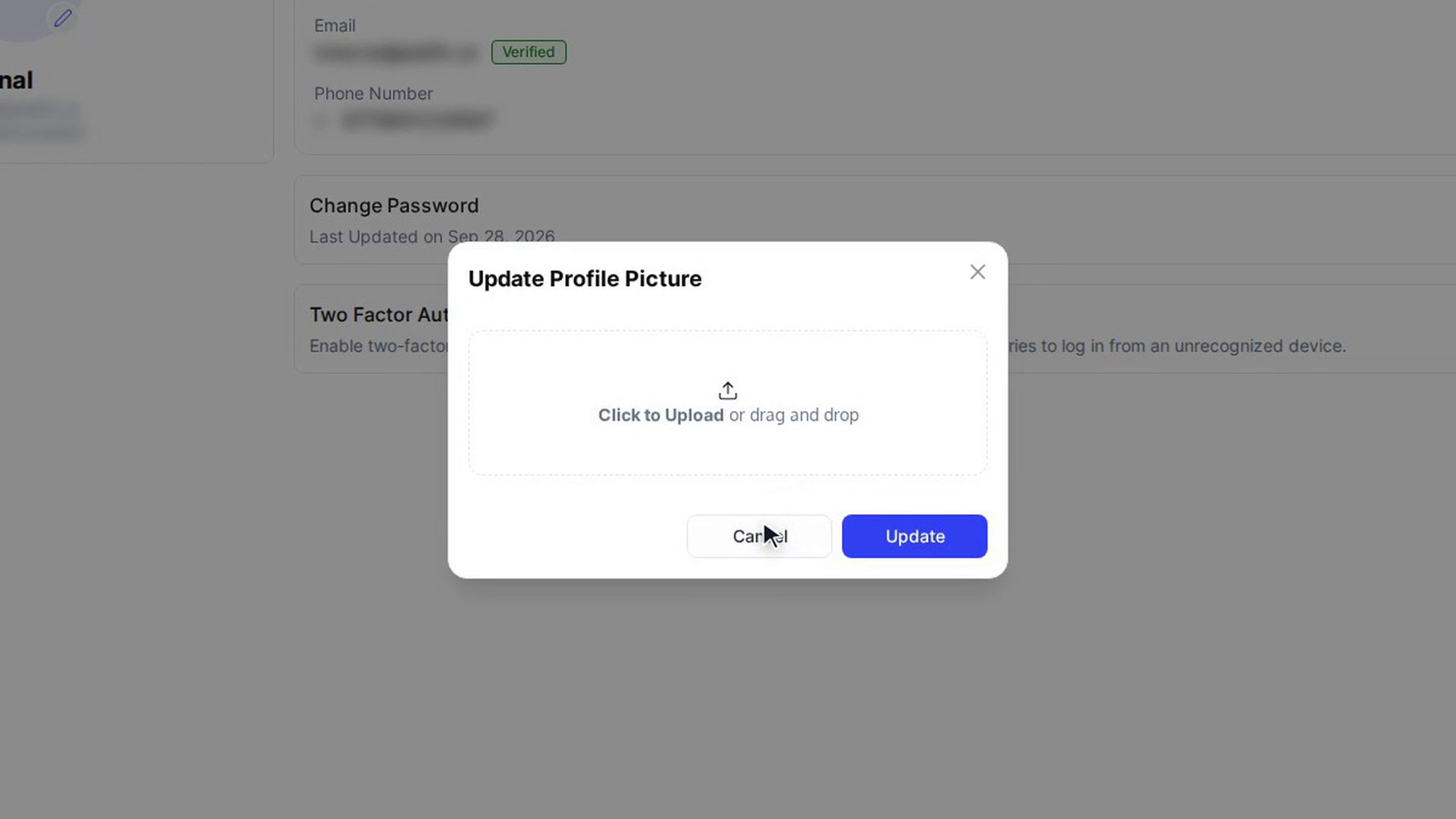
Select the pencil icon on the photo in the box (or the X to remove it). An upload area appears. Select Click to Upload, or drag an image into it.
Save your photo
Select Update. Your new photo appears on your profile and in your account menu.
Screenshots
Step 1: Open your profile
Step 2: Edit your name and phone number
Step 3: Save your details
Step 4: Change your photo
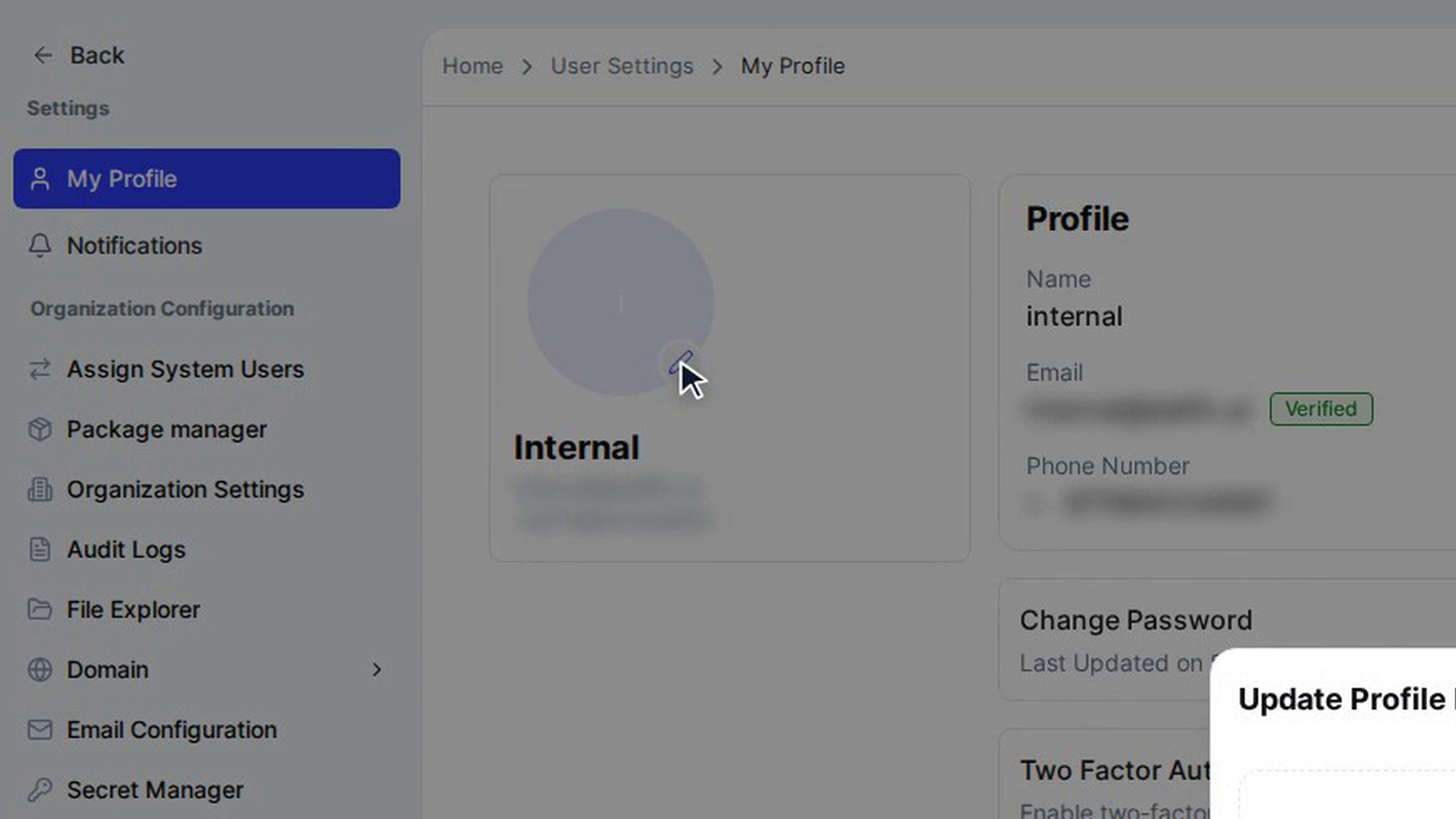
Step 5: Save your photo