Theme your app
Set the colours, font sizes, corner rounding, fonts and component styles for your whole app in one place, so every page looks consistent.
Before you start
- You need to be a team admin who can open your app's Customize tab.
- Your app must have finished building.
Steps
Open the theme editor
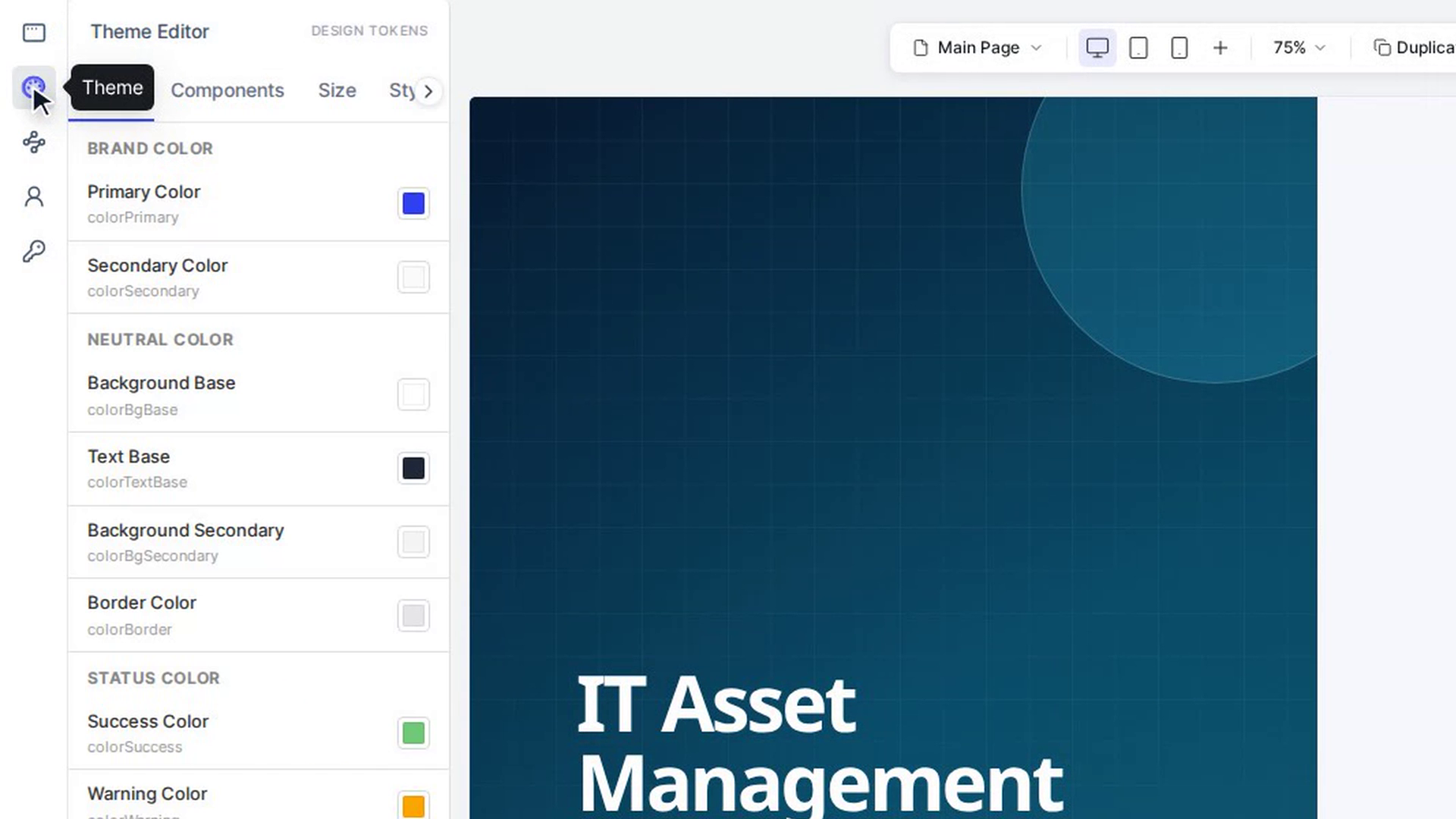
In the editor, click Theme (the palette icon) on the left rail. The Theme Editor panel opens on the left, next to the canvas. It has six tabs: Color, Components, Size, Style, Variables and Font.
Set your colours
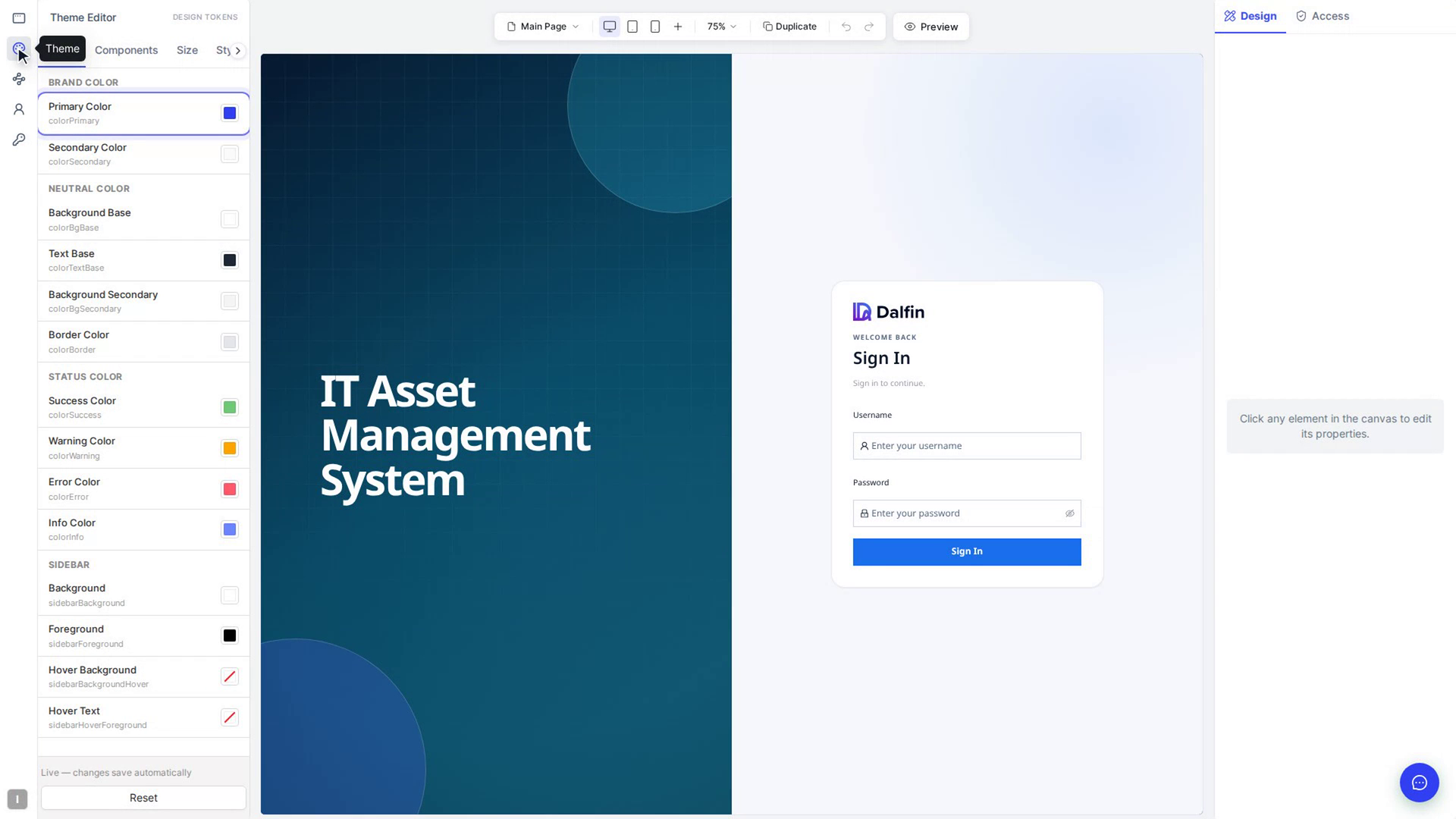
On the Color tab, click the colour swatch next to a colour and pick a new one. The colours are grouped into:
- Brand Color: Primary Color and Secondary Color
- Neutral Color: Background Base, Text Base, Background Secondary and Border Color
- Status Color: Success Color, Warning Color, Error Color and Info Color
- Sidebar: Background, Foreground, Hover Background and Hover Text
The canvas updates while you choose. A Reset link appears next to any colour you have changed, so you can put it back.
Style individual components
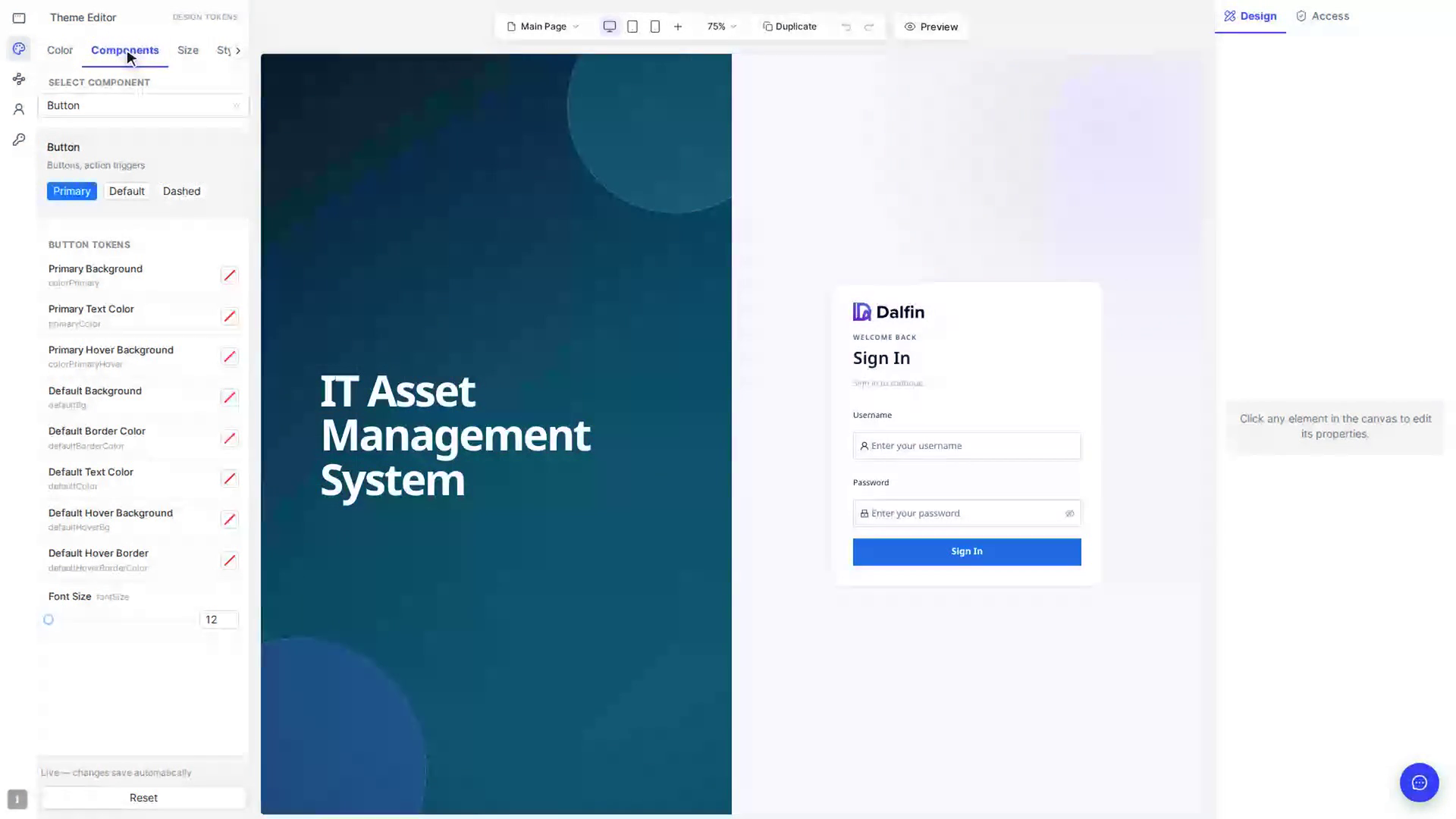
On the Components tab, pick a component from Select Component (for example a button). A small preview and that component's settings appear below it. Change a setting and the preview updates.
Set font sizes
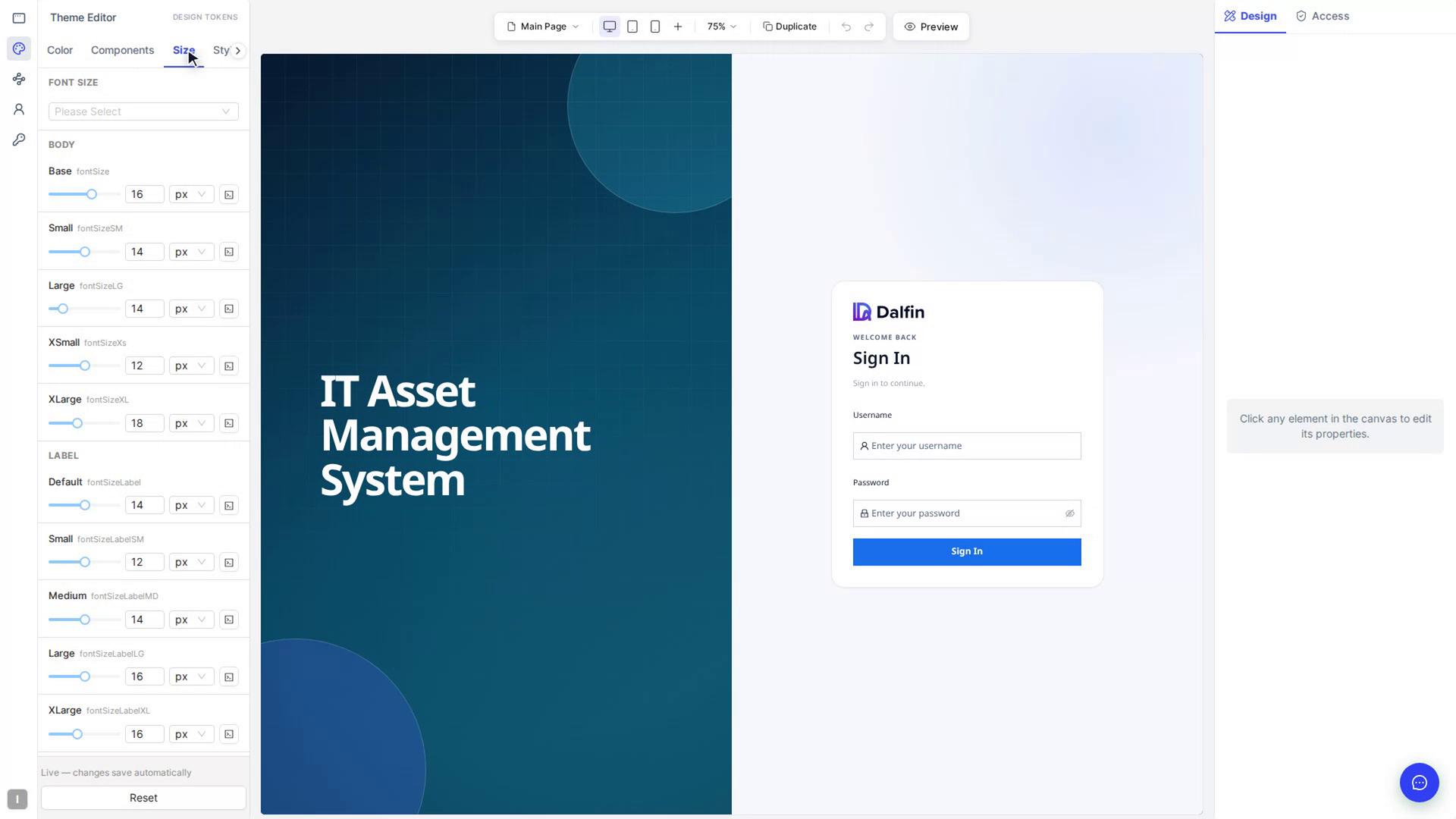
On the Size tab, choose a preset under Font Size to change all text sizes at once. You can also adjust the sizes for Body, Label, Heading and Display text one by one.
Set spacing and corner rounding
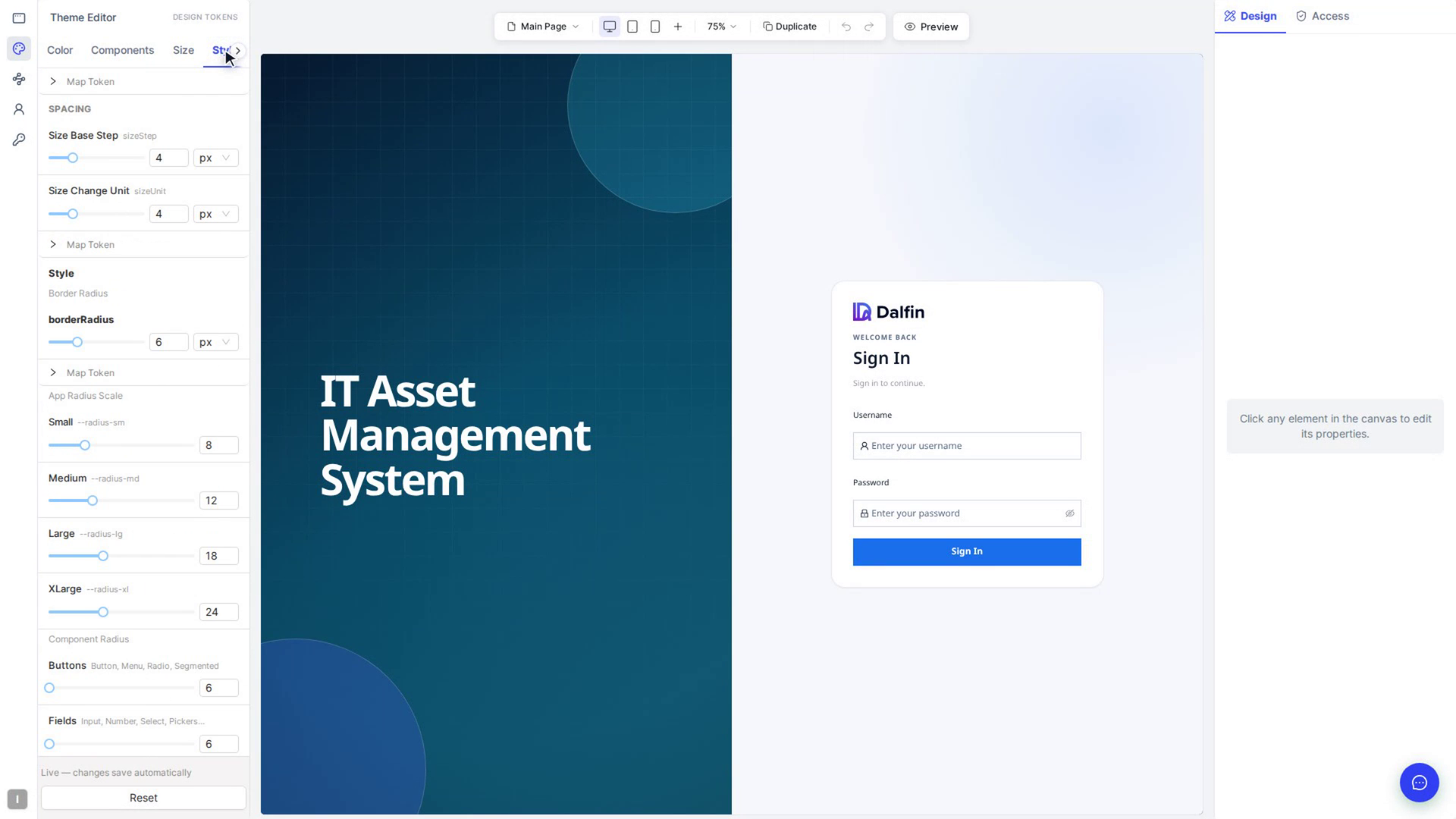
On the Style tab, adjust Spacing, Border Radius, the App Radius Scale (Small, Medium, Large) and Component Radius for Buttons, Fields, Modals and Cards.
Choose a font
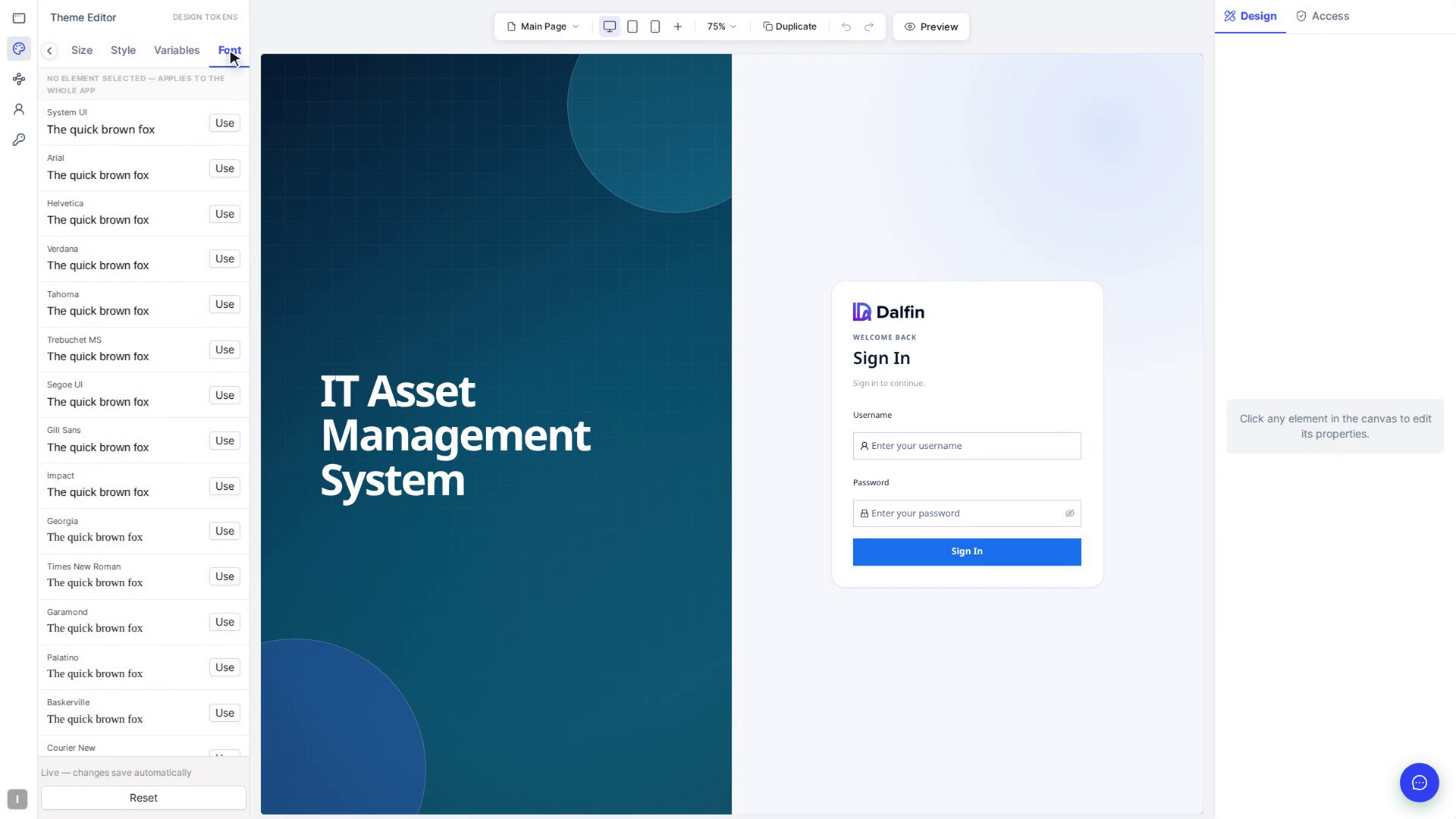
On the Font tab, click Use next to a font. The line above the list tells you where it will go: if an element is selected on the canvas, it reads Applies to the selected and the element's name, and the font applies only to that element; if nothing is selected, it reads No element selected — applies to the whole app. The font in use is marked Applied.
Edit style variables (optional)
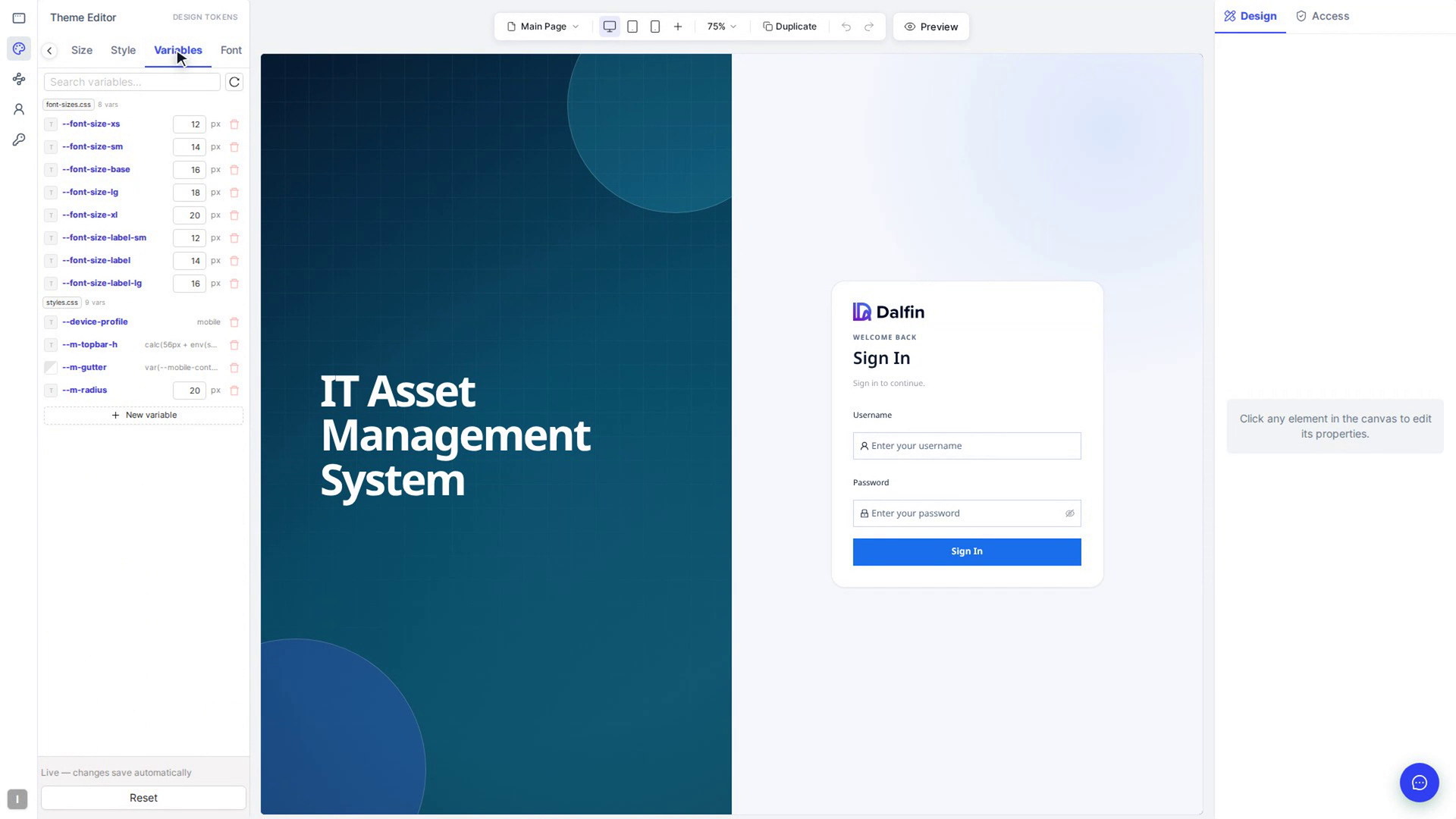
The Variables tab lists the style variables in your app's code. Use Search variables… to find one, click a value to change it, or click New variable to add one.
Check that it saved
Theme changes save automatically a moment after you make them. The line at the bottom of the panel shows Auto-saving to code… and then Saved to code. If it shows Auto-save failed, make your change again.
Screenshots
Step 1: Open the theme editor
Step 2: Set your colours
Step 3: Style individual components
Step 4: Set font sizes
Step 5: Set spacing and corner rounding
Step 6: Choose a font
Step 7: Edit style variables (optional)
Step 8: Check that it saved
Watch how
Reset at the bottom of the Theme Editor sets the whole theme back to the default values straight away, without asking first, not just your latest change. To undo a single colour, use the Reset link next to that colour instead.