Create or edit an organization
Set up a new organization on the platform together with its owner account and a starting AEU balance. You can also correct an existing organization's name, domain and owner details later.
Before you start
- You need a platform owner account.
- Decide on the organization's web address. It becomes a subdomain of the platform, so pick something short and unique.
- Have the owner's full name and email address ready.
Steps
Open the create window
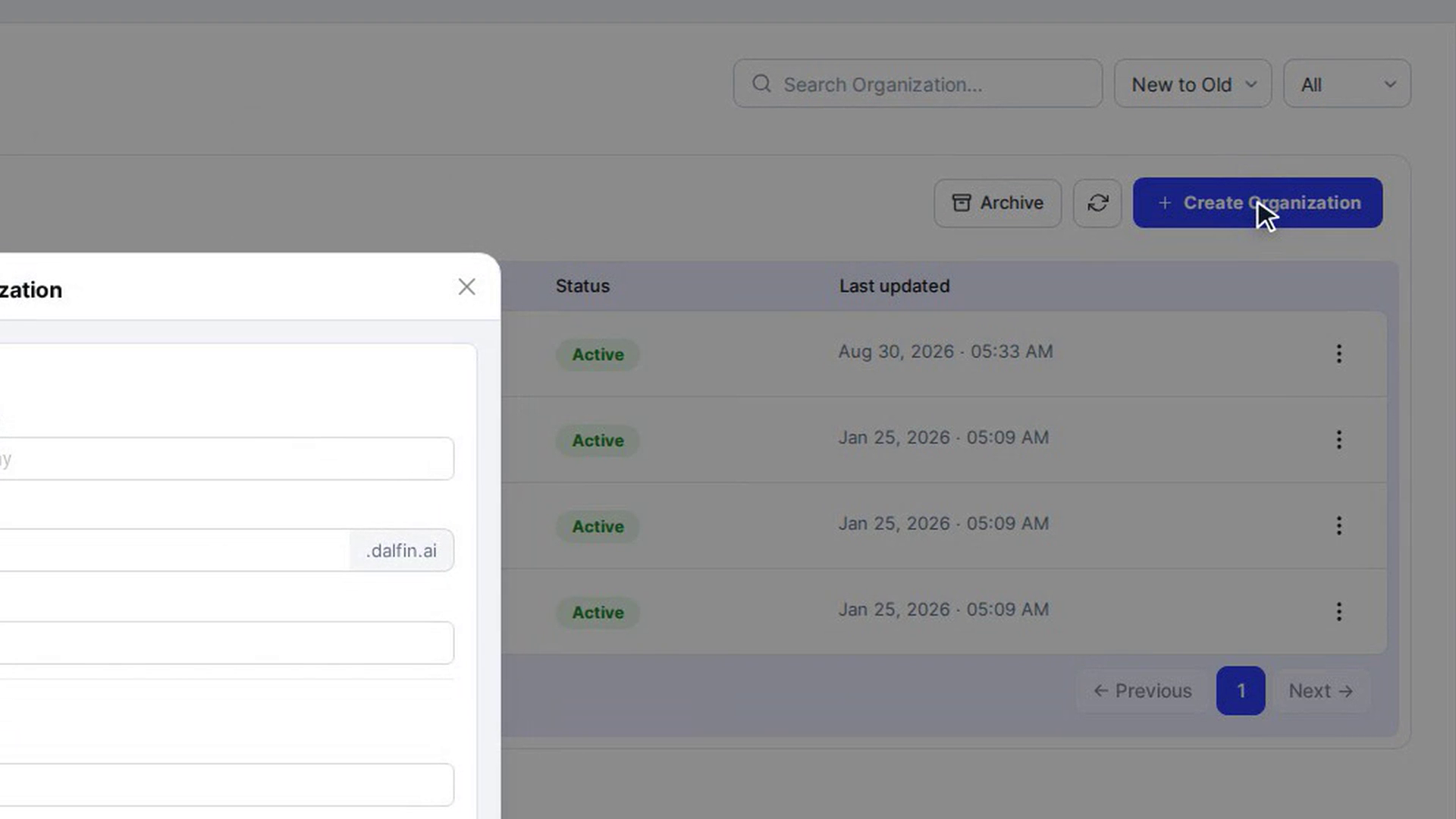
In the admin panel sidebar, select Organization. Above the Organizations list, select Create Organization. The Create an Organization window opens.
Fill in the organization details
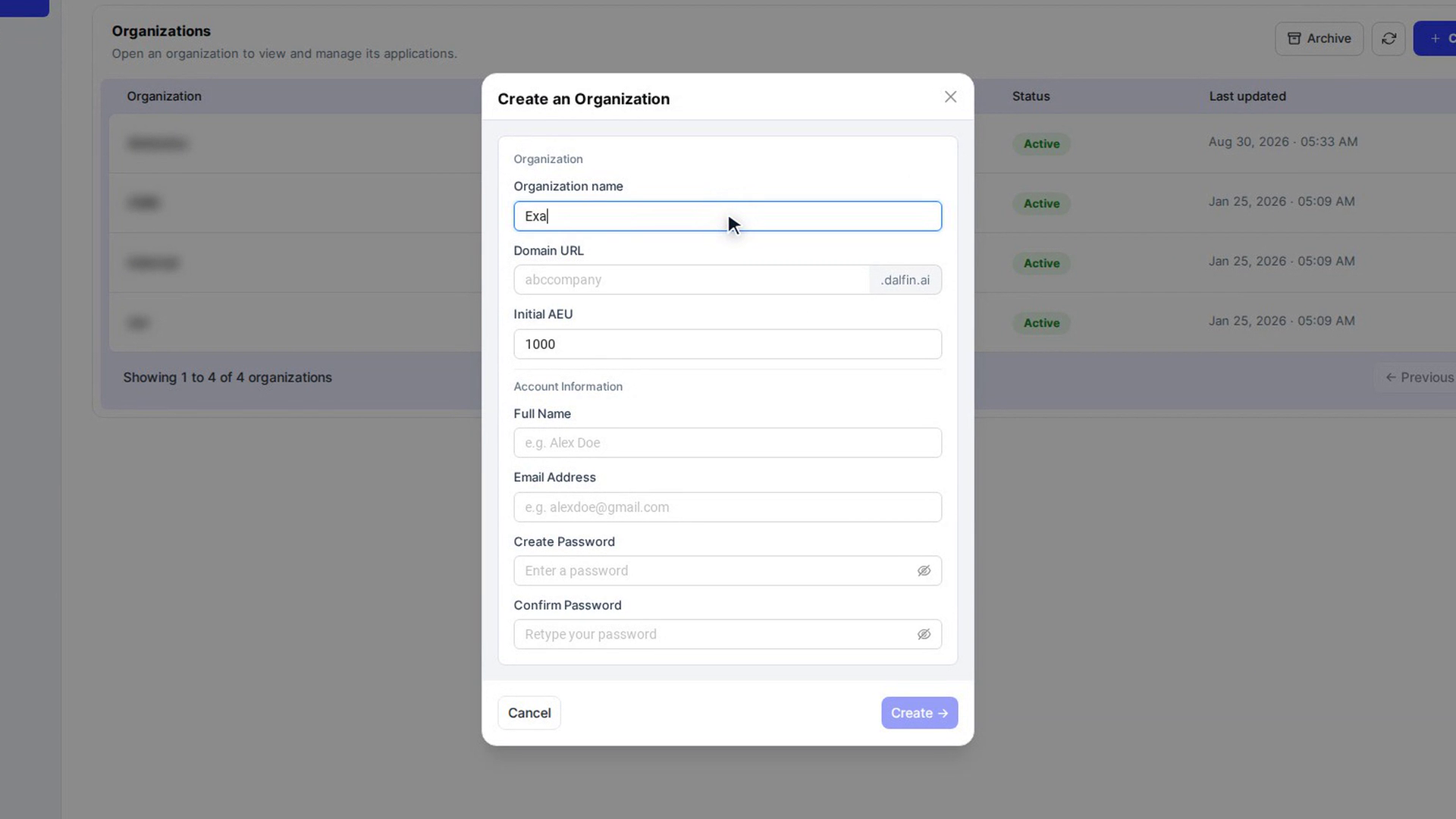
Under Organization:
- Organization name: for example, ABC Company.
- Domain URL: the subdomain, in lower case. The rest of the address is shown next to the field. If you use anything other than lower-case letters, numbers and hyphens, you see Subdomain is not available.
- Initial AEU: how many AEU the organization starts with. It is set to 1000, which is also the most you can enter.
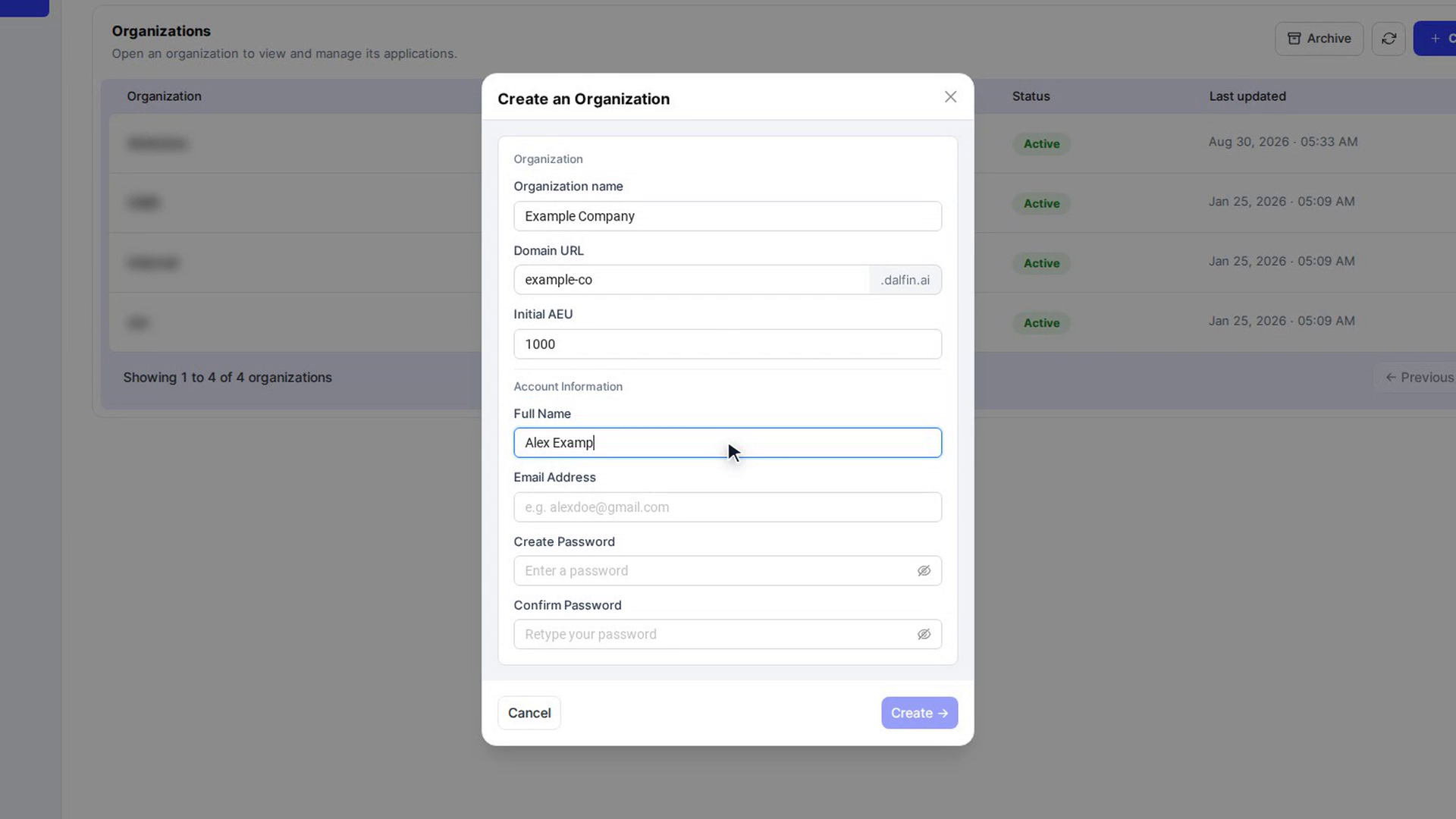
Fill in the owner's account
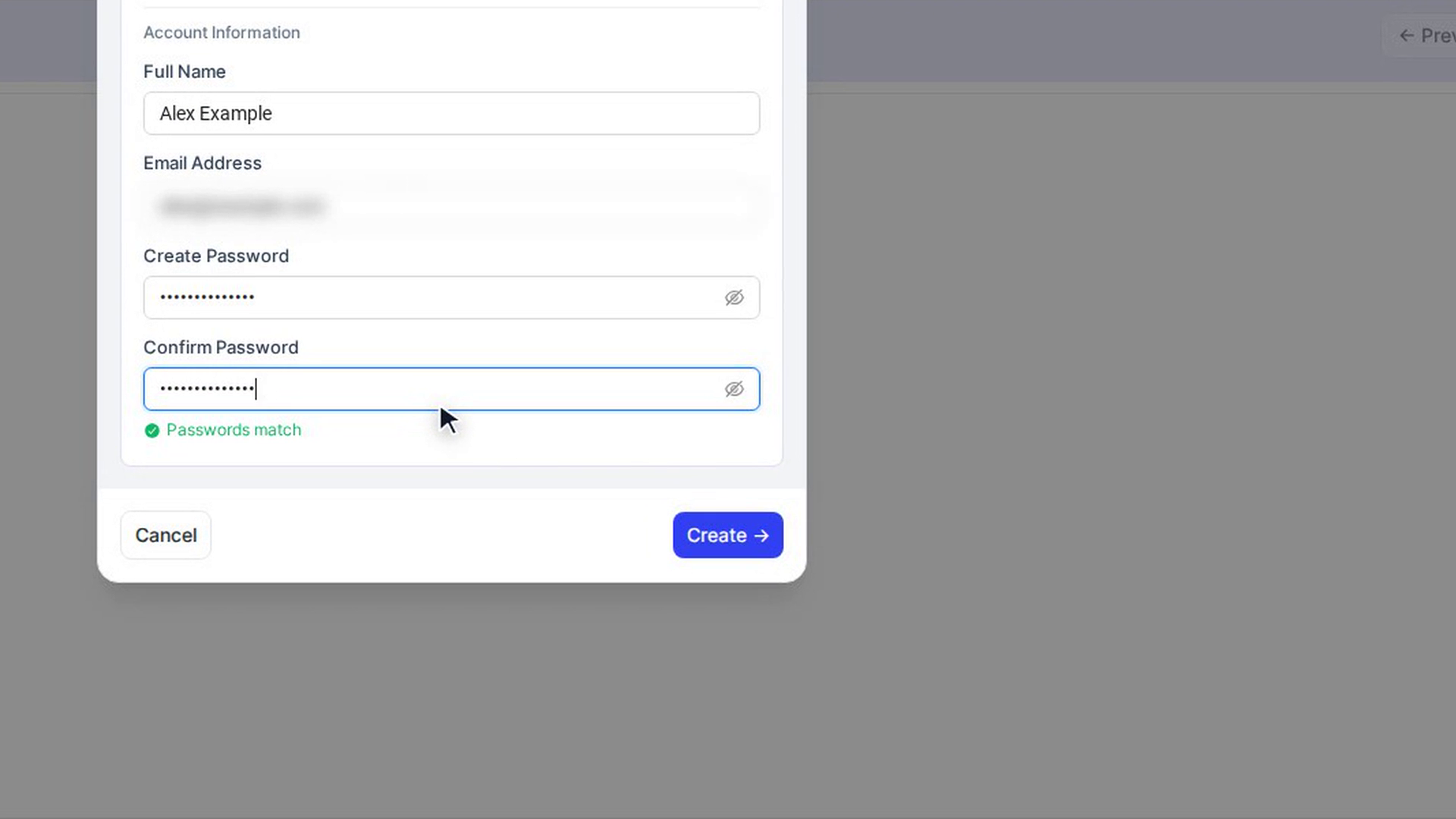
Under Account Information, enter the owner's Full Name and Email Address. Then type a password in Create Password and again in Confirm Password. You see Passwords match when both are the same.
Create the organization
Select Create →. The button only works once every field is filled in and the passwords match.
You see Organization Created, and the new organization appears in the list. The owner can now sign in with the email address and password you set.
Edit an organization
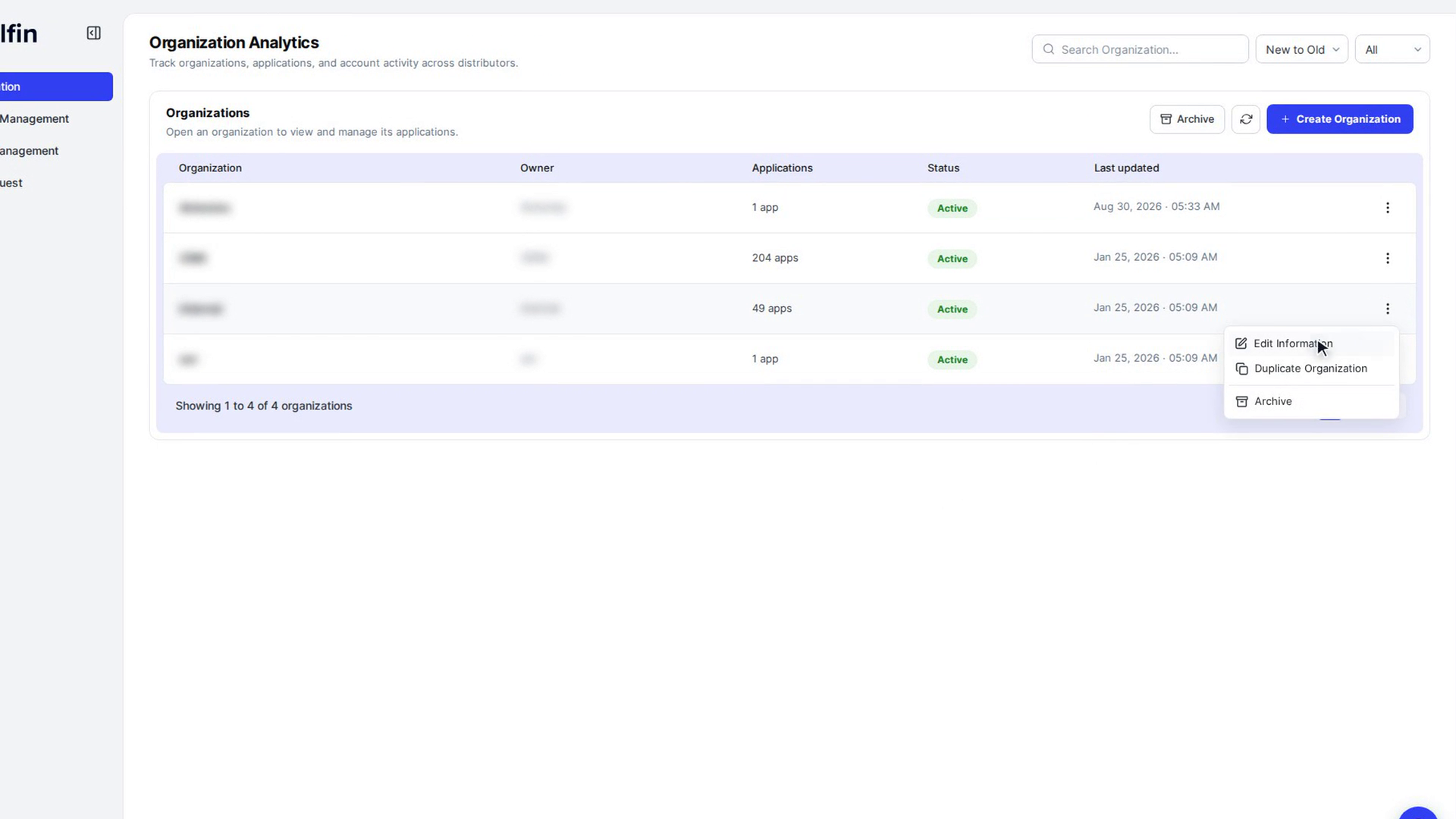
To change an existing organization, open the three-dot menu (More actions) on its row and choose Edit Information. The Edit Organization window lets you change the Organization name, Domain URL, Full Name and Email Address.
Select Save Changes. You see Organization Updated.
Screenshots
Step 1: Open the create window
Step 2: Fill in the organization details
Step 3: Fill in the owner's account
Step 4: Create the organization
Step 5: Edit an organization
Watch how
Changing an organization's Domain URL changes the address its users sign in at. Let them know before you save.