What every generated app includes
Every app Dalfin builds comes with the same basic parts: a sign-in page (if the app uses one), a menu that only shows what your role allows, a profile menu and a way to log out. Knowing these makes any new app feel familiar straight away.
Before you start
- This applies to anyone who uses a generated app.
- You need access to the app. See Open and use your app.
Steps
Sign in to the app
If the app has been built with its own sign-in, you'll see its sign-in page when you're not signed in yet. Enter your username and password to reach the app's pages. Apps built without sign-in open straight to their first page.
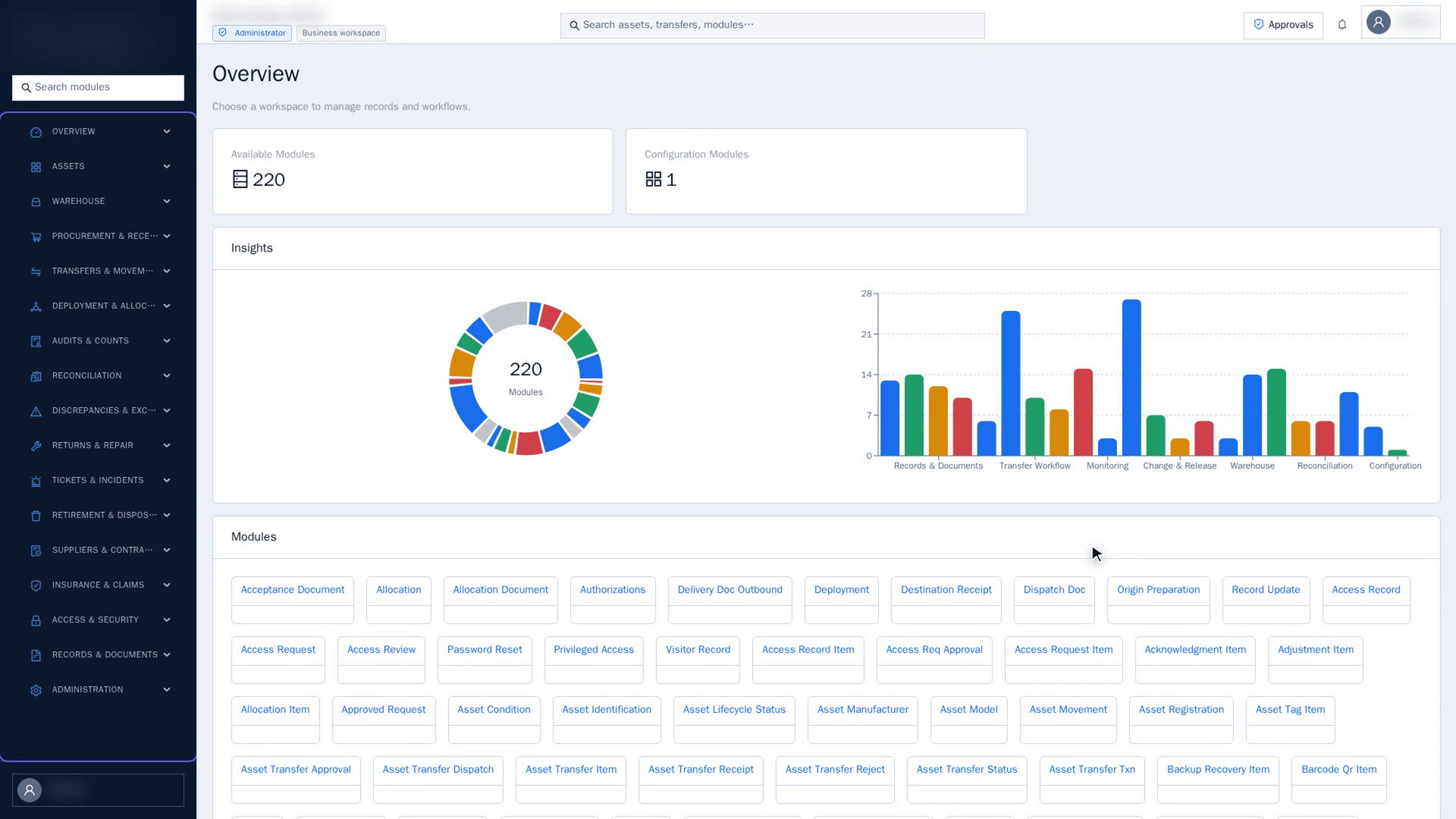
Find your way with the menu
The app's menu lists its pages, usually down the left side and sometimes along the top. In larger apps the pages are sorted into groups, and a group can hold smaller groups. Select a group to open it, then select a page to open that page. Select the app's name at the top of the menu to go back to its first page.
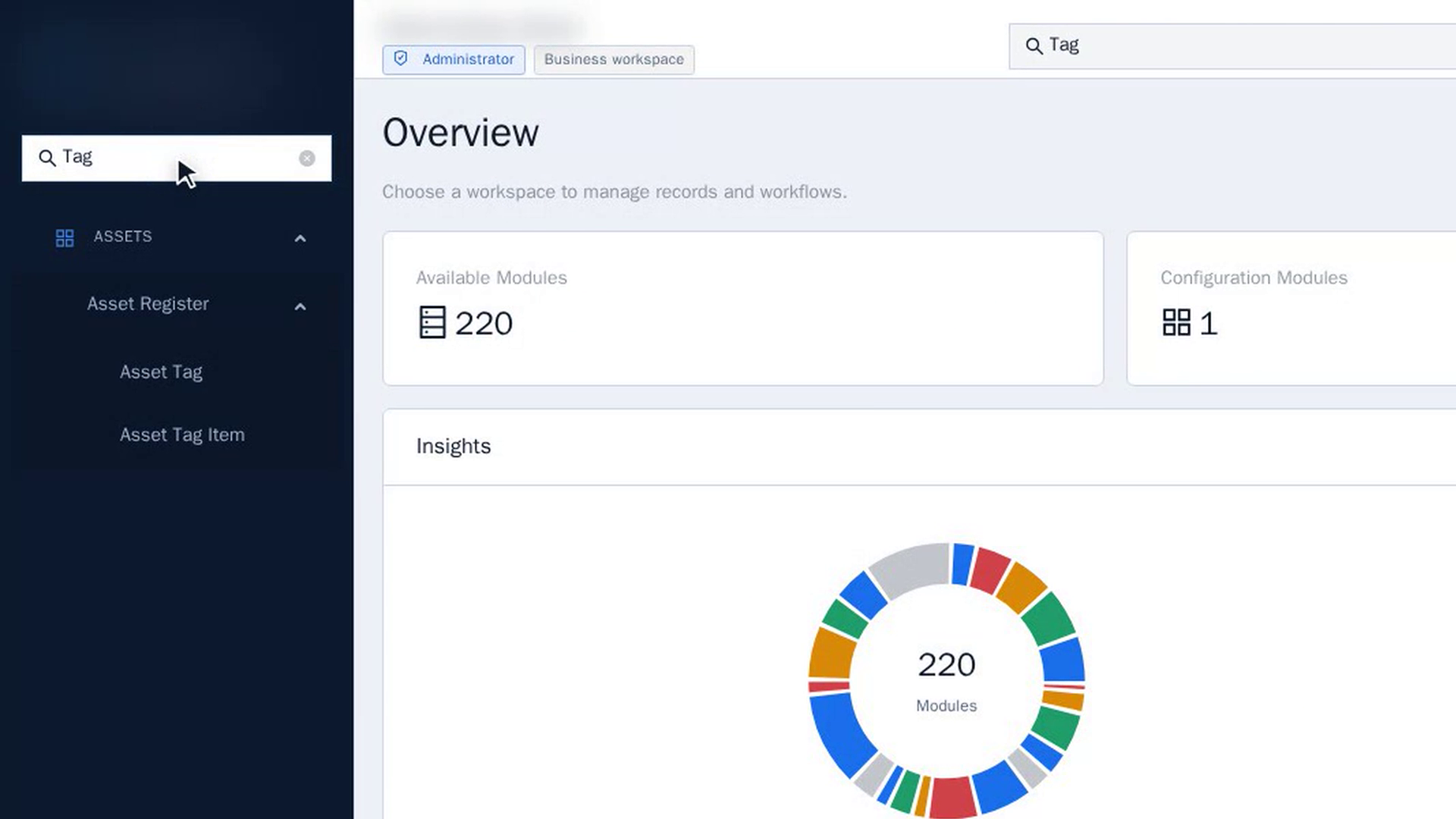
Search the menu
Type into the search box at the top of the menu to filter the list of pages. The menu keeps only the groups that have a matching page; open a group to see the matches, then select one to open it. The search only looks through page names, not the data inside the app.
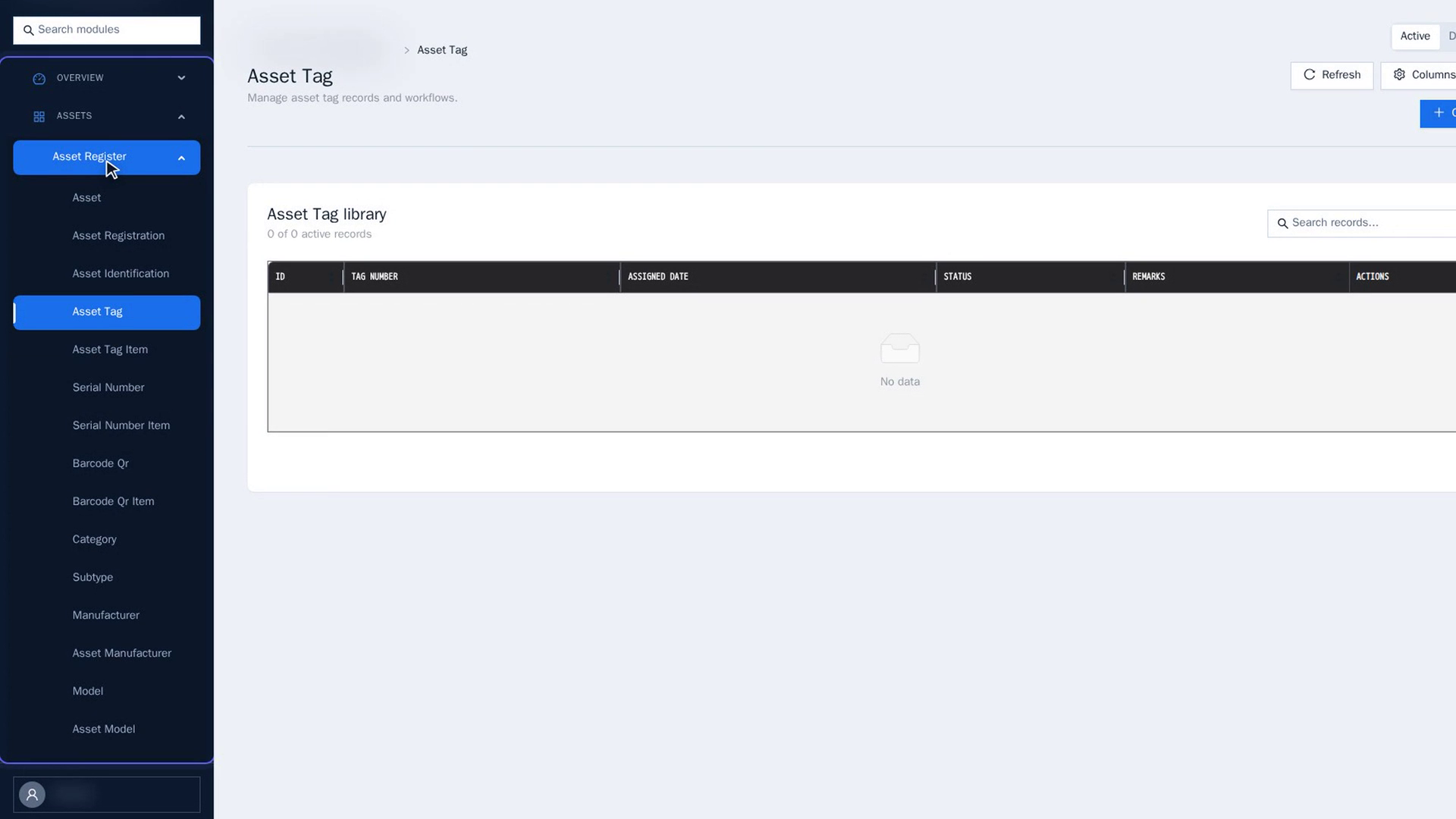
Know why some pages are missing
The menu only shows the pages your role is allowed to open. Two people using the same app can see different menus. If you need a page you can't see, ask the person who manages the app's users.
Open your profile menu
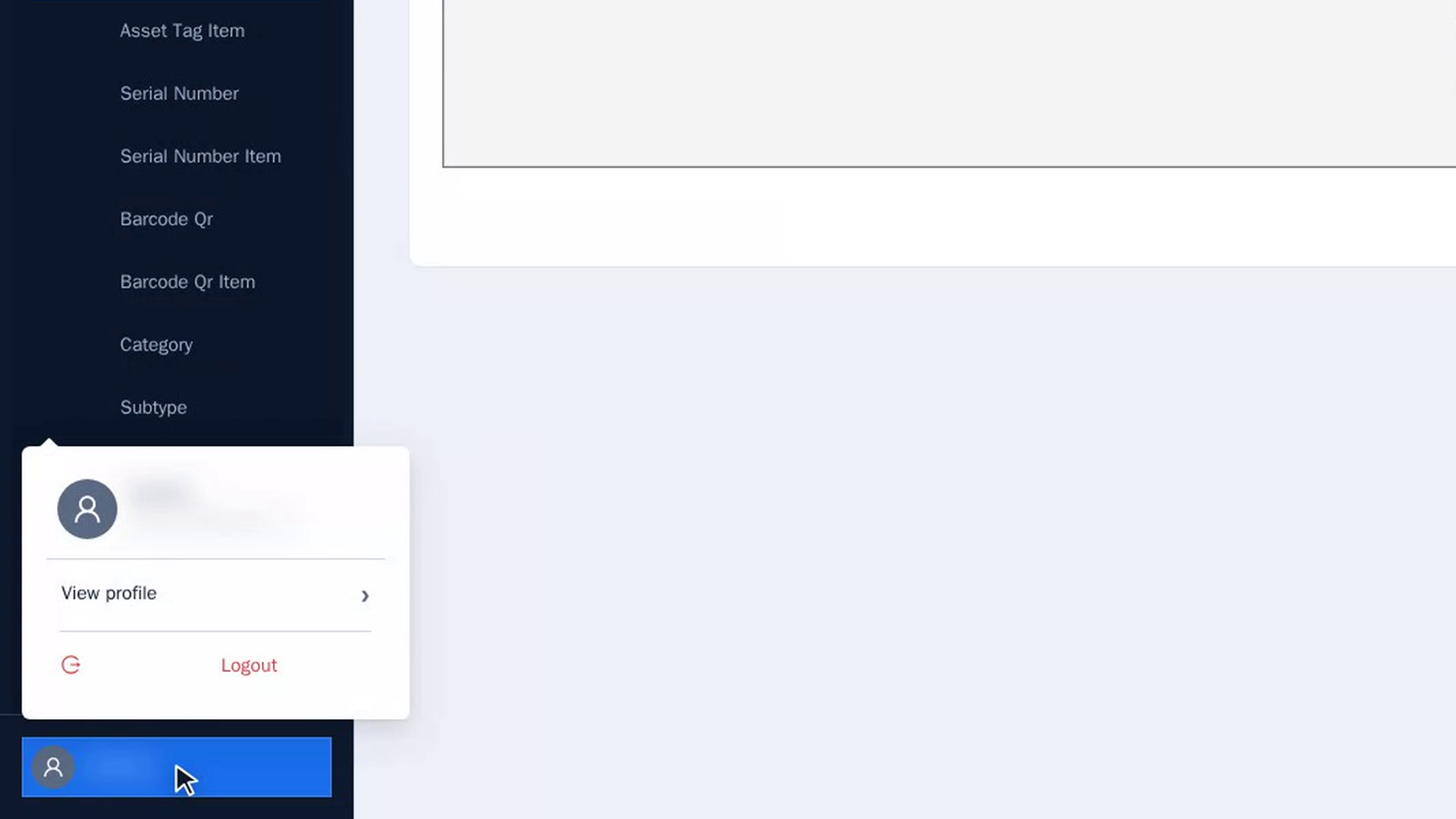
Select your name or picture in the app. A small panel opens with your name, email address, View profile and a Logout button.
Select View profile to open your profile page.
Check notifications
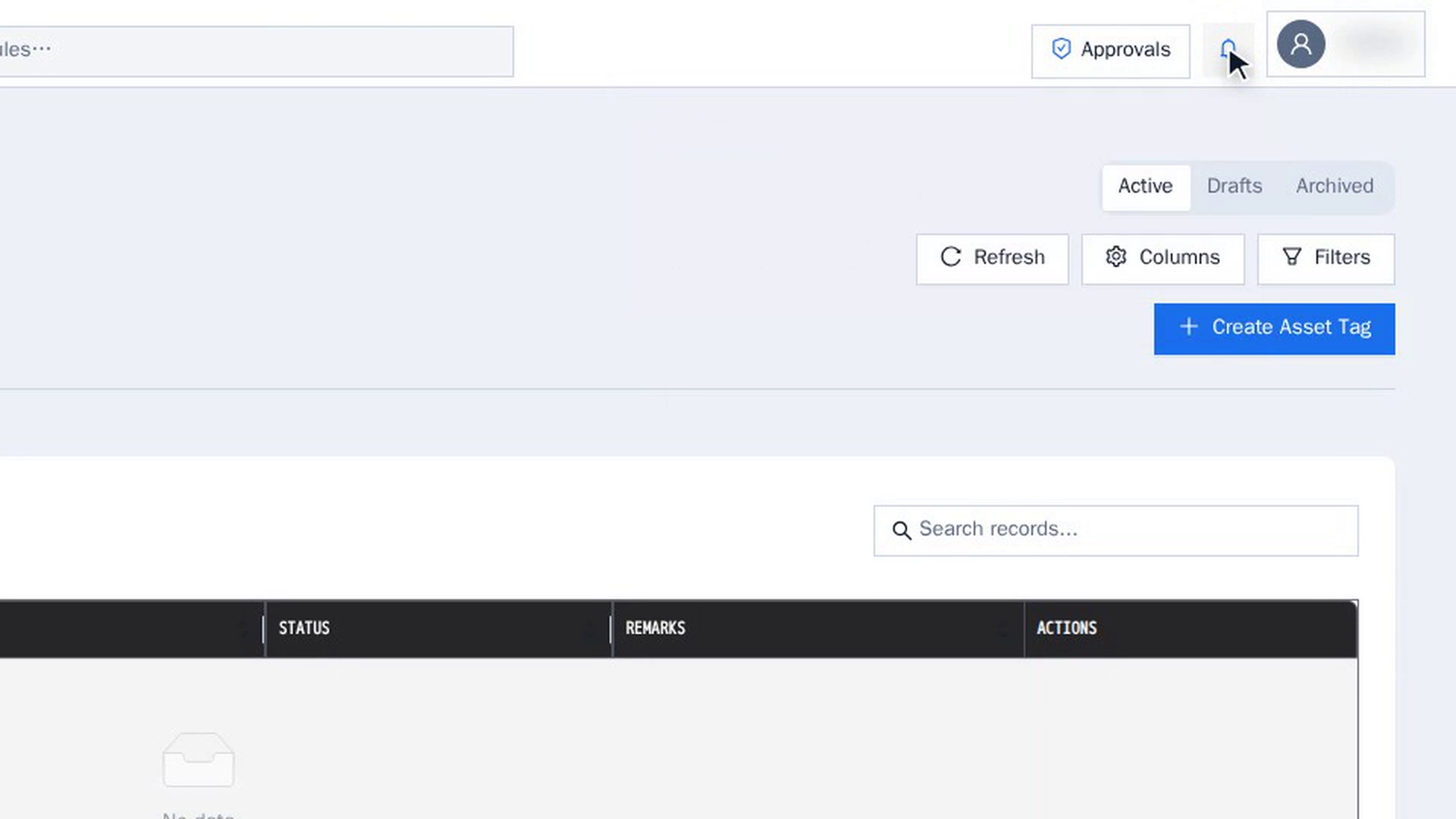
If the app's design includes a bell in its top bar, select it to see the app's notifications. When there's nothing new, it says you're all caught up.
Log out
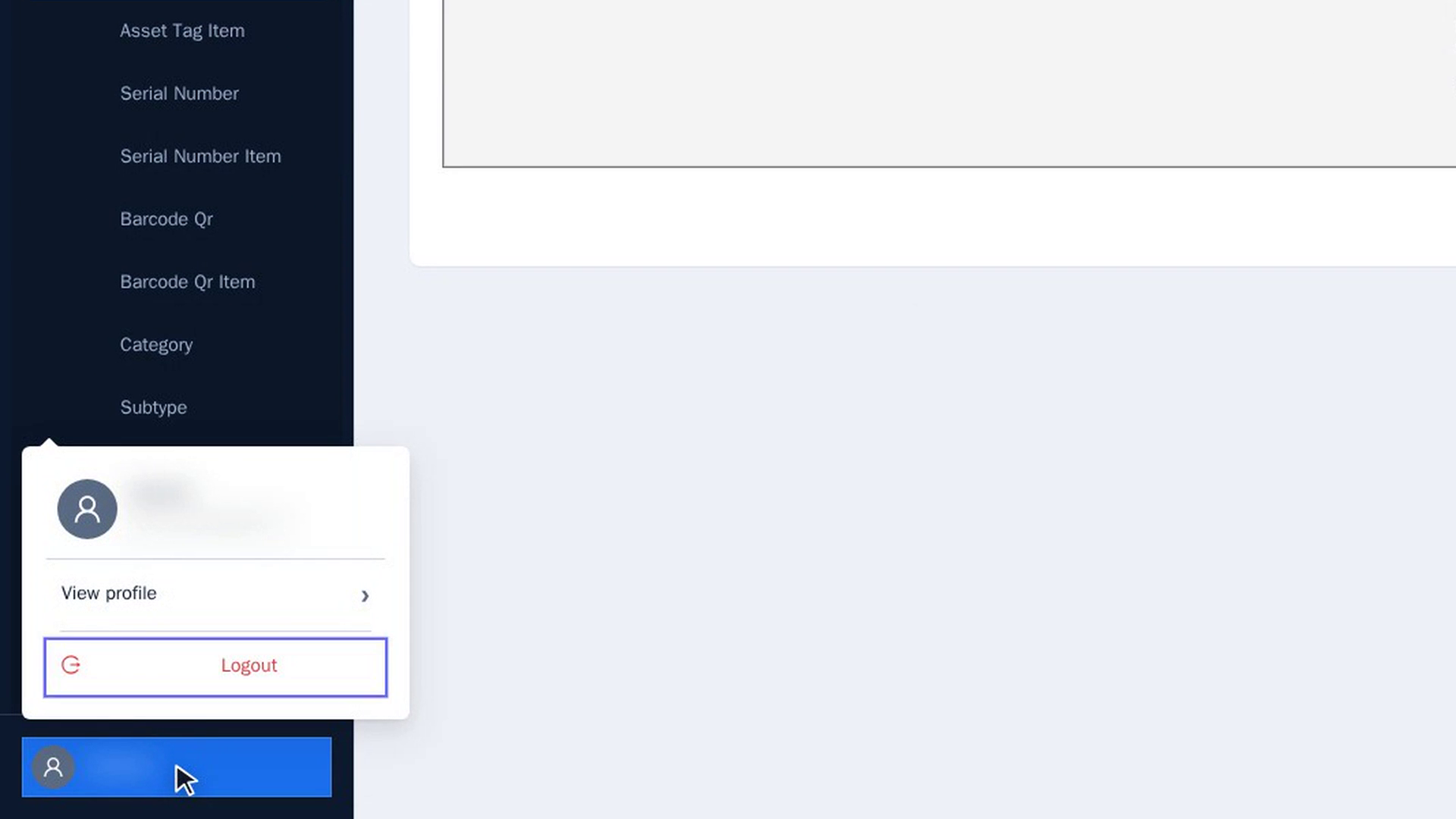
Open your profile menu and select Logout. If the app uses sign-in, you'll see a Sign In button until you sign in again.
Screenshots
Step 1: Sign in to the app
Step 2: Find your way with the menu
Step 3: Search the menu
Step 4: Know why some pages are missing
Step 5: Open your profile menu
Step 6: Check notifications
Step 7: Log out
Watch how
Tip: Where the search box, bell and profile menu appear depends on the design the app was built from. They might be in the top bar or at the bottom of the menu.