Explore your app: Interface preview
The Interface tab shows your generated app running live, so you can click through it just as your users will. You can check how it looks on desktop, tablet and mobile before you publish.
Before you start
- Anyone who can open the app can use the preview.
- The build must have finished. While it is still running, the Interface tab shows the build progress instead.
Steps
Open your app
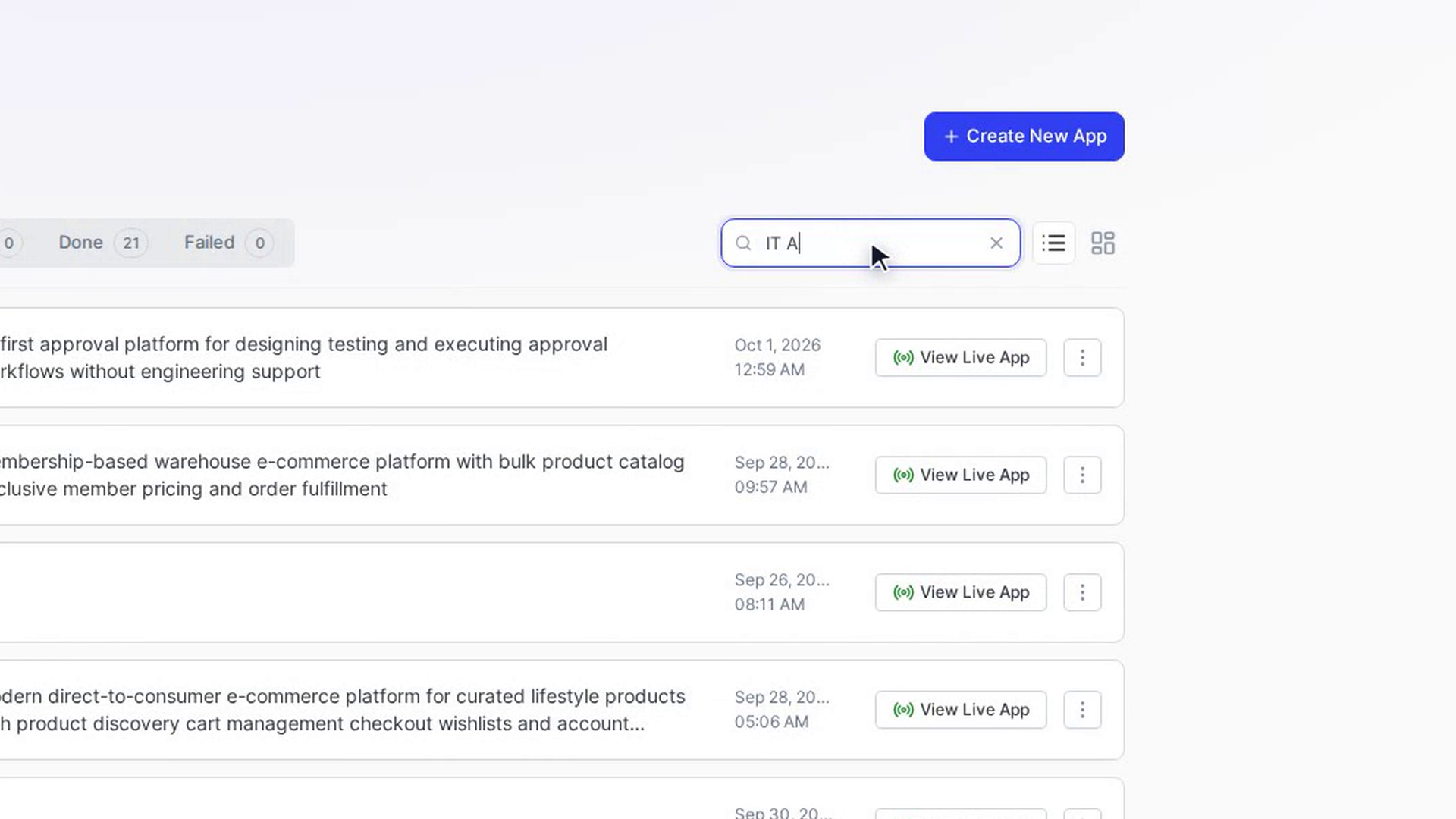
From the Dalfin home, open the app you want to see. You can also switch to another app from the app name at the top of the screen, which opens a list of your apps with a Search runs… box.
Go to the Interface tab
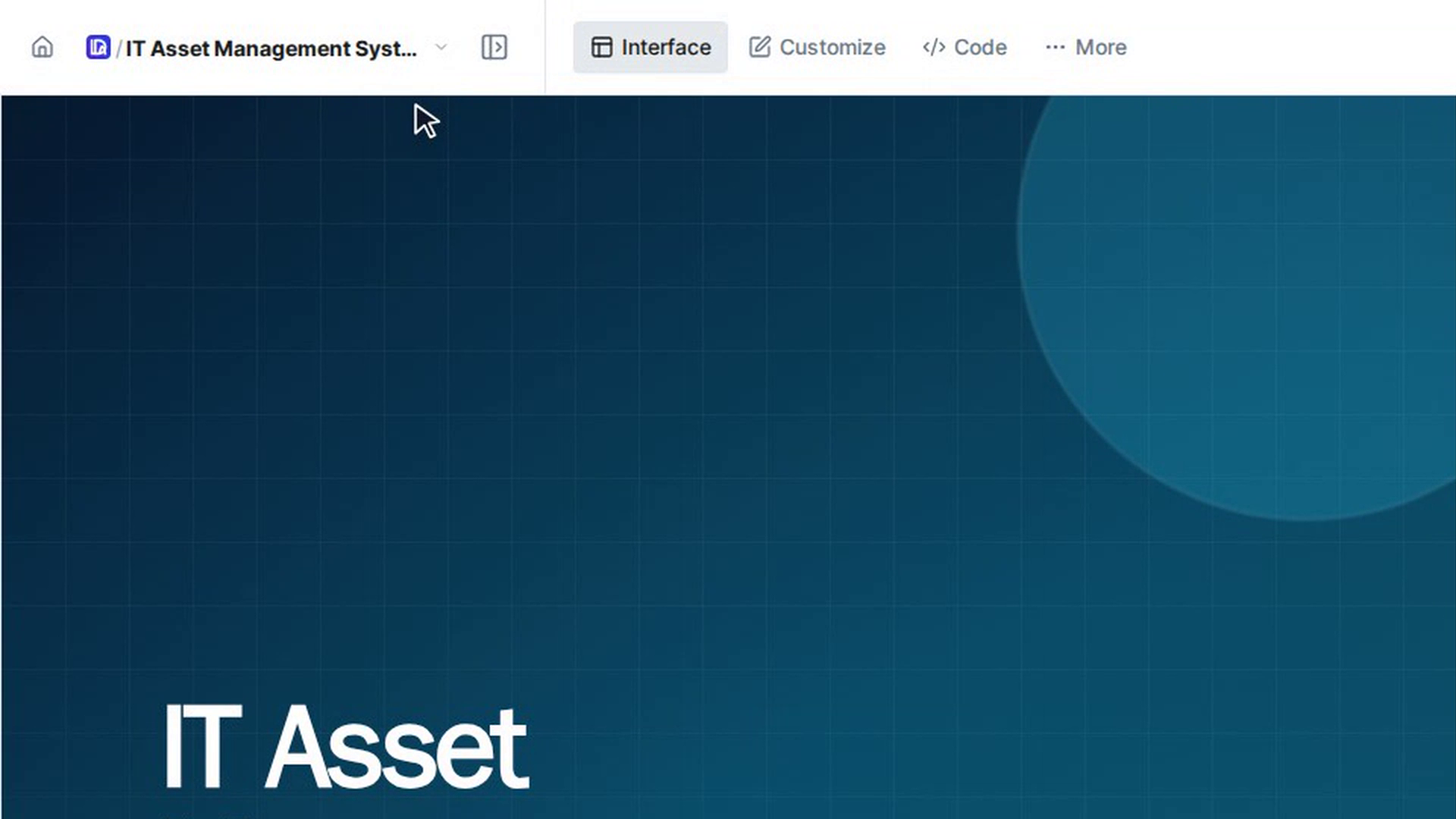
Select Interface at the top of the screen. Your app loads in the preview area. While it starts up, you see a loading screen with tips.
Get to know the other tabs
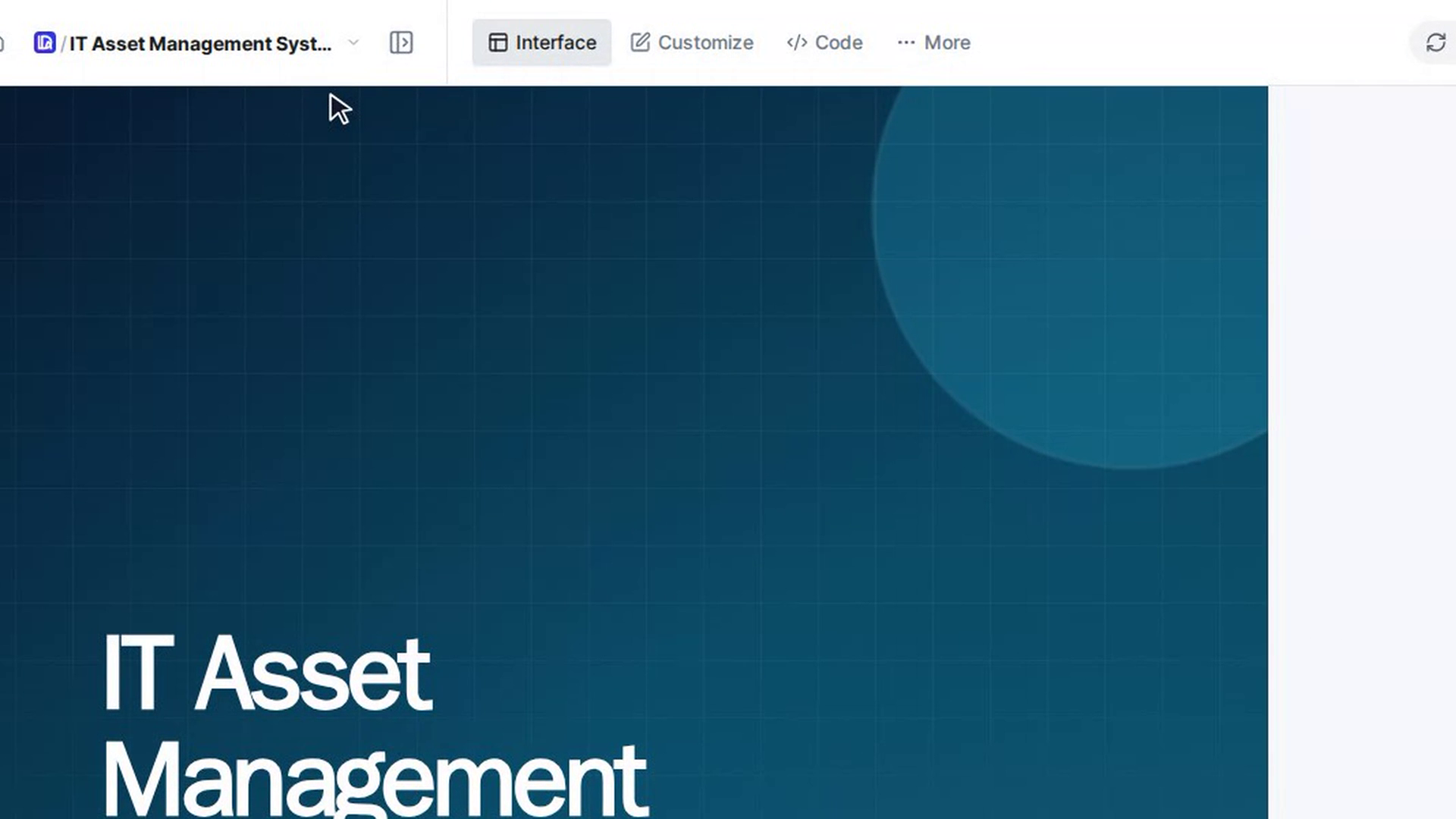
The bar at the top also has:
- Customize: change pages, components and styles in the editor.
- Code: browse your app's source code.
- More: opens a list down the left side with Deploy, Pipeline Progress, App Backend, AEU Consumption, Artifacts / Files, Settings, Monitoring and Connected Devices.
Change the screen size
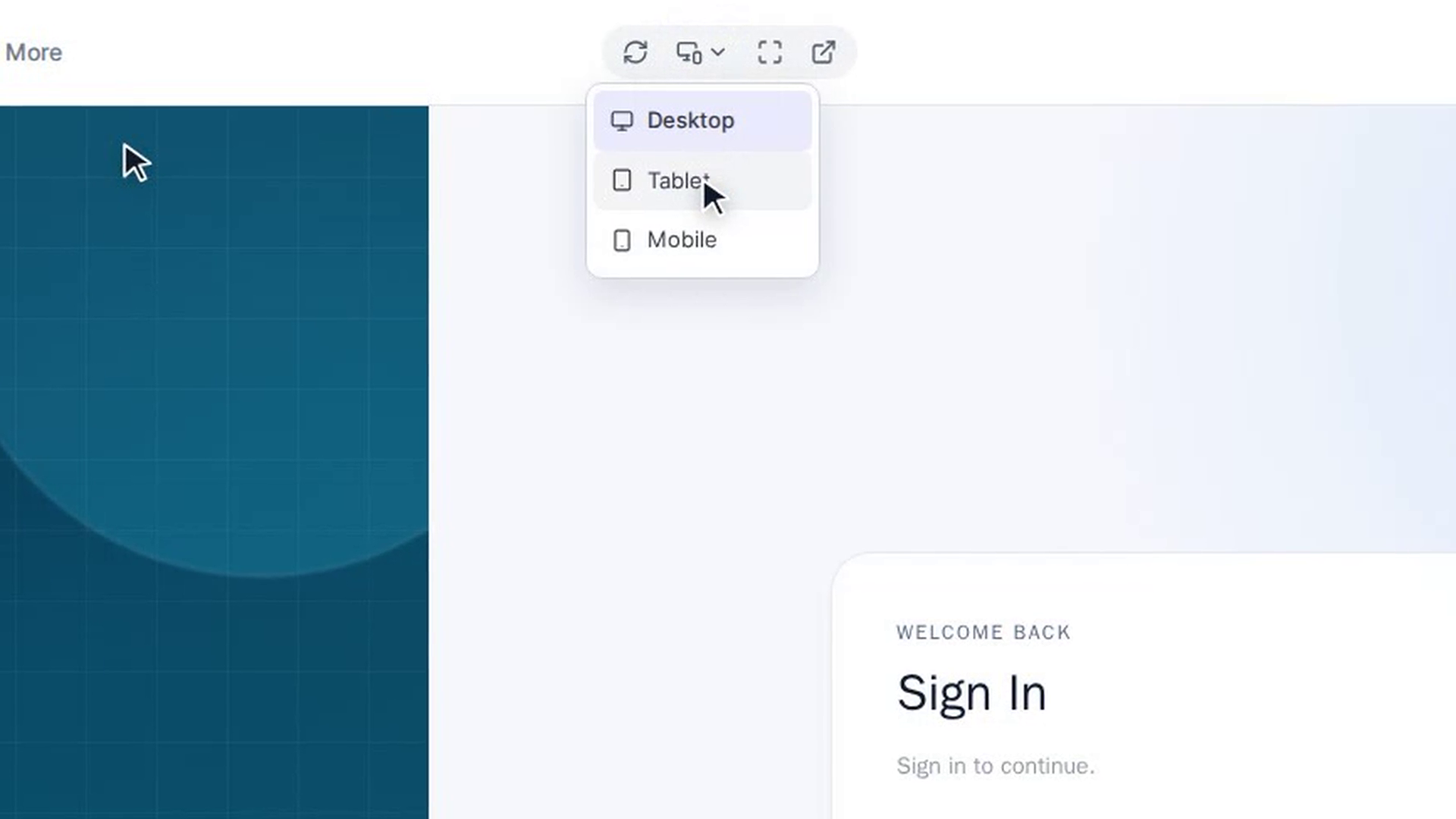
Select the device size button next to Refresh and choose Desktop, Tablet or Mobile. The preview resizes so you can check your app at that size.
Make the preview bigger
Select Maximize to give the preview the whole window. Select Minimize to return to the normal layout.
Open the app in a new browser tab
Select Open in another tab to open your app in its own browser tab.
Refresh the preview
Select Refresh to reload the preview. If the button shows a small dot (Preview needs refresh), the preview has lost its connection and needs a refresh.
Reconnect if the app is disconnected
If you see App Disconnected, select Reload. The app's servers restart (Reloading app...) and the preview comes back. Your saved changes are not affected. If you see Unable to reconnect, try Reload again.
Screenshots
Step 1: Open your app
Step 2: Go to the Interface tab
Step 3: Get to know the other tabs
Step 4: Change the screen size
Step 5: Make the preview bigger
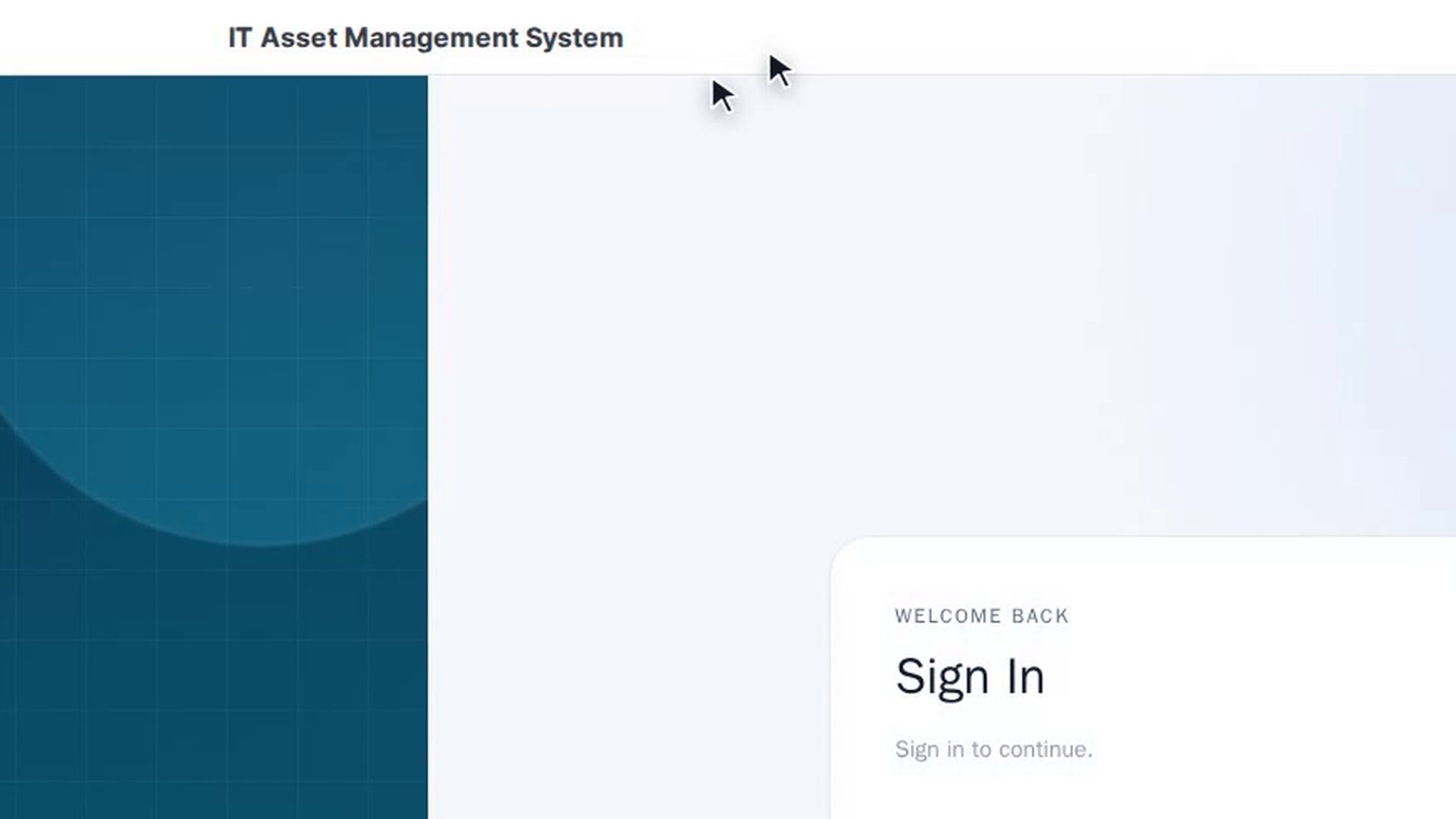
Step 6: Open the app in a new browser tab
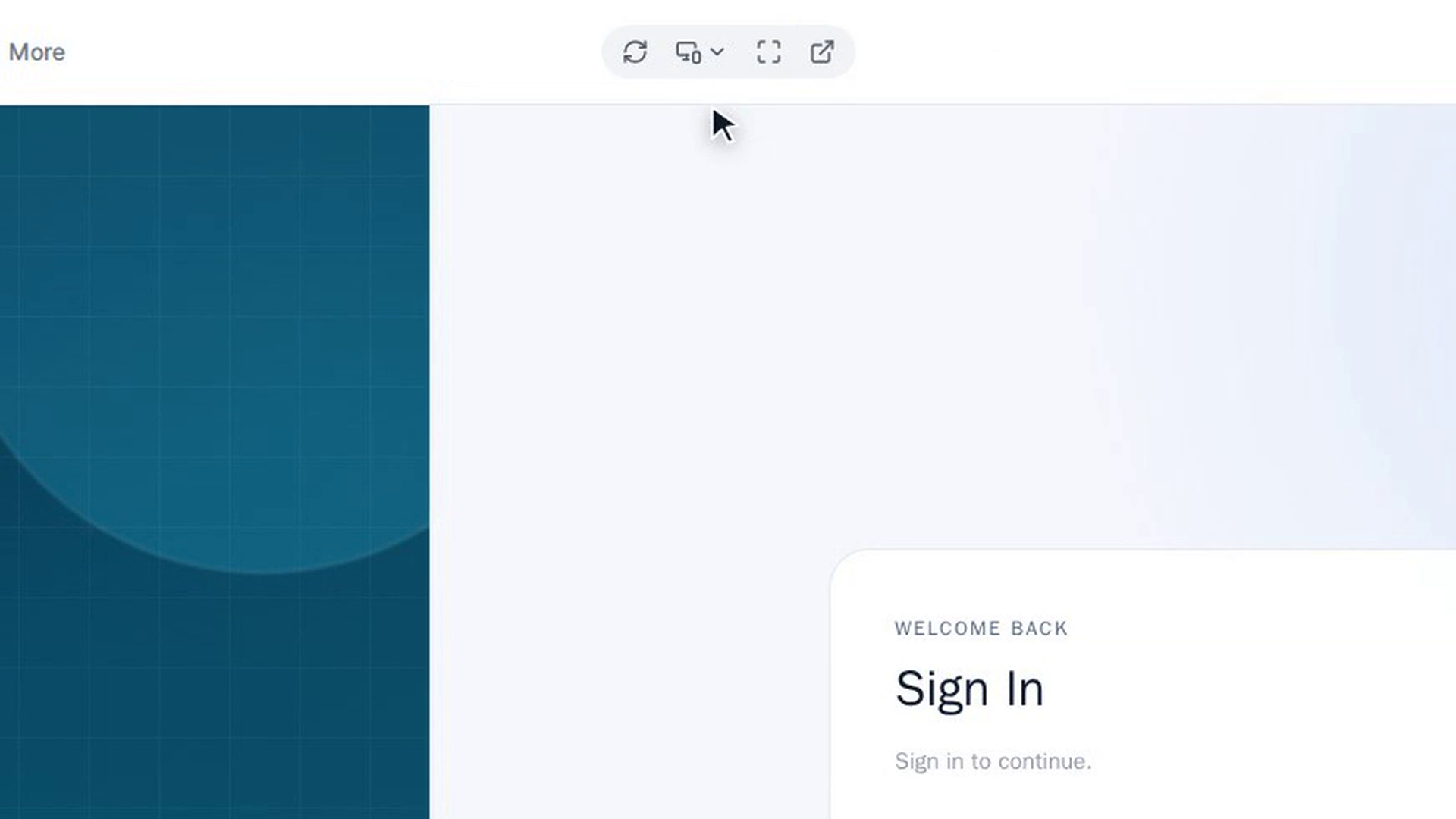
Step 7: Refresh the preview
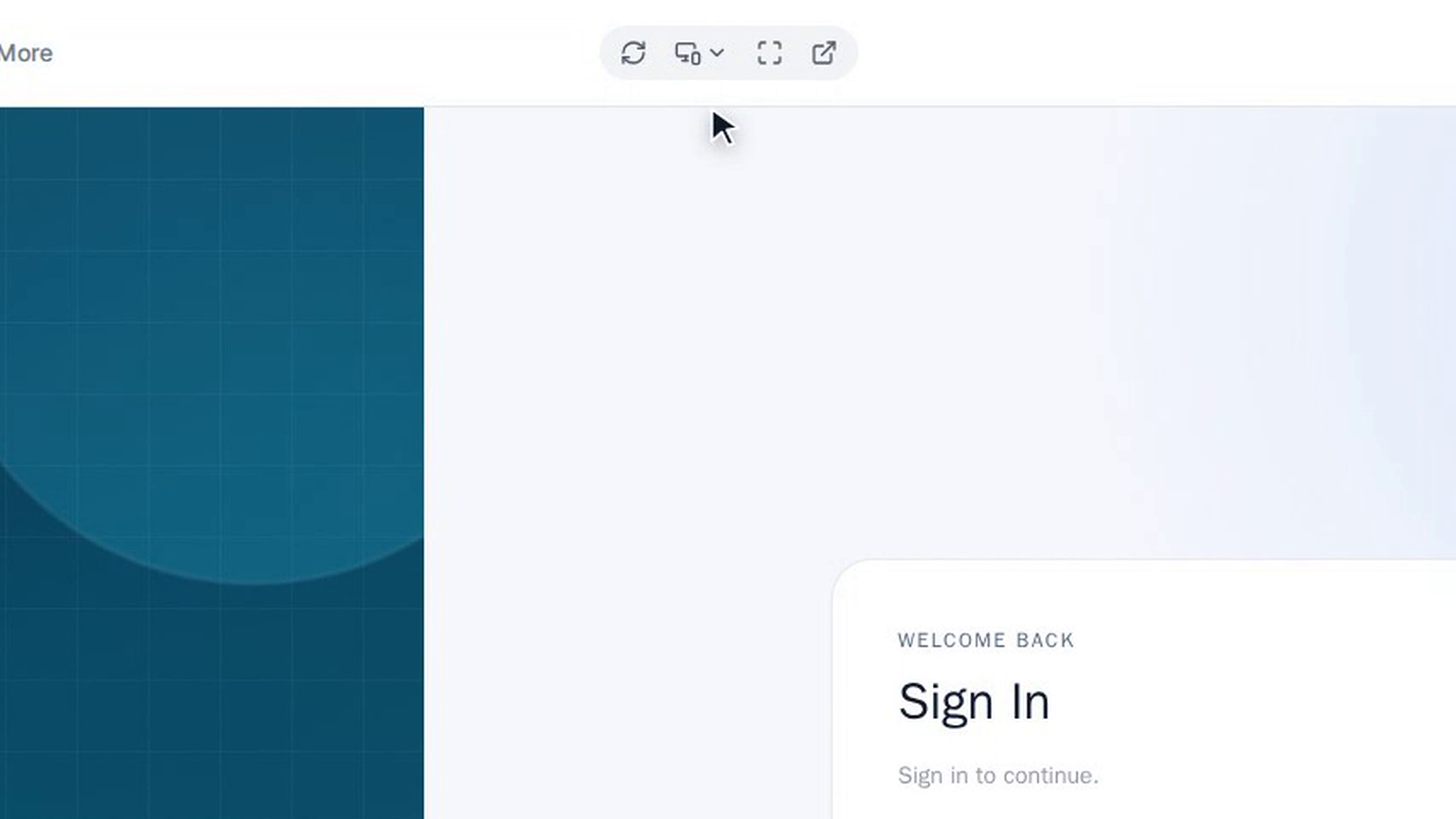
Watch how
Tip: The size, maximize and new-tab buttons only become available once your app is live and has finished loading. On a small screen, you'll find them in the actions menu (⋮), under Preview.