What AEU are and how to check your balance
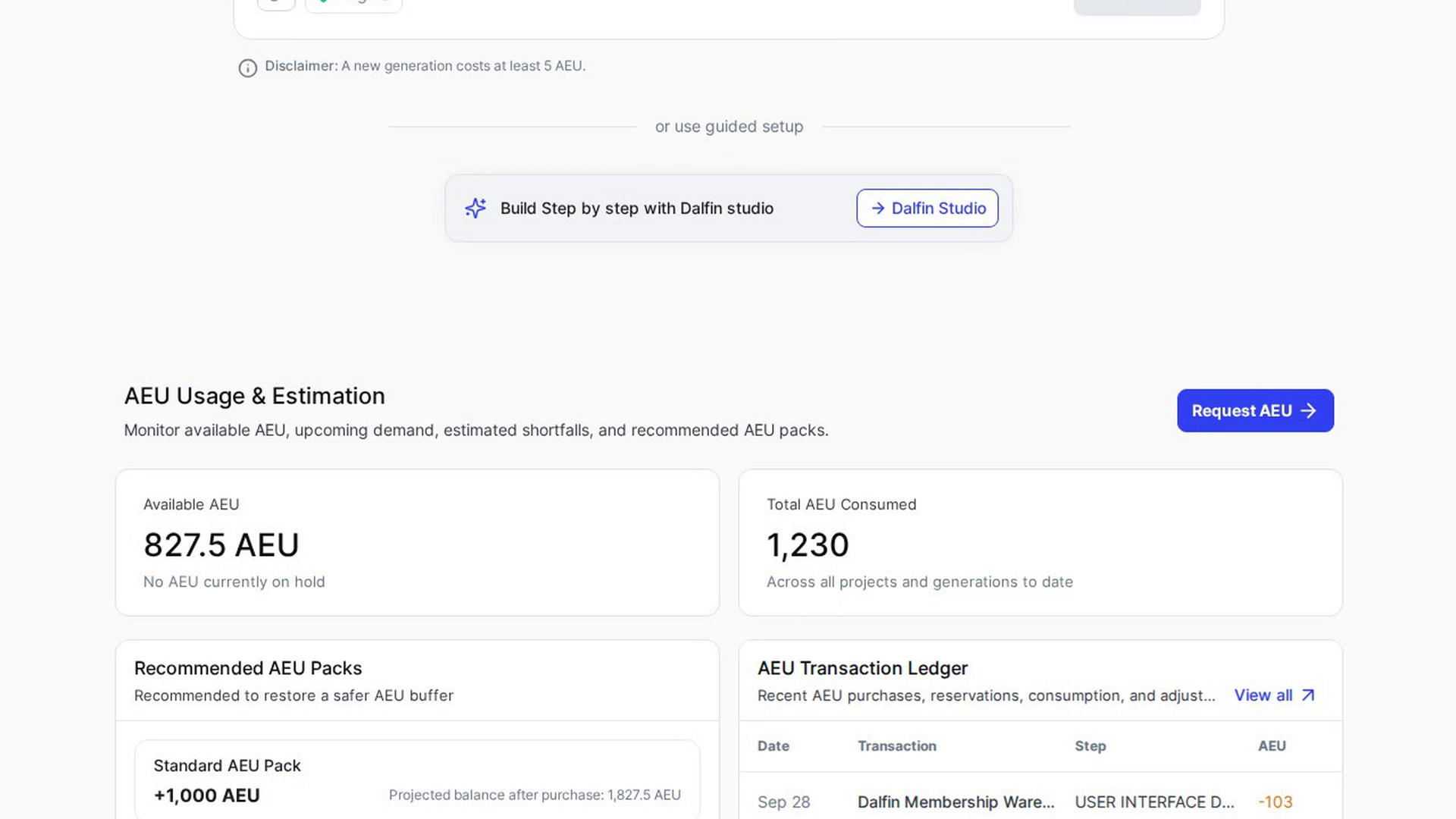
AEU are the credits Dalfin uses when it builds your apps. The AEU Usage & Estimation section on your Dalfin home shows how many you have left, how many you have used, and where they went.
Before you start
- Anyone who can sign in to Dalfin can see this section.
- The numbers start to fill in after your first app has been generated. Until then you see a message such as "Create your first app to start tracking your AEU balance, usage, and estimated demand."
Steps
Open the Dalfin home
Open Dalfin. Below the box where you describe a new app, scroll down to AEU Usage & Estimation. While the figures load you see "Loading AEU stats…".
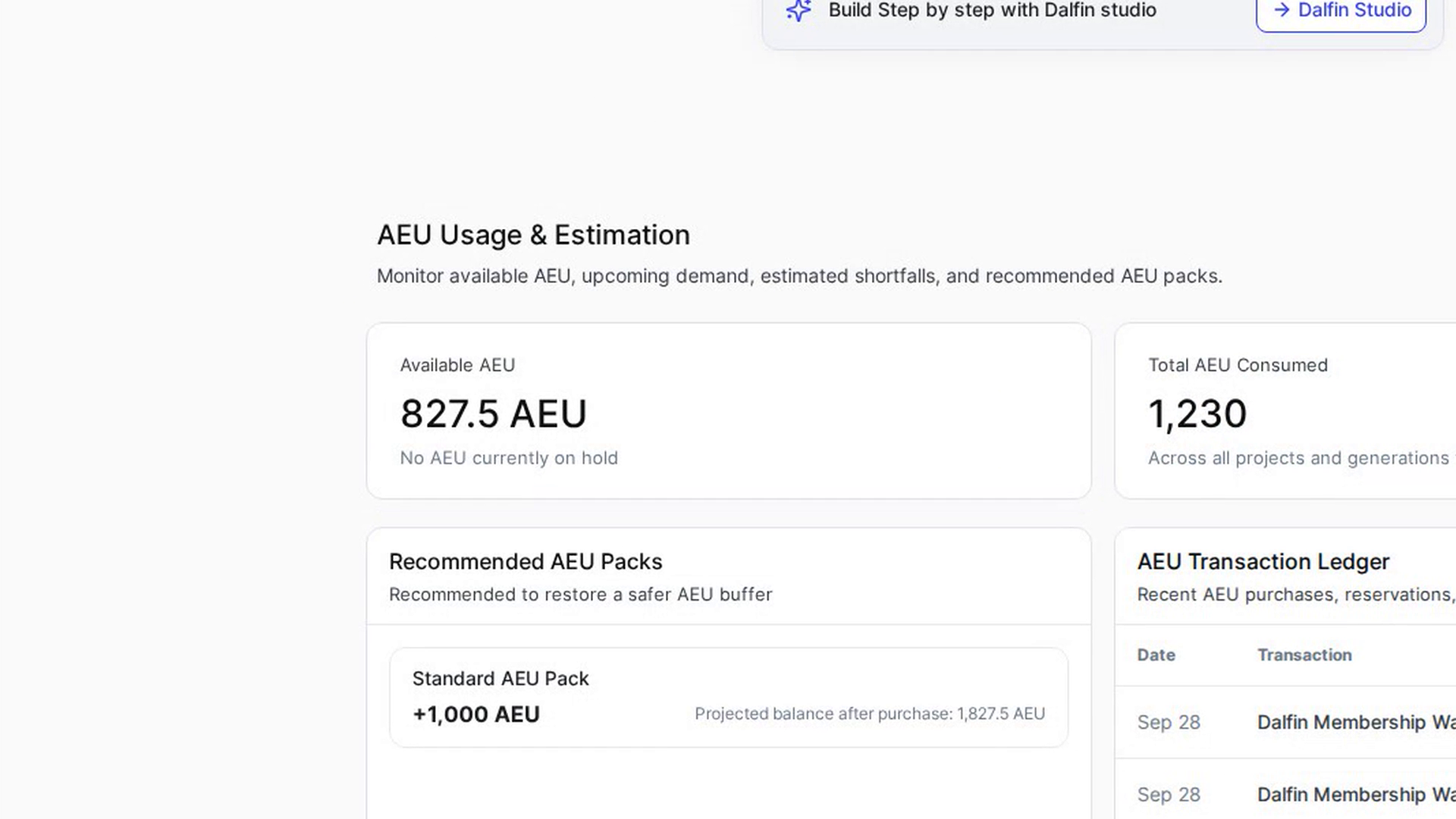
Check your available AEU
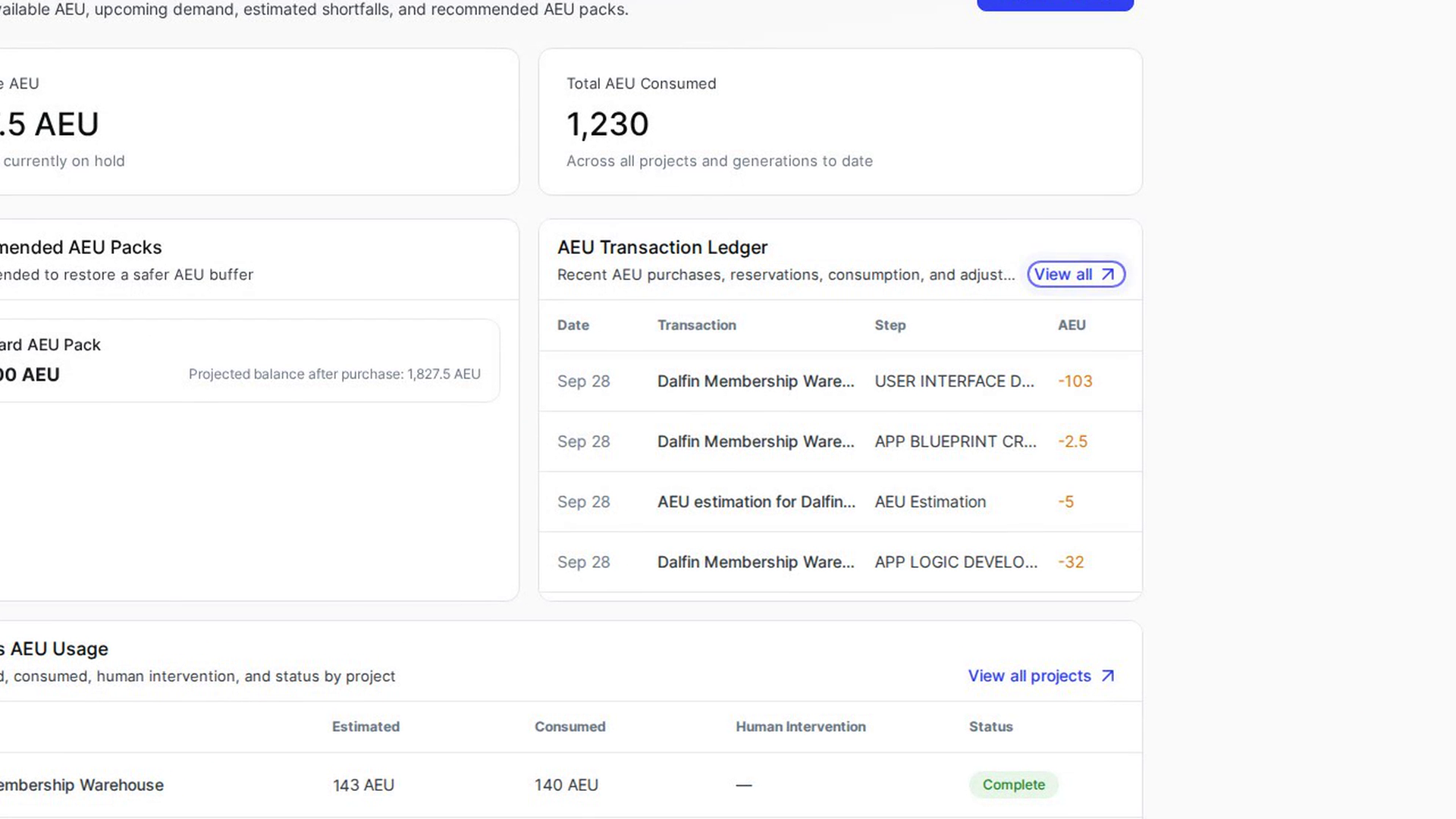
The Available AEU card shows how many AEU you can still spend. The line under the number tells you how many AEU are currently on hold (for example "No AEU currently on hold"), which are set aside for work that is still running.
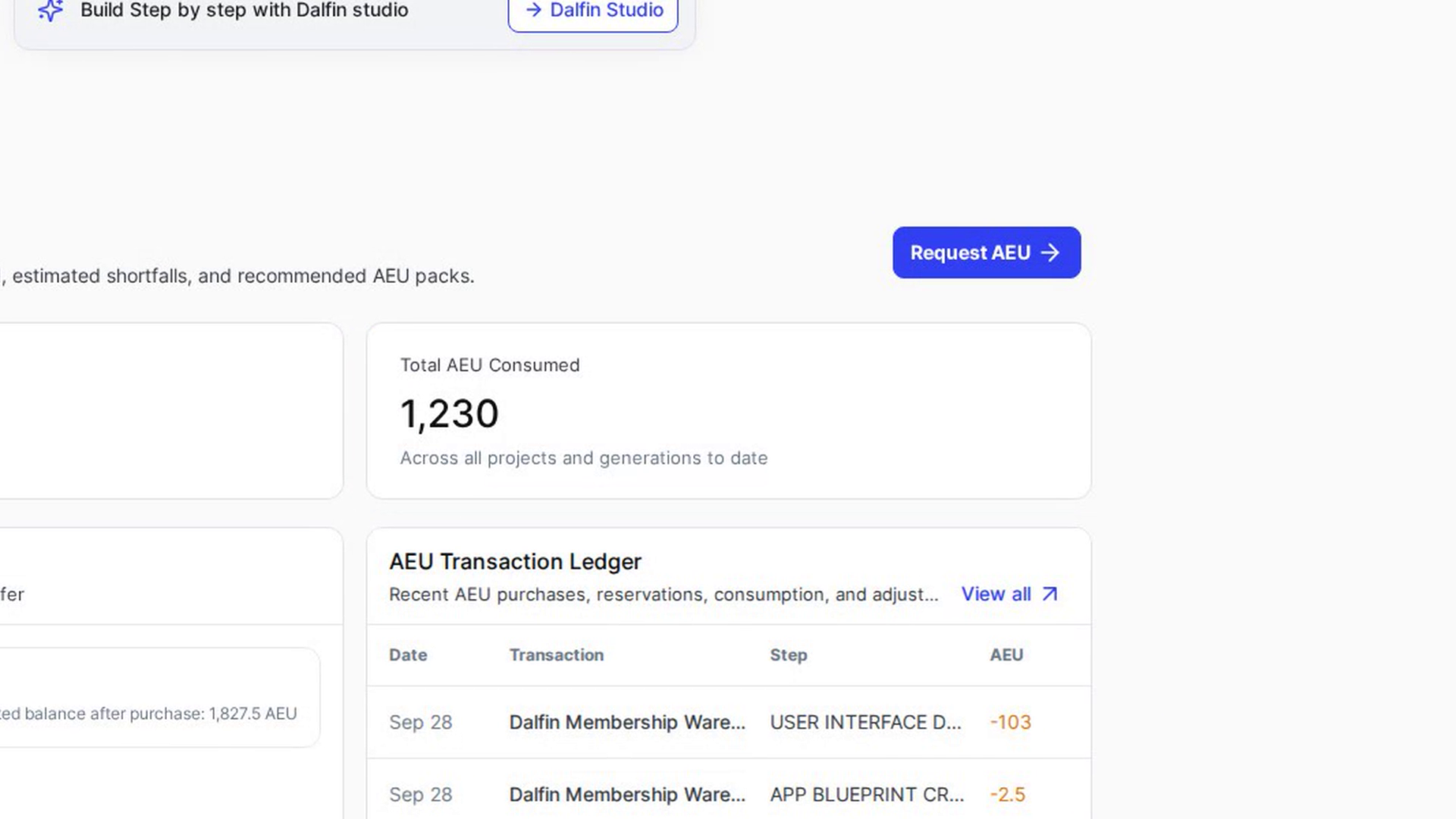
Check how many AEU you have used
The Total AEU Consumed card shows everything you have used so far, "Across all projects and generations to date".
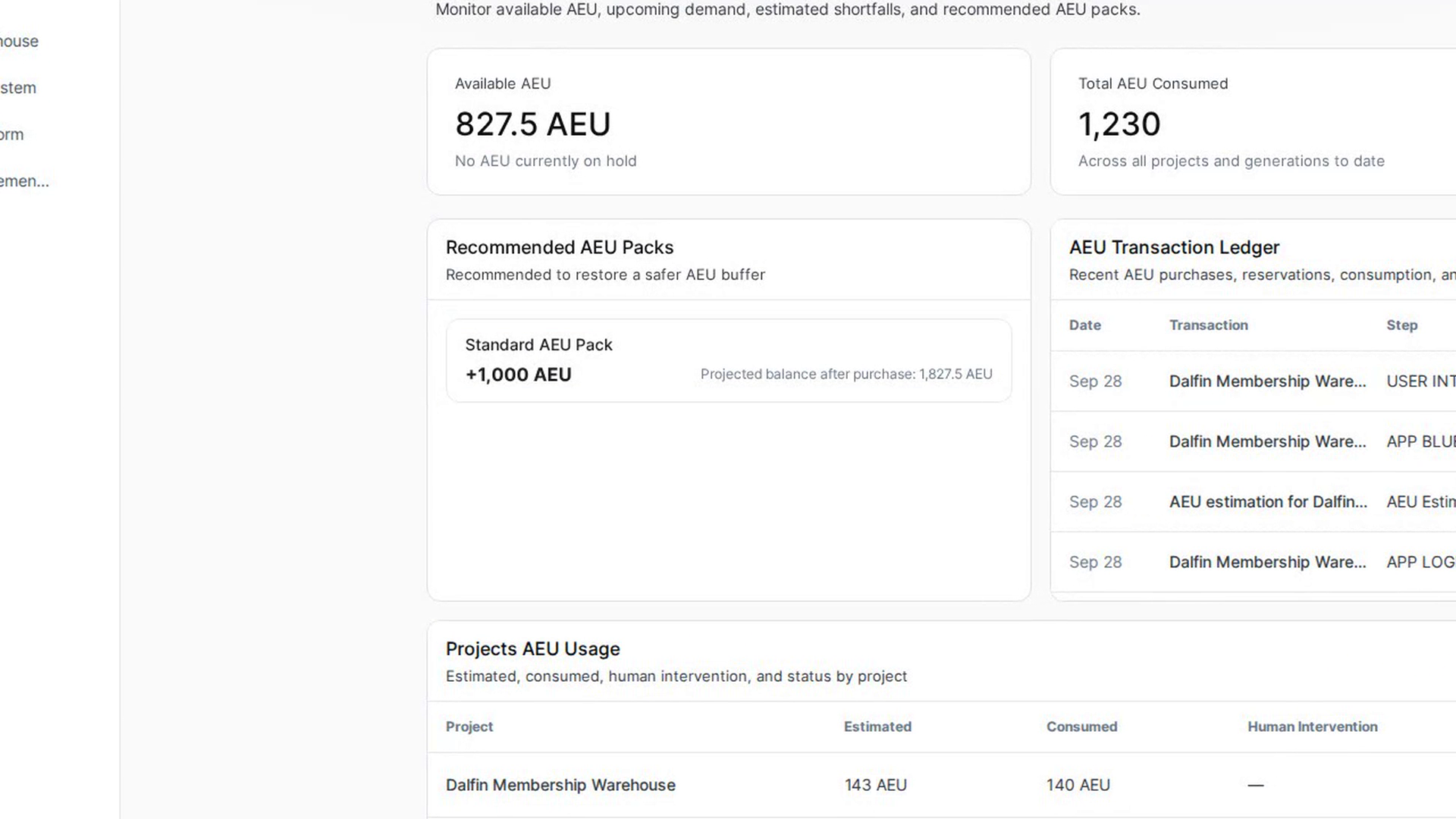
Look at the recommended packs
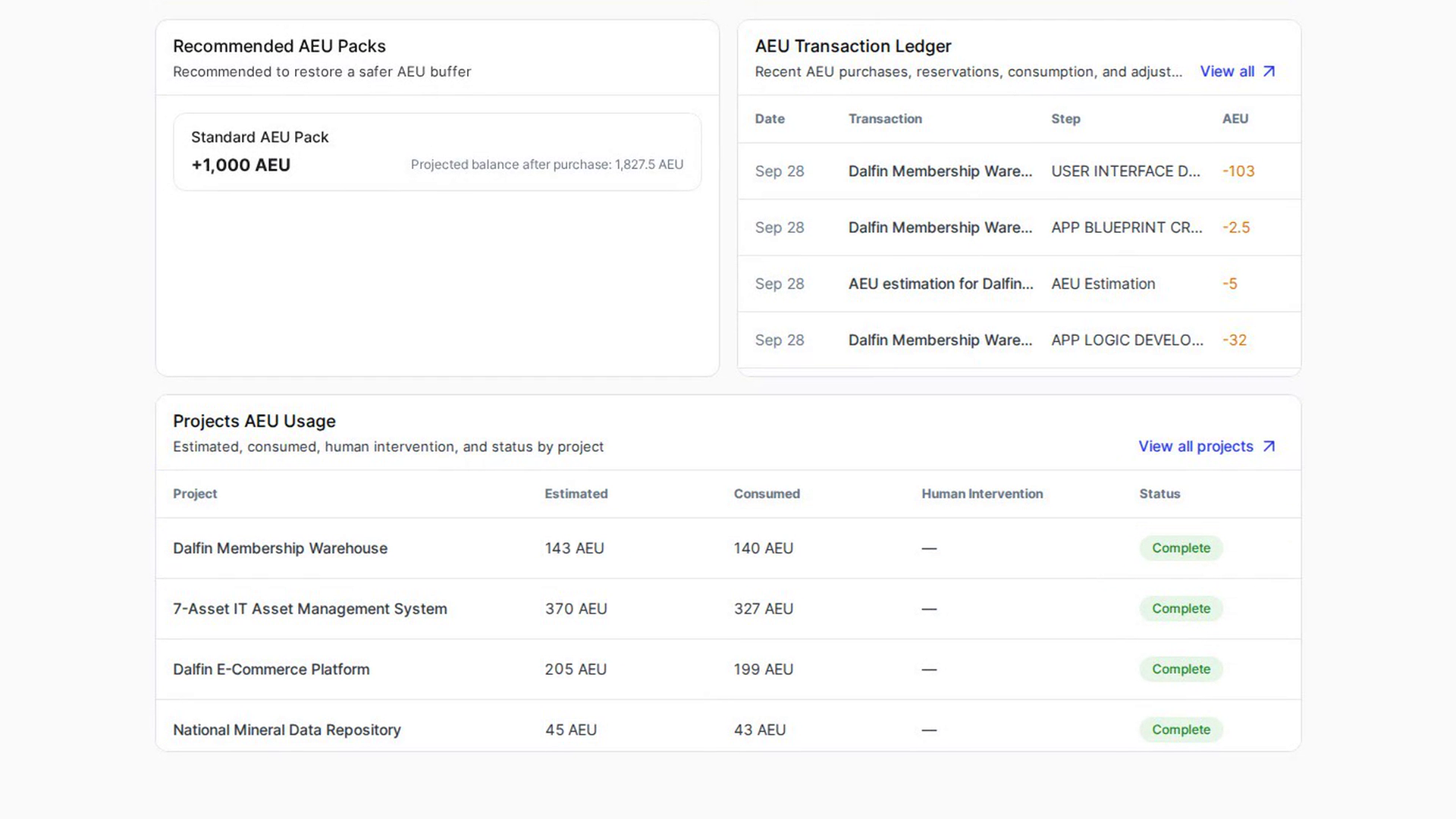
Recommended AEU Packs lists packs you can add, with the Projected balance after purchase for each. If there are none yet you see "No recommendations yet".
Review recent transactions
AEU Transaction Ledger shows your most recent AEU purchases, reservations, use and adjustments, with the Date, Transaction, Step, AEU and Balance for each. Select View all to open the full ledger.
See usage per project
Projects AEU Usage lists each project with its Estimated, Consumed, Human Intervention and Status values. Select a project row to see the AEU that app used, or select View all projects to open your apps list.
Screenshots
Step 1: Open the Dalfin home
Step 2: Check your available AEU
Step 3: Check how many AEU you have used
Step 4: Look at the recommended packs
Step 5: Review recent transactions
Step 6: See usage per project
Watch how
Tip: Running low? Select Request AEU at the top of the section to ask for more.