Explore and edit your app's code
The Code tab opens your app's real source code in a full code editor in your browser. Use it to find your way around the frontend and backend, search every file at once, make changes and check for problems.
Before you start
- This page is for team admins and developers who are comfortable working with source code.
- The app must have finished generating and its files must have been uploaded. See Code (in-browser IDE) for what you see before that.
- The editor works on your app's live files. Changes are saved as you type, and there is no version history to roll back to.
Steps
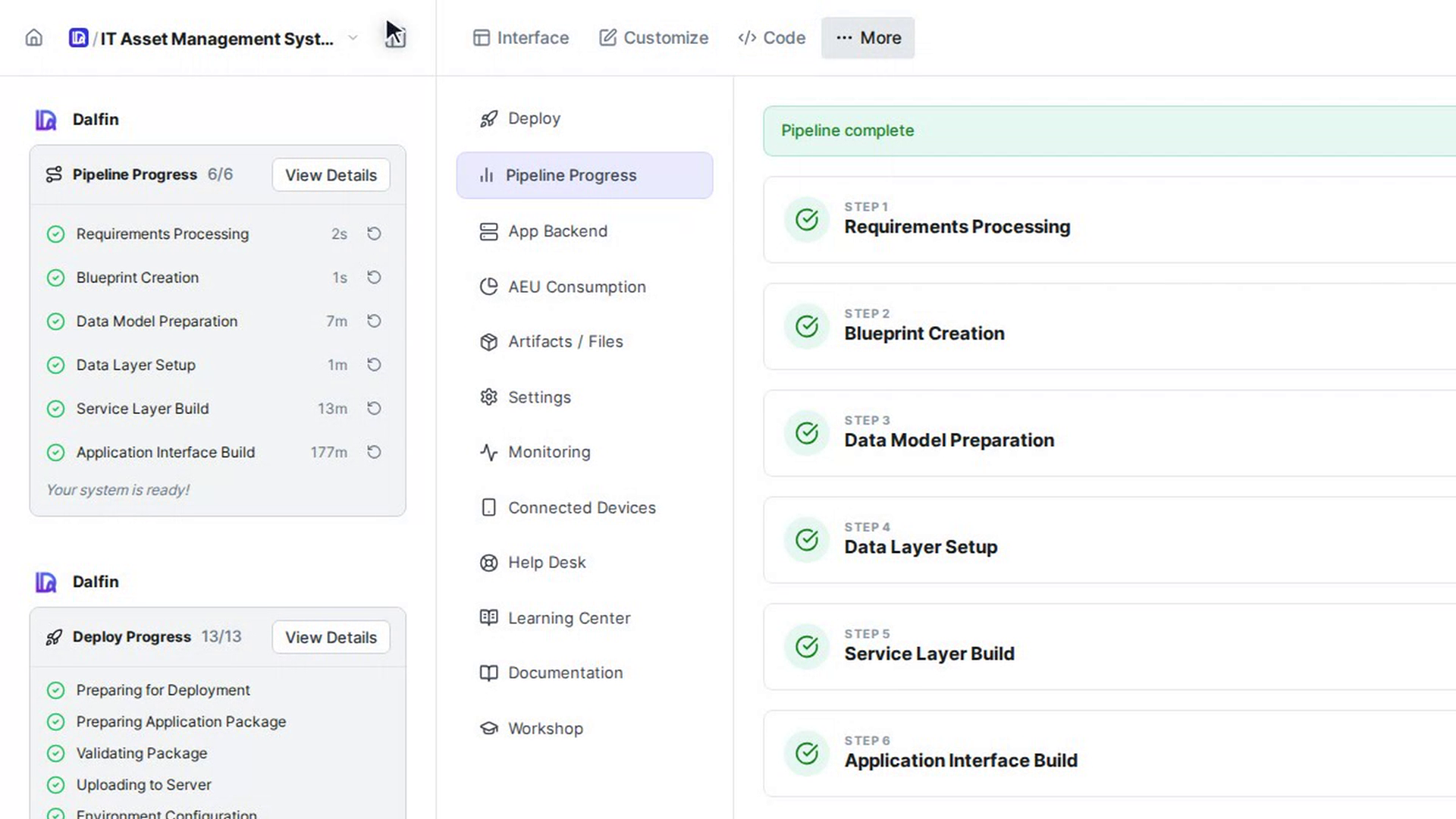
Open the Code tab
Open your app from All Apps and select Code in the top bar. A loading screen shows while the editor starts, and then the editor opens on your app's project. It remembers its last layout, so it may open on Search or with a Preview: frontend tab showing.
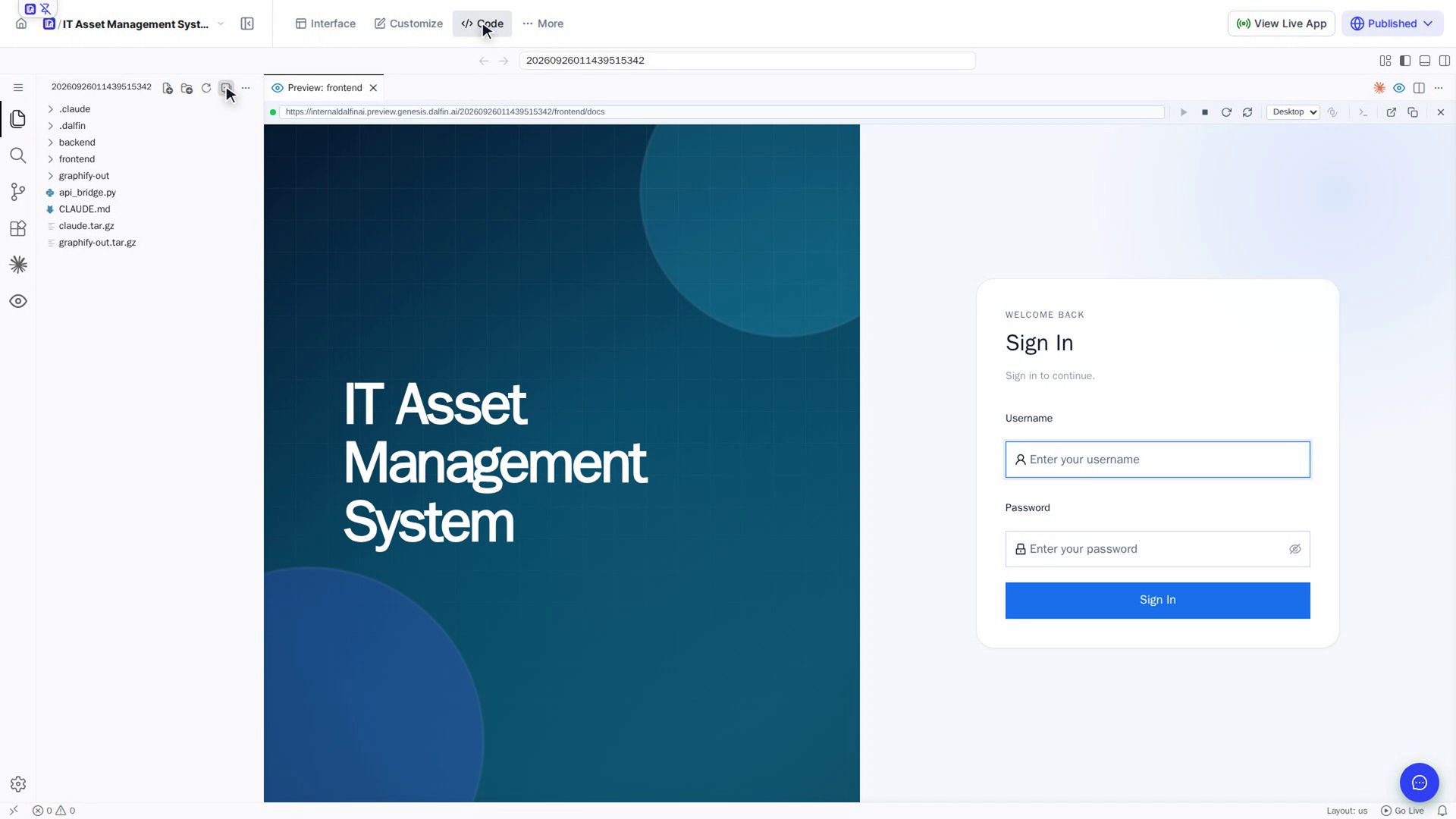
Browse the project in Explorer
The icons down the left side switch the side bar between views. Select Explorer (the files icon at the top) to see the project's files. The top level has:
- frontend: the web pages of your app (a React and TypeScript project).
- backend: the server of your app (a Python project).
- CLAUDE.md and .claude: notes and settings that Claude Code reads.
- .dalfin, graphify-out and api_bridge.py: files that Dalfin uses to build and describe your app. Leave them as they are.
The buttons at the top of the tree are New File..., New Folder..., Refresh Explorer and Collapse Folders in Explorer.
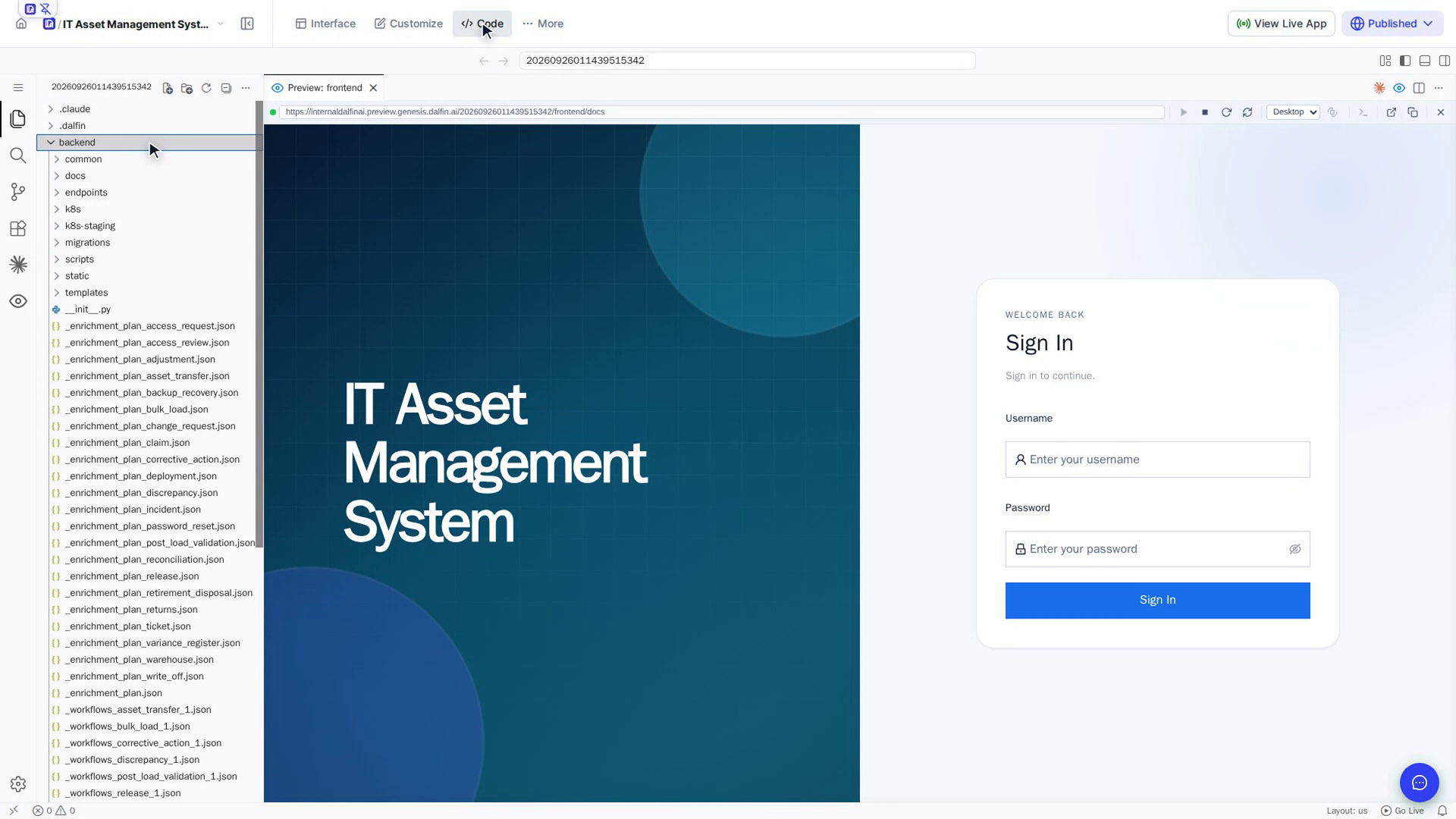
Open a file
Select a folder to open it, then select a file to see its code. Select a file twice to keep its tab open; a single select reuses the same tab for the next file. The path to the file shows under the tab, for example backend › main.py.
The editor colours the code, shows a minimap on the right and underlines errors as you work. The status bar along the bottom shows the number of problems, the cursor position, the indentation, the encoding and the file's language, such as Python or TypeScript JSX.
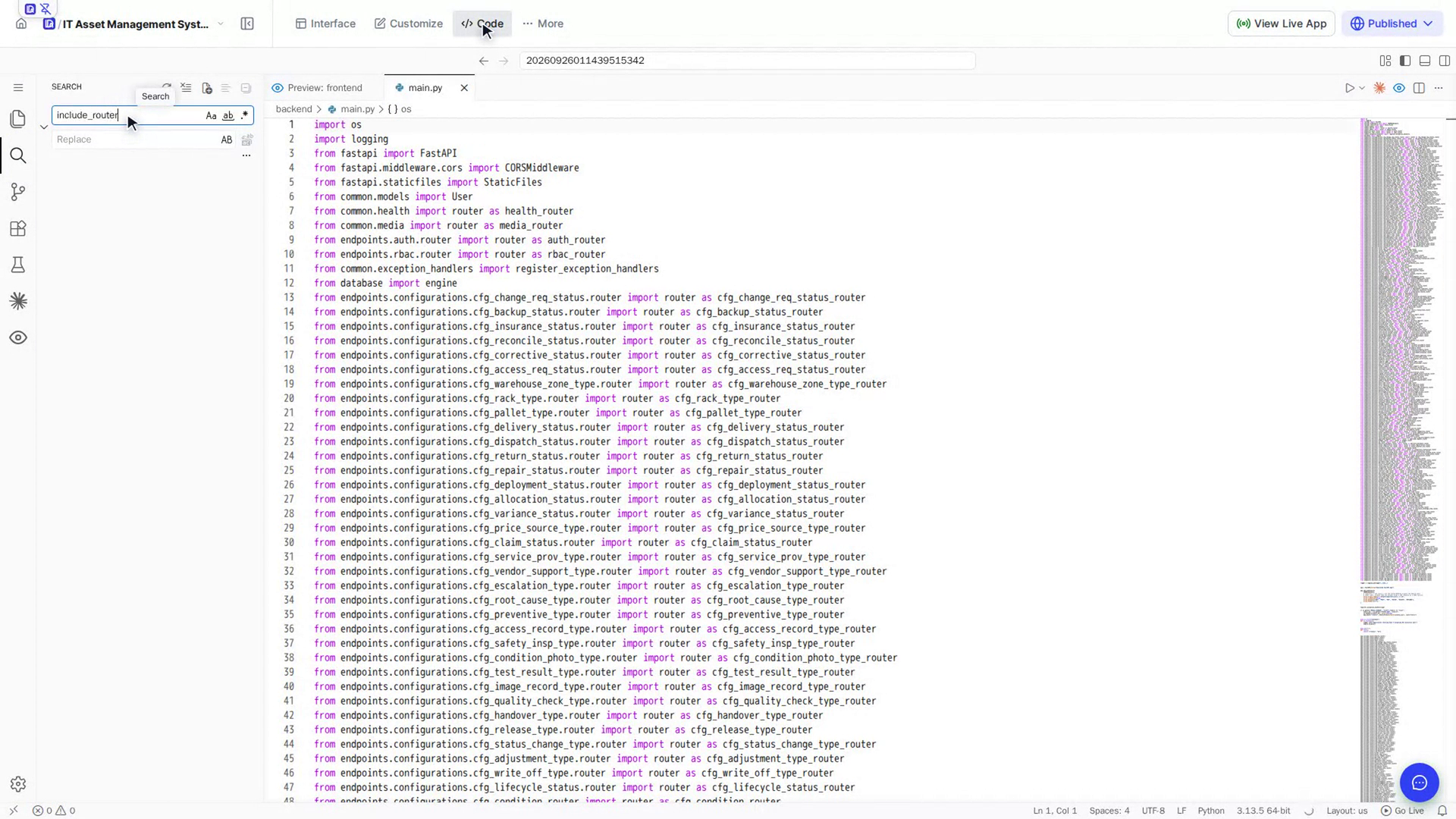
Search across the code
Select Search on the left and type what you are looking for. Results are grouped by file, with the number of matches for each. Select a result to open the file at that line. Use the buttons in the search box to Match Case, Match Whole Word or Use Regular Expression.
Edit a file
Select the place in the file you want to change and type. Your change is saved automatically a moment later, and your running app picks it up straight away, without publishing again. You can also press Ctrl+S (⌘S on a Mac) to save.
Use Problems, Output and Terminal
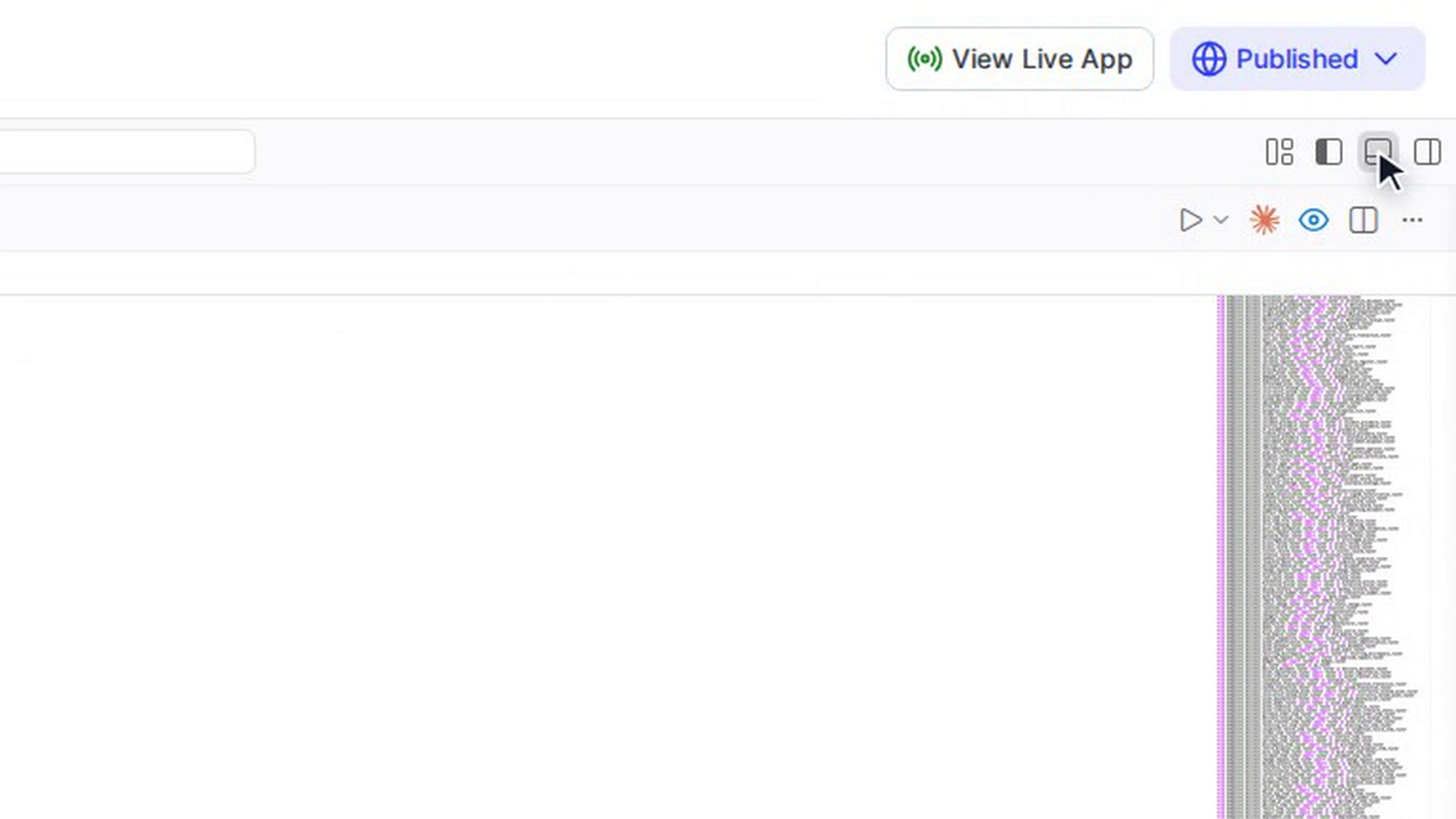
Select Toggle Panel (top right of the editor, or Ctrl+J) to open the panel along the bottom. It has three tabs:
- Problems: errors and warnings in your code. When there are none, it says No problems have been detected in the workspace.
- Output: messages from the editor and its tools.
- Terminal: a command line that starts in your app's folder. Use + to open another terminal.
Screenshots
Step 1: Open the Code tab
Step 2: Browse the project in Explorer
Step 3: Open a file
Step 4: Search across the code
Step 5: Edit a file
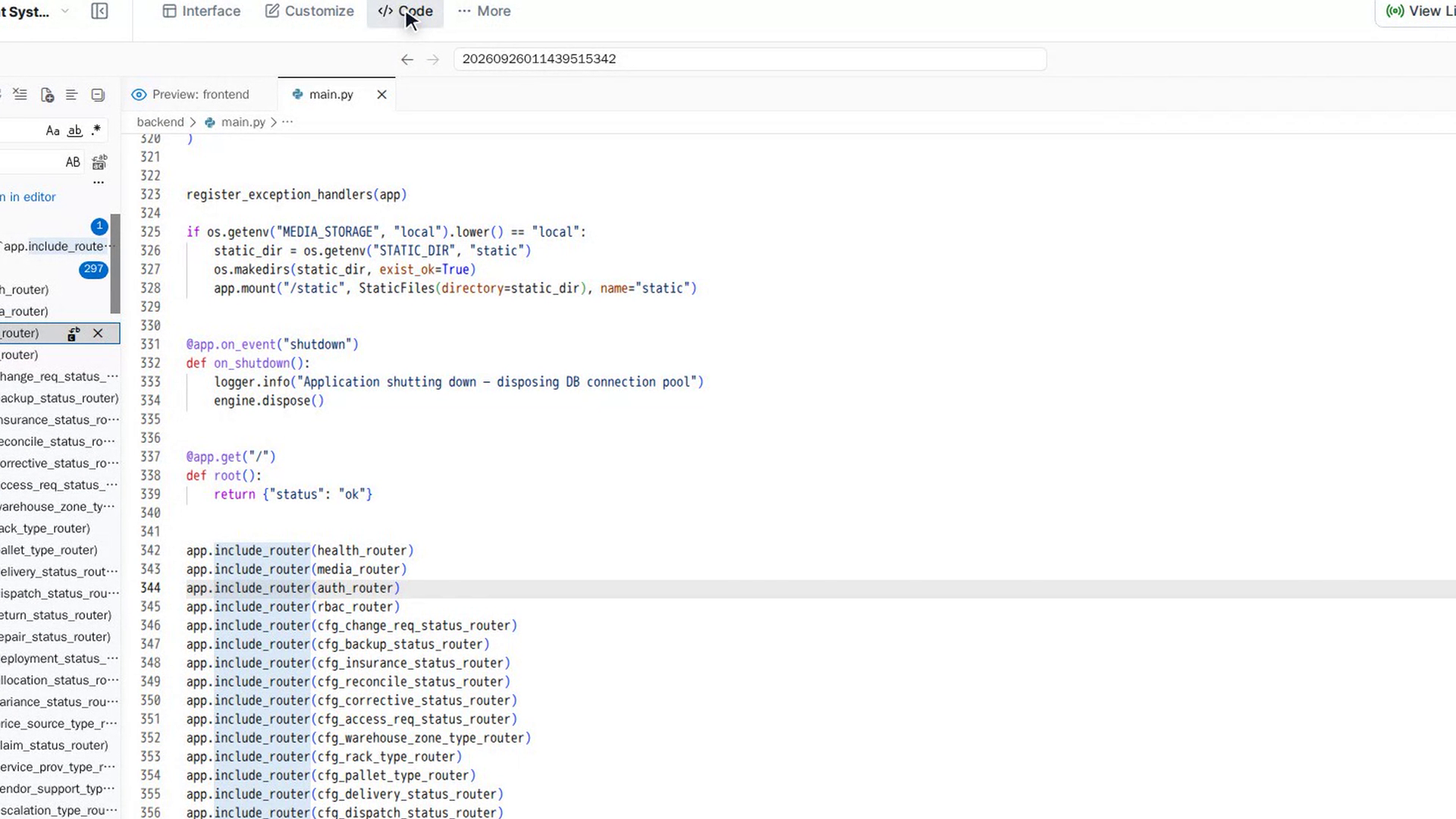
Step 6: Use Problems, Output and Terminal
Watch how
The editor changes your app's real files, and there is no change history to fall back on apart from the editor's own undo. Commands in the Terminal also run on the real files. Undo a mistake straight away, and take care before you delete or rename anything.
Tip: The Replace box in Search changes every match in every file at once. Check the results before you use it.