Field settings
Set up each form field: its name, label, type and placeholder, and basic limits such as making it required or setting a minimum and maximum.
Before you start
- You need to be a team admin who can open the app's Customize tab.
- You need a form on a page you are building in the page builder.
- These settings are made in the page builder. On a page that is already published, the Form field settings in Design let you change only Required, Unique, Data Type and Default Value.
Steps
Select the field
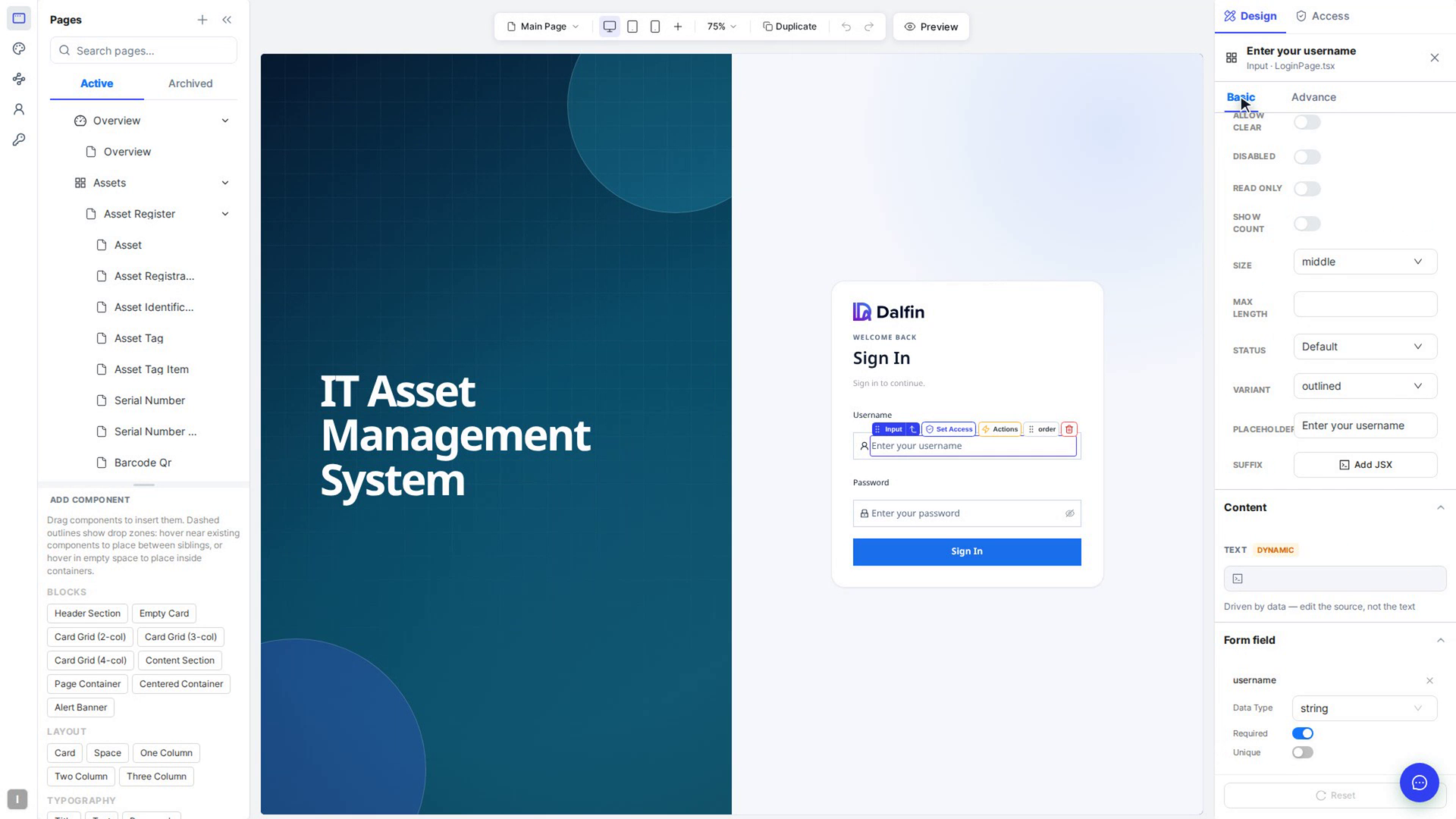
On the page builder canvas, select the form field you want to set up. The right panel shows its settings under Design.
Set the field's basic settings
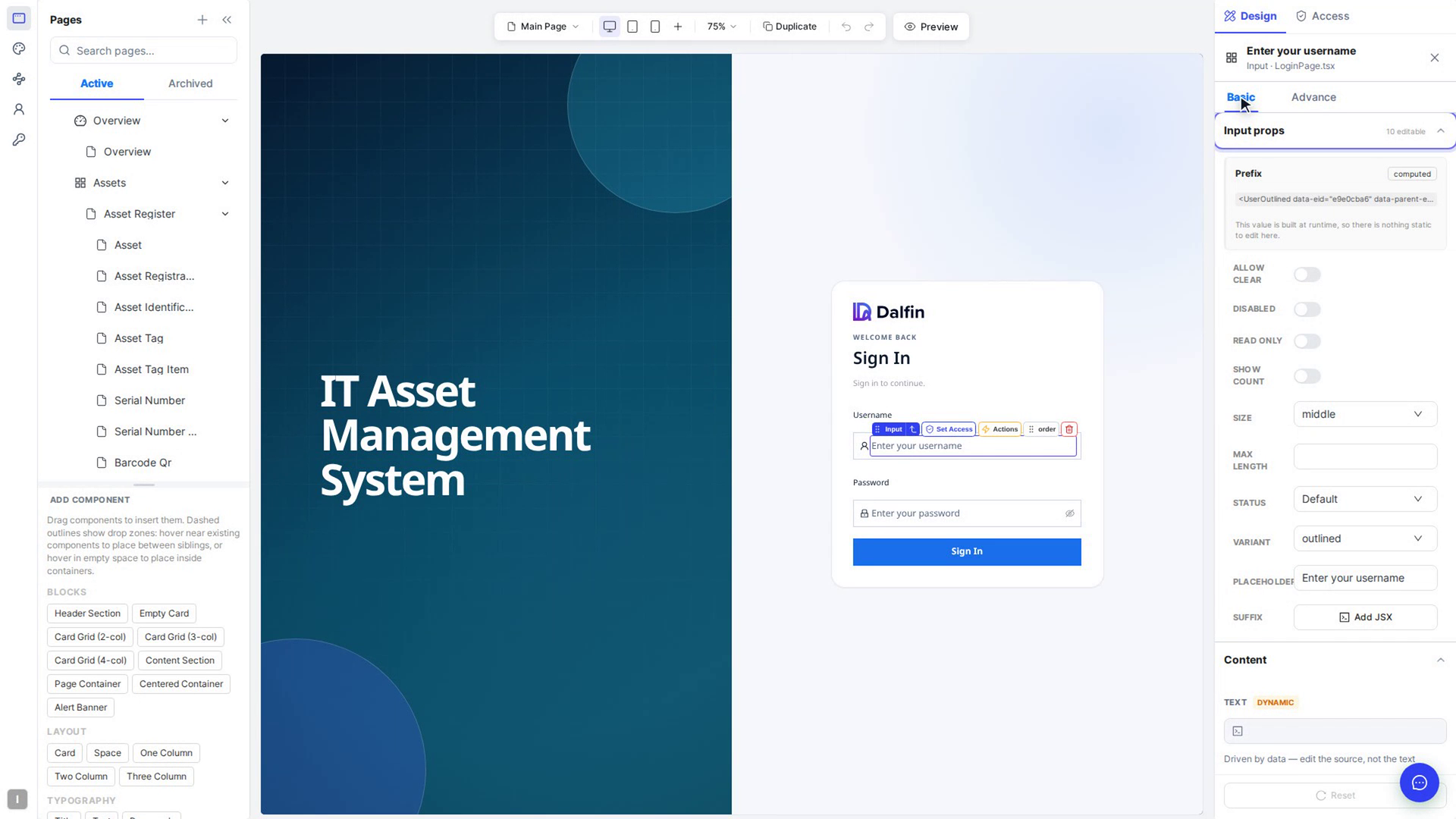
Expand FIELD PROPS. Enter the Field Name (the key the value is saved under) and the Label people see. Depending on the kind of field, you can also set:
- Type for text fields (Text, Email, Password, Number, URL or Tel) and a Placeholder
- how it looks: Variant, Size, Prefix, Suffix and similar options
- Mode for select fields (Single, Multiple or Tags)
- Picker and Format for date fields
- Help Text and Disabled
The canvas updates as you change each setting.
Set the basic limits
Expand VALIDATION. Turn on Required if people must fill the field in. For text fields you can set Min Length and Max Length. For number fields you can set Min and Max.
Screenshots
Step 1: Select the field
Step 2: Set the field's basic settings
Step 3: Set the basic limits