Run your app next to the code (live preview)
The Code tab can run your app in a preview tab beside its code. Use it to try a change as soon as you make it, check the preview server's log, and start or stop the preview.
Before you start
- You need access to the app's Code tab. See Code (in-browser IDE).
- If your app has its own sign-in, you need a username and password for the app itself.
Steps
Open the Code tab
Open your app from All Apps and select Code in the top bar. Wait for the editor to finish loading.
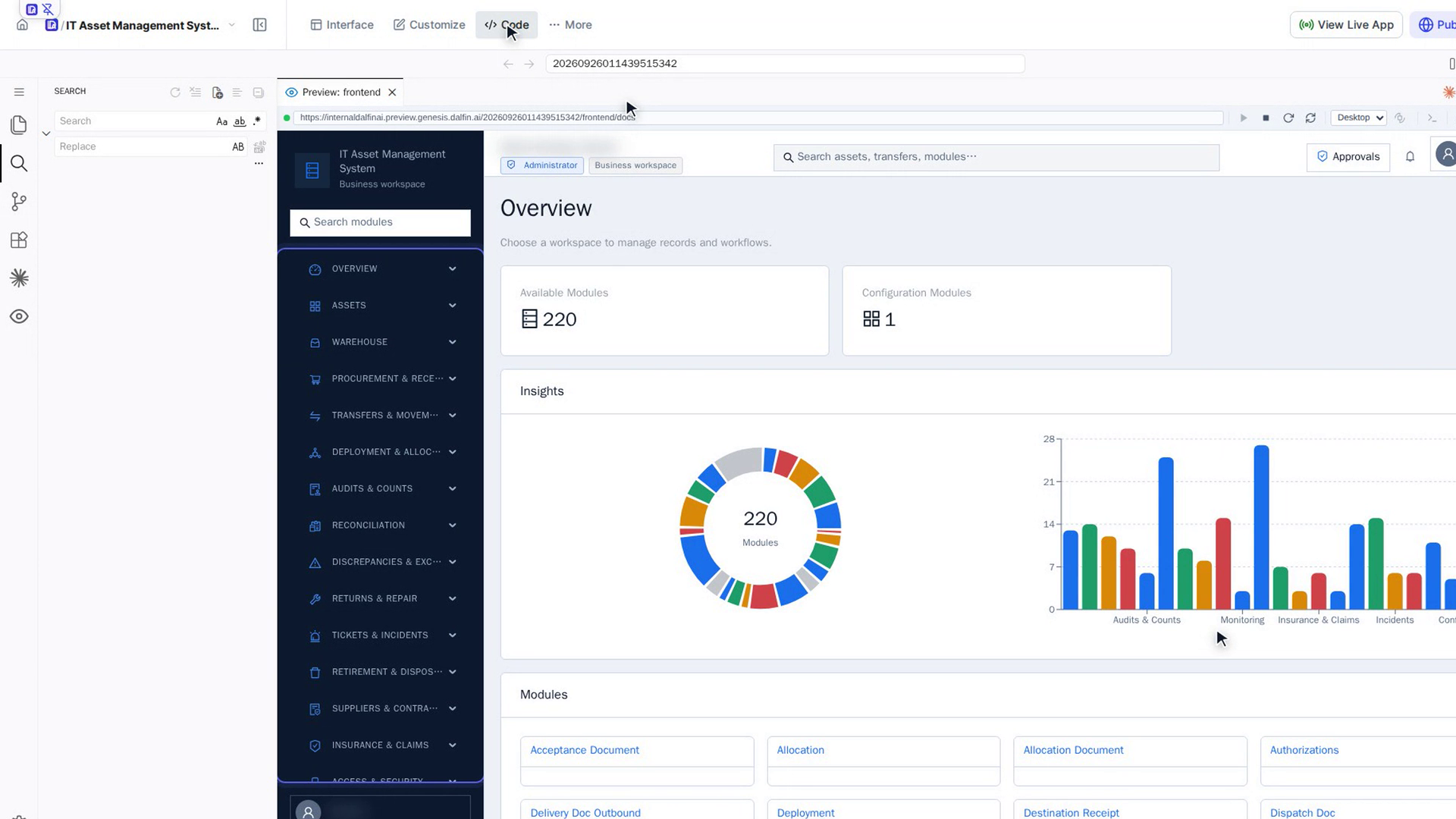
Open the preview
Select Dalfin: Toggle Preview (the eye icon at the top right of the editor, or Ctrl+Shift+L). Your app opens in the Preview: frontend tab. If the tab is already open, select it; selecting Dalfin: Toggle Preview again hides it. The bar at the top of the tab shows the address the preview runs on.
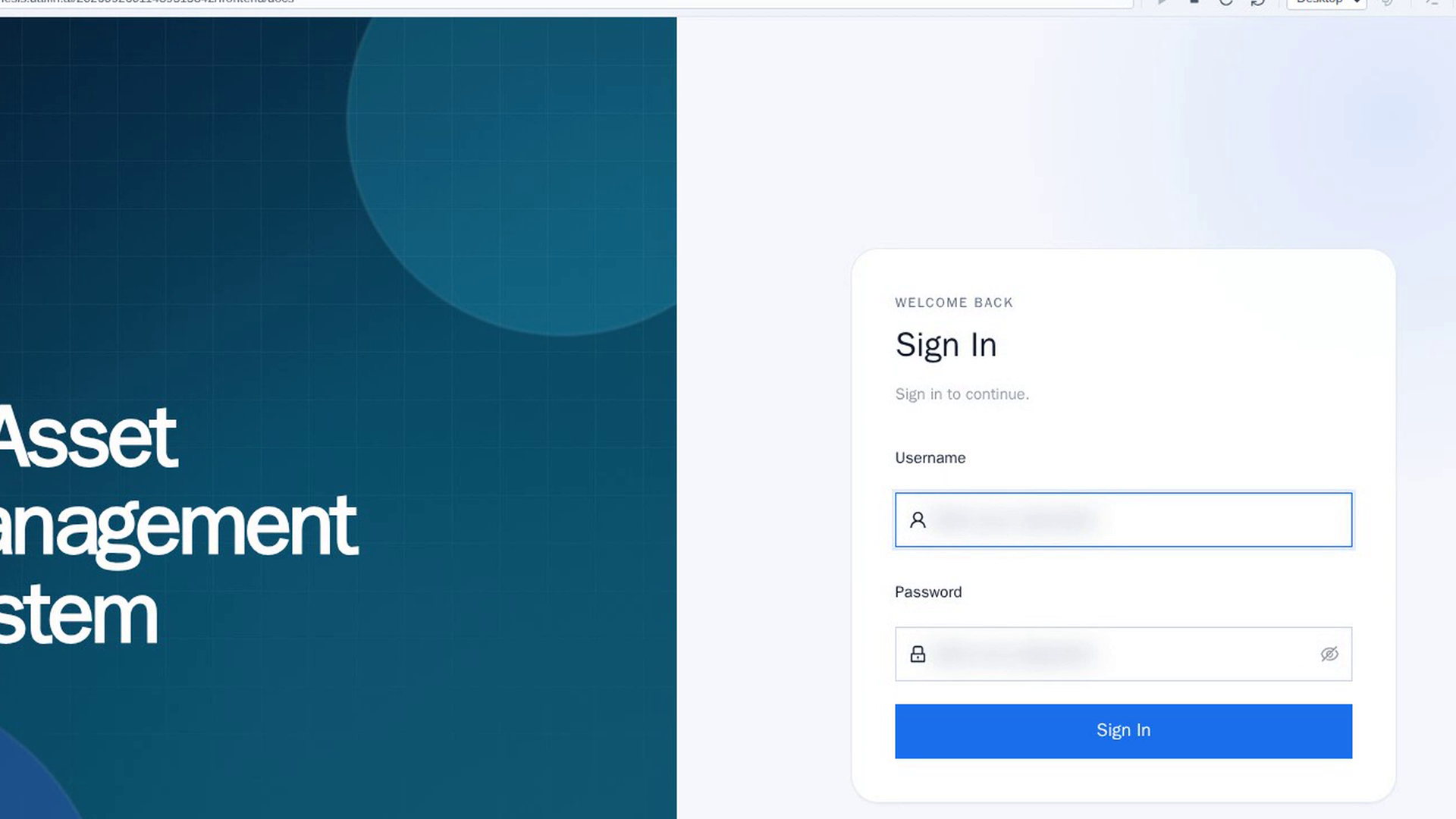
Sign in to your app
The preview behaves just like your live app. If your app has a sign-in page, enter your username and password for the app and select Sign In. You land on your app's first page and can click through it while you work on the code.
Use the preview toolbar
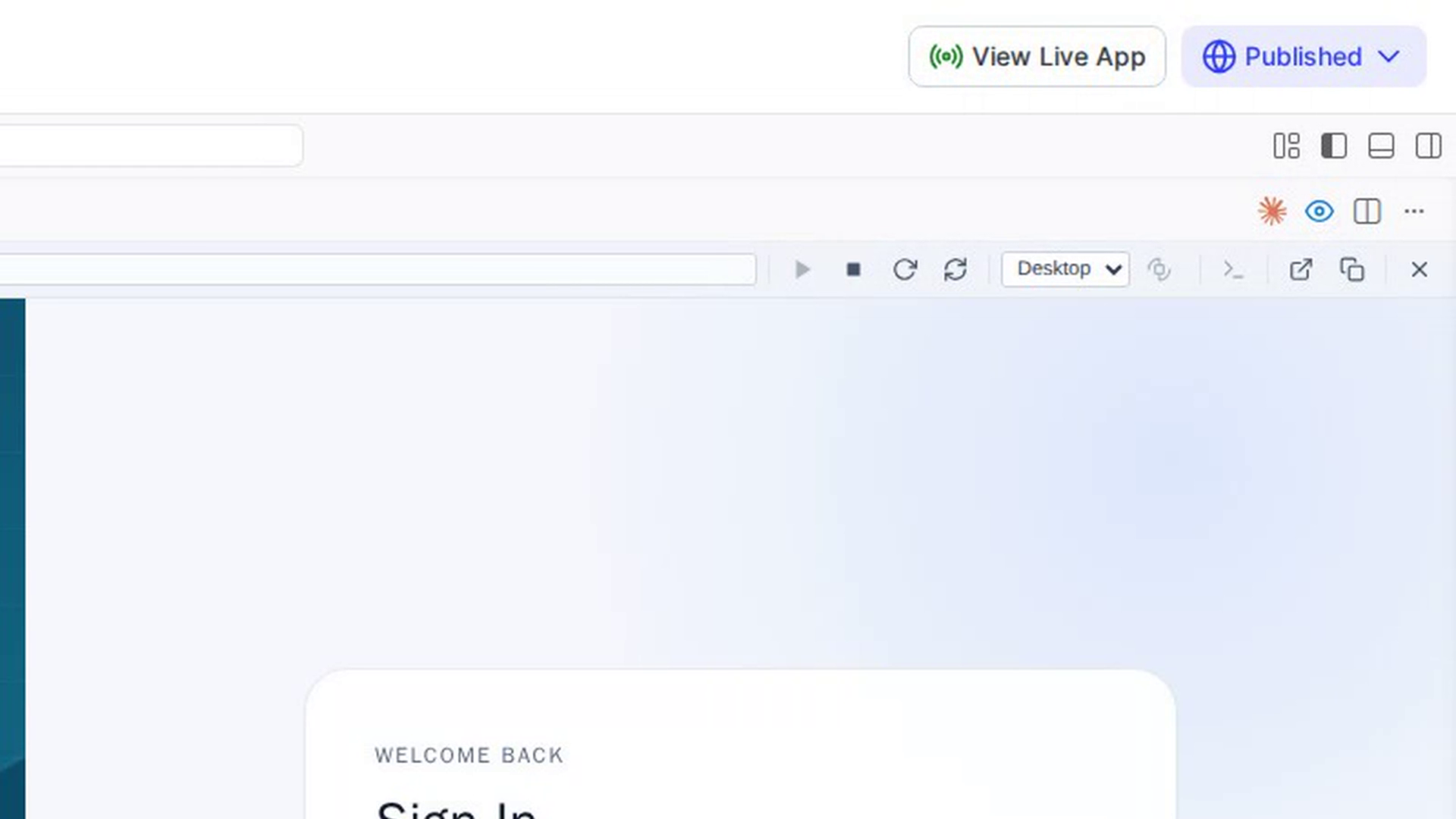
The buttons on the right of the preview's address bar are, from left to right:
- Start preview and Stop preview: start or stop the preview server. Start preview is greyed out while it is running.
- Refresh view: reload the page in the preview.
- Reload — restart the dev server: restart the preview server, for example when the page stops responding.
- Viewport size: show the app at Desktop, Tablet or Mobile size. Rotate turns the tablet or mobile view on its side.
- Toggle terminal: show the preview server's log (see the next step).
- Open in new tab, Copy link and Close.
Check the preview logs
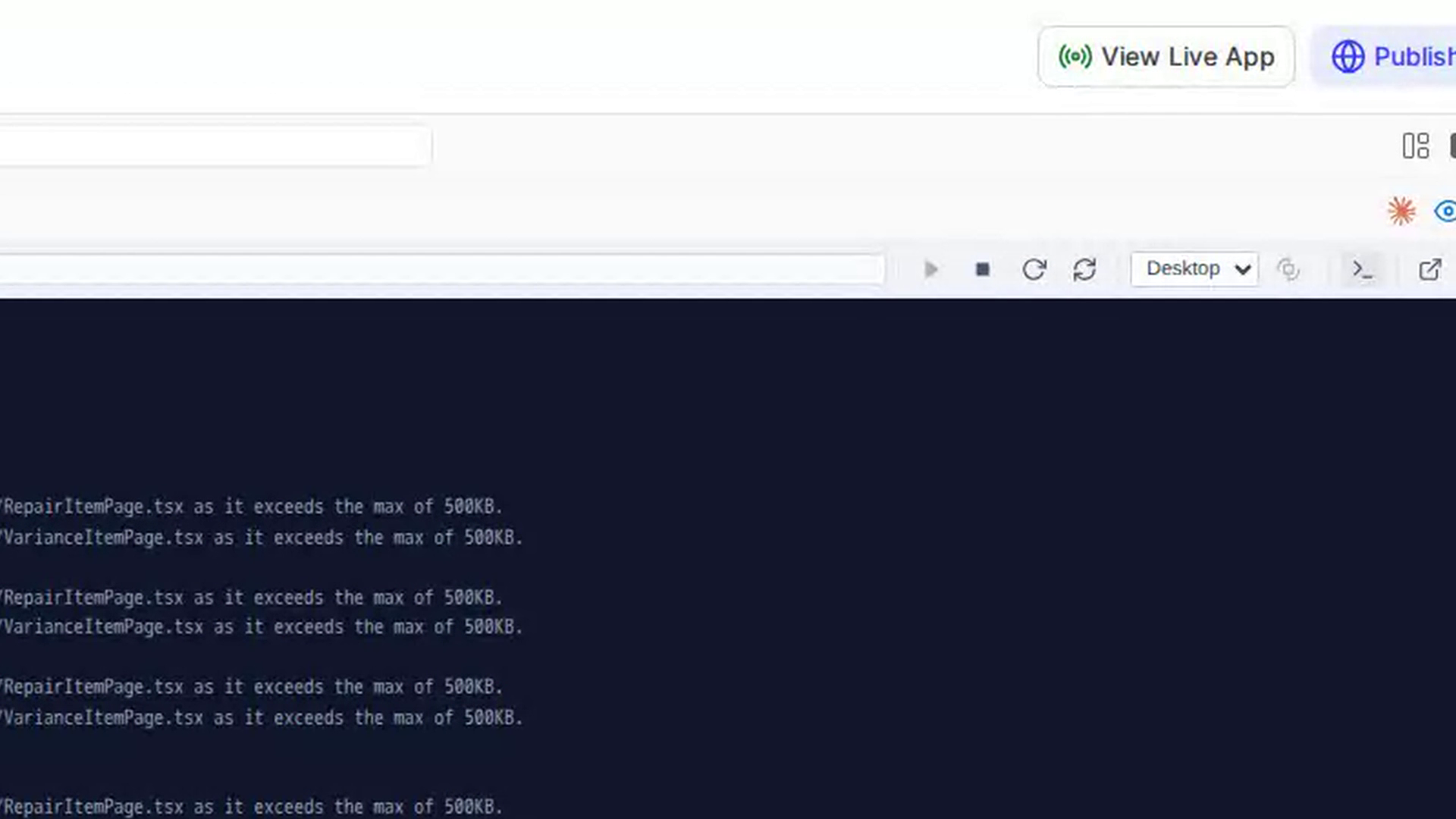
Select Toggle terminal in the preview toolbar. The page is replaced by the preview server's log: which project was opened, the preview address, when the server started or stopped, and any errors. Select Toggle terminal again to go back to your app.
See your preview servers
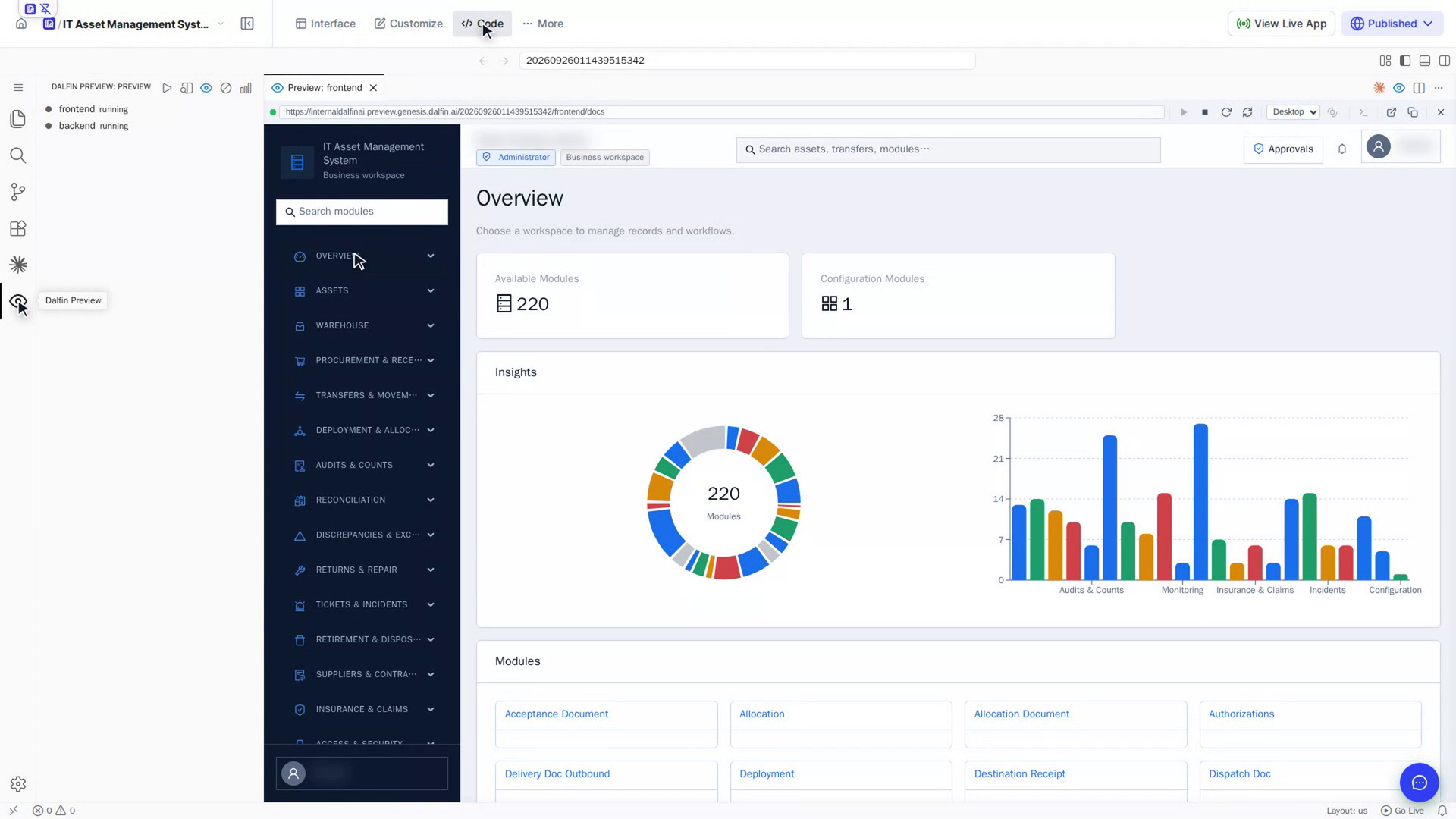
Select Dalfin Preview (the eye icon on the left) to see your app's two preview servers, frontend and backend, each marked running or stopped. Point at one to show Open Preview, Reload Preview, Reload and Stop Preview. The buttons at the top of the view are Open Preview, Show Preview, Dalfin: Toggle Preview, Stop All Previews and Dalfin: Preview Usage Dashboard.
Screenshots
Step 1: Open the Code tab
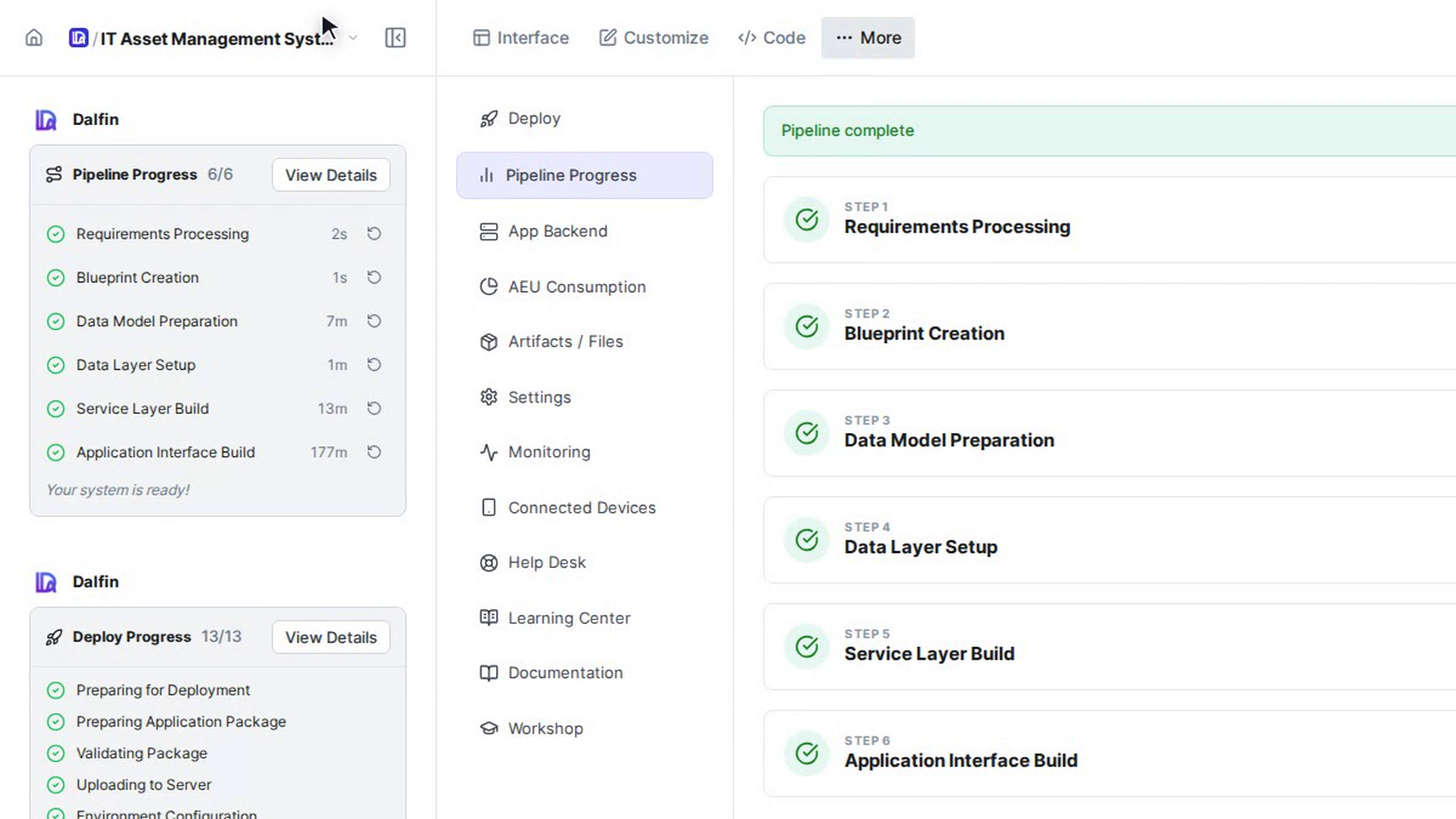
Step 2: Open the preview
Step 3: Sign in to your app
Step 4: Use the preview toolbar
Step 5: Check the preview logs
Step 6: See your preview servers
Watch how
Tip: The preview server stops by itself after about 40 minutes without use, even though Dalfin Preview may still say running. If the preview is blank or stops responding, select Reload — restart the dev server in the preview toolbar or Reload in Dalfin Preview.
Stop preview, Stop Preview and Stop All Previews shut down the preview server. The preview stays unavailable until you start it again with Start preview or Open Preview.