Deployment steps in detail
The deployment page shows every step Dalfin takes to put your app live, from preparing the server to going live. Use it to follow a deployment, read a step's logs, or re-run a step that failed.
Before you start
- This page is meant for team admins, although anyone who can open the app can see it.
- The app's build must have finished. To start a deployment, use Publish (see Publish your app).
Steps
Open the deployment page
Open your app and select More. It opens on Deploy. You can also select Go to deployment page in the Publish panel, or View Details on the Deploy Progress card in the chat.
Read the six phases
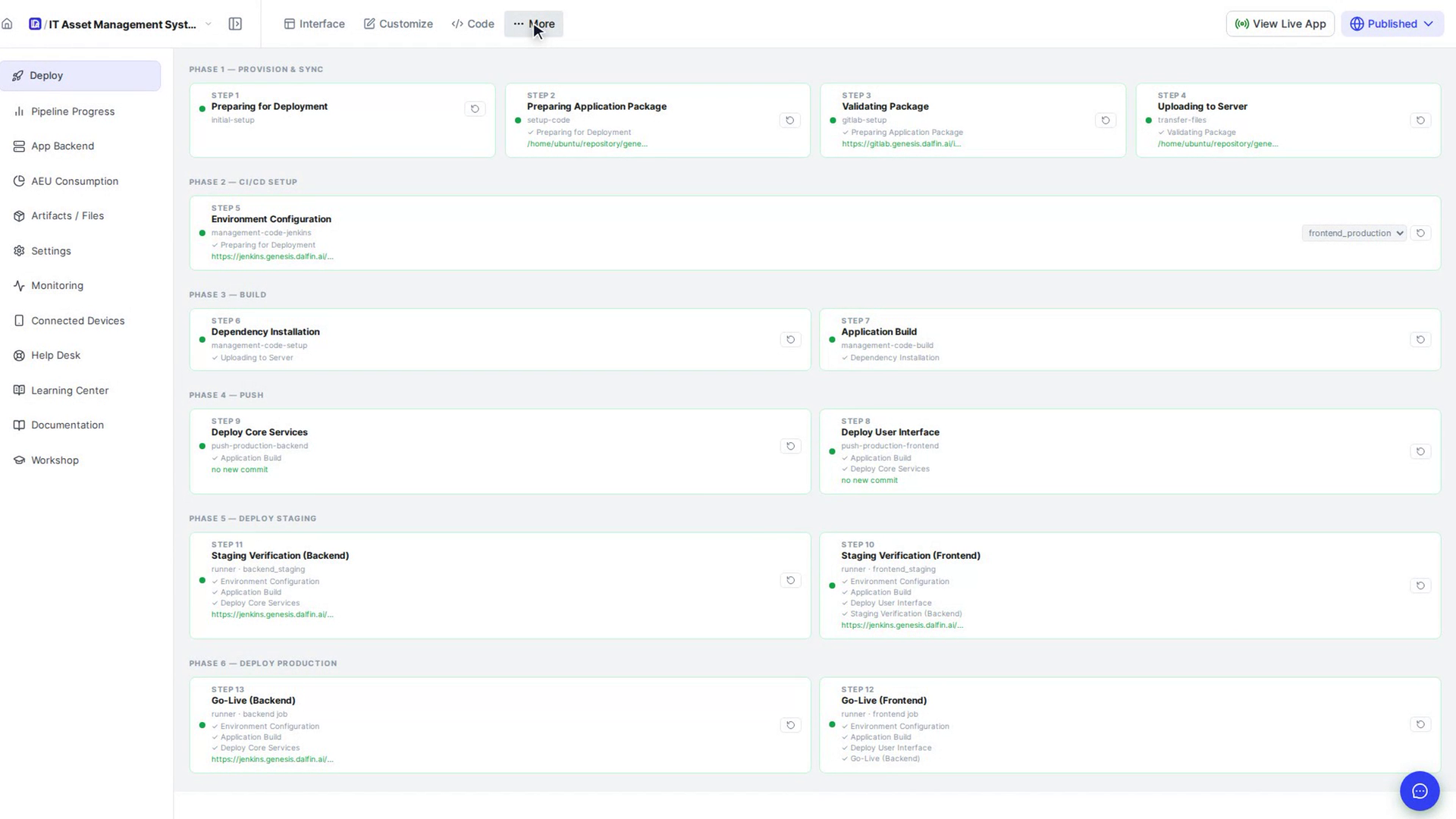
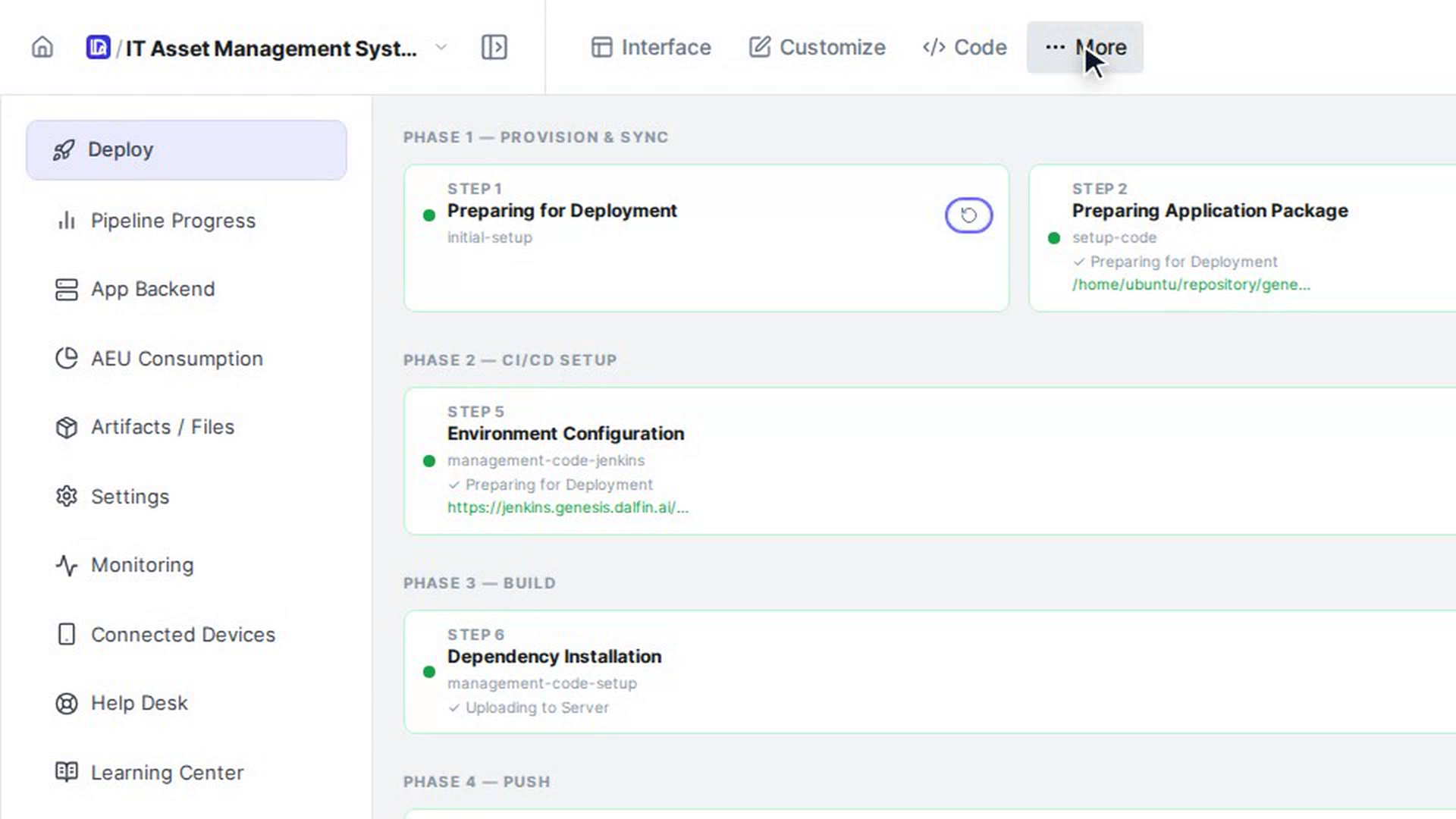
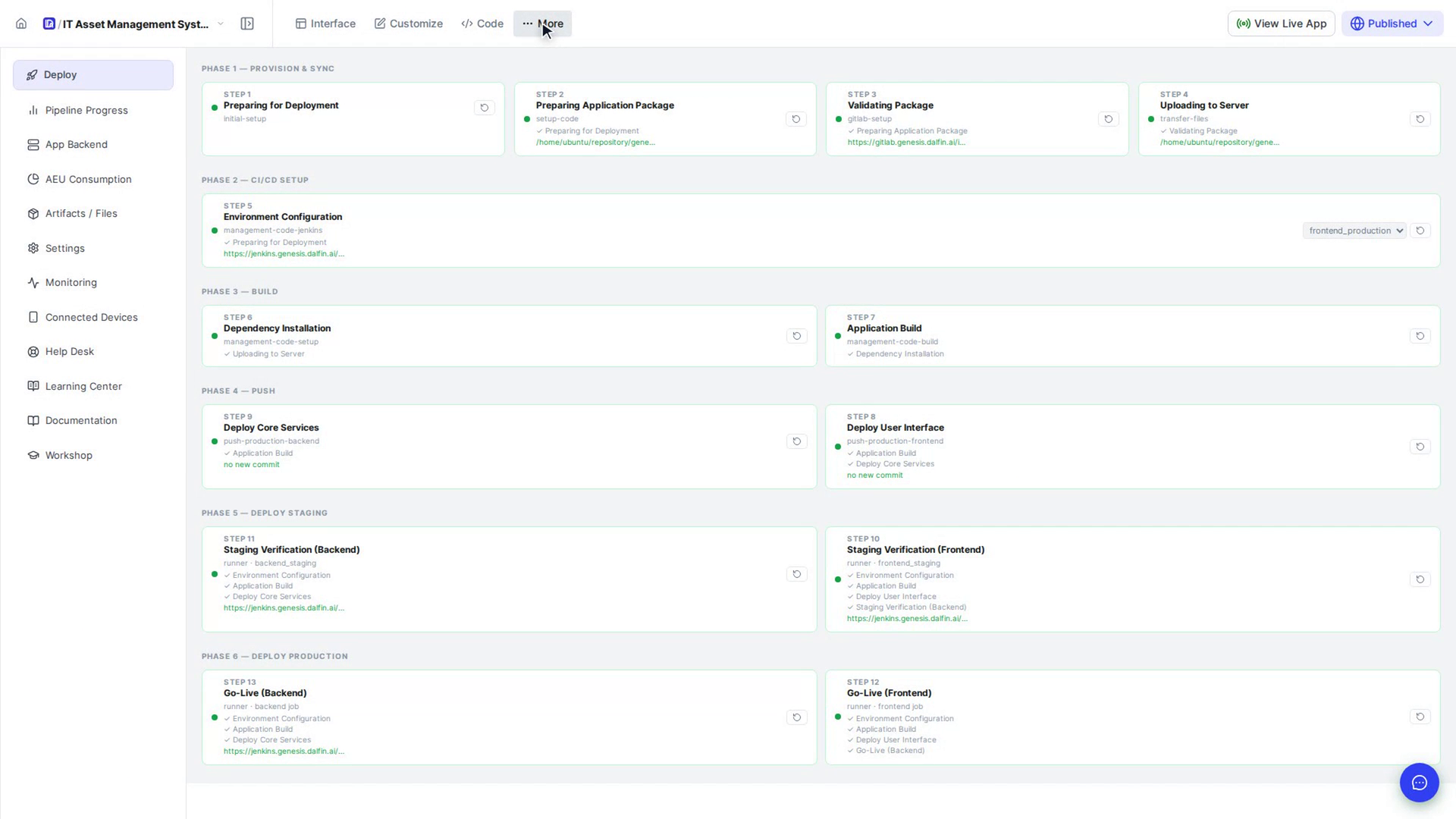
The steps are grouped into six phases. Each step has a number, a name and a coloured status dot. In the Push, Deploy Staging and Deploy Production phases the two steps sit side by side, with the backend step first, so its number is the higher one:
| Step | Name |
|---|---|
| Step 1 | Preparing for Deployment |
| Step 2 | Preparing Application Package |
| Step 3 | Validating Package |
| Step 4 | Uploading to Server |
Watch a step run
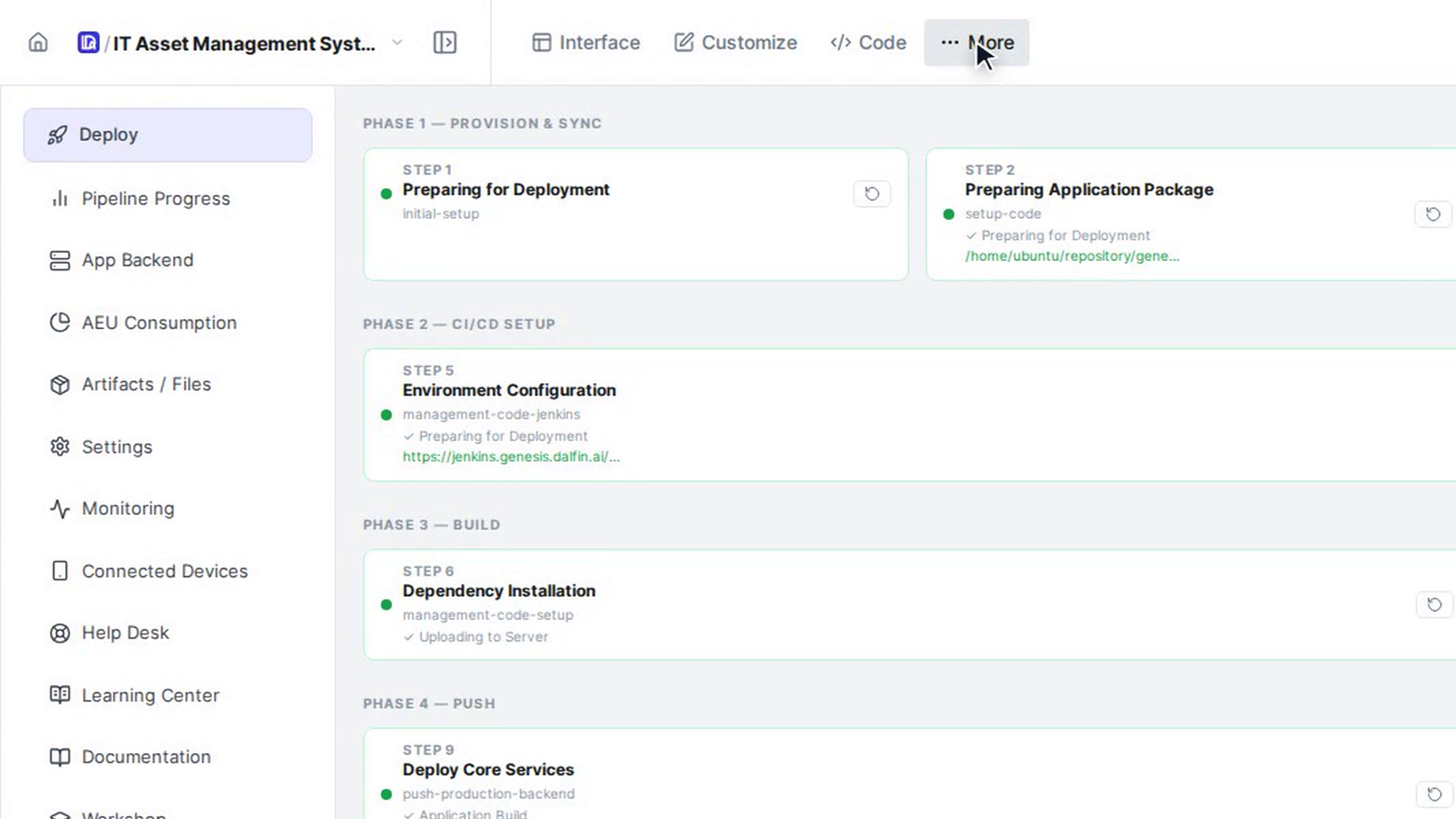
While a step runs, its card shows its latest activity line. If a step fails, Dalfin tries it again automatically and the card shows Retrying — attempt X of Y. Pop-up messages at the bottom of the page tell you when a build succeeds or fails.
Read a step's logs
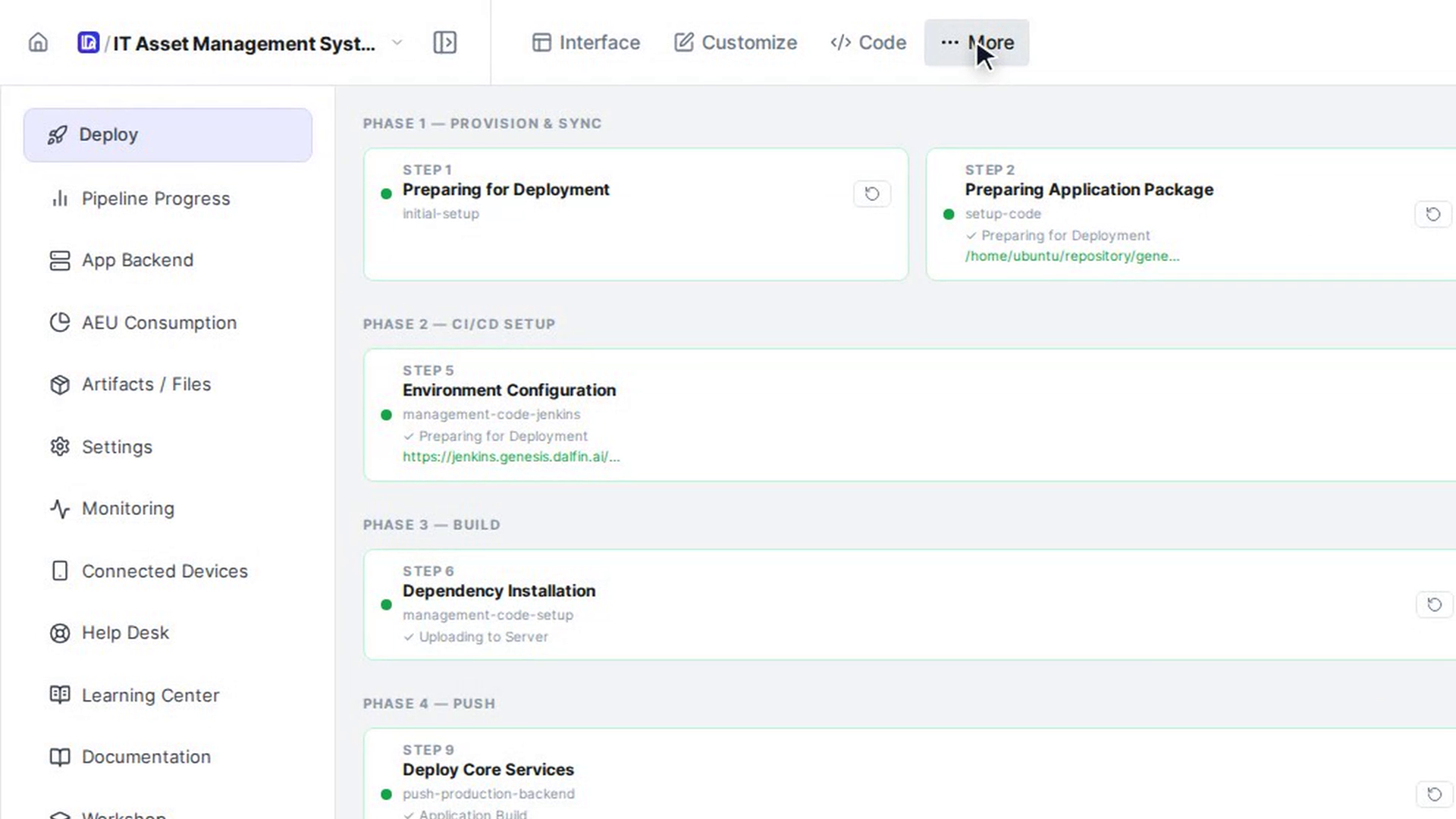
Select a step card, or the arrow on its right, to show that step's logs underneath it. Select it again to hide them.
Run or re-run a step
Every step card has this button, including steps that finished successfully; it's greyed out while the step is running. Select the play button (Run this step) on a step that hasn't run yet, or the circular arrow (Re-run this step) on one that has finished or failed. The tooltip also says how often Dalfin retries the step if it fails, for example Re-run this step — retries up to 3 more times on failure (every 3s). Some steps ask you to confirm first, for example Deploy Frontend? Select Confirm to go ahead or Cancel to stop.
Skip a failed step (if offered)
If a failed step can be skipped, a skip button (Skip this failed step and continue the deployment) appears on its card. Select it to move on to the next step.
Screenshots
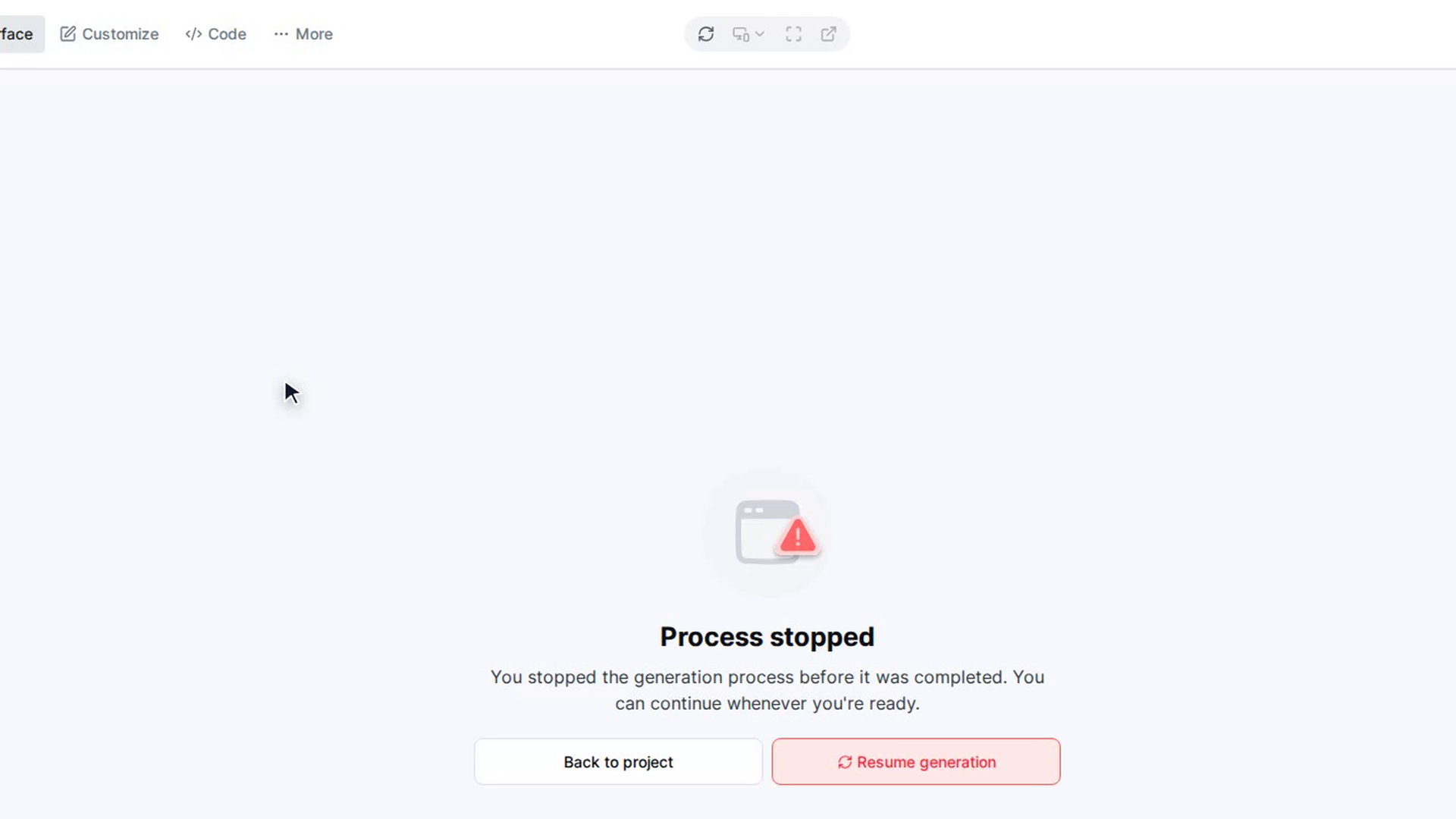
Step 1: Open the deployment page
Step 2: Read the six phases
Step 3: Watch a step run
Step 4: Read a step's logs
Step 5: Run or re-run a step
Step 6: Skip a failed step (if offered)
Watch how
Tip: Some steps can't start until earlier ones have finished. For example, Deploy User Interface waits for Application Build and Deploy Core Services. If a step won't start, check the steps before it.
Re-running a deployment step replaces what is already running. For example, re-running a Go-Live step pushes a new build to production and restarts that part of your live app.