Build step by step with Dalfin Studio
Dalfin Studio guides you through a few simple questions about your business, your processes and the look you want, then builds the app from your answers. Use it when you'd rather be asked than write a description from scratch.
Before you start
- Anyone who can open the Dalfin home screen can do this.
- Your organization needs at least 5 AEU available.
- It helps to have your business documents, logo and any design examples to hand.
Steps
Open Dalfin Studio
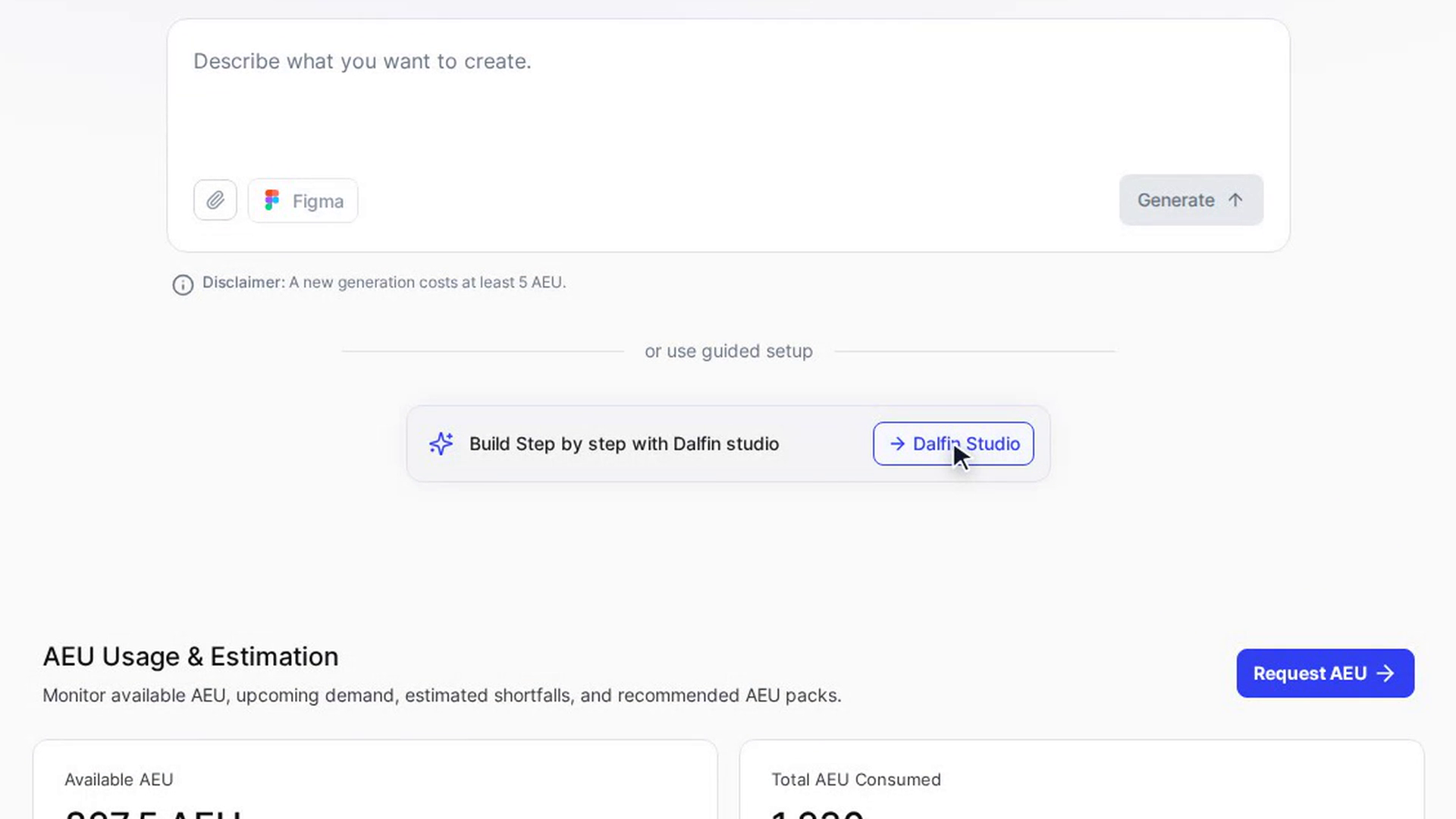
On the Dalfin home screen, under or use guided setup, select Dalfin Studio. The Dalfin Studio window opens.
The four layers are listed on the left. Each one shows a percentage for how many of its fields you've filled in, and a tick once every field is filled. Optional fields, such as uploaded documents, count too, so a layer can stay below 100% even when all the required fields are done. Click a layer to move to it. Click a section heading inside a layer to open or close it.
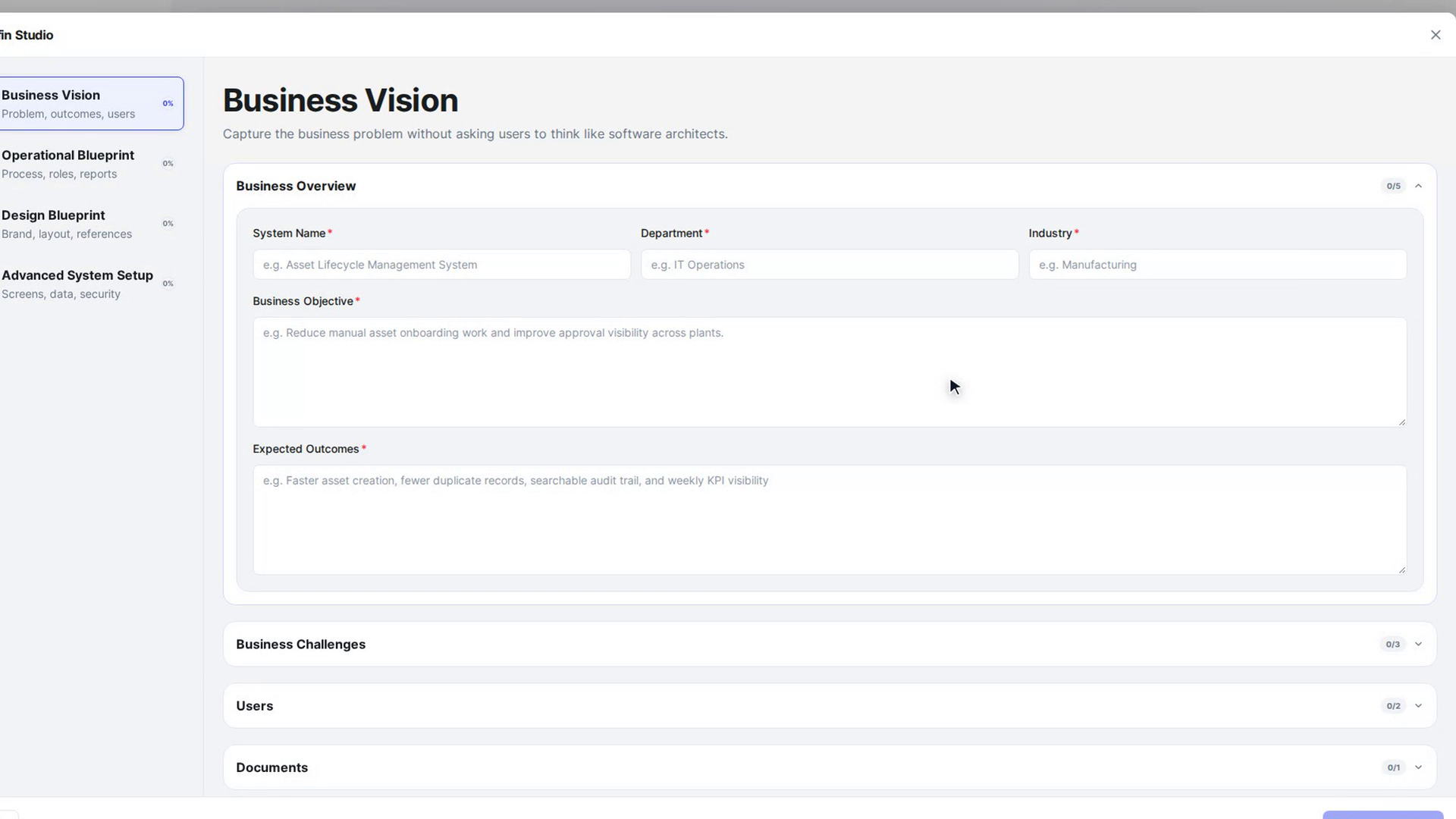
Layer 1: Business Vision
Describe the business problem. This is the only layer you must fill in.
- Business Overview: System Name, Department, Industry, Business Objective and Expected Outcomes.
- Business Challenges: Current Process, Current Pain Points and Current Systems Used.
- Users (optional): Who Uses the System? and What Do They Do?
- Documents (optional): drop in forms, reports, SOPs or screenshots. PDF, PPTX, PNG and JPG are accepted, up to 25 MB per file.
All the Business Overview and Business Challenges fields are required. Start Building stays greyed out until they're filled in.
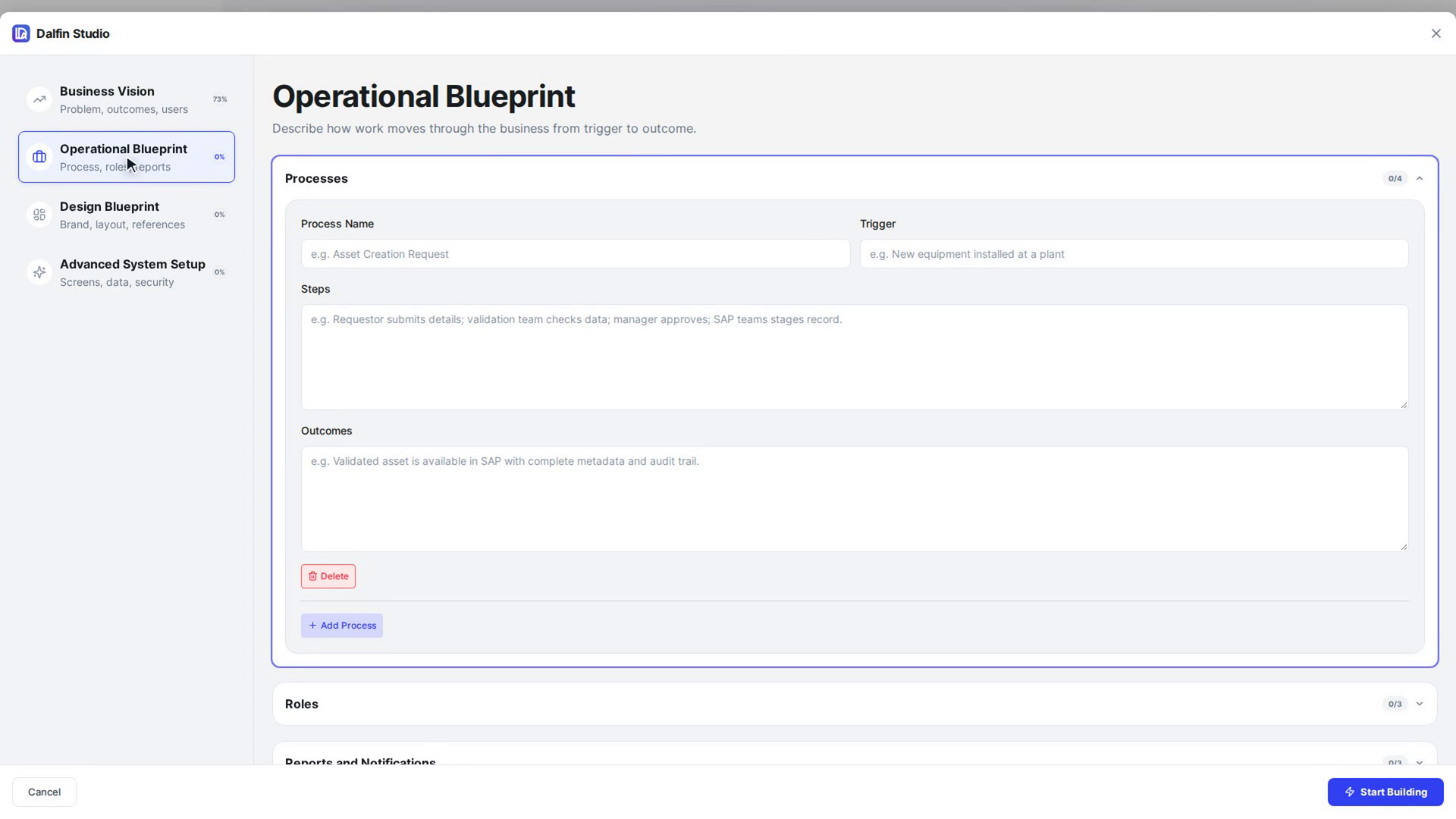
Layer 2: Operational Blueprint
Describe how work moves through the business.
- Processes: for each process, a Process Name, its Trigger, the Steps and the Outcomes. Select Add Process to add another.
- Roles: what Users, Managers and Administrators can do.
- Reports and Notifications: Operational Reports, Executive Dashboards and Notification Channels (Email and In-App).
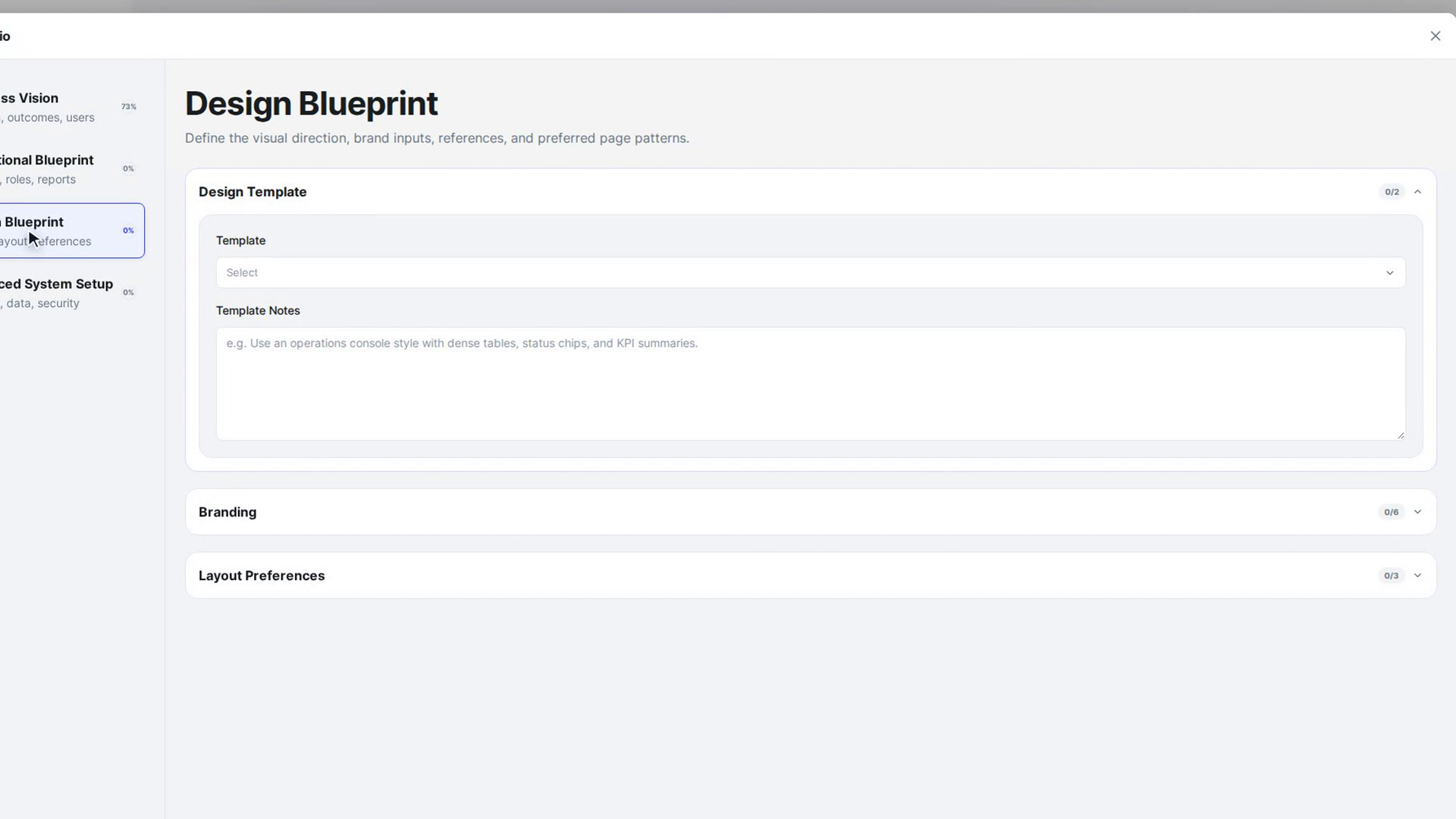
Layer 3: Design Blueprint
Set the visual direction.
- Design Template: pick a Template such as Enterprise Operations, Healthcare or Manufacturing to see a preview of it. Choose Custom to attach your own wireframes or designs instead. Add any Template Notes.
- Branding: Upload your Logo (PNG, JPG or SVG), pick Primary, Secondary and Accent colours, and choose a Theme (Light, Dark or System (auto)) and a Typography font.
- Layout Preferences: the Landing Page (Workspace or Dashboard), the Inner Pages you need (Grid, Form, Kanban, Workflow, Analytics) and any Layout Notes.
Layer 4: Advanced System Setup
Add more detail for complex systems. All of this is optional.
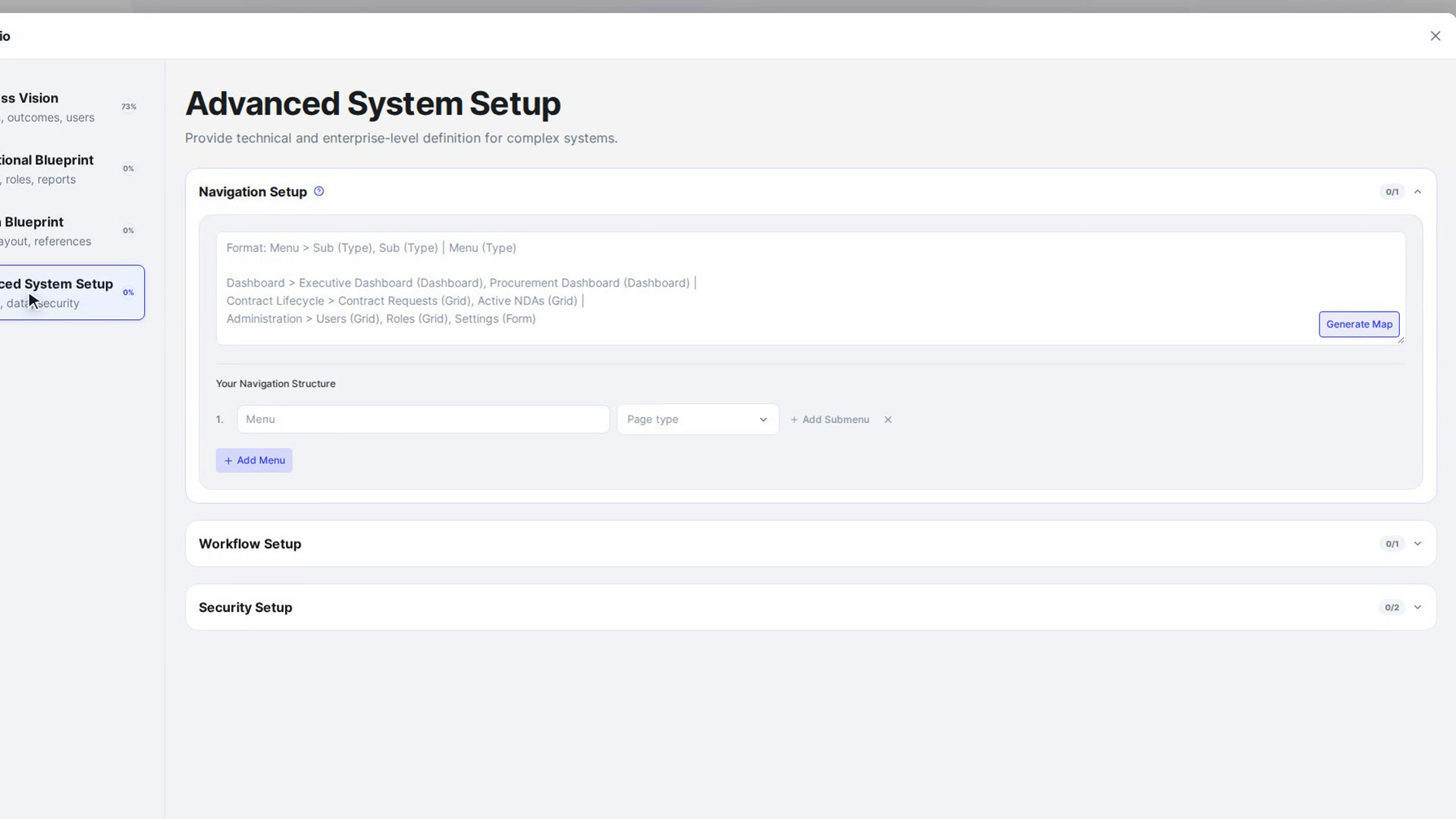
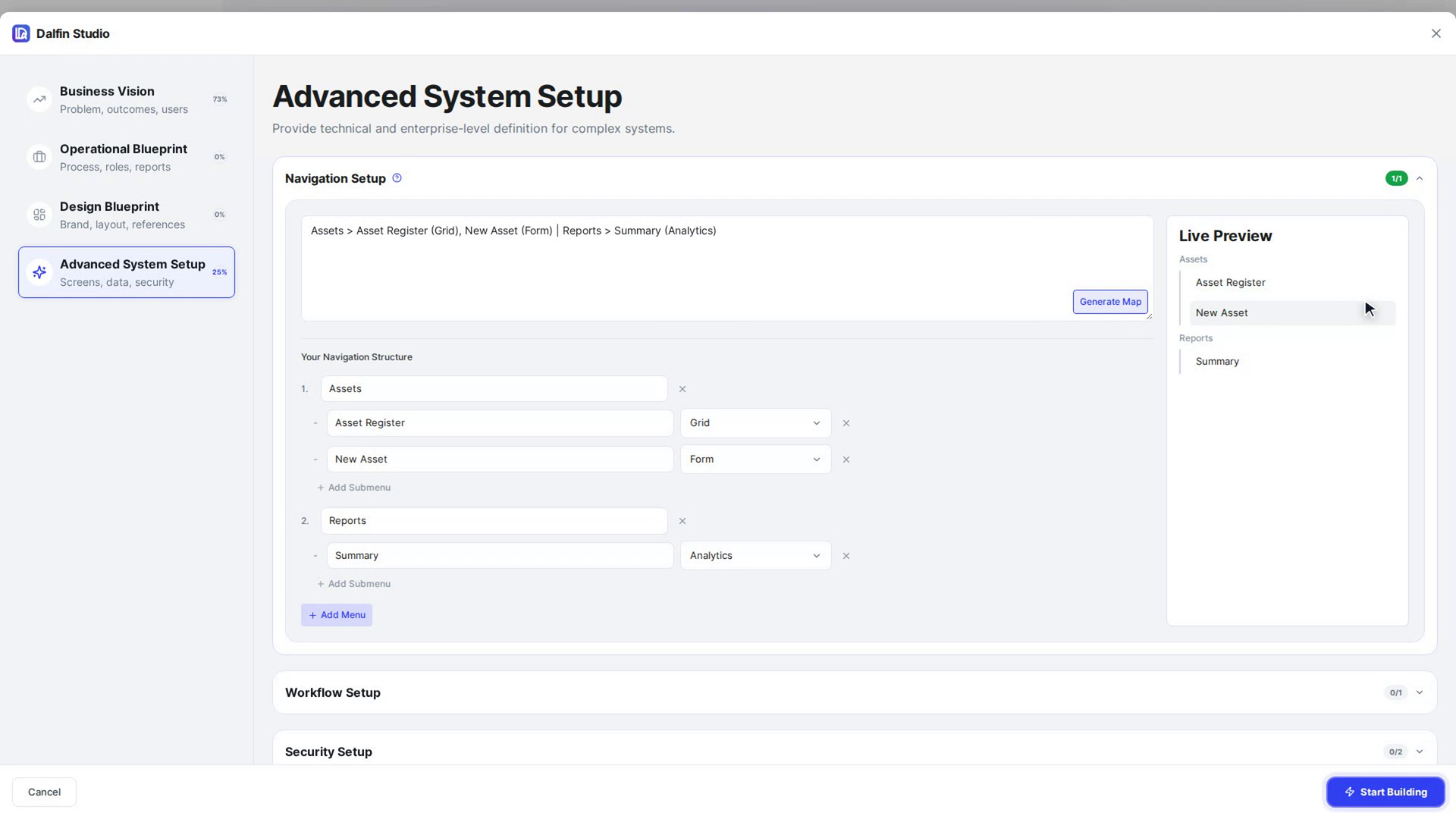
- Navigation Setup: type your menu structure in the box (click the help icon to see an example), then select Generate Map to turn it into a list under Your Navigation Structure. You can also build it by hand with Add Menu and Add Submenu. A Live Preview of the menu appears alongside.
- Workflow Setup: the Workflow Path, for example Draft → Validation → Approval.
- Security Setup: tick the Security Controls you need (RBAC, MFA, Audit Logs) and add any Security Notes.
Select Start Building
Select Start Building at the bottom right. The button shows Building… while Dalfin checks your AEU balance. The window then closes and the app workspace opens while the AEU estimate is worked out.
If the build can't start, for example because your AEU balance is too low, the reason appears at the bottom of the window and everything you entered is kept.
Screenshots
Step 1: Open Dalfin Studio
Step 2: Layer 1: Business Vision
Step 3: Layer 2: Operational Blueprint
Step 4: Layer 3: Design Blueprint
Step 5: Layer 4: Advanced System Setup
Step 6: Select Start Building
Watch how
Closing the window with Cancel, the X, the Esc key or by clicking outside it discards everything you entered. Finish and select Start Building before you close it.
A new generation costs at least 5 AEU. You'll see the exact estimate before anything is spent.