Artifacts and files
As Dalfin builds your app, it produces files that describe the app: its plan, its API and its pages. The Artifacts / Files page lets you open these files and download a copy.
Before you start
- Anyone who can open the app can view its files.
- Files appear while the build runs. Until the first one is ready, the page says Artifacts will appear here as the pipeline runs.
Steps
Open Artifacts / Files
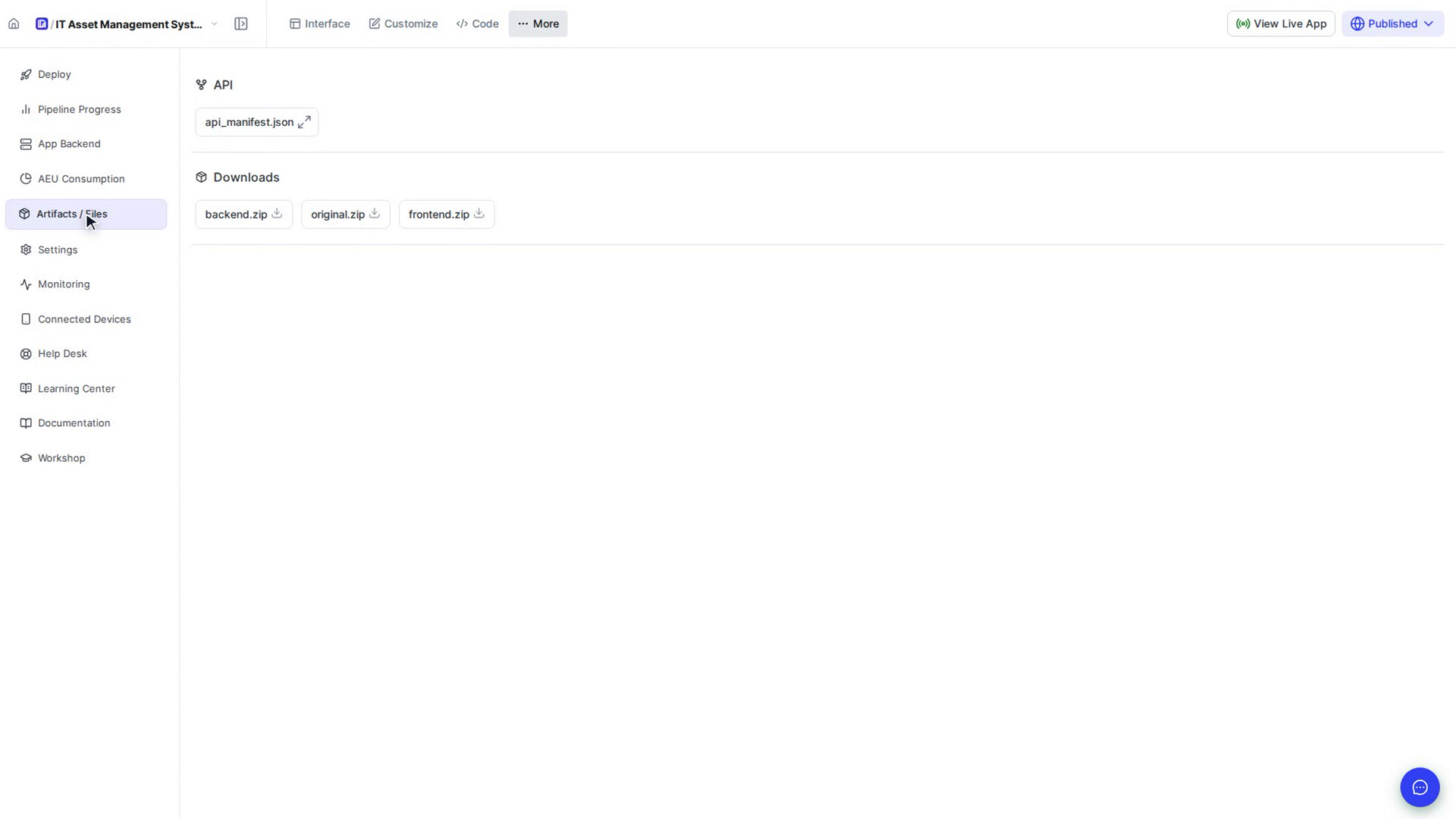
Open the app, select More in the top bar, then choose Artifacts / Files. For most apps, a summary card at the top shows the app's name, the label Generated system, and how many API endpoints it has.
Find the file you want
Files are grouped into sections. You only see the sections your app has files for, so some apps show just API:
- Schema & Config: the app plan, which lists the app's pages and structure.
- API: the API manifest, which lists the app's modules and endpoints.
- Pages: one entry for each page under IR Pages, and, where available, the React Pages that were generated.
New files show up here as each build stage finishes.
Open a file
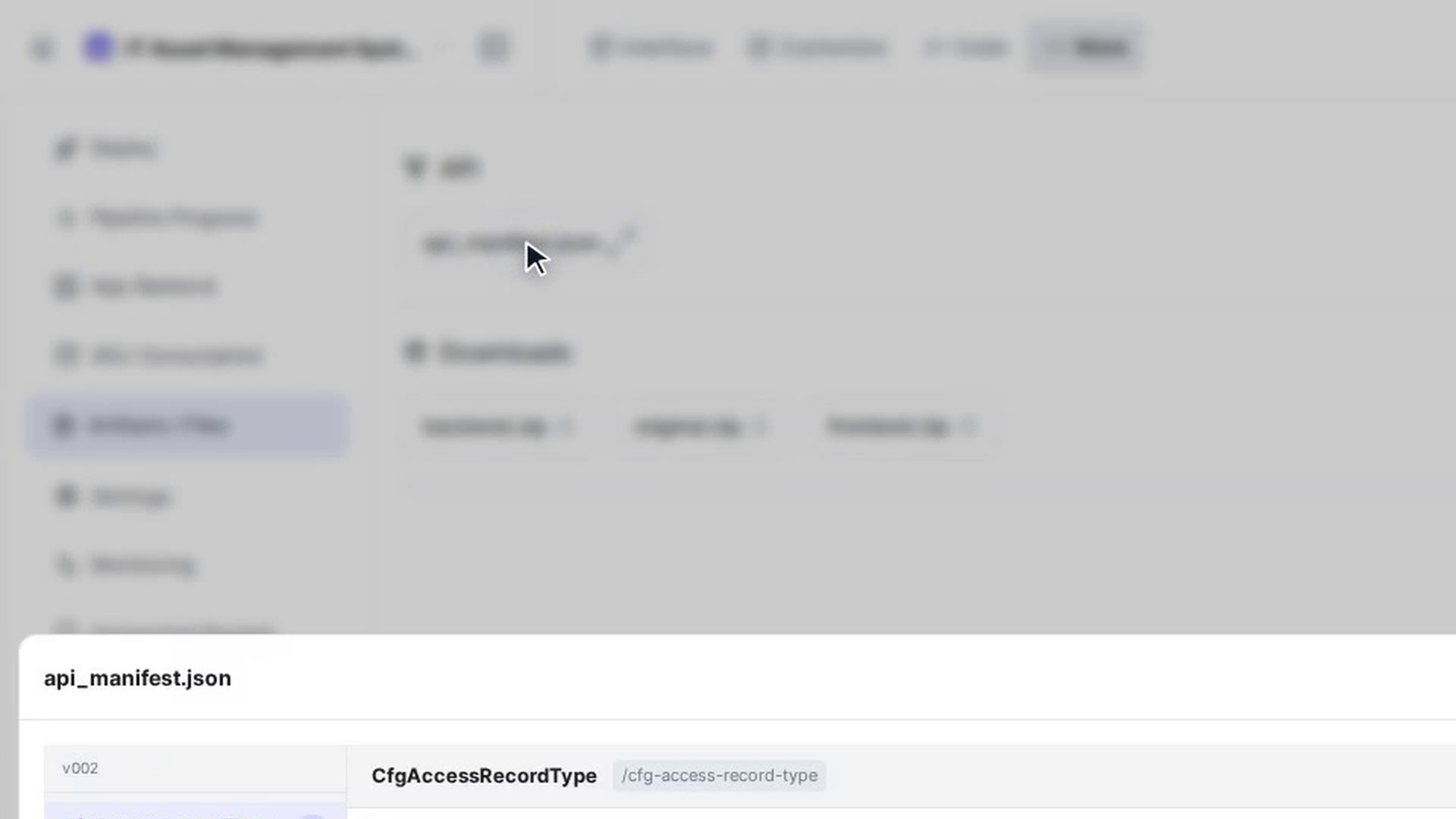
Select a file. It opens in a panel at the bottom of the screen with its name at the top. Dalfin shows the file in a readable layout, for example the app plan as a list of pages, rather than raw text. The API manifest shows its version (such as v002) and a list of modules on the left; select a module to see its endpoints, each marked GET, POST, PUT, PATCH or DELETE. Select an endpoint to see its fields.
Download a file
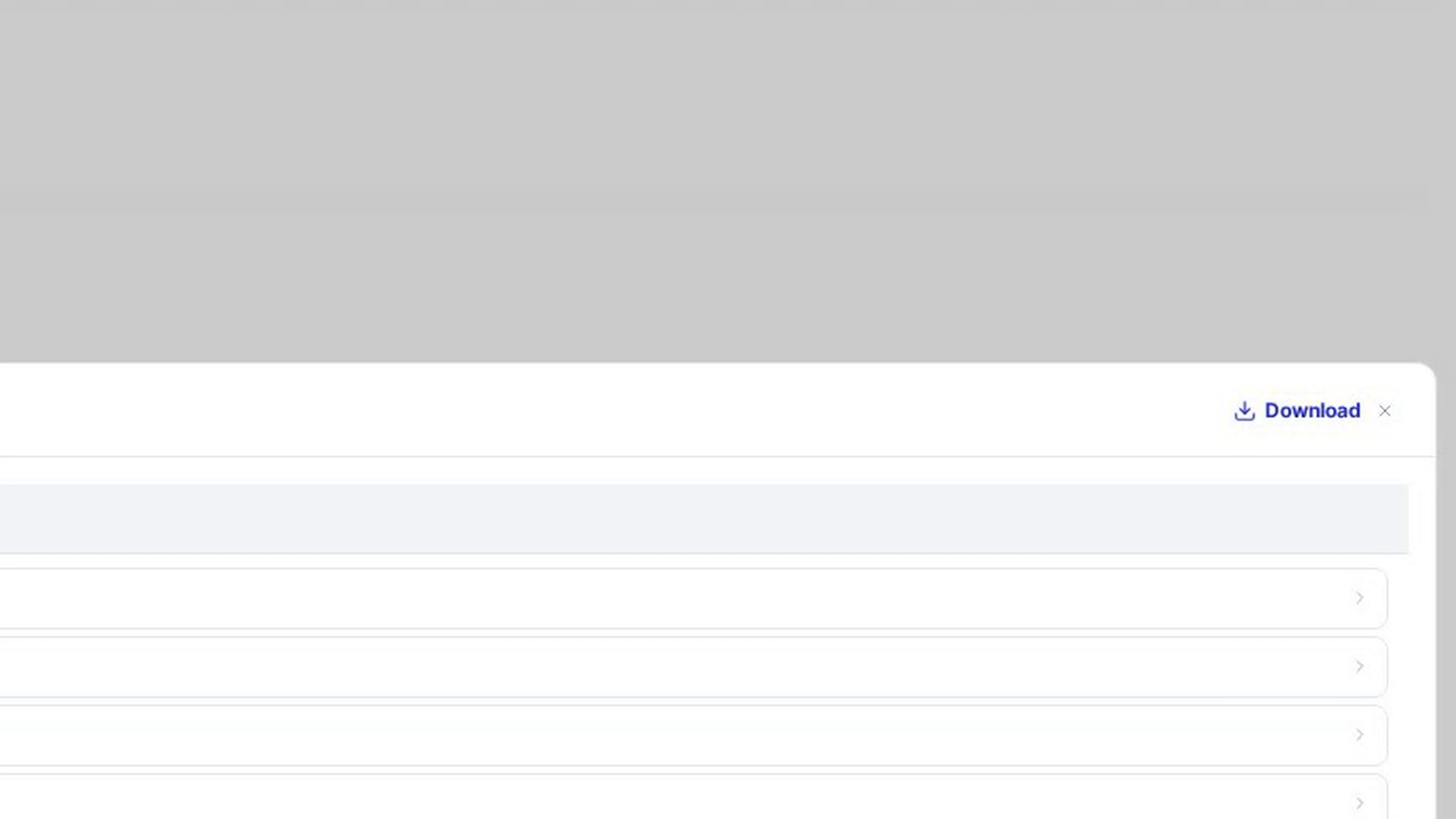
In the open panel, select Download to save a copy of the file to your computer.
Close the file
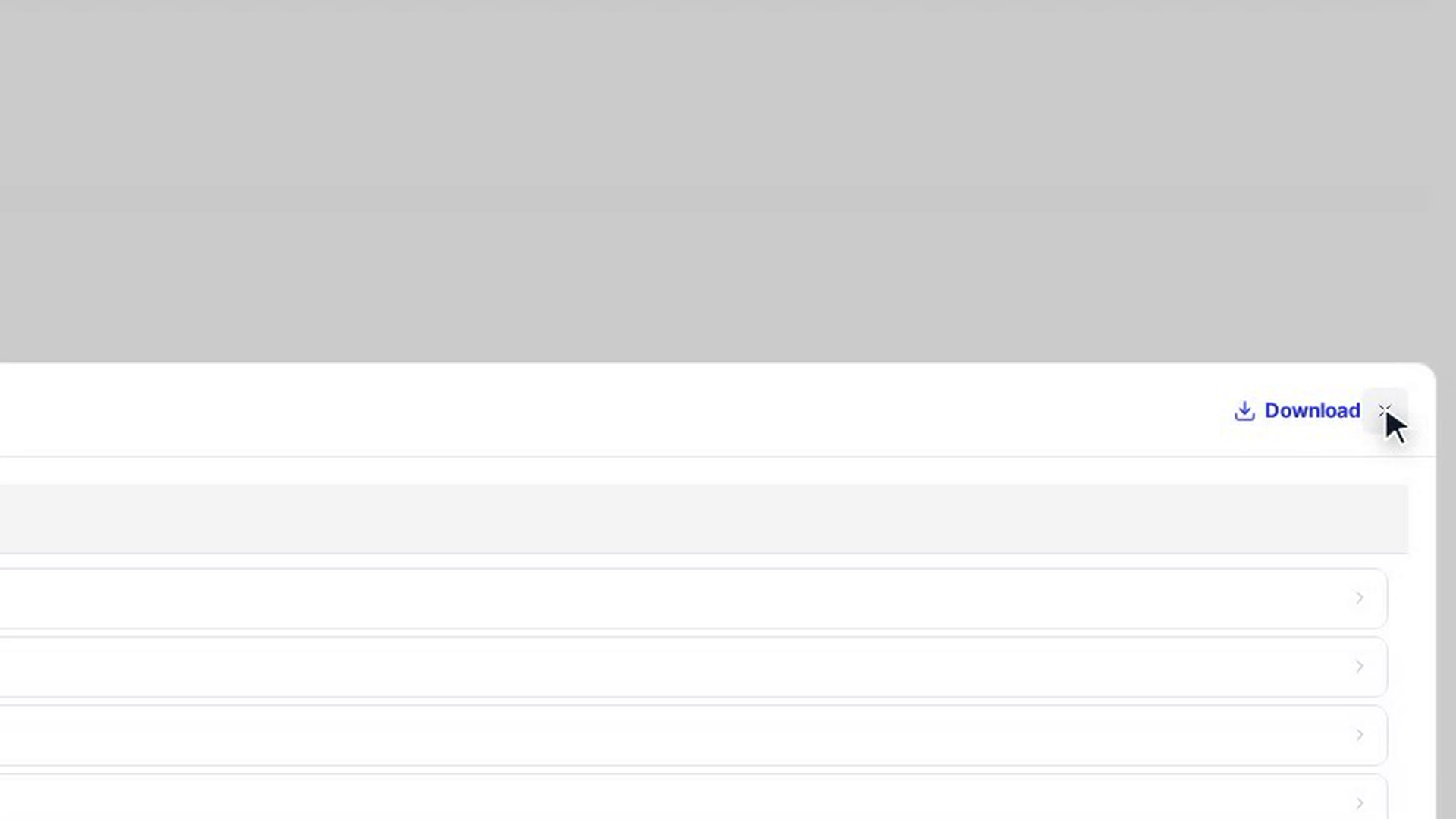
Select the close button (×) in the panel, or click outside it, to go back to the list. Pressing Esc doesn't close the panel.
Screenshots
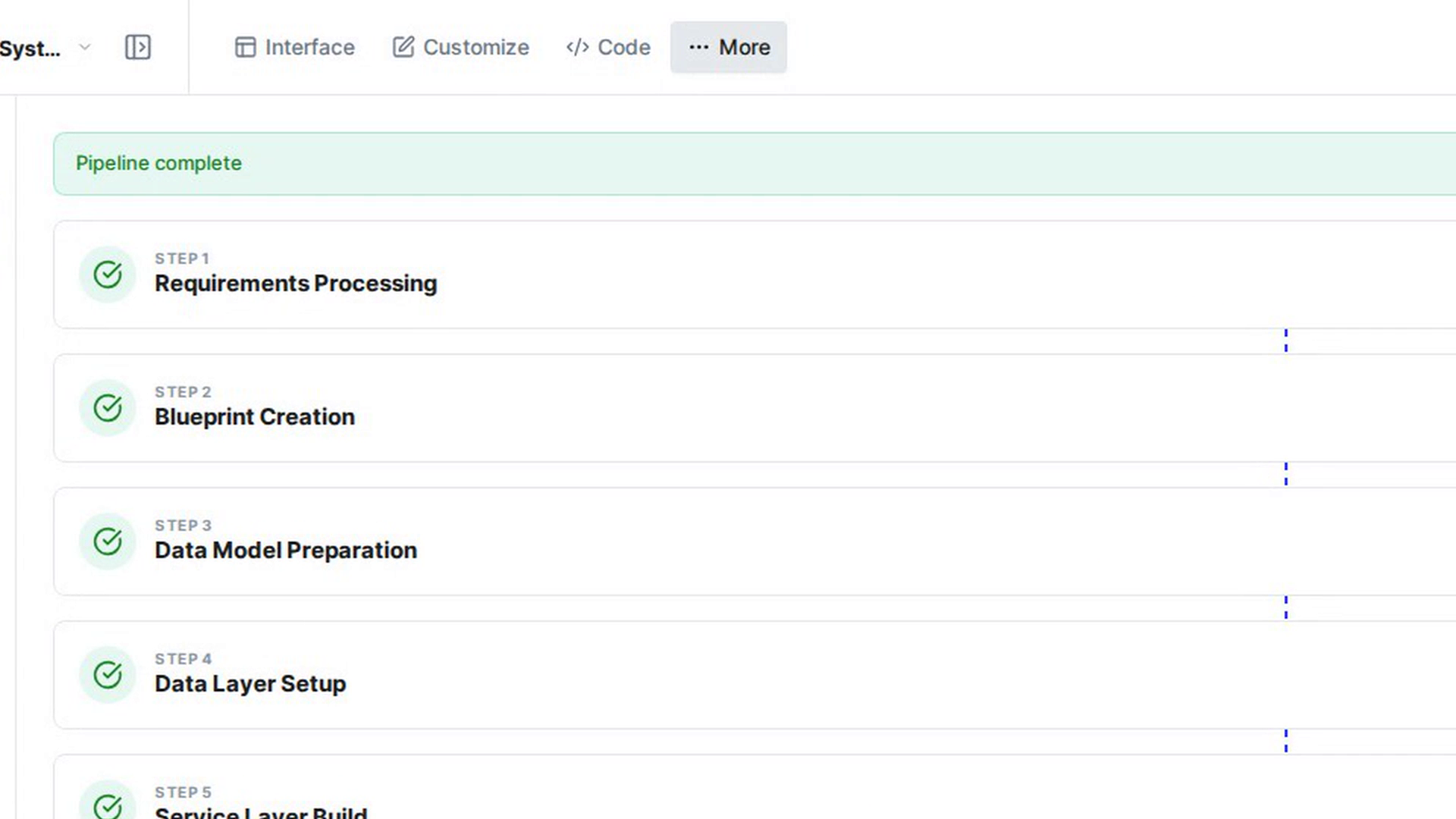
Step 1: Open Artifacts / Files
Step 2: Find the file you want
Step 3: Open a file
Step 4: Download a file
Step 5: Close the file
Watch how
Tip: If a file can't be shown, the panel says Couldn't load this file. Select Download instead to get the file anyway.