Change your password
You can change the password you sign in with at any time from your profile. You'll need your current password to do it.
Before you start
- Anyone with a Dalfin account can change their own password.
- You need to know your current password. If you've forgotten it, follow Forgot or reset your password instead.
Steps
Open your profile
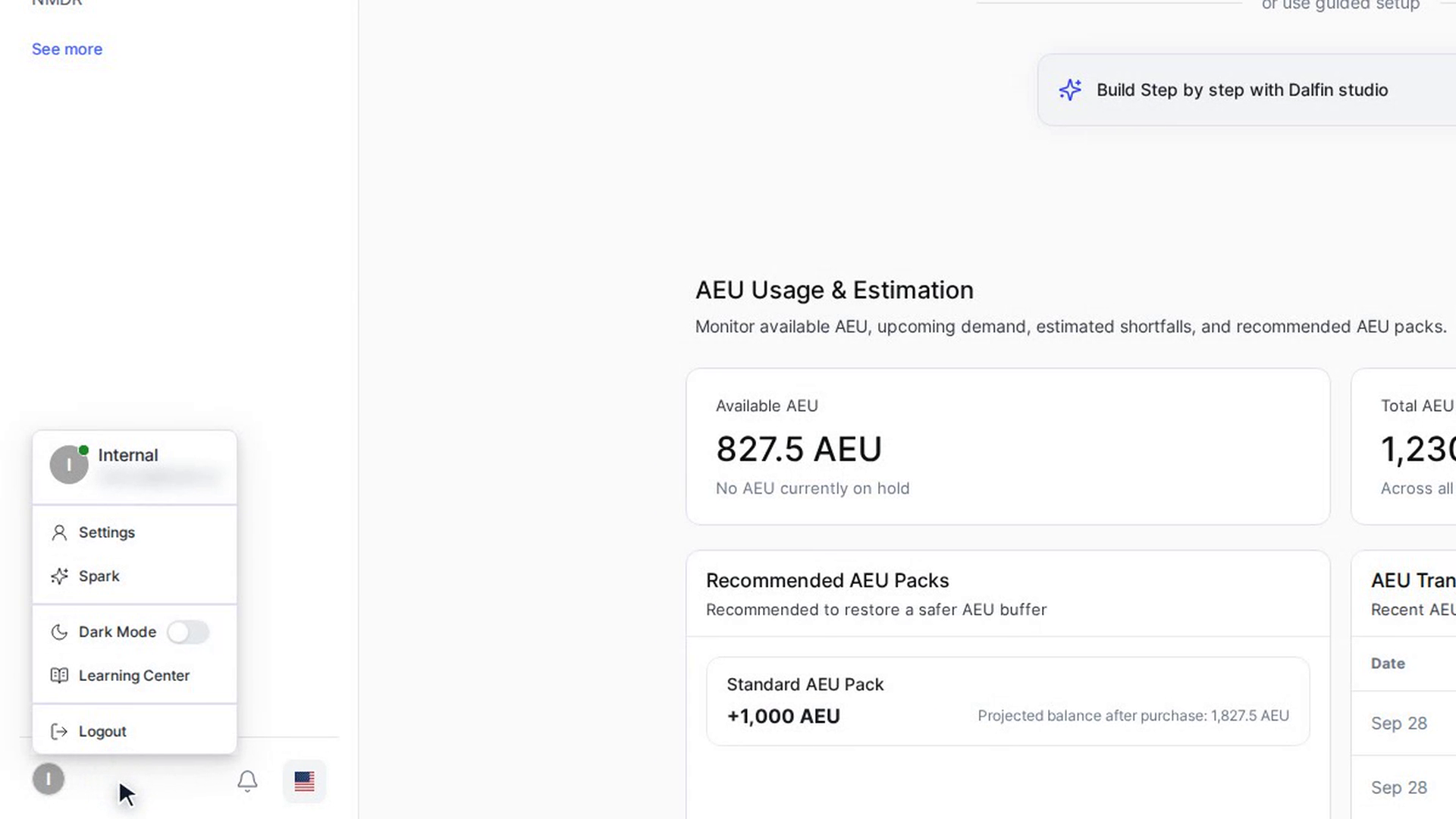
Select your name or picture to open your account menu, then select Settings. Your profile page opens.
Open Change Password
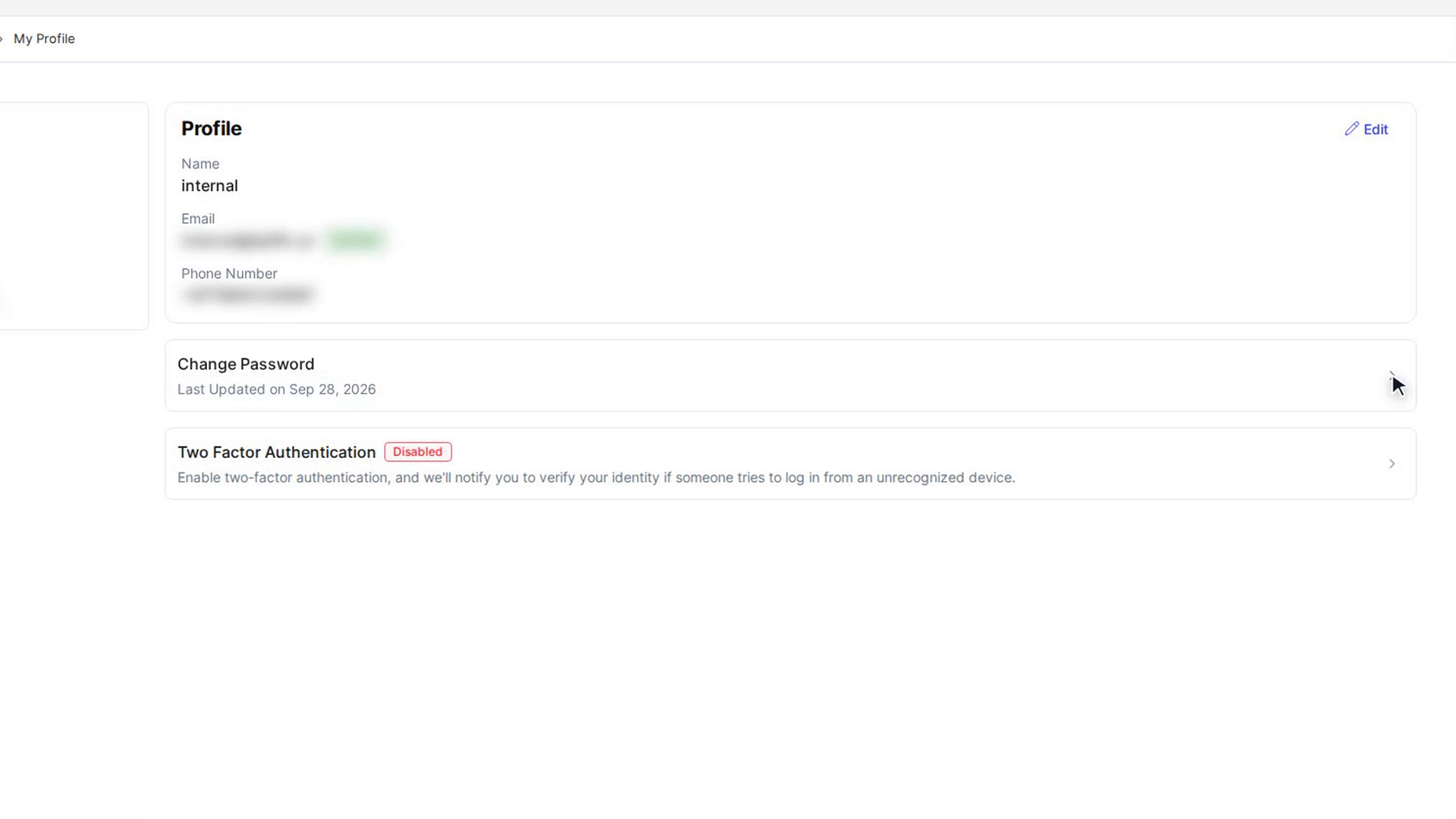
Select the Change Password row. It also shows when your password was last updated. The Change Password box opens.
Enter your current password
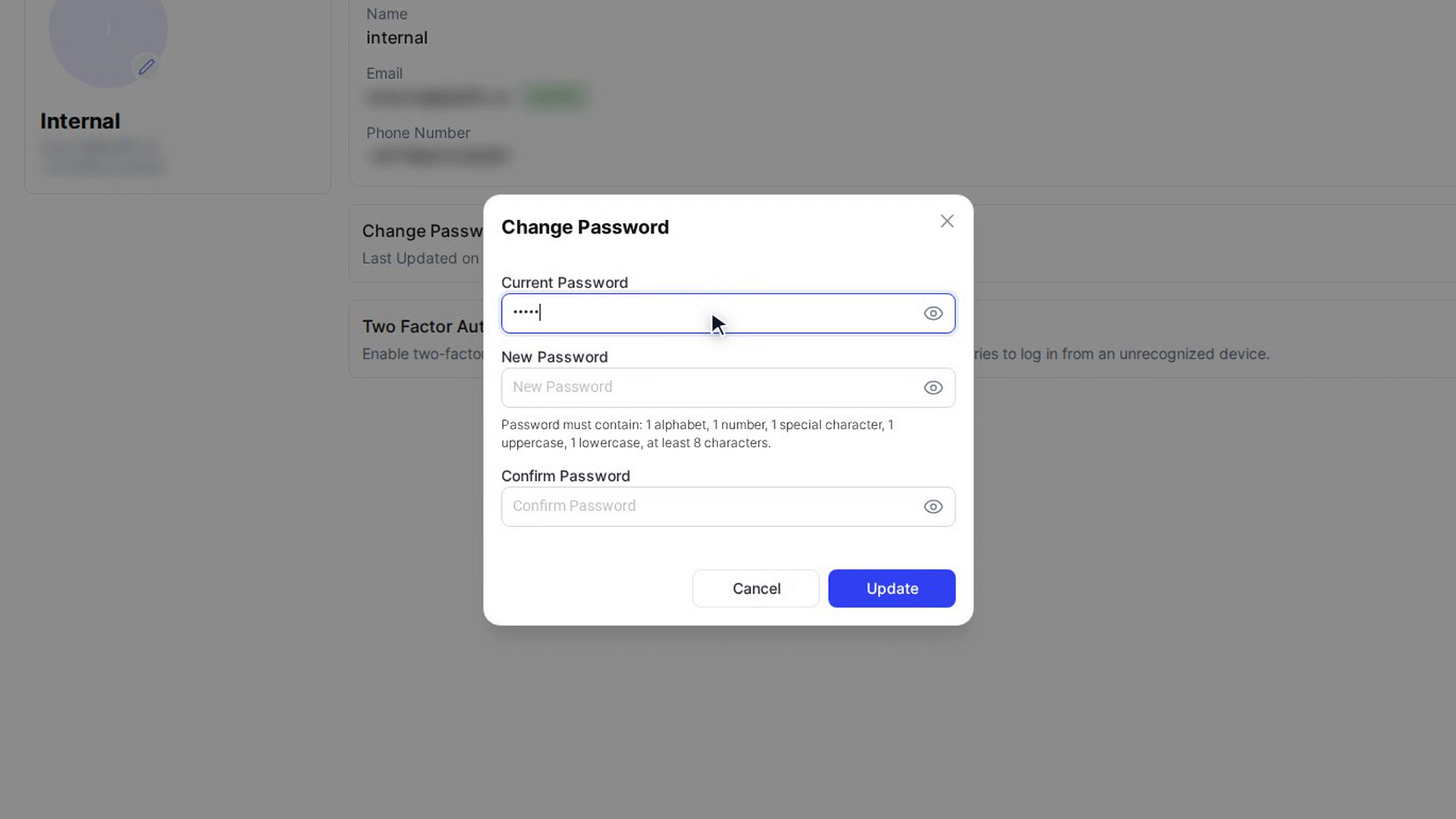
Type your existing password into Current Password.
Choose a new password
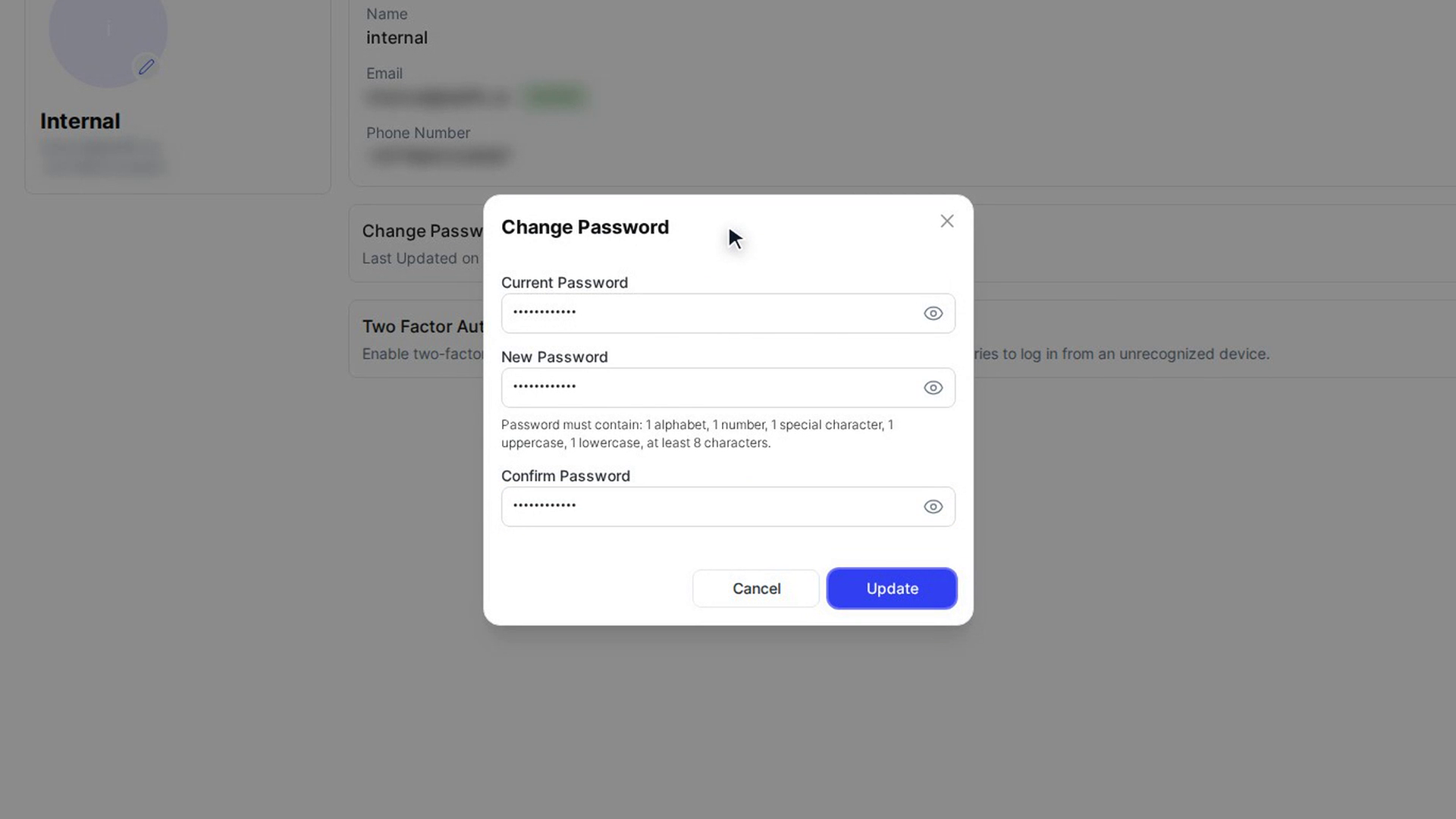
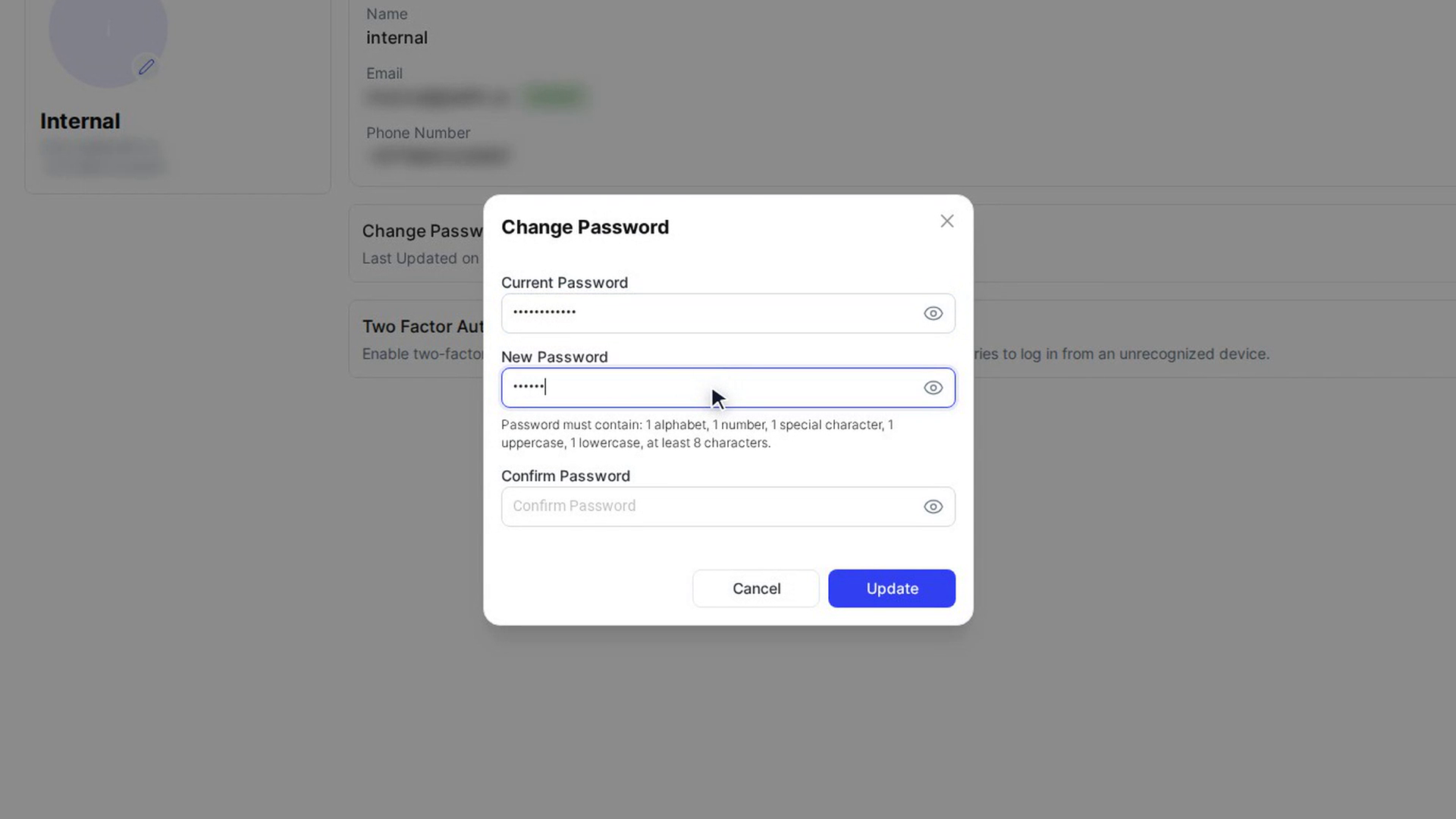
Type your new password into New Password. The hint under the field lists the rules your organization uses. By default, a password must contain 1 alphabet, 1 number, 1 special character, 1 uppercase, 1 lowercase and at least 8 characters.
Your new password can't be the same as your current one.
Confirm the new password
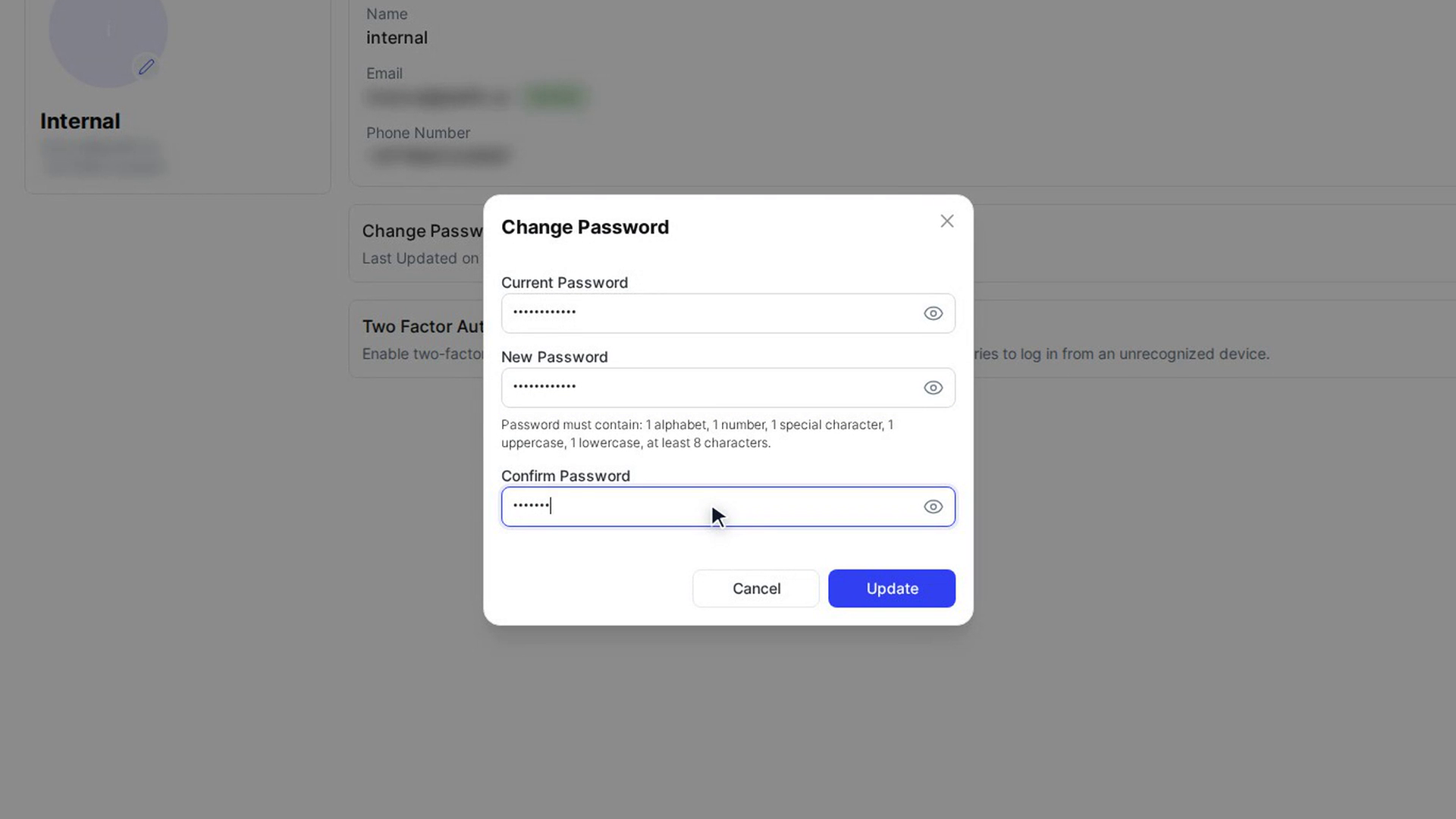
Type the new password again into Confirm Password. If the two don't match, you'll see "New password and confirm password fields must match".
Save the change
Select Update. A message confirms the change and the box closes. Use your new password the next time you sign in.
Screenshots
Step 1: Open your profile
Step 2: Open Change Password
Step 3: Enter your current password
Step 4: Choose a new password
Step 5: Confirm the new password
Step 6: Save the change