Organization details and moving an app
Open an organization to see all of its apps, and move an app to a different organization when it belongs somewhere else.
Before you start
- You need a platform owner account.
- To move an app, the organization you're moving it to must already exist.
Steps
Open the organization
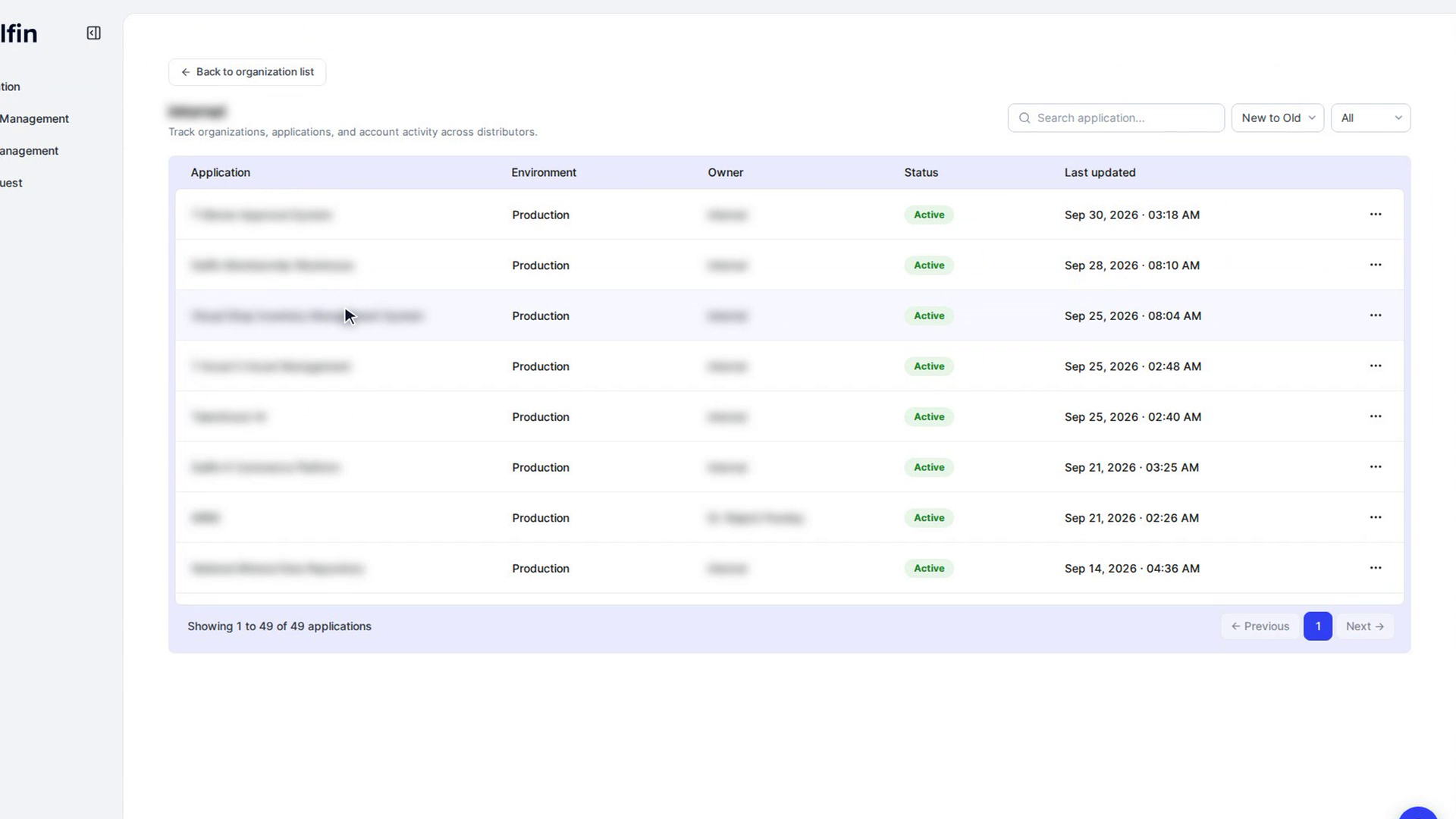
In the admin panel sidebar, select Organization, then select the organization's row in the Organizations list.
The organization's page opens with its name at the top and a table of its apps with the columns Application, Environment, Owner, Status and Last updated.
Find an app
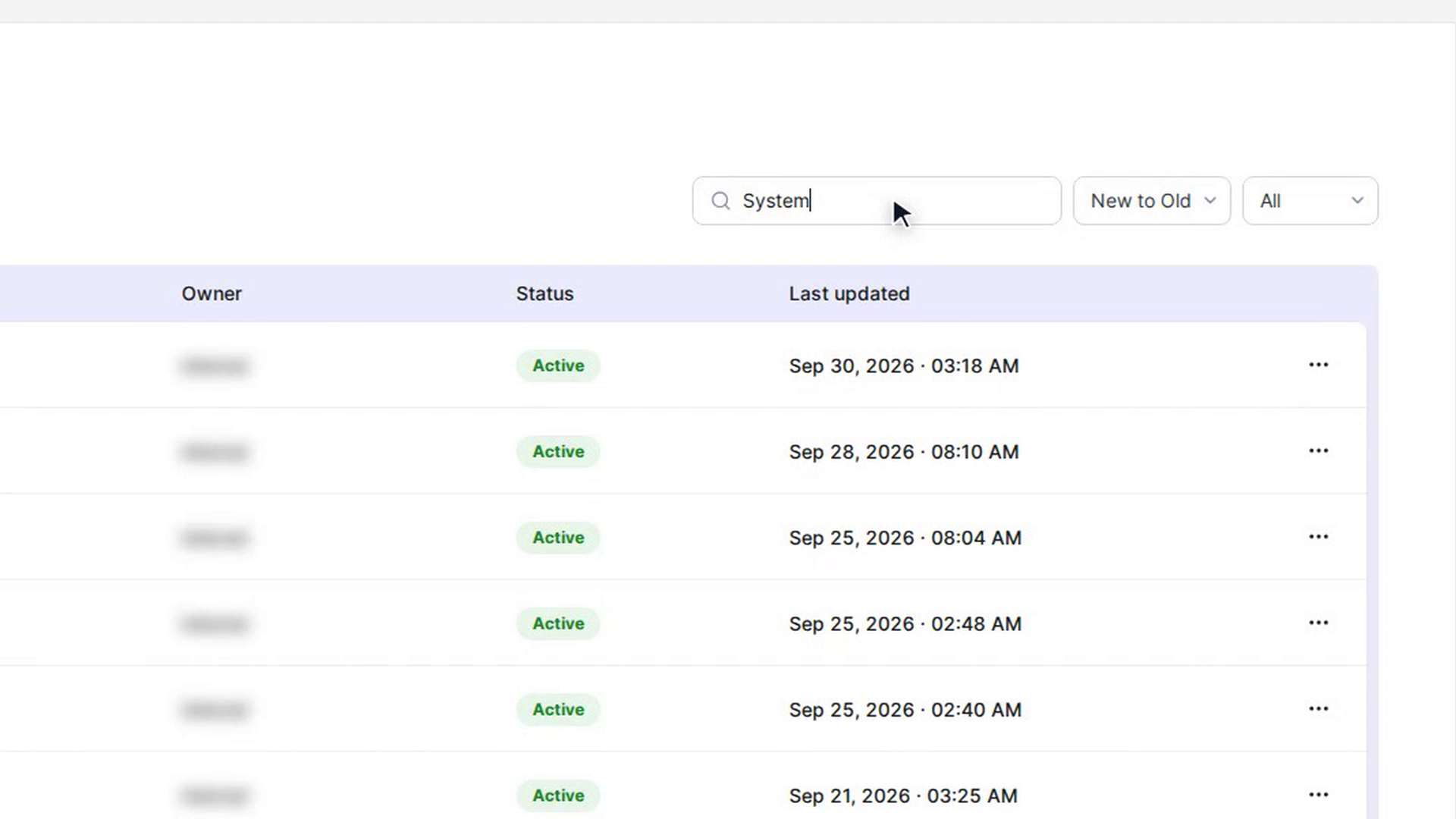
Type in Search application... to narrow the list. Use the sort menu to order apps New to Old, Old to New, A to Z or Z to A, and the status menu to show All, Active, Draft or Archived apps.
Use ← Previous, Next → or a page number at the bottom to move through long lists.
Start moving an app
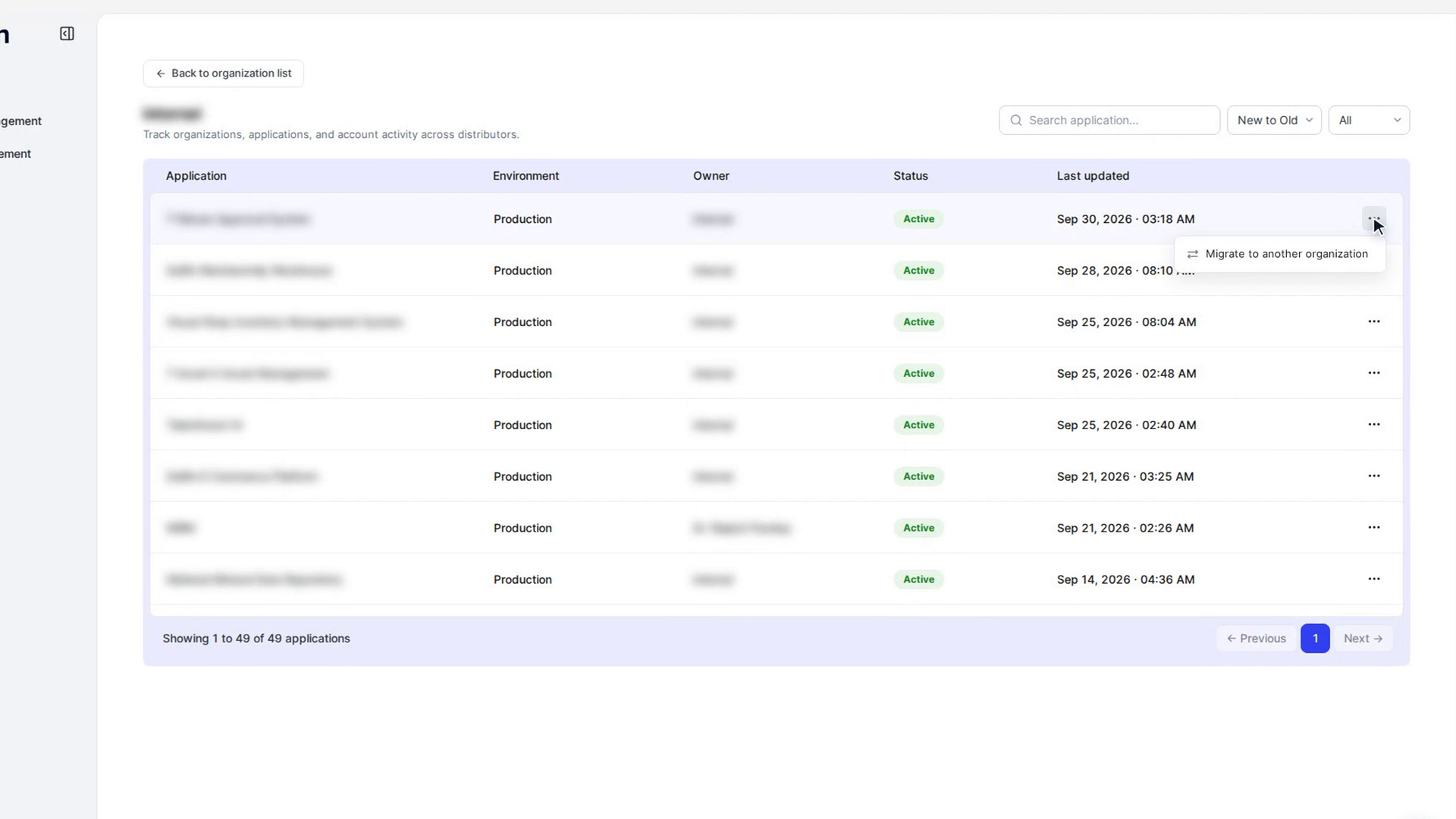
On the app's row, open the More actions menu (the three dots) and choose Migrate to another organization.
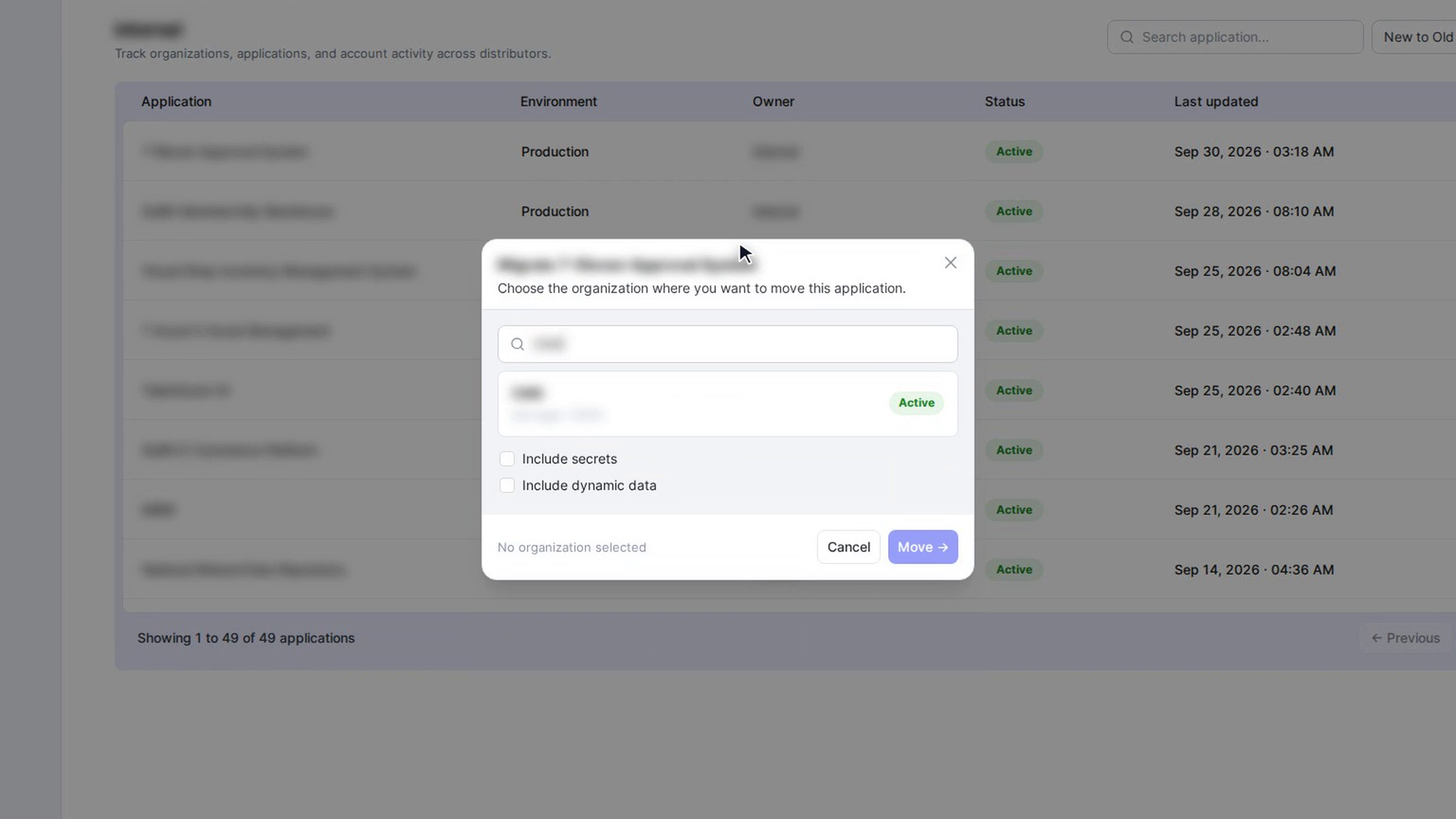
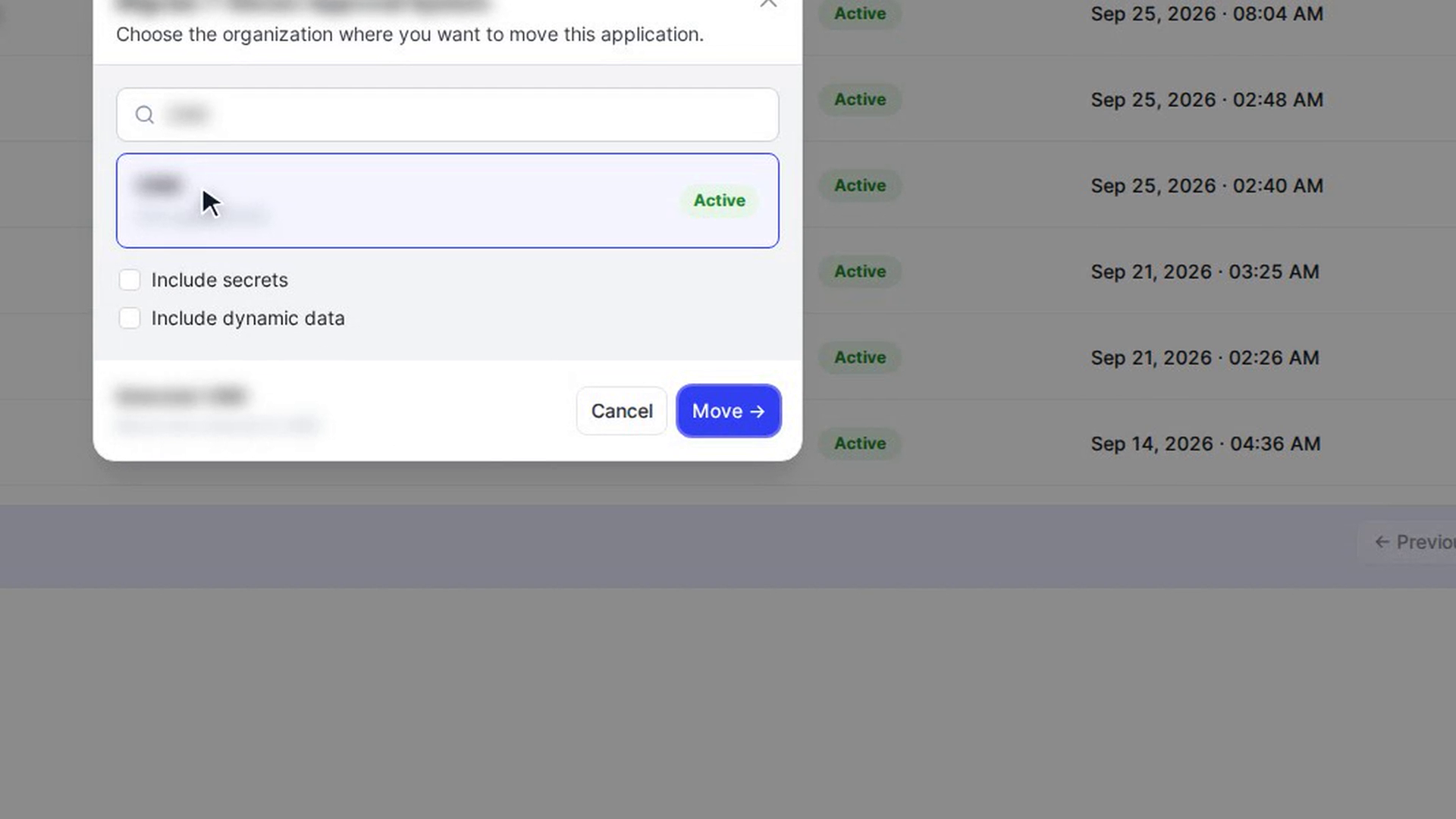
A window titled Migrate followed by the app's name opens, asking you to choose the organization where you want to move this application.
Pick the new organization
Type in Search Organization... to find the organization, then select it in the list. Each entry shows the number of apps, the owner and whether it is Active or Inactive.
At the bottom you see Selected: with the organization's name, and Move from the current organization to the new one.
Move the app
Select Move →. The button shows Moving… while the app is transferred.
When it's done, you see Successfully Migrated with the app's name and both organizations. If it fails, you see Migration Failed with the reason.
Screenshots
Step 1: Open the organization
Step 2: Find an app
Step 3: Start moving an app
Step 4: Pick the new organization
Step 5: Move the app
Watch how
Moving an app doesn't bring its stored secrets or its data records with it. Check the app in its new organization after the move.
Tip: Select Back to organization list at the top of the page to return to all organizations.