Buy an AEU pack
Add AEU to your workspace by choosing one of the ready-made packs. Each pack shows how many AEU it adds and what your balance will be afterwards.
Before you start
- Your request goes to the Dalfin platform admins. Only they can see AEU requests and approve them.
- At least one AEU pack must be available. If none are, the window only offers a Custom AEU Request.
Steps
Open the pack window
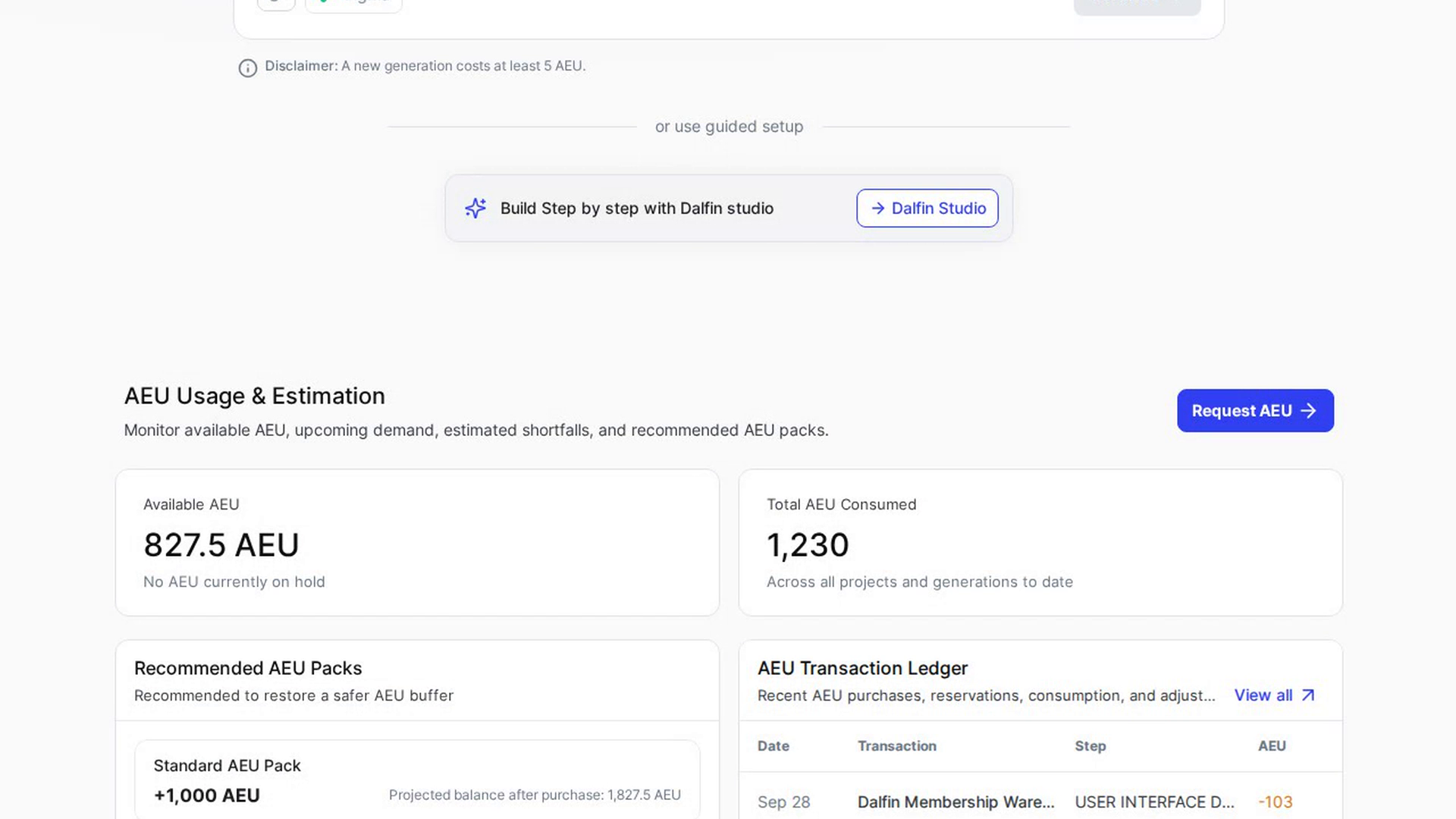
On your Dalfin home, go to AEU Usage & Estimation and select Request AEU. You can also select one of the packs under Recommended AEU Packs to open the window with that pack already chosen.
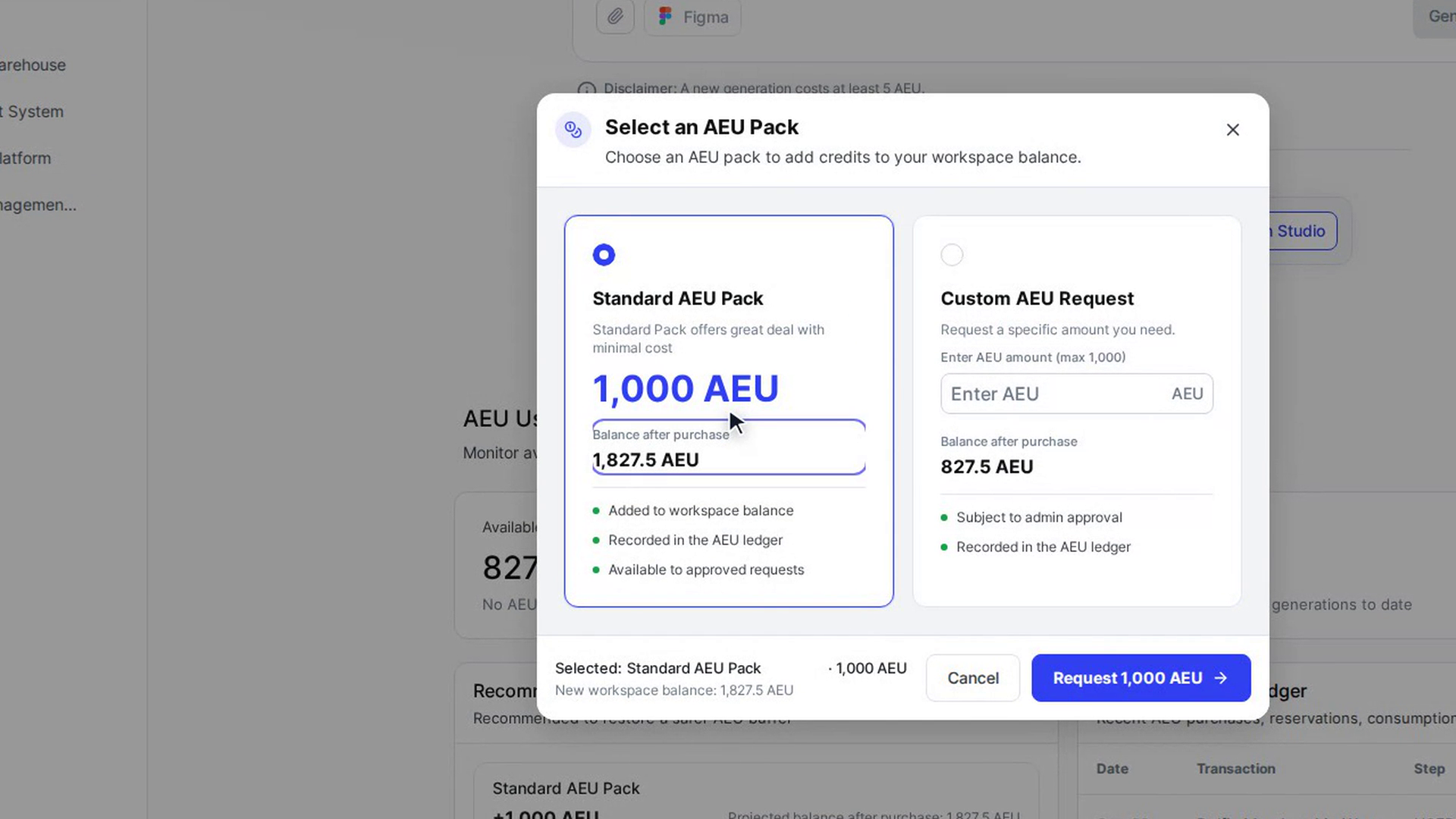
The Select an AEU Pack window opens and lists the available packs.
Choose a pack
Select a pack card. Each card shows the pack name, a short description, how many AEU it adds and the Balance after purchase. The selected card is highlighted.
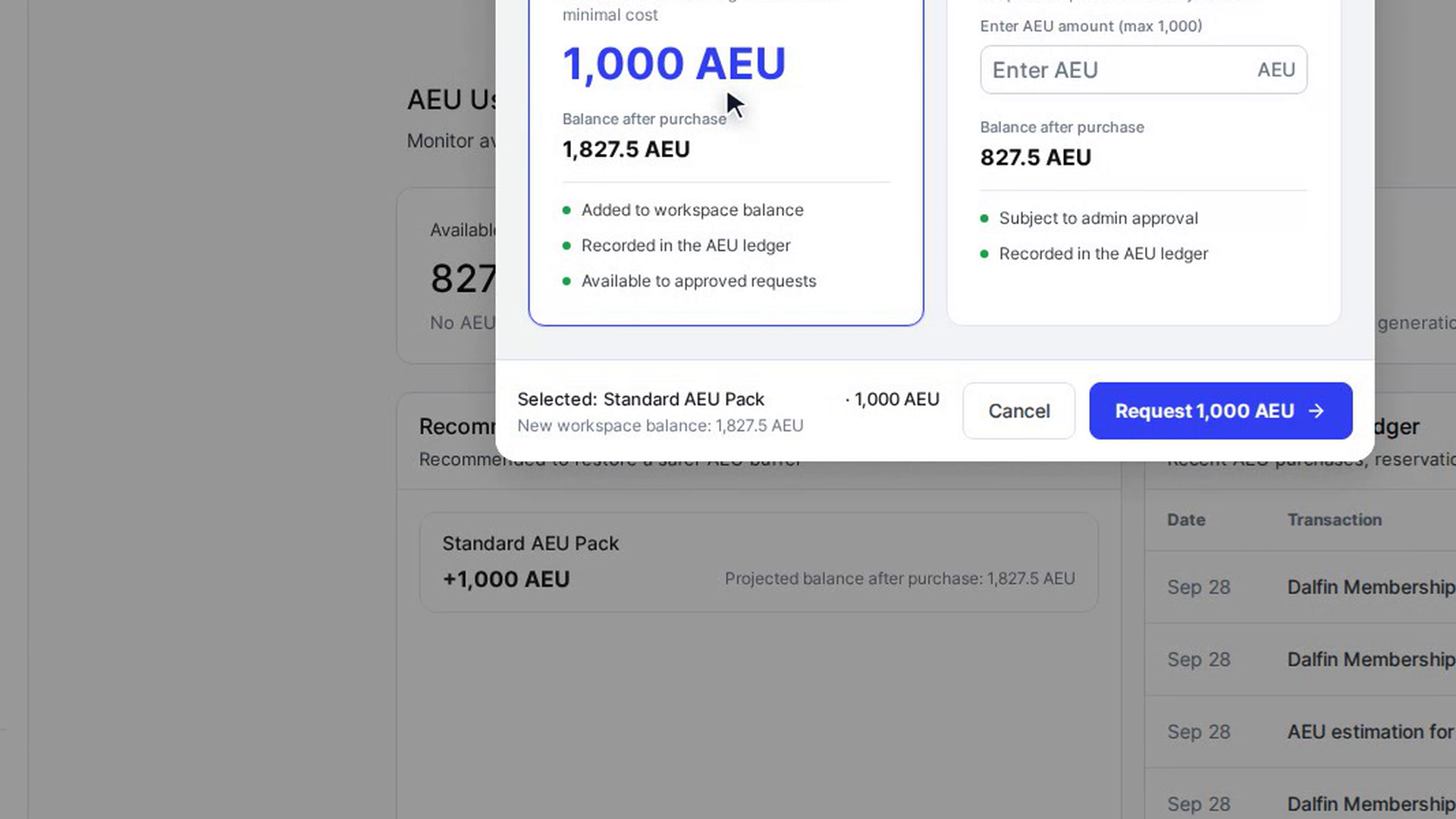
Check the summary
At the bottom of the window you see Selected: with the pack name and AEU amount, and your New workspace balance.
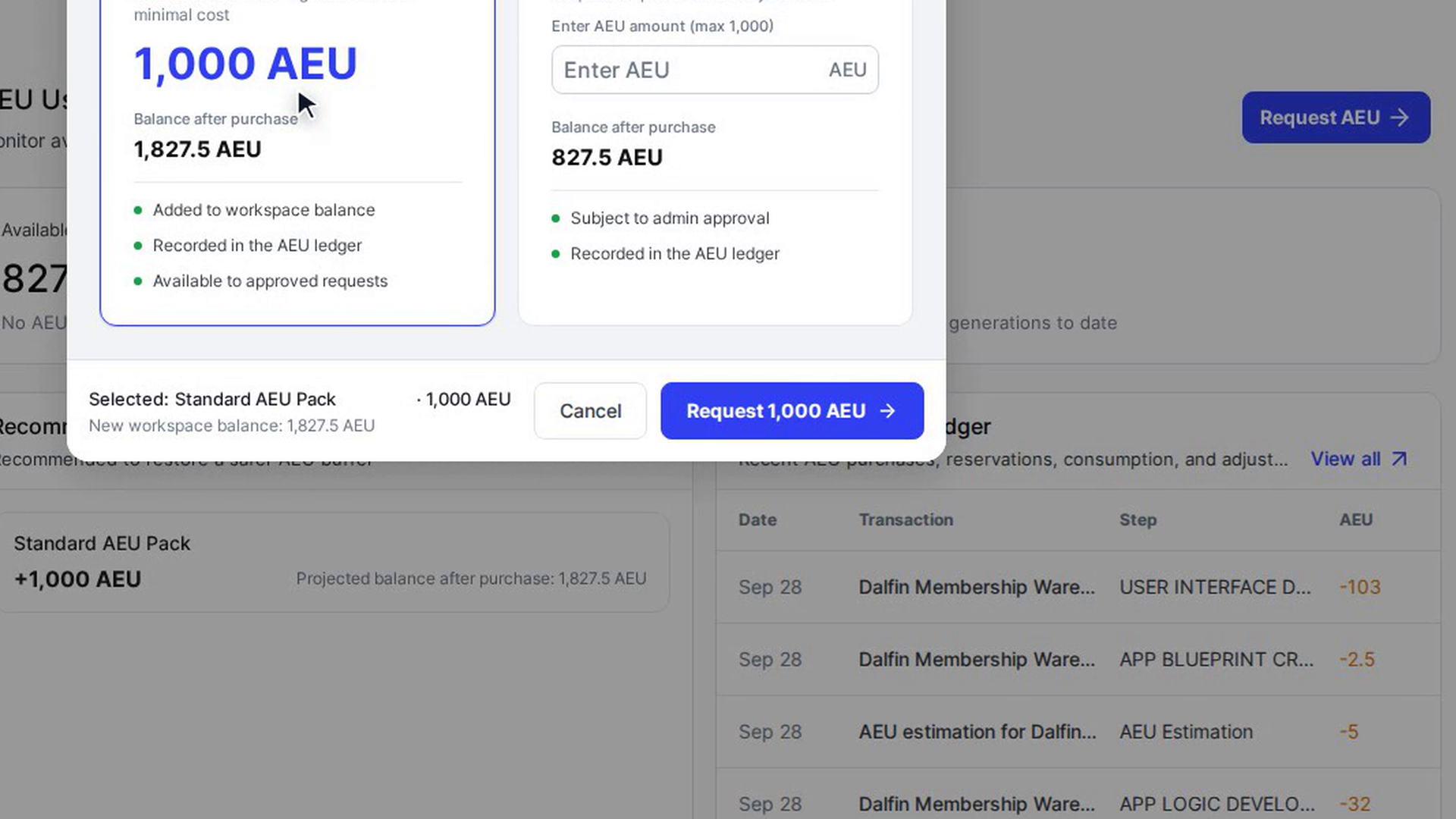
Send the request
Select the Request button (it shows the amount, for example Request 500 AEU). The button shows Requesting… while it works. When it is done the window closes and the AEU section refreshes, so the new entry appears in the AEU Transaction Ledger.
Choosing a pack sends a request. The AEU are added to your balance once a Dalfin admin approves it. Payment isn't taken in the app: it's arranged with you separately.
Screenshots
Step 1: Open the pack window
Step 2: Choose a pack
Step 3: Check the summary
Step 4: Send the request
Watch how
Tip: If something goes wrong, a message appears in the window and it stays open, so you can try again or select Cancel.