Change your app with Claude Code
Claude Code is an AI coding assistant built into the Code tab. Ask it how your app's code works, or ask it to make a change for you: it can read and edit files and run commands in your app's project.
Before you start
- You need access to the app's Code tab. See Code (in-browser IDE).
- Your organization must have Claude Code access turned on. If it is off, Claude answers with a message that access is disabled.
Steps
Open the Code tab
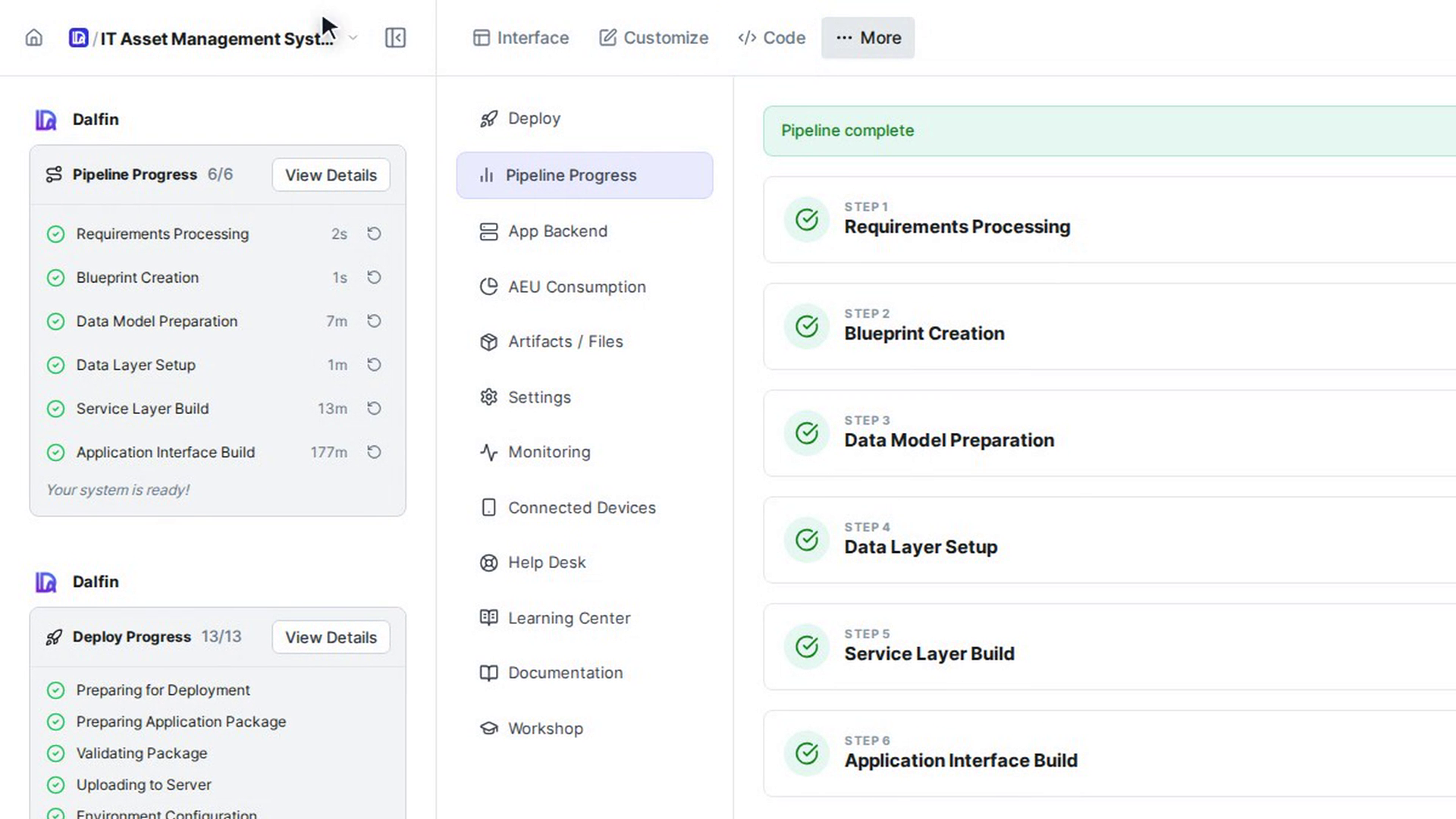
Open your app from All Apps and select Code in the top bar. Wait for the editor to finish loading.
Open Claude Code
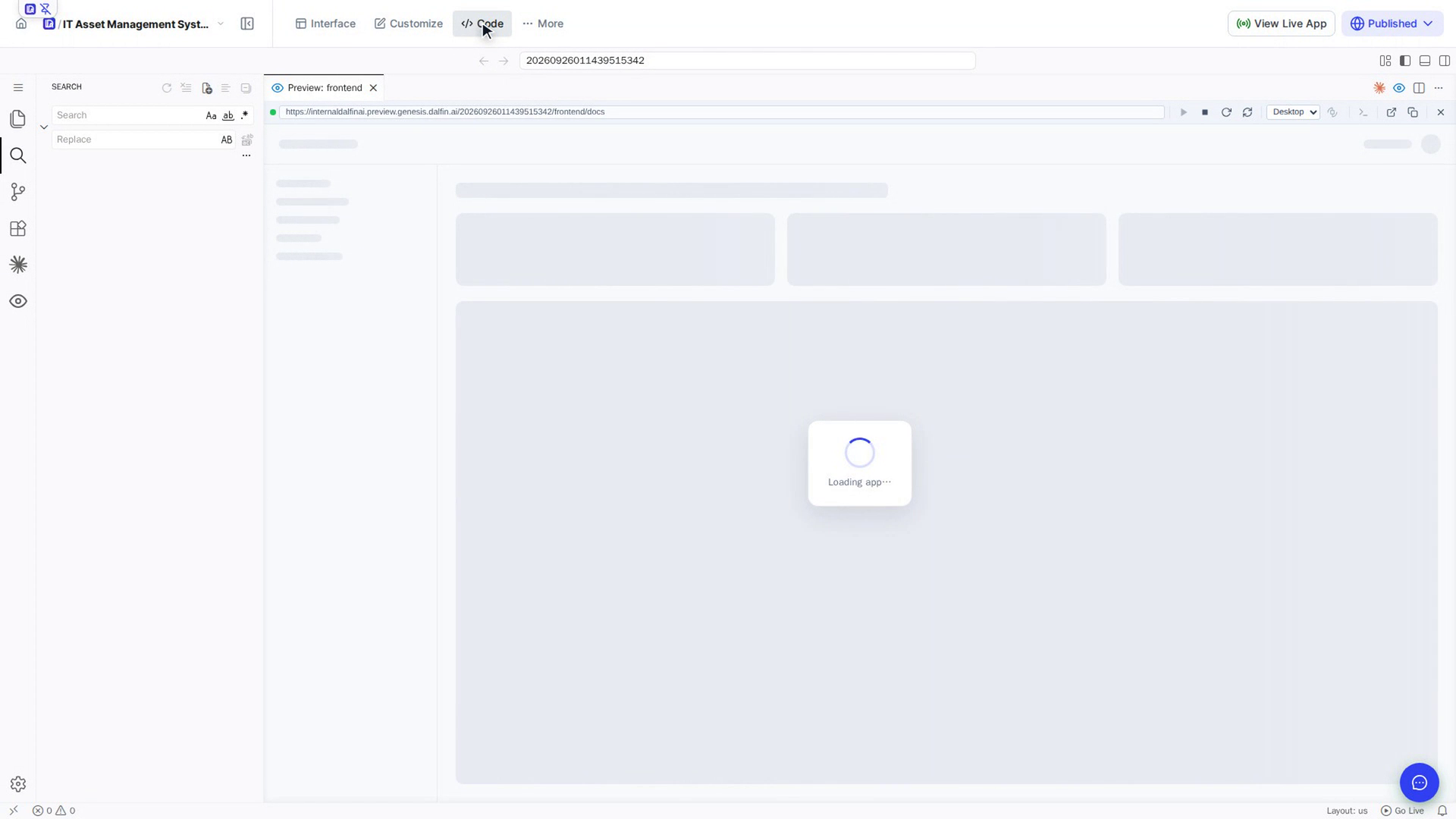
Select Claude Code (the star icon on the left). You can also select Claude Code: Open at the top right of the editor.
Find your sessions
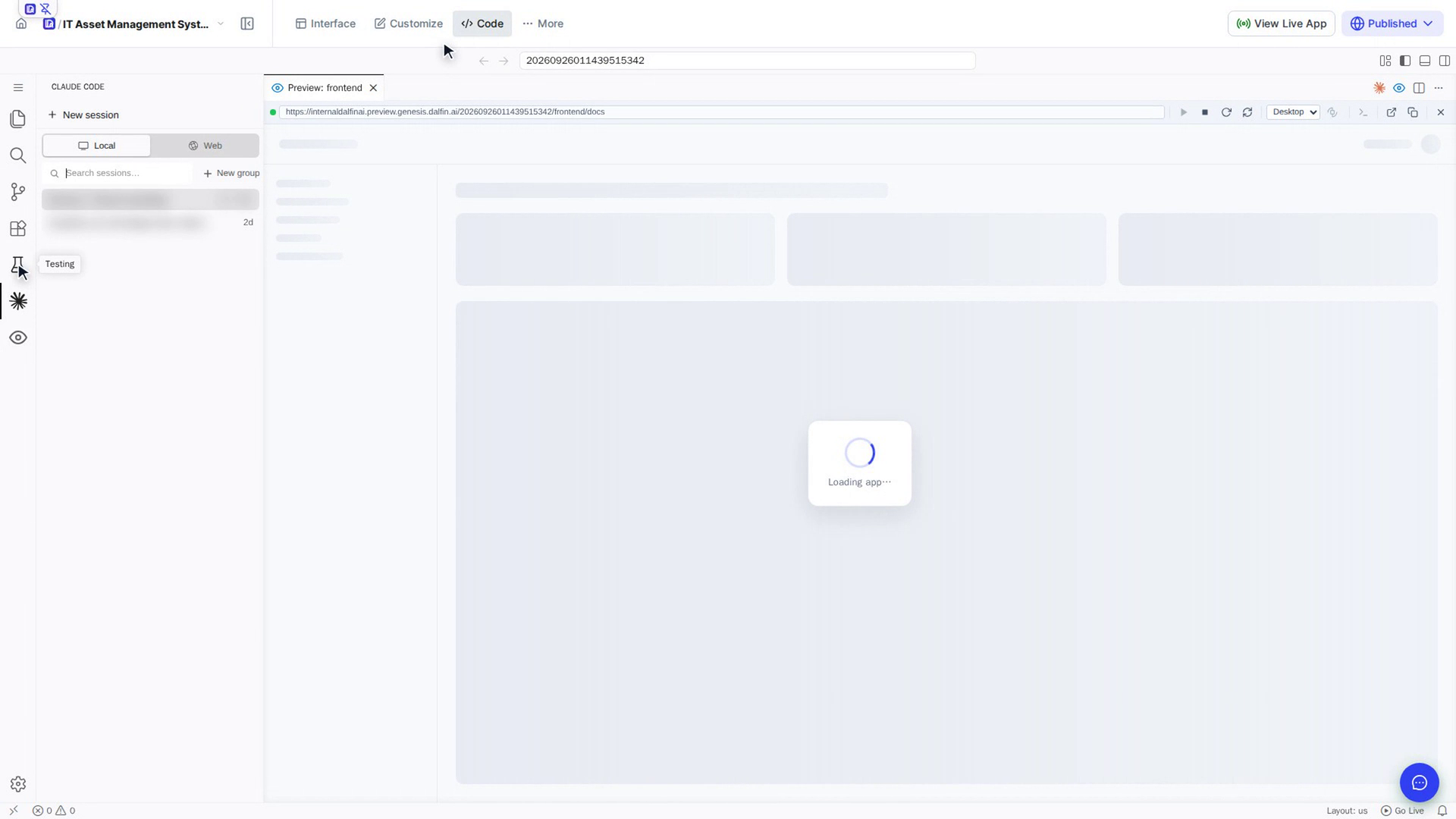
The panel lists your conversations with Claude, called sessions, with the newest first. Use Local and Web to choose where your sessions run. Use Search sessions… to find one, and New group to keep them in groups. Point at a session to rename or delete it, and select it to open it again.
Start a new session
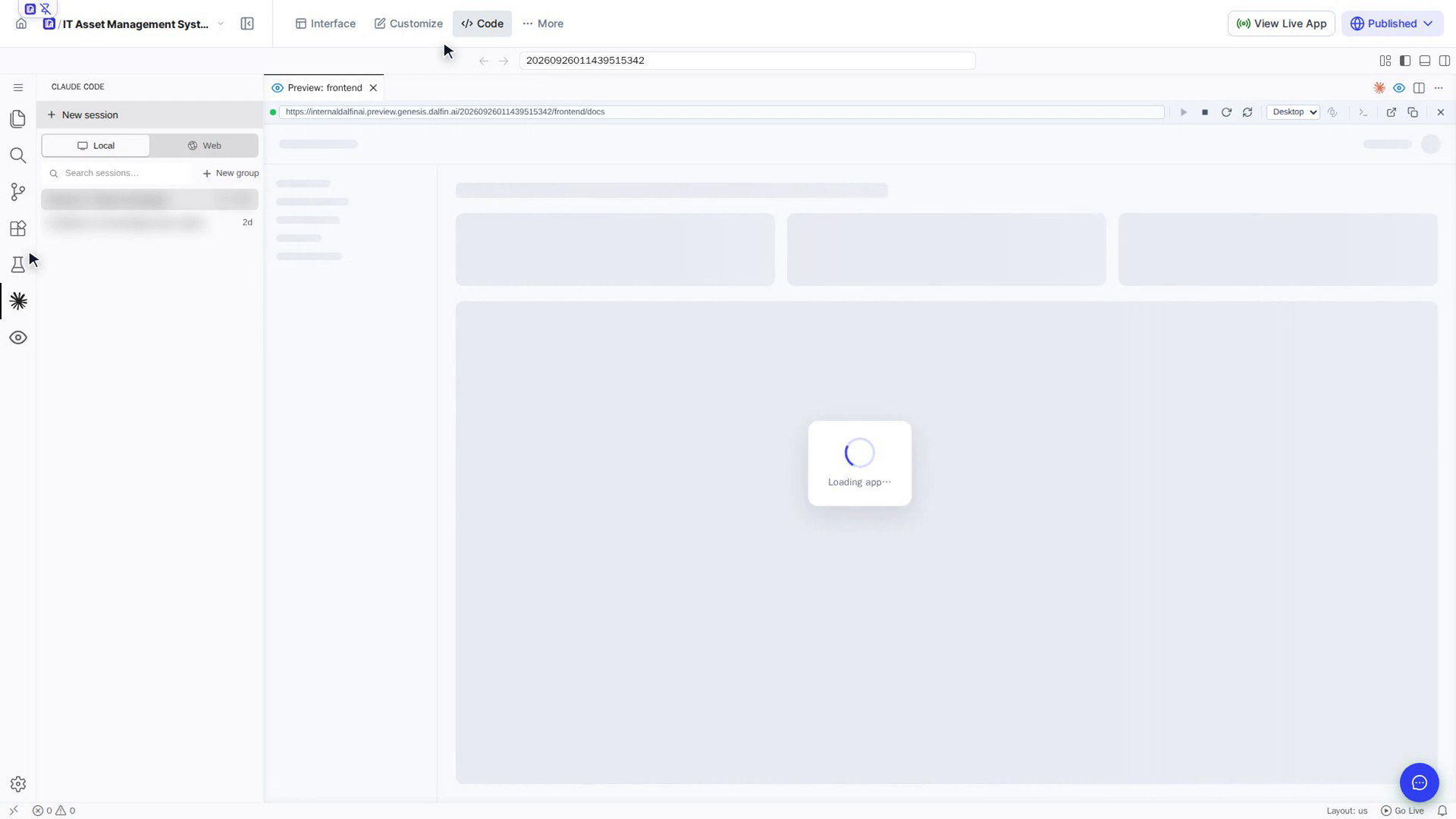
Select New session. The session opens in its own Claude Code tab next to your files, with the message What to do first? Ask about this codebase or we can start writing code. Nothing is saved to the list until you send your first message.
Ask Claude about your code
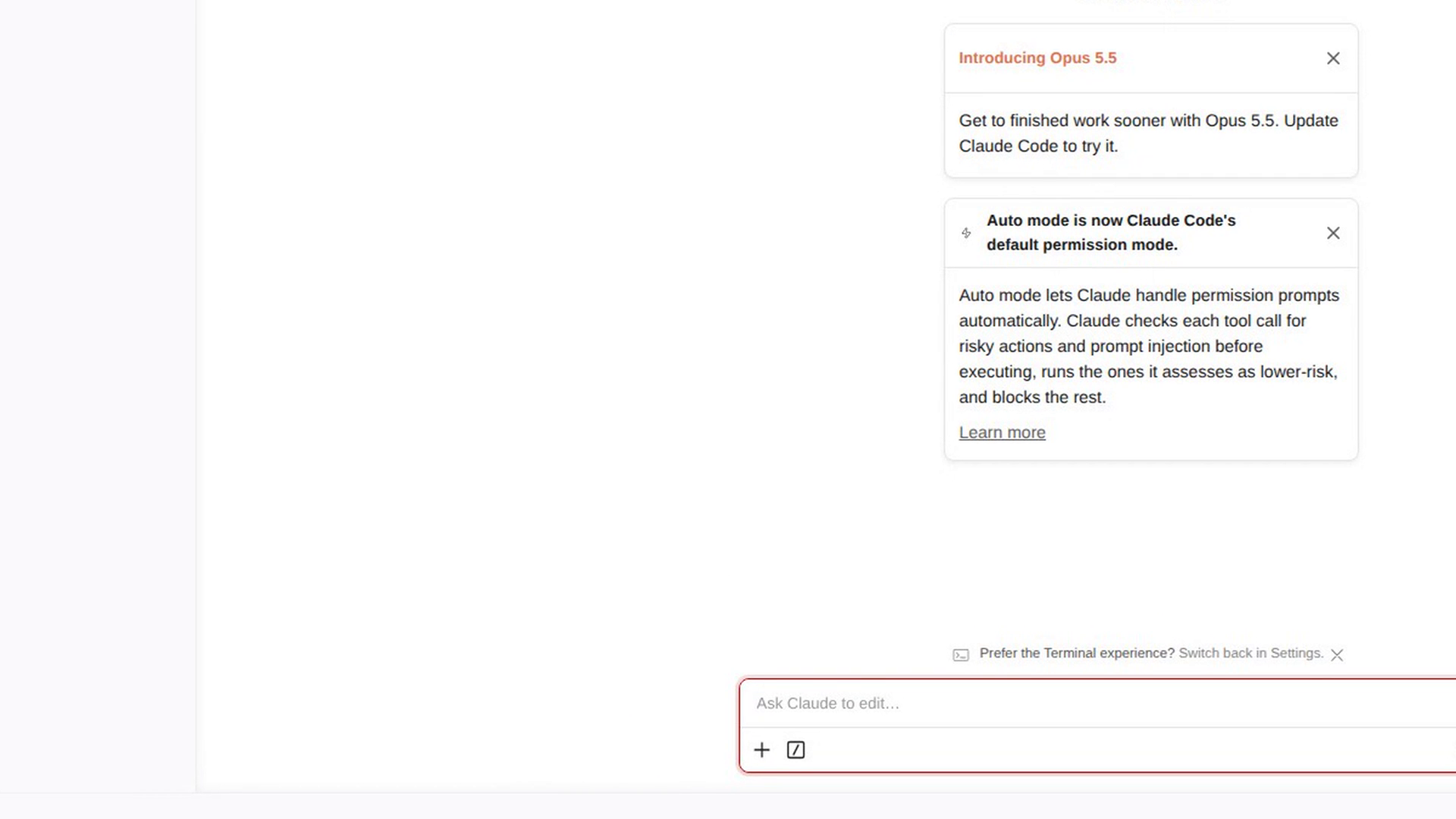
Type your question or request in the Ask Claude to edit… box at the bottom and send it. Select + to add files or other context, and / to see the commands you can use. The button next to the send button shows the permission mode. In Auto mode, Claude checks each action for risk, runs the ones it judges safe and blocks the rest.
Claude reads your project first (guided by CLAUDE.md), so you can start with a question such as "How are the frontend and backend organised?" before you ask for a change. The new session gets its name from your first message.
Screenshots
Step 1: Open the Code tab
Step 2: Open Claude Code
Step 3: Find your sessions
Step 4: Start a new session
Step 5: Ask Claude about your code
Watch how
Changes Claude makes go straight into your app's real files, and there is no change history to roll back to. Say clearly what it may change, and check the result in the preview.
Tip: If Claude answers Your organization has disabled Claude subscription access for Claude Code, ask your admin to turn on access. Until then Claude Code cannot answer here.