AEU packs
AEU packs are the ready-made AEU amounts that organizations can choose from. Create packs, change them, switch them on or off, and remove ones you no longer offer.
Before you start
- You need a platform owner account.
- AEU Request is not shown in the sidebar on some dedicated deployments.
Steps
Open the pack list
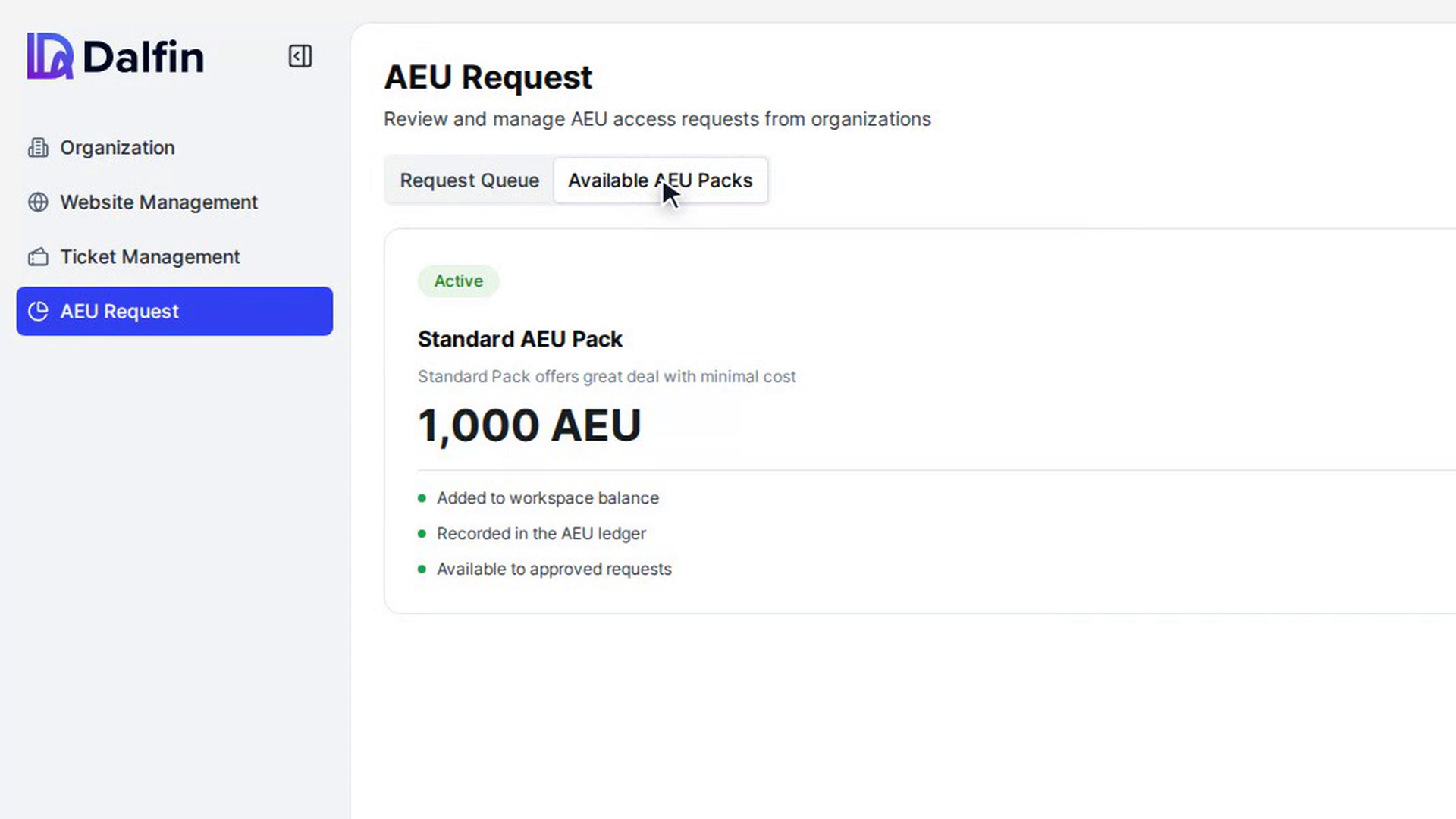
In the admin panel sidebar, select AEU Request, then select the Available AEU Packs tab.
Each pack appears as a card with an Active or Disabled badge, its name, description, AEU amount and features. Use the status menu at the top to show All Status, Active or Inactive packs.
Create a pack
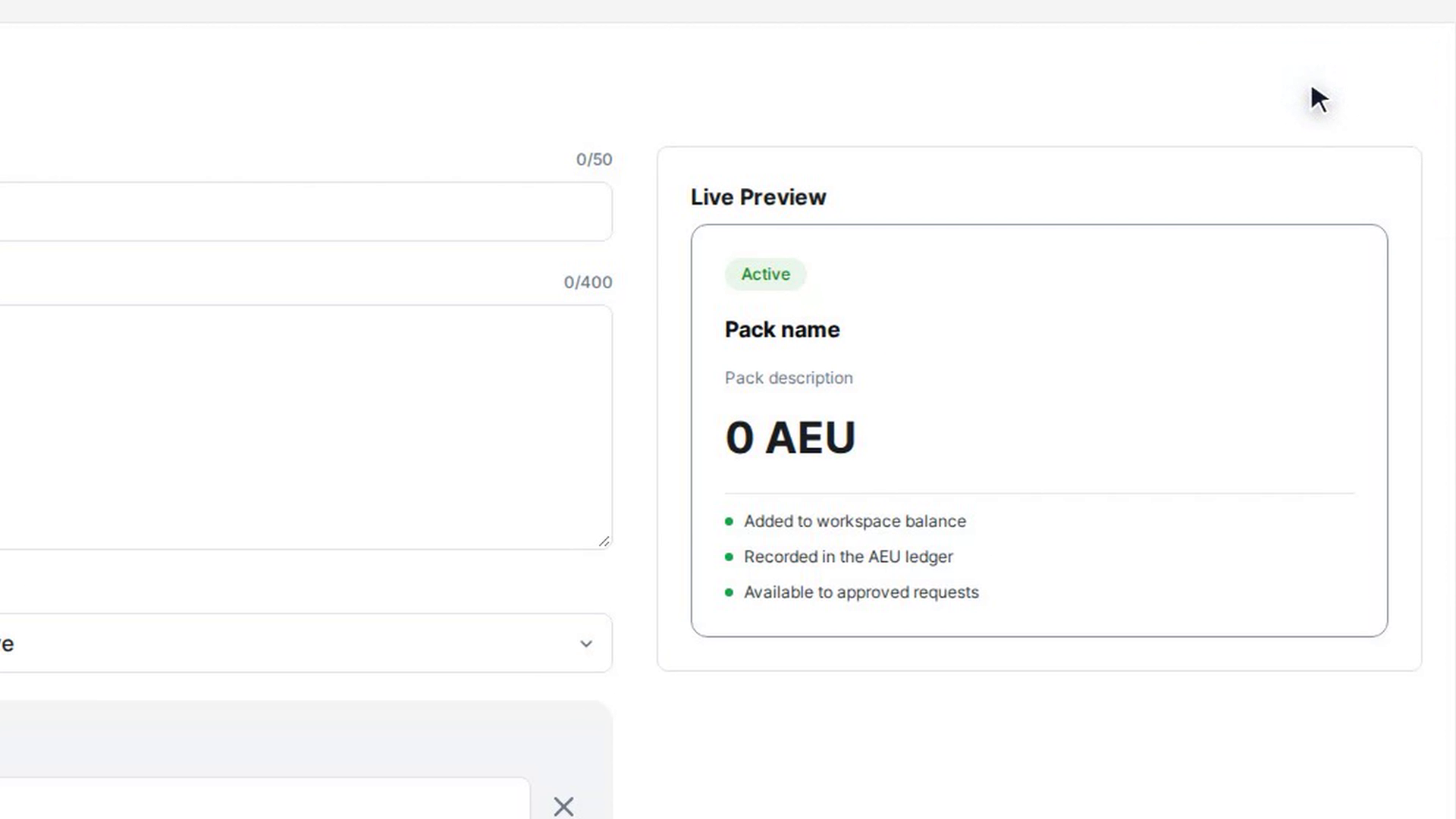
Select Create AEU Pack. The pack editor opens, with the form on the left and a Live Preview of the card on the right that updates as you type.
Fill in:
- Pack name (required, up to 50 characters)
- Description (required, up to 400 characters)
- AEU amount: a whole number greater than 0
- Status: Active or Inactive
Add features
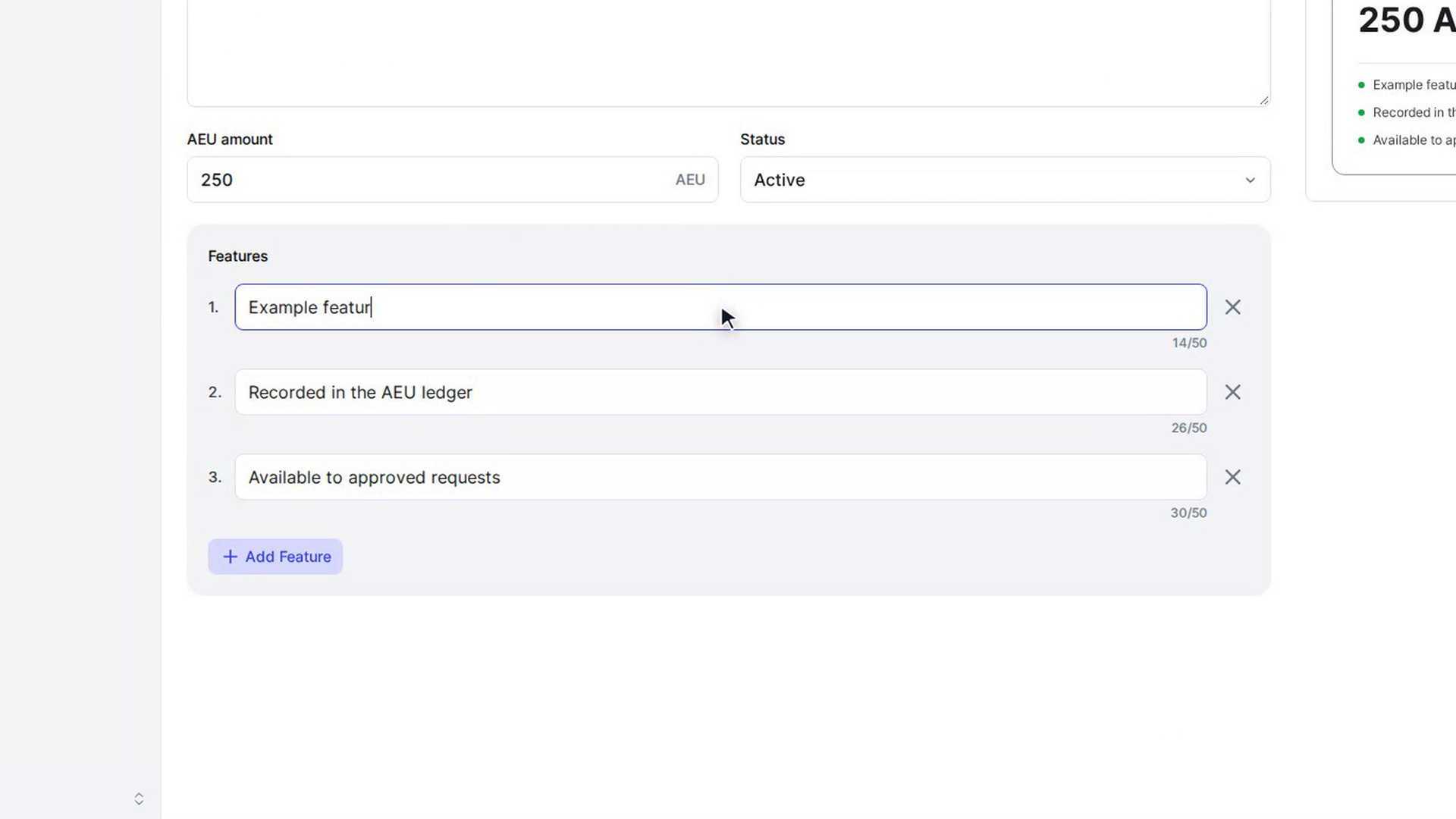
Under Features, type a short line about what the pack includes (up to 50 characters each). Select Add Feature for another line, up to 10 in total. Use the remove button next to a line to delete it.
Save the pack
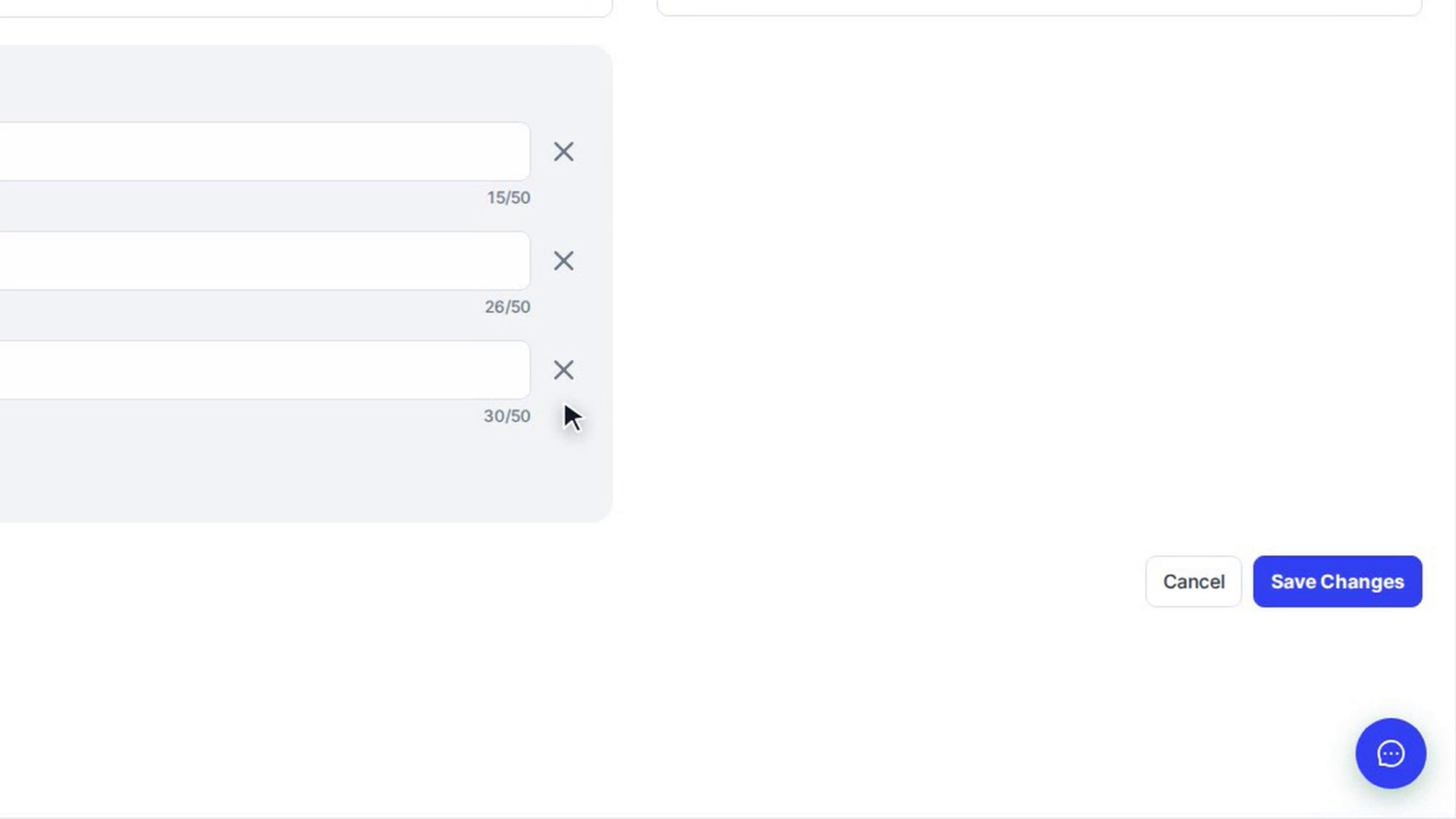
Select Save Changes. You return to Available AEU Packs and the new pack is in the list. If something is missing, an error message under the form tells you what to fix.
Select Cancel or Back to Request to leave without saving.
Edit a pack
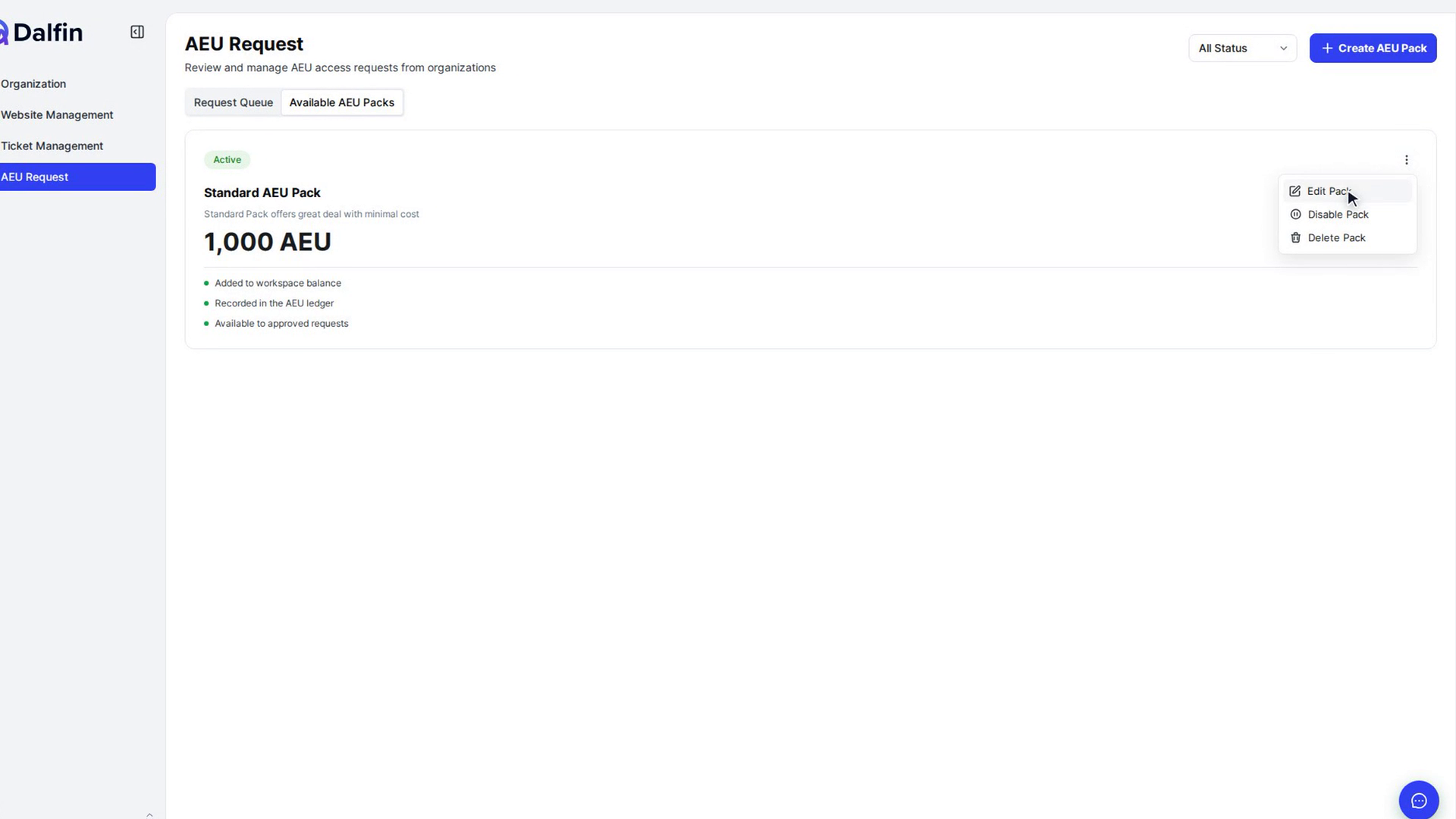
On the pack's card, open the three-dot menu and choose Edit Pack. Change the details, check the Live Preview, and select Update Changes.
Disable or enable a pack
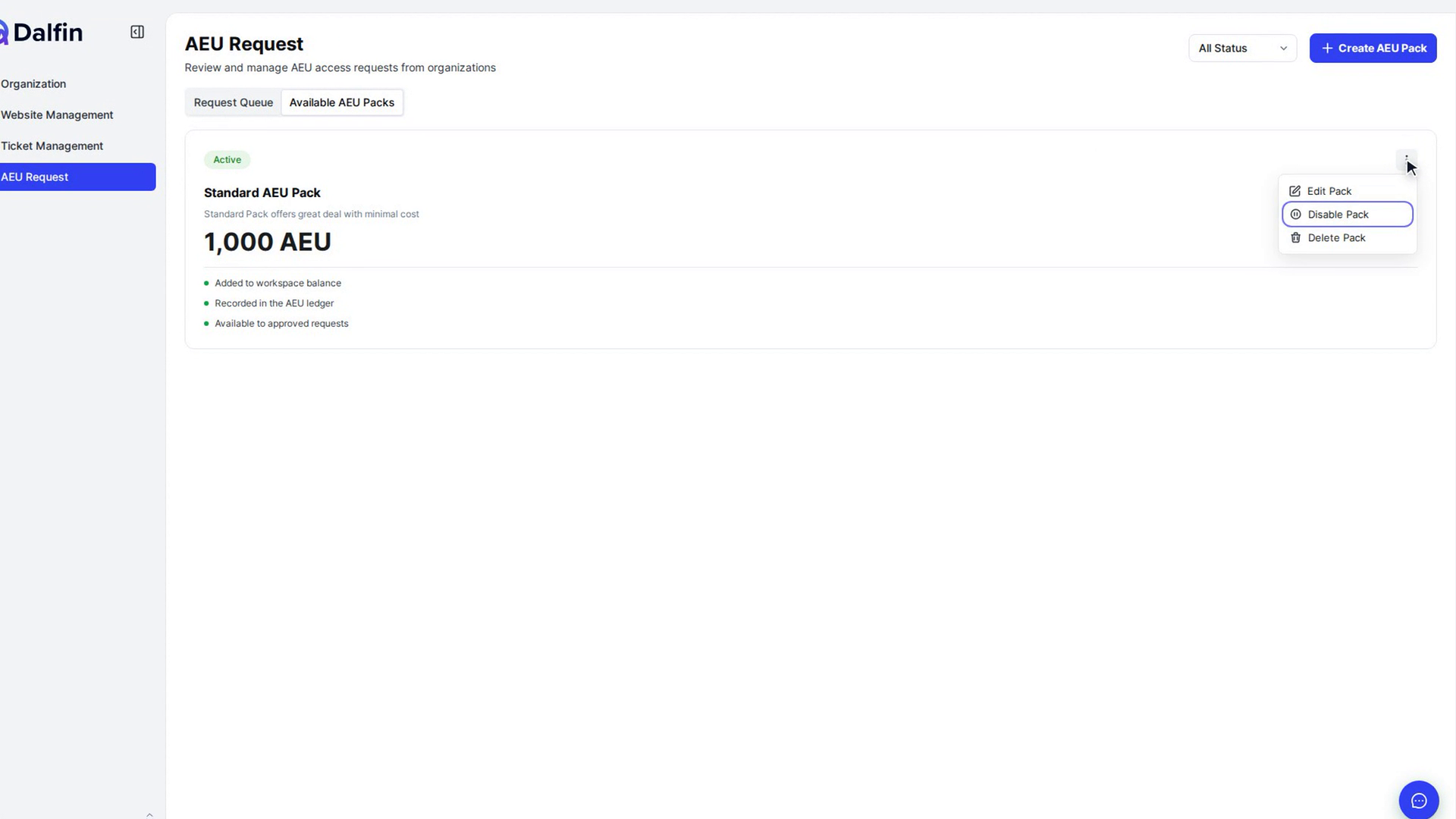
Open the pack's menu and choose Disable Pack. In the Disable AEU Pack window, select Disable pack. The pack is no longer offered to organizations, and its card shows Disabled.
To offer it again, choose Enable Pack and confirm with Enable pack.
Delete a pack
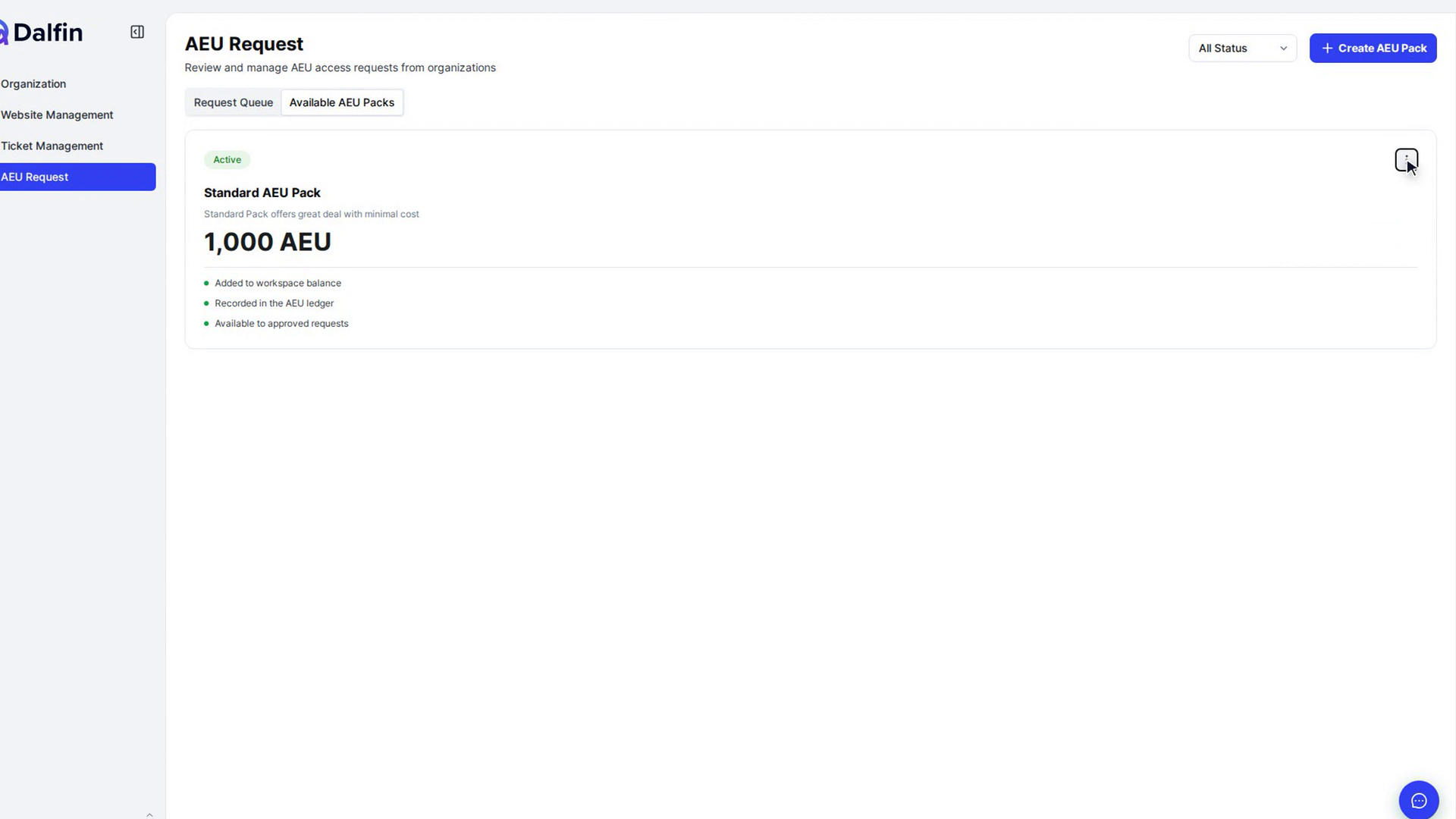
Open the pack's menu and choose Delete Pack. In the Delete AEU Pack window, select Delete pack.
Screenshots
Step 1: Open the pack list
Step 2: Create a pack
Step 3: Add features
Step 4: Save the pack
Step 5: Edit a pack
Step 6: Disable or enable a pack
Step 7: Delete a pack
Watch how
Deleting a pack removes it permanently. If you may want it again later, disable it instead.