Open and use your app
Once an app has been built and published, you open it from inside Dalfin and work in it full screen. A slim Dalfin bar is tucked away at the top whenever you need to get back.
Before you start
- You need to be assigned to the system the app belongs to. If you can't see it, ask your organization admin to assign you to the system.
- The app must have been published. See Publish your app.
- What you can see inside the app depends on your role. Pages you don't have access to are hidden.
Steps
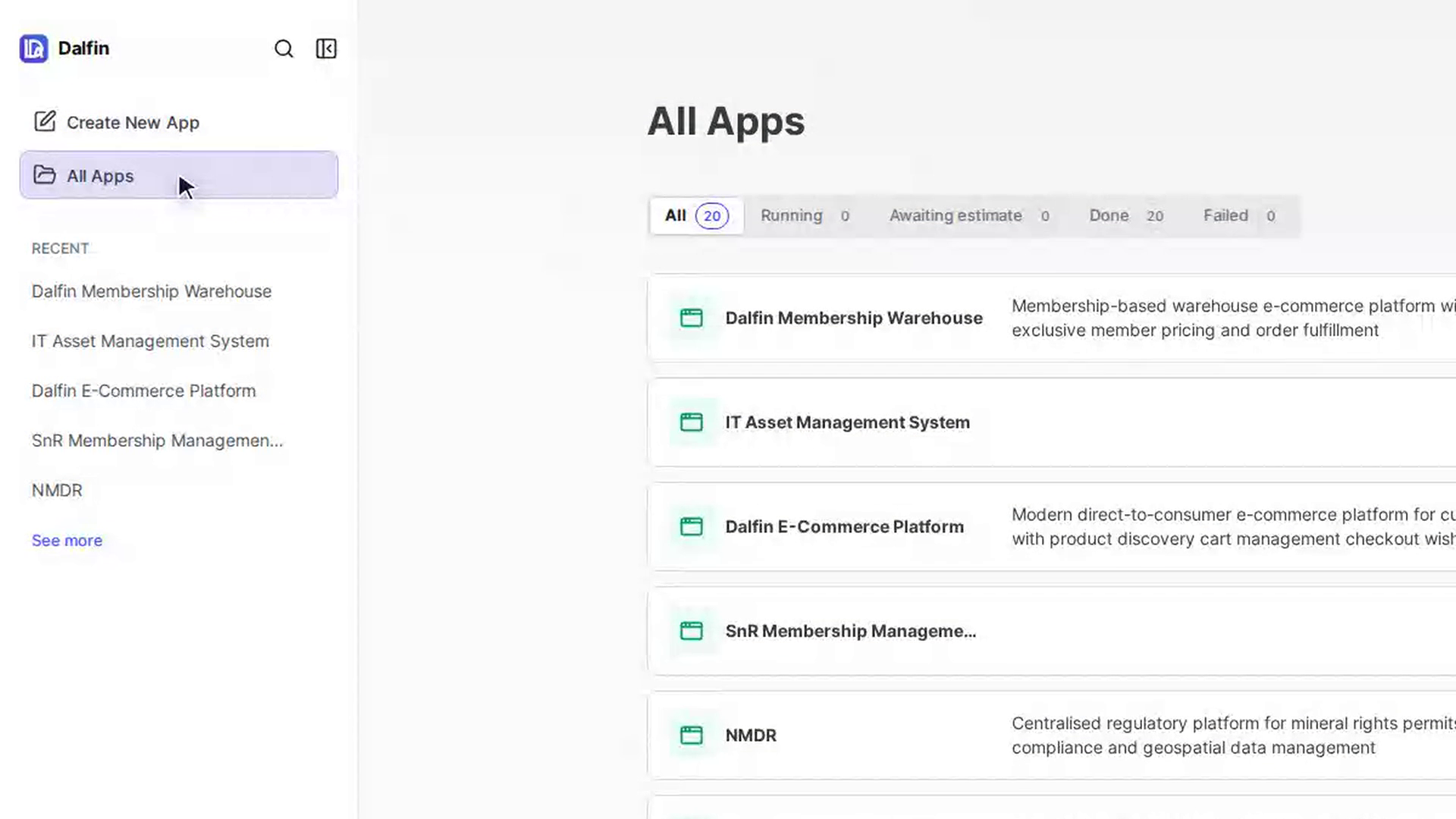
Open the system
Sign in to Dalfin and select the system that holds your app from your list of systems. If you're already inside another system, use the system switcher instead (see Switch between systems).
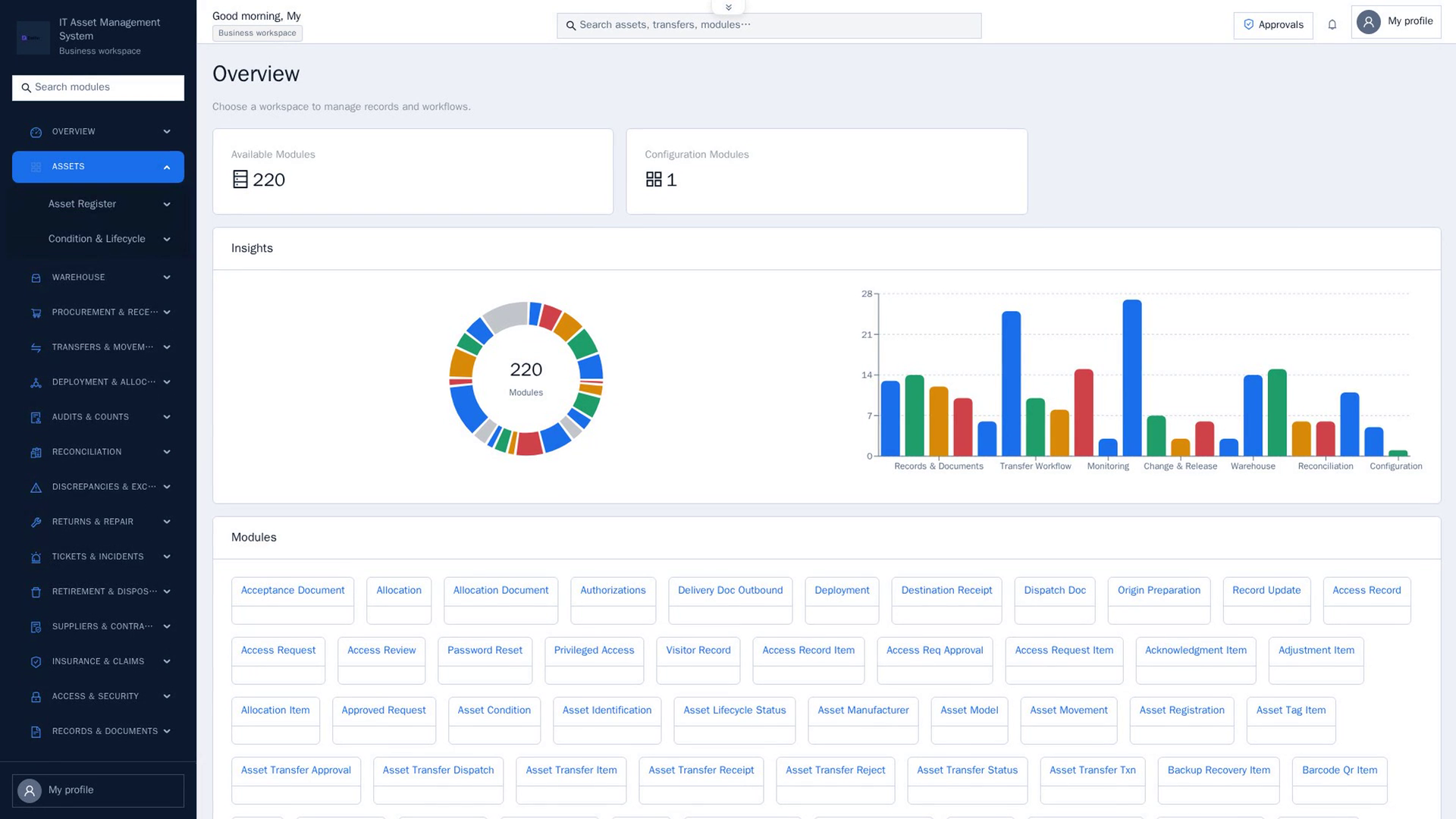
Open the app from the menu
In the system's menu on the left, each app has its own section headed with the app's name, with the app's pages listed underneath. Select a page.
The app opens and fills the whole screen with its own menu and top bar.
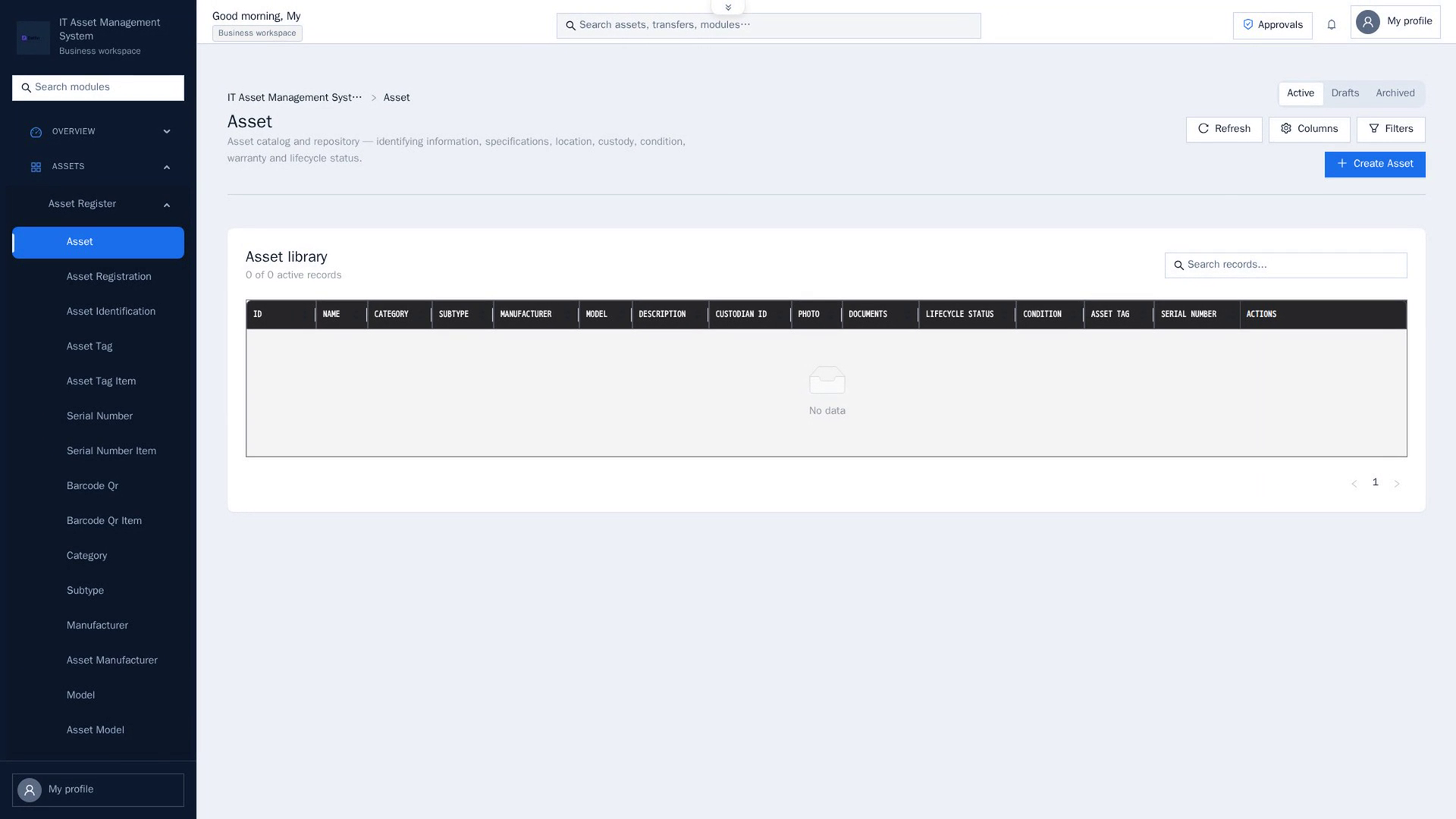
Work in the app
Use the app's own menu to move between its pages. Everything you do here happens inside the app. See What every generated app includes for the parts every app has.
Show the Dalfin bar
At the top centre of the screen there's a small tab with an arrow (Back to shell navigation). Select it. The Dalfin bar slides down over the top of the app. It shows a Home button and where you are: the system name and then the app name.
Go back to Dalfin
Select Home on the Dalfin bar. You leave the app and return to your Dalfin starting page.
Hide the Dalfin bar again
Select the arrow at the right-hand end of the bar (Hide), or the tab under it. The bar slides back out of the way and the app has the full screen again.
Screenshots
Step 1: Open the system
Step 2: Open the app from the menu
Step 3: Work in the app
Tip: Dalfin remembers whether you left the bar open or closed on this browser, so it stays the way you like it the next time you open an app.