Duplicate an organization
Create a new organization as a copy of an existing one, and choose which of its systems come along. This is useful when you want to start a new customer from a ready-made setup.
Before you start
- You need a platform owner account.
- The organization you copy from must already exist and not be archived.
- Have a new domain, and the new owner's name, email address and password ready.
Steps
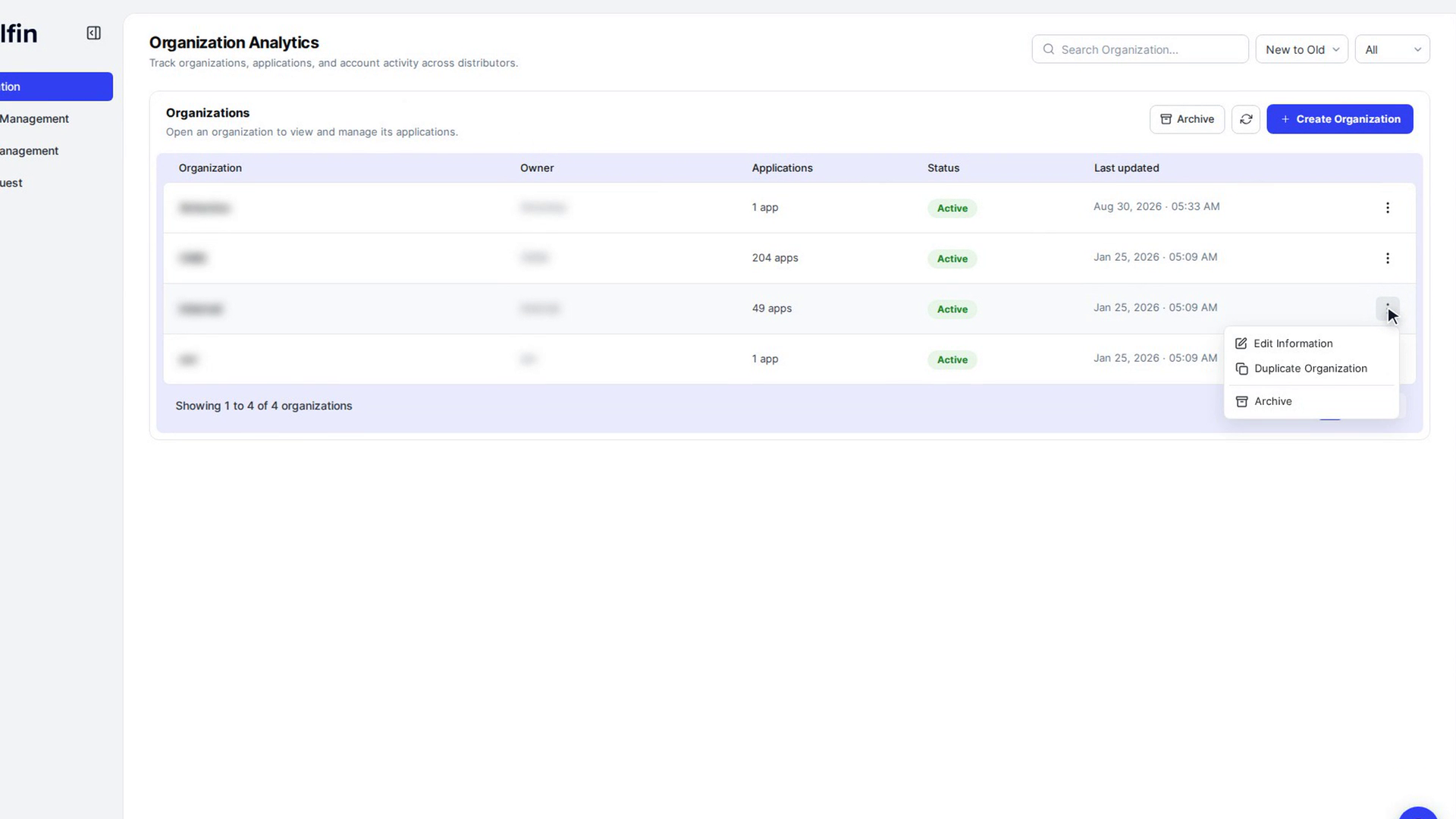
Start the duplicate
In the admin panel sidebar, select Organization. On the row of the organization you want to copy, open the three-dot menu (More actions) and choose Duplicate Organization.
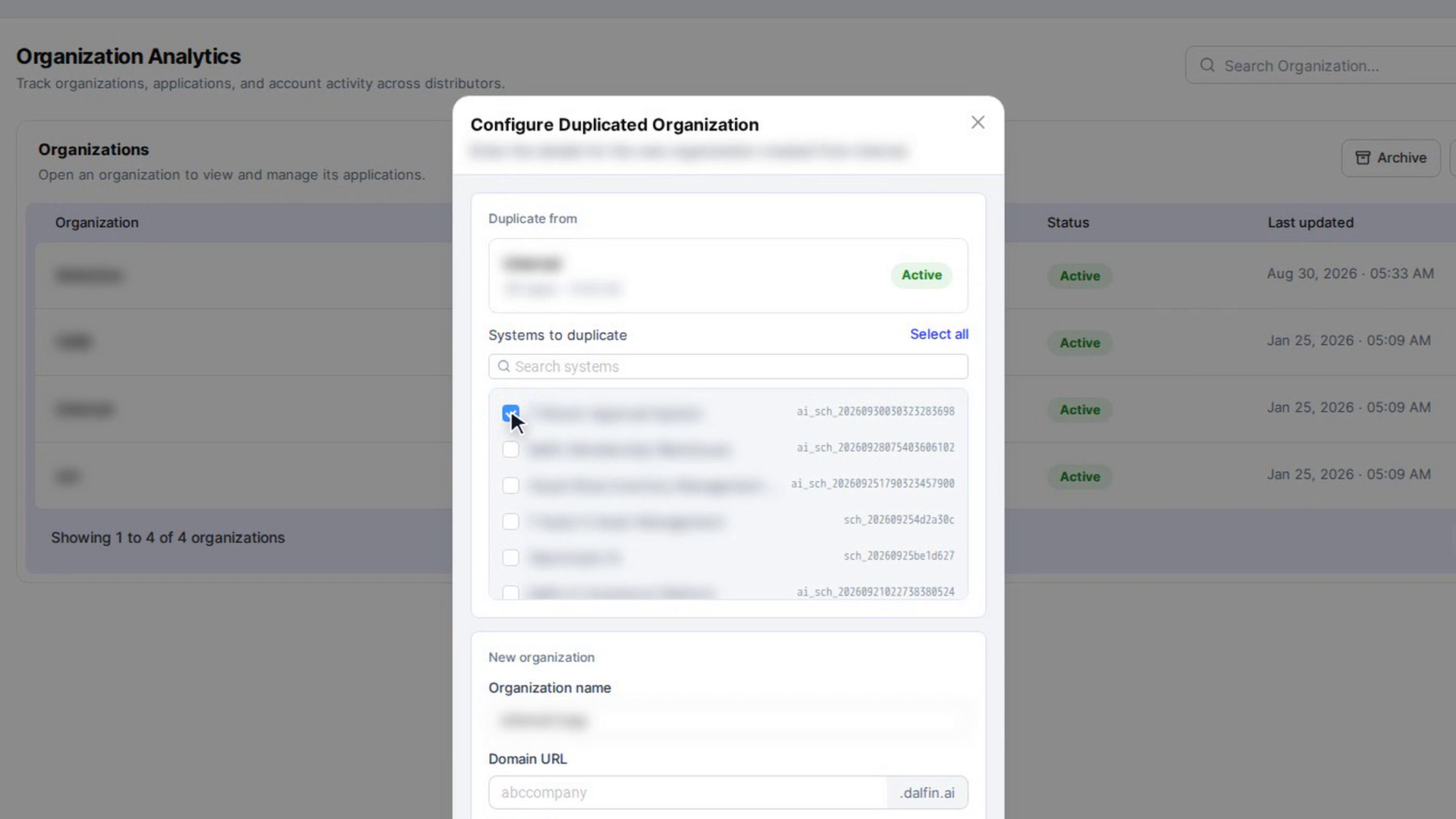
The Configure Duplicated Organization window opens. Under Duplicate from you see the source organization's name, number of apps and contact person.
Choose the systems to copy
Under Systems to duplicate, tick each system you want in the new organization. Nothing is ticked at first. Use Select all to tick every system, or Deselect all to clear them. If there are more than five systems, type in Search systems to find one.
You must tick at least one system. If the source organization has no systems, or the list can't be loaded, every system is copied.
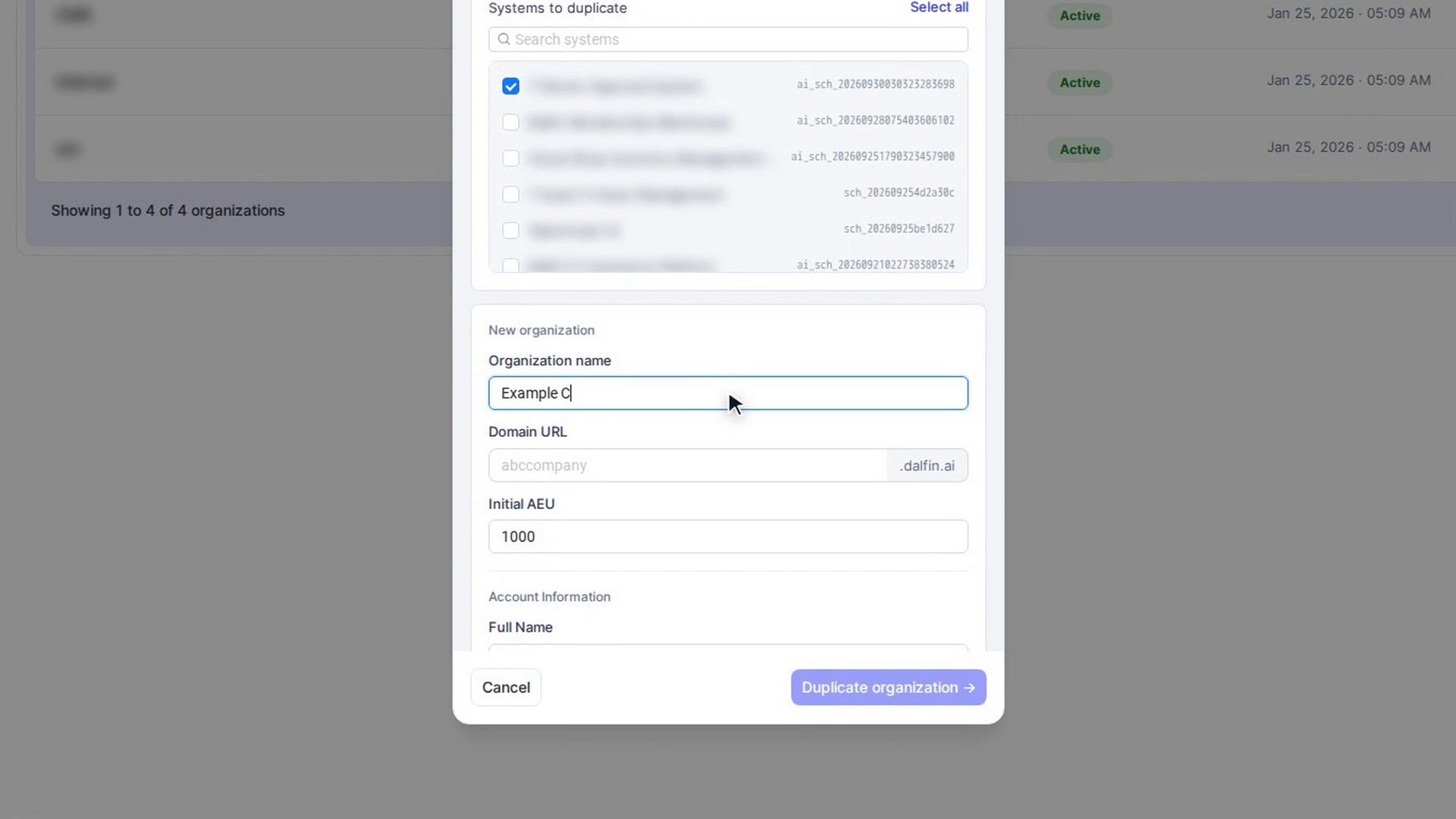
Enter the new organization's details
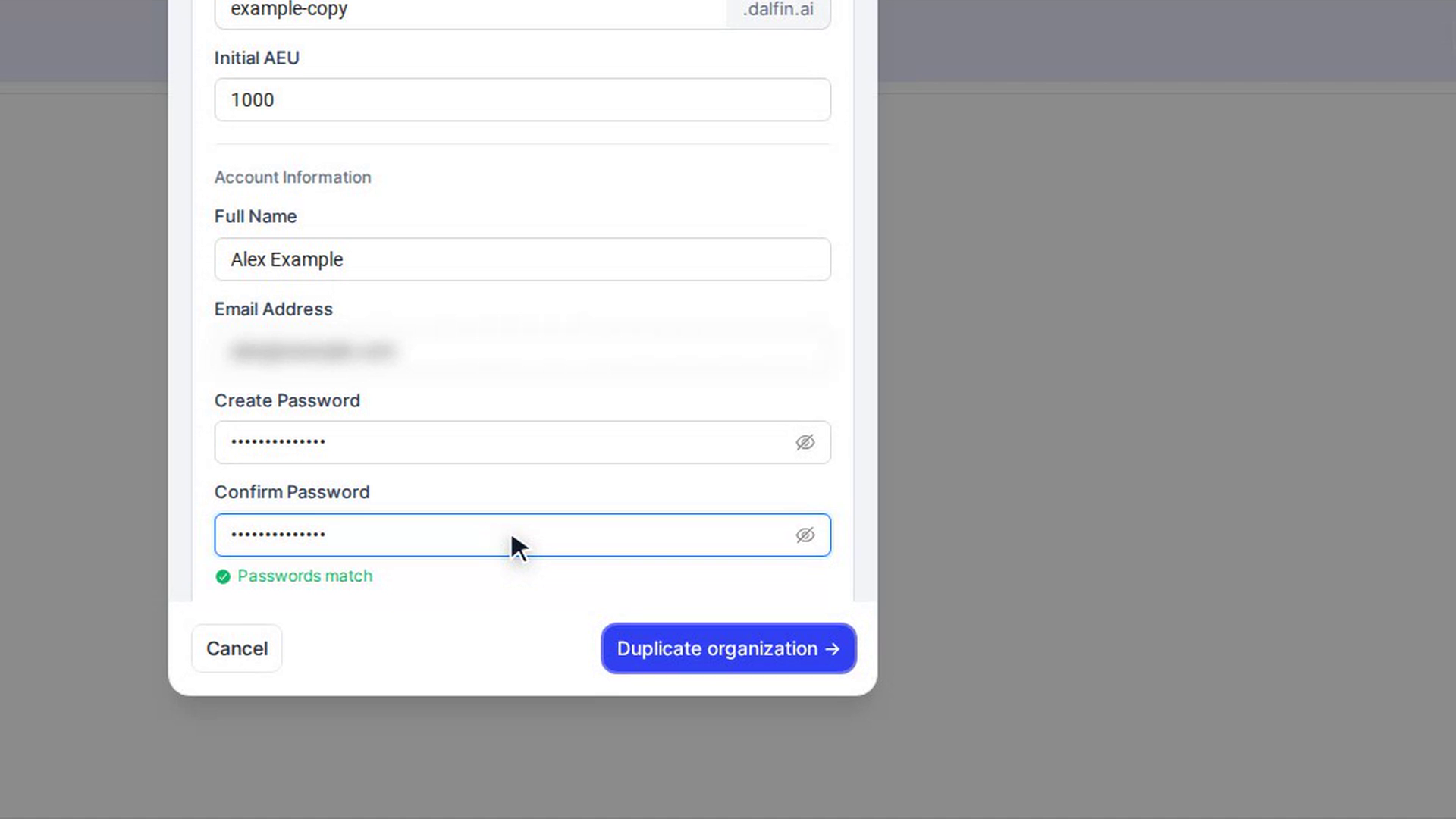
Under New organization, fill in Organization name, Domain URL and Initial AEU (up to 1000).
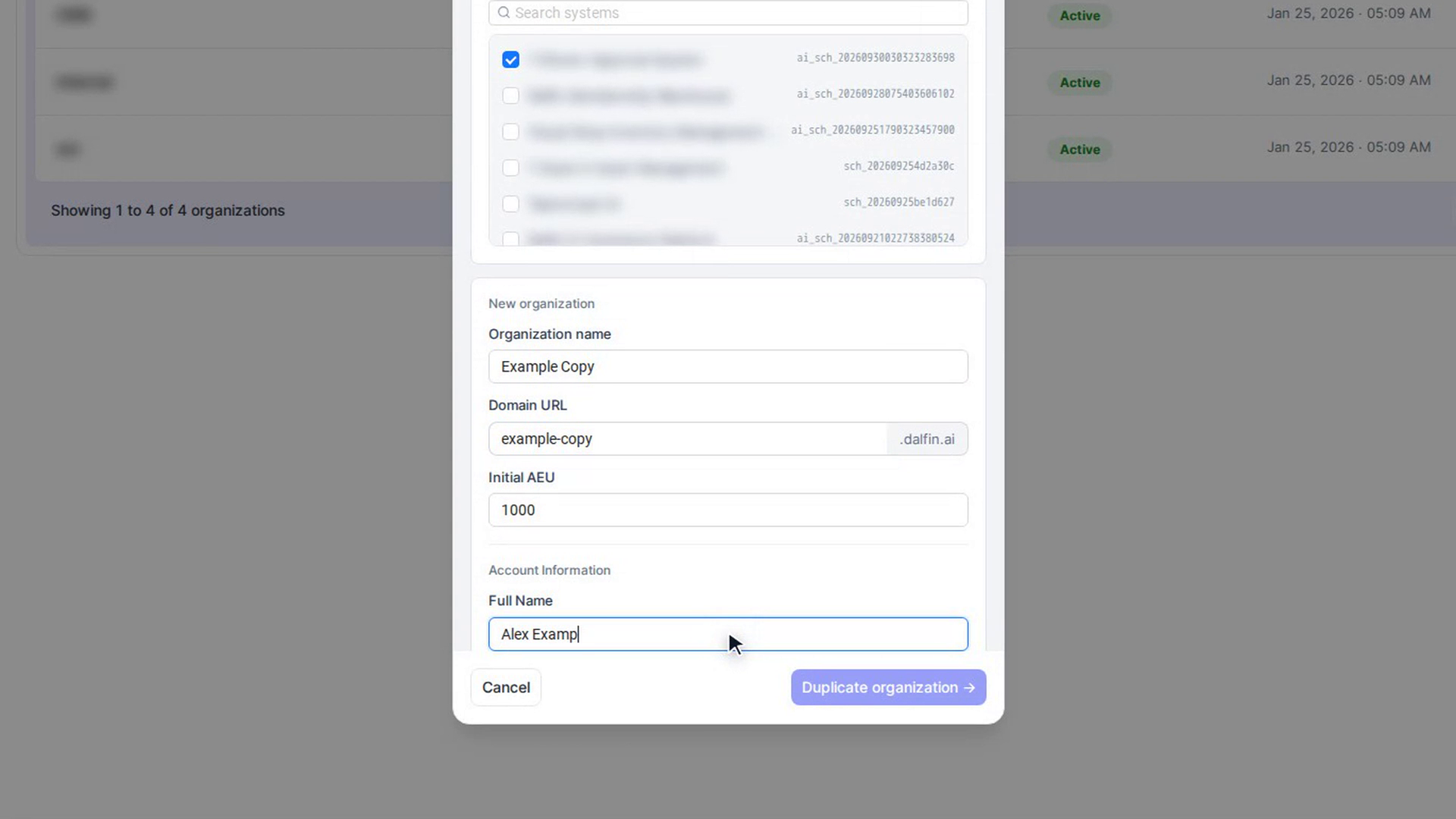
Enter the new owner's account
Under Account Information, fill in Full Name, Email Address, Create Password and Confirm Password. You see Passwords match when both passwords are the same.
Duplicate
Select Duplicate organization →. The window shows Duplicating organization… while the copy runs, which can take a moment.
When it finishes you see Duplicated successfully, and the window closes by itself. The new organization appears in the list.
If something goes wrong you see Duplication failed with the reason, for example a domain that is already in use. Select ← Back to form to fix the details and try again.
Screenshots
Step 1: Start the duplicate
Step 2: Choose the systems to copy
Step 3: Enter the new organization's details
Step 4: Enter the new owner's account
Step 5: Duplicate
Watch how
Tip: Leave the window open until the copy finishes. Closing it while Duplicating organization… is showing stops the request.