Notifications
Dalfin sends you notifications about things that need your attention. You can glance at new ones from the bell, or open the full list to read, filter, search and delete them.
Before you start
- Anyone with a Dalfin account gets notifications and can manage their own.
- Nothing needs to be set up first.
Steps
Open the notifications panel
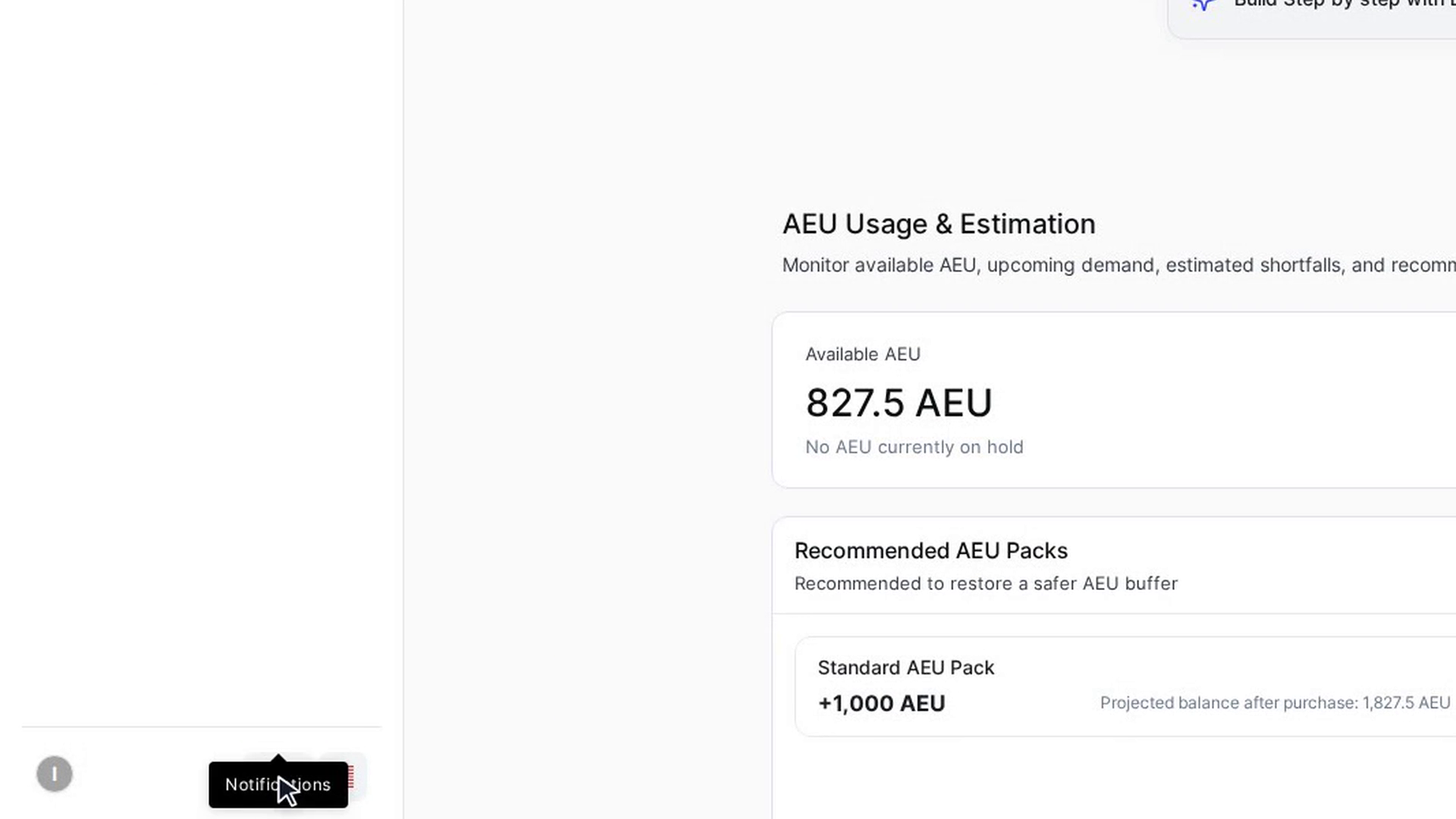
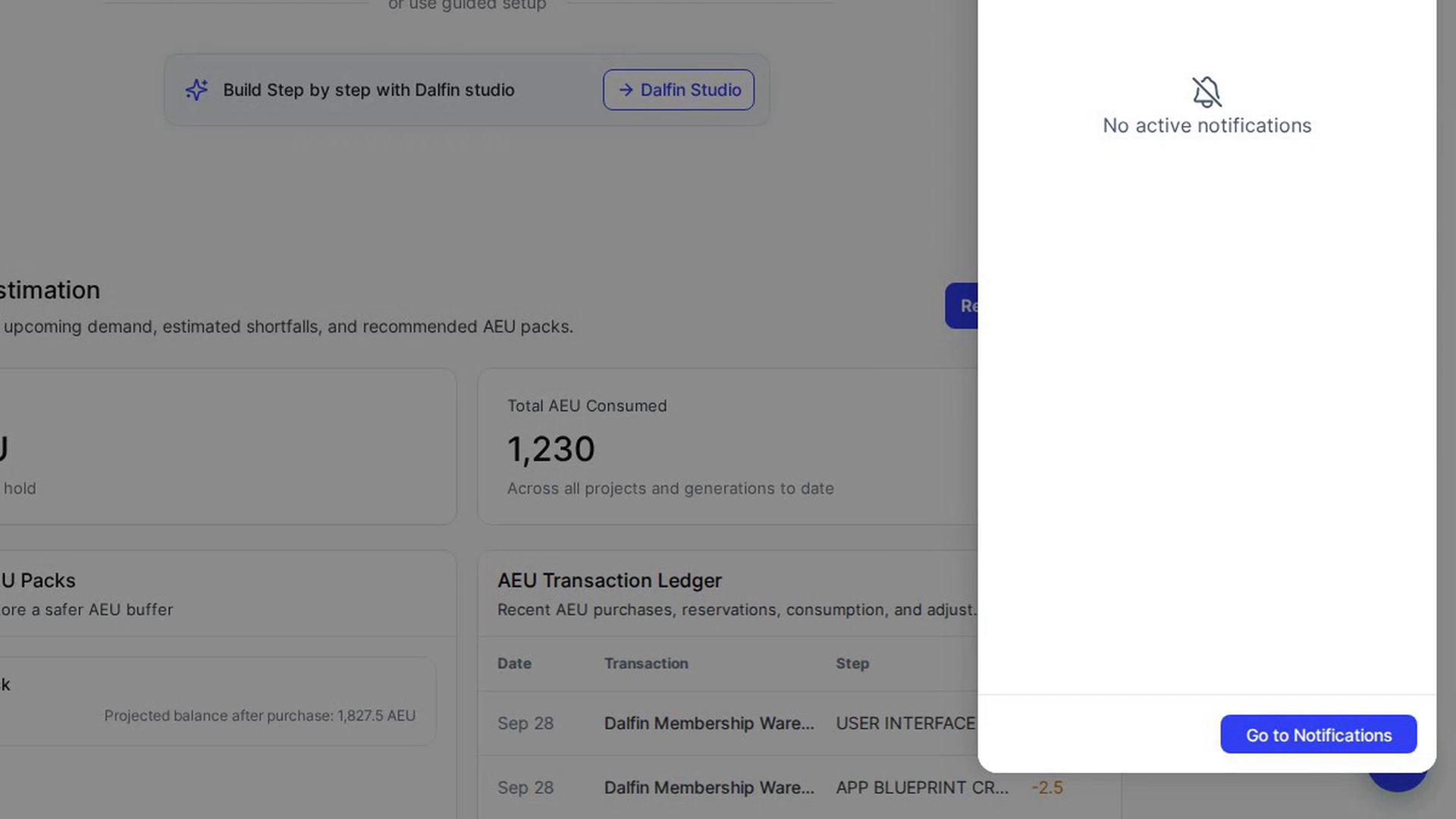
Select the bell. On the Dalfin home it's at the bottom of the sidebar. A Notifications panel slides in with your unread notifications and a count of how many there are. If there are none, you'll see No active notifications.
Mark everything as read
In the panel, select Mark all as Read. You'll see "Marked all notifications as read" and the count goes back to zero.
Open the full list
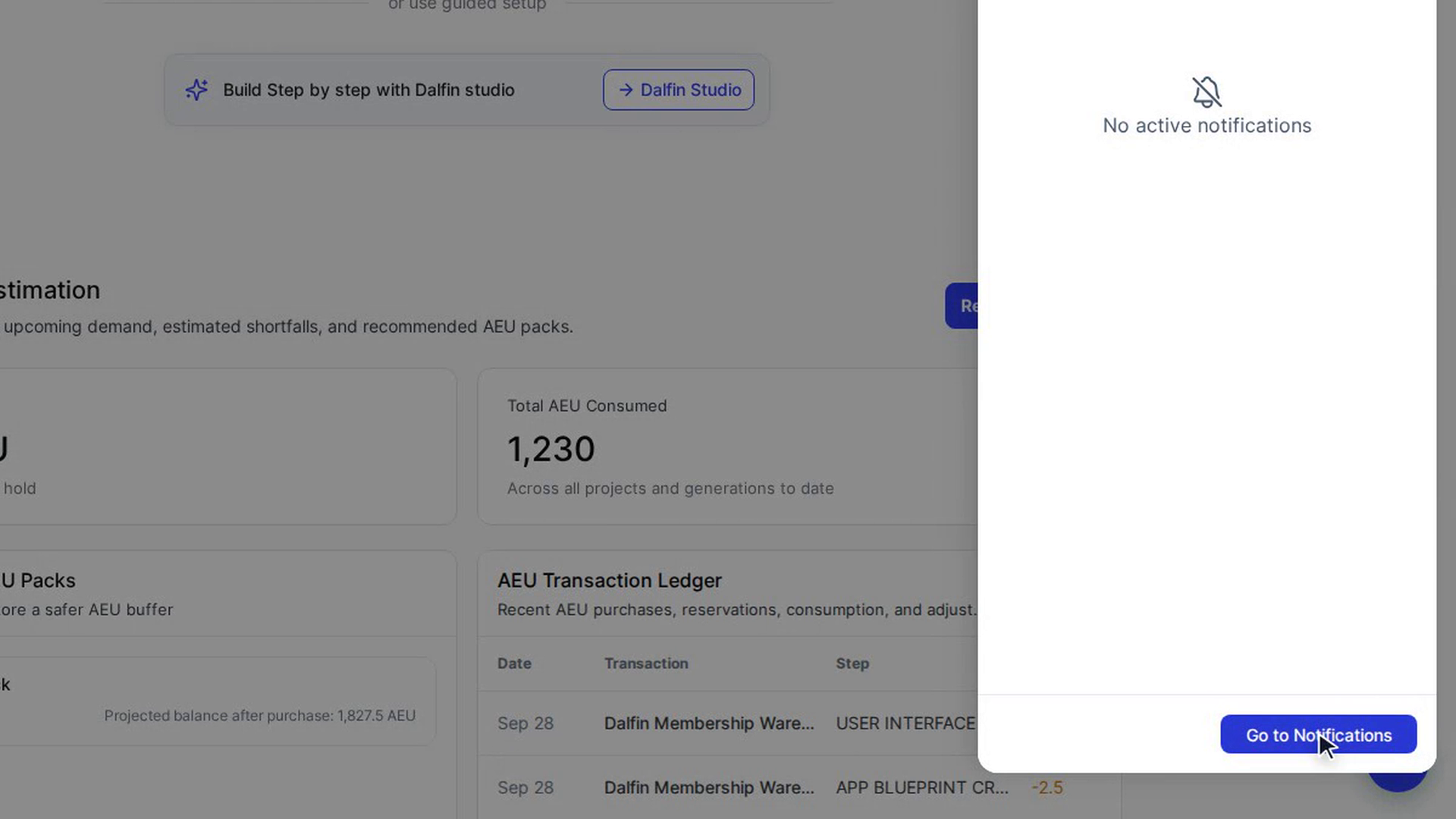
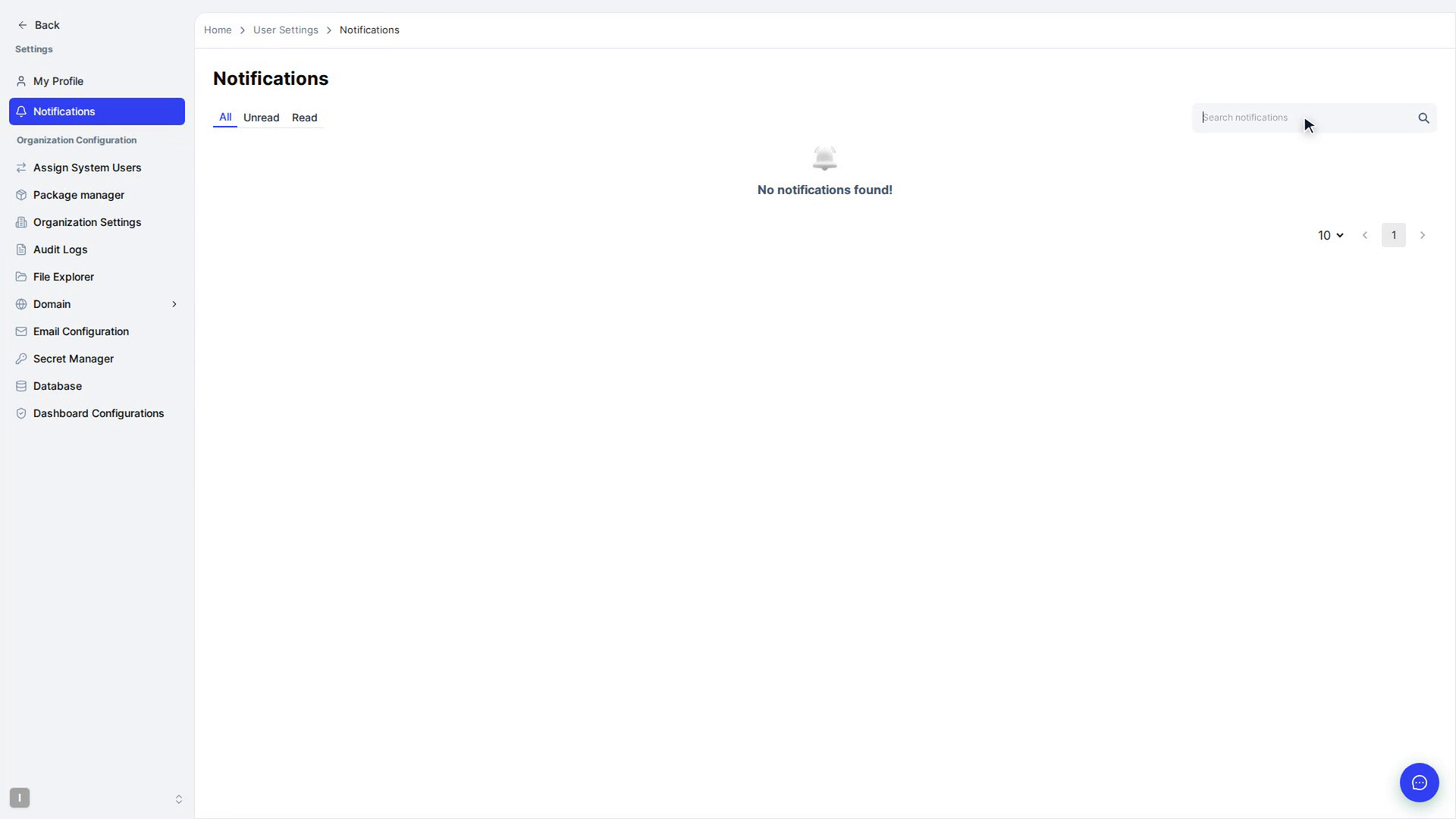
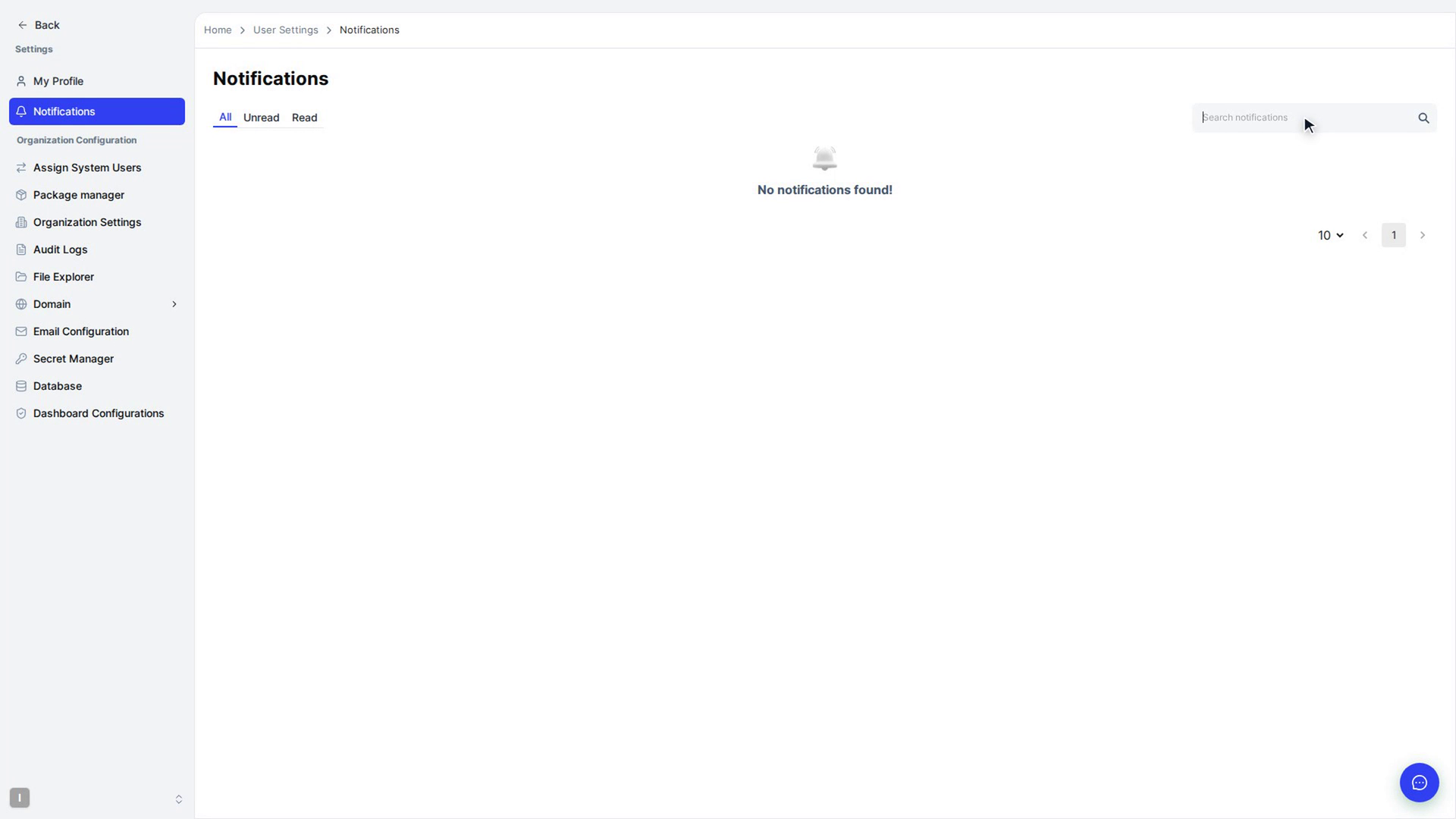
Select View All in the panel (or Go to Notifications when you have nothing unread). The Notifications page opens in your settings, on the Unread filter. If there's nothing to show, you'll see No unread notification found! (or No notifications found! on the other filters).
You can also get there from your account menu: select Settings, then Notifications in the menu on the left.
Filter and search
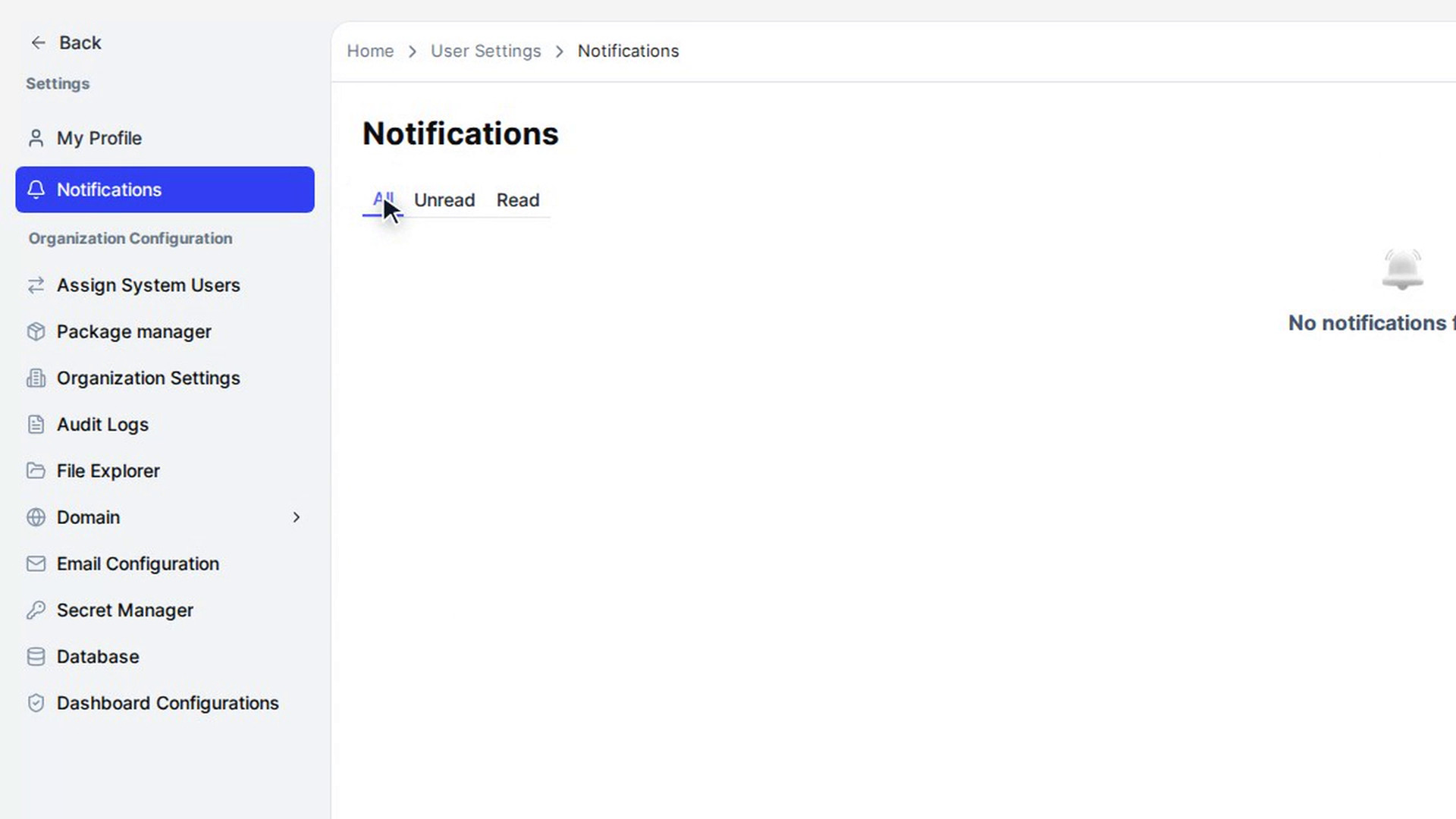
Use the All, Unread and Read filters at the top of the list to choose what you see. To find a particular notification, type into Search notifications.
Read a notification
Select a notification to open it. For more options, point at a notification and select the dots menu that appears on it:
- Mark as read: only shown for notifications you haven't read yet.
- View Details: shows the full message.
- Delete Notification: removes it.
Delete a notification
Select Delete Notification from the notification's menu. When asked "Are you sure you want to delete the notification?", select Yes. The notification disappears from your list.
Screenshots
Step 1: Open the notifications panel
Step 2: Mark everything as read
Step 3: Open the full list
Step 4: Filter and search
Step 5: Read a notification
Step 6: Delete a notification
Watch how
Tip: There are no settings for turning notification types on or off. Every notification that's sent to you shows up here.