Tour of the Dalfin home
The Dalfin home is where you start building apps and get back to the ones you've already made. This tour shows you what's in the sidebar, the main area and your account menu, so you know where to find things.
Before you start
- Anyone who can sign in to Dalfin can open the home.
- Sign in first. If you're an organization owner, Dalfin usually opens the home right after you sign in.
Steps
Start in the main area
The middle of the page says Build your business with Dalfin AI. Type what you want into the box that says "Describe what you want to create." to start a new app. Under it, the Build Step by step with Dalfin studio card has a Dalfin Studio button to build step by step instead.
Scroll down to see your organization's AEU: Available AEU, Total AEU Consumed and a Request AEU button.
Use the sidebar links
The sidebar on the left has two links:
- Create New App: goes back to the description box.
- All Apps: lists every app you've built.
The Learning Center is in your account menu (see below).
Select Dalfin at the top of the sidebar at any time to go back to your starting page.
Get back to a recent app
Under RECENT, the sidebar lists the apps you worked on last. Select one to pick up where you left off. Select the … button next to an app for more options: View Live App, Add to favorite and Delete.
If the list is long, select See more at the bottom.
Search your apps
Select the magnifier icon at the top of the sidebar. In the Search apps box, type part of an app's name. You'll see Recent Apps until you type, and then matching Results. Select an app to open it.
Open Settings
Select Settings near the bottom of the sidebar. A small menu opens with Spark.
Use the bar at the bottom
At the bottom of the sidebar you'll find:
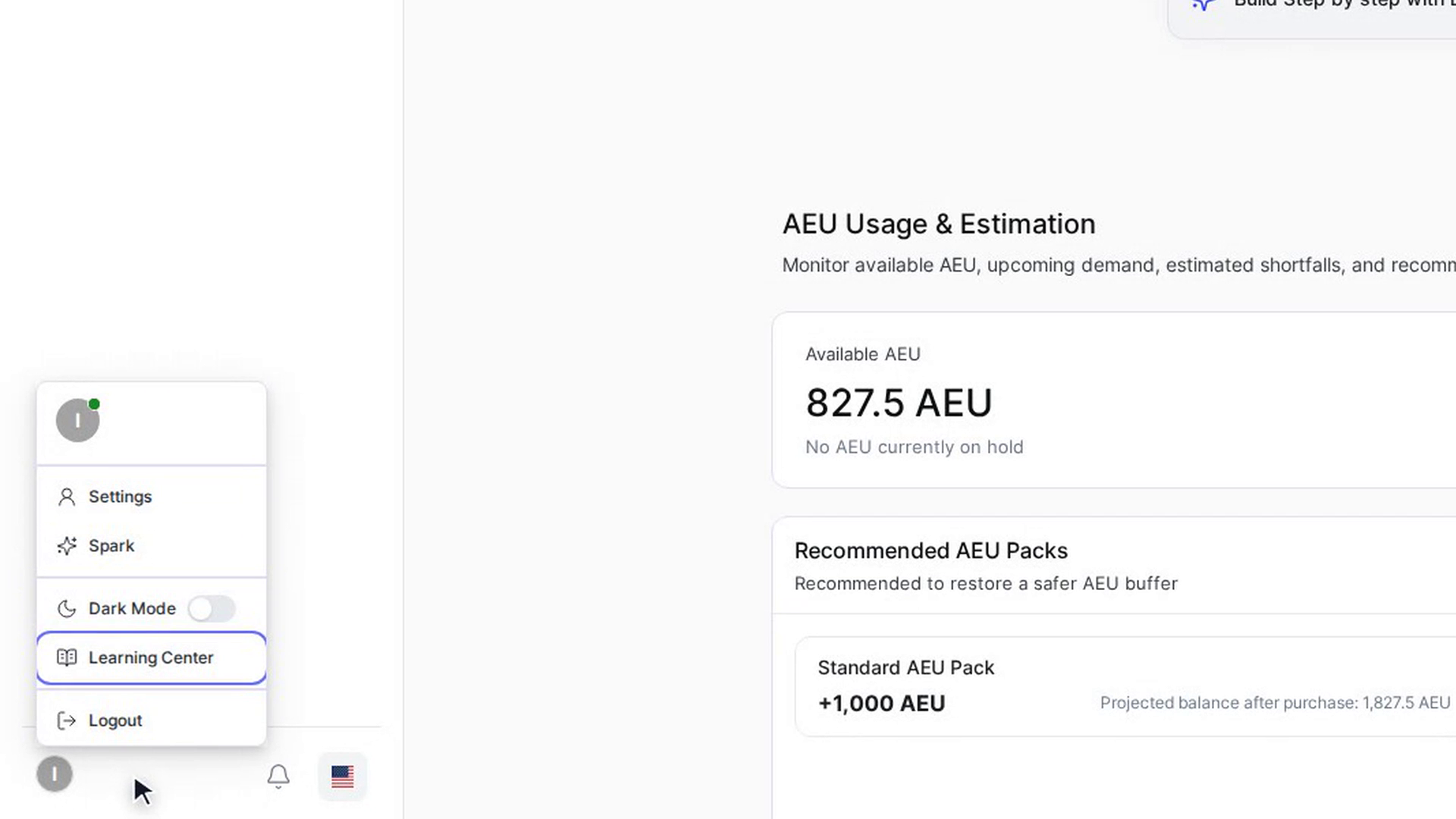
- Your name and picture: select it to open your account menu with Settings, Dark Mode, Learning Center and Logout.
- The bell: opens your notifications.
- The flag: changes the display language.
Make more room
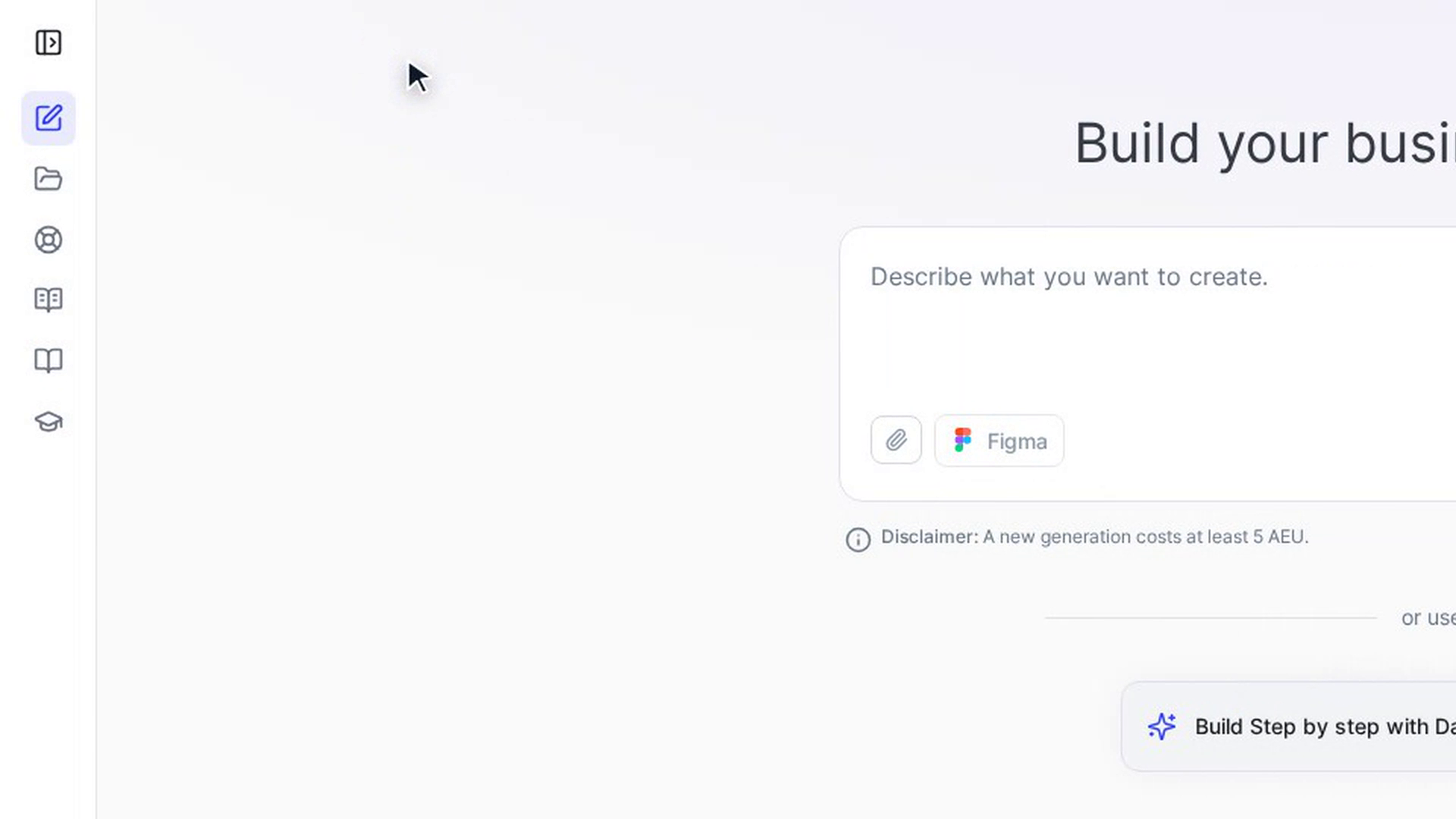
Select the Collapse sidebar icon at the top of the sidebar to shrink it to a row of icons. Select Expand sidebar to bring it back. On a phone, open the sidebar with the menu button at the top of the page.
Screenshots
Step 1: Start in the main area

Step 2: Use the sidebar links
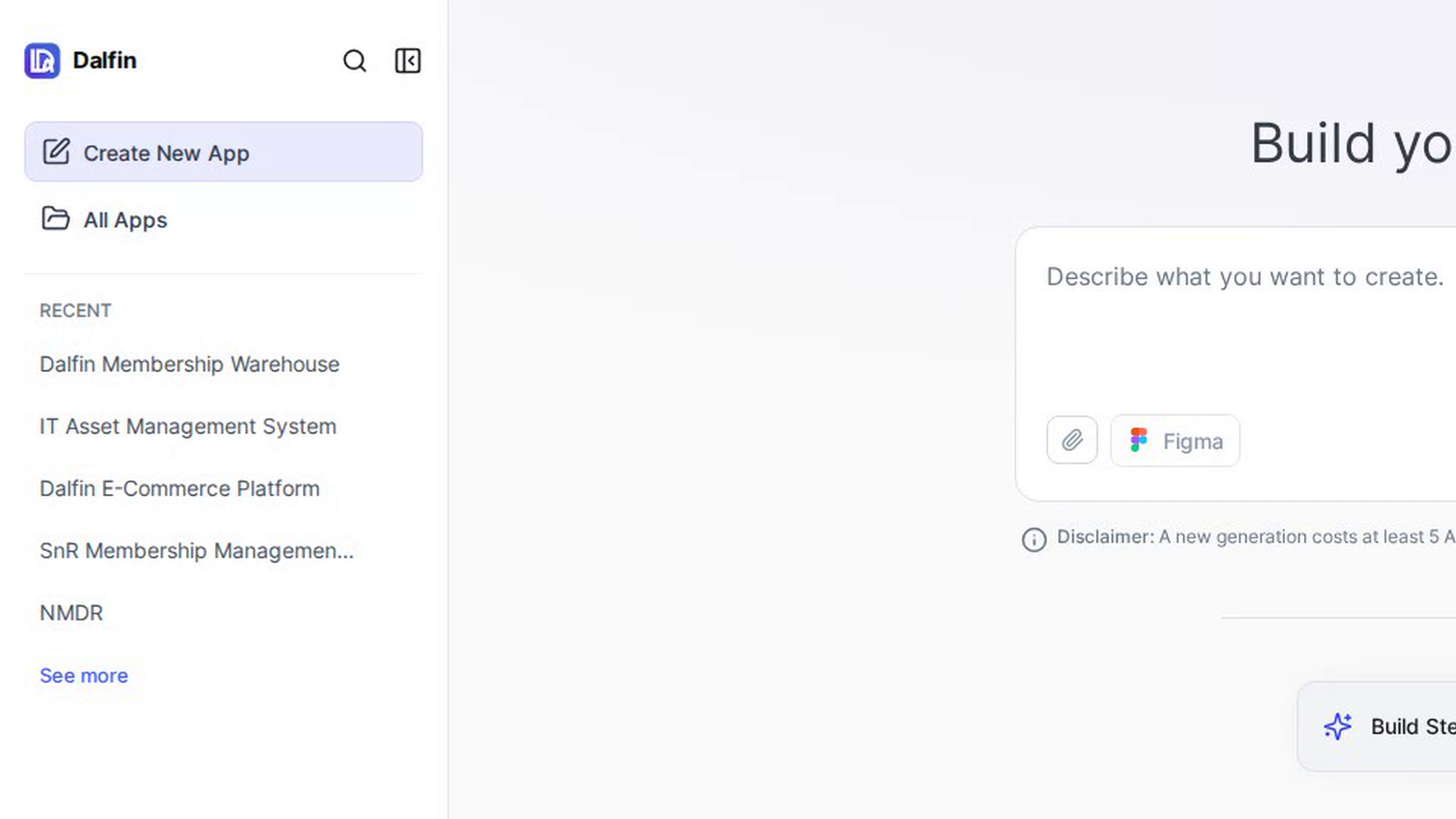
Step 3: Get back to a recent app
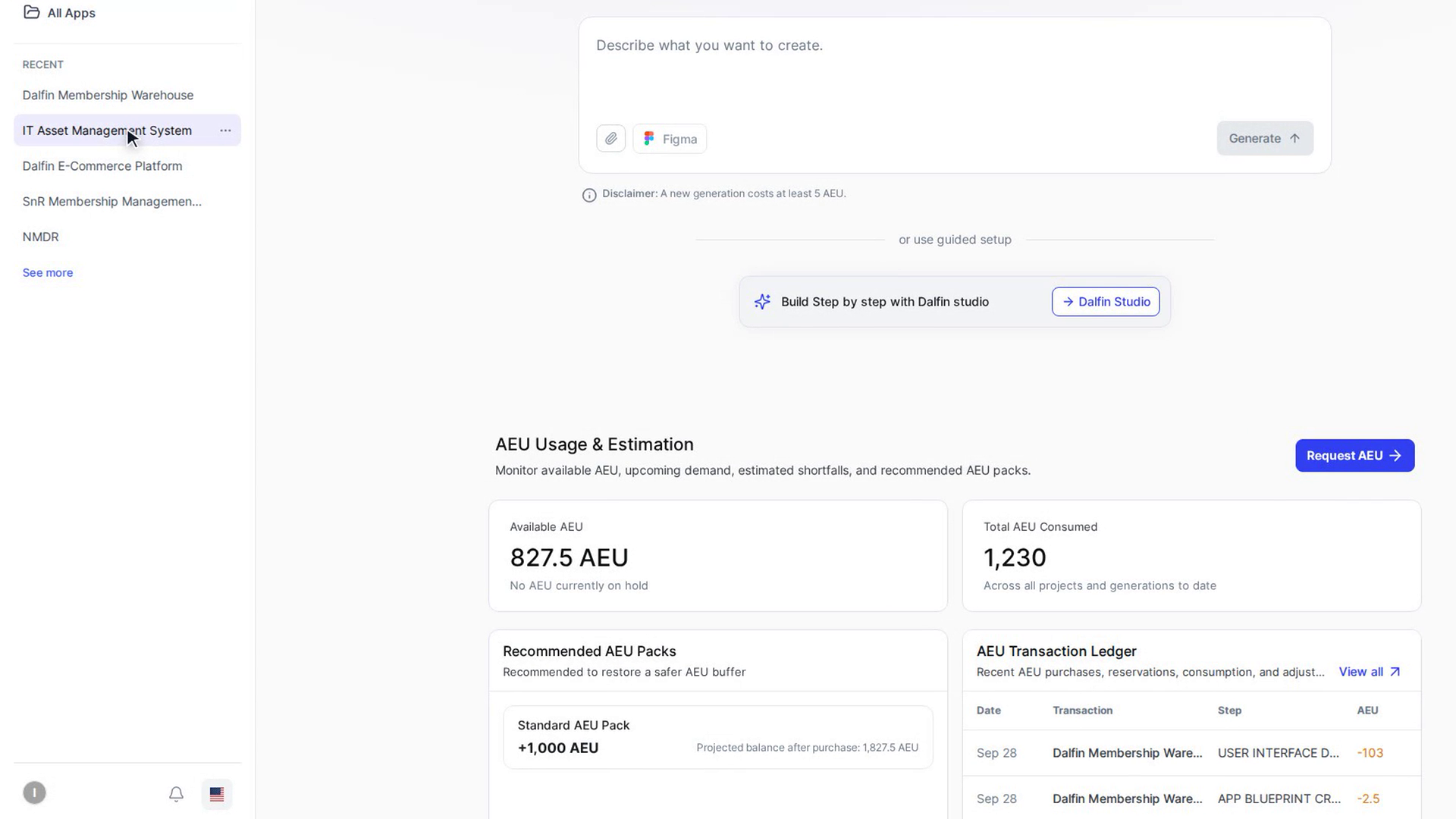
Step 4: Search your apps
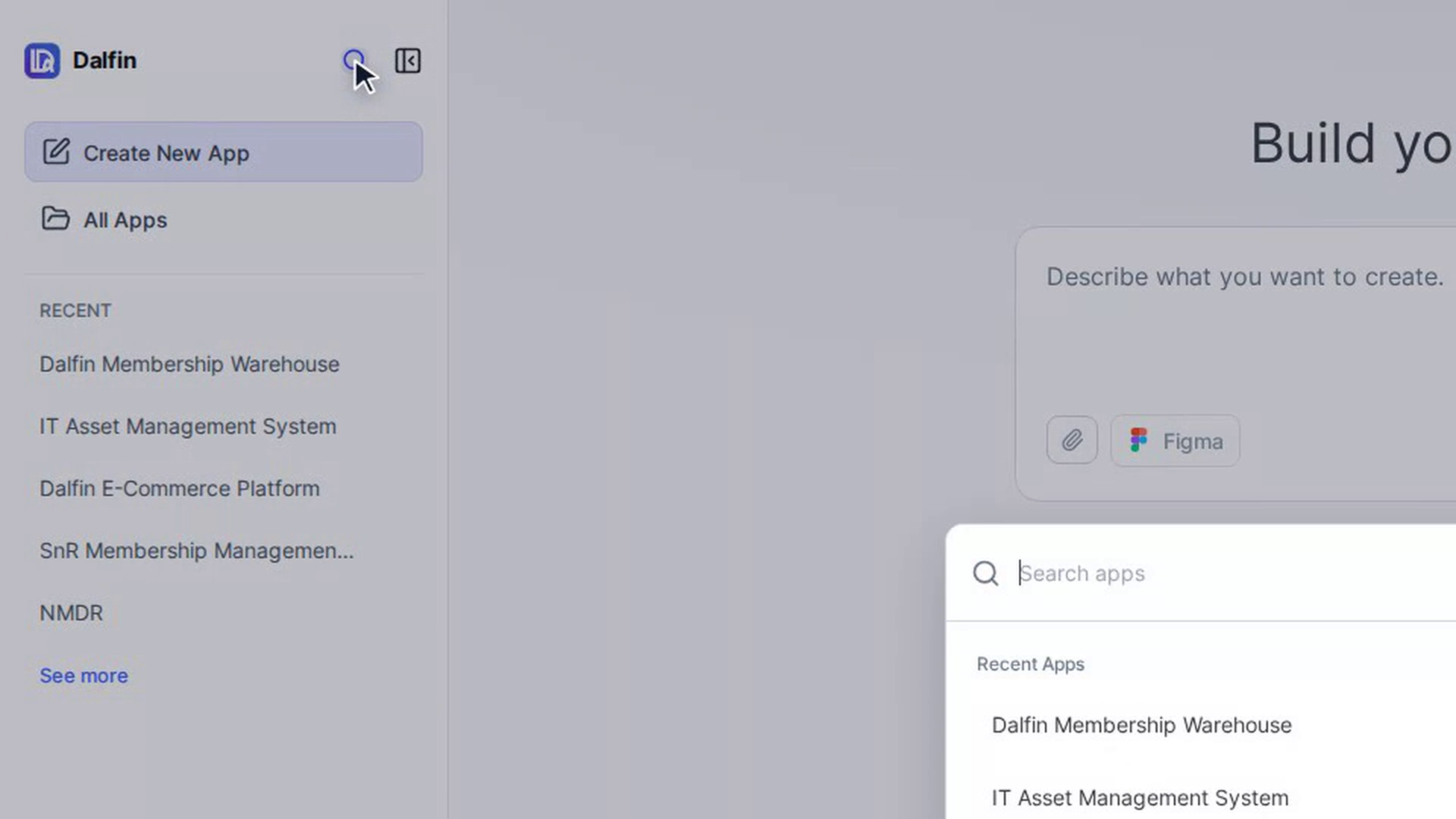
Step 5: Open Settings
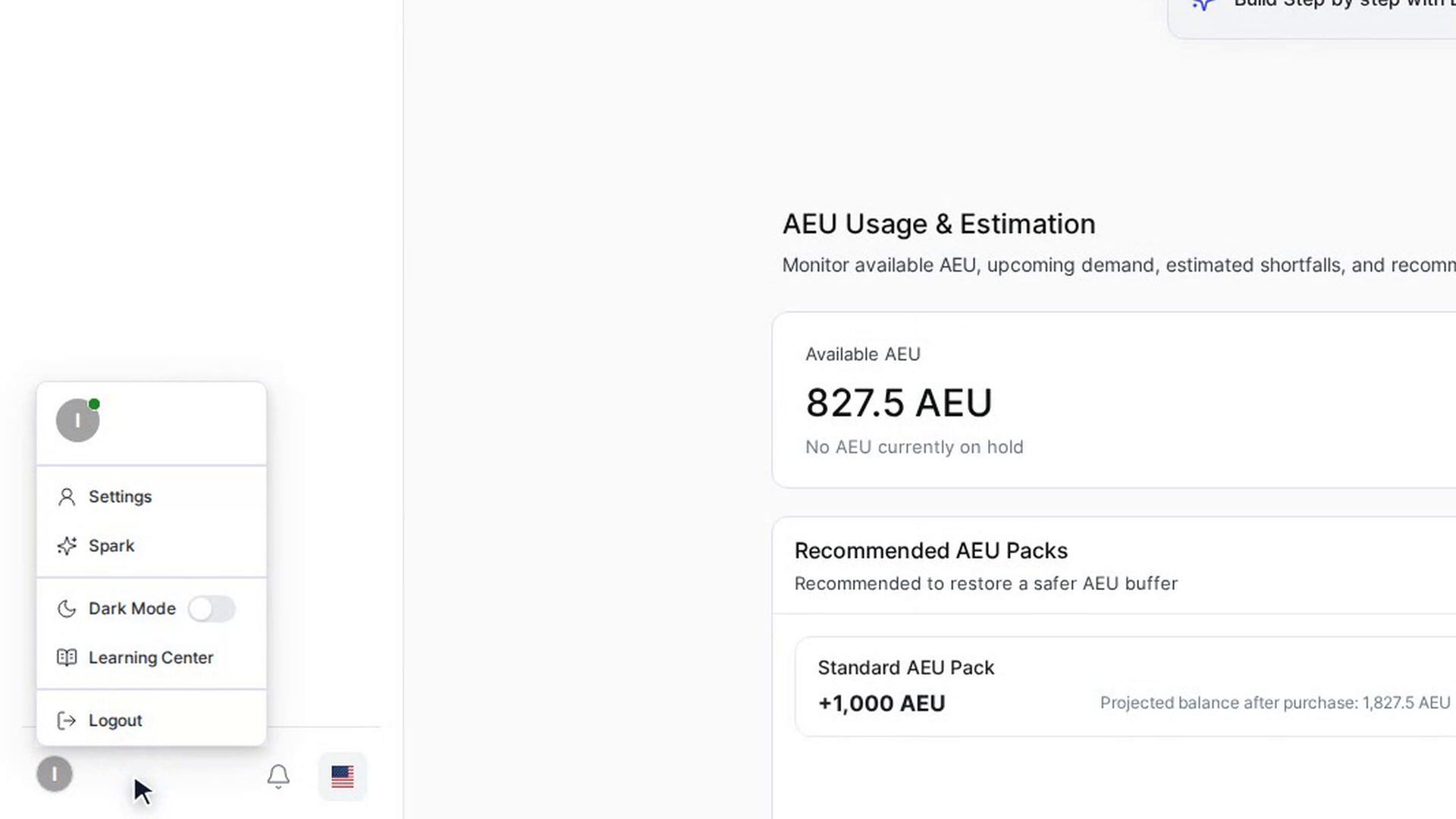
Step 6: Use the bar at the bottom
Step 7: Make more room
Watch how
Tip: The search on the Dalfin home only looks through your apps. Inside a system, the search box at the top of the menu (Ctrl+K, or Cmd+K on a Mac) only filters that menu. Neither one searches all of Dalfin.