Attach requirements, designs or screenshots
Give Dalfin your requirement documents, design references or screenshots of an existing system along with your description. Dalfin uses them to understand what to build and how it should look.
Before you start
- Anyone who can open the Dalfin home screen can do this.
- Have your files ready. Accepted types are PDF, Word, PPTX, PNG and JPG.
Steps
Open the attachment menu
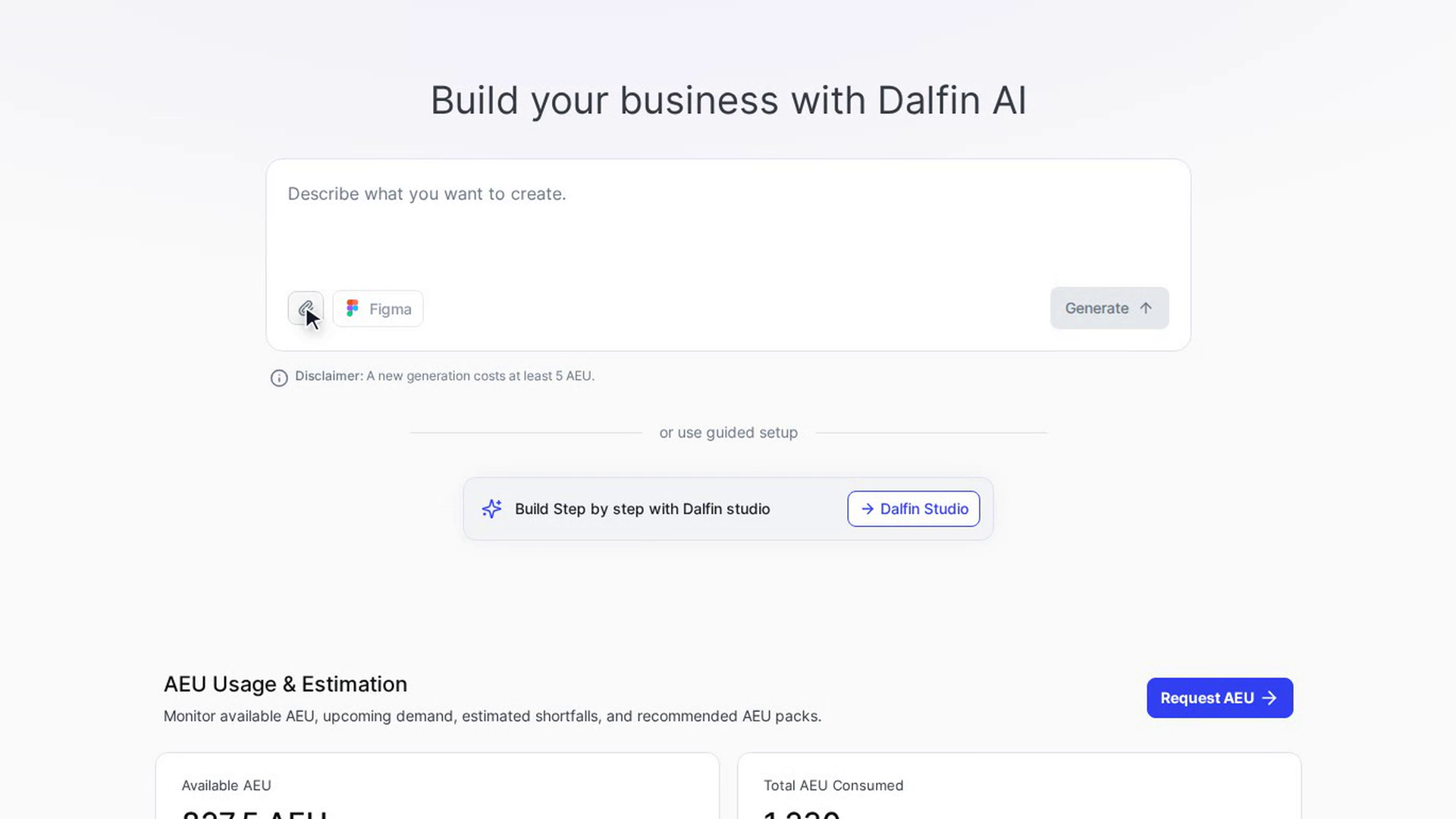
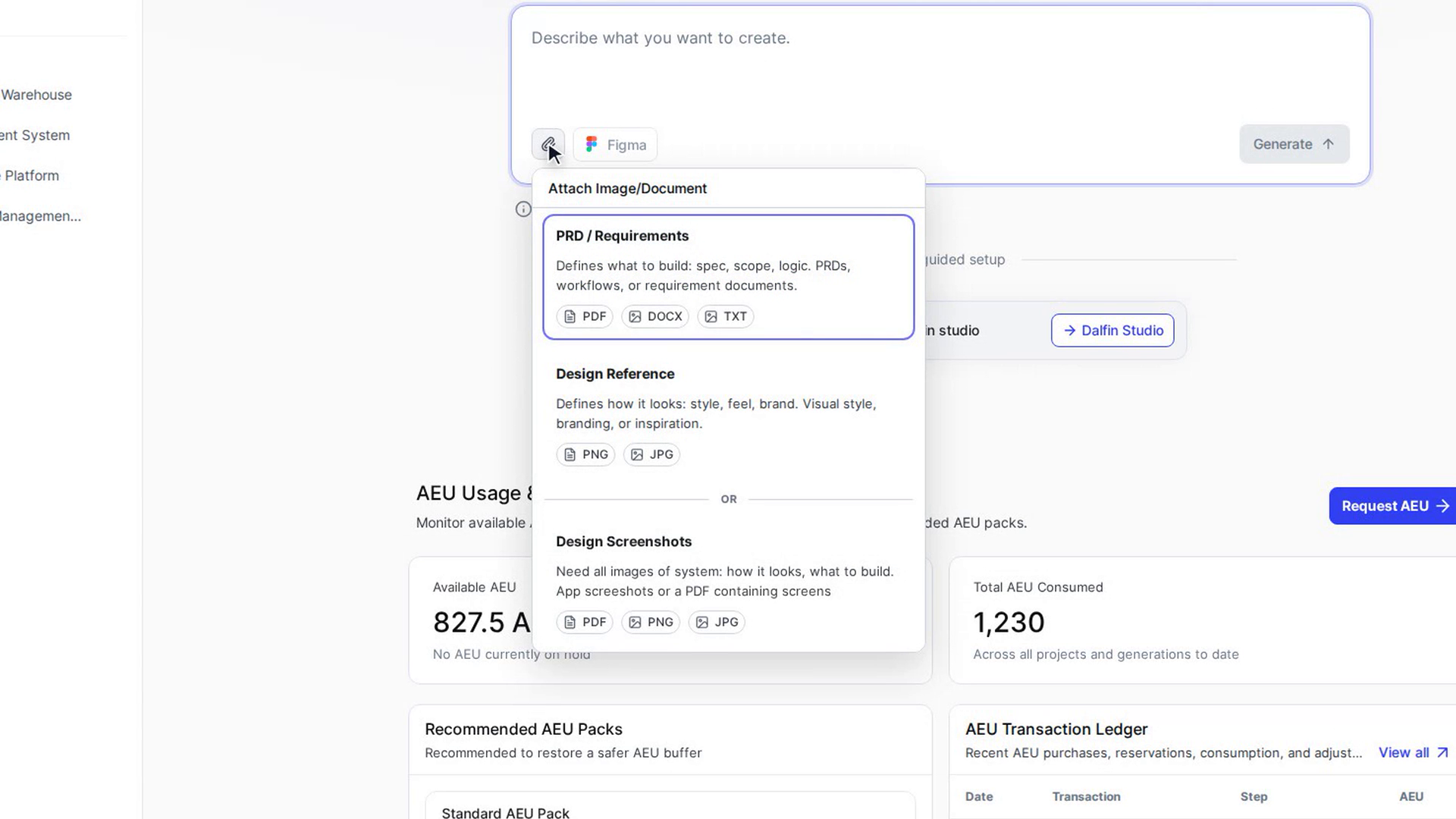
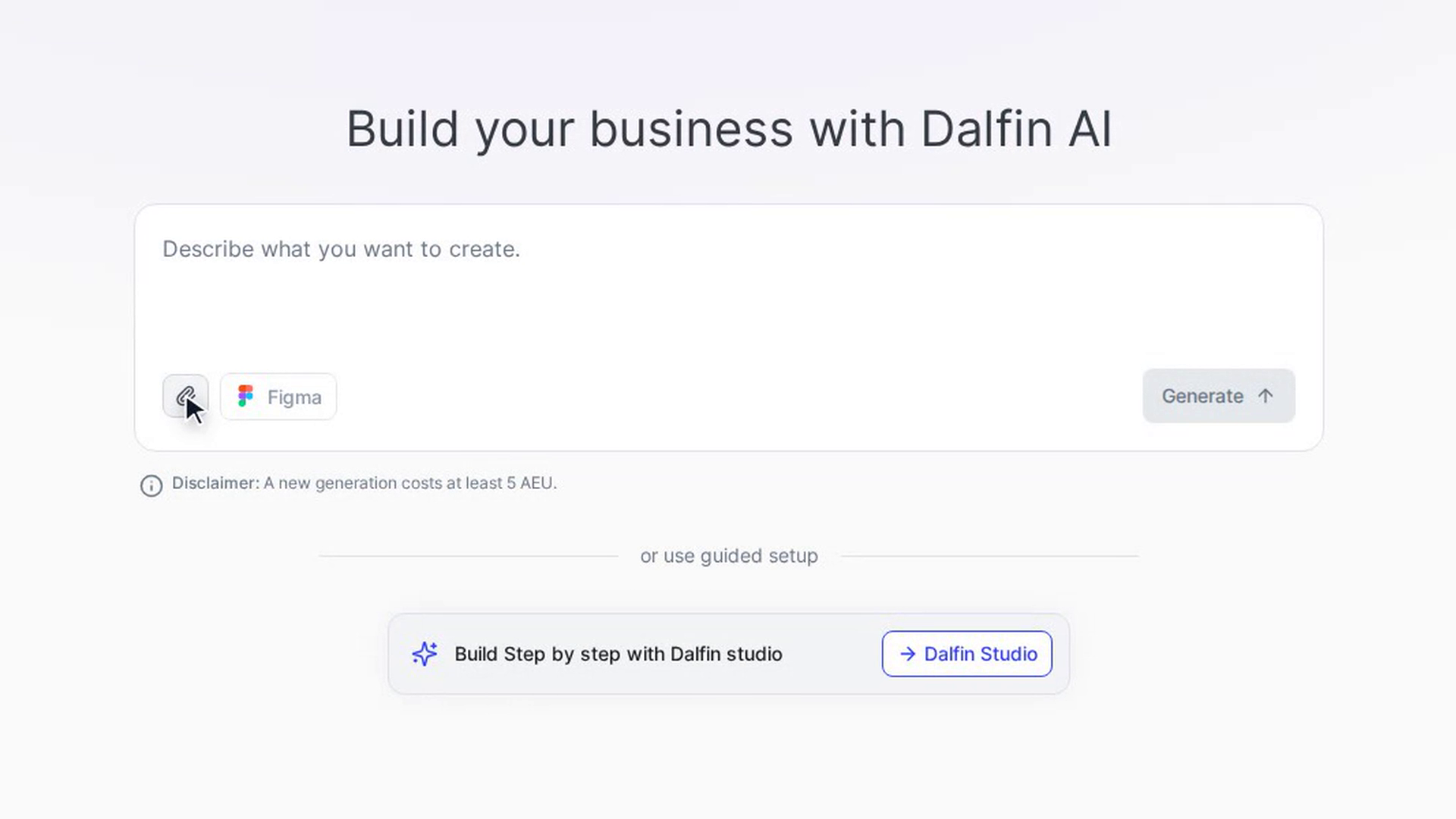
On the Dalfin home screen, click the paperclip at the bottom left of the message box. The Attach Image/Document menu opens with three choices.
Choose the type of file
Pick the choice that matches your files:
| Choice | What it's for | Files you can pick |
|---|---|---|
| PRD / Requirements | What to build: the spec, scope and logic, for example PRDs, workflows or requirement documents. | PDF, Word, PNG, JPG |
| Design Reference | How it should look: visual style, branding or inspiration. | PDF, Word, PowerPoint, PNG, JPG |
| Design Screenshots | Screens of a system to rebuild: app screenshots or a PDF of screens. | PDF, PNG, JPG |
Your computer's file window opens. Select one or more files. They appear as previews above the message box, and the paperclip shows a tick.
Or drag, drop or paste files
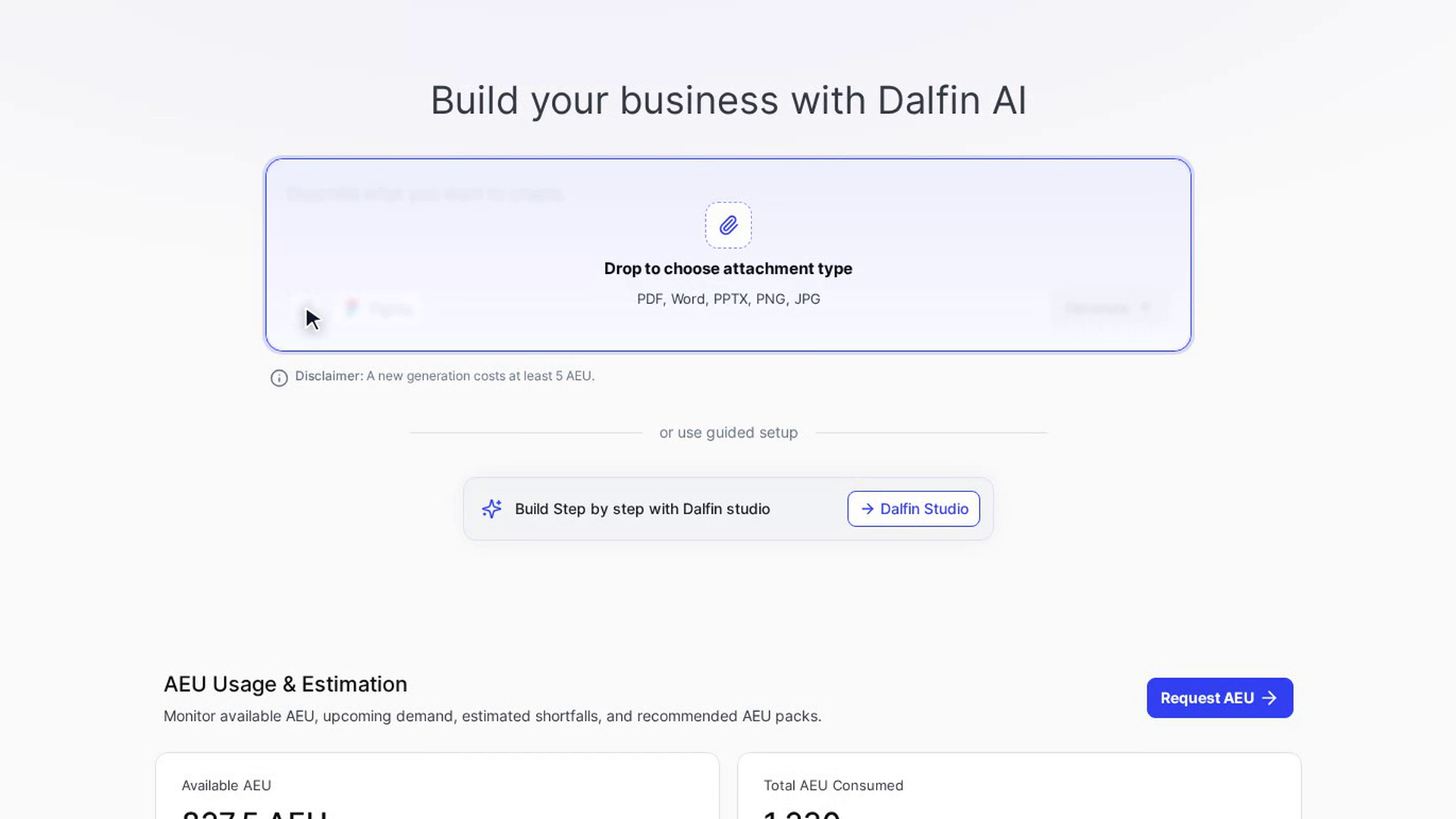
You can also drag files onto the message box (it shows Drop to choose attachment type) or paste them. Each time, Dalfin asks Choose type for … files. Pick a type and the files that match it are attached.
Remove a file if needed
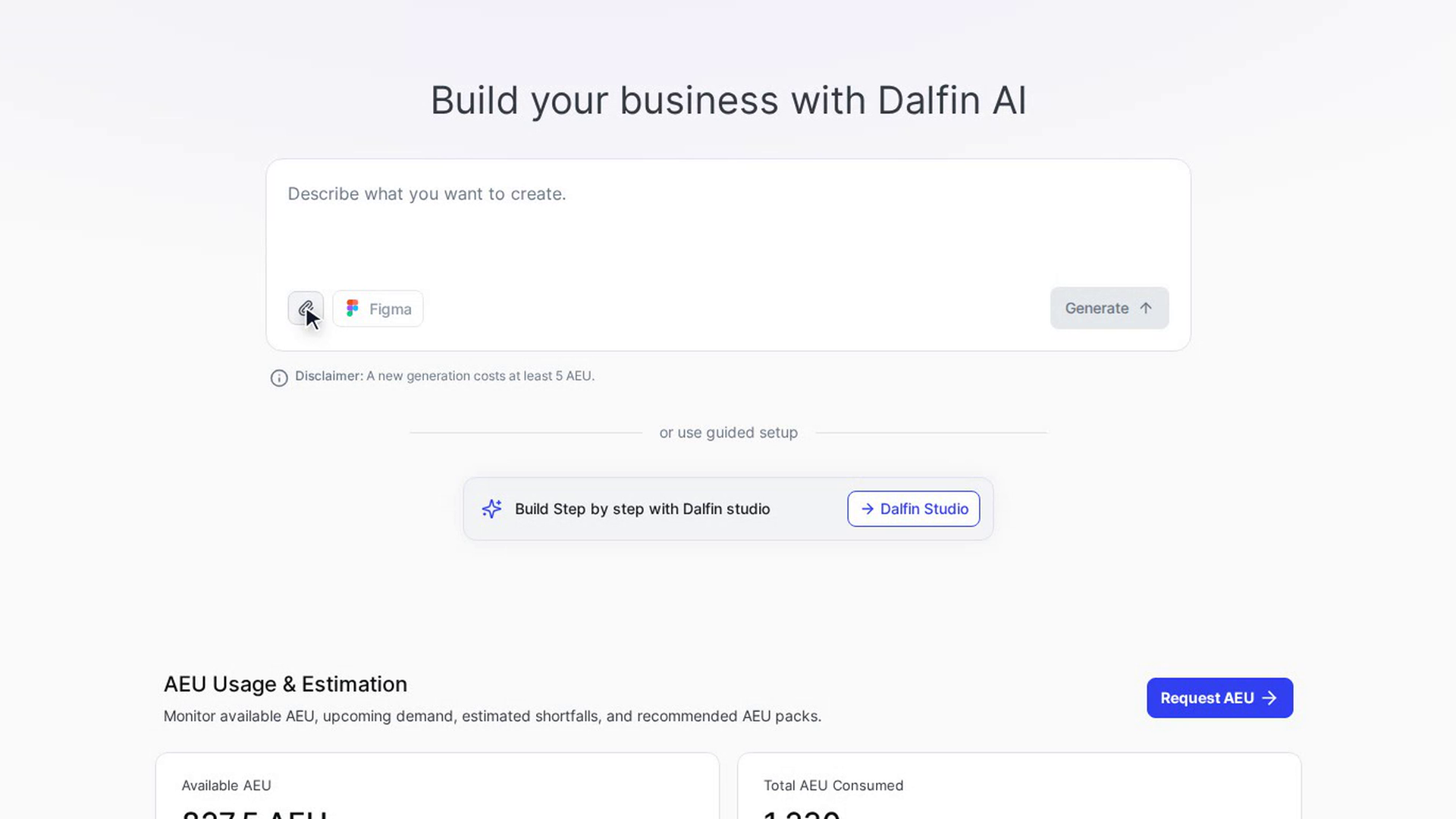
Click ✕ on a file preview to remove it.
Add a description and select Generate
Type a description if you want to (files on their own are enough to start), then select Generate. See Create an app from a description for what happens next.
Screenshots
Step 1: Open the attachment menu
Step 2: Choose the type of file
Step 3: Or drag, drop or paste files
Step 4: Remove a file if needed
Step 5: Add a description and select Generate
Watch how
Tip: Design Screenshots can't be mixed with the other two types. If you've already attached requirements or design references, the Design Screenshots choice is greyed out, and the other way round. Remove the attached files first to switch.
Selecting Generate starts an AEU estimate. A new generation costs at least 5 AEU.