Import a Figma design
Build your app from a design you already have in Figma. Dalfin reads the design and uses it for your app's screens.
Before you start
- Anyone who can open the Dalfin home screen can do this.
- You need the link to a frame in your Figma file.
- You need a Figma personal access token with file_content:read enabled. You create this in your Figma account settings.
Steps
Copy the link from Figma
In Figma, select any frame, right-click it and choose Copy/Paste as > Copy link to selection.
Open the Figma window
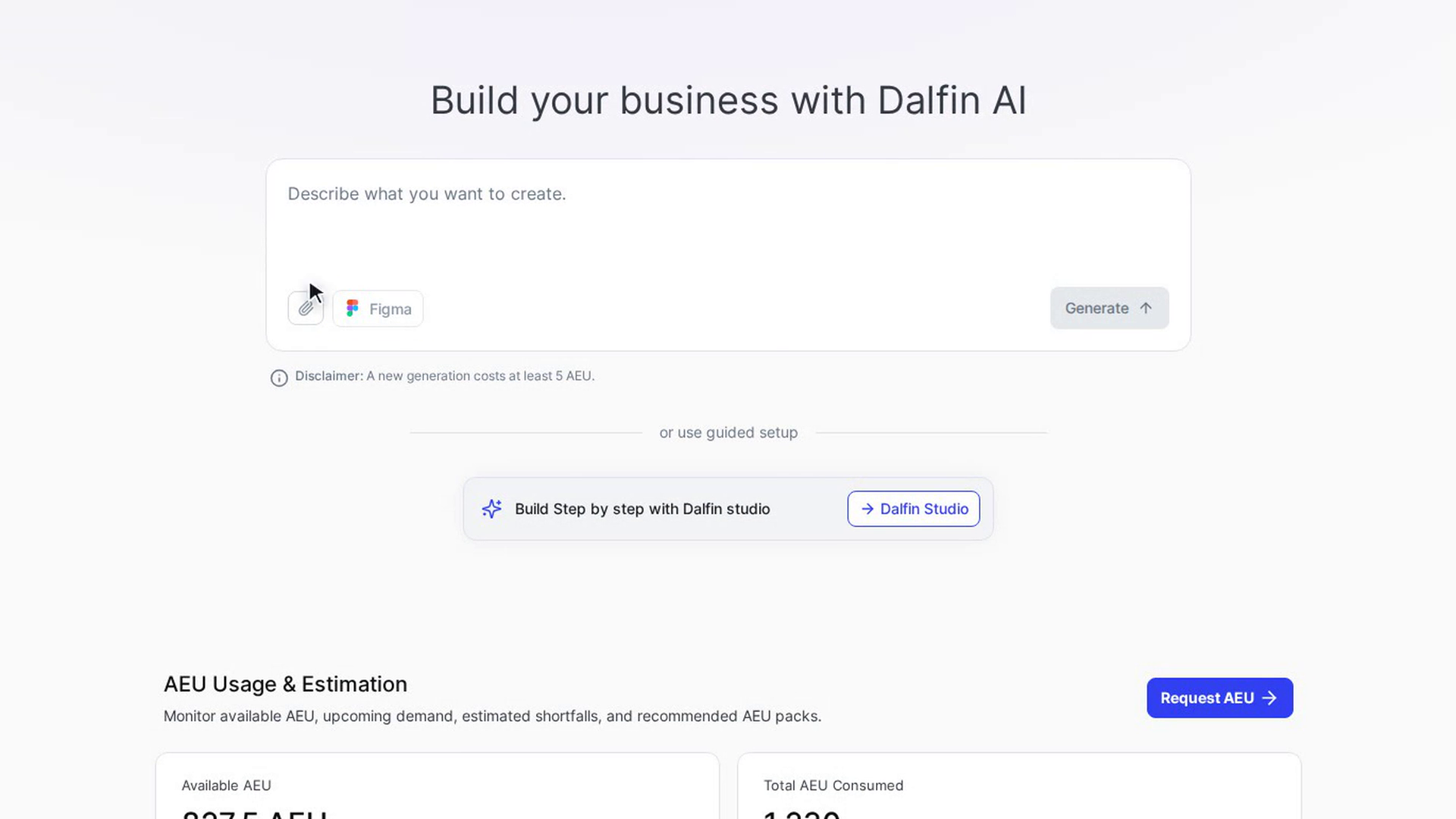
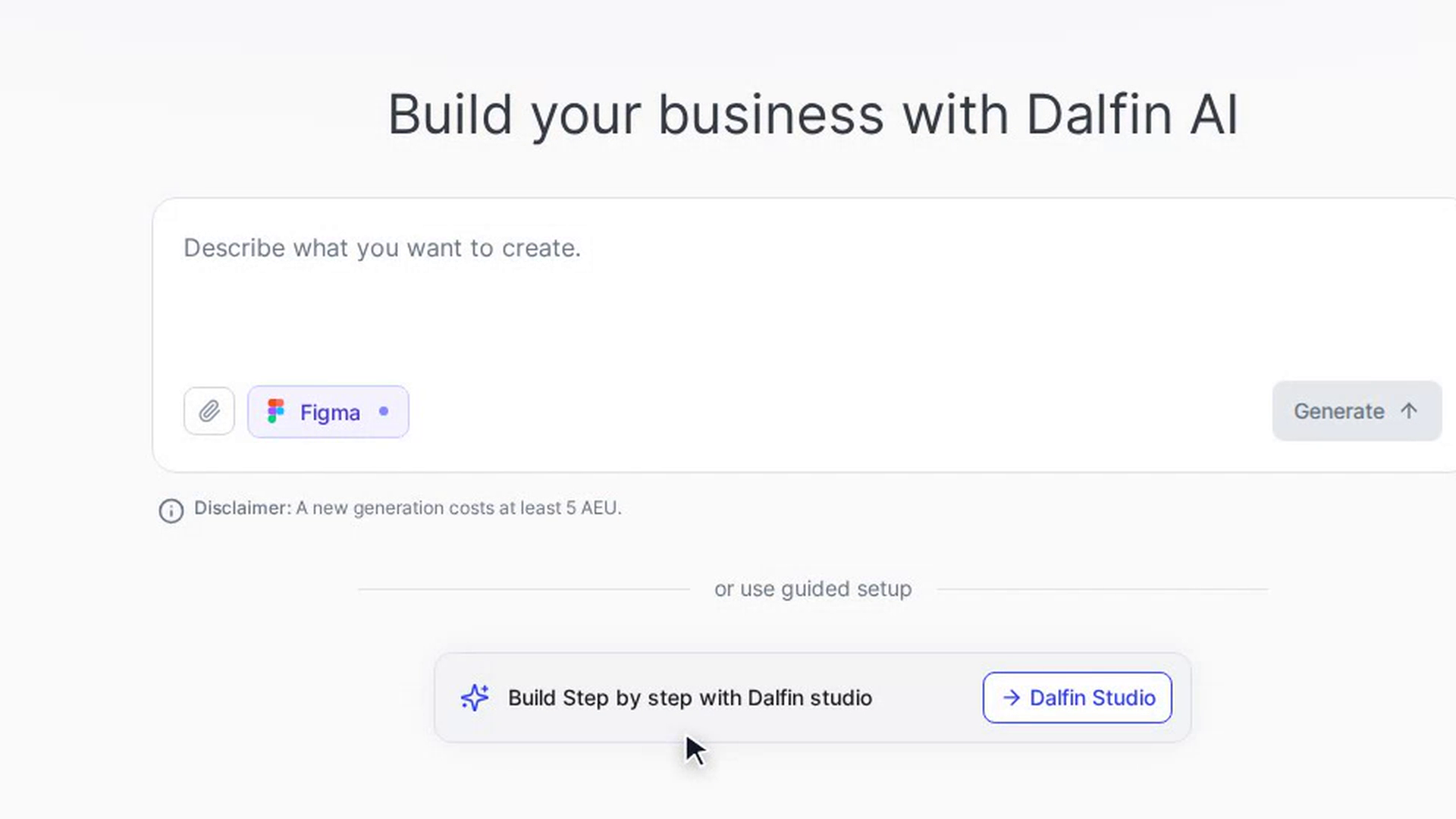
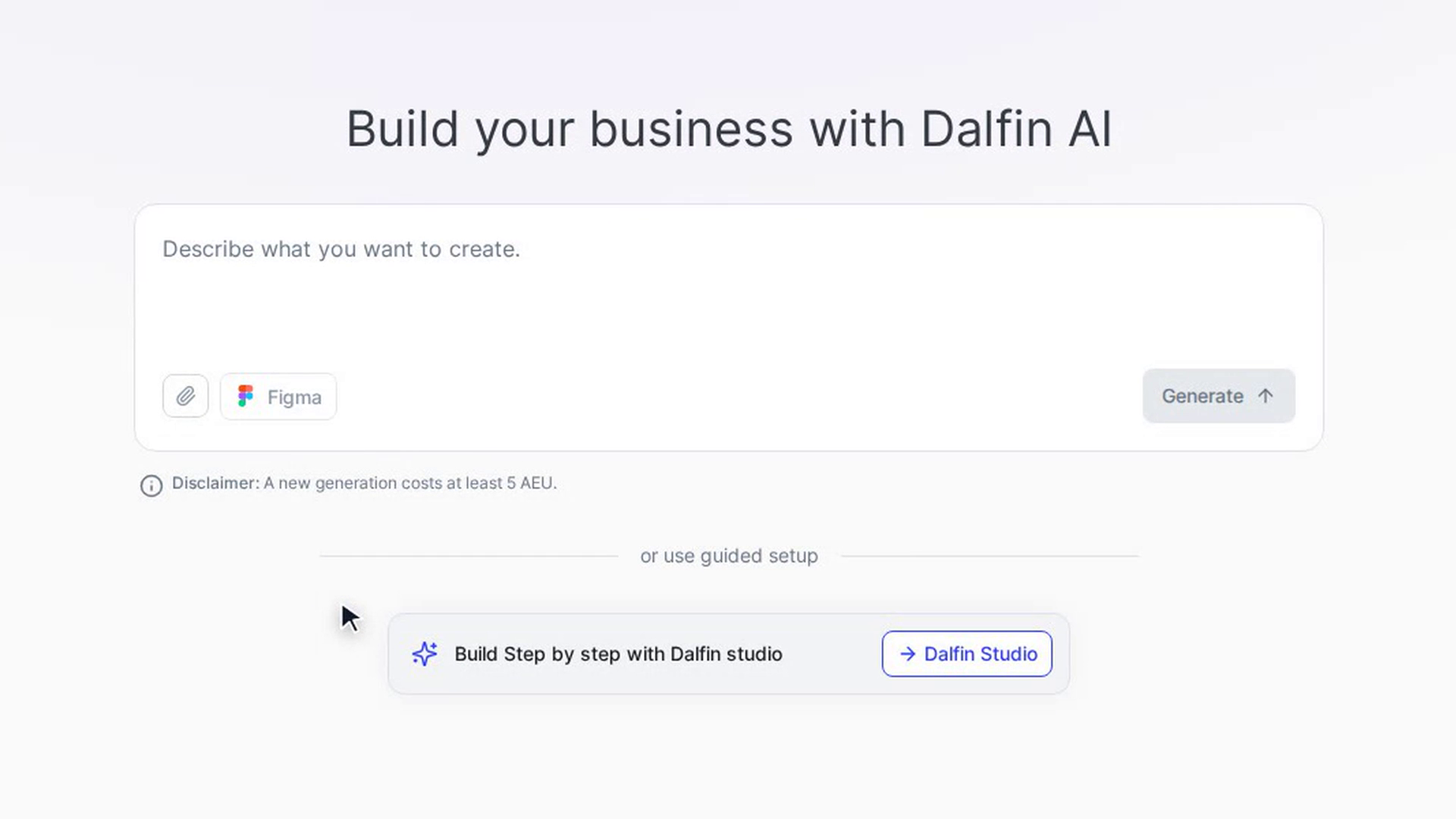
On the Dalfin home screen, click Figma at the bottom of the message box. The Import Figma Design window opens.
Paste the link
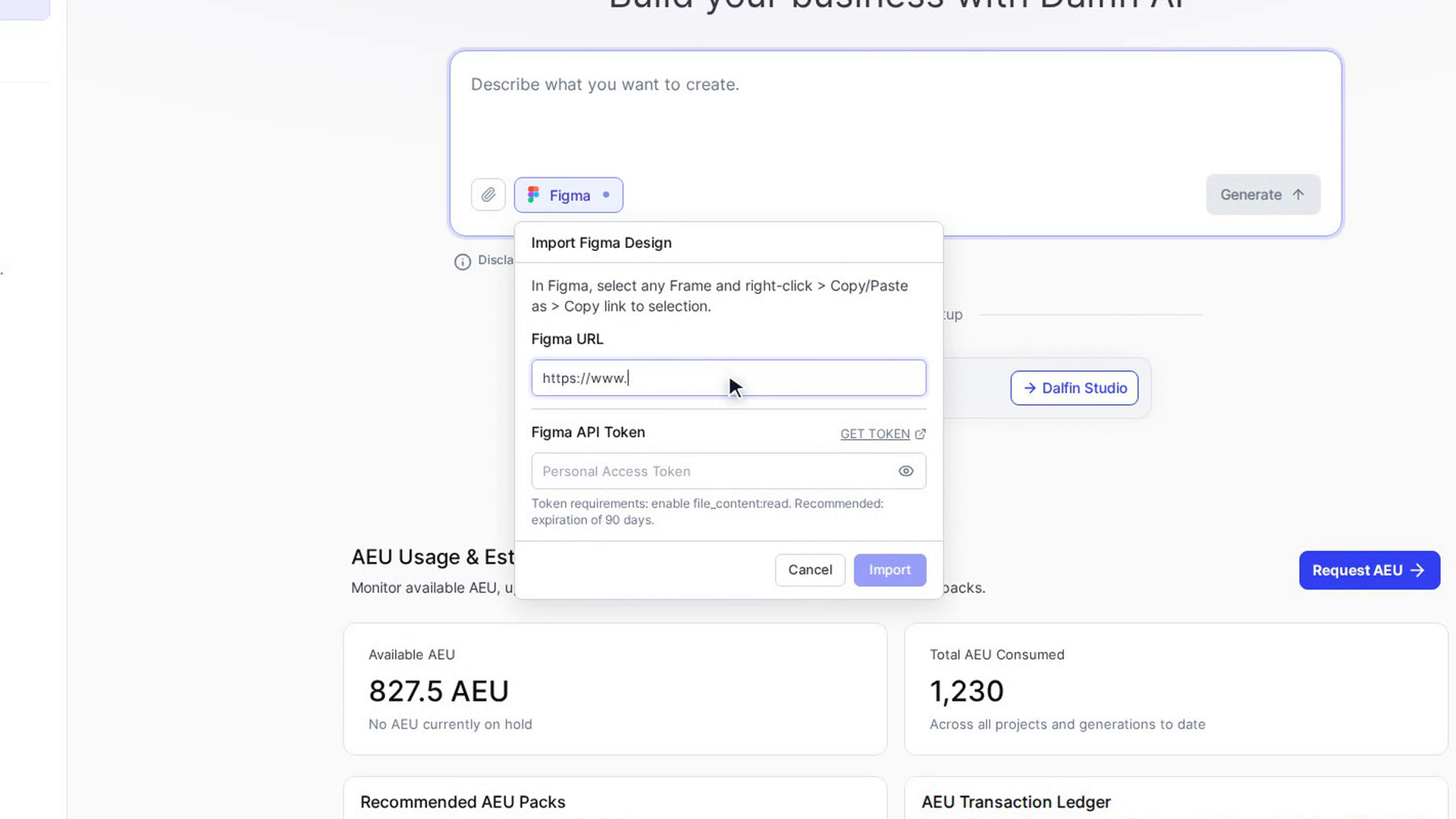
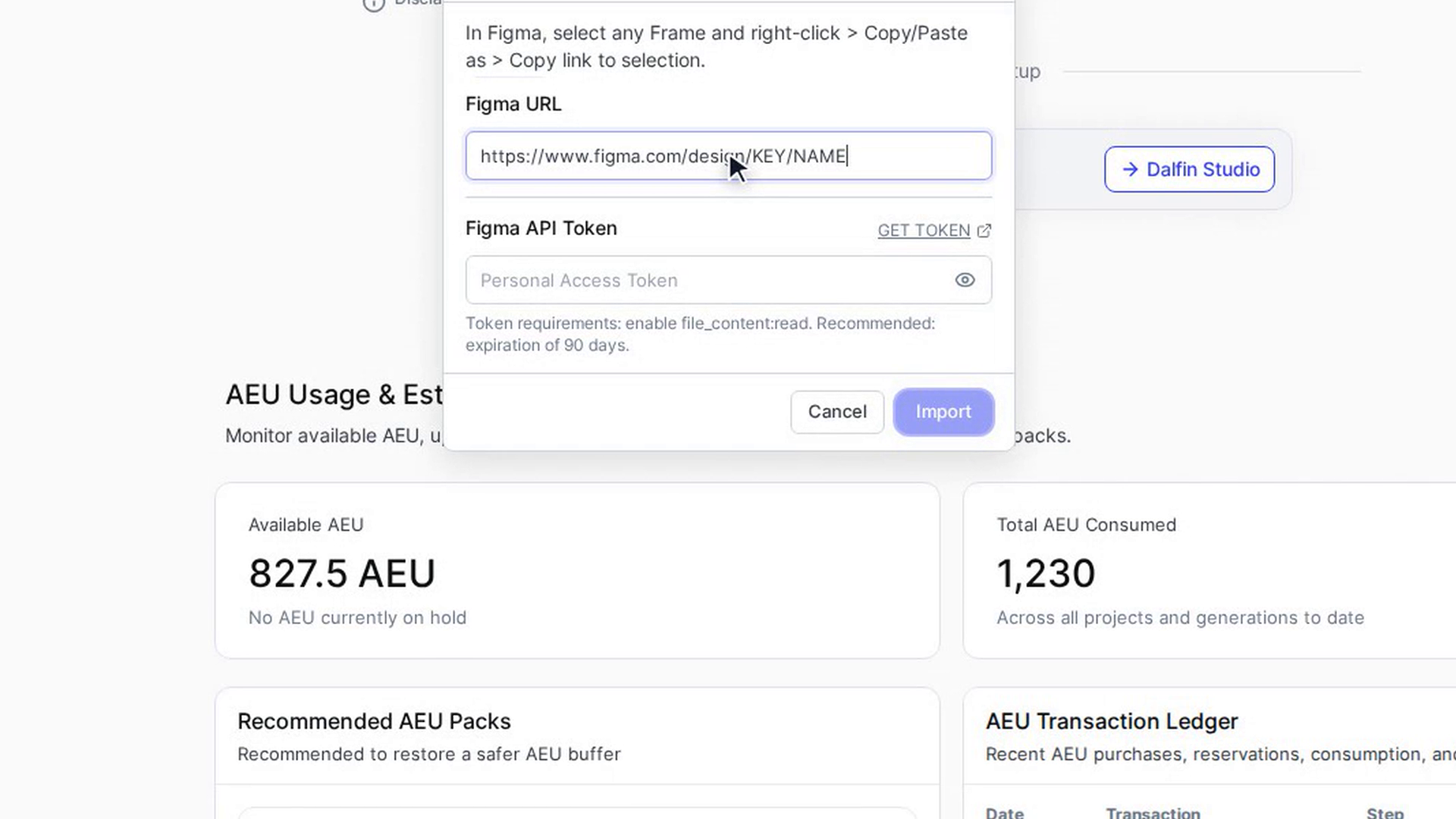
Paste the link into Figma URL.
Add your token
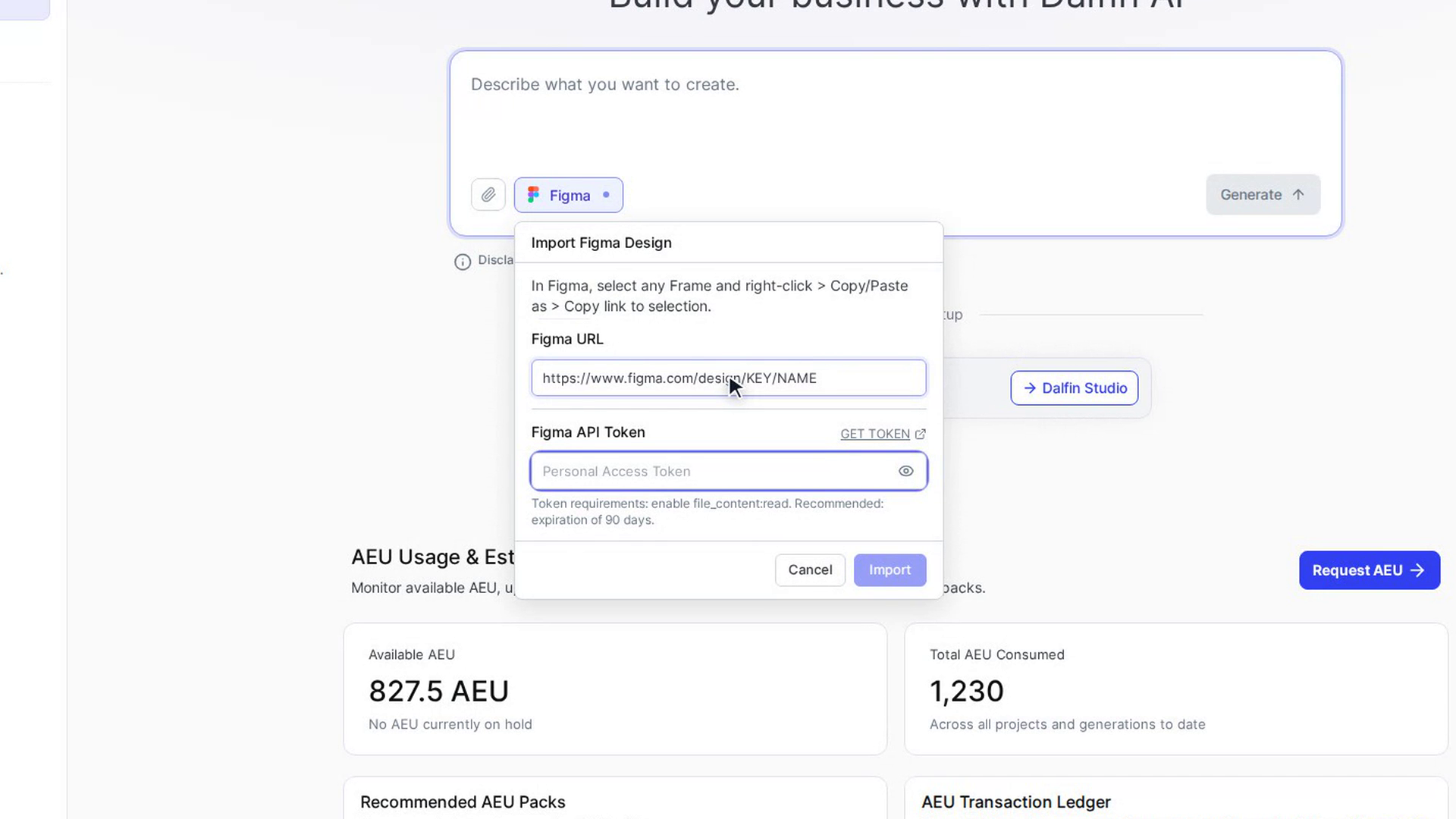
Paste your token into Figma API Token. If you don't have one yet, select GET TOKEN to open Figma's instructions in a new tab. Click the eye icon to show or hide the token.
Select Import
Select Import. The button stays greyed out until both the link and the token are filled in. The window closes and Dalfin checks that it can open your design. The Figma button shows a spinner while it checks, then a tick when the design is verified or a warning sign if it couldn't be opened.
Fix any problem
If there's a warning, open Figma again to read the message, correct the link or token, and select Retry or Import again. To remove the Figma design, click the small ✕ on the Figma button.
Select Generate
Add a description or files if you want to (a Figma design on its own is enough), then select Generate. You can't start until the design has been verified.
Screenshots
Step 1: Copy the link from Figma
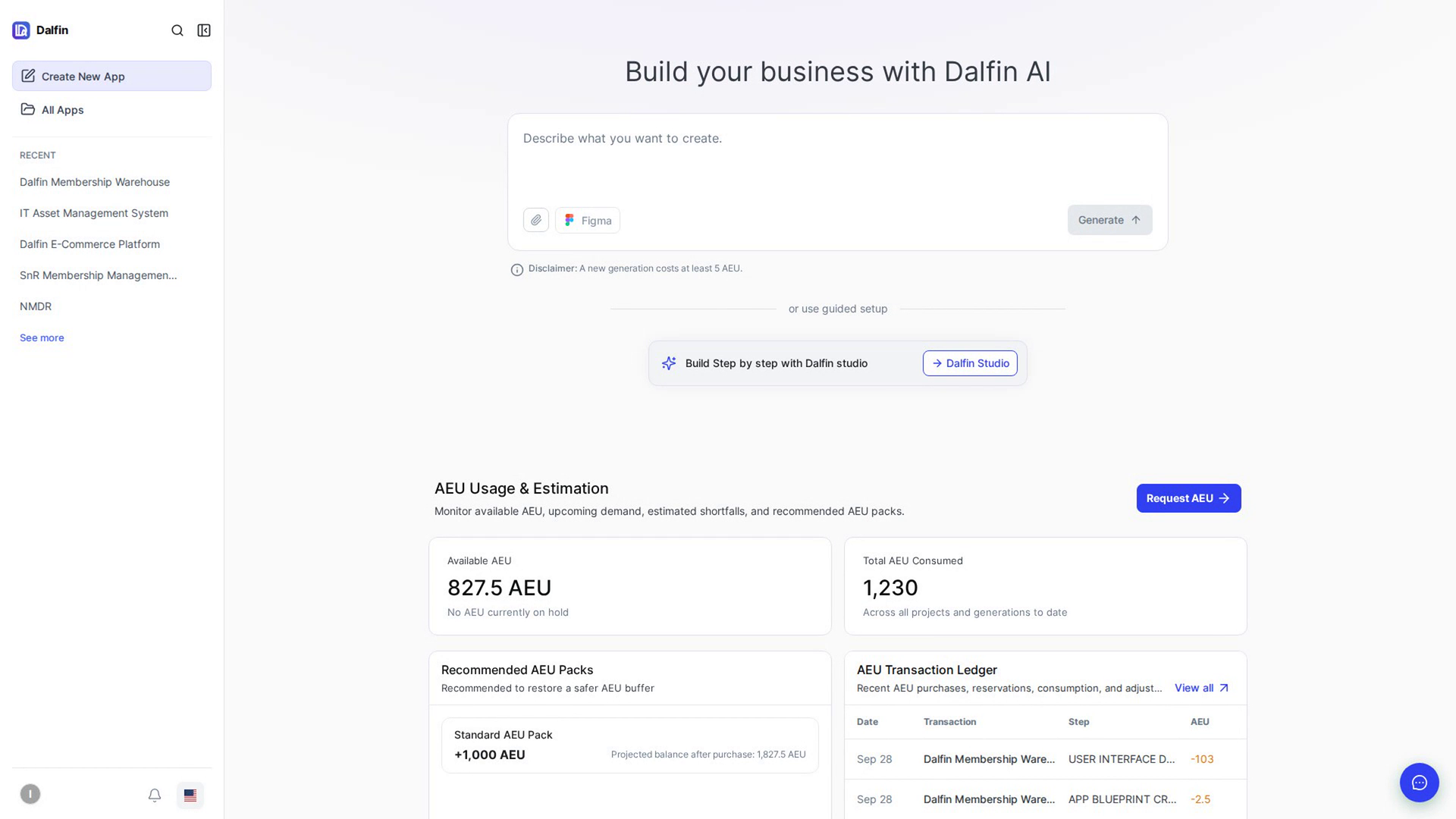
Step 2: Open the Figma window
Step 3: Paste the link
Step 4: Add your token
Step 5: Select Import
Step 6: Fix any problem
Step 7: Select Generate
Watch how
Tip: Figma recommends an expiry of 90 days for the token. If a build fails to read your design later, check that the token hasn't expired.
Selecting Generate starts an AEU estimate. A new generation costs at least 5 AEU.