Open the editor and find your way around
The editor is where you change your generated app yourself: its pages, components, styles, theme, users and access. This page shows you how to open it and what each part of the screen does.
Before you start
- You need to be able to open the app and its Customize tab (usually a team admin).
- The app must have finished building. While it's still building, the Customize tab shows a loading screen.
Steps
Open the Customize tab
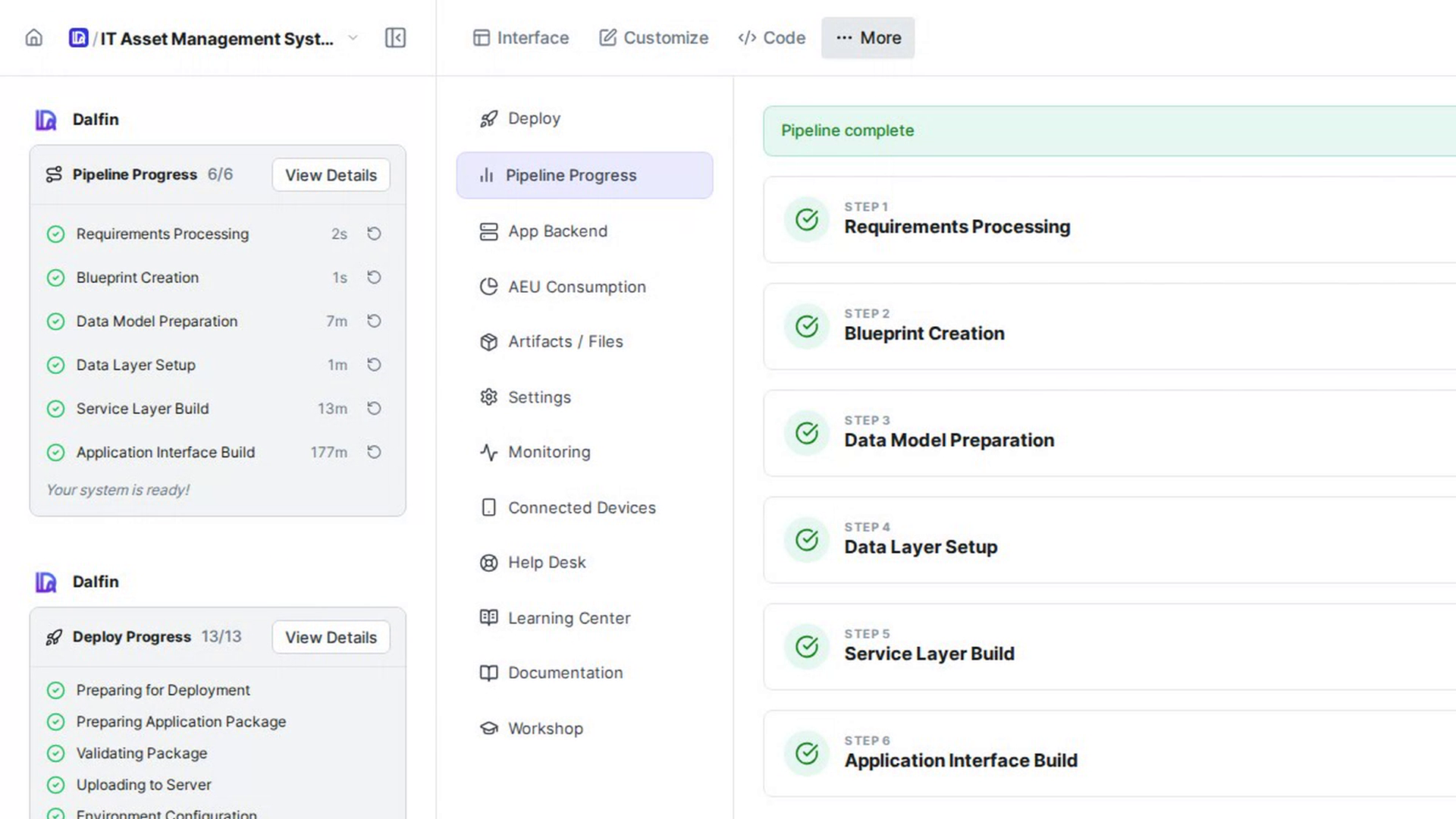
Open your app from your Dalfin home, then select Customize in the bar at the top of the screen, next to Interface and Code.
The editor loads. It shows your app in the middle, with editing panels around it.
Get to know the left icon bar
The narrow bar on the far left switches between the editor's main areas. Hover over an icon to see its name:
- Application (the top icon): your app's pages and the components you can add to them. This is where you start most edits, and where you come back to from the other screens.
- Theme (the palette icon): your app's colours, fonts and component styles.
- ER Diagram: a picture of your app's tables and how they relate.
- User Management (the person icon): the people who use your app, and their departments.
- Roles and Permissions (the key icon): the roles you give to users, and which pages and elements each role can see.
Your profile picture sits at the bottom of the bar.
Find a page
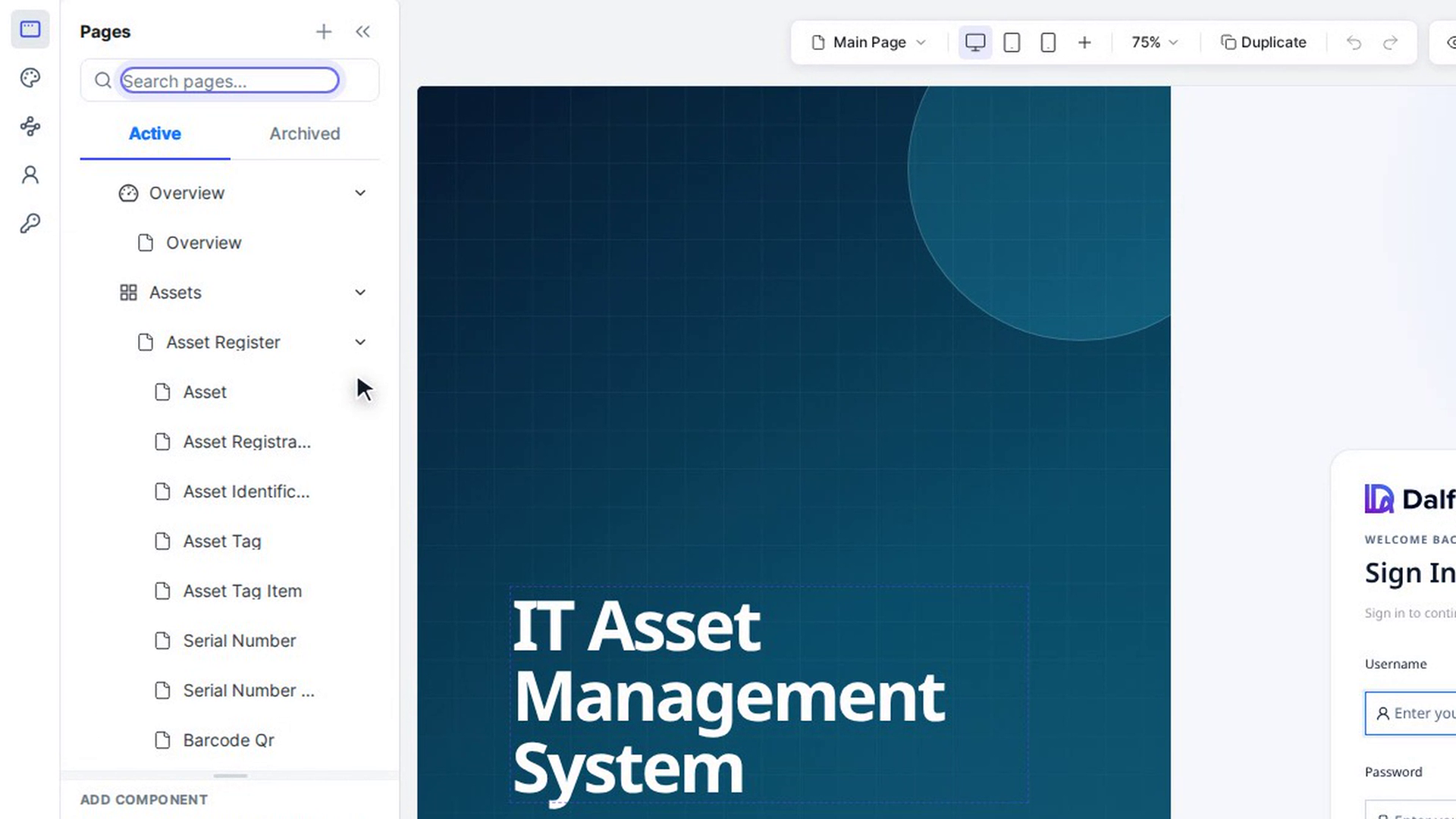
With Application selected, the Pages panel lists your app's pages. Type in Search pages… to find one, and select a page to open it in the middle of the screen.
The lower half of the panel, Add Component, holds the components you can drag onto a page. Drag the line between the two halves to give either one more room. Use Collapse sidebar (the double arrow) to hide the panel and Expand sidebar to bring it back.
Use the canvas
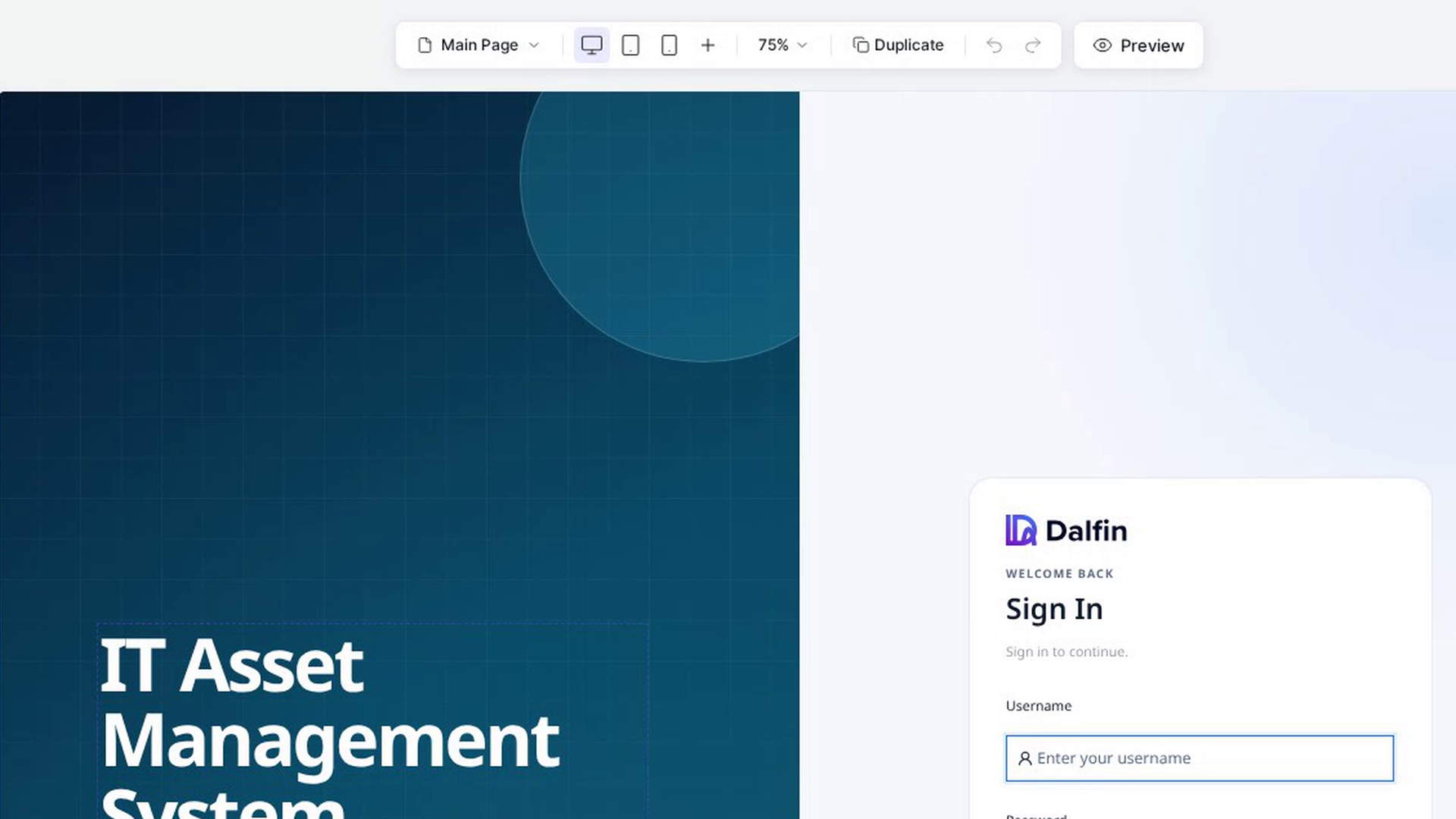
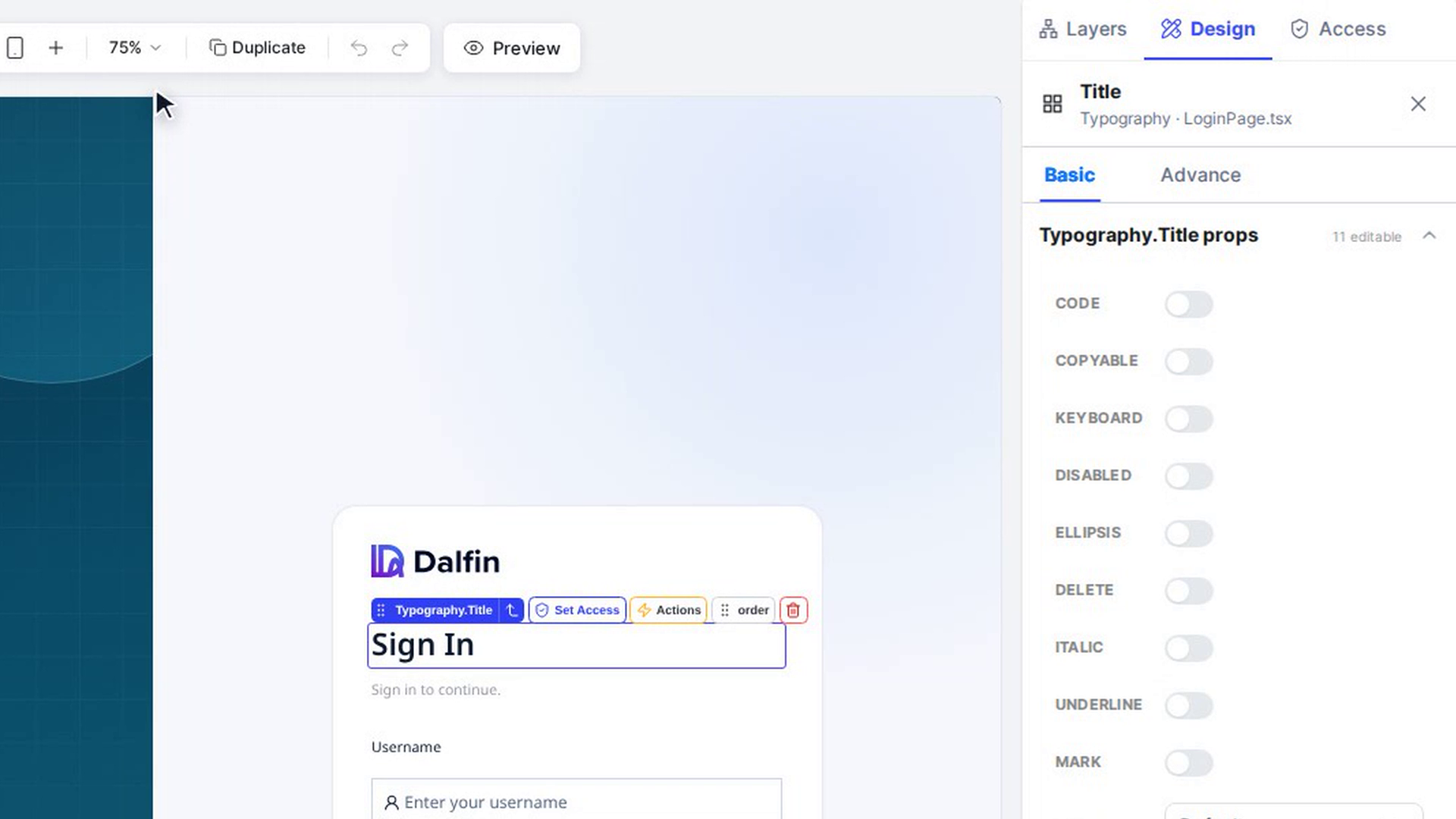
The middle of the screen, the canvas, shows the open page as your users see it. The bar across its top has:
- The page menu, which starts on Main Page. Use it to switch to parts of the page that open separately, such as a form in a pop-up.
- Desktop, Tablet and Mobile, to see the page at that screen size, and More breakpoints for other sizes.
- The zoom level, for example 75%. Select it to Zoom in, Zoom out or Reset to 75%.
- Duplicate, to copy the page.
- Undo and Redo.
- Preview, to try the page without the editing tools.
Select an element
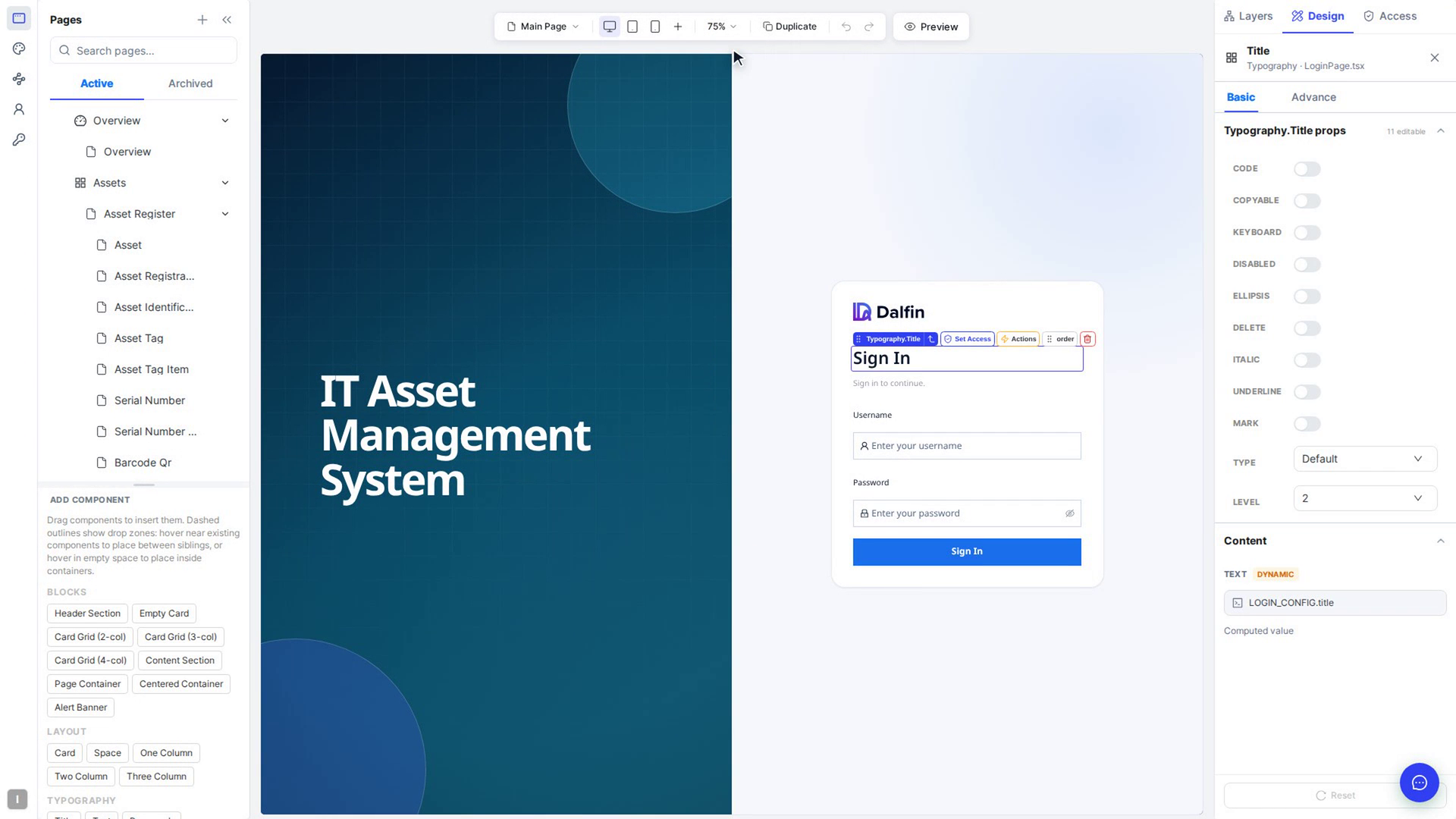
Select anything on the canvas, such as a heading, a button or a table. It gets an outline, and the panel on the right shows its settings. Select Deselect element (the cross next to the element's name) to clear the selection.
Get to know the right panel
The icons at the top of the right-hand panel open:
- Design: change the selected element's content and how it looks.
- Access: choose which roles can see a page or element.
- Layers: appears when you select an element inside another one, and shows where it sits in the page.
Reload or open your app
At the top of the screen, select Reload canvas (the circular arrow) if the canvas looks out of date. Select Open in another tab (the arrow out of a box) to open your app in a new browser tab.
Screenshots
Step 1: Open the Customize tab
Step 2: Get to know the left icon bar

Step 3: Find a page
Step 4: Use the canvas
Step 5: Select an element
Step 6: Get to know the right panel
Watch how
Tip: When you open ER Diagram, User Management or Roles and Permissions, the pages panel and right panel close to give that screen the full width. Select Application to go back to the page you were editing.