Duplicate a page
Make a copy of an existing page as a starting point for a new one. You can copy just the page's layout, or also copy its data tables so the new page keeps its own separate records.
Before you start
- You need access to your app's Customize tab (usually a team admin).
- The page you want to copy must be open on the canvas.
Steps
Open the page you want to copy
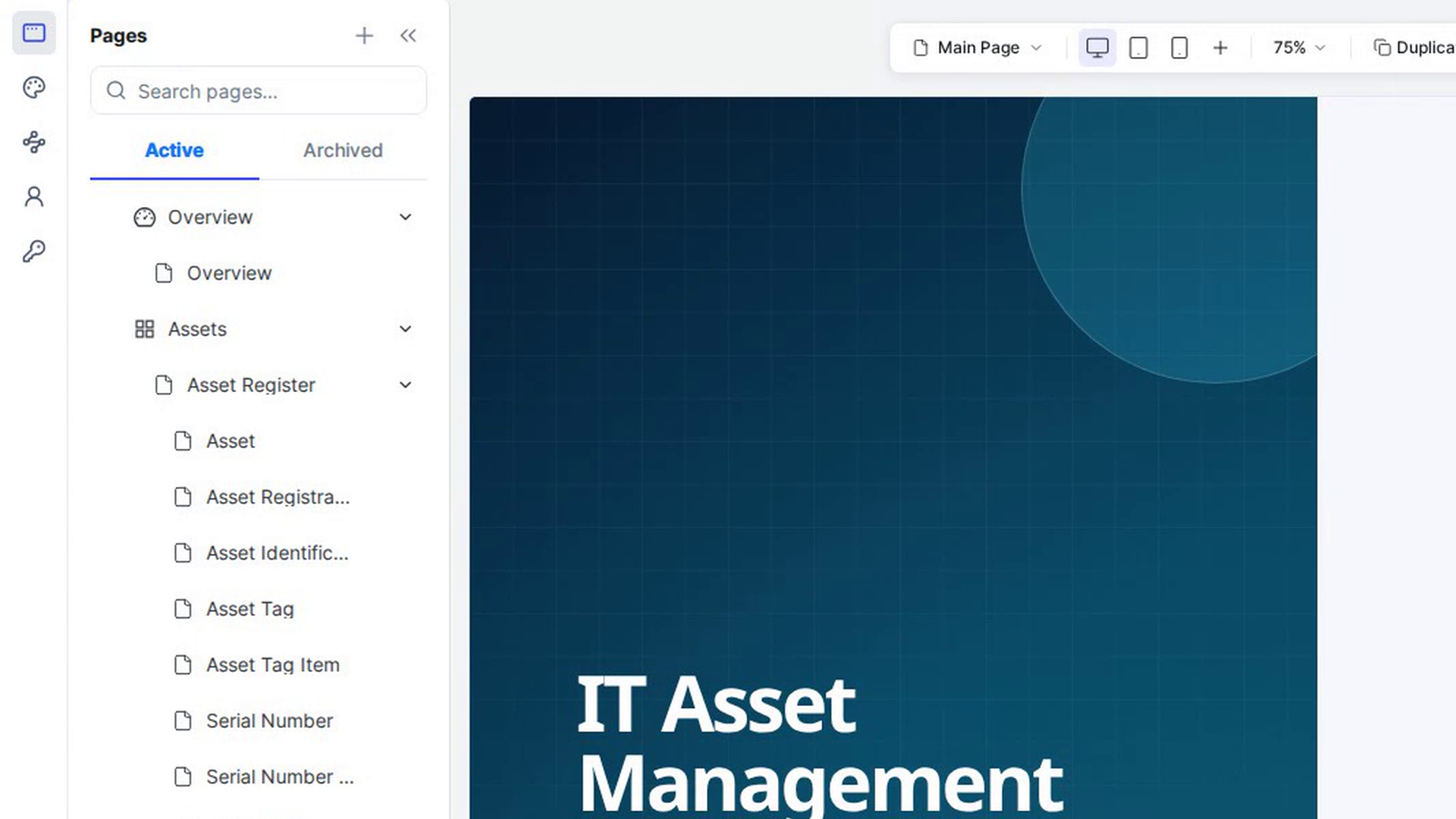
In the editor, select Application on the far-left rail and choose the page in the Pages list. It opens on the canvas.
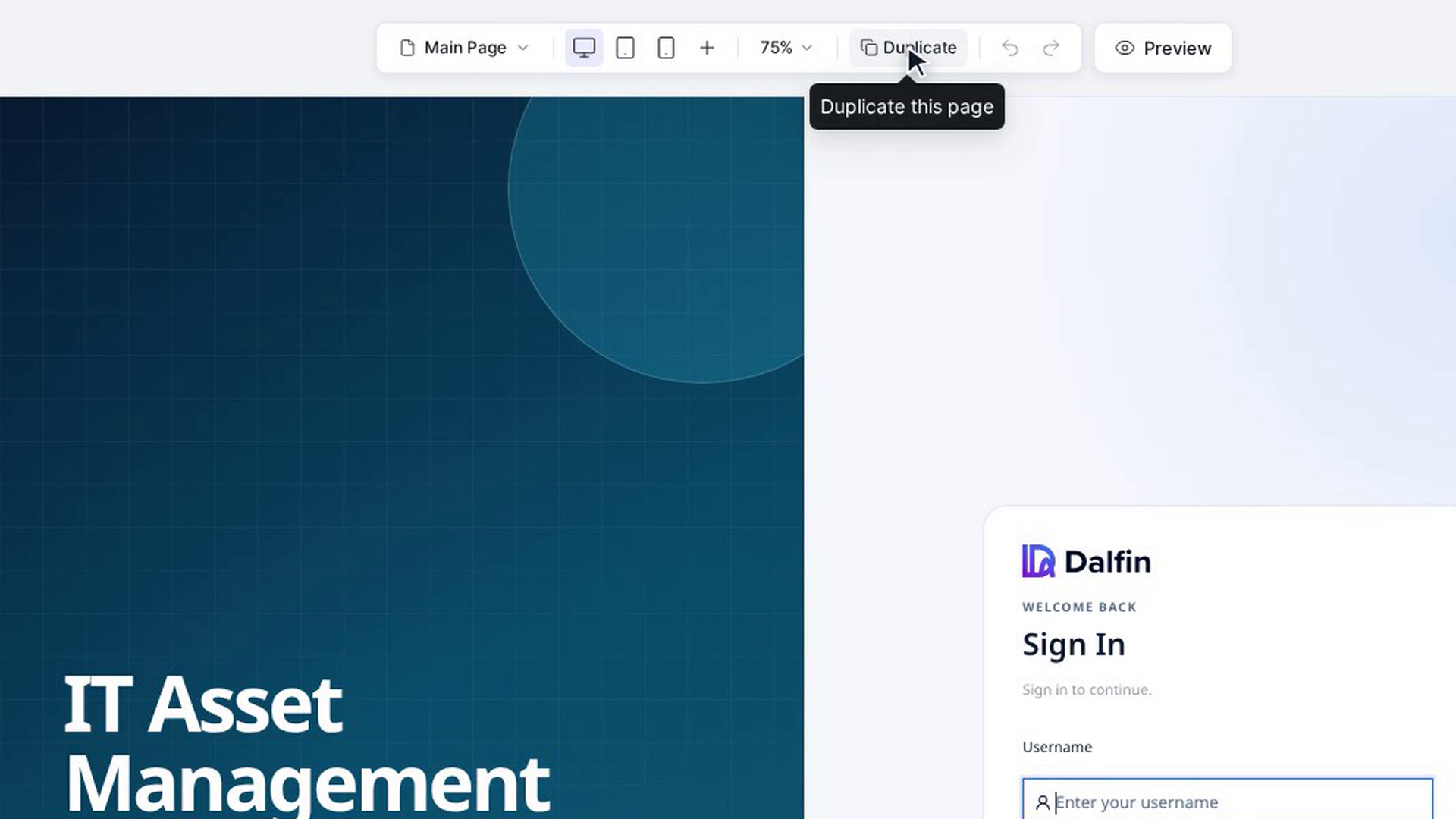
Select Duplicate
In the bar above the canvas, select Duplicate (Duplicate this page). The Duplicate Page window opens. While it loads the current page you see Loading current page.
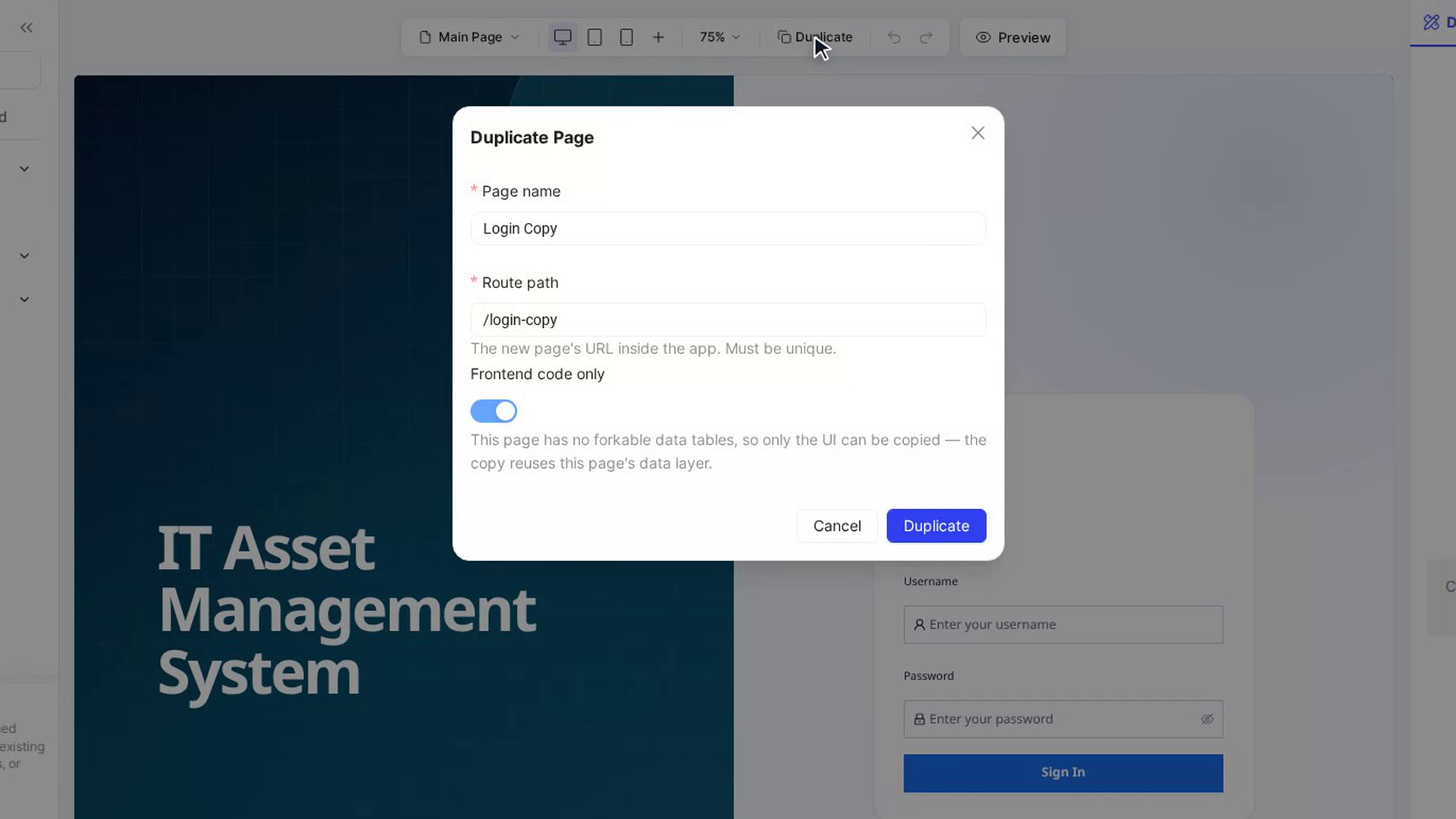
Name the copy
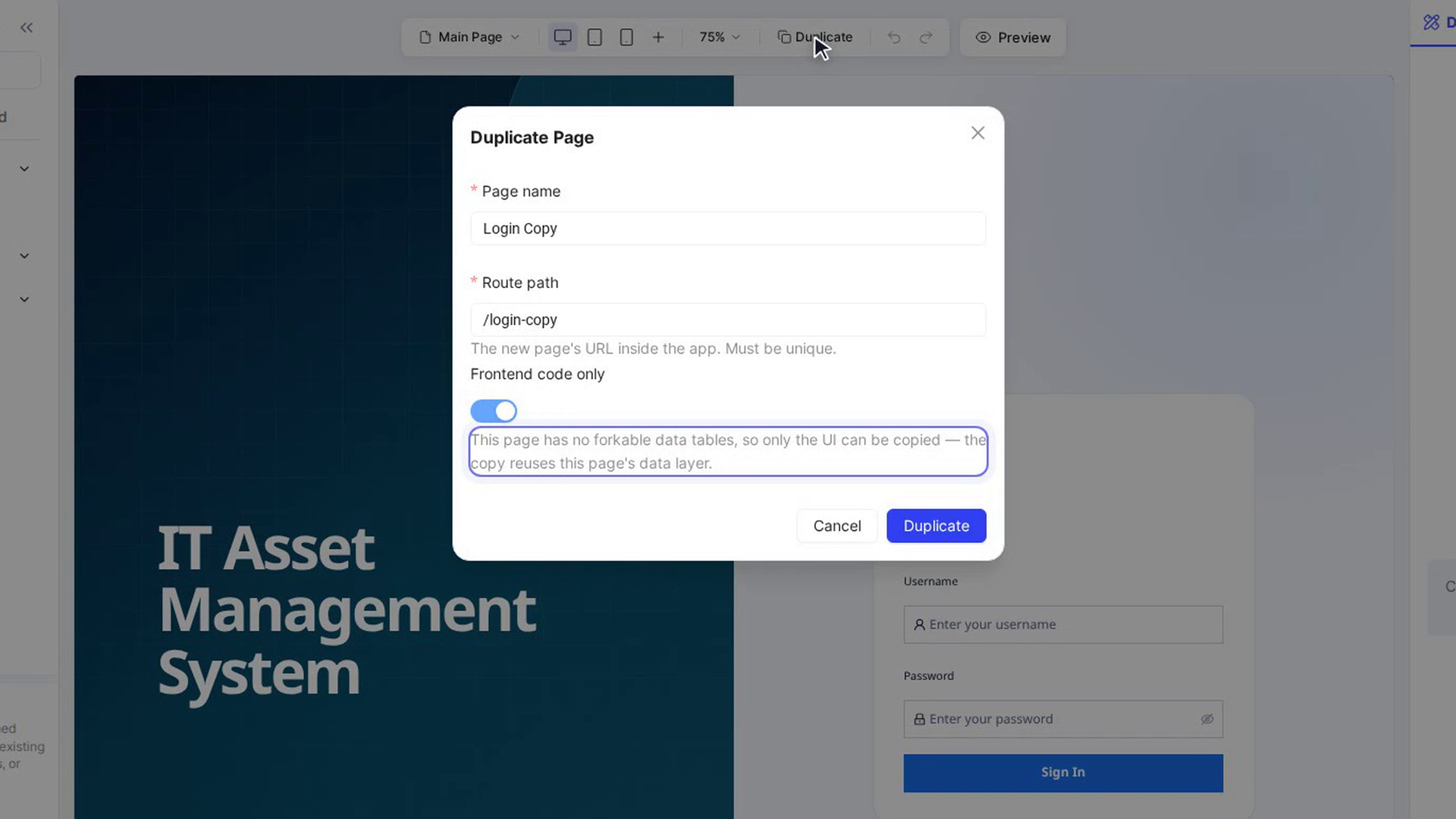
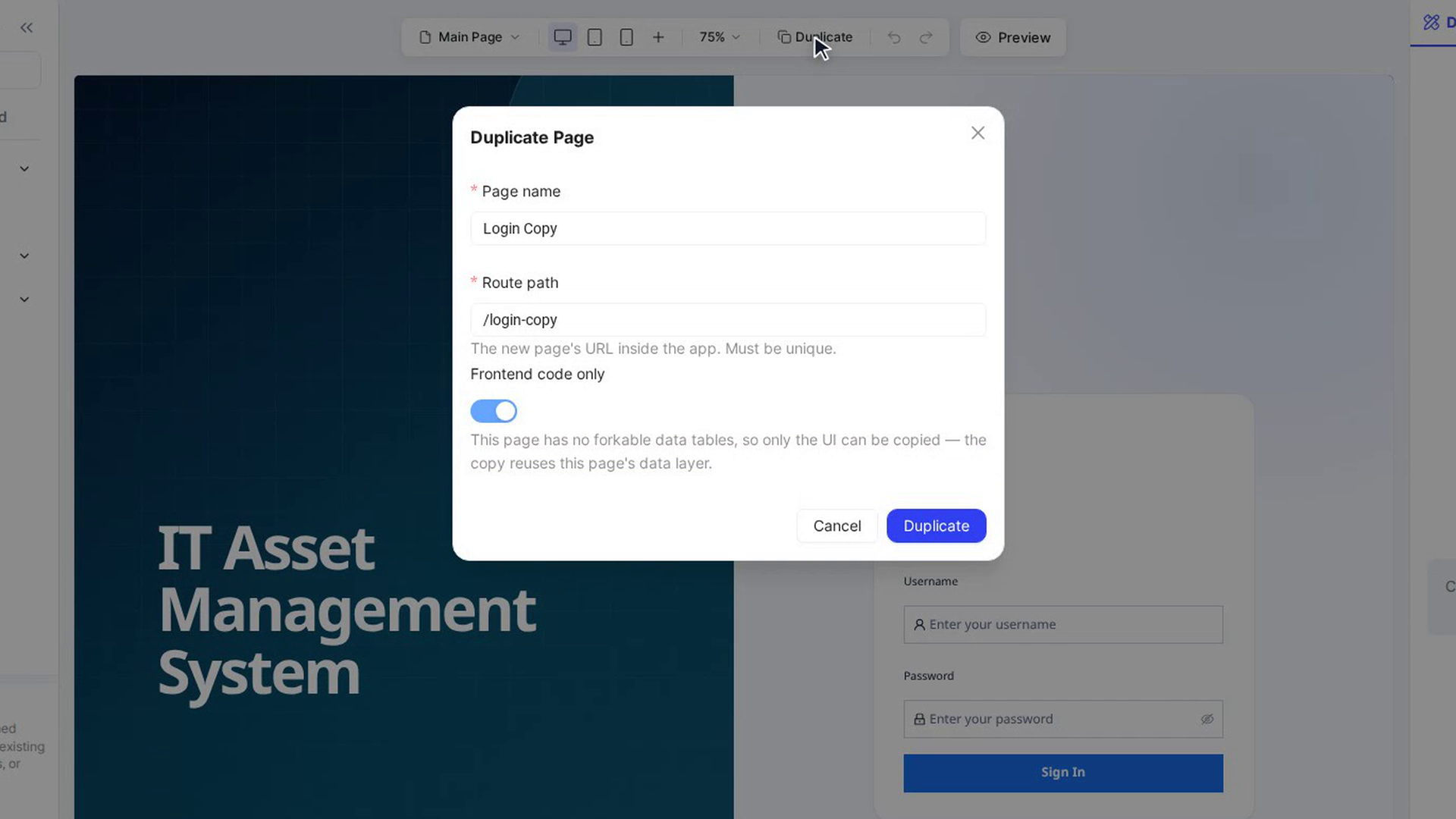
Page name is filled in with the current page's name followed by Copy. Change it if you like. Route path, the new page's address inside the app, is filled in to match the name. It must be unique; you can edit it.
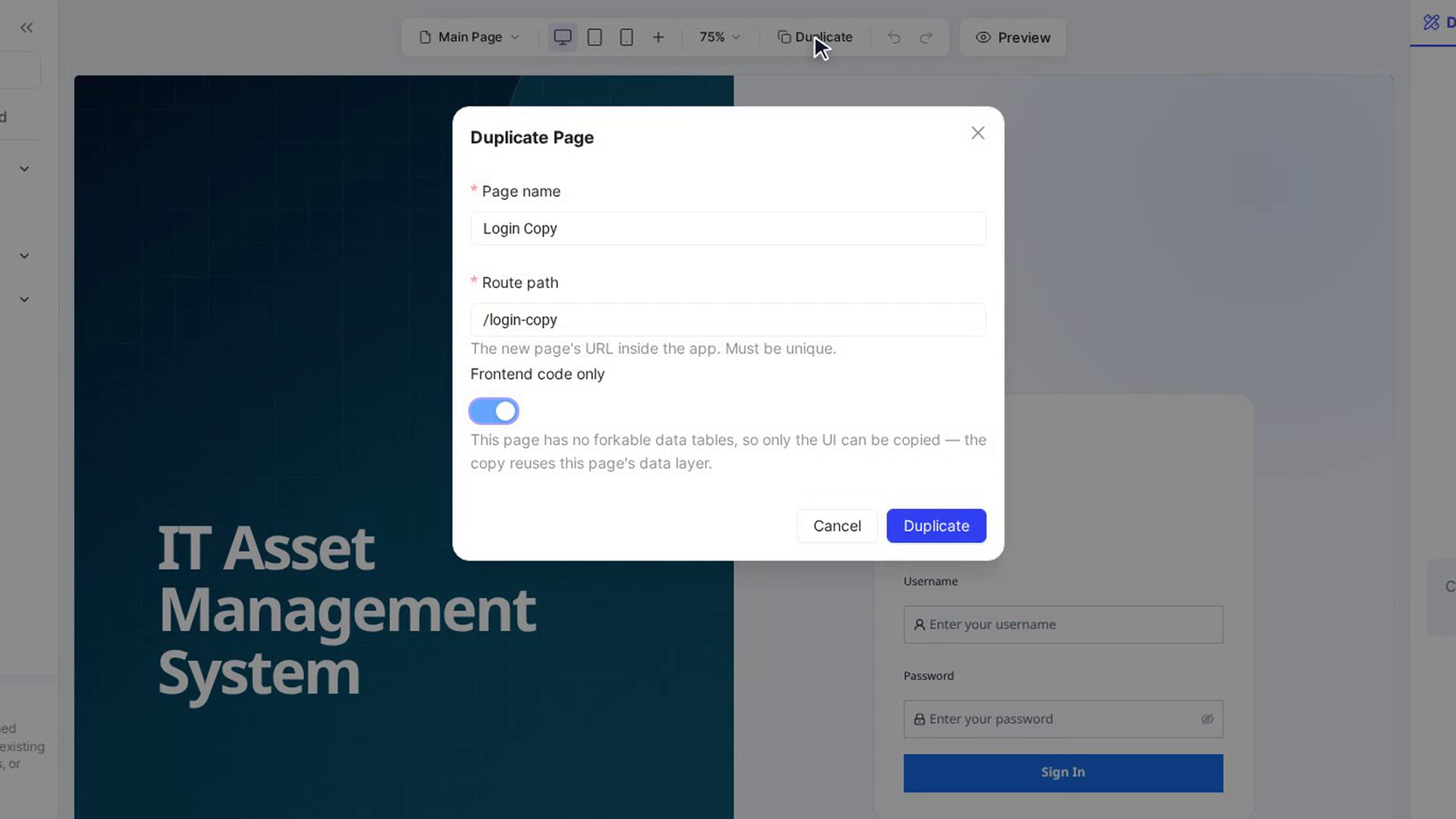
Choose what to copy
Use the Frontend code only switch:
- On: copies the page's layout only. The copy shows the same data as the original page.
- Off (the default): also copies the data layer, so the new page gets its own tables and can be changed independently.
If the page has no data tables that can be copied, the switch stays on and can't be changed.
Adjust the copied data tables
With Frontend code only off, a Data tables section lists each table that will be copied. For each one you can:
- Enter a new name for the copied table.
- Give fields a new label (leave it blank to keep the original).
- Remove a field from the copy (Remove from the copy), or bring it back (Keep this field).
- Select Add field to add a new field, giving it a name and type.
Names may only use letters, numbers and underscores, and must be unique. A message appears under any name that needs fixing.
Create the copy
Select Duplicate. A progress message shows each step while the copy is made and your app rebuilds. When it finishes you see Page duplicated — MFE reloaded (or Page duplicated), and the new page appears in the Pages list.
Screenshots
Step 1: Open the page you want to copy
Step 2: Select Duplicate
Step 3: Name the copy
Step 4: Choose what to copy
Step 5: Adjust the copied data tables
Step 6: Create the copy
Watch how
Tip: If something goes wrong, the progress message turns red. Click it to see the full list of steps and which one failed.
With Frontend code only switched on, the copy uses the same data as the original page. Records added or changed on either page appear on both.