MFE cache
The MFE Cache page shows which app bundles (MFEs) are currently loaded in memory for the editor, how much memory they use, and lets you warm, refresh or evict them.
Before you start
- This page is meant for operations staff. It appears in the sidebar settings menu for every user in non-production environments; there is no separate role check.
Steps
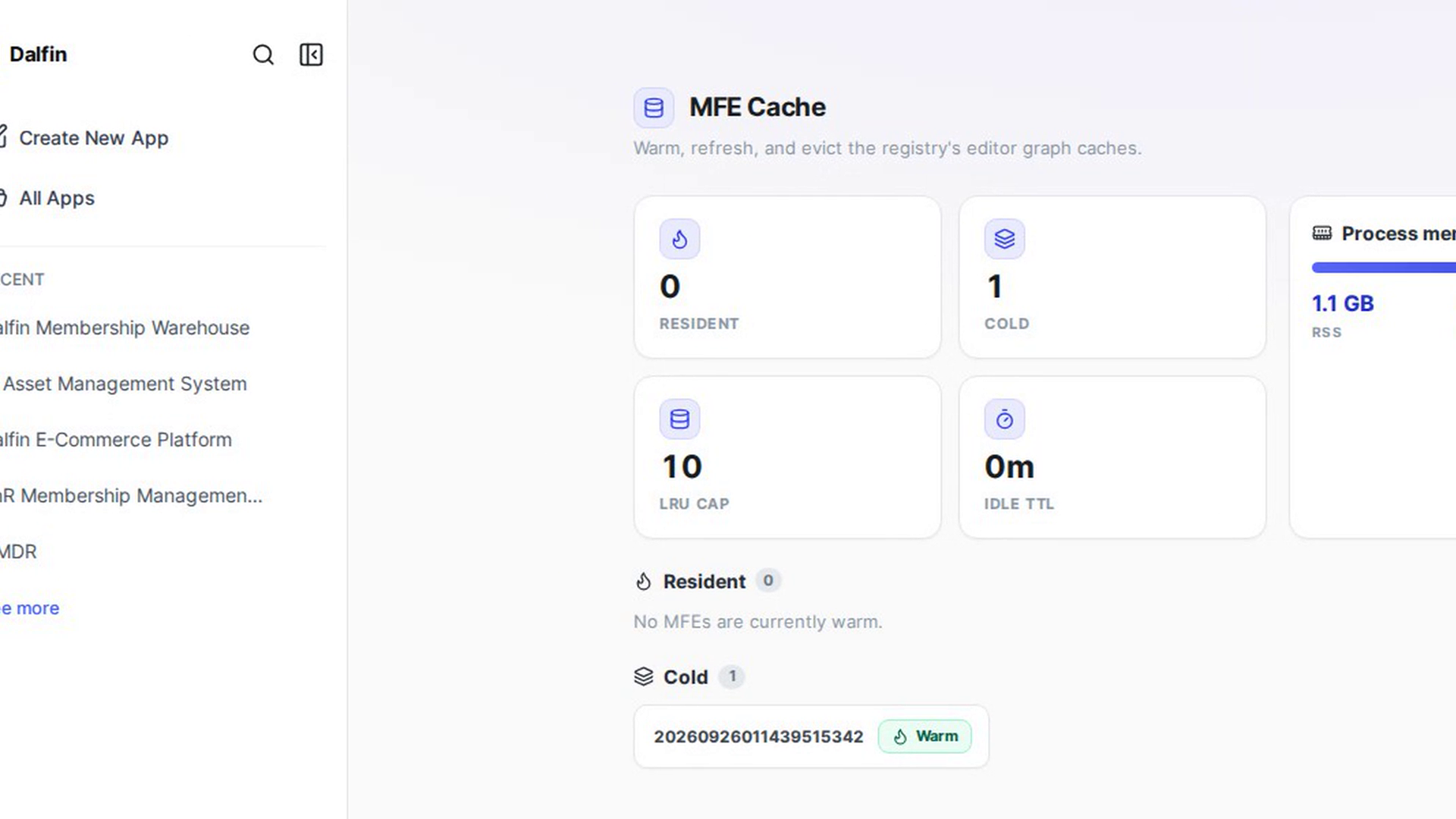
Open the MFE cache
In the Dalfin sidebar, select Settings, then MFE Cache. The page opens: "Warm, refresh, and evict the registry's editor graph caches." While it loads you see "Loading cache status...".
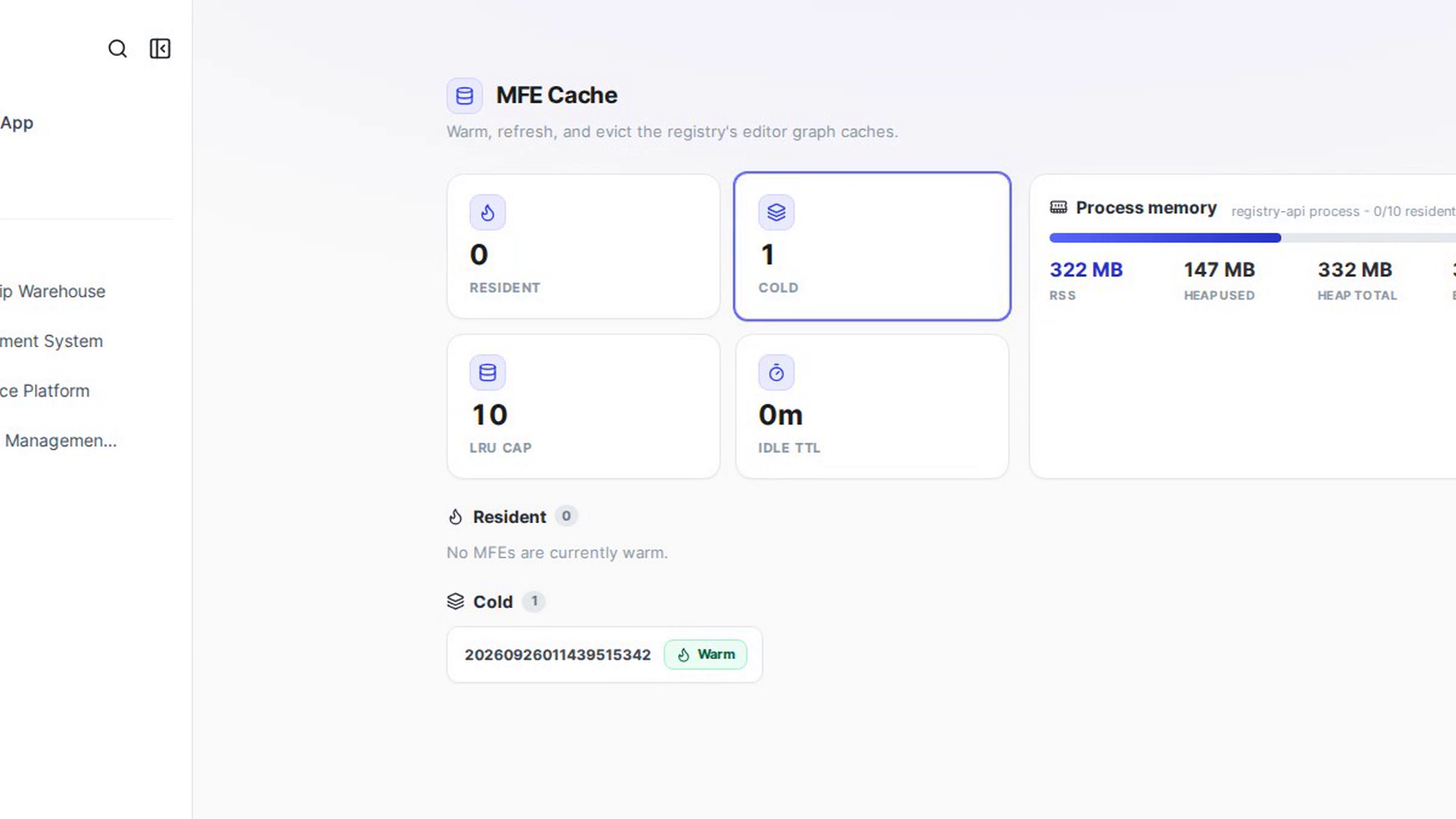
Read the figures
The tiles at the top show how many MFEs are Resident (loaded in memory) and Cold (not loaded), the LRU cap (the most that can be loaded at once) and the Idle TTL (how long an unused MFE stays loaded). Process memory shows RSS, Heap used, Heap total and External memory.
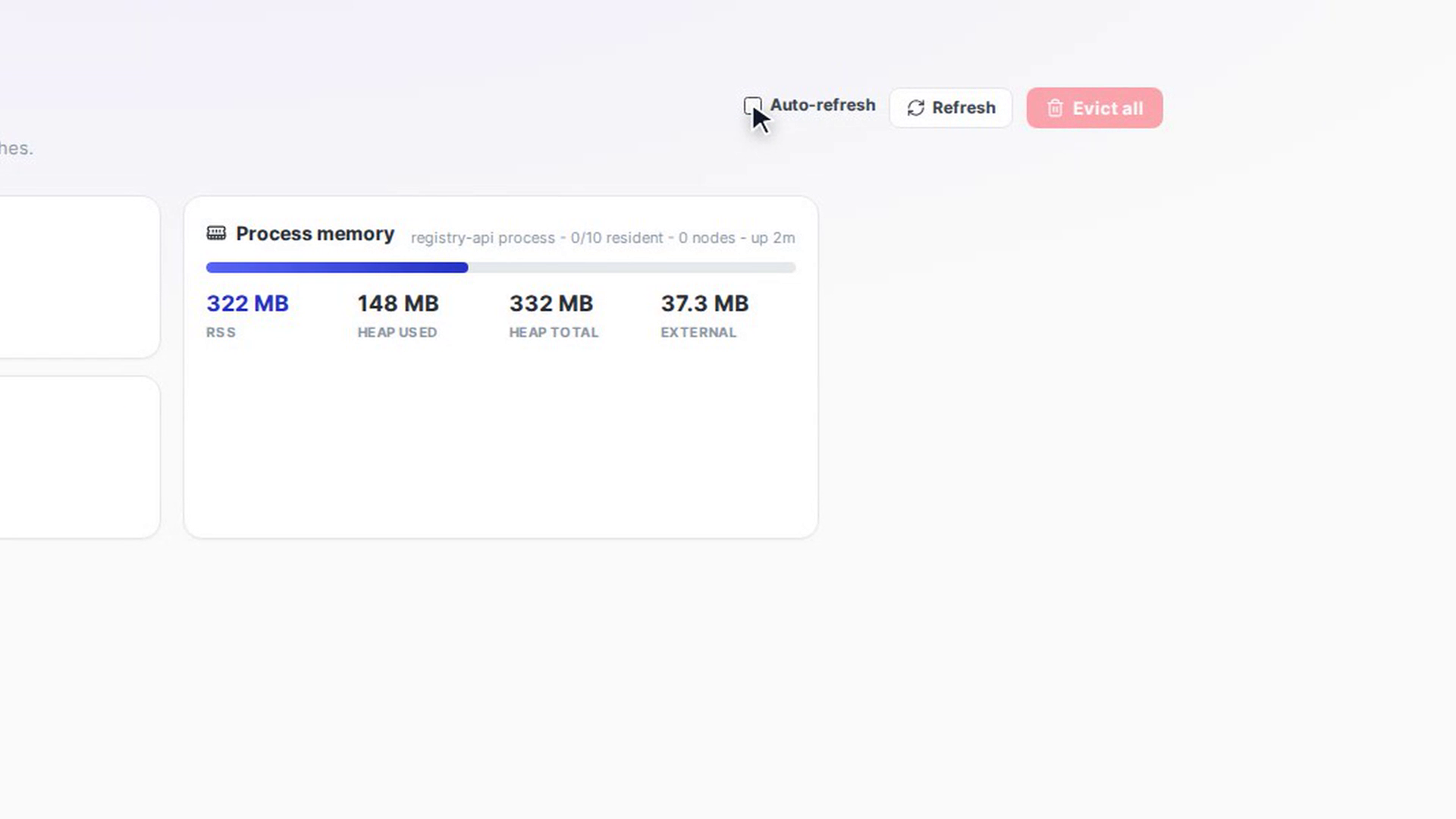
Keep the page up to date
Auto-refresh is on by default and updates the page every 5 seconds. Untick it to pause, or select Refresh at the top of the page to reload the list now. This page-level Refresh only re-reads the cache status; it doesn't change any MFE.
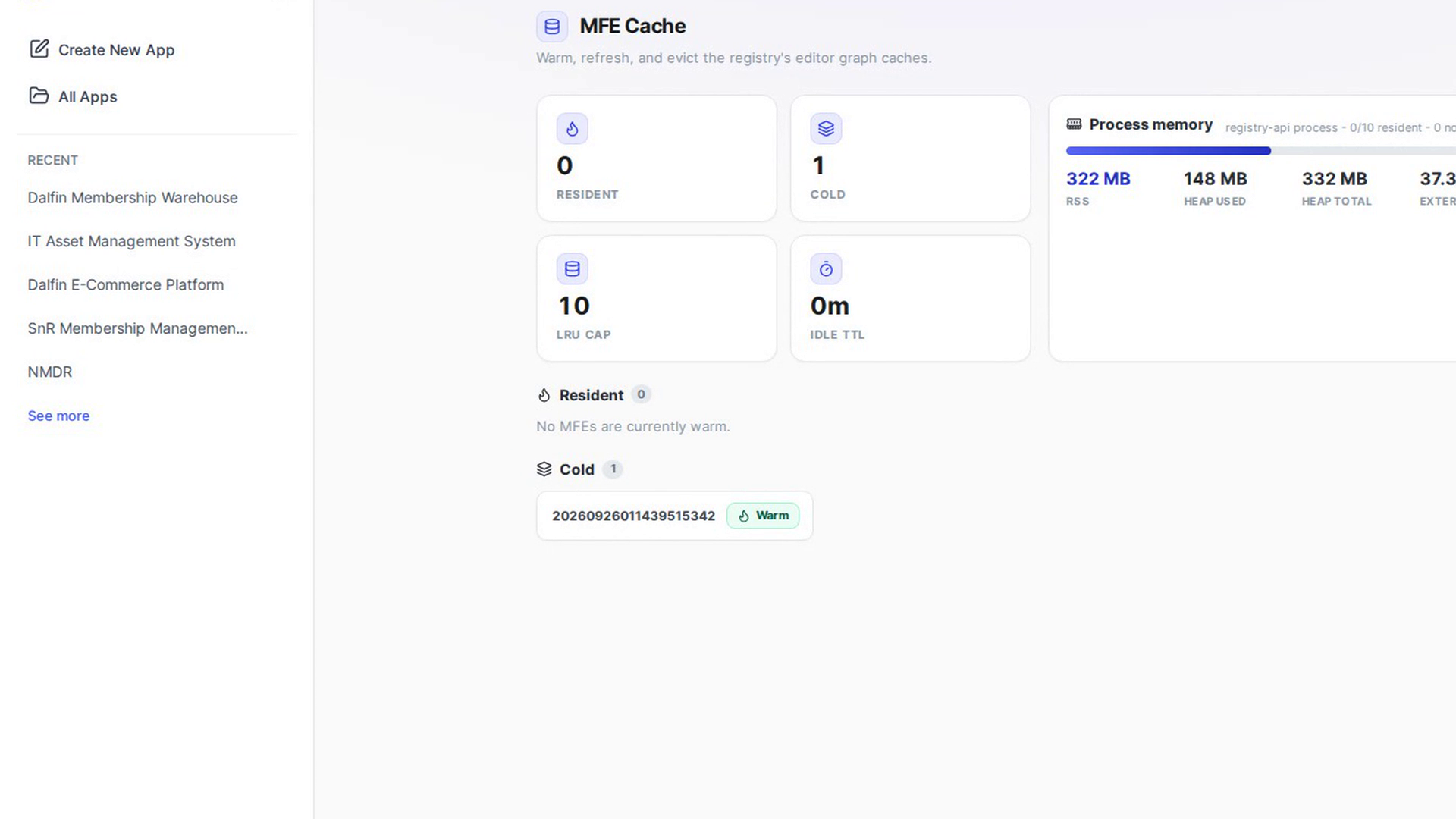
Check the resident MFEs
Under Resident, each row shows the MFE with its share of memory, and its Files, Nodes, Watcher and Last used time. The largest are listed first.
Warm a cold MFE
Under Cold, select Warm next to an MFE to load it into memory.
Refresh a resident MFE
Select Refresh on a row to drop that MFE and rebuild it from disk straight away. This is not the same as the Refresh button at the top of the page, which only reloads the list.
Evict one MFE
Select Evict on a row. In Evict MFE?, select Evict. The MFE is removed from memory and rebuilt from disk the next time it is used.
Evict all MFEs
Select Evict all at the top. In Evict all resident MFEs?, select Evict all.
Screenshots
Step 1: Open the MFE cache
Step 2: Read the figures
Step 3: Keep the page up to date
Step 4: Check the resident MFEs
Step 5: Warm a cold MFE
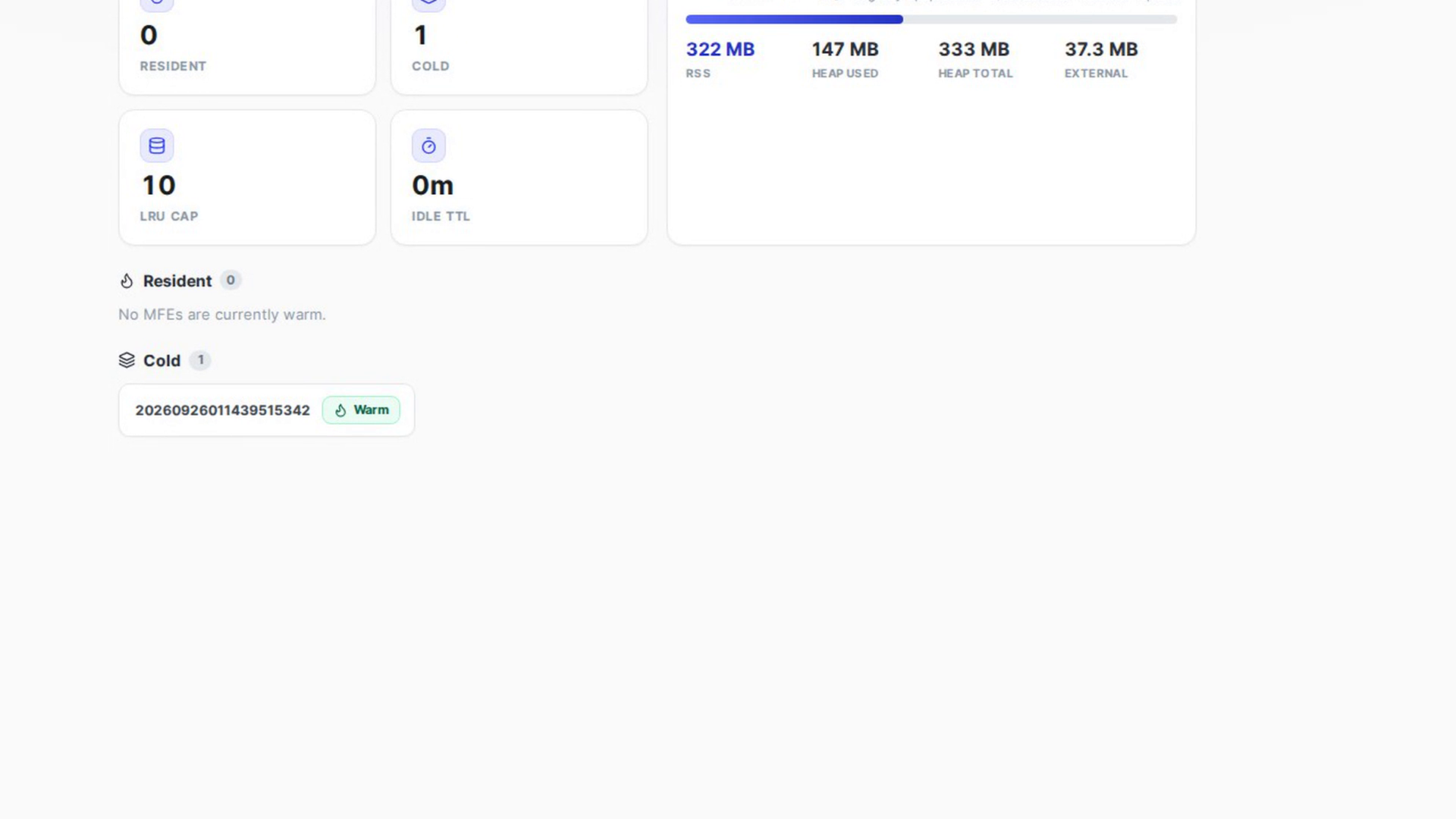
Step 6: Refresh a resident MFE
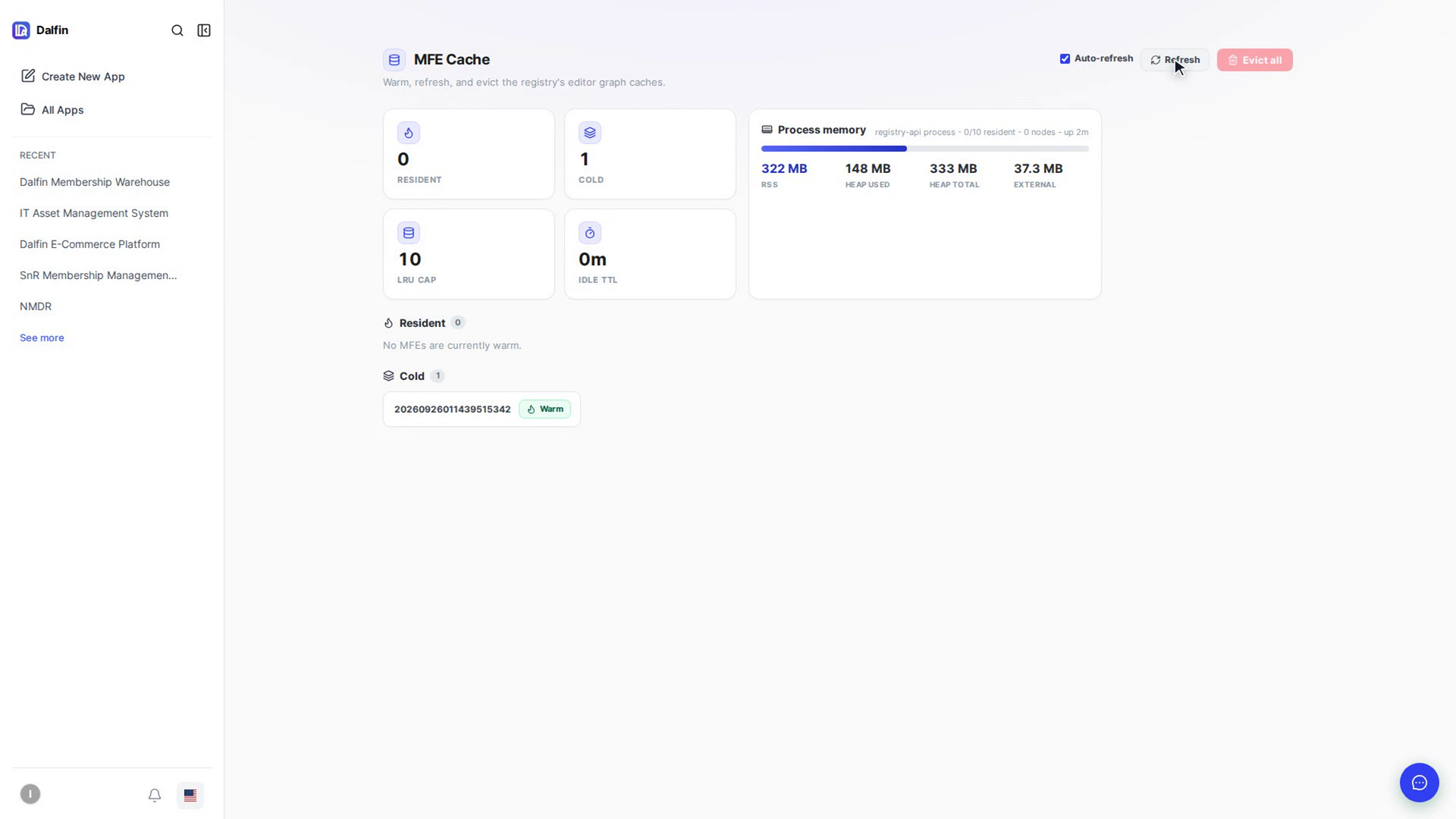
Step 7: Evict one MFE
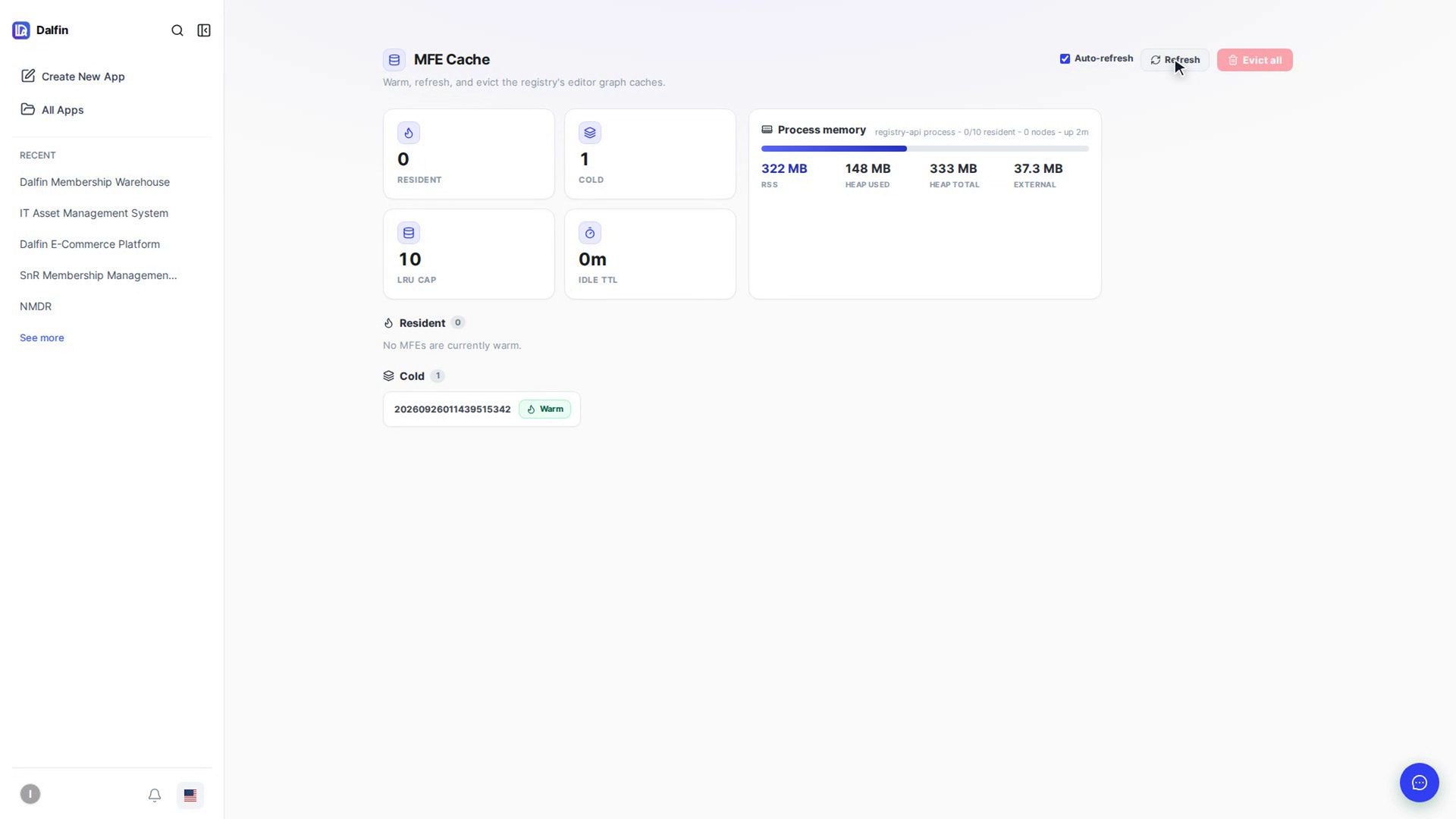
Step 8: Evict all MFEs
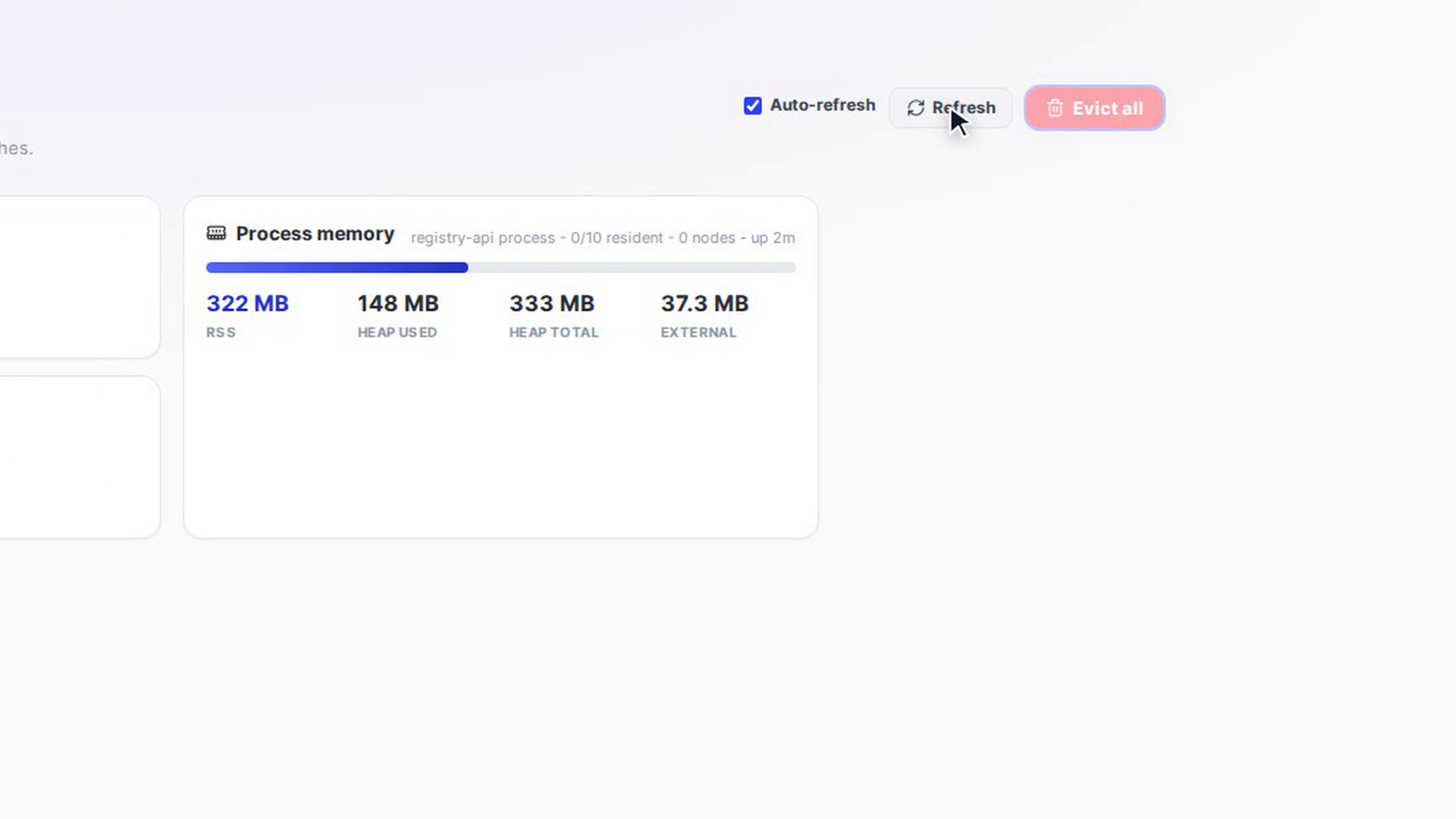
Watch how
Evicting, and especially Evict all, clears warm MFEs for everyone using the editor. The next person to open an affected app has to wait while it is rebuilt from disk.
Tip: If you see "Can't reach the registry cache", select Retry. The page needs the registry service to be running.