Control panel
The Preview Control Panel lists the dev servers running in a workspace. Use it to start, restart or stop them and to watch their live logs.
Before you start
- This page is meant for operations staff. It appears in the sidebar settings menu for every user in non-production environments; there is no separate role check.
- You must be signed in so Dalfin knows which workspace to connect to. Otherwise you see "No tenant resolved".
Steps
Open the control panel
In the Dalfin sidebar, select Settings, then Control Panel. The Preview Control Panel opens. While it loads you see "Loading dev servers...".
Read the overview
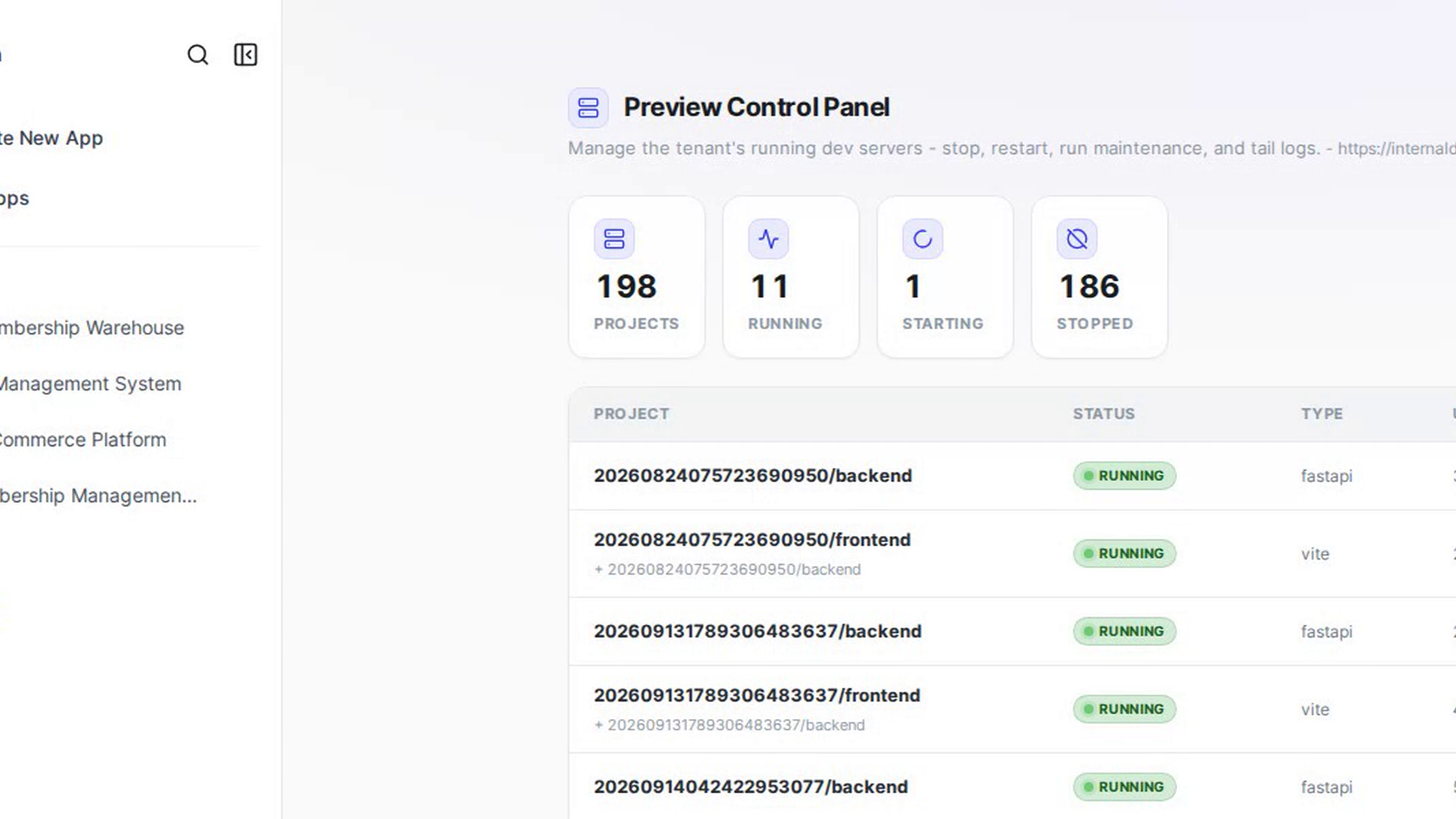
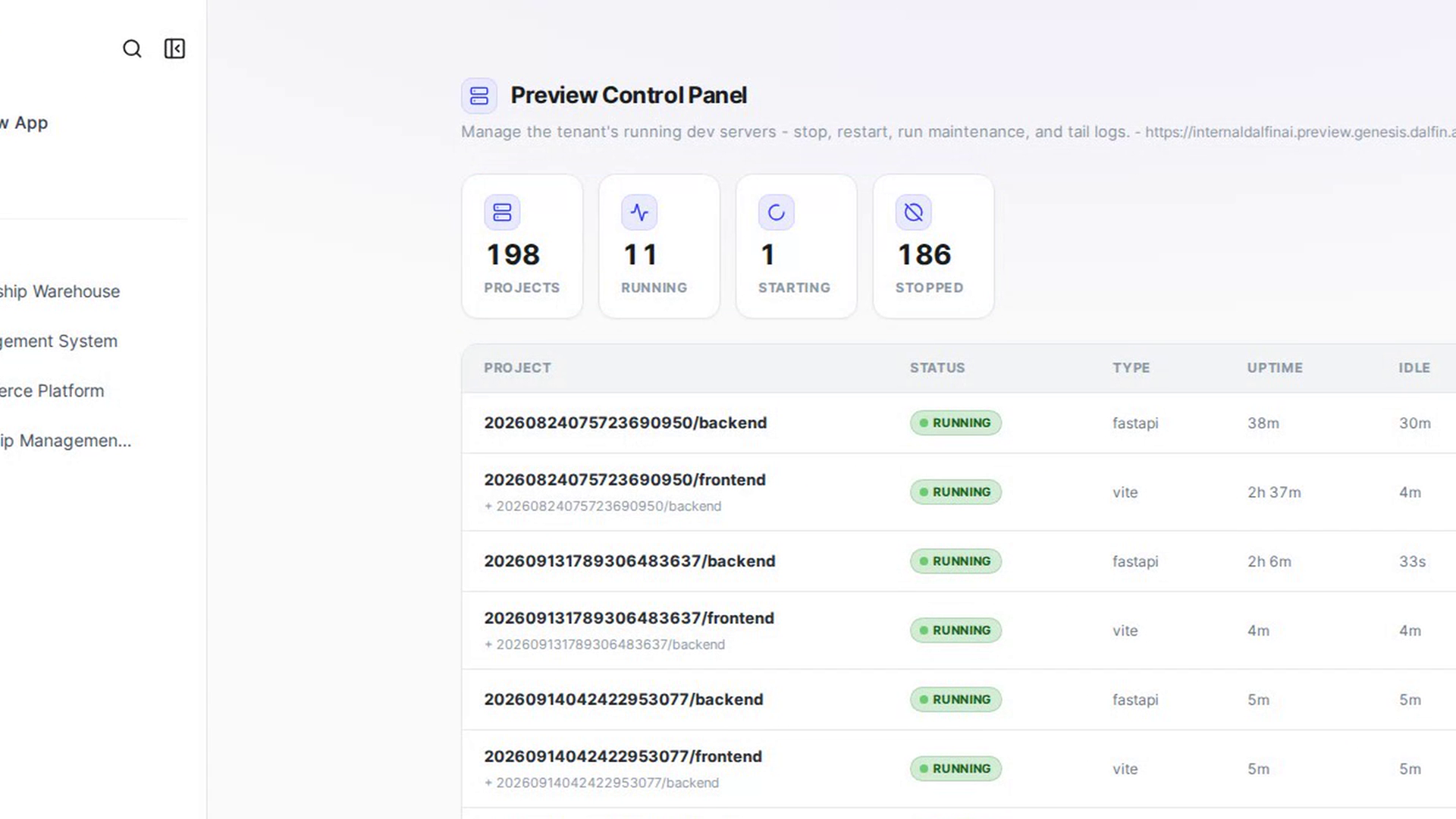
The tiles show the number of Projects, and how many are Running, Starting and Stopped. The table lists each Project with its Status, Type, Uptime and Idle time. Running servers are listed first. Auto-refresh updates the list every 5 seconds; untick it to pause, or select Refresh to update now.
Start a dev server
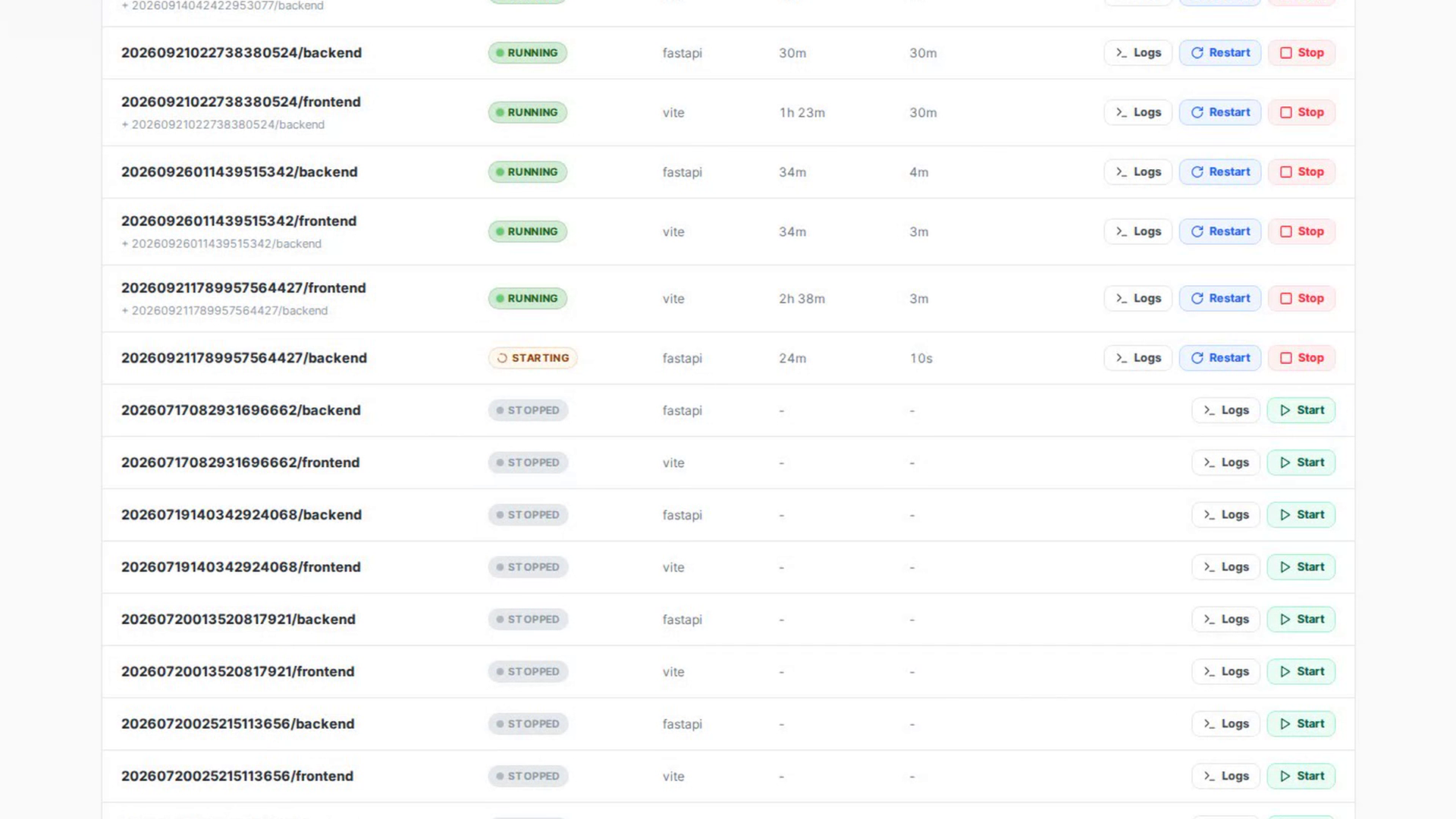
On a stopped project, select Start. The status changes to starting, then running.
Skip waiting for the backend
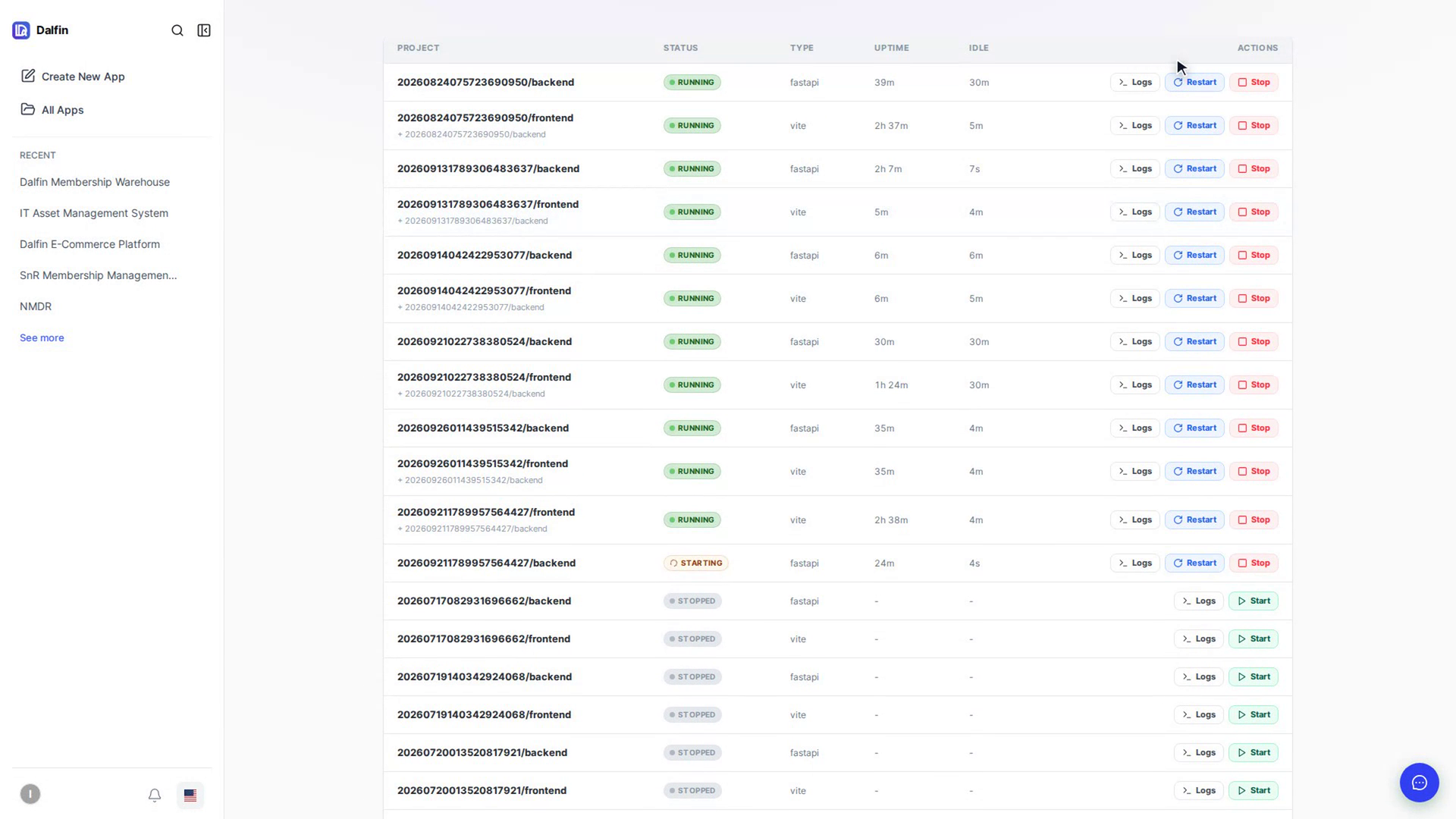
If a project shows waiting backend, you can select Skip to let the frontend start without waiting for its backend.
Restart a dev server
Select Restart, then Restart again in Restart dev server?. The server is briefly unavailable while it comes back up.
Stop a dev server
Select Stop, then Stop in Stop dev server?. You can start it again from the list at any time.
Stop all dev servers
Select Stop all at the top, then Stop all in Stop all dev servers?. Every running and starting dev server for the workspace is stopped.
Tail the logs
Select Logs on a project. A panel opens with the live output; the label next to the project name shows live once connected. Close it with the x.
Screenshots
Step 1: Open the control panel
Step 2: Read the overview
Step 3: Start a dev server
Step 4: Skip waiting for the backend
Step 5: Restart a dev server
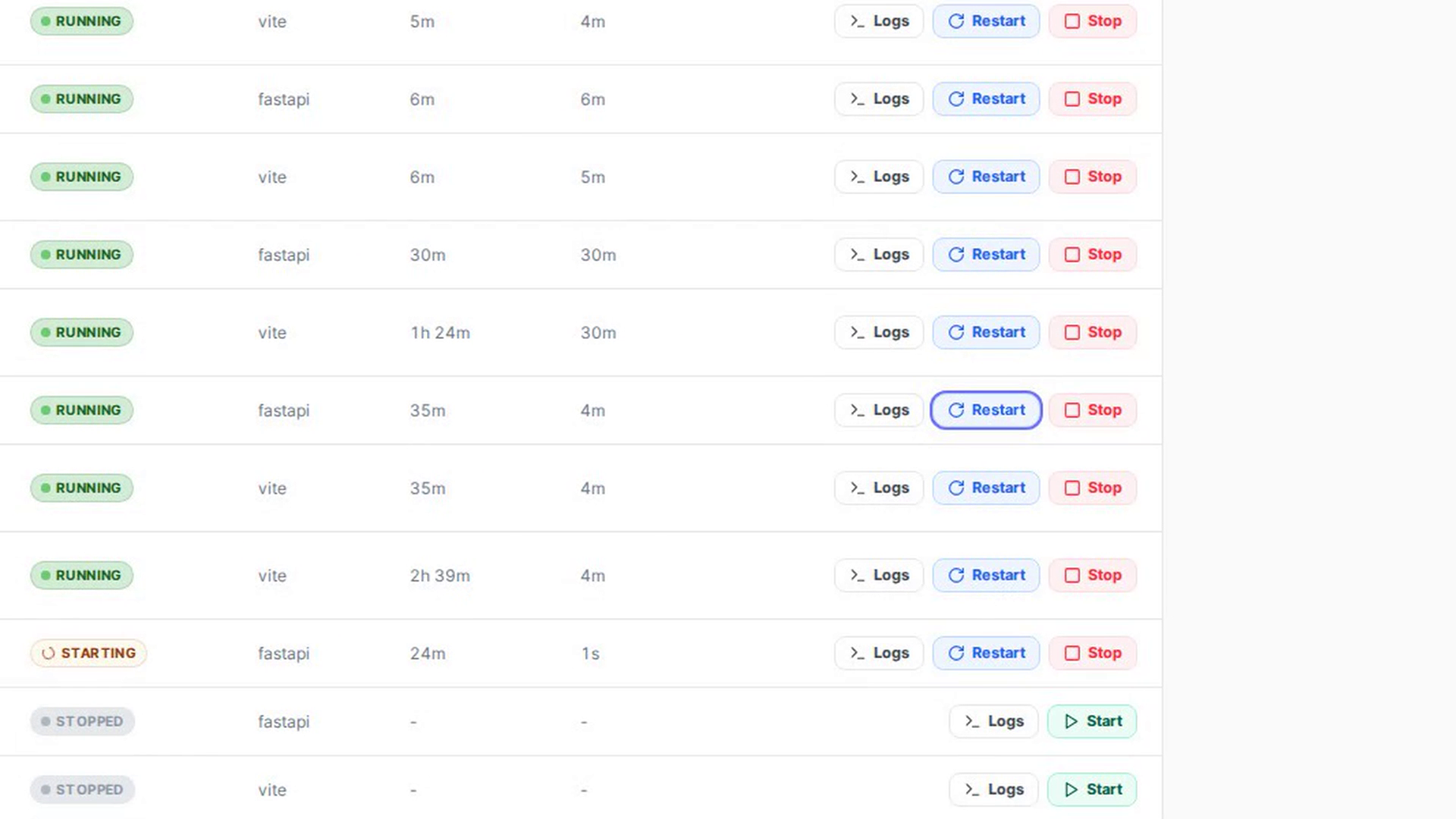
Step 6: Stop a dev server
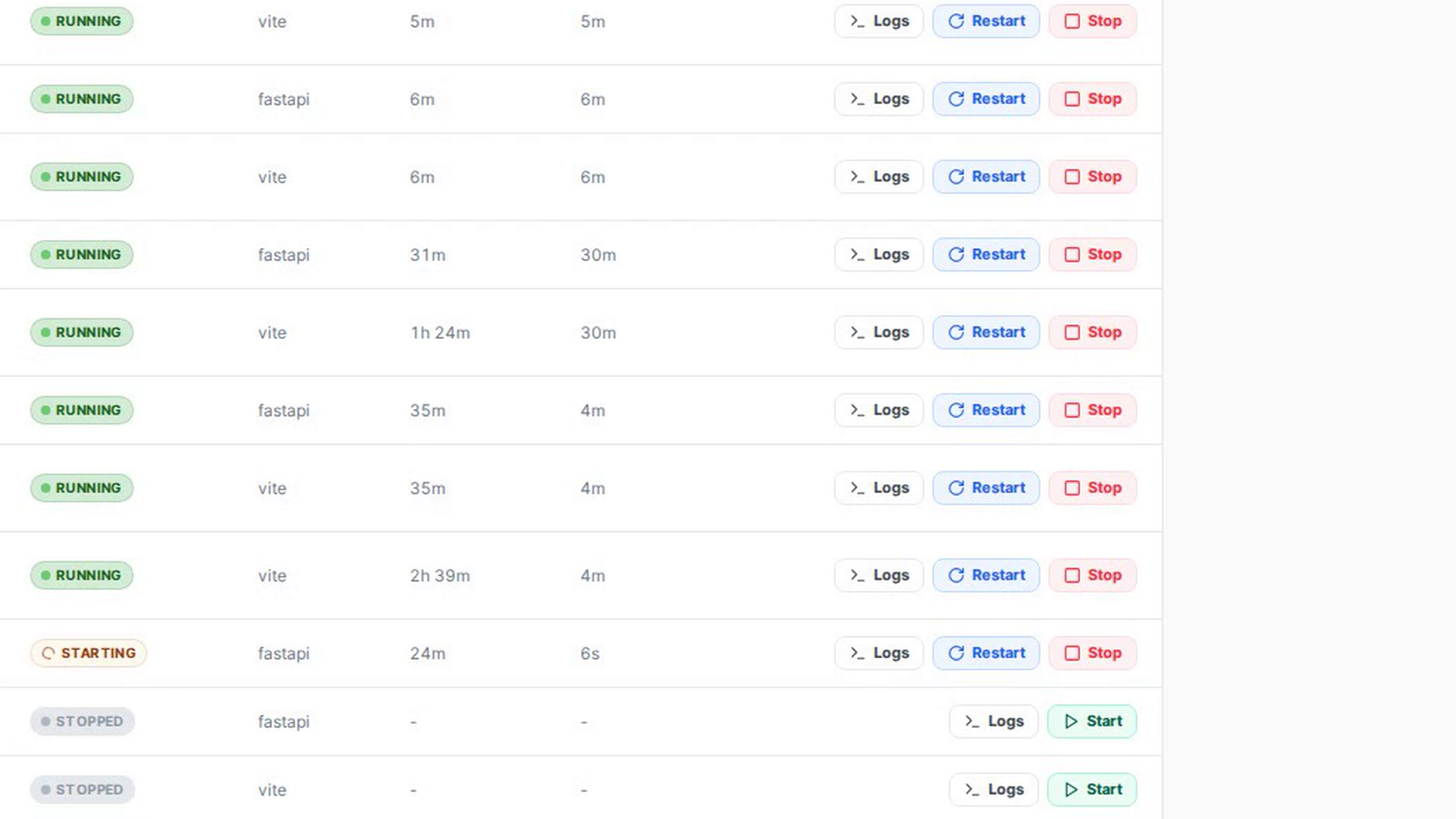
Step 7: Stop all dev servers
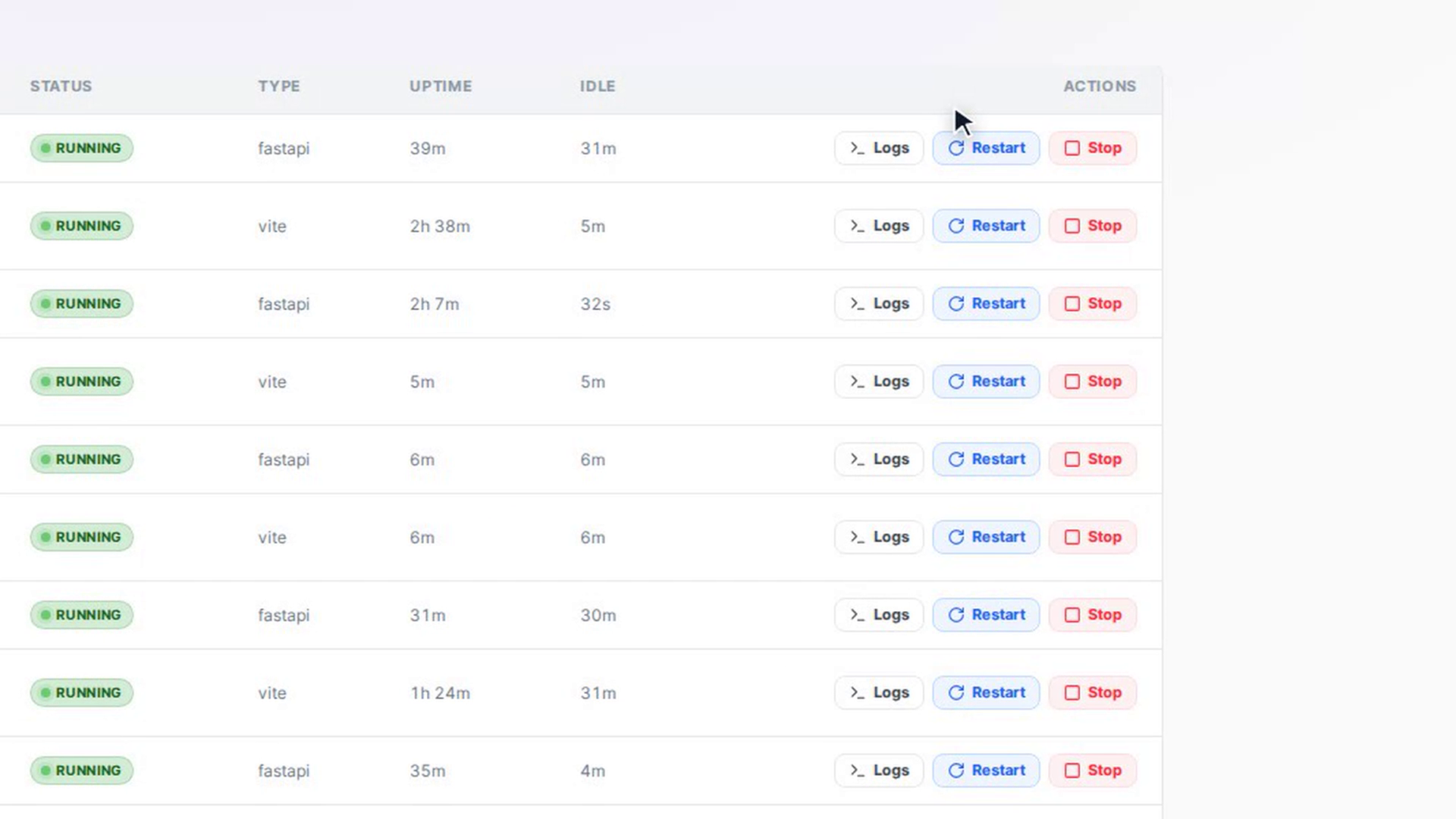
Step 8: Tail the logs
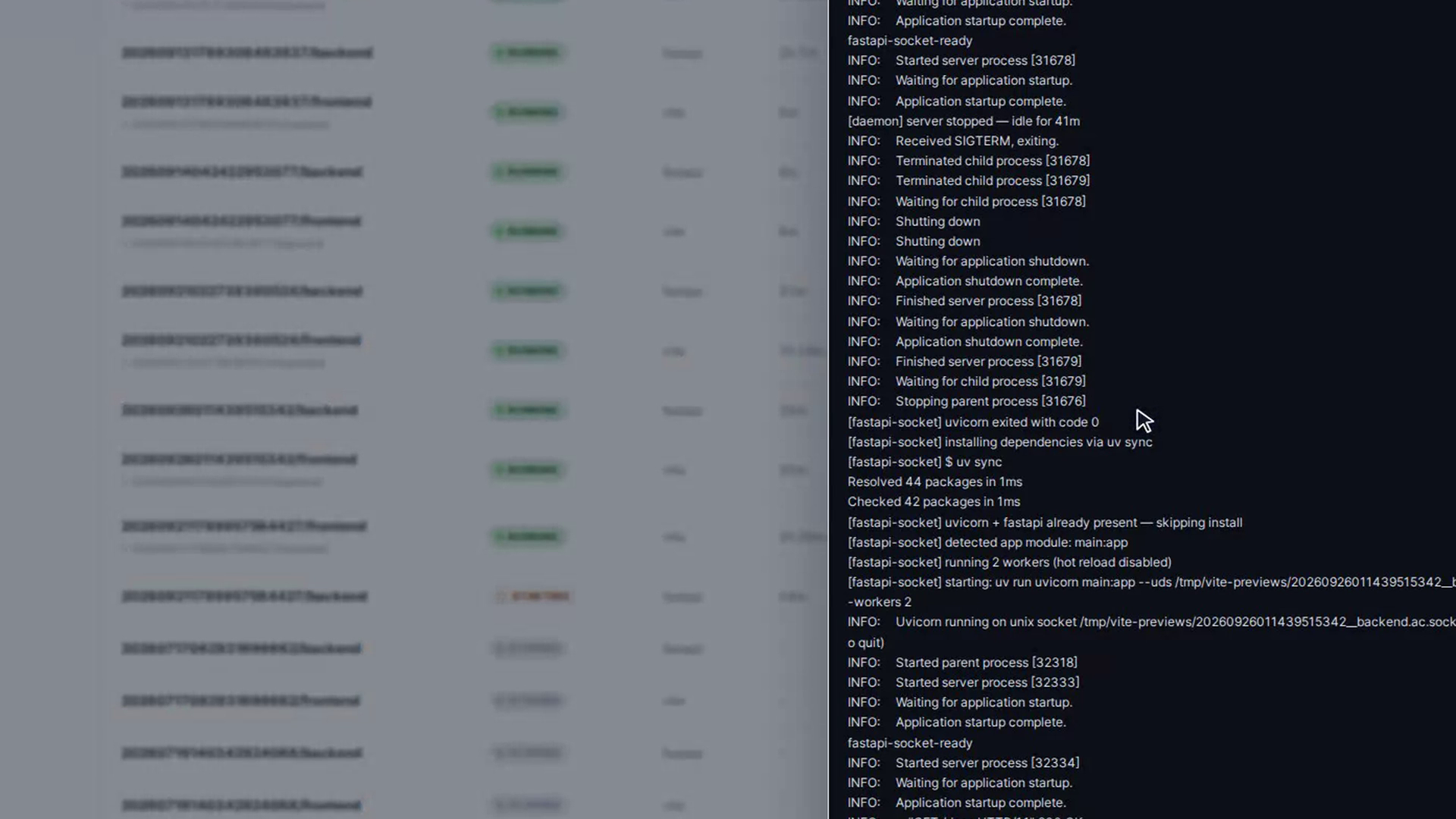
Watch how
Stop all stops every dev server in the workspace at once, including ones other people may be using. Their previews stop working until each server is started again individually.