Tenant monitoring
The Monitoring page shows the Grafana dashboards for a workspace (tenant) inside Dalfin, so you can check its health without leaving the app.
Before you start
- This page is meant for operations staff. It only appears in non-production environments, and there is no separate role check.
- A workspace must exist. If none can be found you see "No workspace found".
Steps
Open monitoring
Choose one of these:
- In the Dalfin sidebar, select Settings, then Monitoring. This opens monitoring for the workspace of the environment you are signed in to.
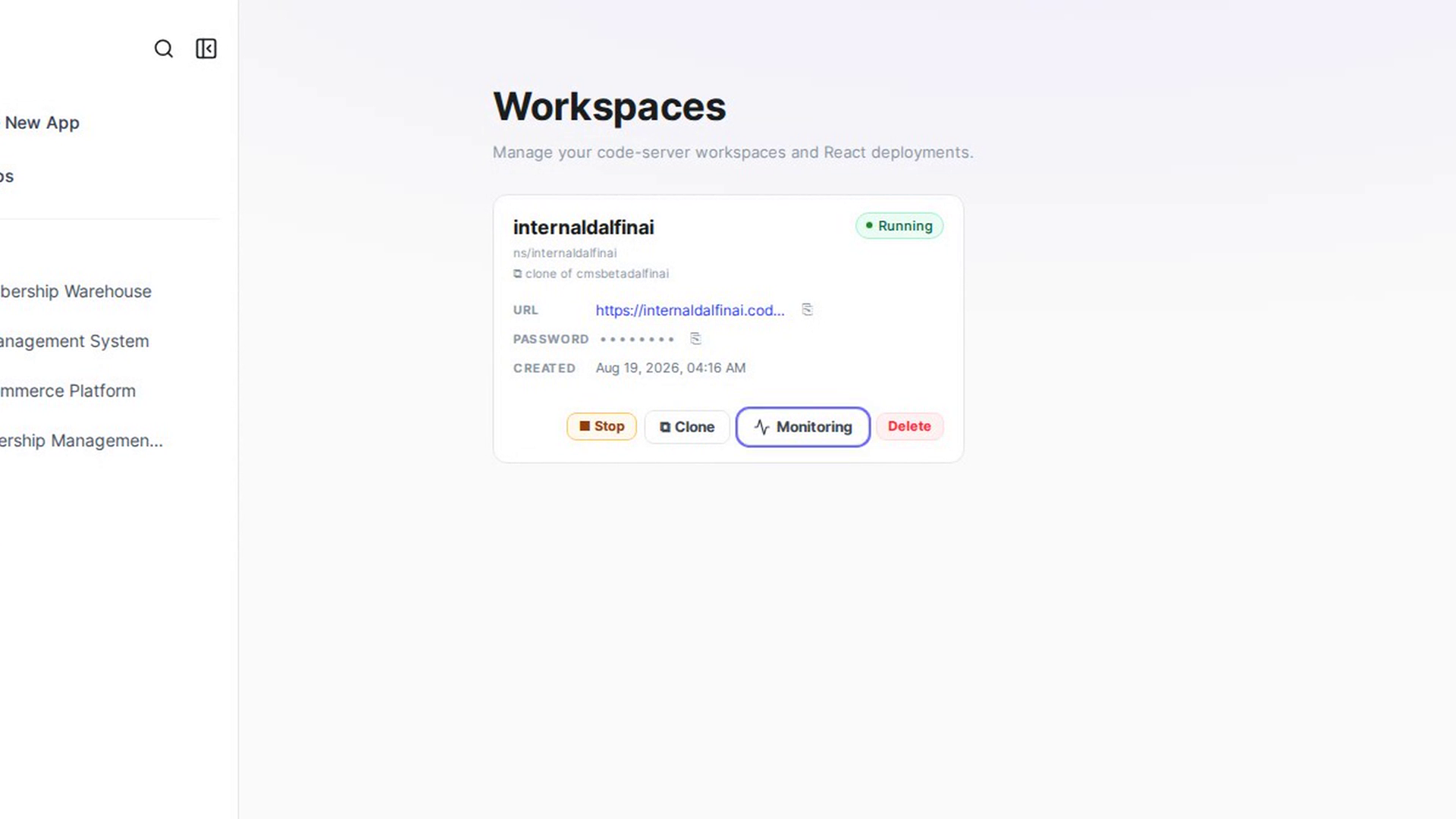
- On the Workspaces page, select Monitoring on a workspace card to open monitoring for that workspace.
While it loads you see "Loading monitoring…".
Read the dashboards
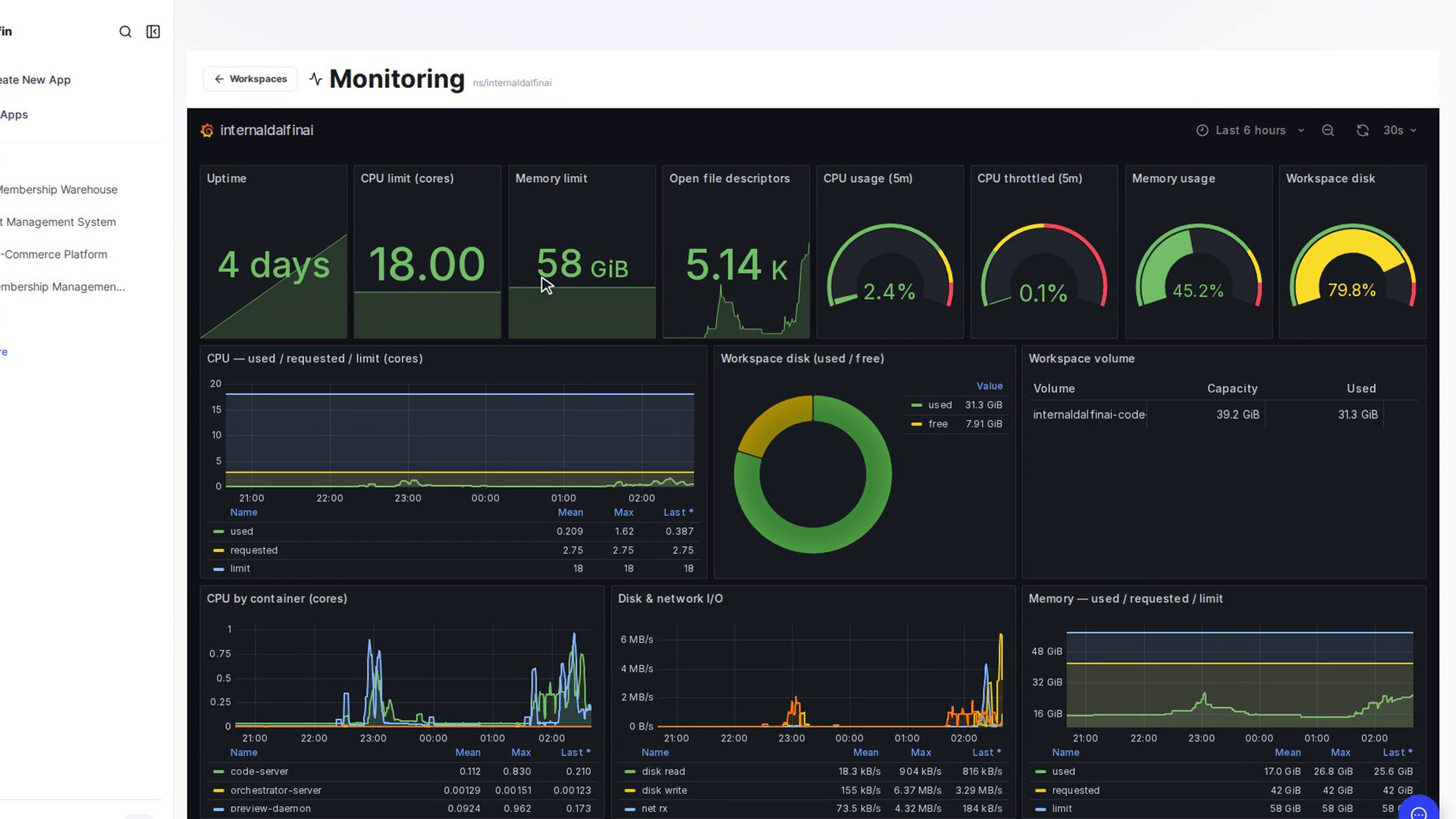
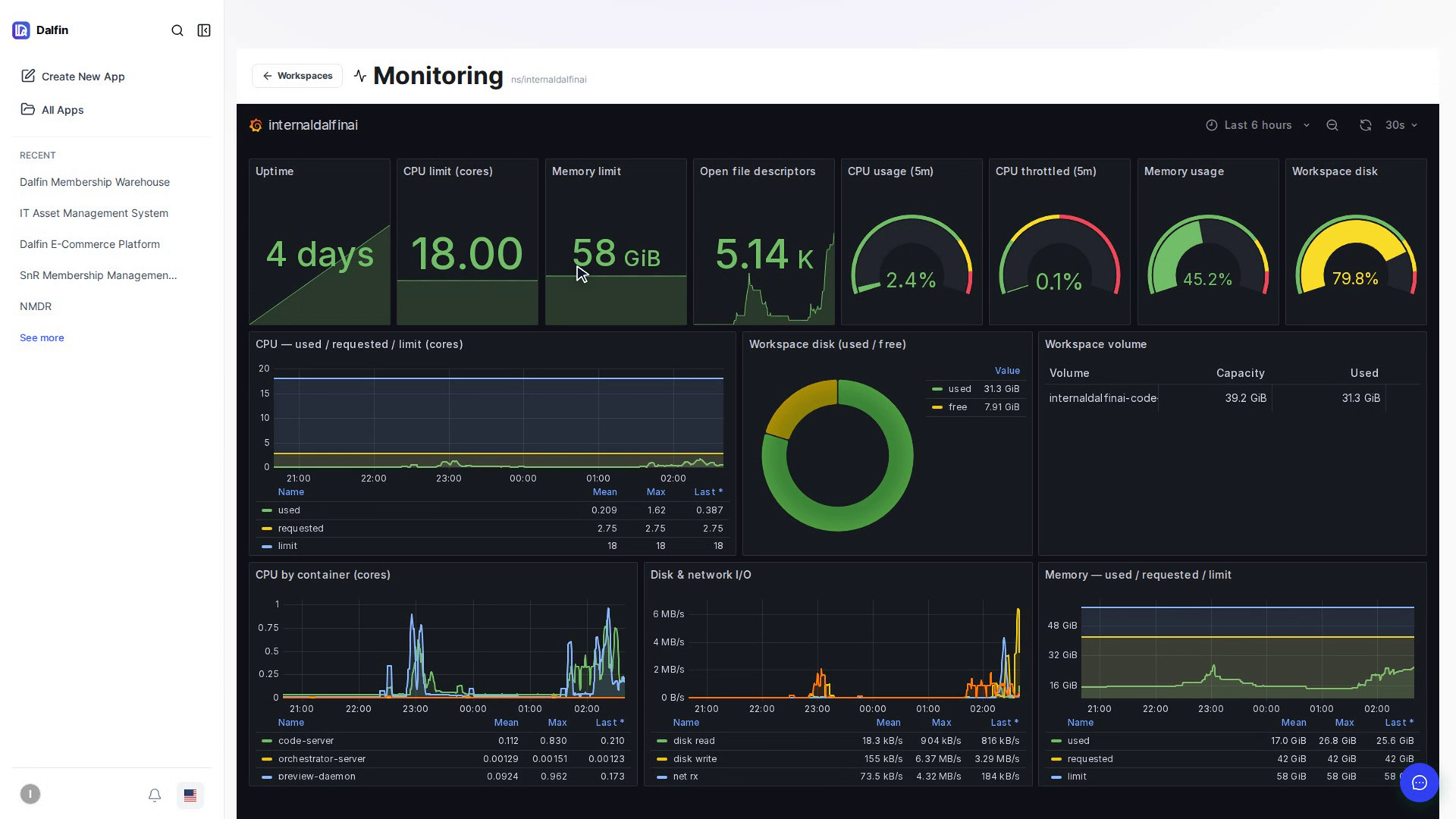
The page shows Monitoring with the workspace name, and the Grafana dashboards below. Use the dashboards as you normally would in Grafana.
If no workspace is found
If you see "Monitoring is scoped to a workspace. Create one to get started.", select Go to Workspaces to create one.
Go back
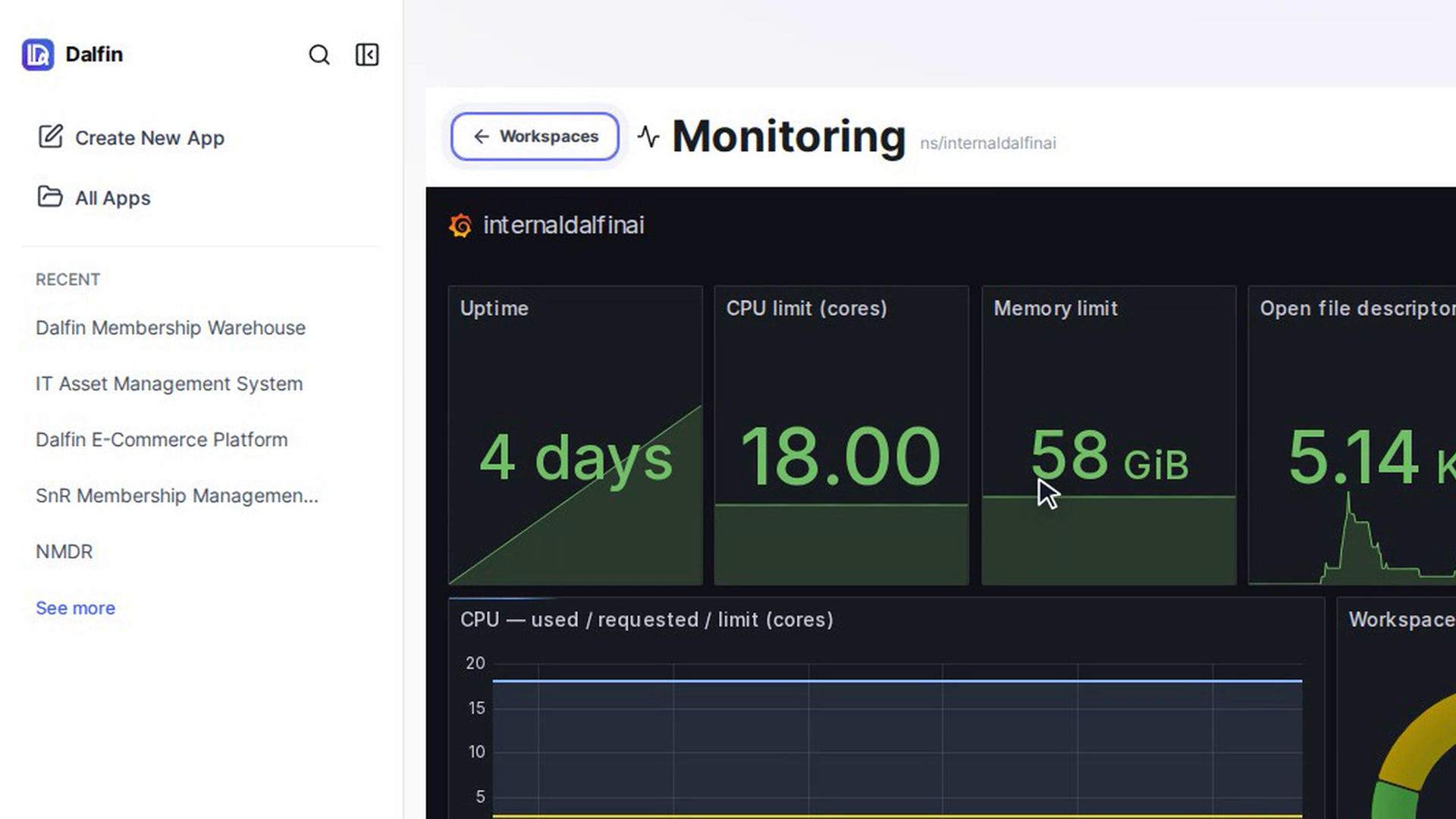
Select Workspaces at the top left to return to the list of workspaces.
Screenshots
Step 1: Open monitoring
Step 2: Read the dashboards
Step 3: If no workspace is found
Step 4: Go back
Watch how
Tip: You're signed in to the dashboards automatically; there's no separate Grafana sign-in.