Organization settings
Keep your organization's name, country, address and logo up to date. These details identify your organization across the platform.
Before you start
- You need to be the organization owner, or have been given permission to view Organization Settings.
- The Organization Configuration menu is not shown while your account is in trial or test mode, or in a sandbox or demo environment (unless you are the organization owner).
Steps
Open Organization Settings
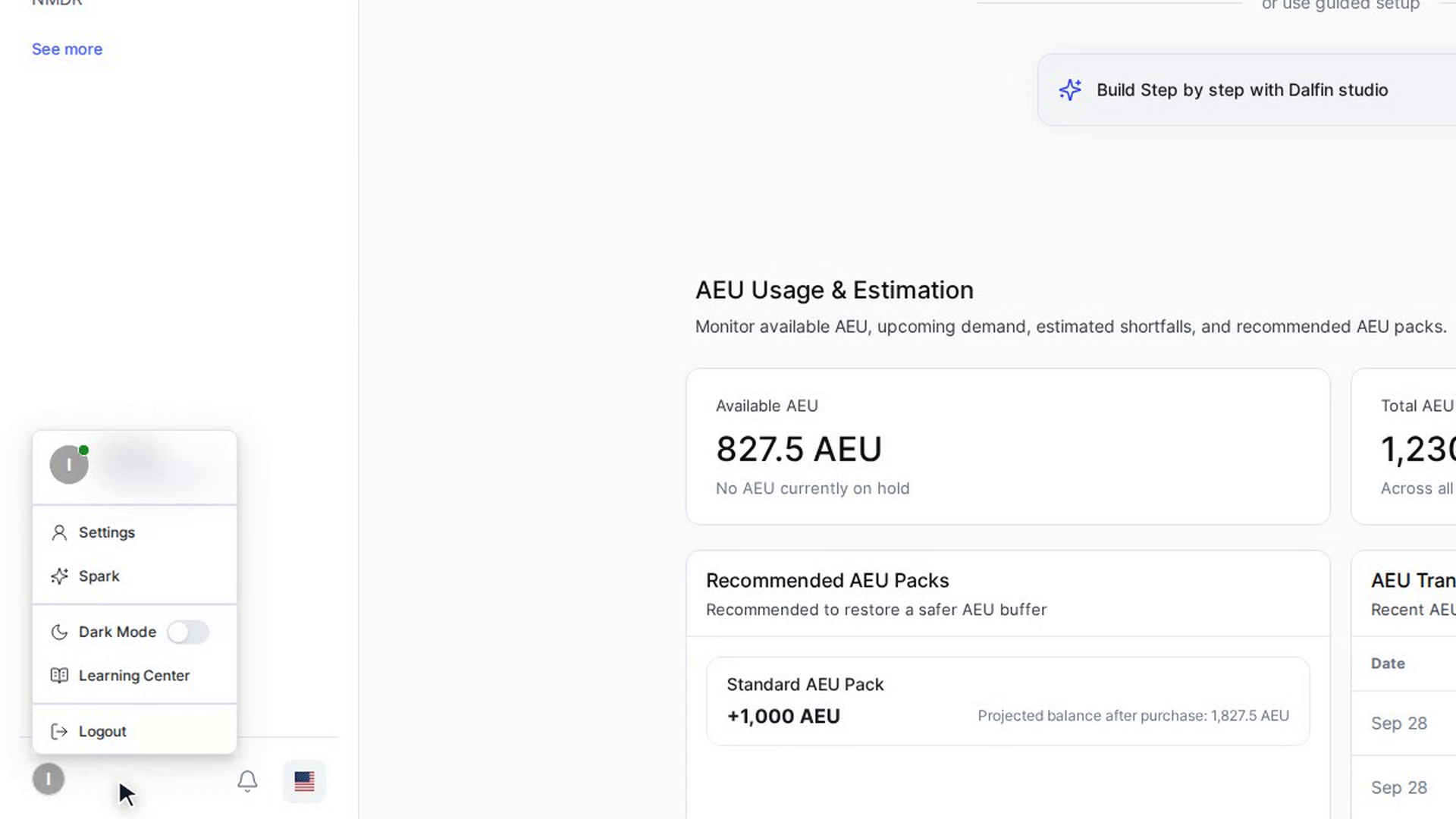
Select your name and picture at the bottom left of the Dalfin sidebar and choose Settings. In the Settings sidebar, open Organization Configuration and select Organization Settings.
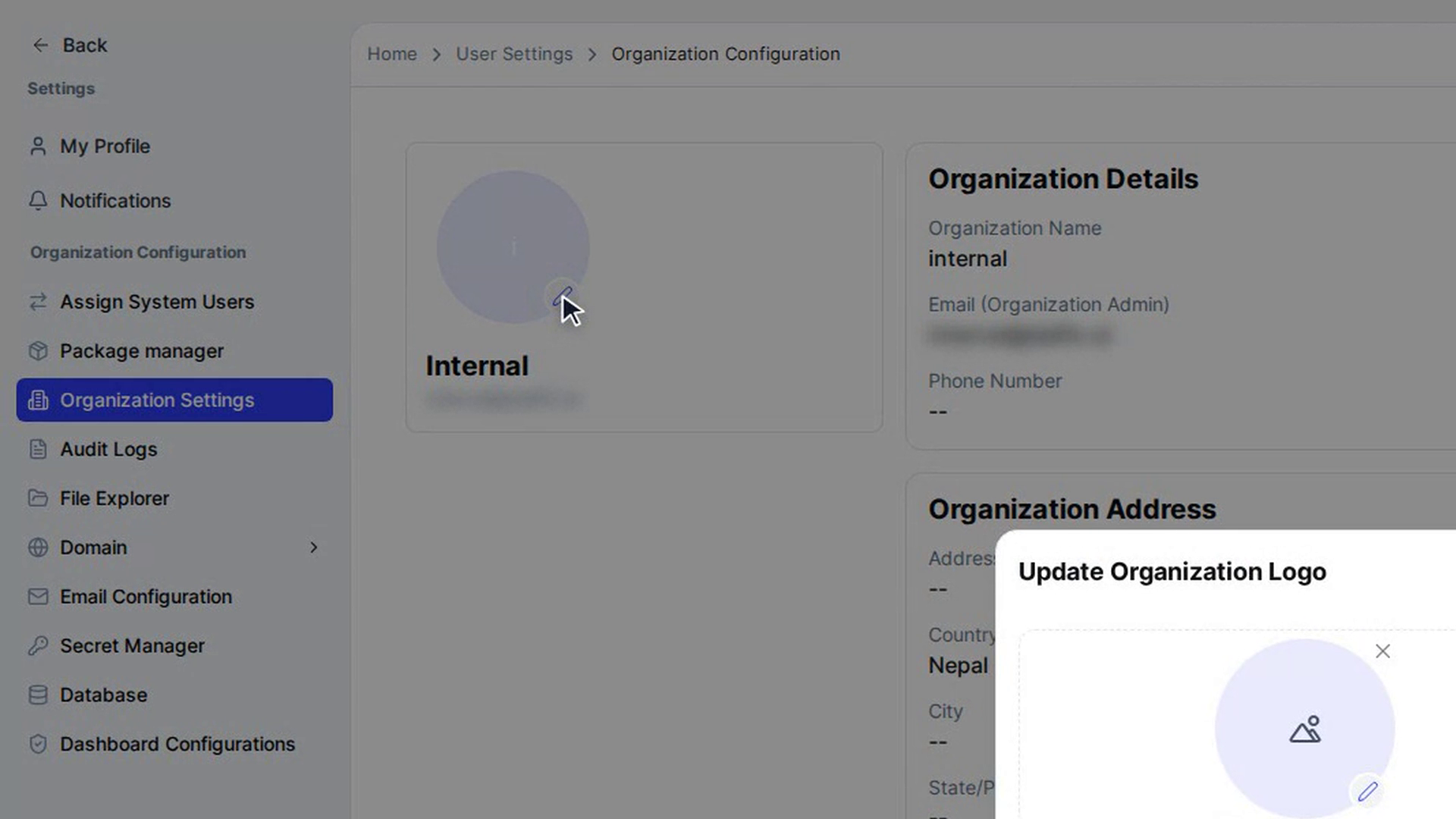
The page shows your organization's logo, name and admin email at the top, followed by two cards: Organization Details and Organization Address.
Change the organization details
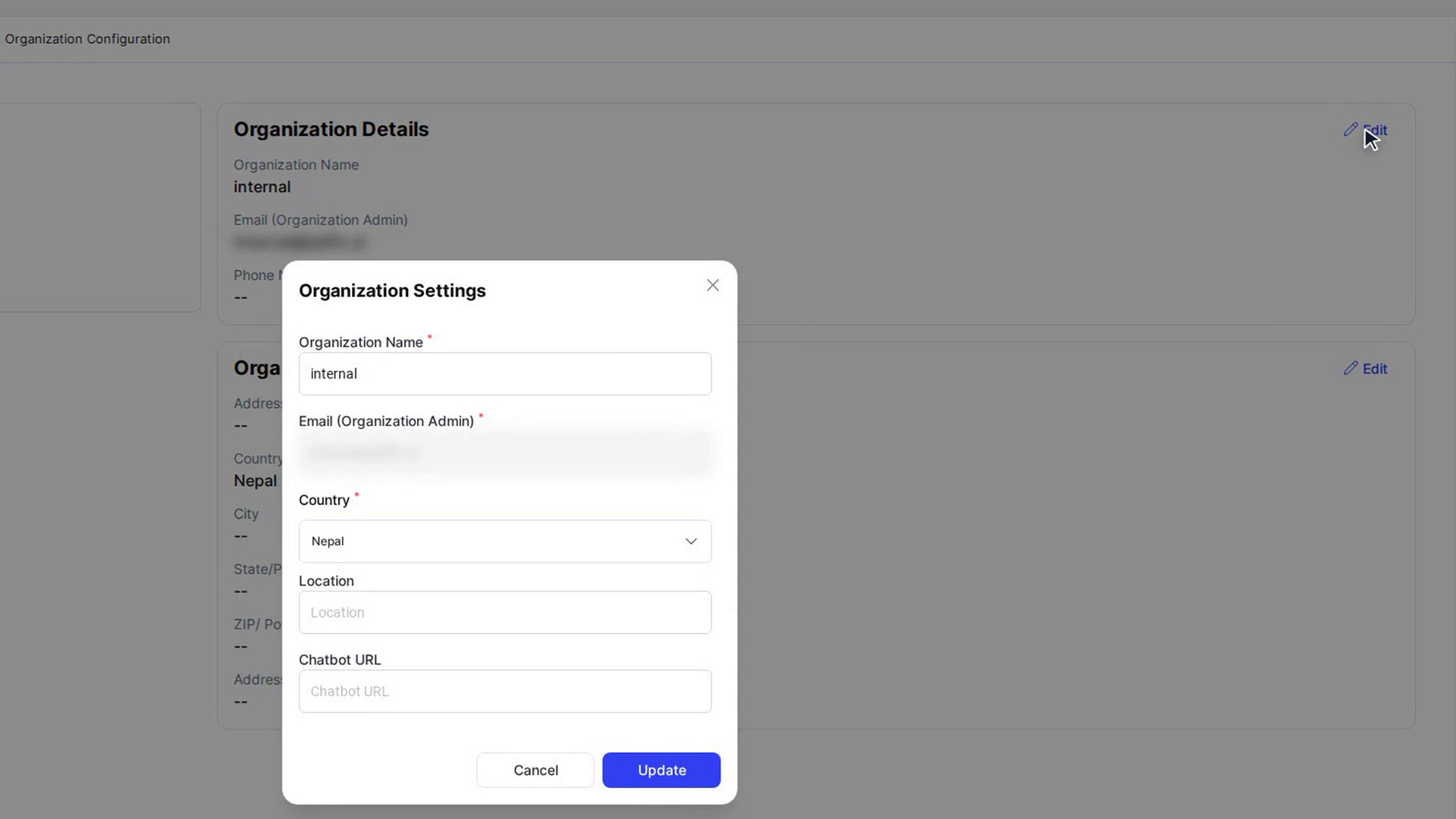
On the Organization Details card, select Edit. A window titled Organization Settings opens with these fields:
- Organization Name (required, 3–50 characters)
- Email (Organization Admin), shown for reference and can't be changed here
- Country (required)
- Location
- Chatbot URL
Make your changes and select Update. The window closes and the card shows the new details.
Change the organization address
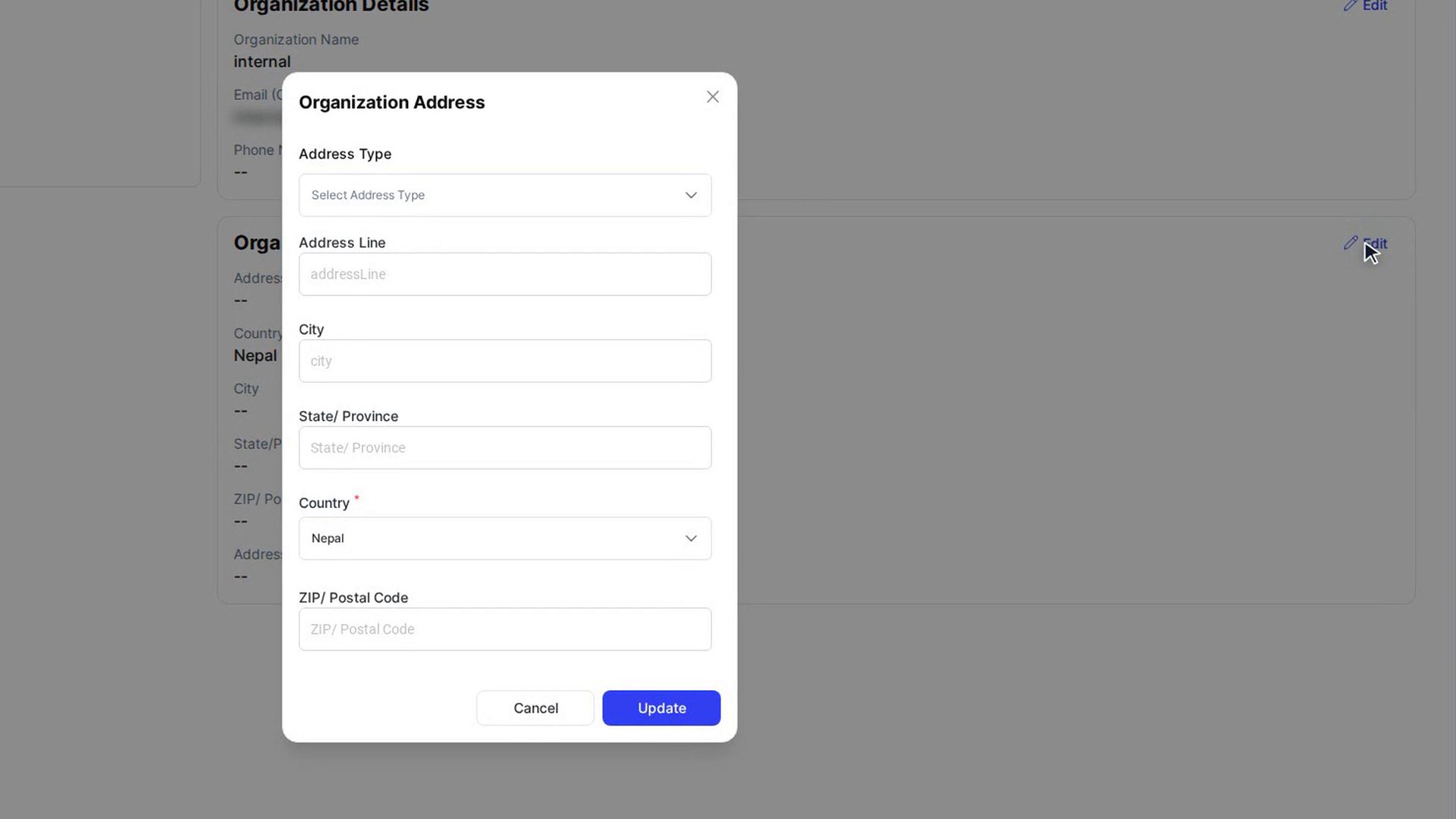
On the Organization Address card, select Edit. In the Organization Address window, fill in Address Type (Permanent or Temporary), Address Line, City, State/ Province, Country and ZIP/ Postal Code.
Select Update to save. The card shows the updated address.
Update the organization logo
Select the pencil icon next to the logo at the top of the page. The Update Organization Logo window opens.
Upload a new image, then select Update. The new logo replaces the old one on the page.
Screenshots
Step 1: Open Organization Settings
Step 2: Change the organization details
Step 3: Change the organization address
Step 4: Update the organization logo
Watch how
Tip: The Phone Number shown on the Organization Details card can't be edited from this page.