Domain mappings
See which web address each of your systems uses. Every system can have its own short domain name, which becomes part of that system's URL.
Before you start
- You need to be the organization owner, or have permission to view System Domain Manager.
- Only active systems are listed.
- The Domain menu is not shown on local installations.
Steps
Open System Domain Manager
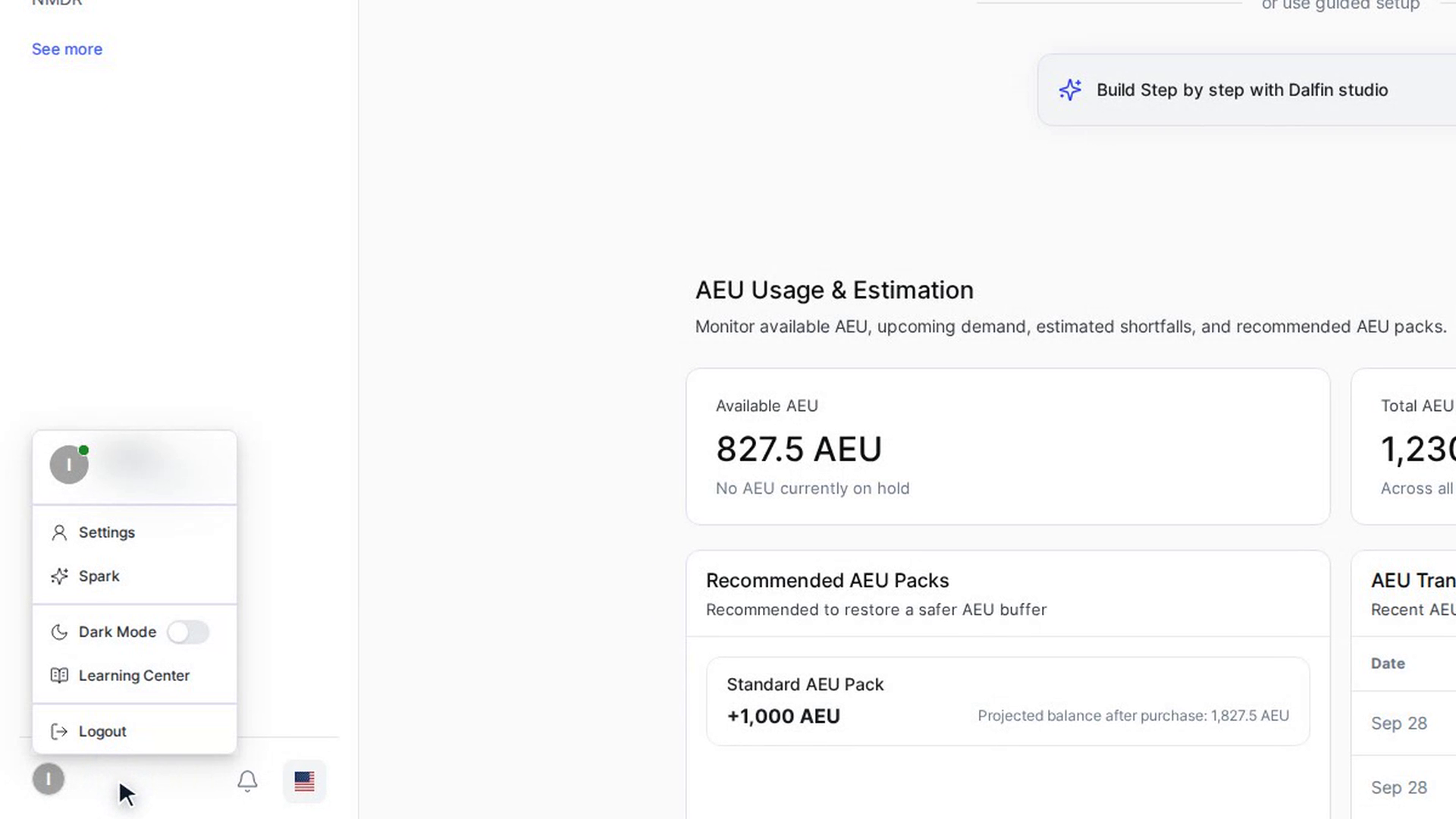
Select your name and picture at the bottom left of the Dalfin sidebar and choose Settings. In the Settings sidebar, open Organization Configuration, then Domain, and select System Domain Manager.
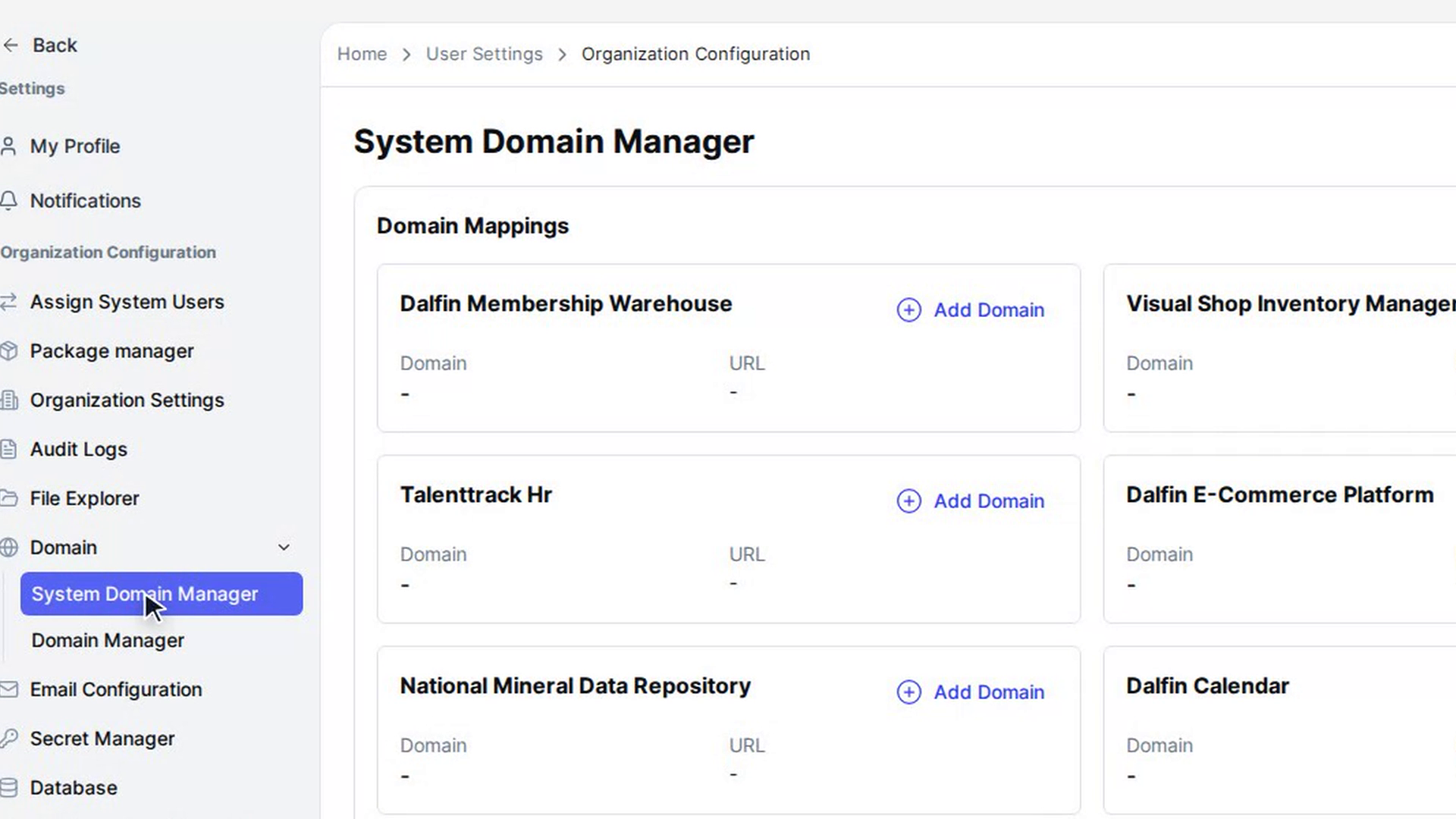
The Domain Mappings section shows one card per system.
Read a system's mapping
Each card shows the system's name, its Domain (the short name, or - if none is set) and its URL.
If the system has a domain, select the URL to open that system in a new browser tab. Without a domain, the URL also shows -.
Add or change a system's domain
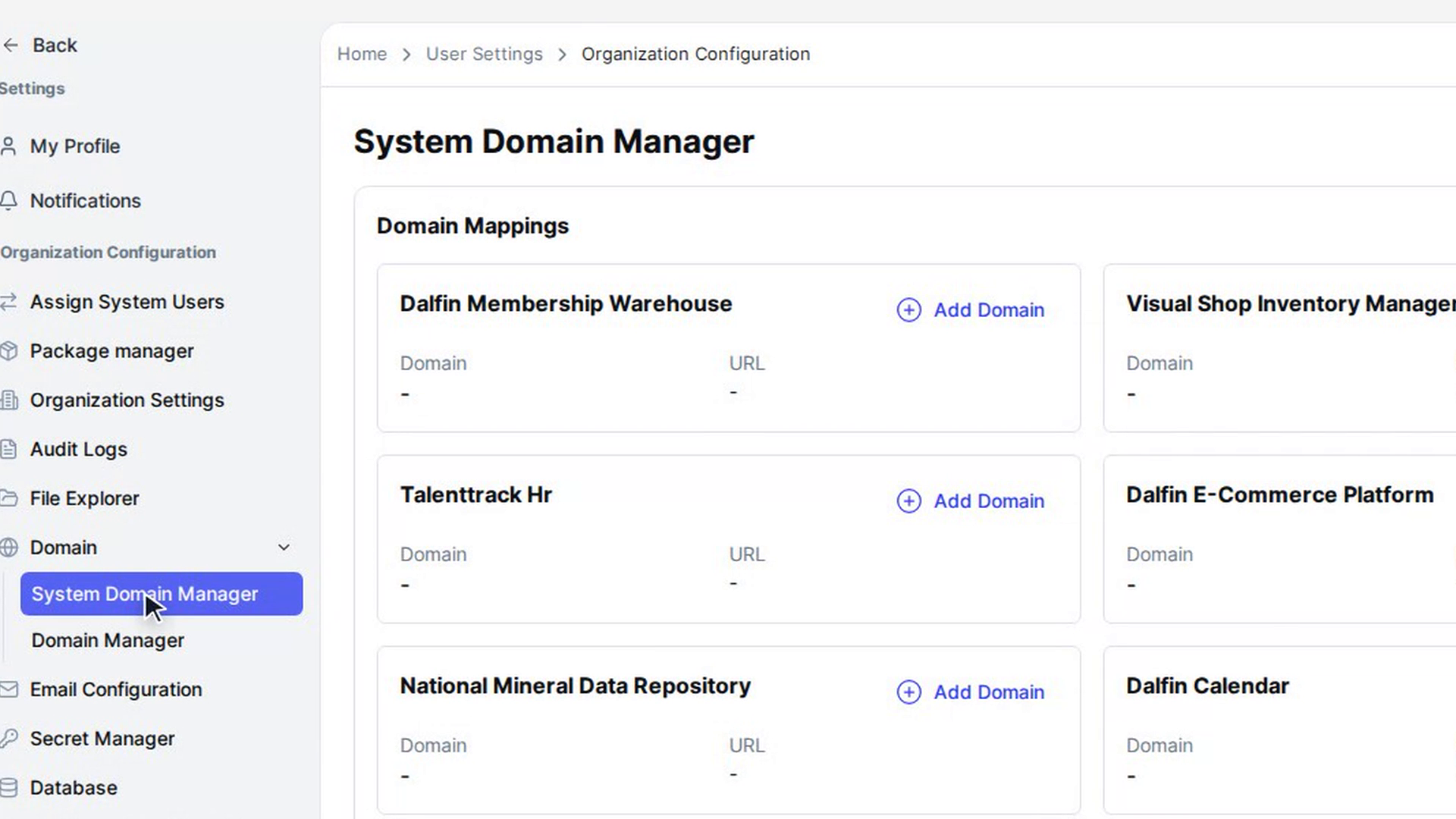
On the system's card, select Add Domain (or Edit Domain if it already has one). In the window, type a short name in Domain. You can use up to 10 letters and numbers. The URL field below shows the address the system will get.
Select Submit to save. The card shows the new domain and URL.
Screenshots
Step 1: Open System Domain Manager
Step 2: Read a system's mapping
Step 3: Add or change a system's domain
Watch how
Changing a system's domain changes its URL. Anyone using the old address will need the new one.
Note: Domain Mappings lists your organization's systems. An app you built in Dalfin only appears here once it has its own system in your organization, so an app from All Apps may not be listed yet.