Switch between systems
If you work in more than one system, you can jump from one to another without going back to the start. The system switcher lists every system you can open.
Before you start
- Anyone who has been assigned to more than one system can switch between them.
- You need to be inside a system. The switcher sits at the top of the system's menu.
Steps
Open the system switcher
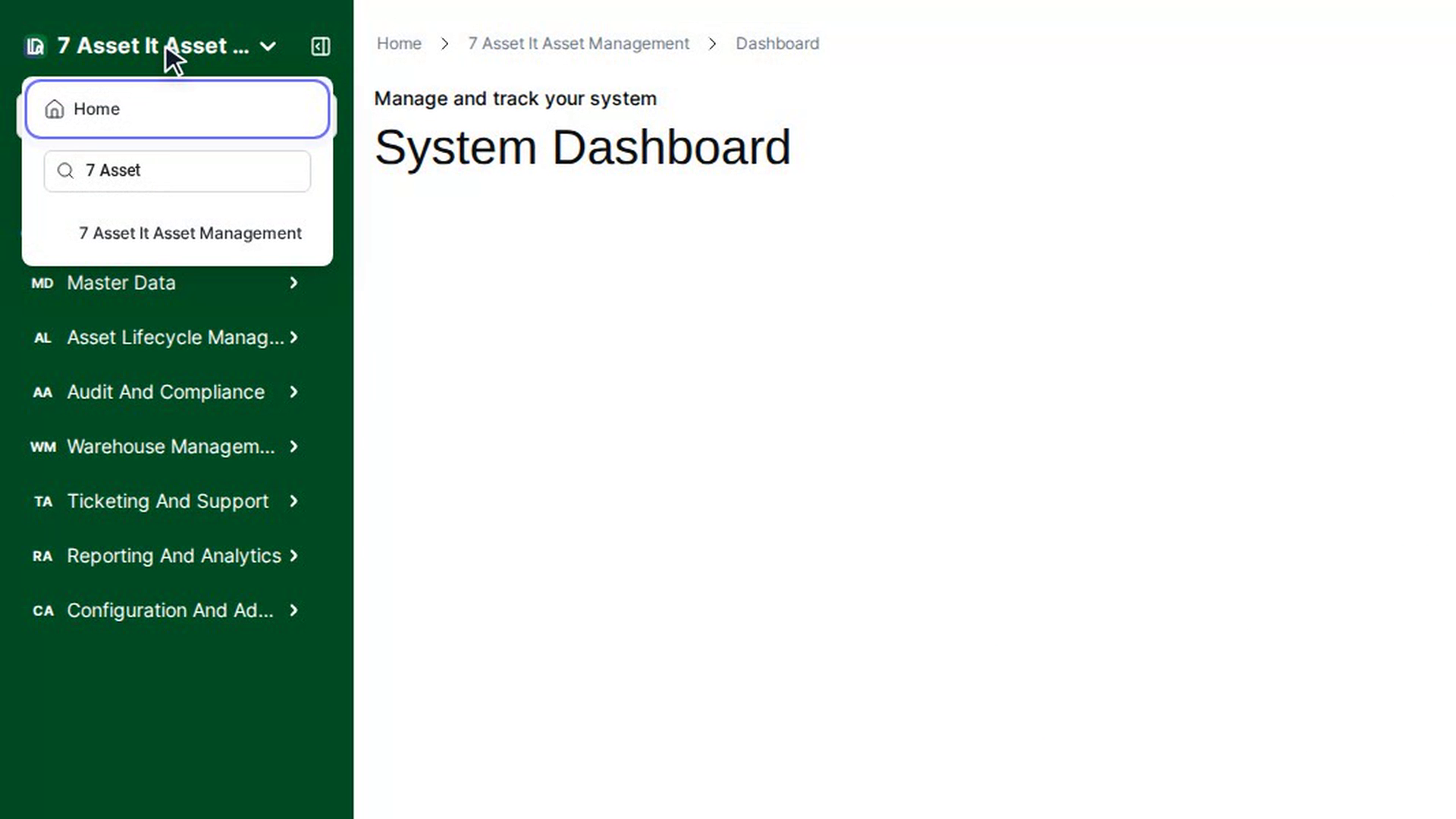
At the top of the menu on the left, select the current system's name (it has a small down arrow next to it). A list opens with Home, a search box and all the systems you can open.
Search for a system
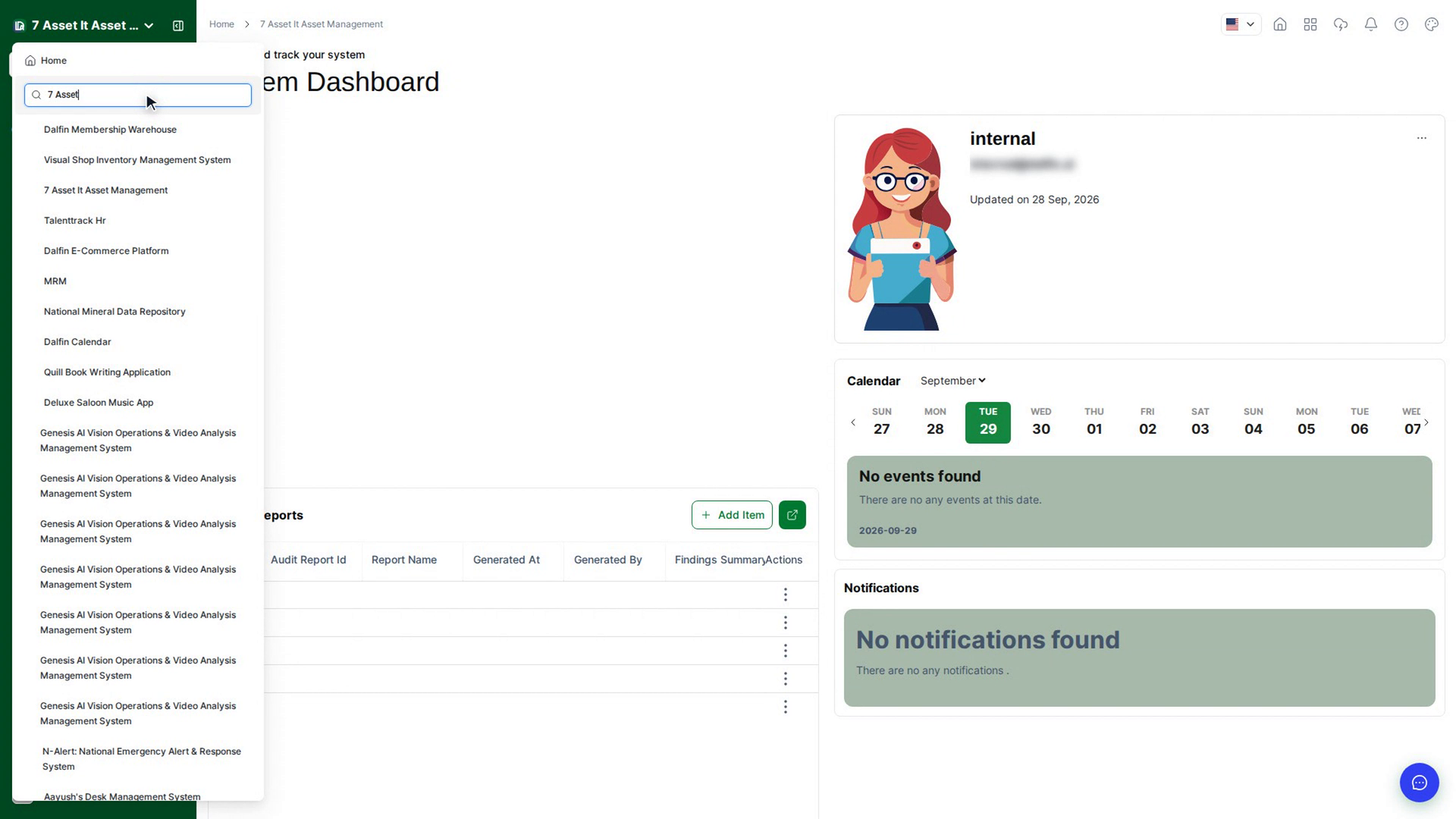
If the list is long, type part of a system's name into Search Systems.... The list narrows as you type.
Pick a system
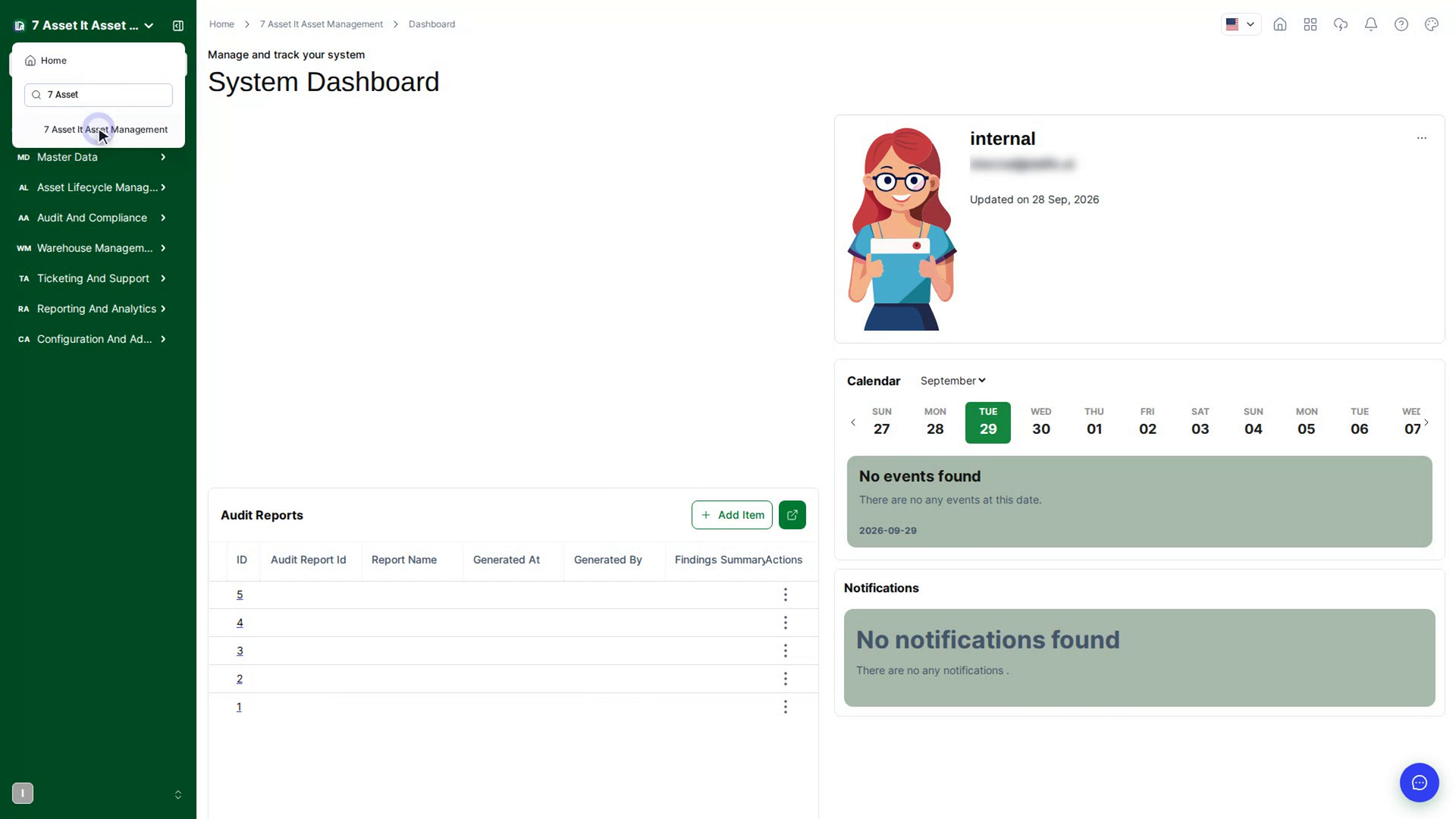
Select the system you want. Dalfin opens that system's dashboard, and its menu replaces the one you were using.
Go back to the start
To leave systems altogether, open the switcher and select Home. Organization owners go back to the Dalfin home. Other users go to their list of systems.
Screenshots
Step 1: Open the system switcher
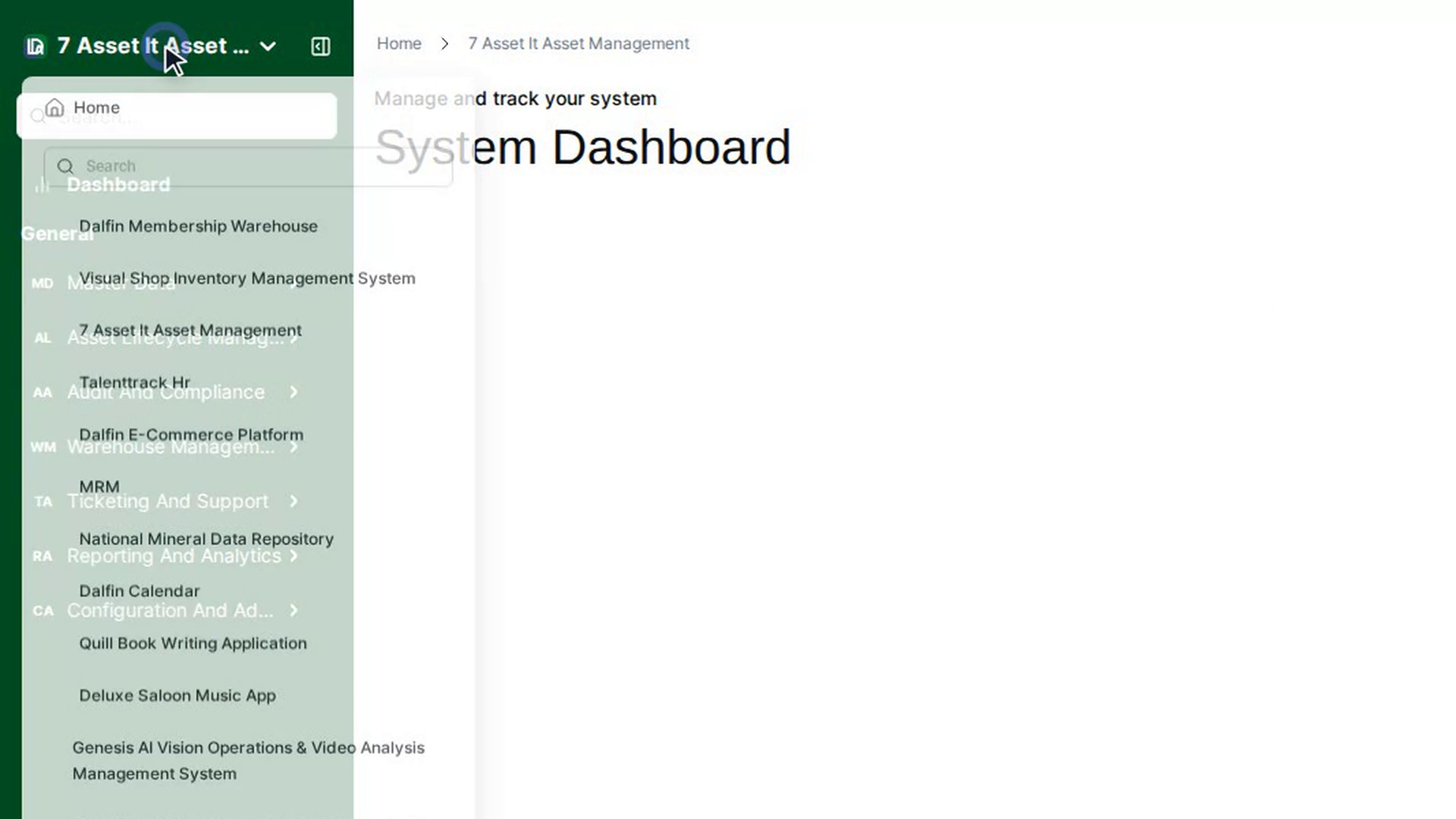
Step 2: Search for a system
Step 3: Pick a system
Step 4: Go back to the start