Audit logs
See who did what, and when, across your organization. Use the audit log to check changes, follow up on problems or confirm that something happened.
Before you start
- You need to be the organization owner, or have permission to view Audit Logs.
- The log is read-only. Entries can't be edited or deleted.
Steps
Open Audit Logs
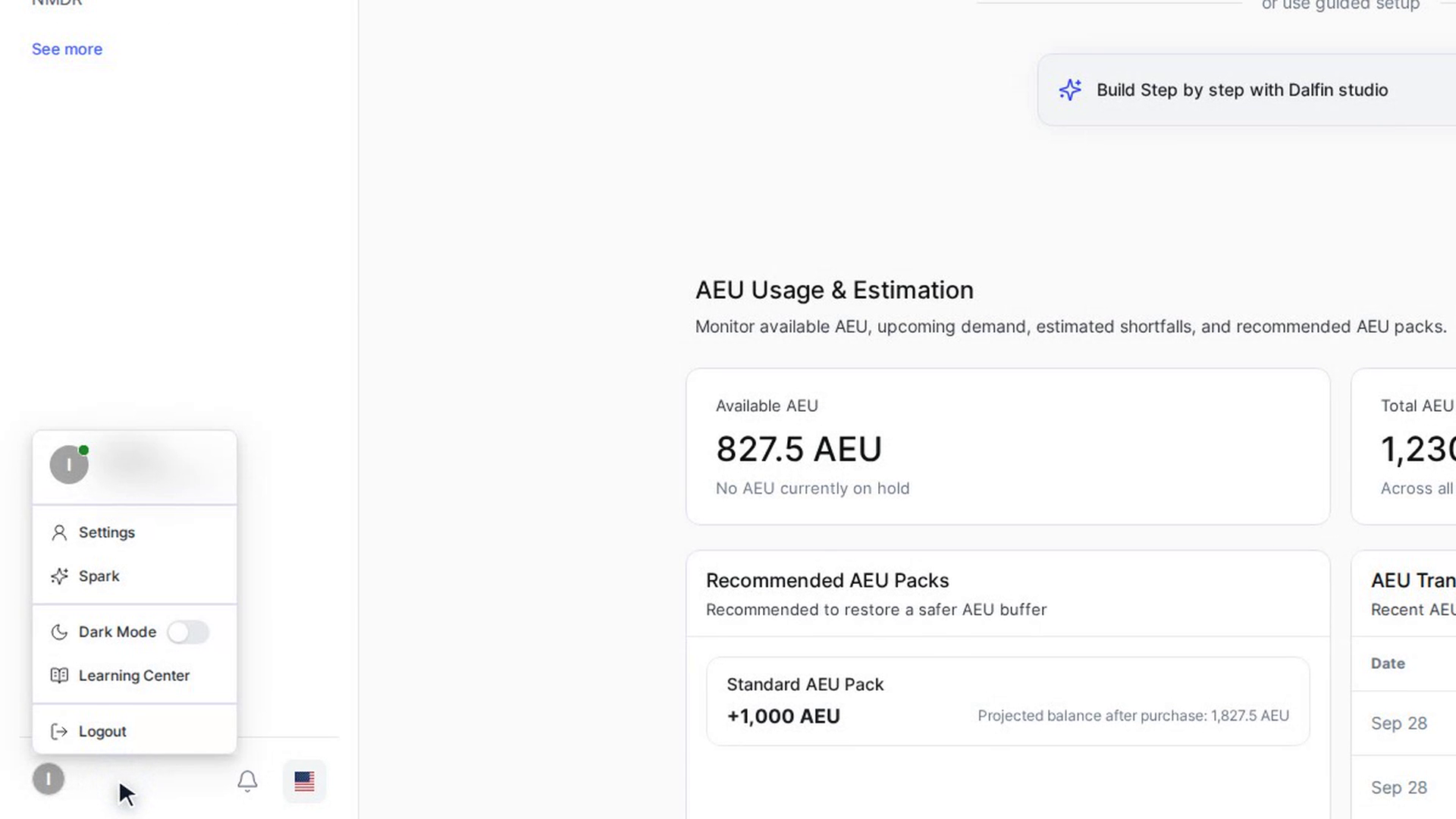
Select your name and picture at the bottom left of the Dalfin sidebar and choose Settings. In the Settings sidebar, open Organization Configuration and select Audit Logs.
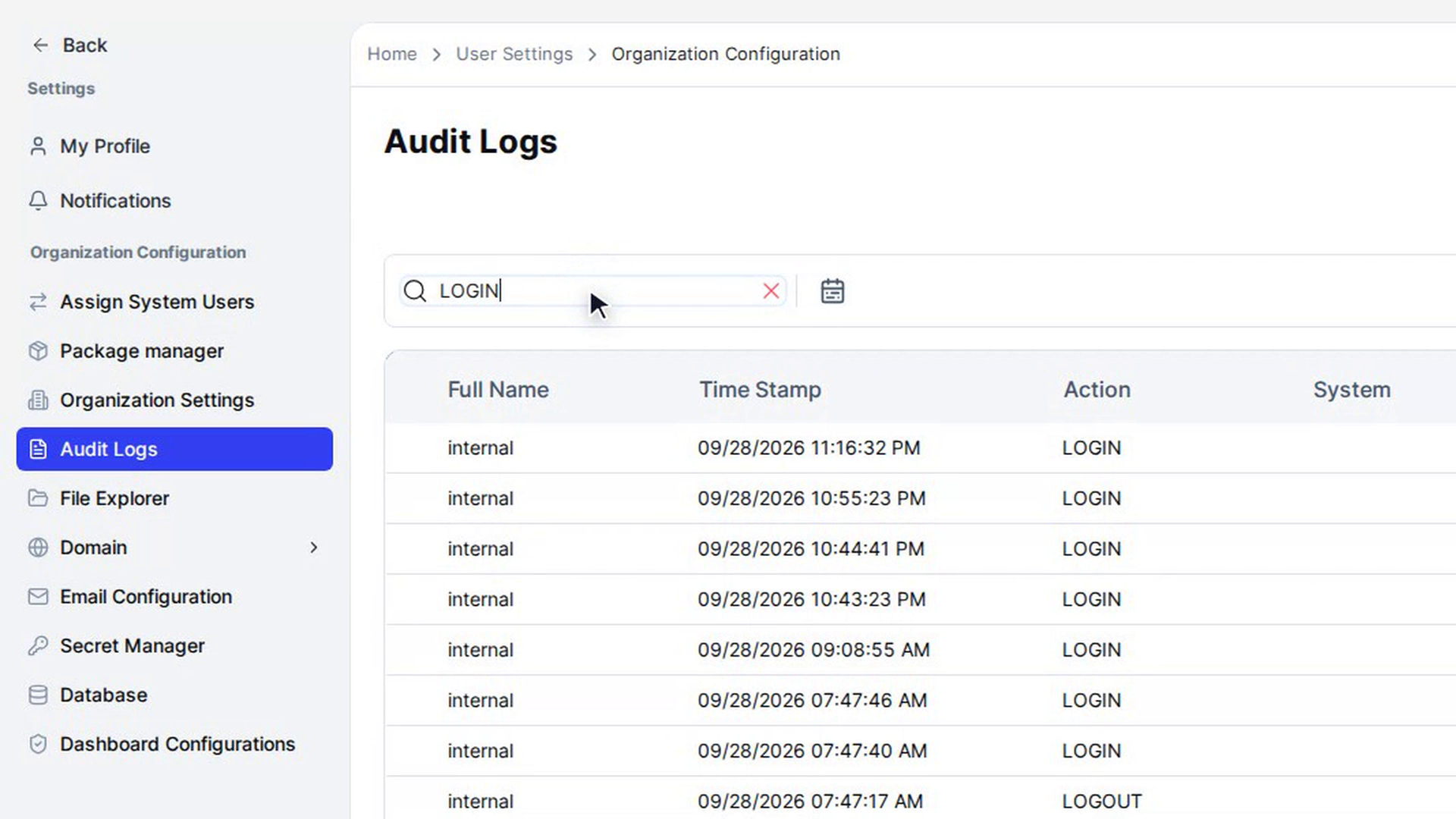
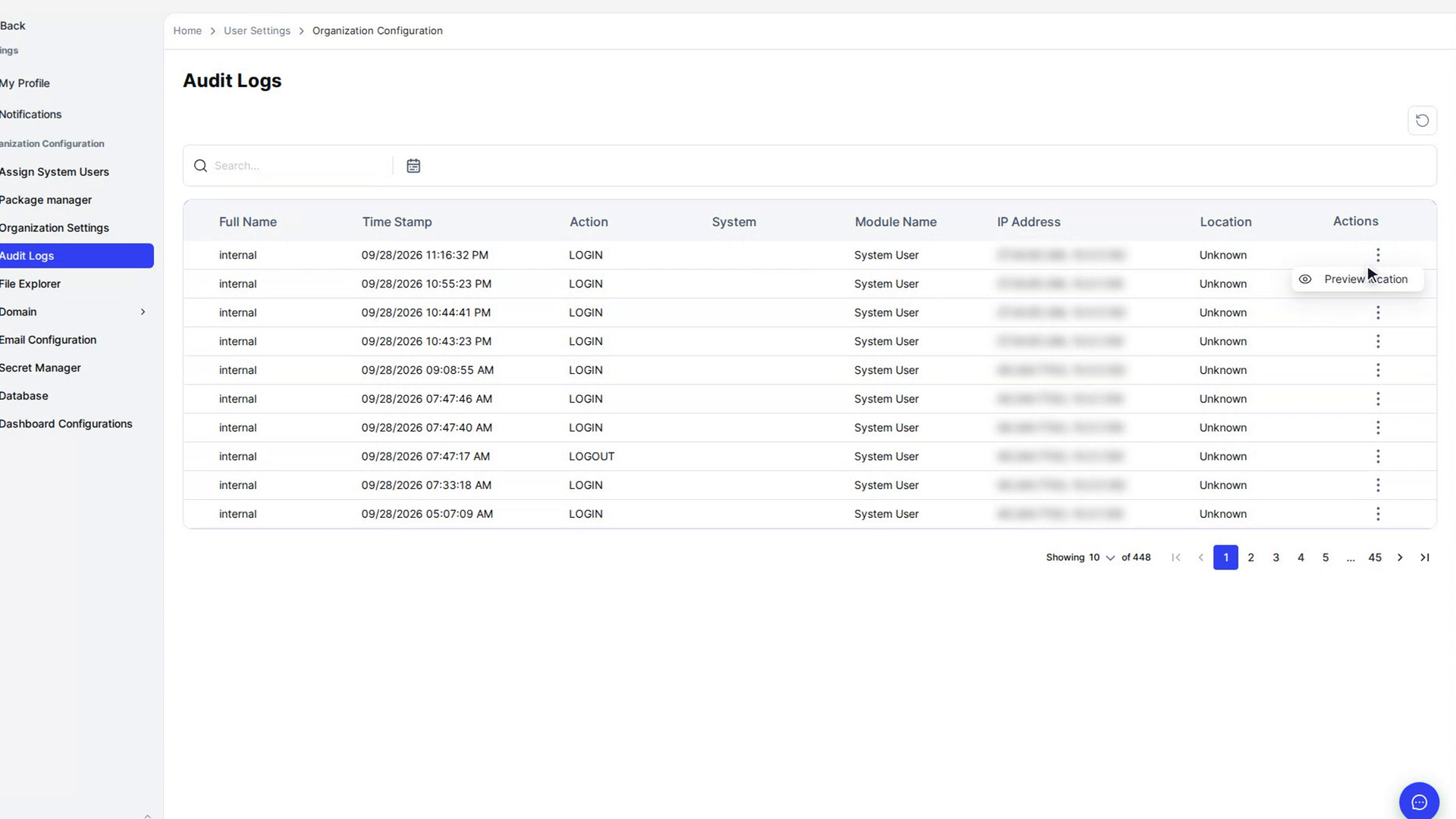
A table of activity opens, showing the date and time of each action.
Search the log
Type a word in the table's search box, for example a user's name or an action. The table shows only the matching entries.
Filter by date
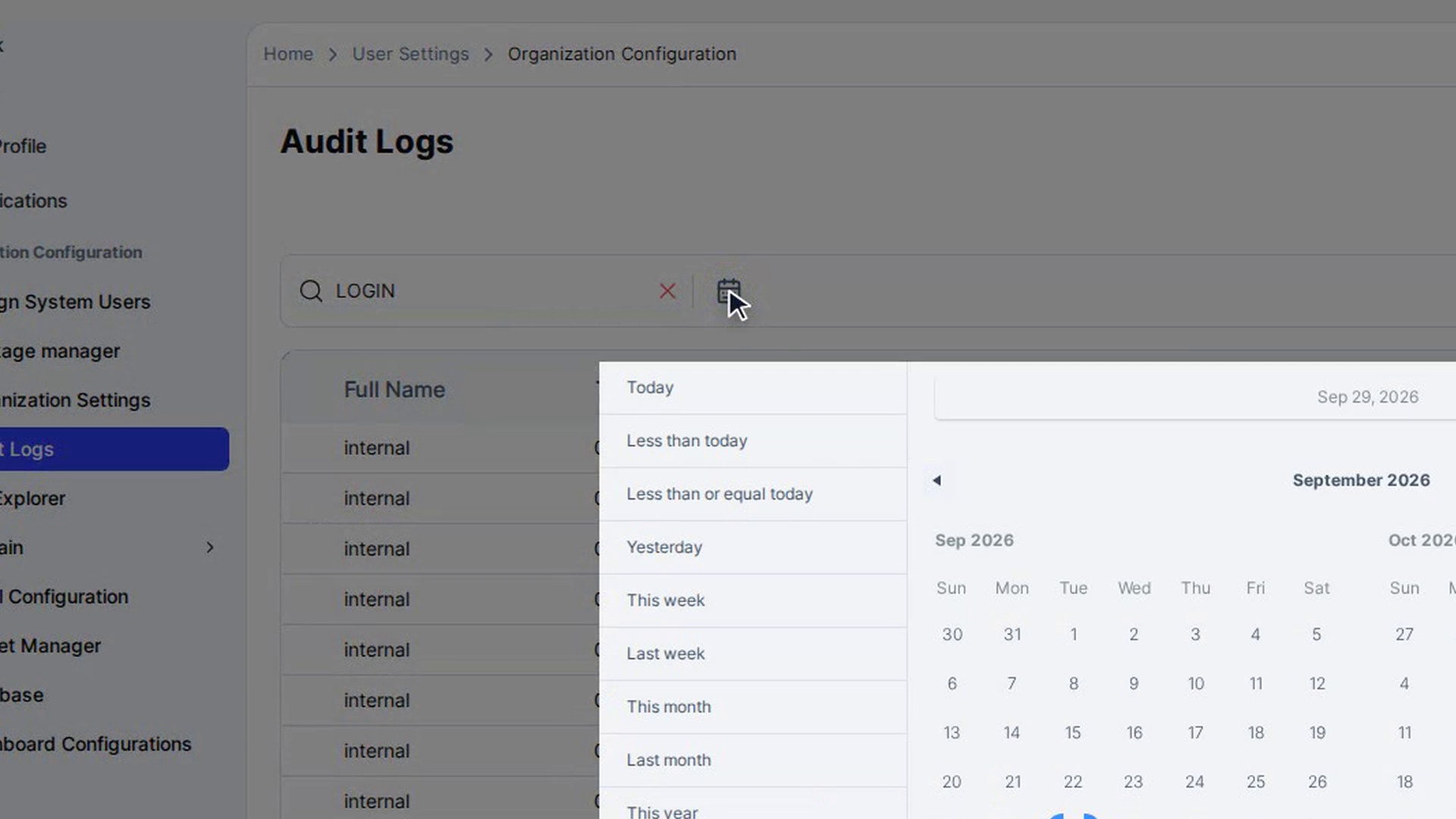
Select the calendar icon above the table. Pick a quick range such as Today, Less than today, Less than or equal today, Yesterday, This week, Last week, This month, Last month, This year or Last year, or choose your own start and end dates. Select Apply.
The table shows only entries in that range, and the chosen range appears next to the filter icon.
Clear the filters
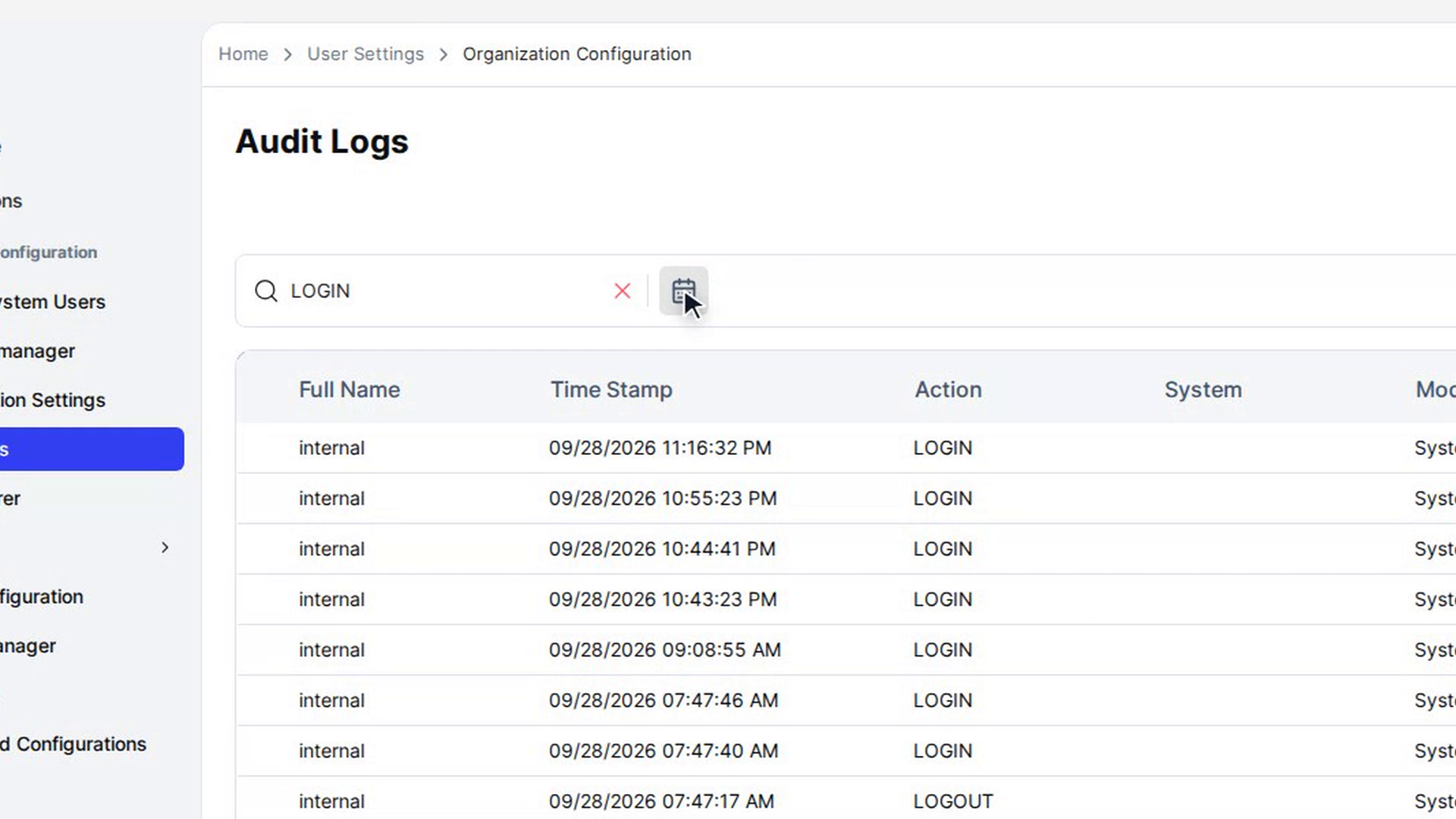
Select the Clear Filter icon (it replaces the calendar icon while a date filter is on). The date range and the search are cleared and the full log is shown again.
Preview where an action happened
Select the ⋮ menu at the end of an entry's row and choose Preview location. The Preview location window shows the latitude and longitude recorded for that action, the place it points to, and a map with a pin.
Screenshots
Step 1: Open Audit Logs
Step 2: Search the log
Step 3: Filter by date
Step 4: Clear the filters
Step 5: Preview where an action happened
Watch how
Tip: Combine a date range with a search to find one person's actions on a particular day quickly.