Check agent usage
See how many tokens the agent has used: in total, for each session, and for the conversation you have open.
Before you start
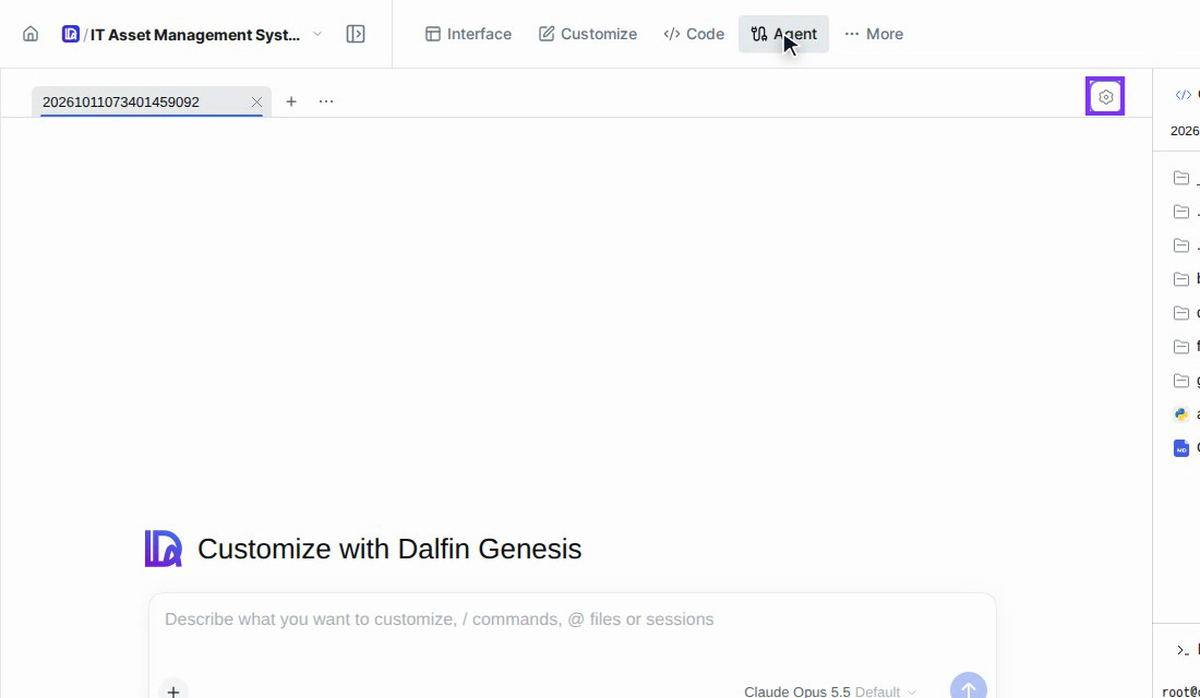
- Open your system and select Agent in the top bar. See Open and set up the Agent Module.
- A token is a small piece of text. The agent's usage is counted in tokens: the text it reads (input) plus the text it writes (output).
Steps
Open Settings and choose Usage
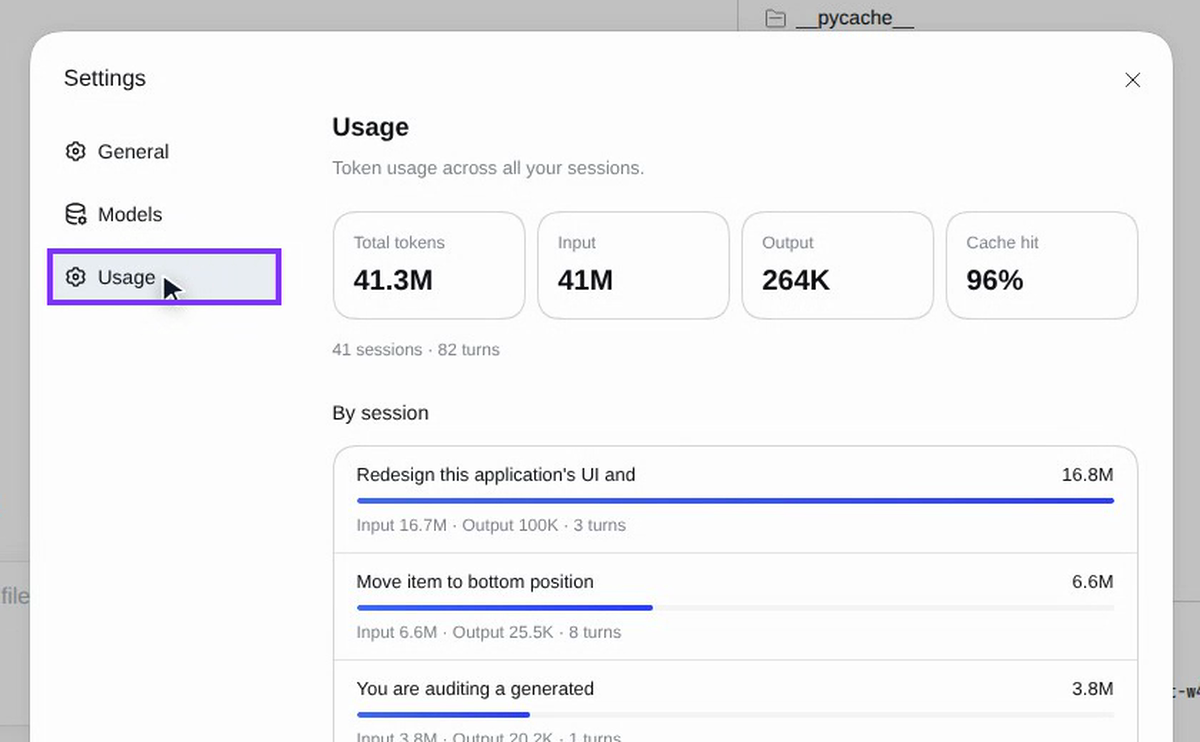
In the Agent workspace, select the Settings gear at the top right of the conversation, then select Usage on the left of the Settings window.
Read the totals
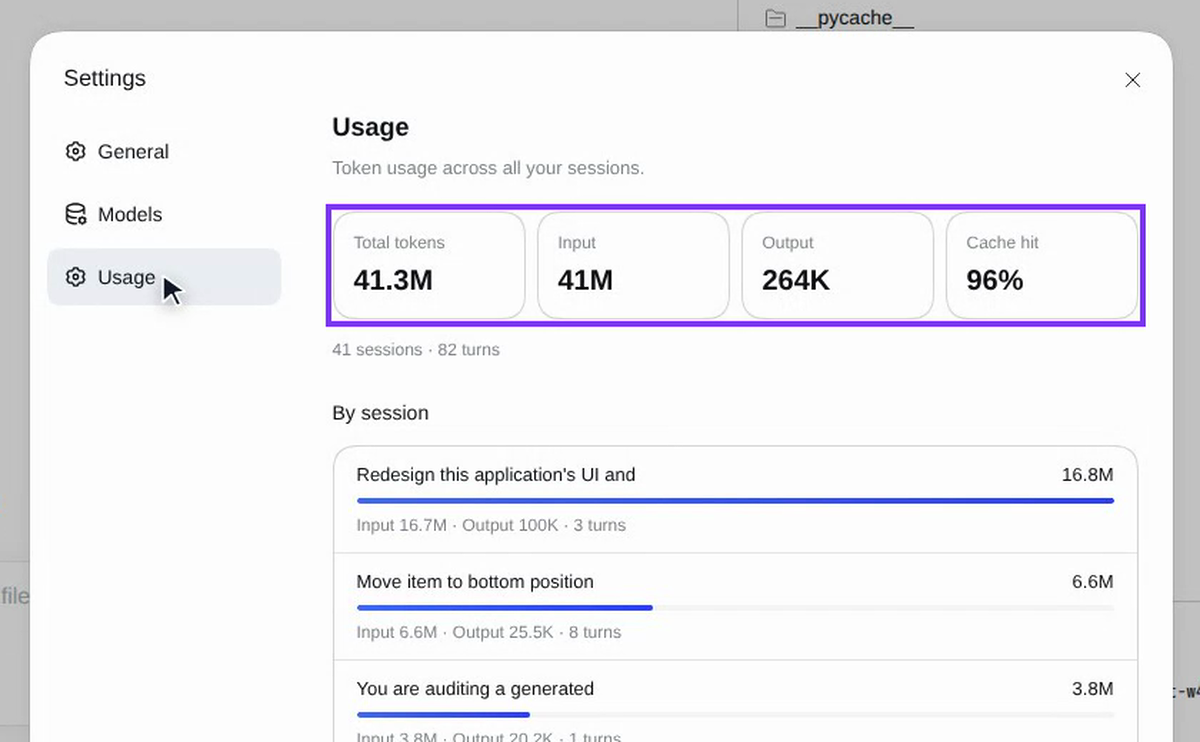
The top of the page shows Token usage across all your sessions in four boxes:
| Box | What it means |
|---|---|
| Total tokens | Everything the agent has used, input and output together |
| Input | The text the agent read: your messages, your system's files and the earlier conversation |
| Output | The text the agent wrote: its answers, plans and code changes |
| Cache hit | How much of the input was reused from earlier turns. A high number is good: reused input is faster and cheaper |
Below the boxes you see how many sessions and turns these figures cover (for example 41 sessions · 82 turns).
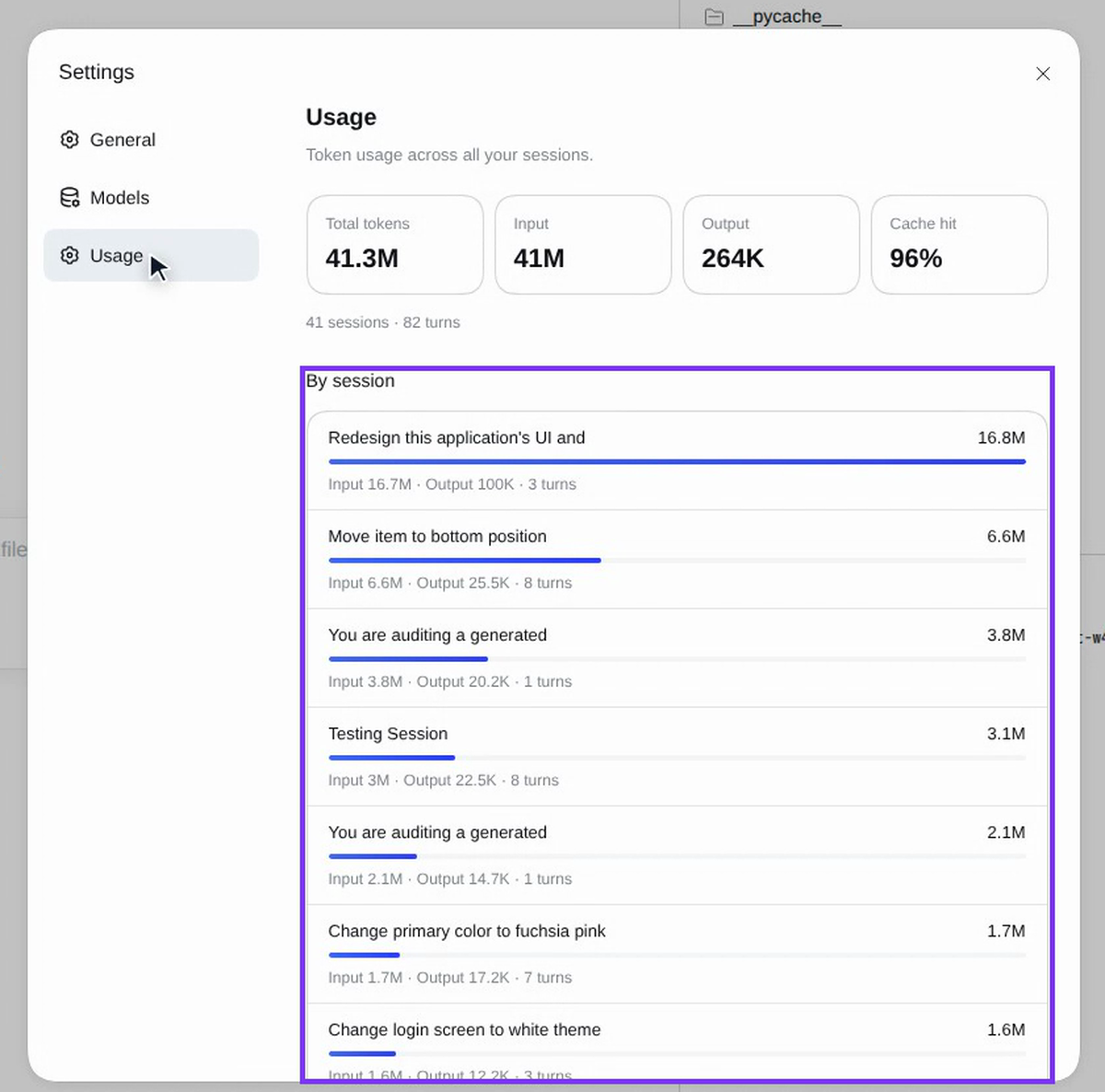
See which sessions used the most
By session lists each conversation with the tokens it used, largest first. The bar shows its share, and the line under it gives its Input, Output and number of turns. Use it to see which tasks cost the most.
Check the session you have open
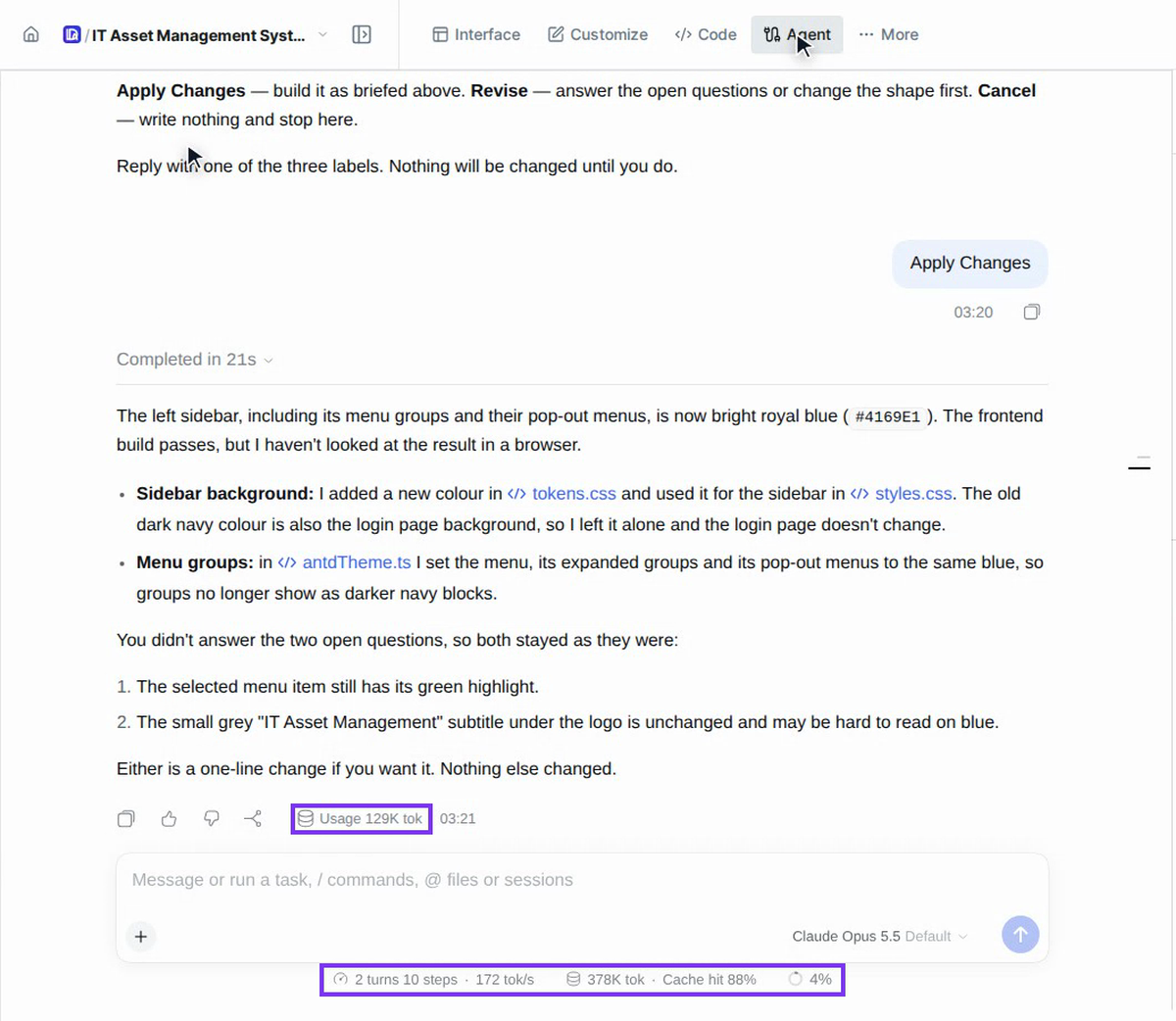
Each session also shows its own figures. Under each of the agent's answers, Usage shows the tokens that answer used. Under the message box, a line shows the session's turns and steps, its speed (tokens per second), the tokens it has used and its Cache hit rate.
Screenshots
Step 1: Open Settings and choose Usage
Step 2: Read the totals
Step 3: See which sessions used the most
Step 4: Check the session you have open
Watch how
Tip: In a long conversation the agent reads more input on every turn. For a new task, start a new session with + next to the session tabs.