Use the terminal
Run commands in your system's workspace from the Agent Module, next to the agent and your files.
Before you start
- Open your system and select Agent in the top bar. See Open and set up the Agent Module.
- The terminal runs on your system's real workspace. Commands that delete or change files take effect straight away, so be careful.
Steps
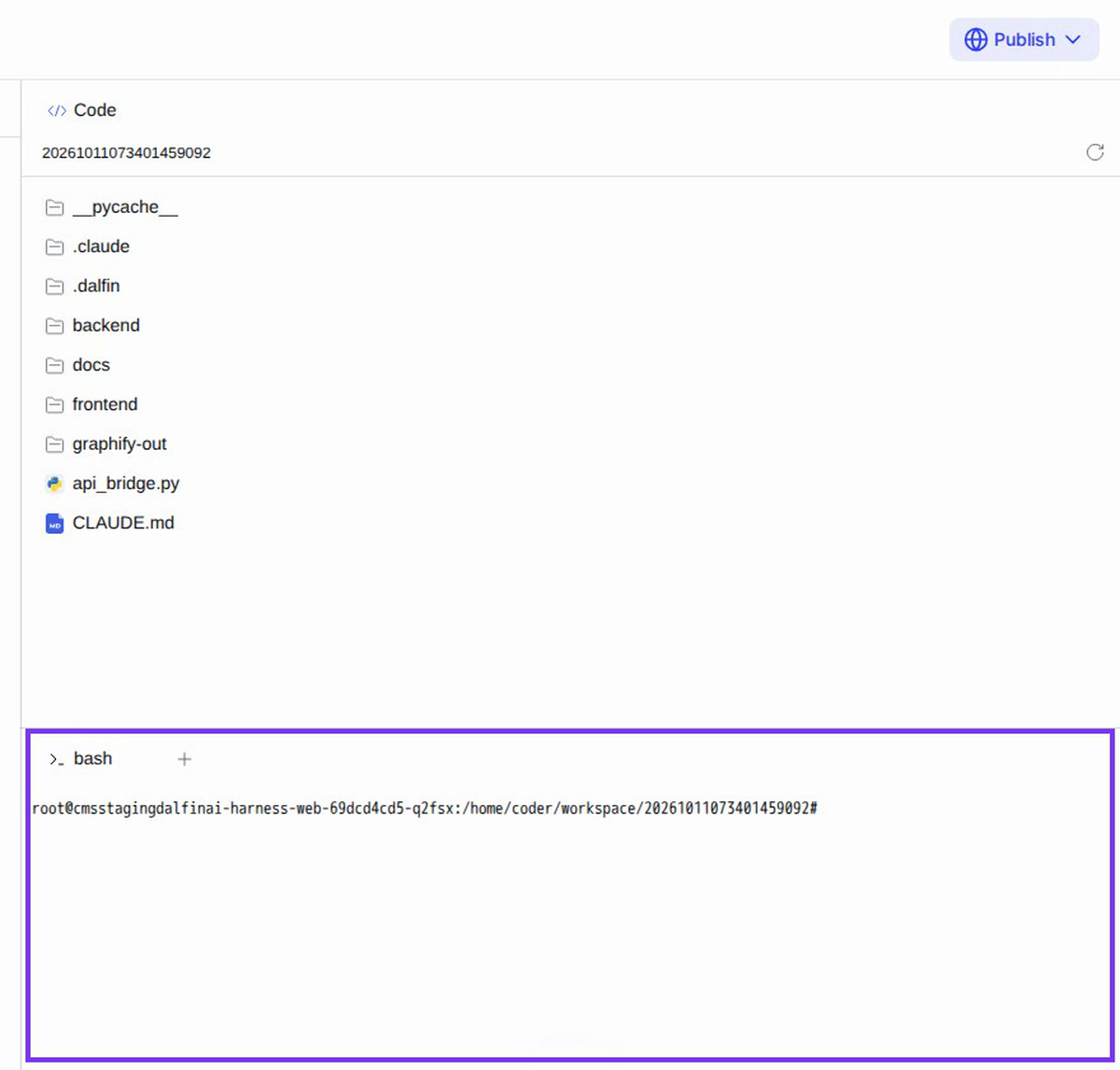
Find the terminal
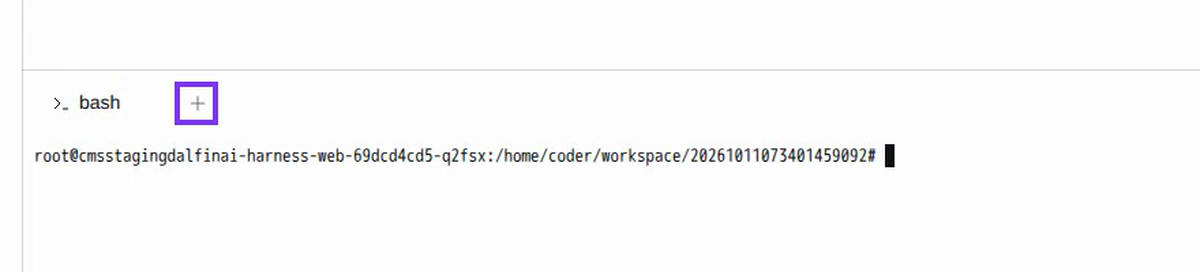
The terminal is below the Code panel, on the right of the Agent workspace. Its tab is called bash. It opens in your system's folder, ready for a command.
Run a command
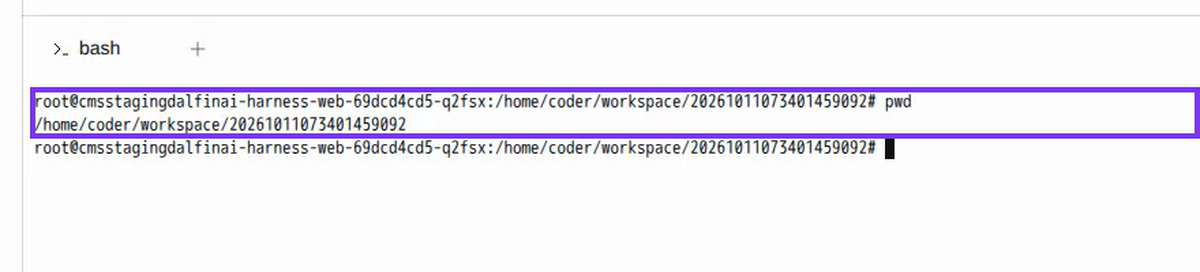
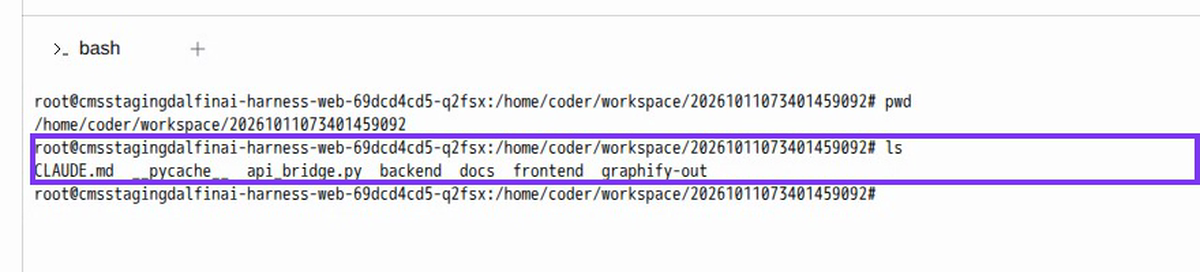
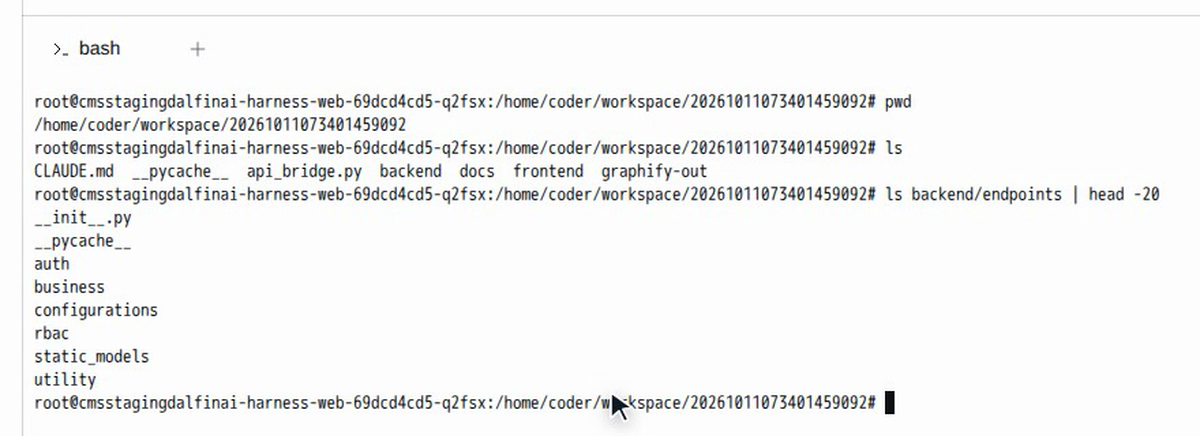
Click in the terminal, type a command and press Enter. The output appears right below it. For example:
| Command | What it does |
|---|---|
pwd | Shows which folder you are in (your system's workspace) |
ls | Lists the files and folders there: backend, frontend, docs, CLAUDE.md and so on |
ls backend/endpoints | Looks inside a folder, here the backend's endpoints |
clear | Clears the screen |
Use the terminal to check files, run scripts or look at logs while you work with the agent.
Open another terminal
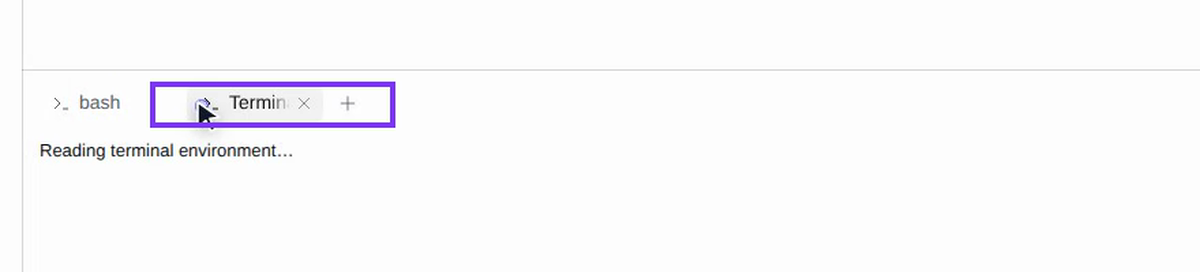
Select + next to the terminal tabs to open another terminal in a new tab, for example to keep one command running while you use another.
Close a tab
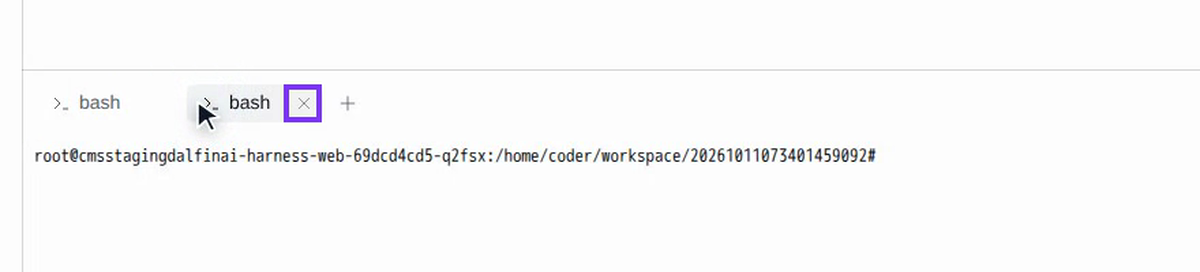
Select × on a tab to close it when you are done.
Screenshots
Step 1: Find the terminal
Step 2: Run a command
Step 3: Open another terminal
Step 4: Close a tab
Watch how
The terminal has full access to your system's files. Don't delete or edit files there unless you know what they do. To change your system safely, ask the agent and check its plan first.