Explore files and change logs
Browse every file of your system in the Agent workspace, and see exactly what the agent changed in each session.
Before you start
- Open your system and select Agent in the top bar. See Open and set up the Agent Module.
- To see a change log, you need at least one session in which the agent has done some work. See Ask the agent to change your system.
Steps
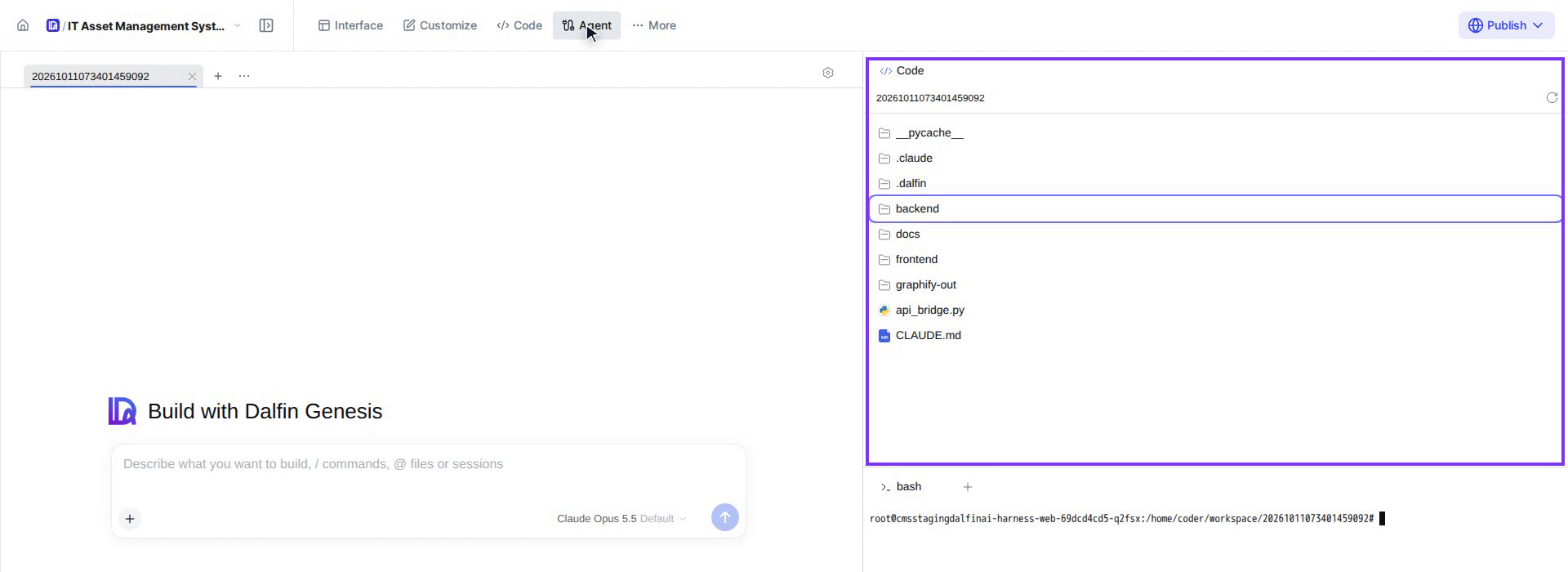
Find the Code panel
On the right of the Agent workspace, Code lists every file and folder of your system. The terminal sits below it.
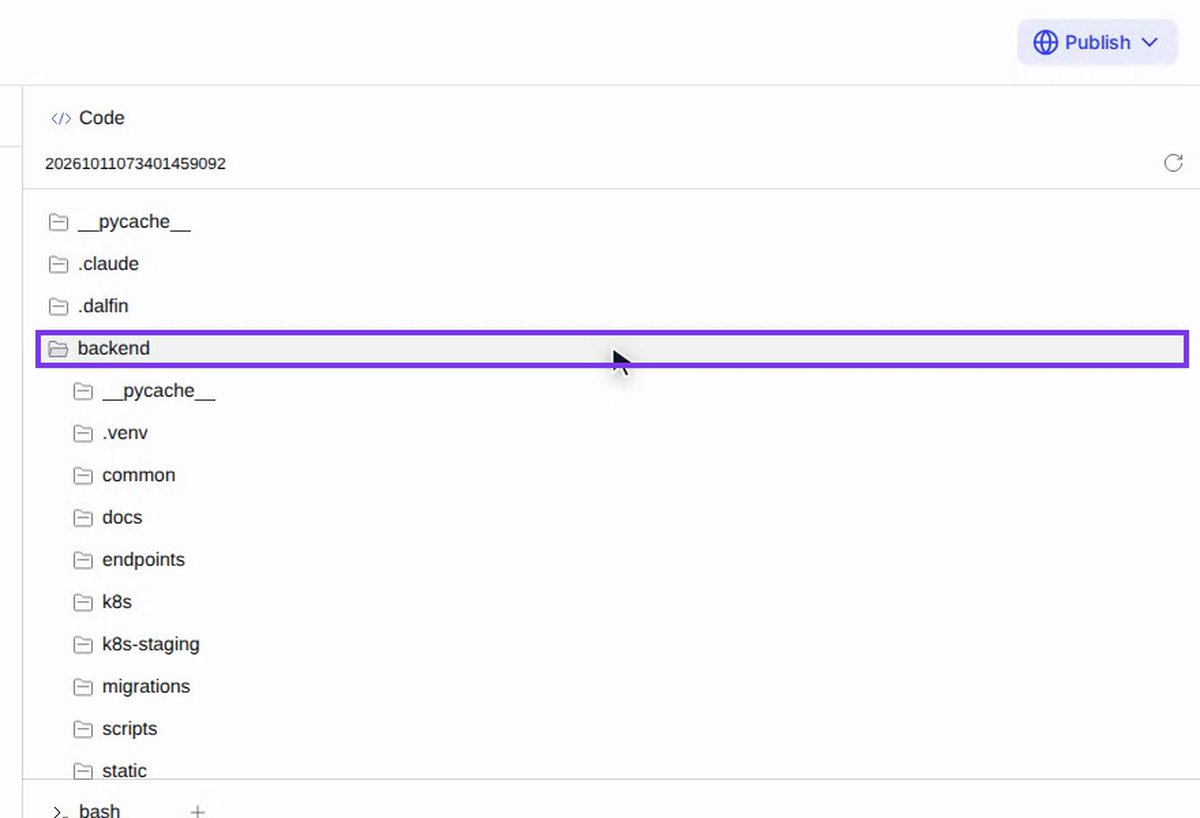
Open a folder
Select a folder to see what is inside. backend holds the services and the database; frontend holds the screens. Select it again to close it.
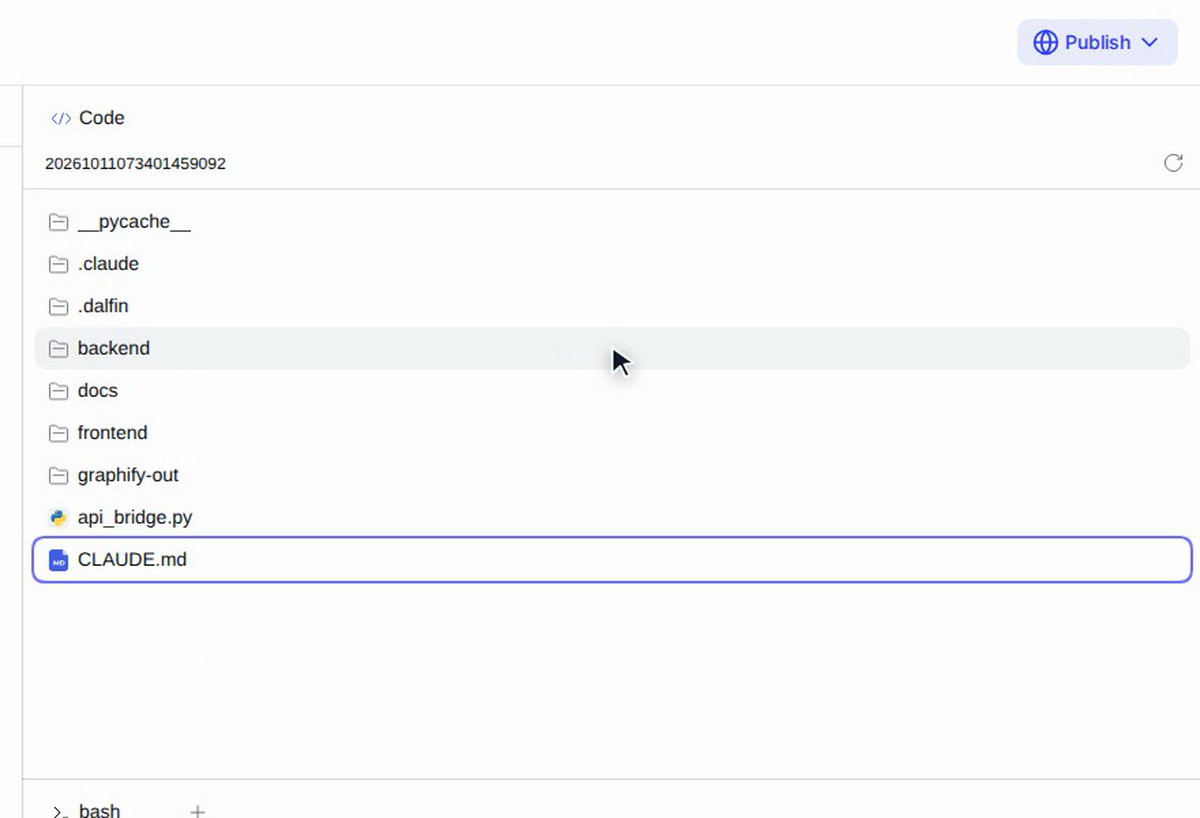
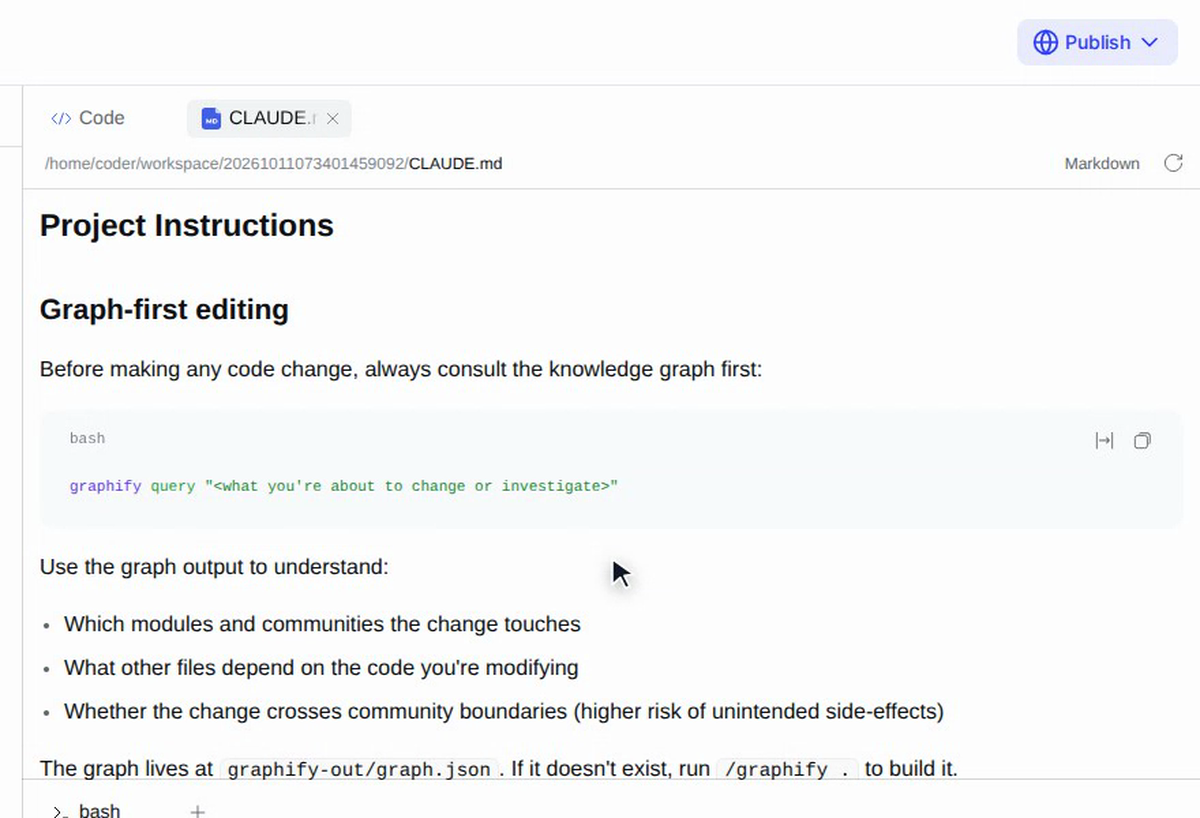
Read a file
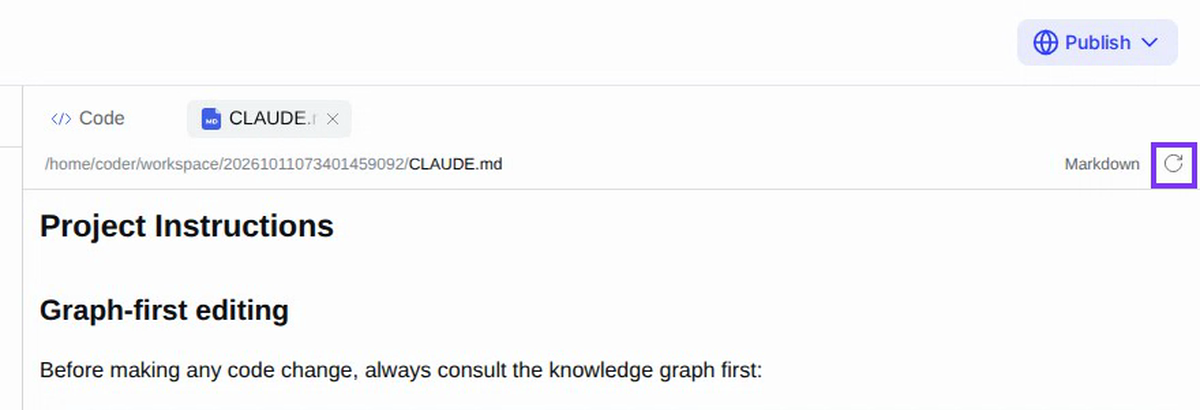
Select a file to open it in a tab next to Code. The tab shows the file's full path and its type (for example Markdown). CLAUDE.md holds the rules the agent follows when it works on your system.
Reload the file list
After the agent has changed files, select the reload button at the top right of the panel to refresh the list.
Open a session
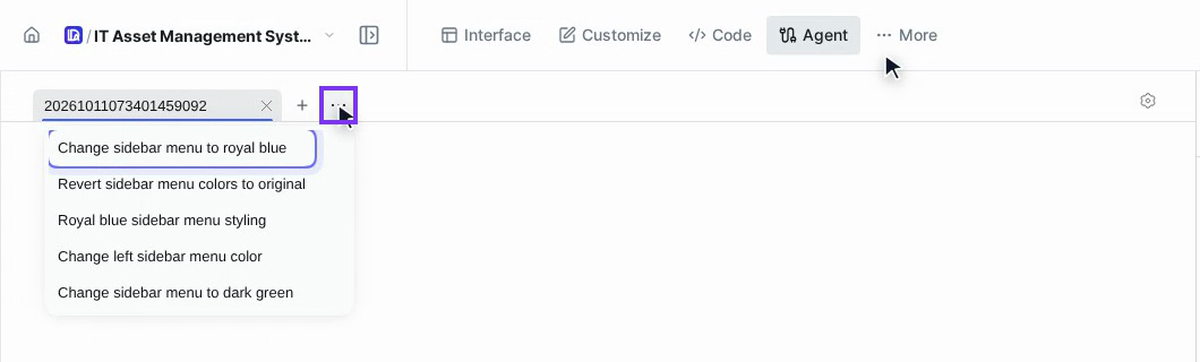
Every change the agent makes is logged in the session where it made it. Select ⋯ (More sessions) next to the session tabs and choose a session from the list. It opens in its own tab.
See what changed
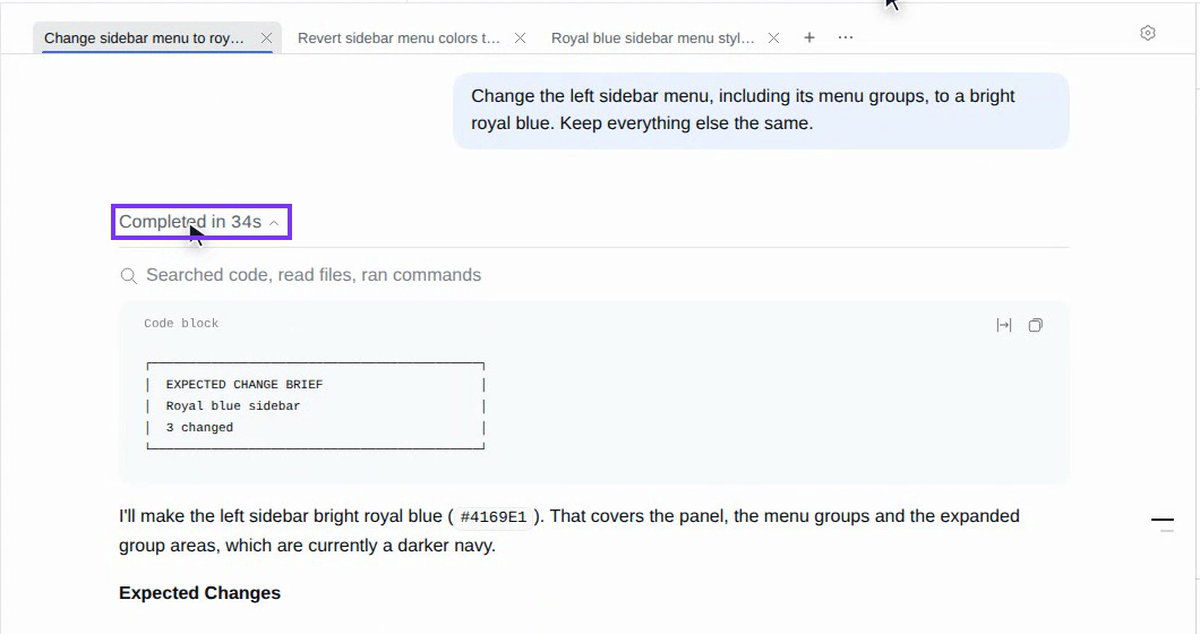
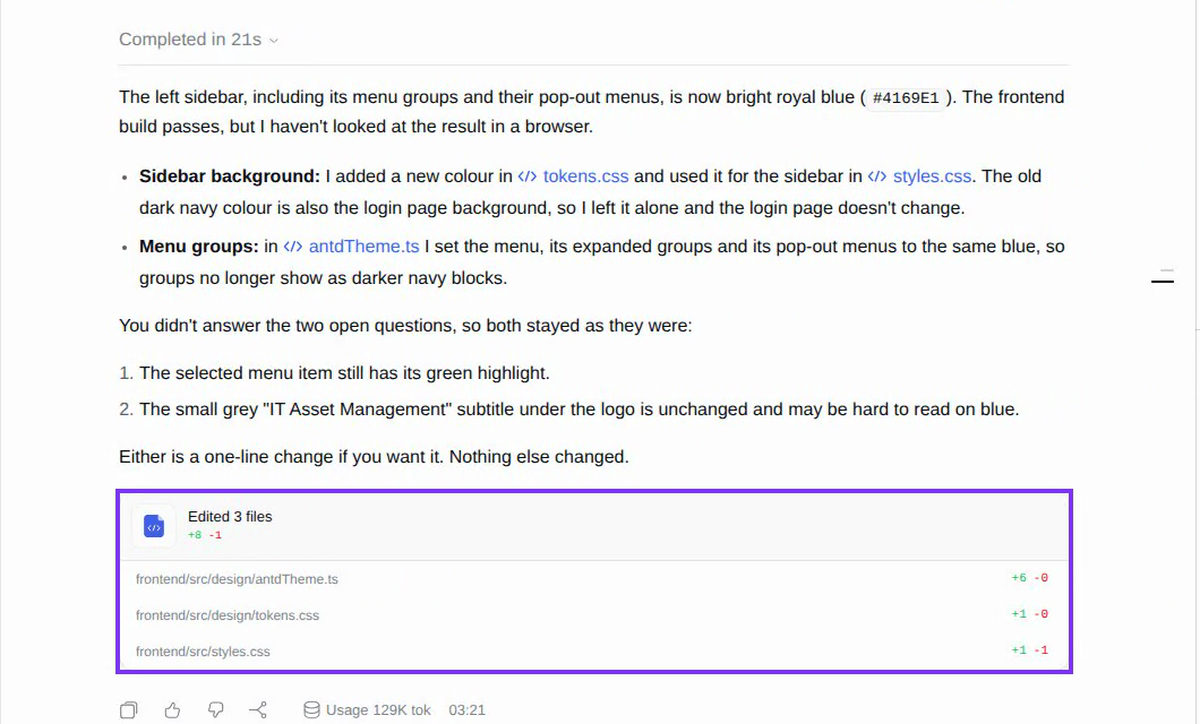
Under any of the agent's answers, select Completed in … to open its step log: the files it read, the commands it ran and each change it made, in order. When the agent edited files, a card such as Edited 3 files lists each file with the lines added and removed.
Screenshots
Step 1: Find the Code panel
Step 2: Open a folder
Step 3: Read a file
Step 4: Reload the file list
Step 5: Open a session
Step 6: See what changed
Watch how
Tip: Select a file name in the agent's answer (such as tokens.css) to open that file.